
Home / Forums / WoodMart support forum / Custom Layouts for WooCommerce pages like Shop, Category
Home › Forums › WoodMart support forum › Custom Layouts for WooCommerce pages like Shop, Category
Custom Layouts for WooCommerce pages like Shop, Category
- This topic has 7 replies, 2 voices, and was last updated 1 day, 13 hours ago by
 Artem Temos.
-
AuthorPosts
-
January 7, 2026 at 12:30 pm #703447
yaojunjie0710ParticipantHello, my friends
We need more supportant and help on the page builder.
Could you please arrange a much more professional and more patient service person ?We do not have a strong and in time help on the Custom Layouts for WooCommerce pages like Shop, Category at all.
Especially, we supply our our website admin information. keywords. login information.
We want to your person can read our question clearly first and much more patient to help us to resolve our difficult when make the website.Attachments:
You must be logged in to view attached files.January 8, 2026 at 11:49 am #703594
Artem TemosKeymasterHello,
Please send us your admin access so I can check your current configuration and provide instructions on how to apply the desired settings properly.
Kind Regards
January 8, 2026 at 12:47 pm #703607
yaojunjie0710ParticipantHello, Artem
January 8, 2026 at 1:23 pm #703614
Artem TemosKeymasterHello,
I will start with the 3rd point on how to display shop page text and category description on your shop archives. To do this perform the following steps:
1. Edit your shop page layout with Elementor in Dashboard -> WoodMart -> Layouts.
2. Add a dedicated element called “Archive description” and remove your custom text
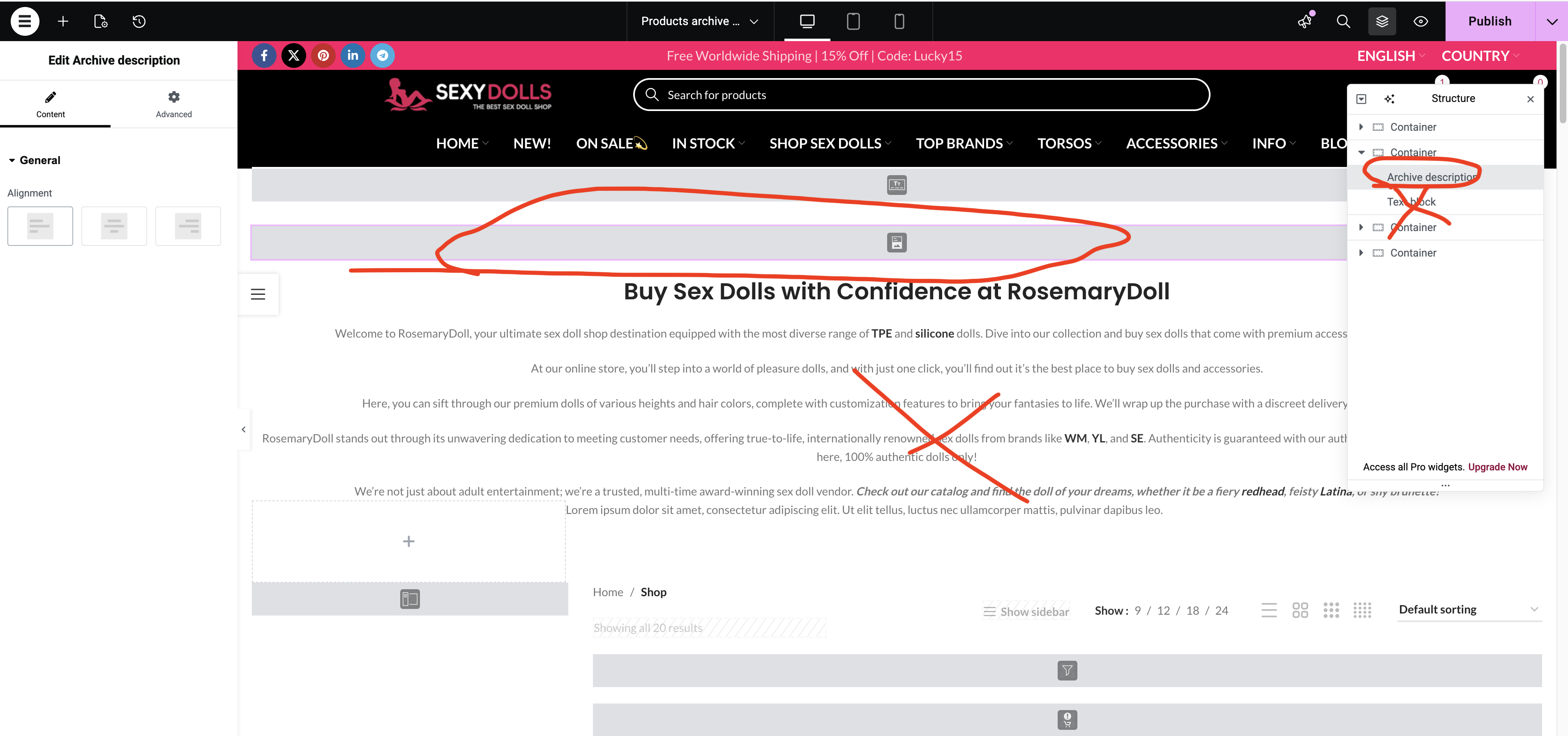
3. To add a text for the shop page only, open your shop page in Dashboard -> Pages -> edit the shop page and add your content as shown on the screenshot
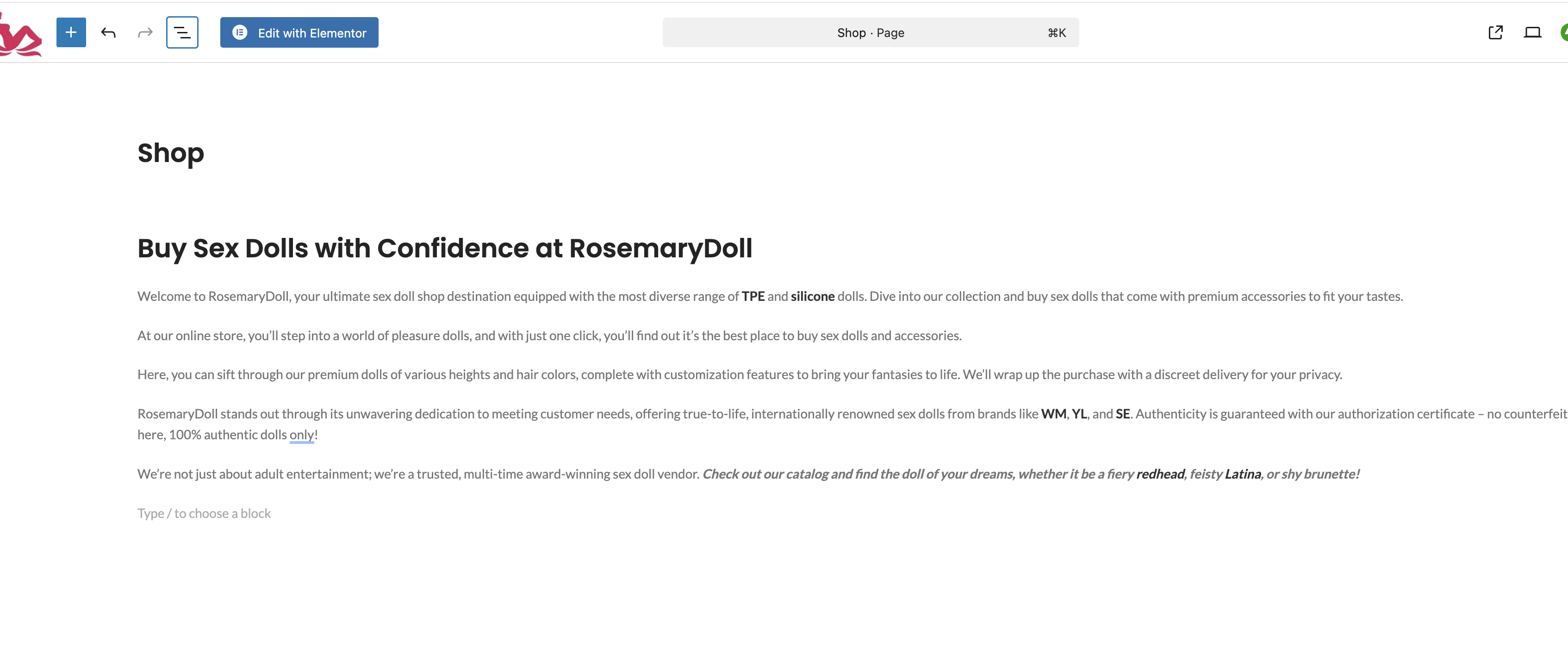
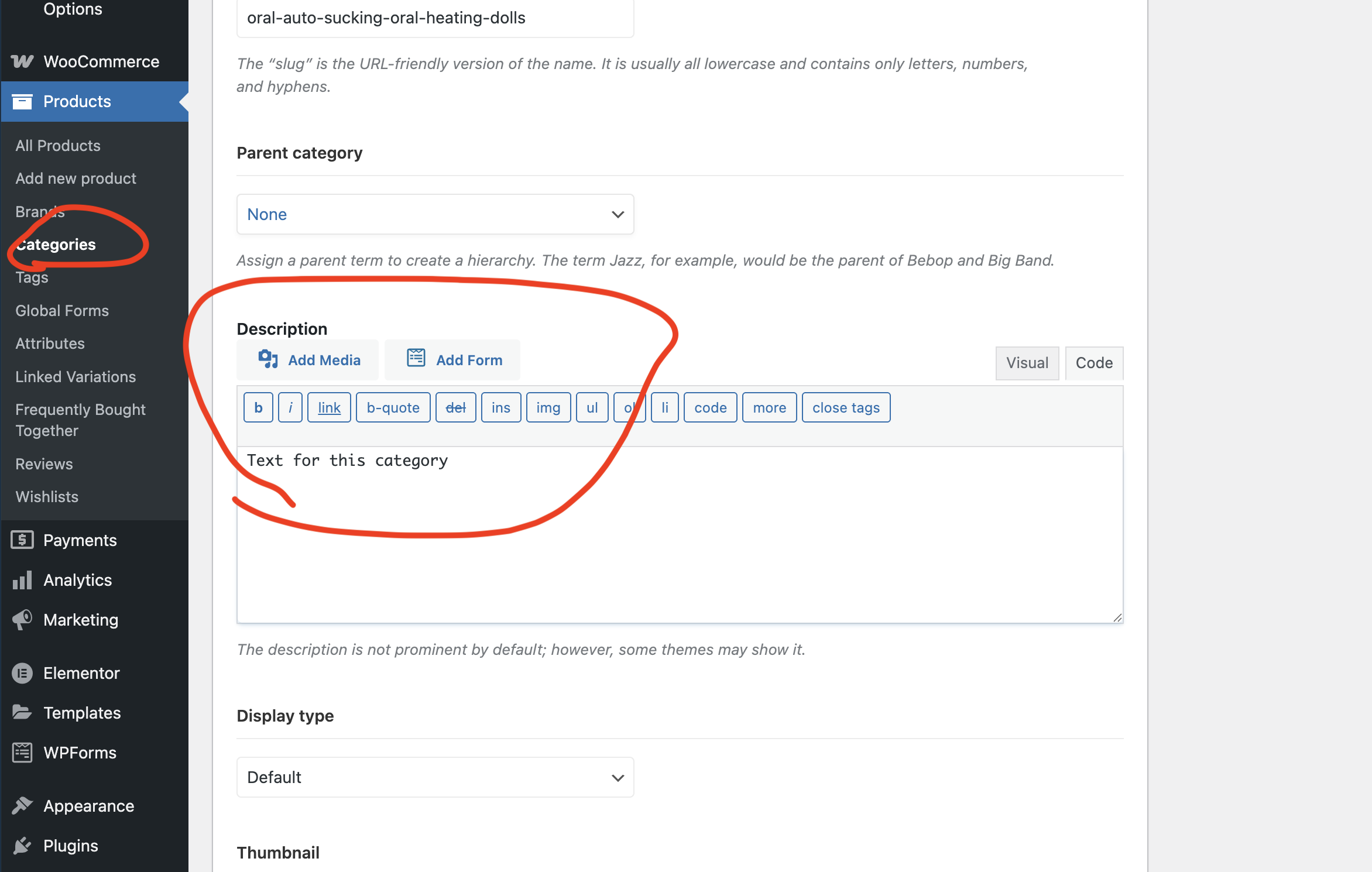
4. It will be shown on the shop page only. To display different text on category pages, you need to add them to category description field as per the screenshot
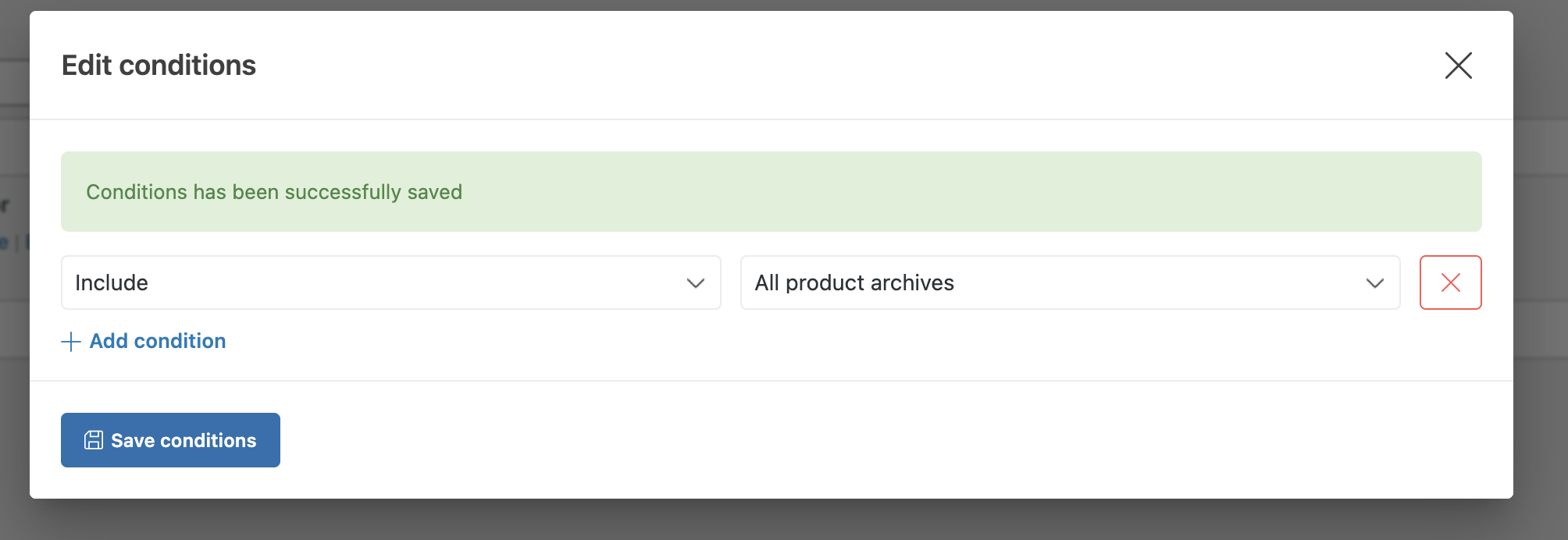
5. After doing that, you need to make sure that your custom layout is applied to all shop page layouts as on the screenshot
Now, about the typography settings. You can apply any font settings (size, color, font family and others) via Theme Settings -> Typography -> Advanced. There, you can use custom selectors as shown on the screenshot:
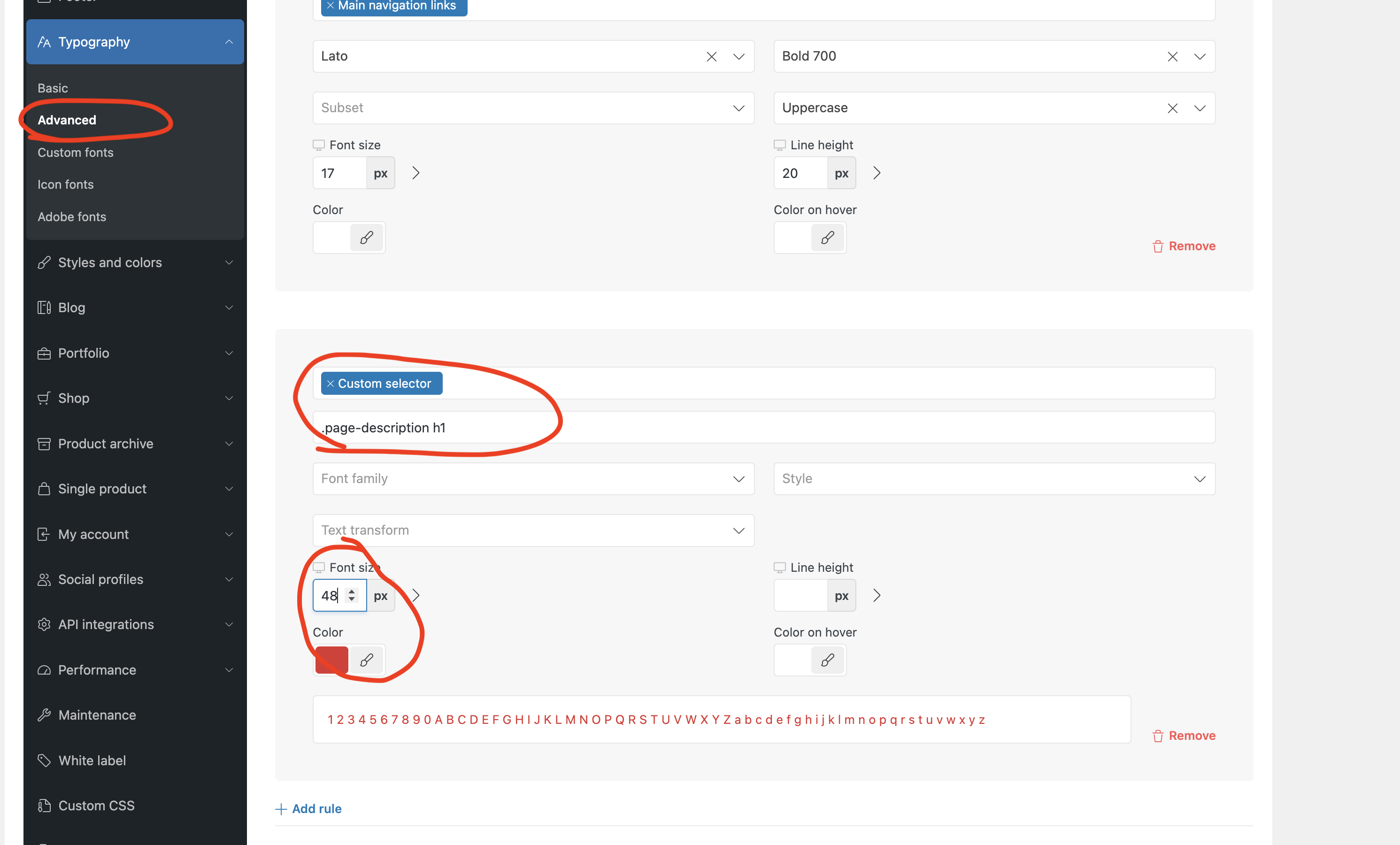
Selectors are:
For H1 tag:.page-description h1
For text:.page-description p
If you want to use other tags like H2, use the following.page-description h2`.Let me know if these instructions help and if there are any unsolved questions still left.
Kind Regards
January 8, 2026 at 3:21 pm #703644
yaojunjie0710ParticipantHello, Artem
It is REALLY Appreciated for your help.
1. I have add the Archive Description remove the the custom contents.
2. When i come back the Shop page and make edit the shop page by the Element.
It show these words: sorry , the content area was not found in your page.
Enclosed the attached file for the photos.Attachments:
You must be logged in to view attached files.January 8, 2026 at 3:24 pm #703647
Artem TemosKeymasterHello,
You don’t need to use Elementor there (it will not work). Use Gutenberg core blocks as I showed in the screenshots.
Kind Regards
January 8, 2026 at 3:31 pm #703655
yaojunjie0710ParticipantHello, Artem
Attachments:
You must be logged in to view attached files.January 9, 2026 at 11:59 am #703762
Artem TemosKeymasterHello,
As I can see, you have already moved it to the right column https://gyazo.com/6a43d7f0a8cf84160ec824de3bf1a7ff
As for the Gutenberg blocks, you just need to edit the shop page in Dashboard -> Shop and use the Gutenberg interface. From there, you can click on the
plusicon at the top bar to see all the available blocks.Kind Regards
-
AuthorPosts

- You must be logged in to create new topics. Login / Register