
WordPress blog
How to add off-canvas product filters in WooCommerce with WoodMart

As a WooCommerce store grows, product filters become an important part of product discovery. Customers may need to narrow products by price, category, brand, size, color, stock status, or other attributes.
The challenge is making these options available without allowing the filter interface to take over the product archive, especially on smaller screens.
WoodMart provides several ways to organize product filters, including a traditional sidebar, a Filters area, and Off-canvas filters that remain hidden until the customer opens them.
In this guide, we’ll focus on how to set up Off-canvas filters in WoodMart, including the standard product archive and custom Product Archive Builder approaches. We’ll also compare WoodMart’s archive controls with the filtering options available in WooCommerce.
What are off-canvas product filters?
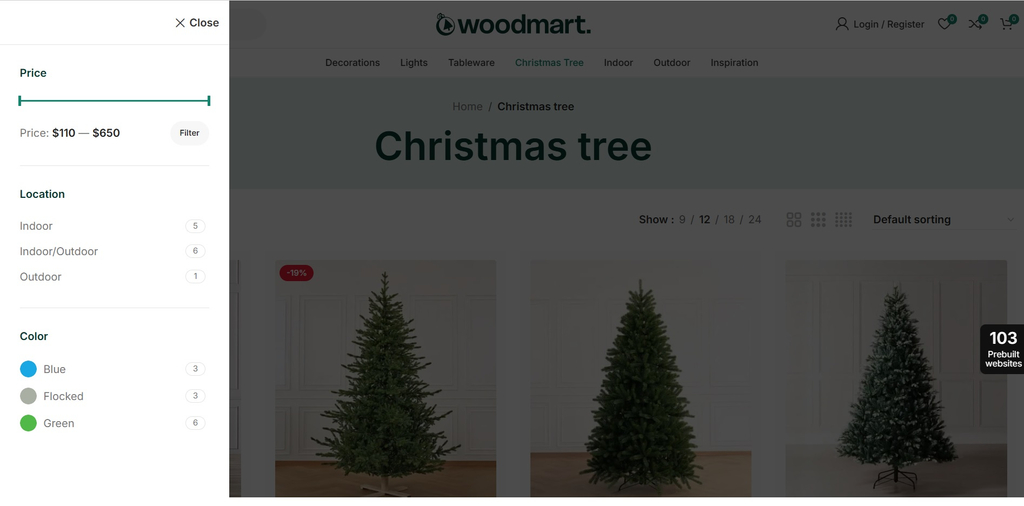
An Off-canvas filter keeps the product filters outside the normal product-grid layout until the customer opens them with a filter button.
The basic experience looks like this:
Product Grid → Filter Button → Off-canvas Filter Panel
The customer opens the panel, selects the required filters, and continues browsing the filtered products.
This approach is useful when you want to provide several filtering options without permanently taking space away from the product grid.
WoodMart supports Off-canvas sidebars for product archives and provides a dedicated setup for custom product archive layouts.
Choose the right filter layout
WoodMart supports several ways to present product filters:
- A traditional shop sidebar.
- An Off-canvas sidebar.
- A Filters area above the product grid.
- A Product filters form.
- A custom product archive created with the Product Archive Builder.
The right choice depends on your catalog and archive design. A visible sidebar may be suitable for a small number of filters, while an Off-canvas layout can work well when you want to keep the product grid as the main focus.
The following setup options show how to configure these layouts in WoodMart.
How to set up off-canvas filters in WoodMart
WoodMart provides two main approaches:
- Use the standard product archive sidebar.
- Build a custom archive layout with the Product Archive Builder.
The first approach is simpler if you’re using the standard WoodMart archive. The second gives you more control over the position of the filter area, button, and product archive.
Option 1: Use the standard product archive sidebar
If you’re using WoodMart’s standard product archive, you can place your product filters in the relevant widget area and control the sidebar behavior from the product archive settings.
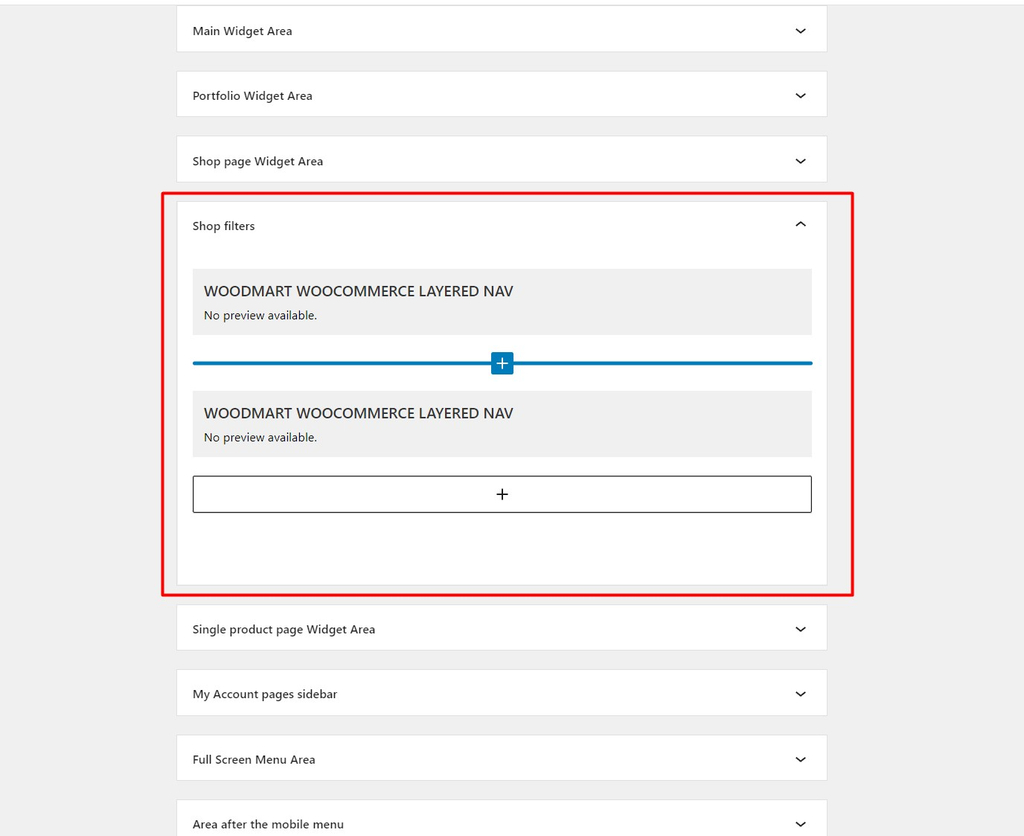
WoodMart provides specialized widgets for common filtering needs, including:
- Woodmart WooCommerce Layered Nav
- Woodmart Product Category Filter
- Woodmart Price filter
- Woodmart Stock status
These are available alongside standard WordPress and WooCommerce widgets.
Setup steps
- Go to Appearance → Widgets.
- Add the required filter widgets to the appropriate shop widget area.
- Go to Theme Settings → Product archive → Sidebar.
- Enable the Off canvas sidebar option for the required devices.
- Save the settings and test the archive on desktop, tablet, and mobile.
WoodMart’s archive sidebar settings allow the Off-canvas behavior to be configured for different screen sizes.
Option 2: Build a custom off-canvas filter layout
For more control over the archive structure, use WoodMart’s Product Archive Builder.
Product archive layouts can be created with Elementor, WPBakery, or Gutenberg, allowing you to customize shop pages, product categories, brands, tags, search results, and filtered product archives.
A typical layout contains:
Off-canvas filter sidebar | Product archive
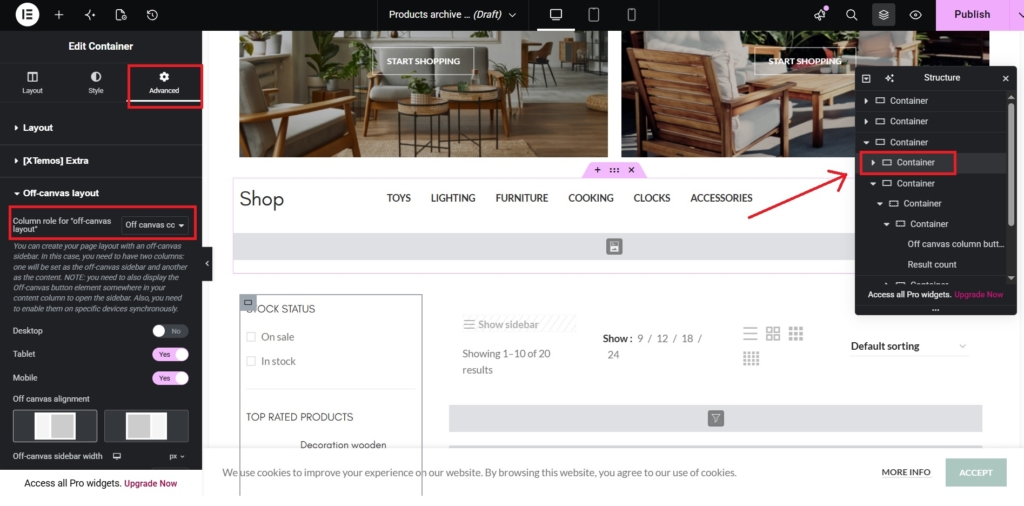
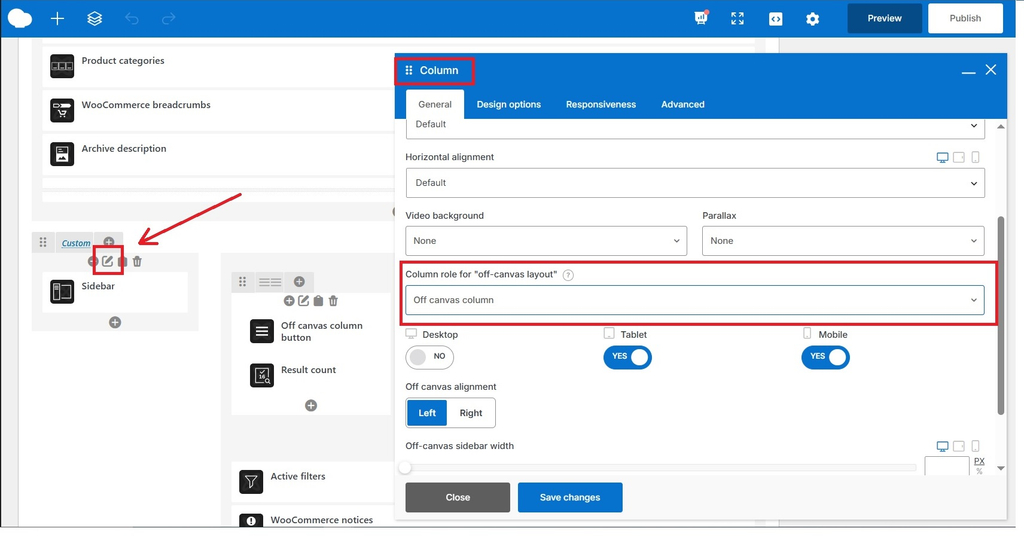
The filter container is assigned the Off-canvas column role, while the product area uses the Content column role. An Off-canvas button is then placed in the content area so customers can open the filters.
Elementor
- Edit or create the relevant Products archive layout.
- Add a parent container with separate containers for the filter sidebar and product archive.
- Set the filter container’s Column role to Off-canvas column (Container settings → Advanced → Off-canvas layout → Column role for “off-canvas layout”).
- Set the product container’s Column role to Content column (Container settings → Advanced → Off-canvas layout → Column role for “off-canvas layout”).
- Add the Off-canvas button to the content area.
- Enable the appropriate devices for both containers.
WPBakery
- Create a row with two columns.
- Place the Sidebar or filter widgets in one column and the Archive products element in the other.
- Set the filter column to Off-canvas column (Column settings → General → Column role for “off-canvas layout”).
- Set the product column to Content column (Column settings → General → Column role for “off-canvas layout”).
- Use matching device settings for both columns.
- Add the Off-canvas button inside the Content column.
Gutenberg
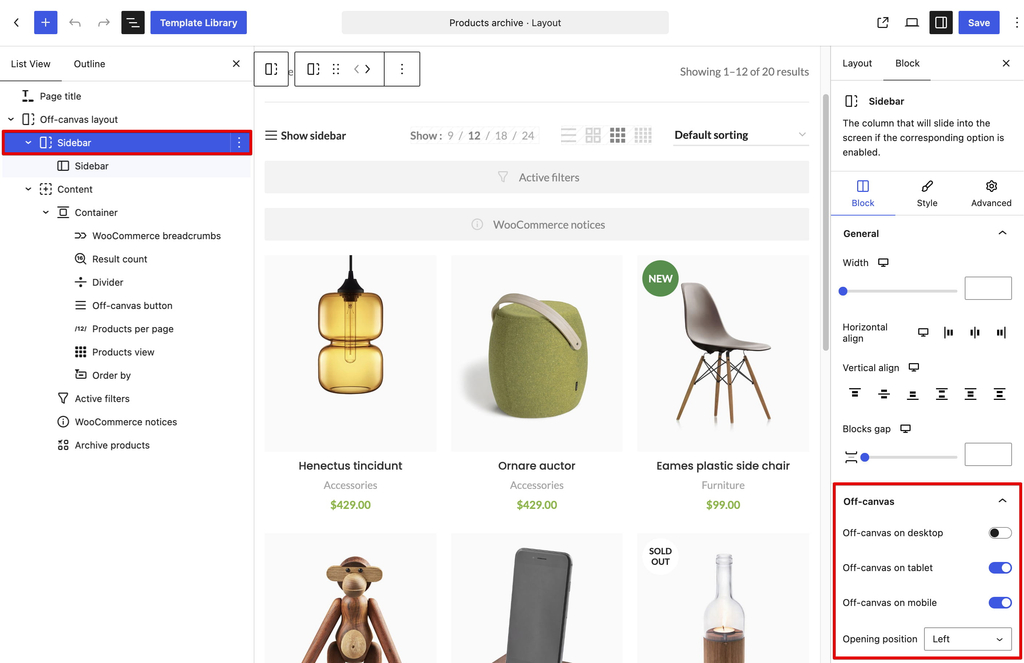
- Add WoodMart’s Off-canvas layout block.
- Configure the Sidebar block for the required devices.
- Add the Off-canvas button to the content area.
- Check the resulting archive on the supported screen sizes.
Check the responsive setup
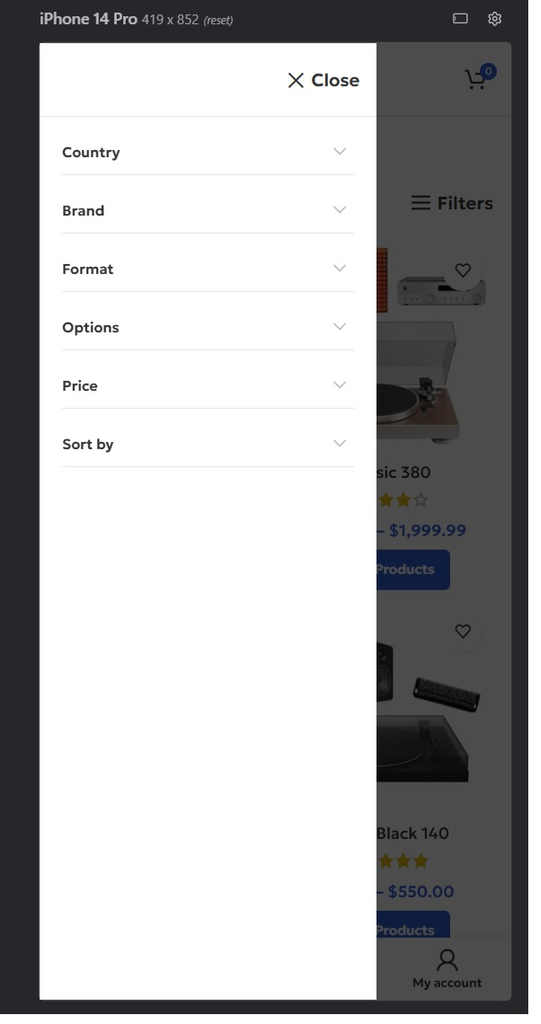
The Off-canvas sidebar and its opening button should use matching device settings.
After creating the layout, test:
- The filter sidebar is hidden where expected.
- The Filters button is visible.
- The button opens the correct panel.
- The product grid keeps its intended width.
- The layout works correctly on desktop, tablet, and mobile.
WoodMart specifically recommends checking the responsive setup after configuring an Off-canvas archive layout.
Keep product filters practical
Use filters that help customers make purchasing decisions rather than adding every available product property.
For example:
- Clothing: Category, size, color, brand, price.
- Furniture: Category, material, color, size, price.
- Electronics: Brand, price, screen size, storage, availability.
WoodMart’s Product filters element supports categories, global attributes, stock status, price, and sorting.
The best combination depends on the products in your catalog and how customers browse them.
Make the filters button easy to find
The Off-canvas layout depends on a clear entry point.
Place the Off-canvas button close to the product controls or product grid. A clear Filters label can make its purpose immediately obvious, particularly on mobile devices.
Use Ajax filtering when appropriate
Off-canvas controls determine where filters appear, while AJAX filtering determines how product results are updated.
WoodMart’s Product filters can work with the current archive using WoodMart AJAX filtering when AJAX shop is enabled.
The actual filtering performance will still depend on the store’s product catalog, hosting, caching, plugins, and filter complexity.
Consider the filters area
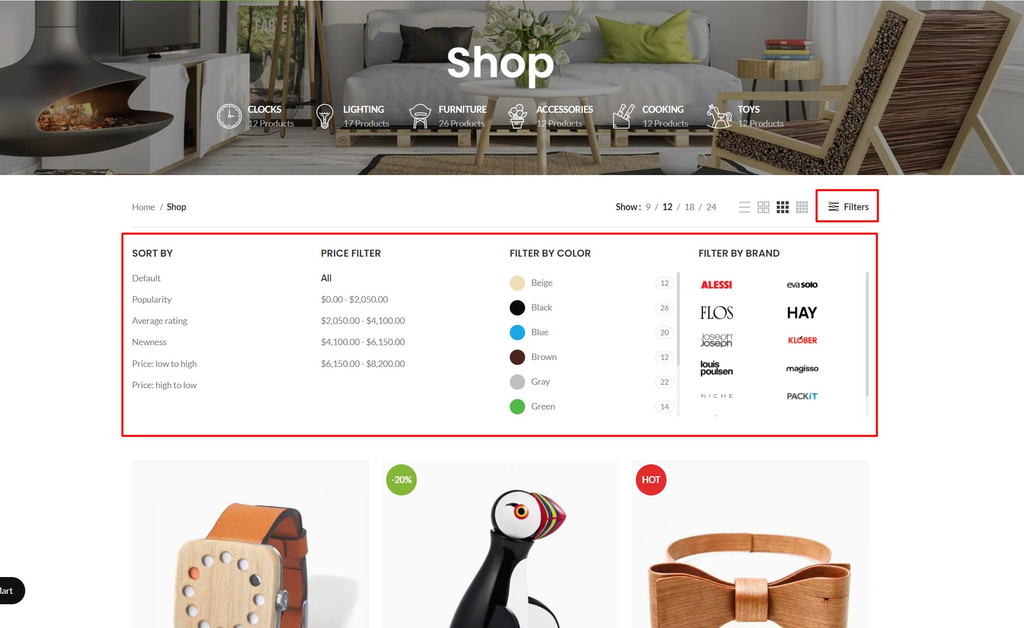
WoodMart also provides a Filters area, which displays product filters in a collapsible horizontal section above the product archive.
In a custom archive layout, add the Filters area and Filters area button where you want them to appear. The Filters area can use the Shop filters widget area or an HTML Block containing the Product filters element.
This is a useful alternative when you want filters to expand above the products rather than open from the side.
For detailed configuration, see the dedicated WoodMart Filters area documentation.
WooCommerce vs WoodMart: Where does each fit?
Modern WooCommerce already provides product filtering through its Product Filters functionality. Depending on the WooCommerce setup, customers can filter products using criteria such as price, attributes, availability, categories, brands, and other supported filters. WooCommerce also supports AJAX updates and mobile drawer-style filtering through its current filtering solutions.
Therefore, the main advantage of WoodMart is not simply having product filters.
It is the way filtering is integrated into the theme’s product archive system.
| Capability | Standard WooCommerce | WoodMart |
|---|---|---|
| Product filtering | Product Filters functionality | Product filters elements and widgets |
| Category, attribute and price filters | Available | Available |
| Mobile filter drawer | Available through supported filtering interfaces | Off-canvas archive sidebar |
| Horizontal Filters area | Depends on the chosen block/template setup | Dedicated Filters area |
| Custom archive integration | WooCommerce block/template approach | Product Archive Builder |
| Custom filter forms | Product Filters functionality | Product filters element |
| Archive layout control | Depends on the selected template/setup | Integrated with WoodMart archive layouts |
| Builder integration | Block-based approach | Elementor, WPBakery, and Gutenberg |
WoodMart’s Product Archive Builder includes archive controls such as Product filters, Sidebar, Filters area, and Filters area button, allowing these elements to be placed directly within a custom archive layout.
This makes WoodMart particularly useful when you want the filtering interface to be part of the same archive-building workflow as the product grid, archive title, sorting controls, result count, and other catalog elements.
A dedicated filtering plugin can still make sense when a store needs specialized filtering logic or functionality beyond the tools available in WooCommerce and WoodMart.
A practical WoodMart filter setup
For many stores, a simple starting point is:
- Use the standard archive sidebar if you want a straightforward setup.
- Use an Off-canvas layout when you want filters hidden until needed.
- Use the Product Archive Builder when you need precise control over the archive layout.
- Include only the filters customers are likely to use.
- Test the completed archive with real products and filter combinations.
Check the result on desktop, tablet, and mobile before publishing.
Final testing checklist
Before publishing your product archive, test it as a customer would:
- Can I immediately find the Filters button?
- Does the Off-canvas panel open correctly?
- Are the most useful filters easy to find?
- Can I identify the filters I have selected?
- Do the product results update as expected?
- Does the layout work correctly on mobile?
- Does the panel close correctly?
- Are there unnecessary filters that could be removed?
A good filtering setup should make it easier for customers to narrow the catalog without making the product archive harder to use.
Conclusion
Off-canvas filters provide a practical way to keep product archives clean while keeping useful filtering controls accessible.
WooCommerce already offers modern product filtering capabilities. WoodMart’s advantage is its integration with the product archive system, giving store owners multiple ways to build and position Product filters, Off-canvas sidebars, and the Filters area using the standard archive settings or Product Archive Builder.
If you’re using WoodMart, start with its built-in archive and filtering tools and choose the layout that best fits your catalog and customers.
