
WordPress blog
MCP for WooCommerce: what an AI agent can actually change

Much of the work involved in running a WooCommerce store is not difficult. It is simply time-consuming. Build a landing page for a sale. Drop the price on forty products, then put it back a week later. Pull last month’s numbers into something a human can read. Swap a logo in five saved headers.
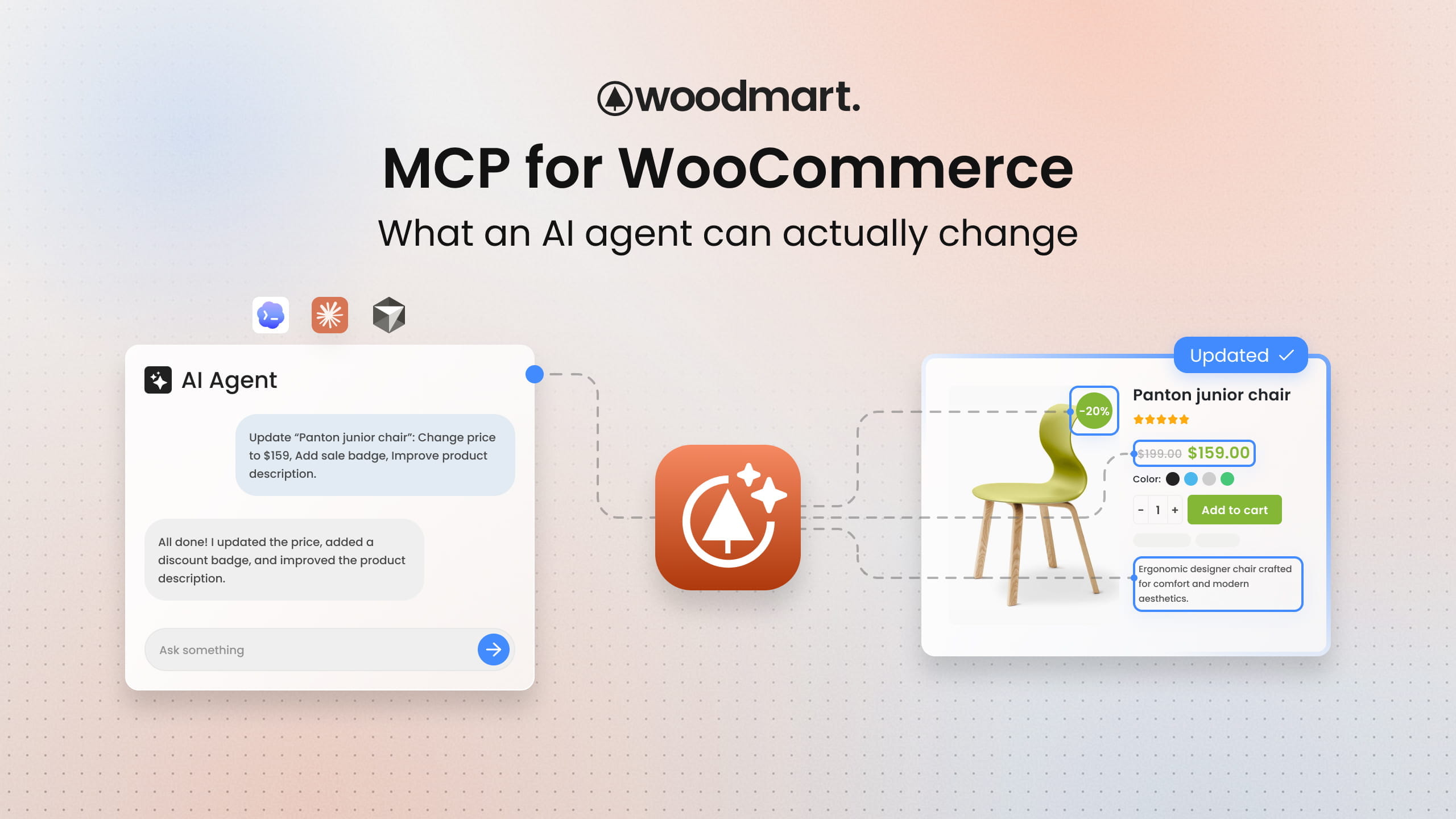
WoodMart adds a different way to do all of that: Model Context Protocol (MCP) support. Connect an AI agent to your WooCommerce store once, and it works inside the site with your permissions, through tools the theme deliberately exposes.
This is not the same as asking a chatbot how to change your store. A chatbot can only tell you where to click. With MCP, the agent reads your actual setup: your pages, your products, your theme settings. It carries out the change itself, using your own WordPress account and nothing beyond the permissions it has.
What MCP actually is
MCP is an open standard for connecting AI agents to real systems. Instead of the agent guessing at your site or scraping admin screens, your site publishes a list of tools it is willing to expose, and the agent calls them.
On a WoodMart site the chain looks like this: WoodMart MCP registers WordPress abilities (search content, read a block tree, update a theme setting, create a layout), the MCP Adapter plugin exposes them over the site’s REST endpoint, and your agent authenticates with an application password tied to your admin account. The agent can do exactly what those abilities allow, and never more than the user behind the password can.
WooCommerce ships its own abilities too, and where they are available the agent uses both sets side by side.
What WooCommerce gives the agent, and what WoodMart adds
WooCommerce abilities cover the store data: query products and orders, update prices, stock and product copy, change order statuses, add order notes.
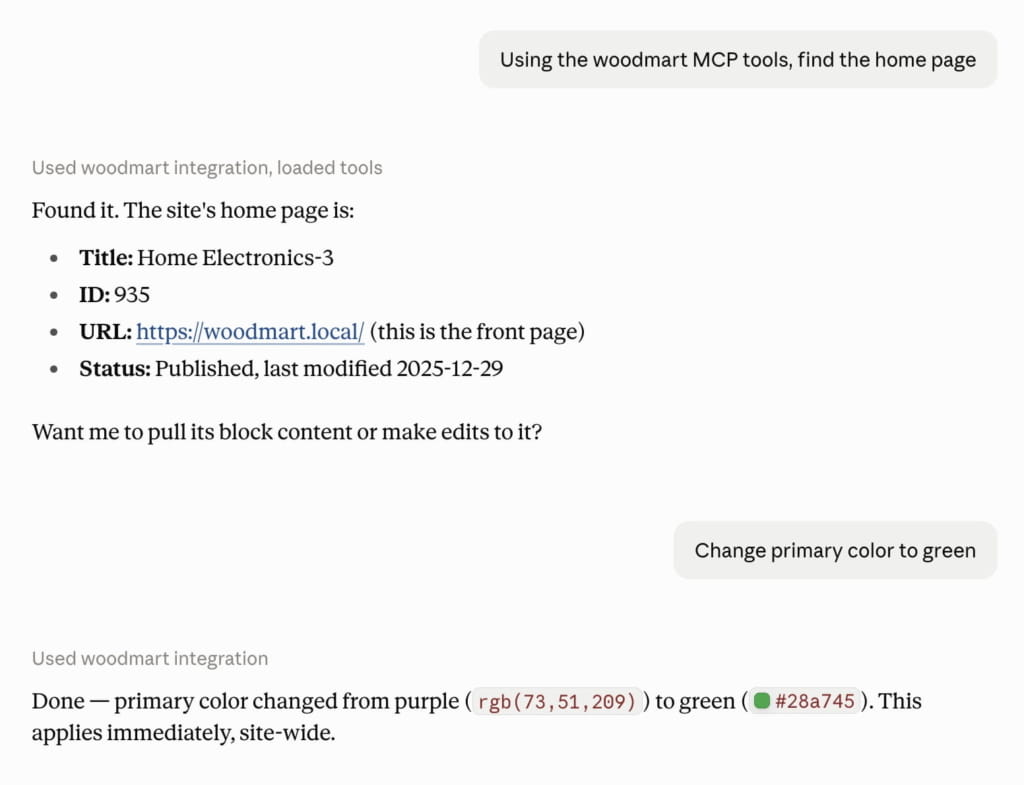
WoodMart abilities cover the storefront itself: read and edit the block tree of any page, pull ready sections from the demo template library, build and assign Layout Builder templates, search and write theme settings, replace the logo across every saved header.
Together the agent can change what you sell and how the store looks in the same conversation: a landing page assembled from real theme sections, the products on it discounted, and the header logo swapped, without leaving the chat.
WooCommerce exposes the canonical store operations. WoodMart exposes the storefront, and the storefront is where most of the manual work actually lives.
Connecting takes about five minutes
Setup lives in the WoodMart dashboard. Install the WoodMart MCP plugin, open WoodMart → Tools → MCP, and follow the steps on that screen: it installs the dependencies, generates a ready-to-paste config for your agent together with an application password, and hands you the skill file that teaches the agent to use these tools properly. Each step is covered in detail in the documentation. The plugin is free and installs from WoodMart’s own Plugins screen, alongside the rest of the theme’s plugins.
Six things worth asking it to do
Build a whole page from a structure you describe
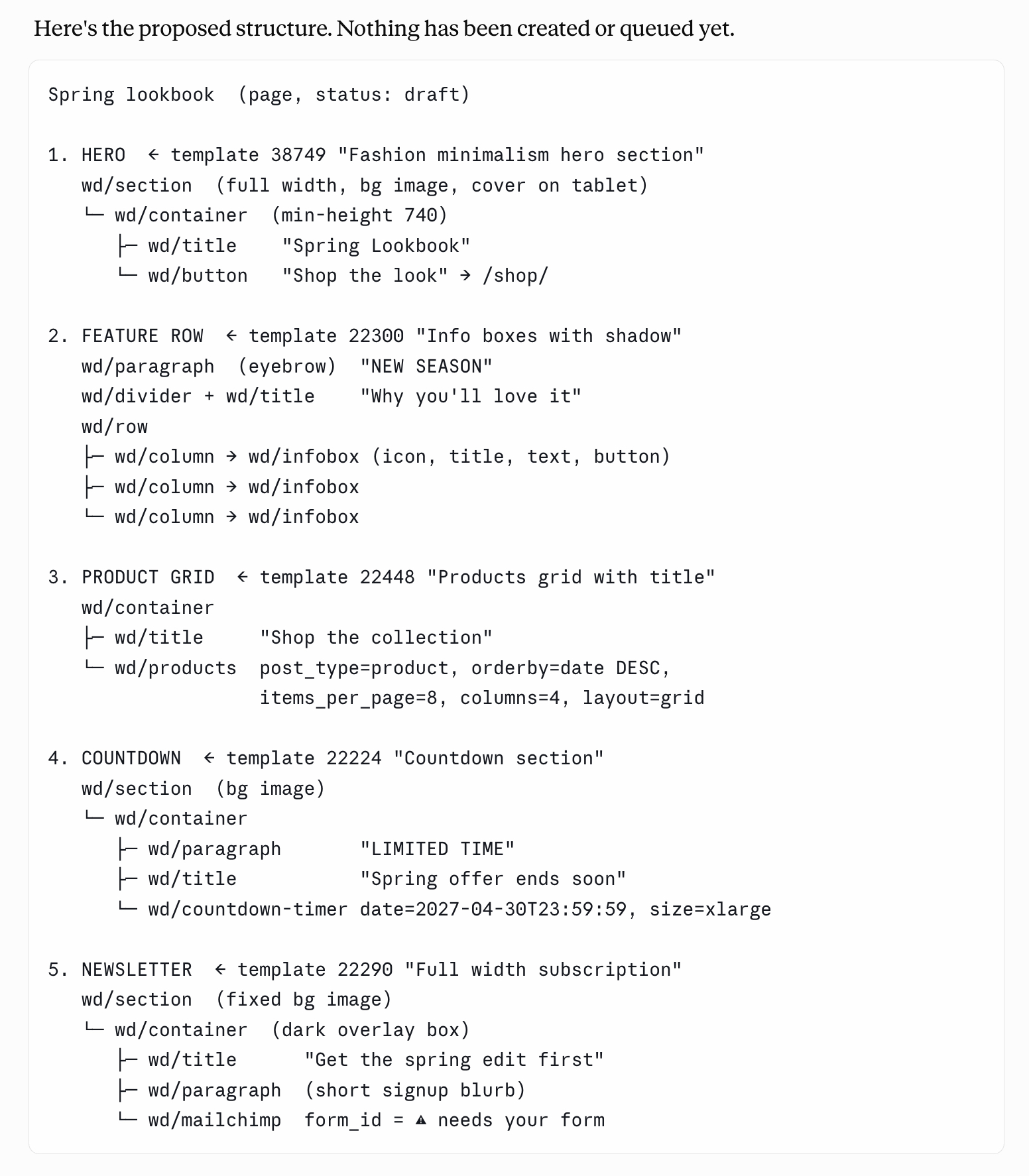
Prompt: Create a new draft page called “Spring lookbook” with this structure: a full-width hero with a heading and one button, a three-column feature row, a product grid of eight items, a countdown ending 30 April, and a newsletter section at the bottom. Use WoodMart blocks throughout and pull ready sections from the template library wherever one fits. Show me the block structure before you queue anything, and leave the page as a draft.
The agent creates the page, looks up which WoodMart blocks exist and what each one accepts, searches the demo library for sections that match your structure, and queues the result. You review the queued changes in WoodMart → Tools → AI Block Queue, where WoodMart builds the final Gutenberg markup and applies it to the page. The demo images those sections reference are pulled into your media library at the same time, with no manual downloading.
What you get is a real WoodMart page built from real WoodMart blocks, sitting in draft, ready to refine in Gutenberg. Publishing is a separate step the agent asks you to confirm. Assembling the same page by hand takes an afternoon: choosing sections, inserting blocks, importing demo images one at a time.
Fix the same wording across the whole catalogue
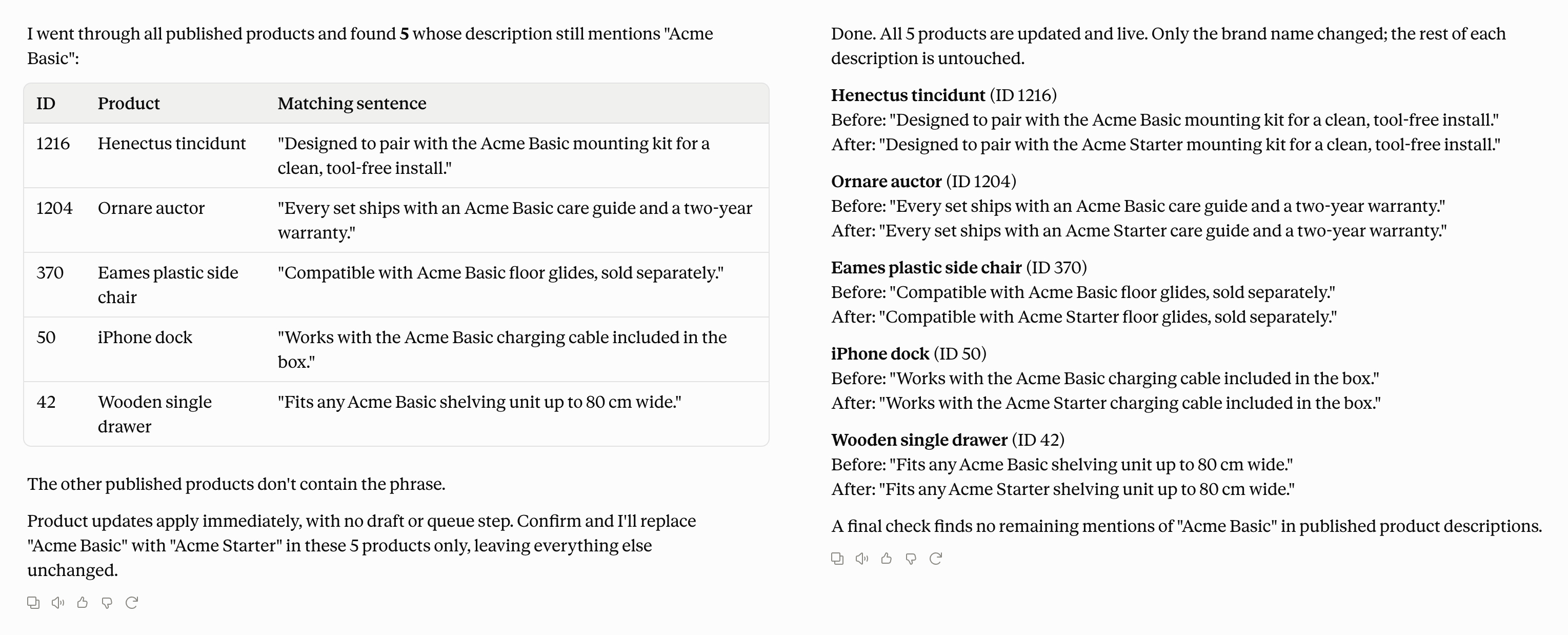
Prompt: Go through every published product and find each one whose description still says “Acme Basic”. List them for me with the exact sentence that matches, and wait. After I confirm, replace those mentions with “Acme Starter”, leave the rest of the copy untouched, and give me a product-by-product before-and-after list at the end.
The agent pages through the catalogue, reads each product’s copy and comes back with the matches. On a large catalogue this is a sweep rather than a single query, which is precisely why nobody does it by hand: a rename that touches two hundred products is most of a working day, opened and saved one product at a time.
Product updates apply immediately, with no queue and no draft step, which is exactly why the prompt asks for the list first. Approve the list, and the rewrite is one message.
Put products on sale and take them off again
Prompt: Find every product with “Hoodie” in the name and list them with their current regular price, flagging any that already have a sale price so nothing gets overwritten silently. Then set a sale price 20% below regular for each one. Show me the list before you change anything.
Product queries filter by search text, SKU, status, stock status and product type, with pagination, so the practical pattern is: have the agent list the matches, approve the list, then let it write. Unlike block changes, product updates apply immediately, so that review step is yours to insist on.
A week later, “remove the sale price from every product you discounted on Monday” clears them again with the same tool and an empty value. It is easier than clicking through dozens or hundreds of products one by one, and it gives you far more flexibility and feedback than doing the same thing through bulk edit.
Get a report on last month
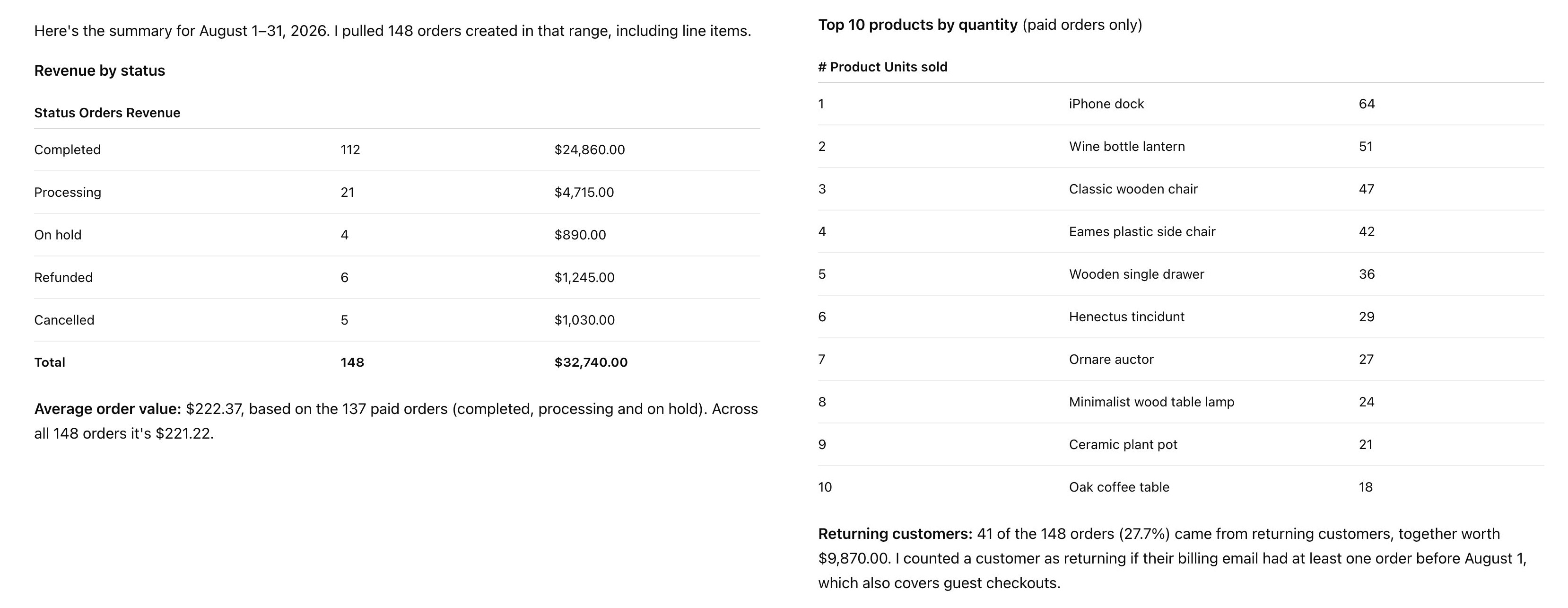
Prompt: Pull all orders created between 1 and 31 August, including line items. Give me total revenue by status, average order value, the ten best-selling products by quantity, and how many orders came from returning customers.
Order queries take a date range, a status filter, a customer or billing email, and can include line items. That is enough for the agent to aggregate the numbers and write the summary itself, in seconds, with no export and no heavier reporting plugin to set up. And because it all happens in a conversation, you can question any figure, ask for it a different way, or hold it against something else on the spot.
Follow-ups land in the same conversation: “Mark orders 1042 and 1043 as completed and add a note that the replacement shipped.”
Build a product page template and target it
Prompt: Create a new single-product layout called “Furniture product page”, build it from the predefined template that comes closest to a wide gallery with the summary on the right, and assign it to the Furniture product category only. Show me the conditions you plan to set before you save them.
Layouts are WoodMart’s template system: single product, products archive, cart, checkout, thank-you page, my account, blog and more, each with its own set of targeting conditions. The agent can list the types, create a layout from a predefined template or from blocks it authors, edit those blocks afterwards, and set the conditions that decide where the template applies.
This is the part a store plugin’s abilities cannot reach. WooCommerce exposes products and orders; the template your customer actually looks at belongs to the theme, and here it is one request away. Doing it by hand means the Layout Builder, a dozen elements and a conditions screen; here it is one request and one review.
Match the colours and fonts of a site you like
Prompt: Open https://example.com in the browser and look at the styles the browser actually applies, not the stylesheet source. I want the accent colour the site uses for links, active states and prices; the font used for headings, for product and post titles in a listing, and for body text, each with its weight and any uppercase styling, and whether it is a Google font or something self-hosted; and the main call-to-action button — background, hover background, text colour and border radius.
Then find the theme settings on my site that control those same things and show me a table: what you looked at on the source site, the value you read, which setting you would change and what you would set it to. Wait for my approval before you change anything. If a font is not on Google Fonts, skip it and tell me why.
The agent reads the page the way a browser renders it, then searches your theme settings for the ones that control the same things and comes back with a mapping before it writes anything. That review step earns its place here, because theme settings apply the moment they are saved. Fonts are where the exercise gets honest: a font name is easy to copy, a licensed font file is not, so anything outside Google Fonts is reported back to you. Reading those values off another site and finding their counterparts in Theme Settings by hand is twenty minutes of DevTools and guesswork.
More prompts to try
- “Replace the logo in every header with the image I just uploaded (attachment 4821).”
- “List every published product that is out of stock.”
- “Rename the ‘Delivery’ page to ‘Shipping and returns’ but keep the current URL.”
- “Show me the block structure of the ‘Contact us’ page before I start editing it.”
Recommended practices
MCP hands a real tool to something that occasionally gets things wrong. A few habits keep the process predictable:
- Start on staging. Get a feel for how the agent works before pointing it at a live store.
- Ask for the plan first. “Show me what you’ll change before you change it” costs one message and prevents most bad outcomes.
- Ask again, and ask why. If the result is not what you meant, refine the request instead of fixing it by hand. Asking why the agent chose an approach is often the fastest way to find the misunderstanding.
- Watch the outward-facing changes. Publishing content and changing a slug are the two that touch what visitors see. The agent is instructed to confirm both, and the tools report back whenever a live URL moves.
- Treat the application password like admin access. Generate one per agent so they can be revoked individually, in Users → Profile → Application Passwords.
- Keep backups. Same rule as any bulk operation on a store.
Where to start
The first task you hand over rarely saves much time. The value shows up on the second and third repetition, when the same request takes one sentence and the work behind it comes out consistent every time. A good place to start is something already on a schedule: the monthly report, the seasonal price change, the page rebuilt for every campaign.
MCP is an open standard rather than a WoodMart-only feature, so the connection is set up once and keeps working as the toolset grows. An ability registered later by WoodMart, WooCommerce or another plugin becomes available to the same agent without a new setup step.
If you want to try it, the setup screen is waiting in your WoodMart dashboard, and every step is written up in the documentation. Start with the one task you already do every month, and see how the second time goes.
