
WordPress blog
WooCommerce Checkout block vs classic checkout: which one should you use with WoodMart?

WoodMart supports both the classic WooCommerce checkout and the new block-based cart and checkout.
Since WooCommerce is actively developing its own block-based checkout format built on Gutenberg, we made sure that the theme’s marketing tools and design work correctly in both variants, the classic interface as well as the block-based one.
Below we explain in plain terms how the two approaches differ, what WoodMart adds to each, and how to choose the right one for your store.
Short answer: choose the classic checkout if you want to use the WoodMart Layout Builder or Checkout Field Manager, or if your store relies on custom checkout fields, regional shipping integrations, or older payment plugins. Choose the Checkout block if you want WooCommerce’s native block-based checkout, with features like a dedicated Express Checkout area and inline field validation, and your payment and shipping plugins already support it.
WooCommerce Checkout block vs classic checkout: key differences
Both checkout variants have their own strengths and usage specifics:
| Criterion | Classic checkout | Checkout block |
|---|---|---|
| How it works | Standard for WordPress: the page is generated server-side and updated via AJAX. | A React-based checkout that updates the interface dynamically through the WooCommerce Store API. |
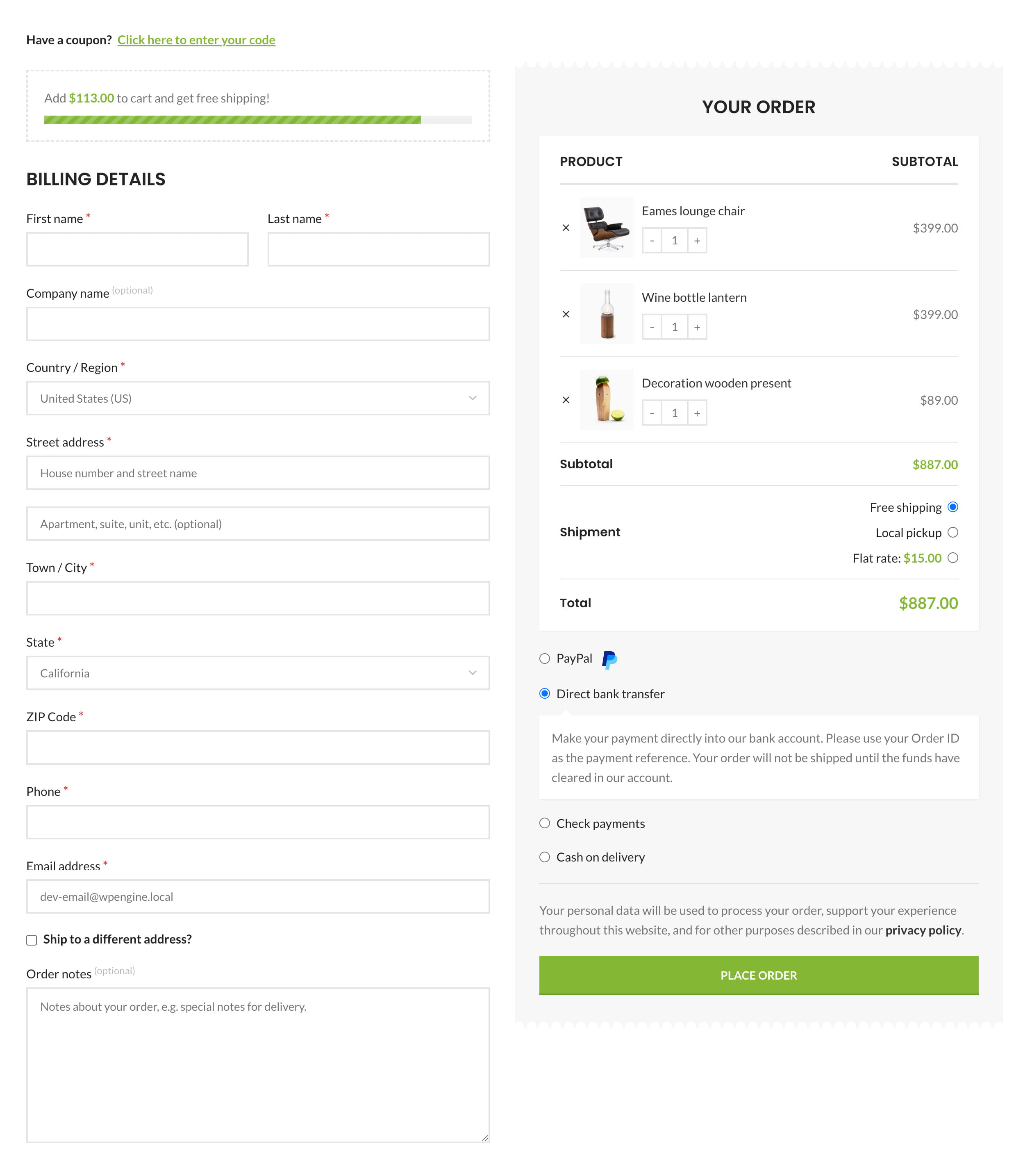
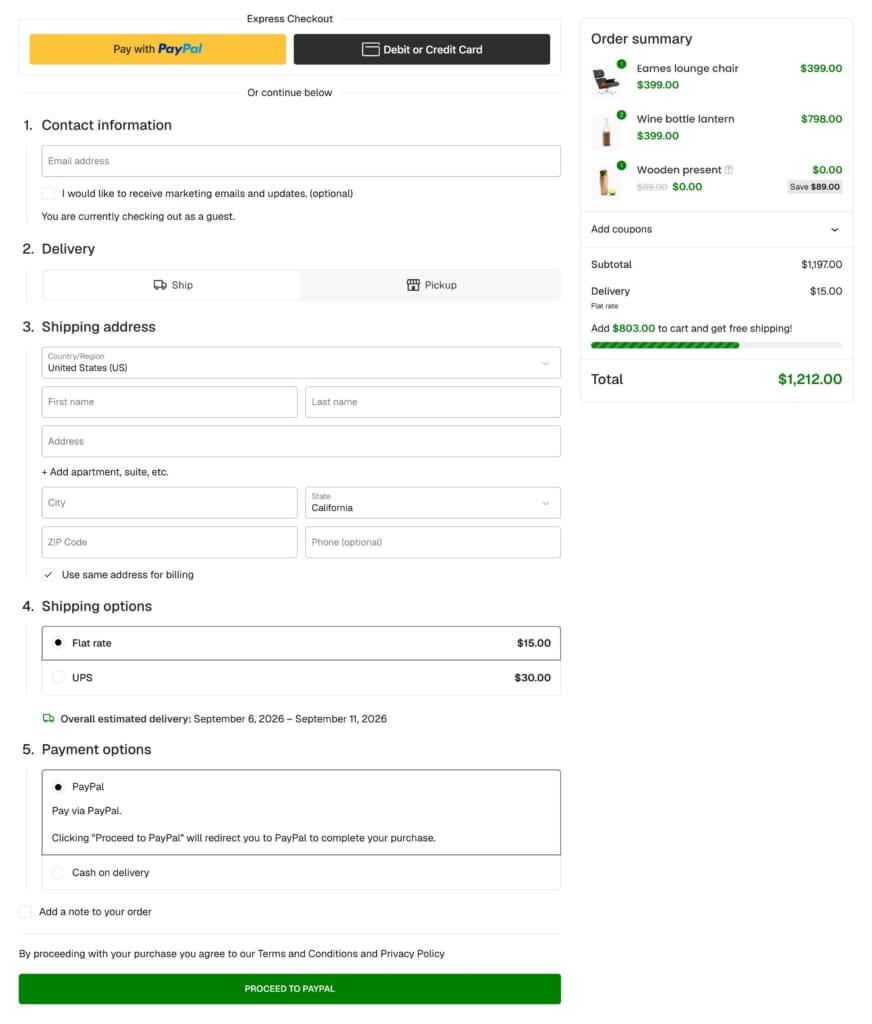
| Coupon field placement | A separate notice block at the top of the page above the form (“Have a coupon? Click here”). | A compact collapsible block directly in the order summary sidebar next to the total. |
| Appearance customization | Visually through the WoodMart Layout Builder (Gutenberg, Elementor, or WPBakery), plus theme settings. | Visually, by configuring WooCommerce’s native checkout blocks in the Gutenberg editor. |
| Plugin compatibility | Broadest: works with most payment, shipping, and custom field plugins built for the classic WooCommerce checkout. | Selective: compatible only with plugins that have already been updated to support WooCommerce blocks. |
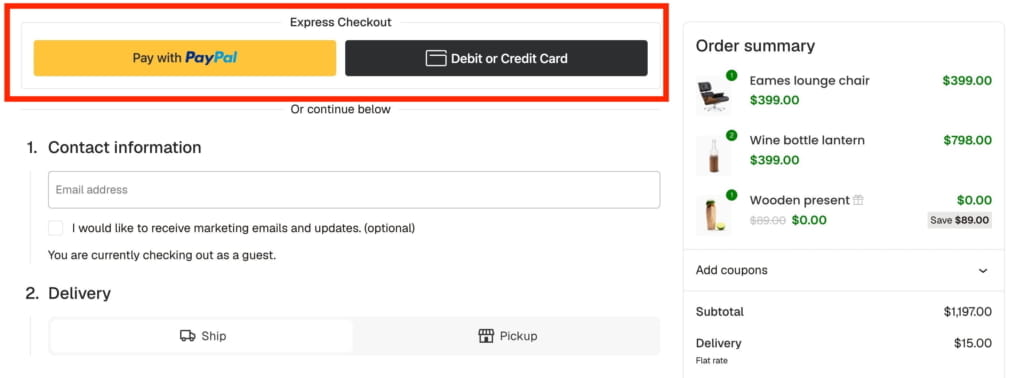
| Express checkout (Apple Pay / Google Pay) | Added as buttons above or below the main form. | A dedicated Express Checkout area at the top of the checkout, shown when a compatible payment gateway is active. |
| Hints and errors | Usually shown at the top of the page after clicking “Place order.” | Errors are highlighted immediately under the relevant field as it’s being filled in. |
| Custom development capabilities | Arbitrary code and structure changes using standard PHP hooks and template overrides. | Custom functionality requires development specific to the WooCommerce Blocks API. |
Classic checkout
Checkout block
Pros and specifics of each solution
Classic checkout
Pros:
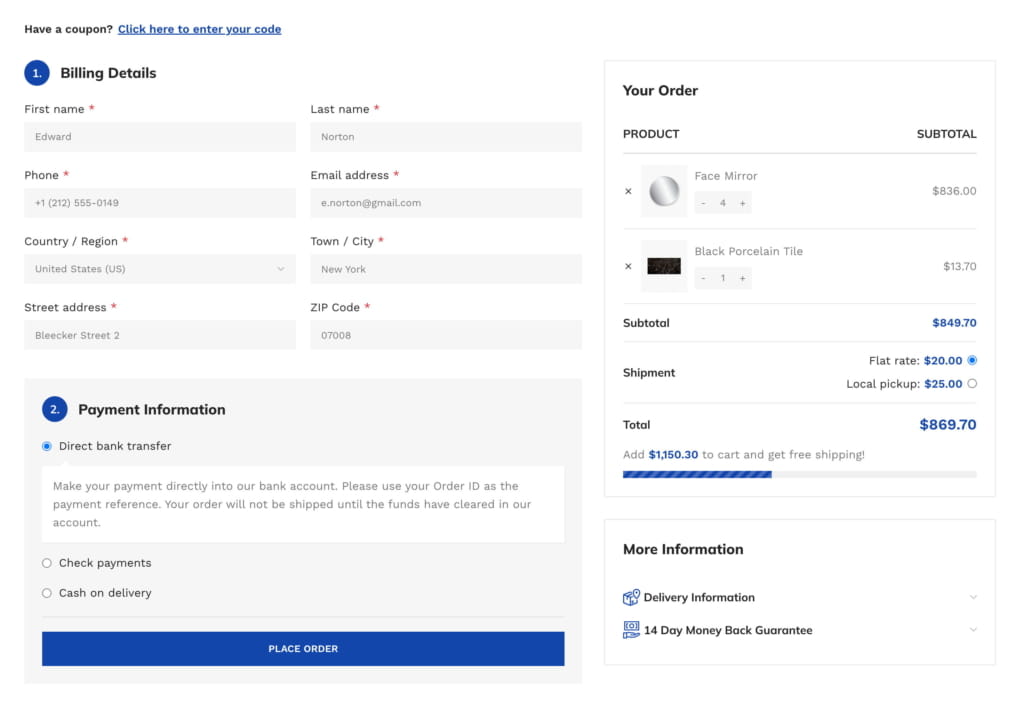
- A Checkout Field Manager that lets you rearrange fields and adjust their width.
- A Layout Builder with flexible styling options.
- Offers broader compatibility with legacy shipping, payment, checkout-field, and B2B extensions.
- Flexible customization for non-standard business needs through PHP hooks and template overrides.
- Years of proven stability and signature theme settings (sticky sidebar, flexible column layout).
Specifics:
- A traditional interface where shipping or coupon recalculation is accompanied by a brief refresh of the order block, and the coupon field is placed by default as a separate notice at the top of the form.
Checkout block
Pros:
- More client-side interactions and fewer traditional checkout fragment refreshes.
- Convenient placement of the coupon field directly in the order total block.
- Checkout layout editing with WooCommerce’s native blocks, without a separate page builder.
- A dedicated area for express payment buttons (Apple Pay, Google Pay) when supported by your payment gateway.
Specifics:
- WooCommerce controls the internal blocks’ styling and layout options, which limits how much theme and plugin developers, as well as store owners, can customize them.
- Before switching, it’s important to check whether your shipping and payment plugins support WooCommerce blocks.
What WoodMart adds to the Checkout block
The Checkout block is built on a different principle than classic WooCommerce pages, so theme features and styling don’t carry over to it automatically. WoodMart extends the block-based cart and checkout with the following:
- Full theme design consistency: Blocks don’t look “foreign.” They automatically adapt to the selected fonts, brand colors, border radius, input field styles, and Dark Mode.
- Convenient editing in Gutenberg: In the admin panel, you see the page layout exactly as the customer will see it on the site.
- Free Gifts support: Gift products are clearly marked with special badges in the order list of the Checkout block, and the gifts block can be displayed right alongside it.
- Frequently Bought Together bundles: Products added as a bundle retain their branded labeling and connections within the cart and checkout blocks.
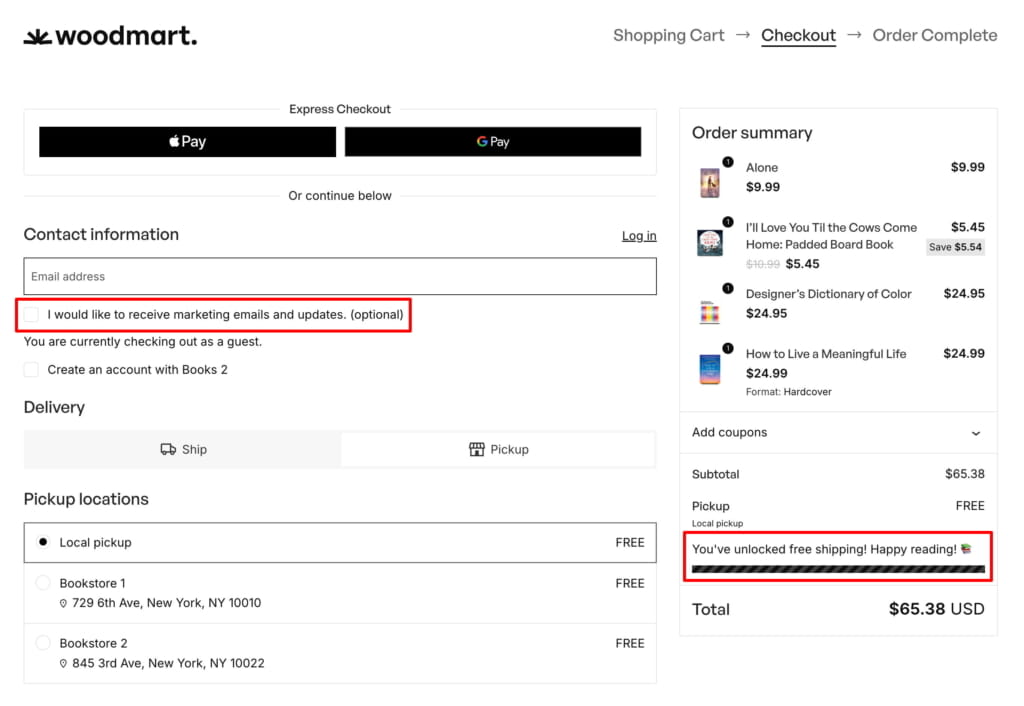
- Free Shipping Bar: The bar can be displayed alongside or inside the cart and checkout block, and reacts to changes in item quantity, shipping method, or coupon.
- Abandoned Cart: WoodMart’s abandoned cart tracking works with the block-based cart and checkout.
- Marketing Consent: The marketing consent checkbox can be displayed in the block-based checkout.
- Estimated delivery and SKU display: Estimated delivery dates and product SKUs are automatically pulled into the order details according to Theme Settings.
- Save for Later support: The WooCommerce Save for Later block works correctly and is styled to match the theme.
Before switching to the Checkout block
WooCommerce warns that extensions that aren’t compatible with the Checkout block may not display their checkout elements or payment methods. Before switching a live store, check the following:
- Payment gateways: make sure every active gateway supports the Checkout block; incompatible ones may not appear as payment options.
- Shipping plugins: check pickup point and locker selectors, maps, and rate calculators from regional shipping integrations.
- Checkout fields: fields added via classic checkout hooks or WoodMart’s Checkout Field Manager don’t carry over to the block-based checkout.
- Custom code: PHP customizations based on classic checkout hooks and template overrides don’t run in the Checkout block.
- Test order: place a test order on a staging copy of your store, covering shipping, coupons, and each payment method.
Frequently asked questions
How do I switch to the Checkout block?
Open your Cart and Checkout pages in the block editor (Gutenberg) and replace the existing shortcode with the corresponding Cart and Checkout blocks. No settings need to be changed beforehand (full details can be found in the documentation).
Can I switch back to the classic checkout later?
Yes. The classic checkout page and shortcodes remain available, so you can revert to it at any time if the block-based version doesn’t fit your needs.
Will switching to the Checkout block affect page load speed?
The block-based checkout updates the interface in the browser and exchanges data with the server through the WooCommerce Store API, which often feels faster during checkout, though actual performance also depends on your hosting, active plugins, and overall site optimization.
What if one of my plugins doesn’t support the Checkout block yet?
Only plugins that add fields, shipping options, or payment methods to checkout need Checkout block support. If one of them hasn’t been updated yet, keep using the classic checkout for now and check the plugin’s changelog or ask its developer about block support. When you edit the Checkout page, the block editor also flags extensions that aren’t compatible with the Checkout block.
Do I lose WoodMart’s built-in checkout features if I switch?
Mostly no. WoodMart’s Free Gifts, Frequently Bought Together, Free Shipping Bar, SKU display, Estimated Delivery, Abandoned Cart, Marketing Consent, and overall theme styling all work in the Checkout block as well as in the classic checkout. The one exception is the Checkout Field Manager, which currently works with the classic checkout only.
You can quickly switch between the Checkout block and the classic checkout using the Gutenberg editor toolbar.
Conclusion
WoodMart supports both checkout types, so you can choose the one that fits your store:
- If you rely on the WoodMart Layout Builder, Checkout Field Manager, complex shipping modules, or custom checkout fields, the classic checkout remains the reliable choice.
- If you want WooCommerce’s native block-based checkout and your extensions support it, the Checkout block keeps WoodMart’s sales features and your site’s design, with the Checkout Field Manager as the only exception.
Since you can switch between them at any time, you can test the Checkout block on a staging copy of your store and keep the classic checkout as a fallback.
