
WordPress blog
WooCommerce product search optimization: how to improve search with WoodMart

Product search becomes increasingly important as a WooCommerce catalog grows. Customers may search using a product name, SKU, brand, color, material, or a completely different term from the one used in your catalog.
WoodMart gives you more control over this experience with built-in AJAX search and options for searching SKUs, categories, tags, attributes, brands, and more.
This guide focuses on those WoodMart-specific features and how to configure them.
Don’t optimize search around product titles alone
A product title rarely contains everything a customer might use to find a product.
For example, one product could include:
- SKU: ABC-12345
- Brand: Example Brand
- Color: Black
- Material: Stainless Steel
- Category: Kitchen Equipment
A customer might search for any of those terms.
If your search only relies on the product name and description, some of that information may not help customers find the product. WoodMart allows you to expand search to several product fields, giving customers more ways to reach the same item.
That is the main idea behind optimizing search in WoodMart: make the product information you already maintain more useful for product discovery.
Default WooCommerce search vs. WoodMart search
WooCommerce provides standard product search functionality, while its more advanced Product Search capabilities, such as configurable live search and additional search fields, are documented as part of a separate Product Search extension.
WoodMart includes several search-related features directly in the theme.
| Feature | Standard WooCommerce setup | WoodMart |
|---|---|---|
| Product search | Yes | Yes |
| AJAX search interface | Not part of the standard search experience | Built into WoodMart’s Search element |
| Search by SKU | Requires additional functionality or customization | Built-in option |
| Search by categories | Requires additional search functionality | Built-in option |
| Search by attributes | Requires additional search functionality | Built-in option |
| Search by brands | Requires additional search functionality | Built-in option |
| Search synonyms | Not included in the standard search experience | Built-in option |
| Popular search requests | Not included in the standard search experience | Built-in option |
| Search extra content | Not part of the standard search experience | Built-in option |
| Advanced relevance improvements | Available through additional solutions | Optional Relevanssi integration |
Why this matters: WoodMart can replace several narrowly focused search plugins by providing AJAX search, expanded product-field matching, synonyms, popular requests, and search-area content in one integrated system. For most stores, this is a better and more reliable starting point: fewer overlapping plugins mean fewer compatibility points, a simpler update path, and features designed and maintained together. Add a specialist search plugin only when your catalog needs functionality beyond WoodMart’s built-in tools.
WoodMart’s advantage is that many of these controls are available from its own Theme Settings rather than requiring a separate search solution for every feature.
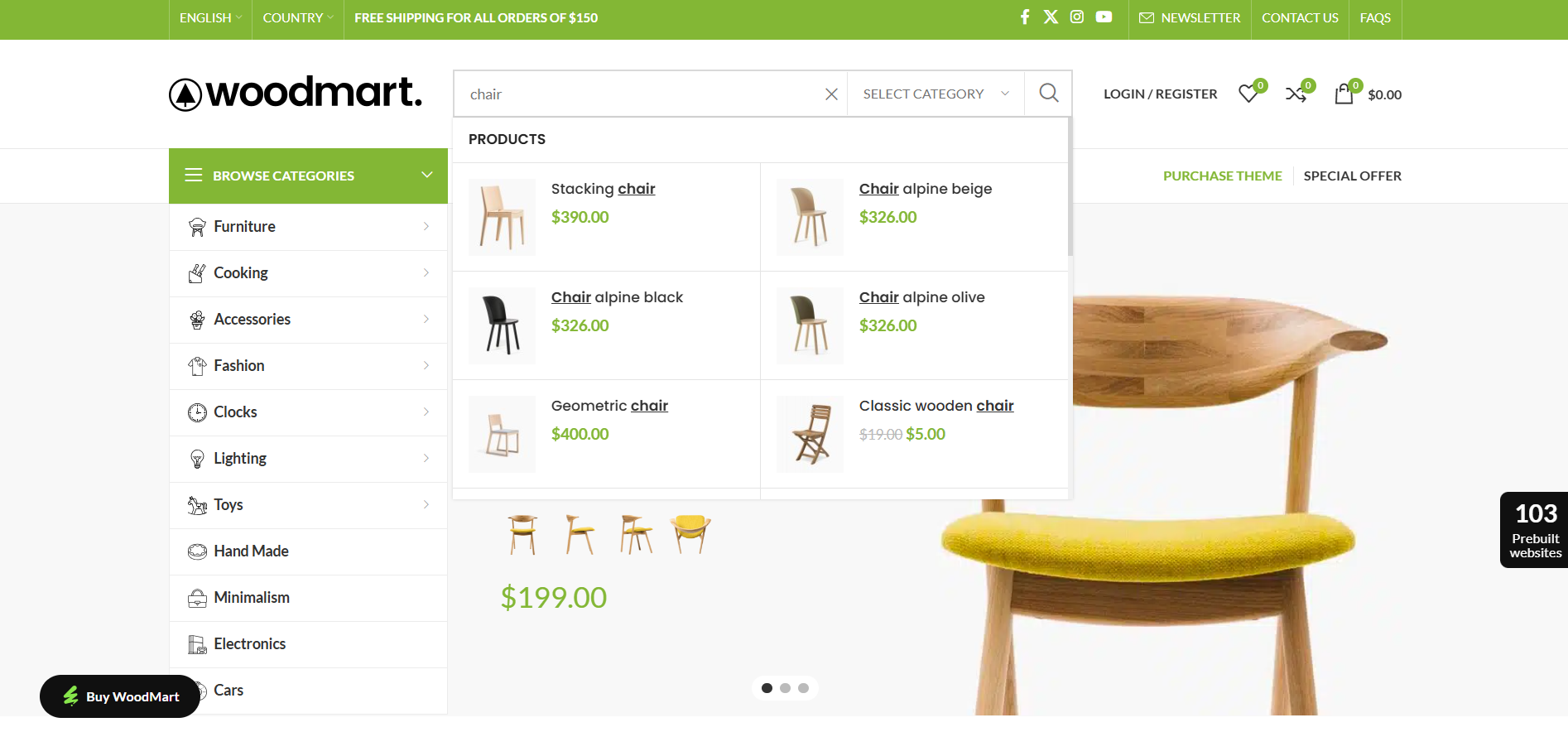
1. Enable AJAX search
WoodMart’s Search element can display results while the customer is typing.
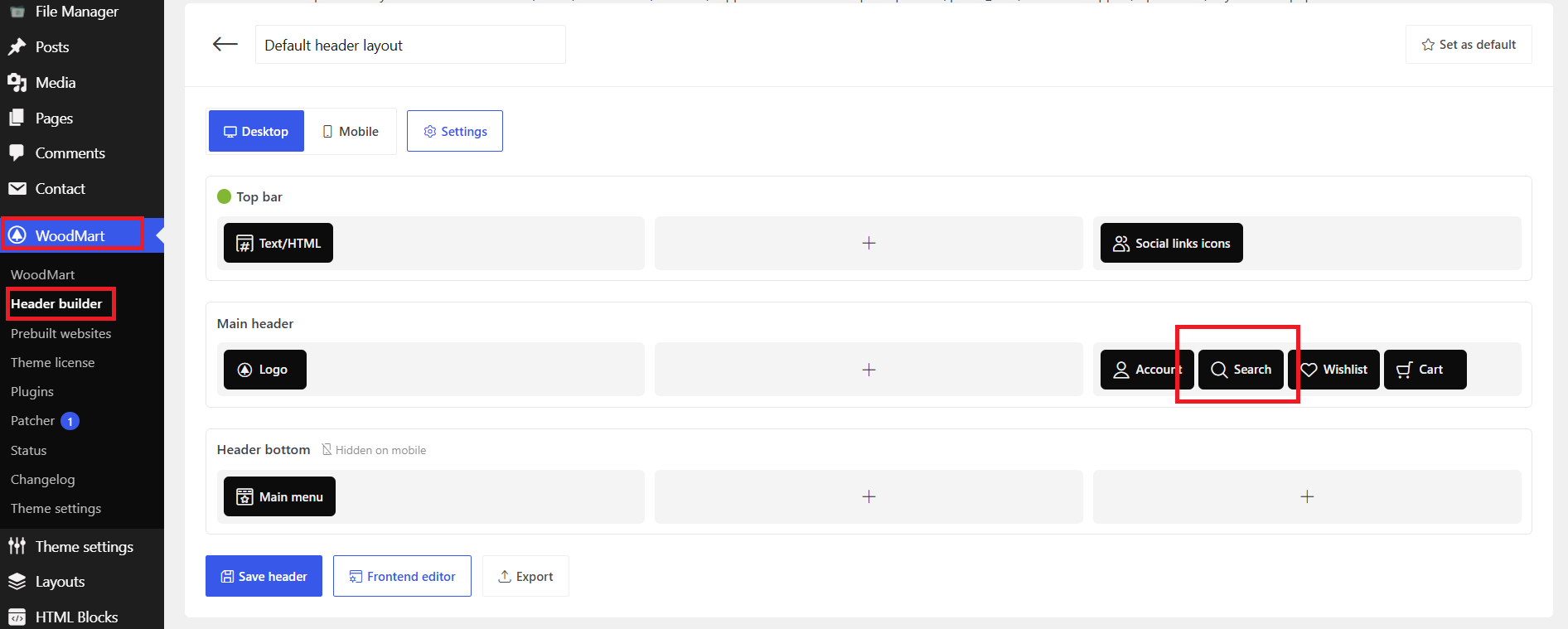
You can configure it from:
Dashboard → WoodMart → Header Builder
Open the header you are using and edit the Search element.
Depending on your layout, you can choose between:
- A dropdown search interface
- A full-screen search layout
You can also enable options such as category selection, search history, and popular search requests.
2. Search by SKU, categories, attributes, and brands
This is one of the most useful parts of WoodMart’s search configuration.
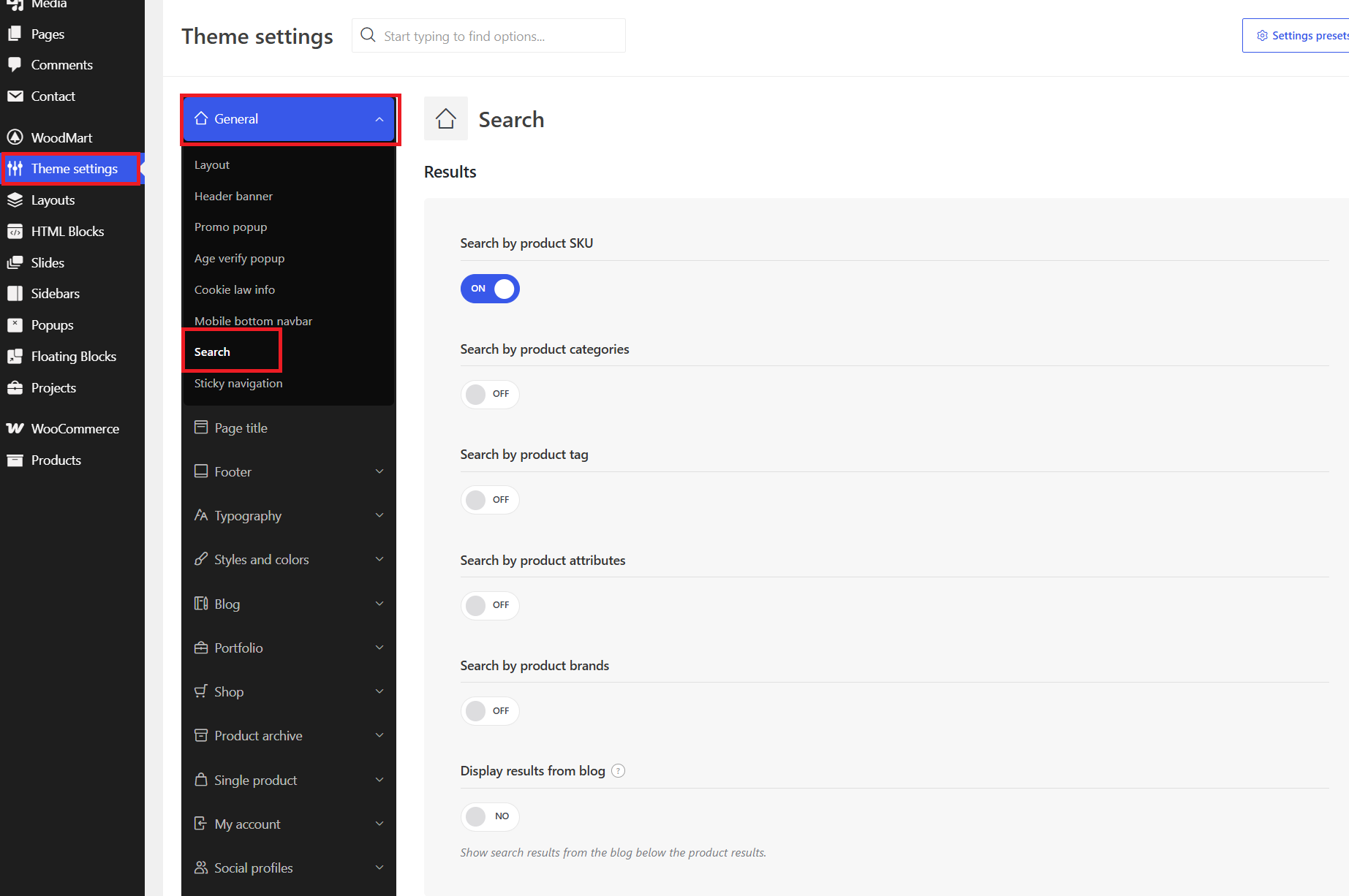
Go to:
WoodMart → Theme Settings → General → Search
In the Results section, you can choose which product information should be searchable.
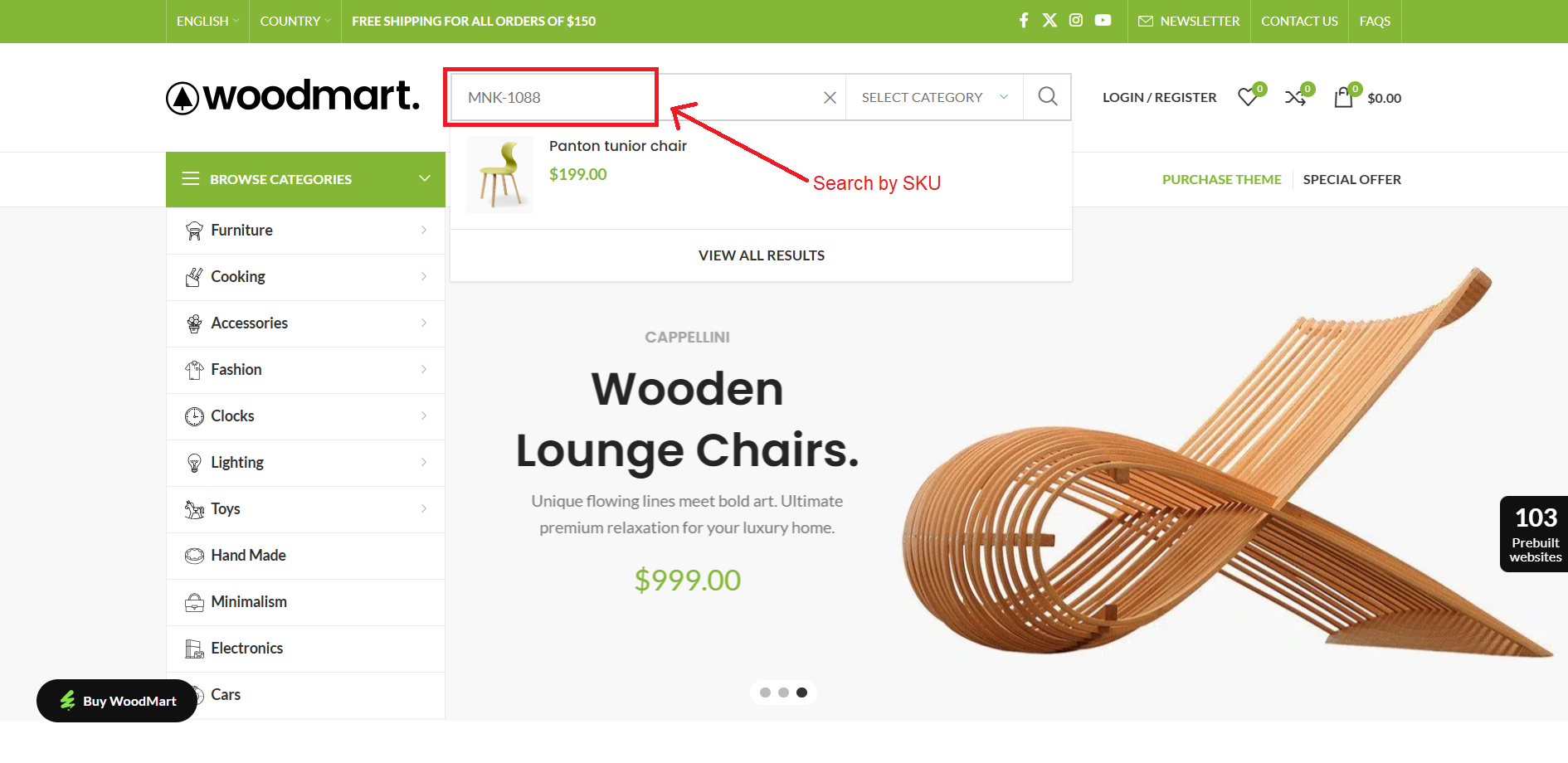
Search by SKU
SKU search is particularly useful for:
- Spare parts
- Electronics
- Technical products
- Wholesale and B2B stores
- Products with manufacturer part numbers
Customers can search using a product code instead of remembering the exact product title.
Search by categories and tags
Category and tag search can help customers find products using broader catalog terms.
For example, someone searching for outdoor may be looking for a product category rather than a product with that exact word in its title.
Search by attributes
Attribute search is useful when customers search for product characteristics such as:
- Color
- Size
- Material
- Capacity
- Finish
- Technical specifications
If red, for example, is stored as a product attribute, WoodMart can use that information when attribute search is enabled.
Search by brands
For multi-brand stores, customers may search for the manufacturer before they search for a specific product. Enabling brand search gives them another way to find the products they want. See the WooCommerce Brands documentation for details on organizing products by manufacturer, label, or product line.
WoodMart provides separate options for SKU, category, tag, attribute, and brand searching, so you can enable the fields that actually matter for your catalog.
3. Add search synonyms
Customers do not always use the same terminology as your product catalog.
For example, your store might use sneakers while customers search for trainers.
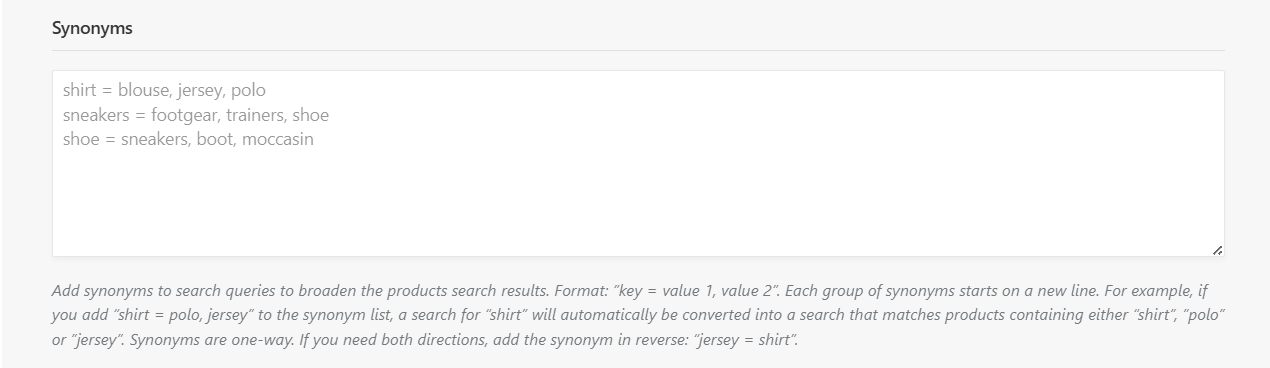
WoodMart’s Synonyms option allows you to connect these terms.
Go to:
WoodMart → Theme Settings → General → Search → Synonyms
For example:
shirt = blouse, jersey, polo
sneakers = trainers, shoe
This helps WoodMart recognize alternative terms that customers may use when searching.
Rather than creating a huge synonym list, focus on words that are genuinely relevant to your products and commonly used by your customers.
Also remember that synonyms should be configured according to the search behavior you want. If you need two-way matching, add the appropriate entries for both directions.
4. Add popular search requests
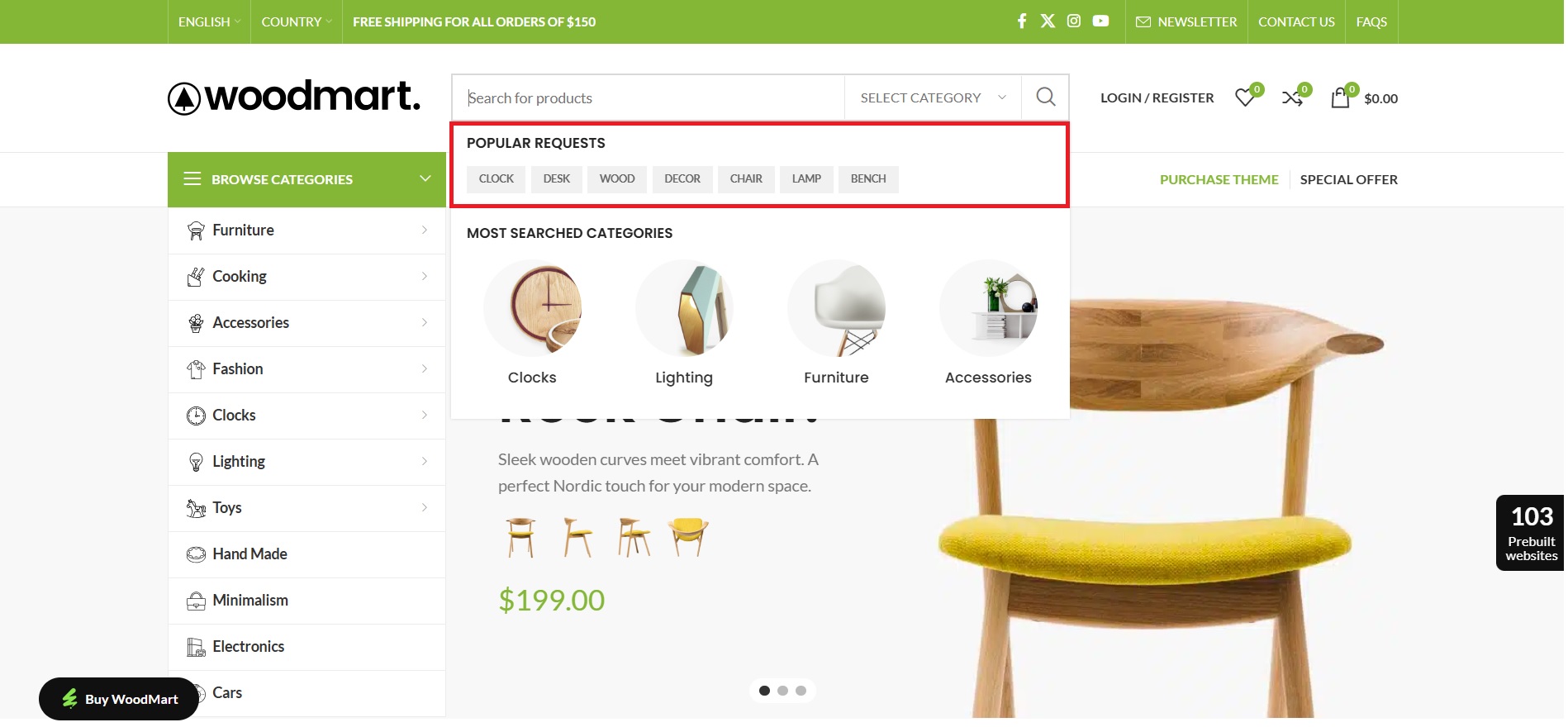
The Popular requests option lets you display commonly searched terms as quick-access options.
For example:
- Shirt
- Sneakers
- Shoe
This can help visitors quickly start a search and can also highlight important product categories or popular products.
The corresponding option also needs to be enabled in the Search element within the Header Builder.
5. Add useful content to the search overlay
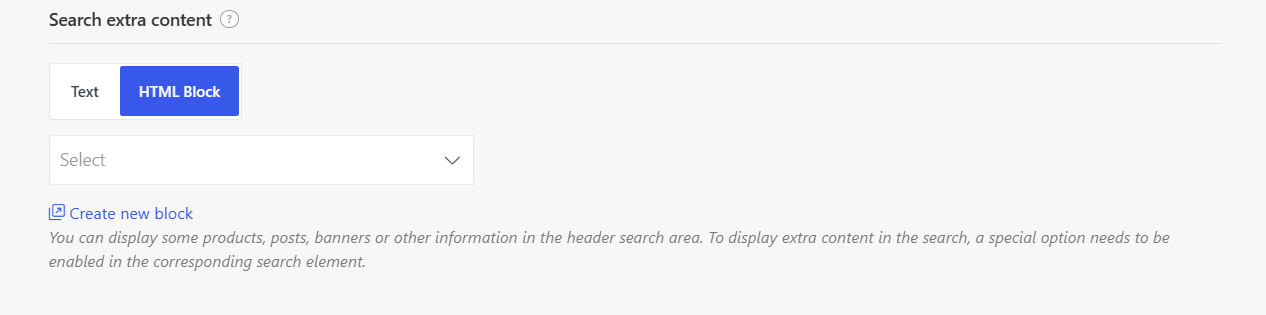
WoodMart allows you to add extra content to the search area using a Text Block or reusable HTML Block.
You could use this space for:
- A current promotion
- New arrivals
- Best-selling products
- A size guide
- A support or help link
Keep this content relevant to the search experience. The goal is to provide useful shortcuts without distracting customers from finding products.
6. Choose whether to show blog posts in search results
WoodMart can also display relevant blog posts alongside product search results.
This can be useful if your website publishes content that helps customers make purchasing decisions, such as:
- Buying guides
- Product tutorials
- Size guides
- Product comparisons
- Installation or how-to articles
If you want search results to focus entirely on products, simply leave this option disabled.
You can control this from:
WoodMart → Theme Settings → General → Search → Results
The same section also lets you control how blog results are displayed.
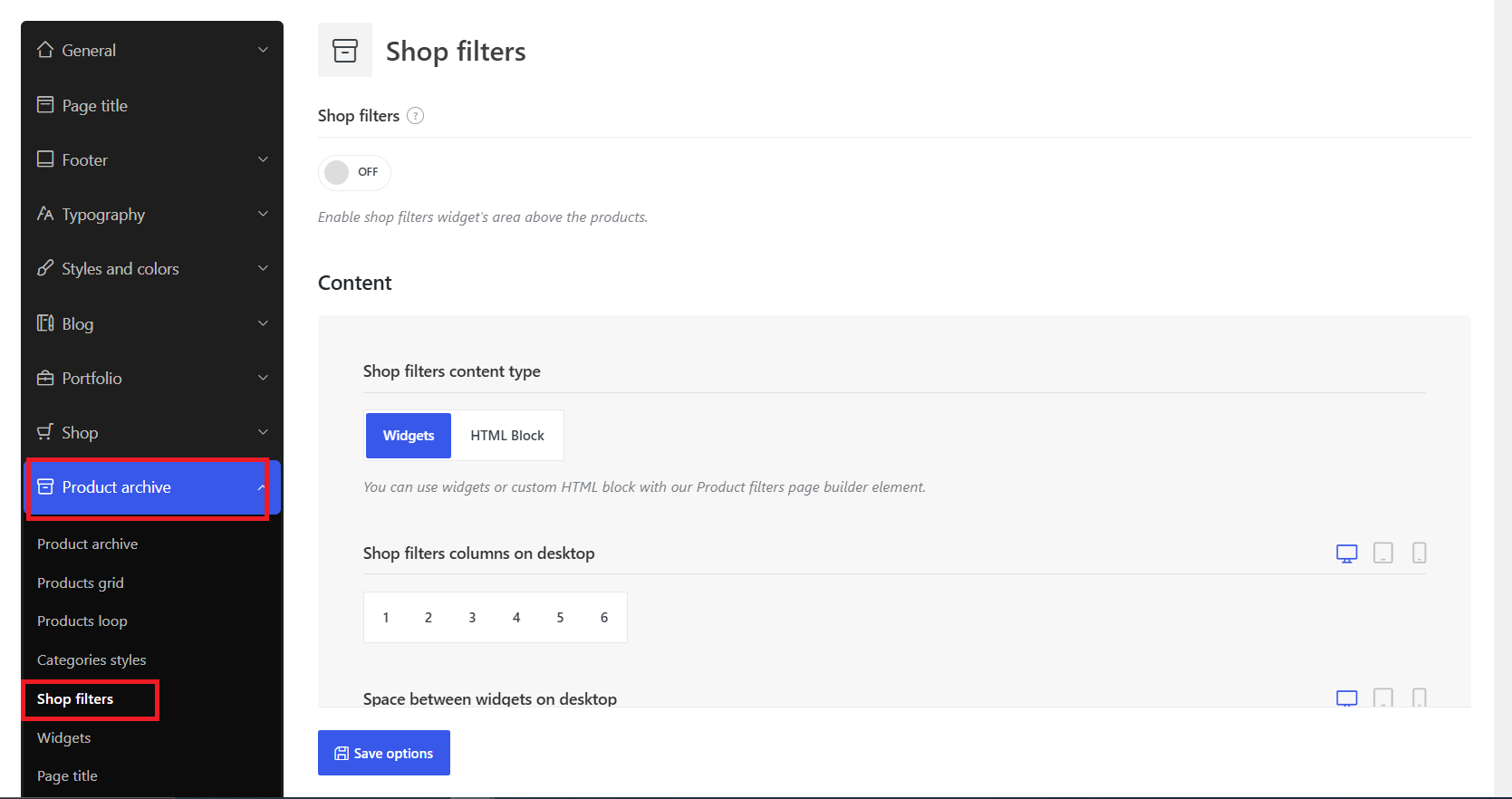
7. Use product filters as a supporting feature
Product filters can support search, especially on large category or shop pages.
WoodMart provides AJAX-powered filters that can help customers narrow product listings by options such as price, category, or attributes.
Depending on your product archive layout, filters can appear in a sidebar, filter area, or off-canvas area on mobile.
However, if the goal is to improve product search, start with the search settings first:
- Searchable product fields
- SKU search
- Attributes
- Brands
- Synonyms
- Search relevance
Filters are useful for browsing large product listings, but they should remain a supporting part of the overall search setup.
8. Improve search relevance with Relevanssi
WoodMart’s built-in settings control what product information can be searched.
Relevanssi can be useful when the problem is no longer finding matching products, but deciding which matching products should appear first.
WoodMart includes an option to use Relevanssi for AJAX search. Relevanssi is a separate plugin and may be useful for larger catalogs that need more advanced relevance handling or fuzzy matching.
In simple terms:
- WoodMart helps expand what customers can search for.
- Relevanssi can help improve how matching results are ranked.
For many small and medium-sized stores, WoodMart’s native search settings may already be enough.

Recommended WoodMart search setup
You do not need to enable every search option.
Small catalogs
Consider starting with:
- AJAX search
- SKU search
- Category search
Larger retail catalogs
You may also benefit from:
- Attributes
- Brands
- Synonyms
- Popular search requests
Technical, B2B, or wholesale stores
Pay particular attention to:
- SKU and part-number search
- Attributes and specifications
- Brand or manufacturer search
- Synonyms for industry terminology
- Search relevance
The best setup depends on the information stored in your catalog and the terms your customers actually use.
Frequently asked questions
Does WoodMart include AJAX product search?
Yes. WoodMart’s Search element provides AJAX-based search functionality with dropdown and full-screen search layouts.
Can customers search by SKU?
Yes. WoodMart includes an option to make product SKUs searchable from its Search settings.
Can WoodMart search attributes and brands?
Yes. WoodMart provides separate options for searching product categories, tags, attributes, brands, and SKUs.
Do I need Relevanssi?
No. Relevanssi is optional. WoodMart already includes its own search controls, while Relevanssi can be considered when advanced relevance or fuzzy matching becomes important.
Should I enable every search option?
No. Enable the fields that contain useful and well-maintained product information. If your catalog uses SKUs, attributes, and brands consistently, making those fields searchable can provide additional ways for customers to find products.
Final thoughts
The main advantage of WoodMart’s search system is not simply that it adds another search box. It gives you more control over how customers can find the products already in your catalog.
You can enable AJAX results, expand search beyond product titles, add SKUs, categories, attributes, and brands, connect alternative terms with synonyms, and optionally improve relevance with Relevanssi.
For most stores, the best approach is simple: start with the product data your customers are most likely to search for, then enable the WoodMart options that make that information easier to find.
Want to explore more of what the theme can do? Visit the official WoodMart website to browse live demos, discover more WooCommerce features, and purchase the theme.
