
WordPress blog
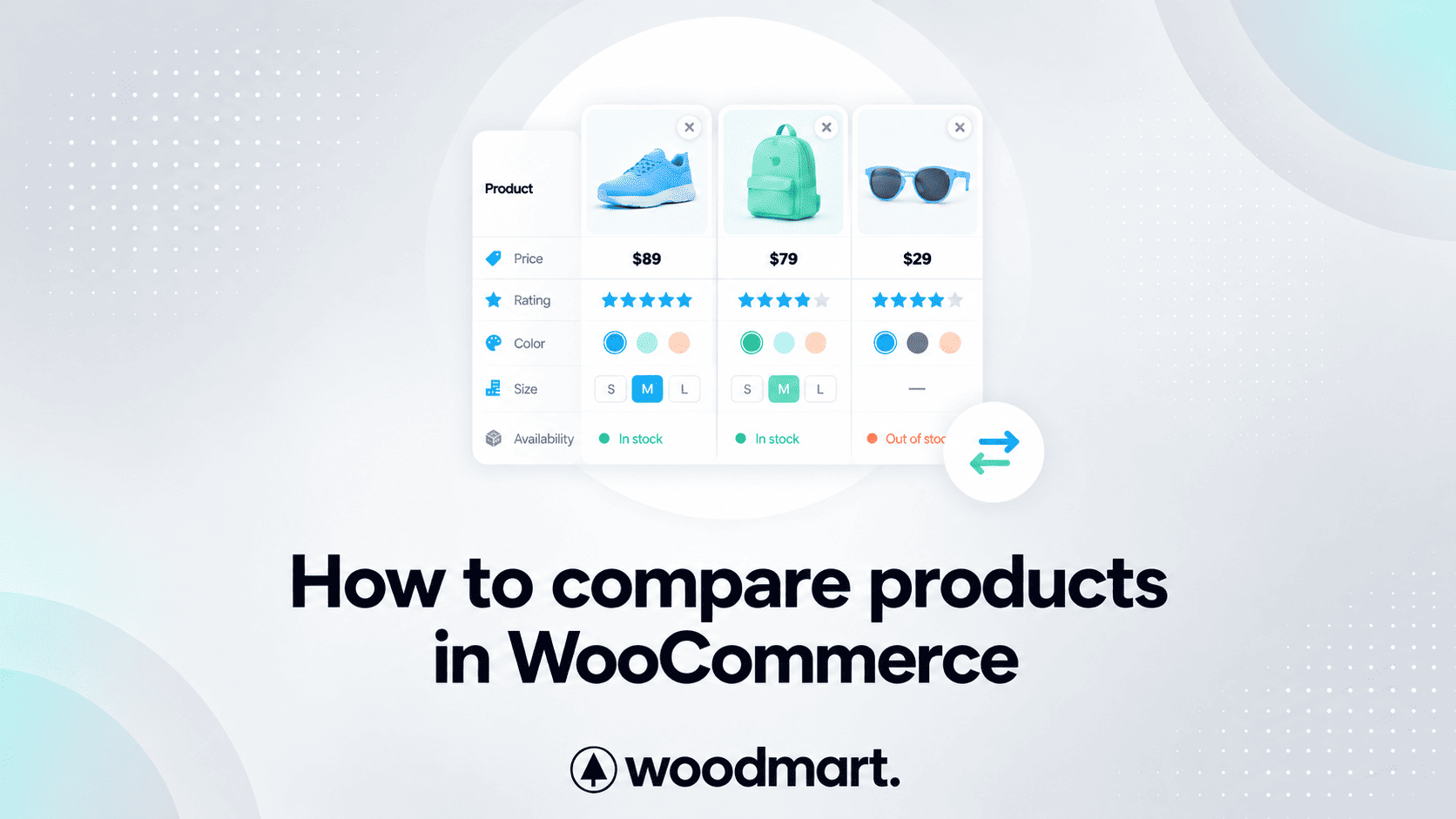

When customers are choosing between similar products, opening several product pages and manually comparing their specifications can make the buying process unnecessarily difficult. A WooCommerce product comparison feature lets shoppers place similar products side by side so they can quickly evaluate the differences and decide which product fits their needs.
This is particularly useful for stores selling products with multiple specifications, such as electronics, appliances, furniture, tools, and other products where customers need to compare attributes before purchasing.
In this guide, you’ll learn how product comparison works, which information should be compared, how to prepare WooCommerce products for meaningful comparisons, and how to set up WoodMart’s built-in comparison feature.
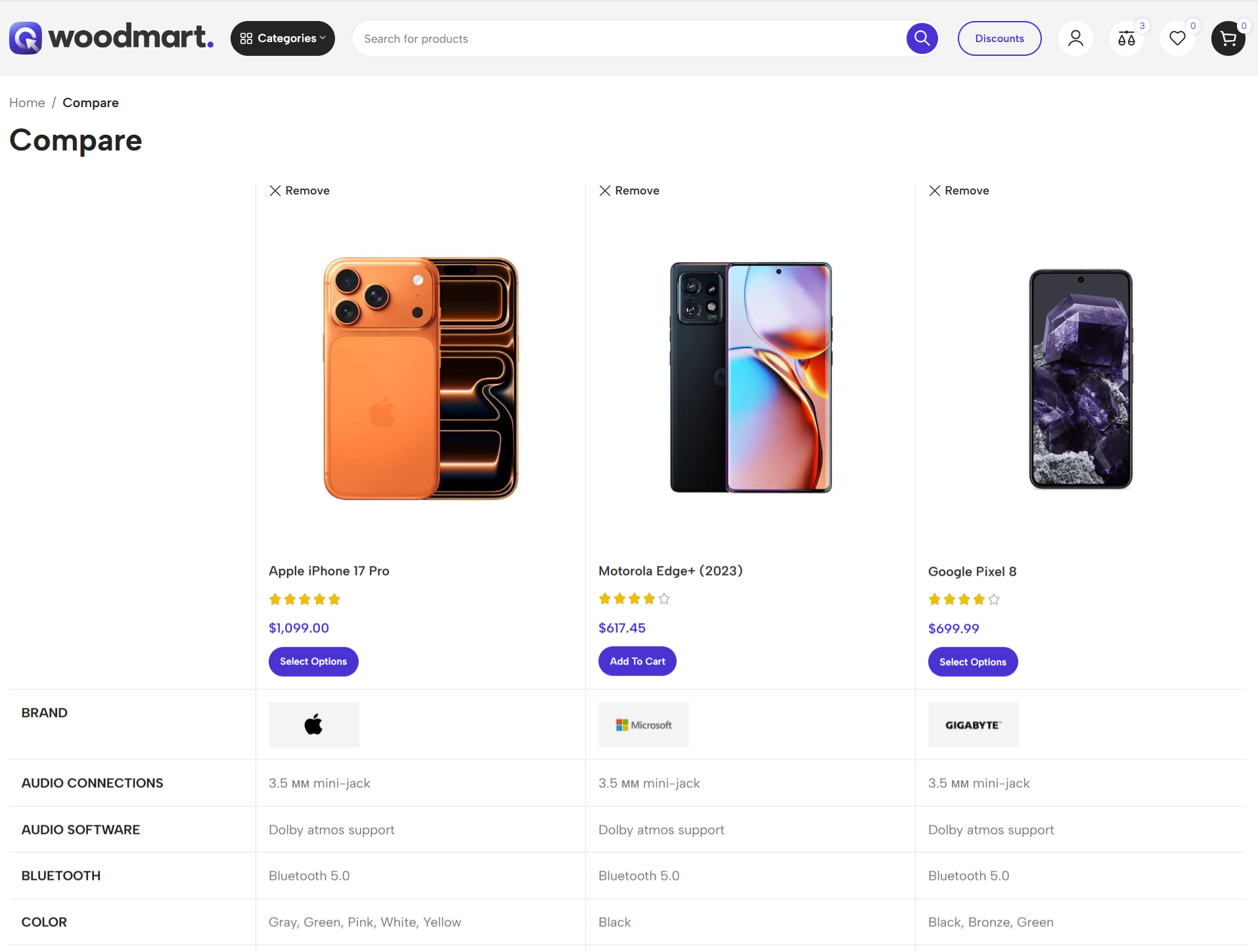
1. How to add product comparison to WooCommerce with WoodMart
If you are using WoodMart, you can add product comparison without installing a separate comparison plugin. WoodMart includes a dedicated Compare page, configurable comparison fields, Compare buttons on standard product pages and product grids, category-based comparison, and Header Builder integration.
The setup is straightforward: create the comparison page, enable Compare, select the fields customers should see, and decide where Compare buttons should appear.
1.1. Create the comparison page
First, create a dedicated page where customers will see the products they have selected.
Go to: Dashboard → Pages → Add New
Create and publish the comparison page. Then add the comparison table using the editor available on your site:
- Gutenberg: add a Shortcode block containing
[woodmart_compare]. - Elementor: add the Compare widget.
- WPBakery: add the Compare element.
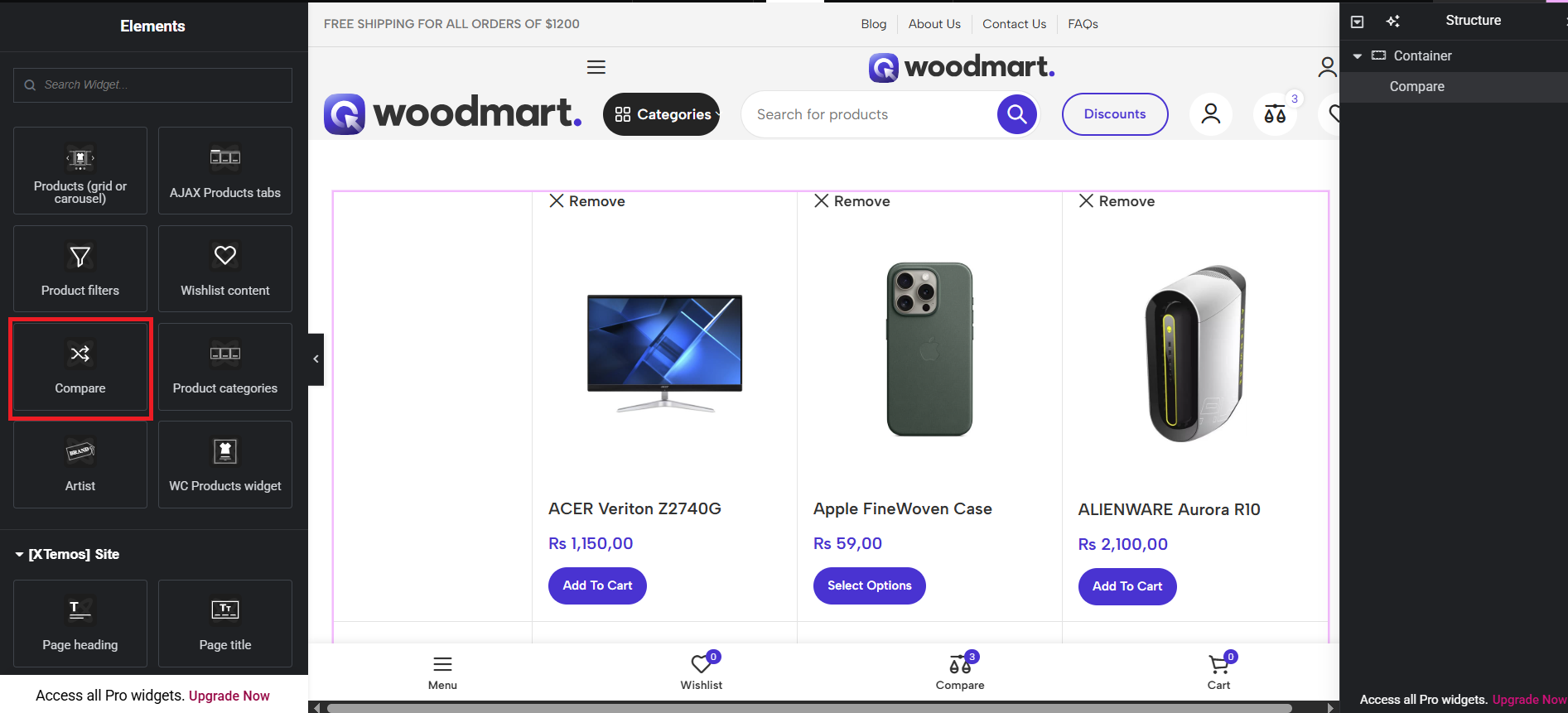
For more details, please check the WoodMart Compare documentation.
1.2. Enable Compare and save the settings
Go to: Theme Settings → Shop → Compare
Turn on Enable compare, select the comparison page you created, and click Save options.
Saving the Theme Settings is important because the comparison settings will not be applied until the changes are saved.
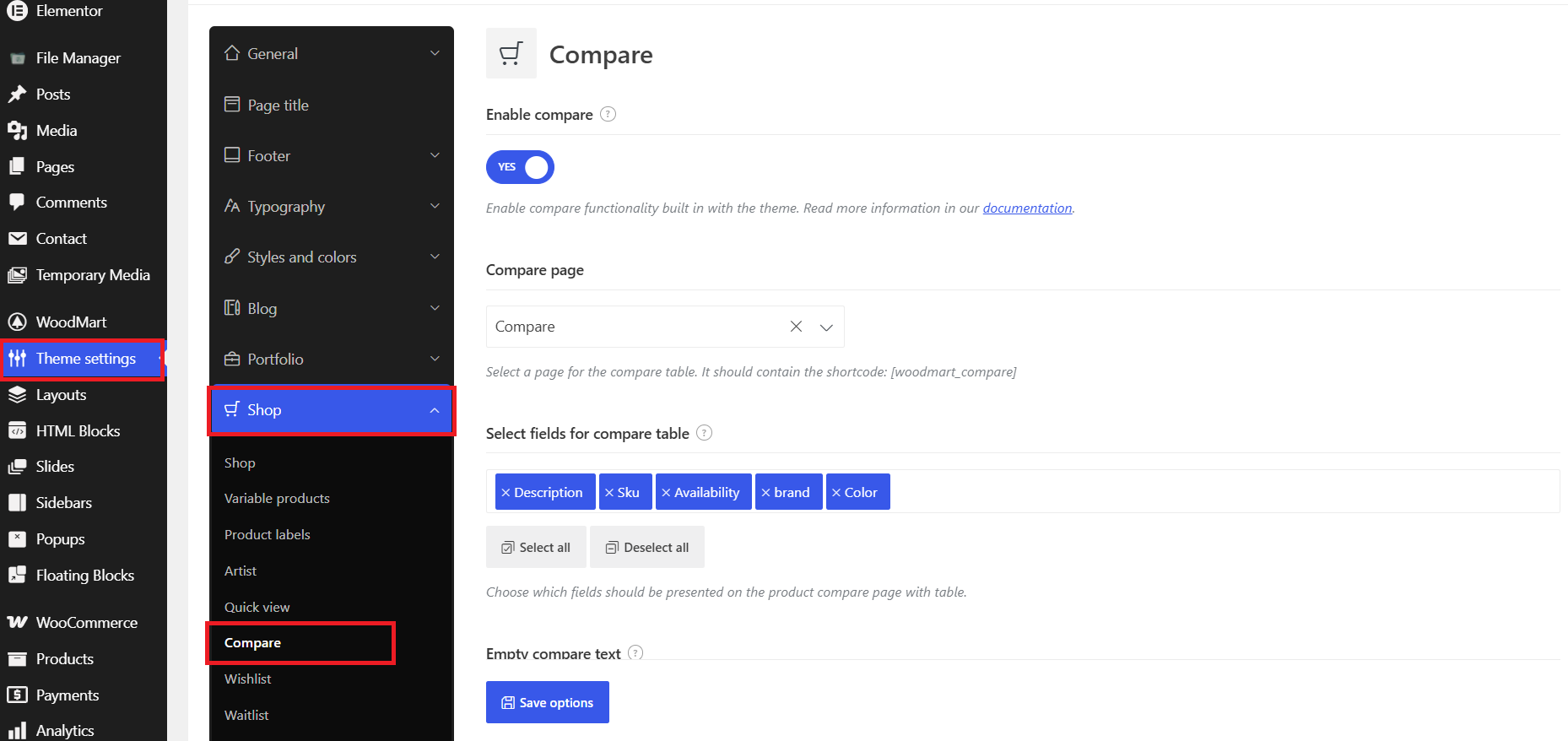
1.3. Choose the fields shown in the comparison table
Use Select fields for compare table to choose the information that should appear in the table. WoodMart supports fields such as description, dimensions, weight, availability, SKU, global WooCommerce attributes, and brand when the brand taxonomy is available.
Only select information that helps customers make a decision. For example, an electronics store may prioritize processor, memory, storage, display, and other product attributes, while a furniture store may need dimensions, material, weight, and color.
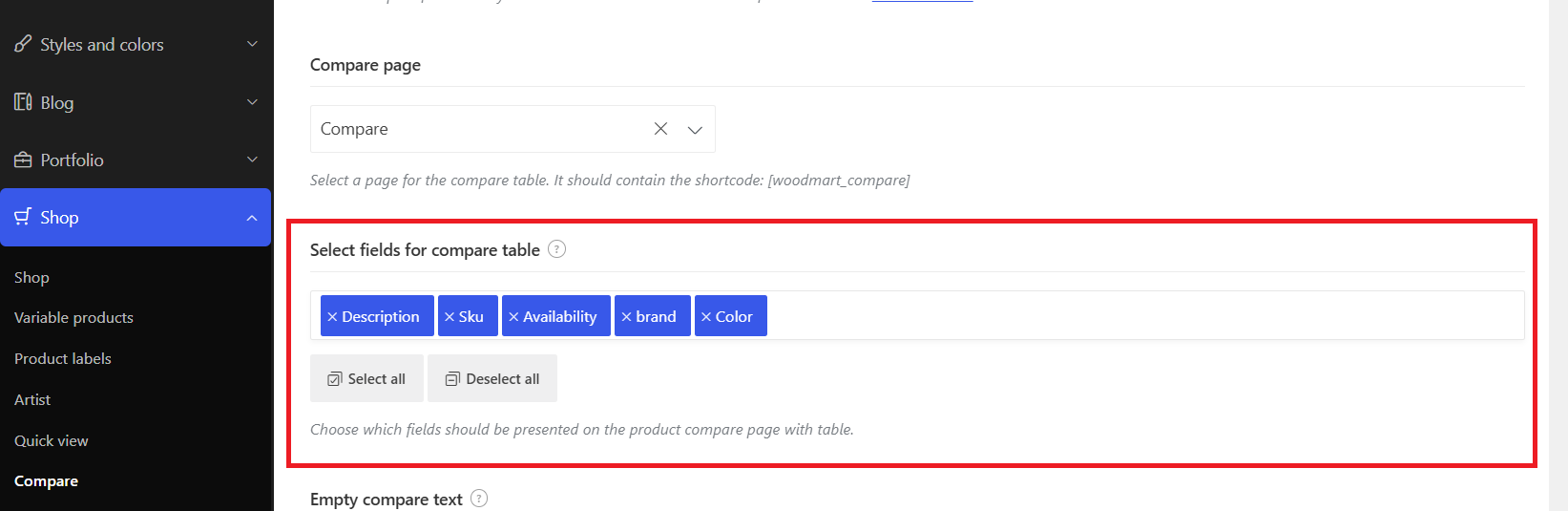
1.4. Add Compare buttons to product pages and grids
Once Compare is enabled, WoodMart displays the Compare button on standard single product pages. You can also enable Show button on product grid to display the button in product grids and lists.
This gives shoppers two natural ways to start comparing: from an individual product page or while browsing a category or shop page.
If you build a custom product layout or product loop, add the corresponding Add to compare button or Product compare element/block to that layout. This is important because custom layouts may not automatically use the standard product-card controls.
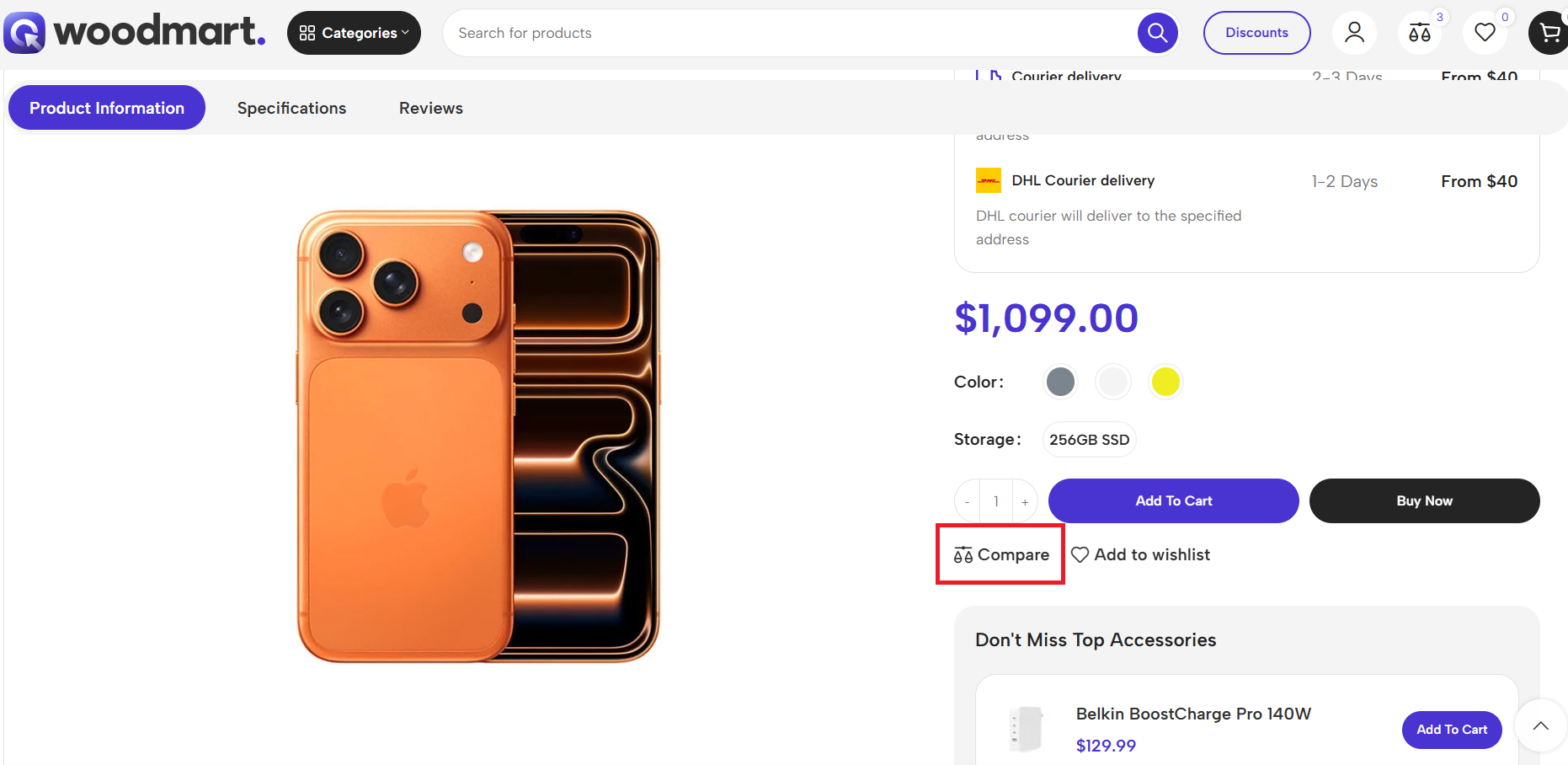
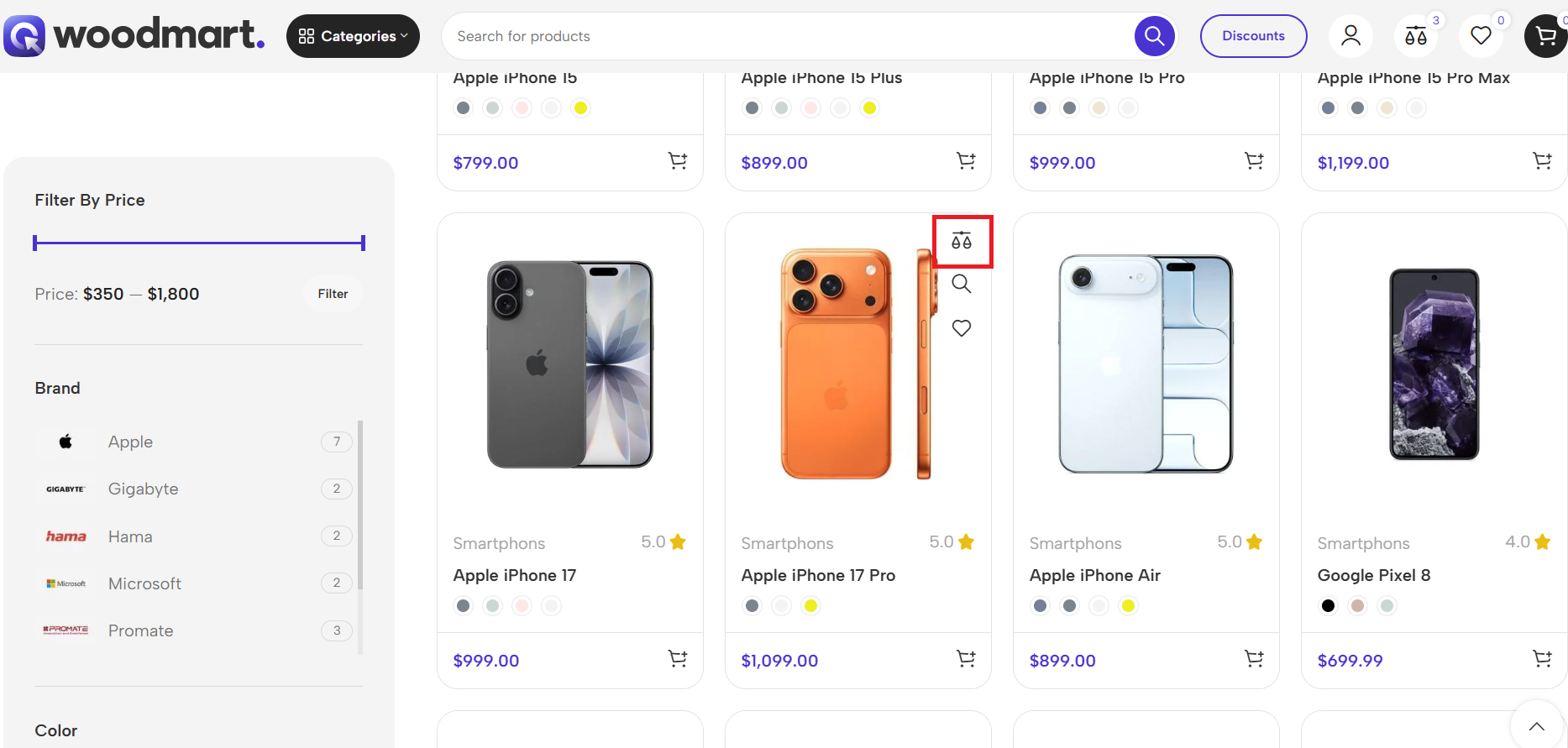
1.5. Add Compare to custom product layouts
WoodMart’s Layouts Builder lets you create custom single-product and product-loop layouts. If a custom layout does not contain the standard Compare control, add the appropriate comparison element or block manually.
For custom product cards, the Product compare block adds the product to the comparison table. For custom single-product layouts, use the corresponding Add to compare button or Product compare element/block.
1.6. Add the Compare element to the header
To give shoppers a persistent way to access their selected products, open WoodMart → Header Builder, edit the required header, and add the Compare element.
You can display an icon, text, or both and show the product count. If comparison by category is enabled, the header can also provide a category dropdown.
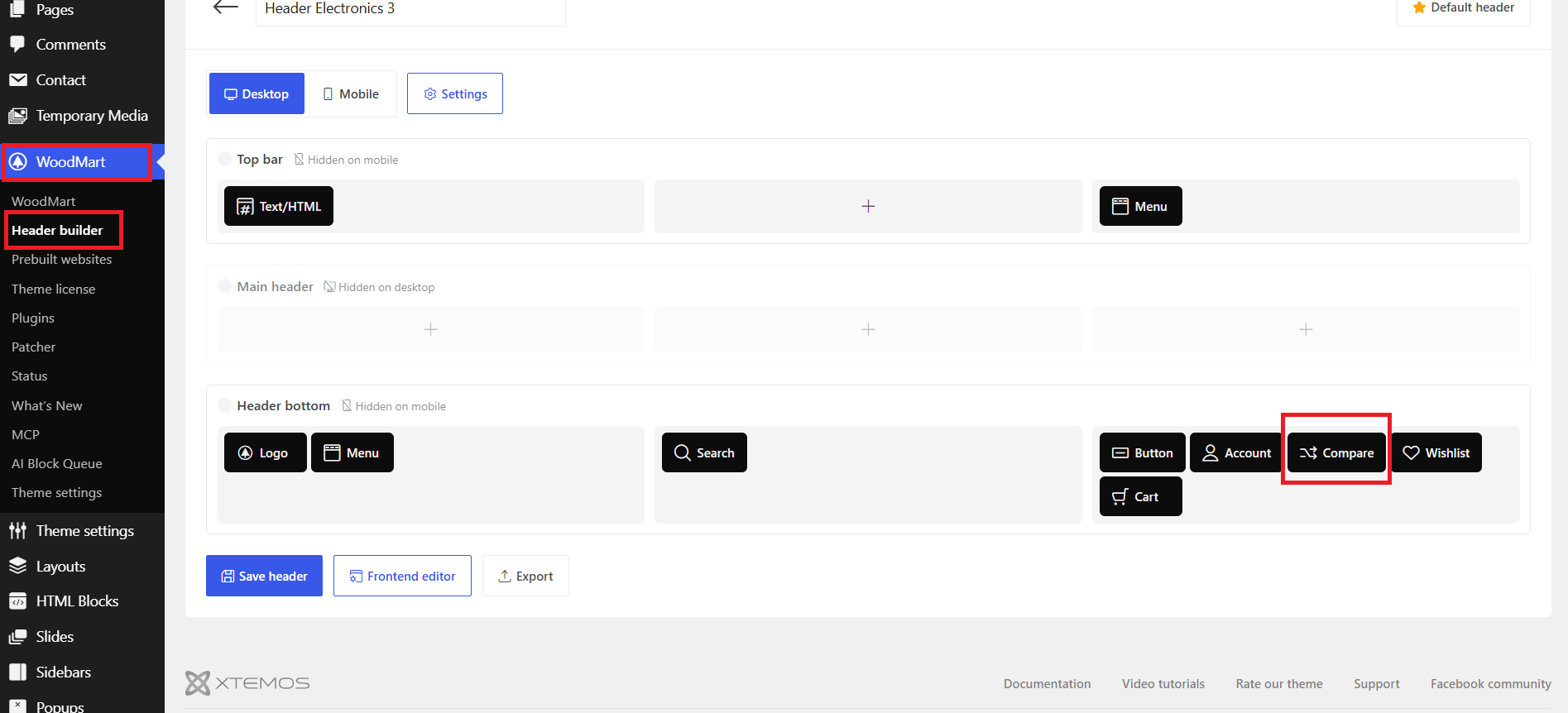
1.7. Enable comparison by category
For stores with large catalogs, enable Enable compare by category to group compared products according to their product categories.
You can also enable Show “Compare more products” buttons so customers can return to the relevant category and add another product without losing their existing comparison list.
2. What is WooCommerce product comparison?
WooCommerce product comparison allows customers to select multiple products and view their information side by side in a comparison table. Instead of switching between several product pages, shoppers can evaluate important details in one place.
Depending on the setup, comparison tables can include:
- Product name and image
- Price
- SKU
- Stock availability
- Product attributes
- Dimensions and weight
- Description
- Brand
- Other product-specific specifications
A useful comparison table should focus on the information customers actually need to make a purchase decision rather than displaying every available detail.
3. When should you use product comparison?
Product comparison is most useful when customers frequently need to choose between products that serve a similar purpose.
- Smartphones with different specifications
- Laptops with different processors, RAM, and storage
- Furniture with different dimensions and materials
- Appliances with different capacities and specifications
- Cameras with different features
- Products with different technical configurations
- B2B products with detailed specifications
If products are substantially different from one another, comparison may add little value. It works best when customers need to evaluate several alternatives before making a decision.
4. Prepare consistent product attributes for comparison
The quality of a comparison table depends heavily on how consistently product data is structured. If similar products use different attribute names or store the same specification as unrelated custom attributes, customers may not get a meaningful side-by-side comparison.
For specifications that should be shared across products, use global WooCommerce attributes. WooCommerce lets you create global attributes under Products → Attributes and reuse them across products. This makes it easier to maintain consistent names and values throughout the catalog.
For example, instead of creating separate custom attributes such as “Screen size” on individual products, create a global Screen Size attribute and assign the appropriate values to all relevant products.
WooCommerce product categories, tags and attributes
This is particularly important when using WoodMart’s comparison fields because Global WooCommerce attributes can be selected for display in the comparison table.
5. Which product information should you compare?
Choose fields based on the information customers actually use to decide between similar products.
| Product information | Why it matters |
|---|---|
| Price | Helps customers compare costs. |
| SKU | Useful for technical, catalog-based, or B2B products. |
| Availability | Shows whether products are currently in stock. |
| Global attributes | Makes important specifications easy to compare consistently. |
| Dimensions | Important for furniture, appliances, and other physical products. |
| Weight | Useful when weight affects shipping, handling, or usability. |
| Brand | Helps customers compare products from different manufacturers. |
| Description | Provides additional context when specifications alone are not enough. |
Avoid filling the table with unnecessary information. A focused comparison is usually easier to scan than a table containing every product detail.
6. How does product comparison work?
A typical comparison journey is:
Browse products → Add products to Compare → Open comparison table → Compare specifications → Select a product
For example, a customer shopping for a laptop could add three models to the comparison list. Instead of repeatedly switching between product pages, they can view the models together and compare their specifications.
Compare should be easy to find while customers browse, and the comparison page should make important differences easy to identify.
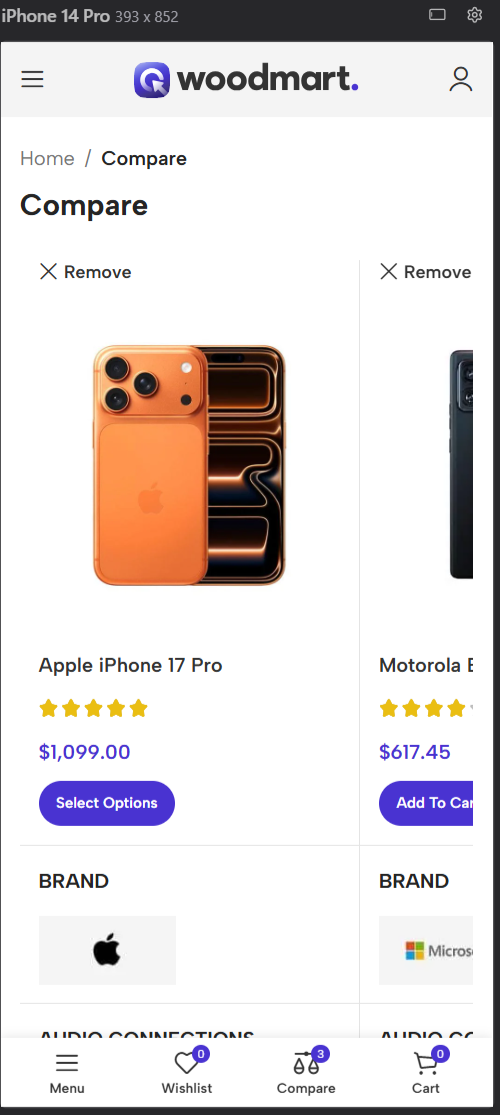
7. How should product comparison work on mobile?
Comparison tables can become difficult to use on smaller screens because they often contain multiple products and several columns. Treat mobile testing as part of the setup rather than as a final check.
- Compare two or three typical products on a phone and verify that the product names, images, prices, and key attributes remain readable.
- Scroll through the entire table to check that important columns or rows are not hidden or difficult to access.
- Test the Compare button from both the product page and product grid on touch devices.
- Open the comparison page in both portrait and landscape orientation if your store receives significant mobile traffic.
- Check that the header Compare element or mobile navigation still gives customers an easy way to return to their selected products.
- Remove comparison fields that add clutter without helping the purchase decision.
The goal is not simply to make a desktop table fit on a phone. Customers should be able to select products, review the important differences, and move toward a purchase without unnecessary scrolling or confusion.
8. Product comparison plugins vs. built-in theme functionality
A standard WooCommerce store can add product comparison through a dedicated extension or plugin. This can be appropriate when an existing store needs comparison as an additional feature.
However, a separate solution may require its own configuration and styling and should be checked for compatibility with the theme, product layouts, and other plugins.
WoodMart takes a different approach by including product comparison in the theme. This provides the comparison page, selectable fields, product-page and product-grid Compare buttons, category-based comparison, and Header Builder integration in one system.
For a WoodMart store, this means you can configure the feature within the existing shop setup instead of adding another plugin solely for product comparison.
9. Best practices for a better comparison experience
Keep the comparison focused
Show the specifications customers actually use to make their decision. Remove fields that add visual clutter without helping shoppers choose.
Use consistent product attributes
Use the same global attributes and naming conventions across comparable products. Consistent data makes side-by-side comparisons much easier to understand.
Make Compare easy to find
Place Compare where customers already browse products, such as product grids and product pages. For custom layouts, make sure the appropriate Compare element or block has been included.
Avoid comparing too many products
A small number of relevant products is generally easier to understand than an extremely wide table containing many alternatives.
Test the complete customer journey
Add products from a category page, add another from a product page, open the comparison table, review the fields, and return to the catalog. Repeat the same journey on a mobile device.
10. WooCommerce product comparison checklist
- Identify products that customers commonly compare.
- Create consistent global WooCommerce attributes for shared specifications.
- Create and assign the comparison page.
- Enable Compare and save the Theme Settings.
- Check the default Compare button on single product pages.
- Enable Compare buttons on product grids when needed.
- Add Compare elements or blocks to custom product and product-loop layouts.
- Select only the comparison fields that help customers decide.
- Test the complete comparison journey on desktop and mobile.
- Consider category-based comparison for large product catalogs.
11. Frequently asked questions
Does WooCommerce have product comparison by default?
A standard WooCommerce installation does not provide the complete side-by-side comparison interface described in this guide. Stores can add comparison through a dedicated extension or use a theme such as WoodMart that includes the feature.
Can customers compare products from the WooCommerce shop page?
Yes. With WoodMart, enable Show button on product grid to display Compare actions in product grids and lists. Customers can add products while browsing instead of opening every product page.
Can I choose which fields appear in the comparison table?
Yes. WoodMart provides Select fields for compare table, allowing you to choose the product information displayed in the comparison table, including global WooCommerce attributes and other supported fields.
Why should I use global WooCommerce attributes for comparison?
Global attributes can be reused across products, helping keep the same specification structured consistently throughout the catalog. This makes comparisons more meaningful and easier to maintain.
Does WoodMart support comparison on custom product layouts?
Yes. For custom single-product or product-loop layouts, add the appropriate Add to compare button or Product compare element/block to the layout.
Can products be grouped by category in the comparison table?
Yes. WoodMart provides Enable compare by category, which groups compared products according to their product categories. You can also provide Compare more products links to help shoppers add another product from the relevant category.
12. Final thoughts
Product comparison can simplify the buying process when a store sells several similar products with different specifications. The key is to structure product data consistently, show only useful fields, make Compare easy to find, and test the experience across desktop and mobile.
If you are using WoodMart, the feature is already integrated into the theme. You can create the comparison page, select the fields customers need, add Compare controls to product pages, grids, and custom layouts, and organize comparisons by category when needed.
Ready to add product comparison to your WooCommerce store? Learn more about WoodMart’s Compare feature.
You can also explore the WoodMart theme to see how product comparison works alongside the rest of the WooCommerce shopping experience.
