
Create a header
Navigate to Dashboard -> WoodMart -> Header builder and click Add new header.
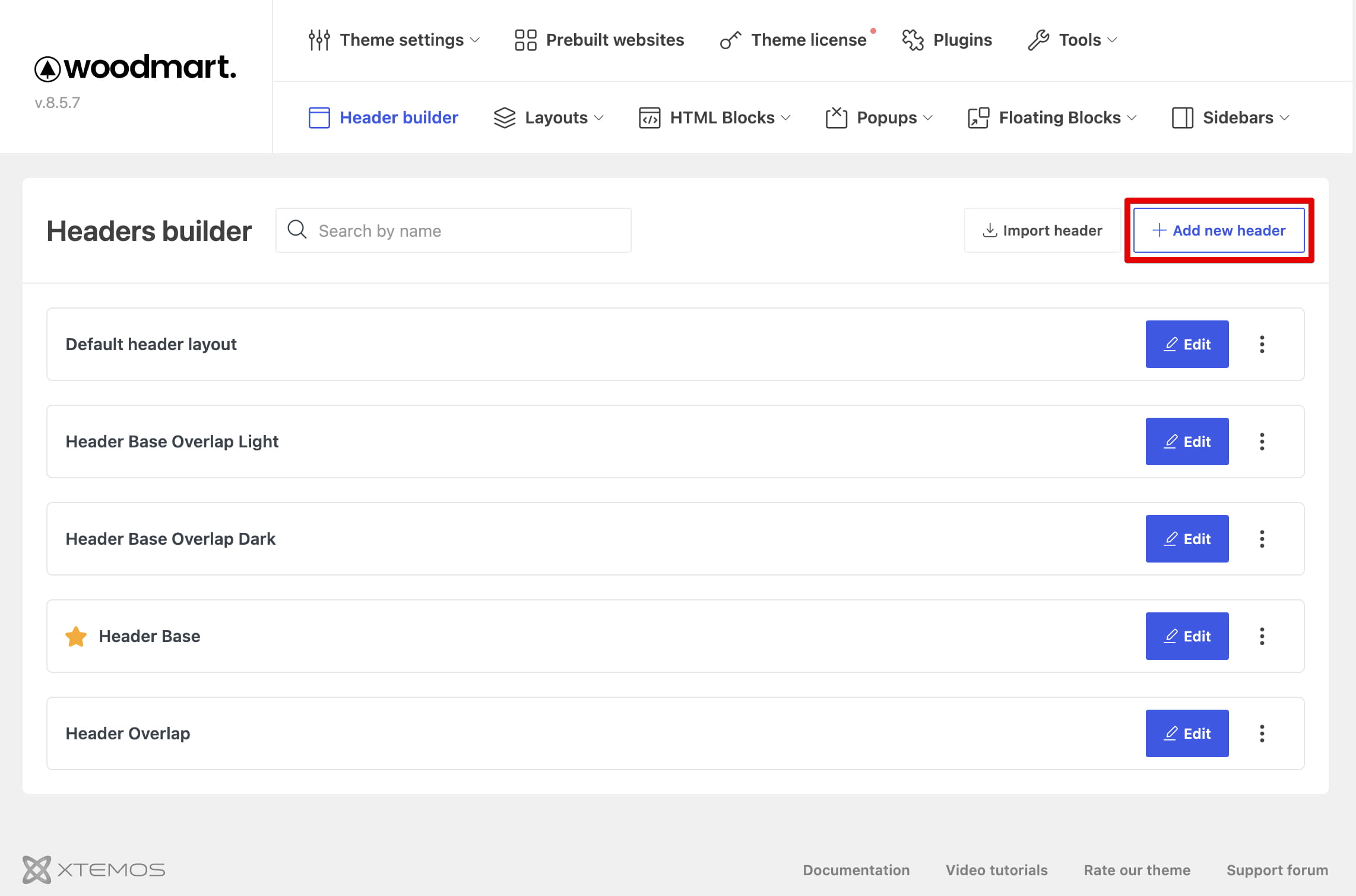
Choose a starting layout
The creation window contains an Examples library and a list of User headers. Select one of the following starting points:
- The Empty example for a blank header structure.
- A predefined example that can be customized.
- An existing user header to create a new header from its current structure.
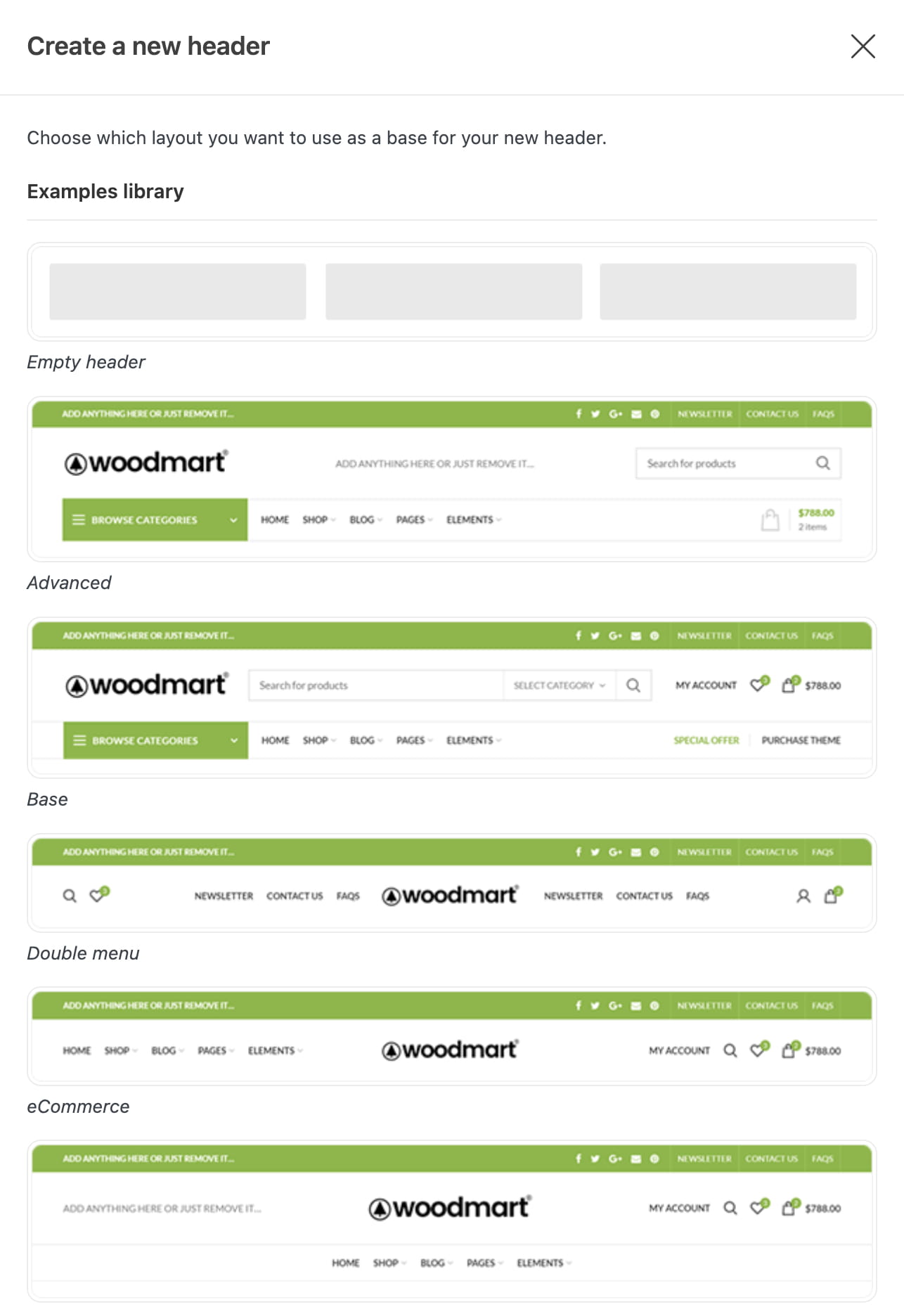
Enter a clear header name, arrange its rows and elements, and click Save header. To make a direct copy of an existing header, open its actions menu in the headers manager and choose Duplicate.
Set the header as default
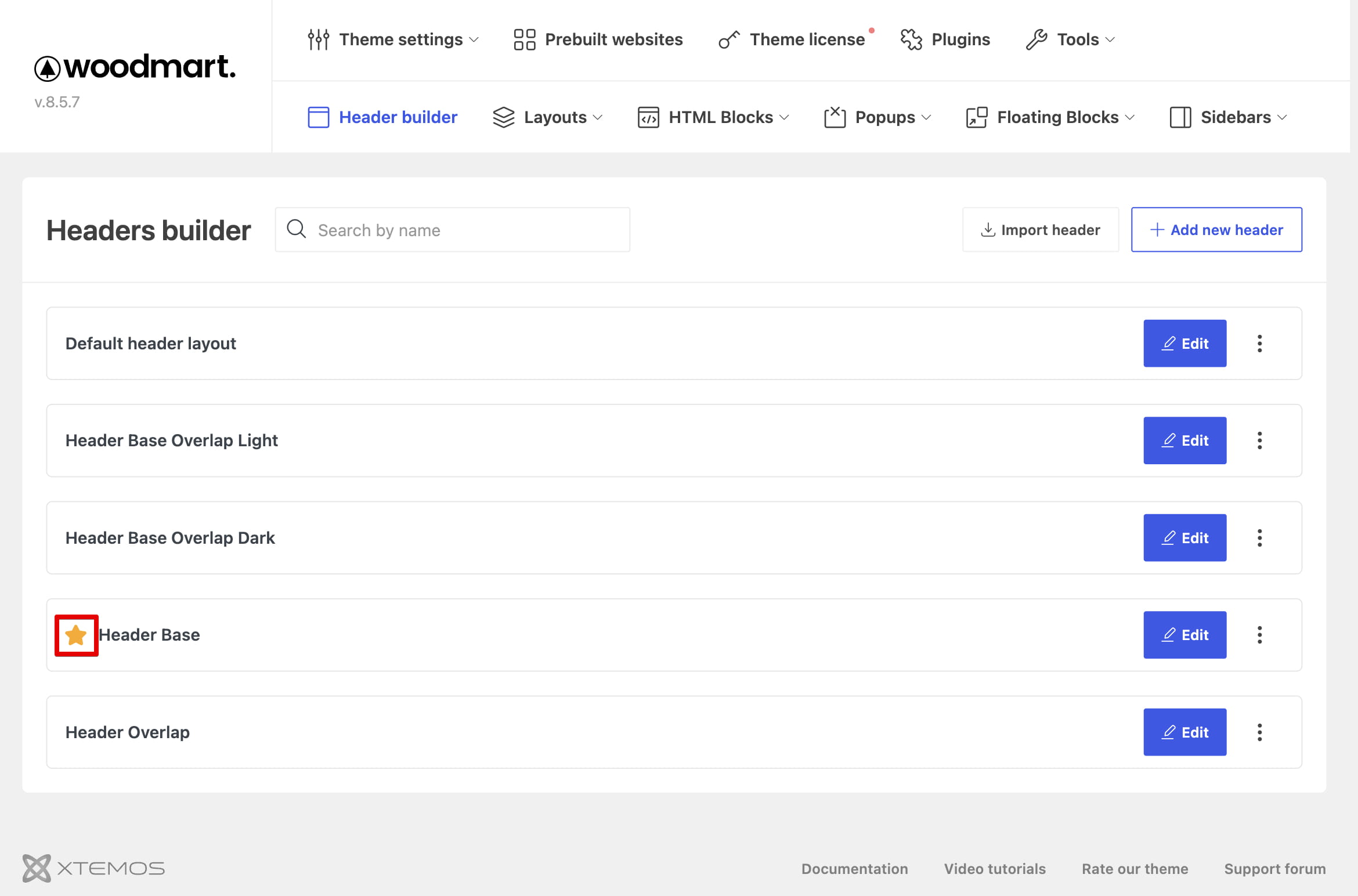
After creating the header, use Set as default if it should appear across the website. See Set the default header for details.
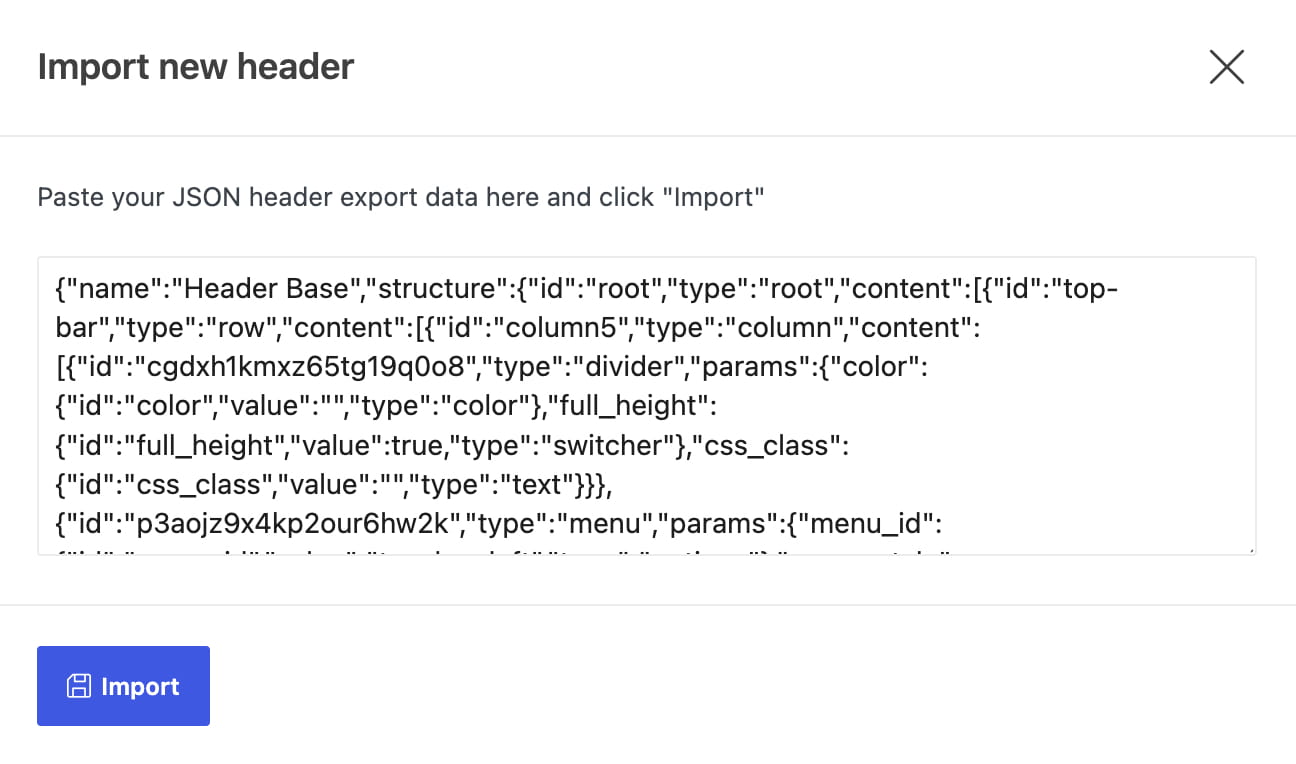
Create a header from exported data
If you already have an exported header JSON, use Import header in the headers manager. See Export and import headers.
Video tutorial
Watch the following tutorial for a complete Header Builder workflow.
Don’t miss WoodMart updates
Receive feature updates, tutorials, and WoodMart news via email.
 Last updated: August 7, 2026