
Page builder elements
The theme adds its own content and WooCommerce components to Gutenberg, Elementor, and WPBakery Page Builder. Each editor uses different terminology: Gutenberg has blocks, Elementor has widgets, and WPBakery has elements.
Gutenberg blocks
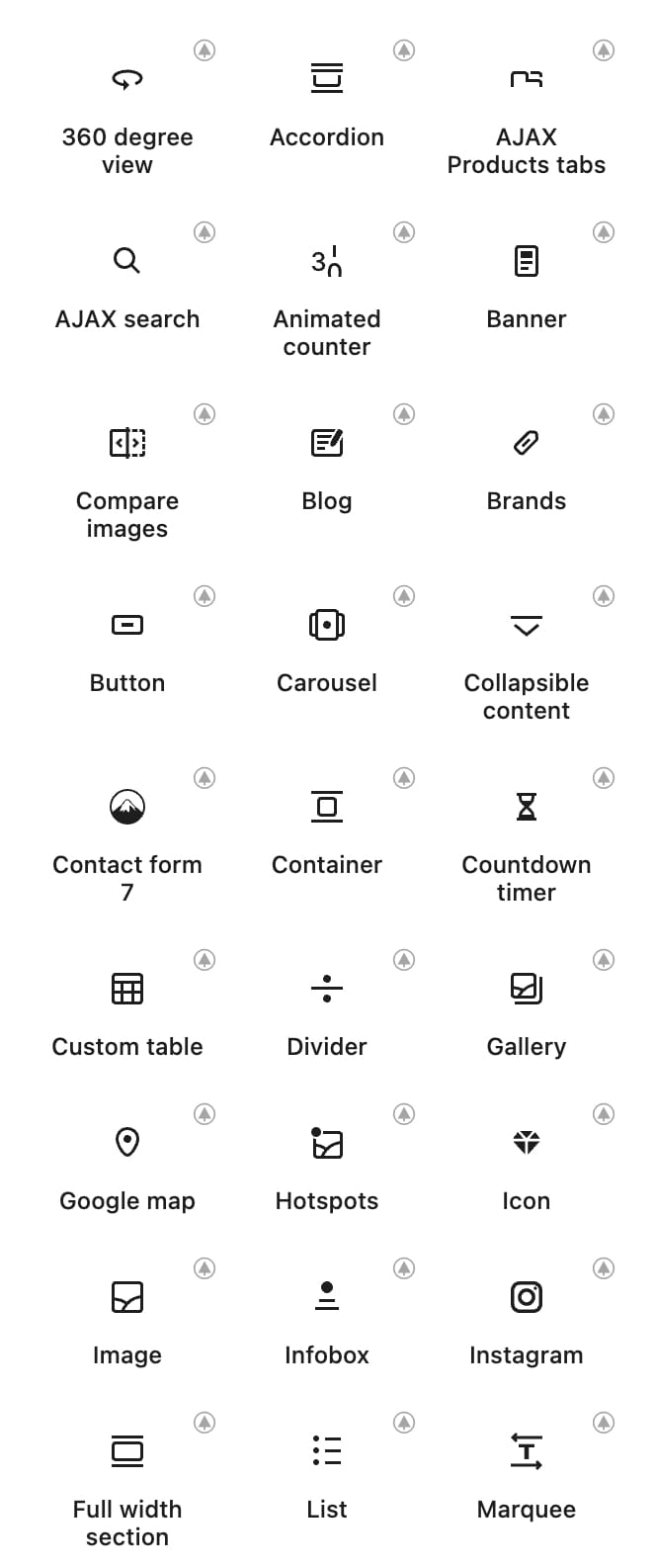
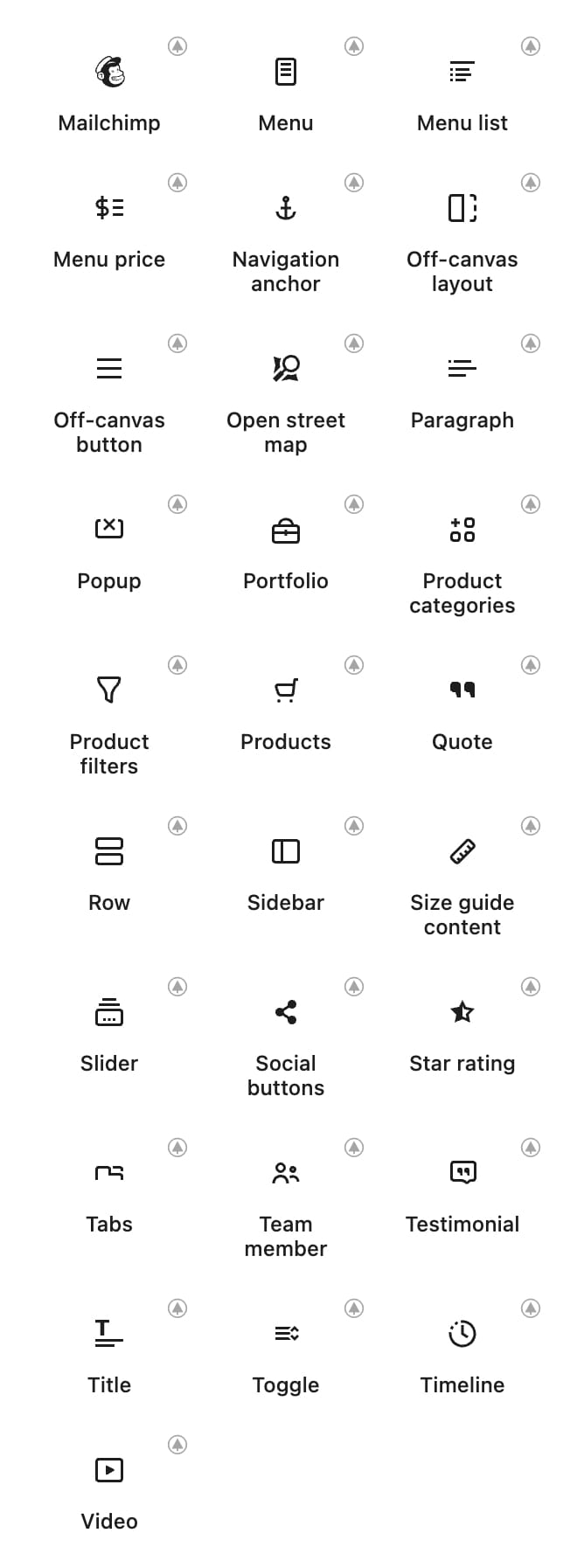
Open the Block Inserter and search for a block by name, or browse the Xtemos categories. General blocks are grouped under Xtemos and [XTemos] Site.
Additional categories organize blocks intended for specific Layouts Builder templates, including Single product, Products archive, Posts elements, Cart, Checkout, My account, Thank you page, Post archive, and Loop items. Use these blocks in the corresponding template context.
Elementor widgets
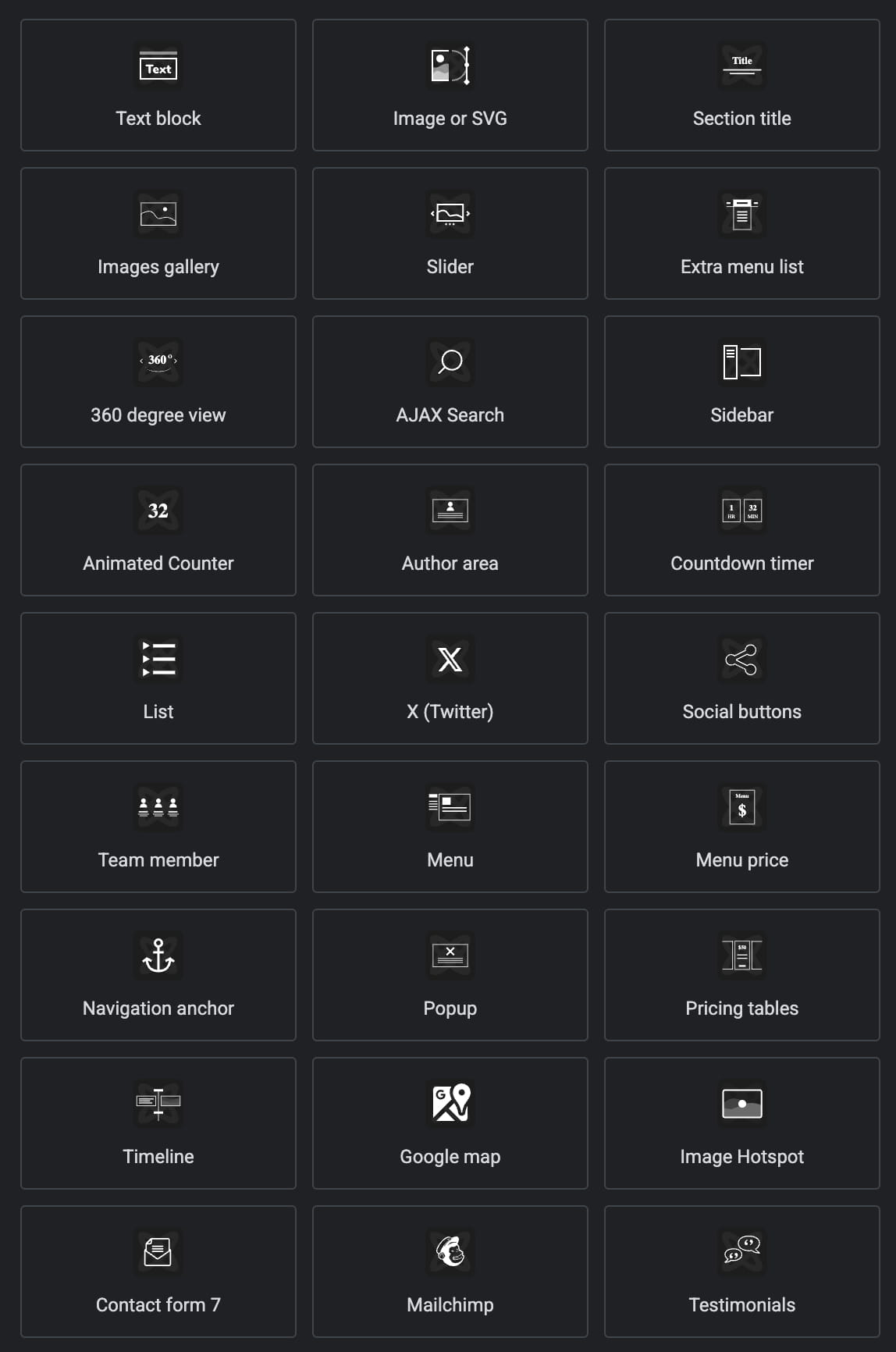
Open the Elementor widgets panel and expand [XTemos] Elements. You can also use the search field at the top of the panel to find a widget by name, then drag it into the page or template.
WPBakery elements
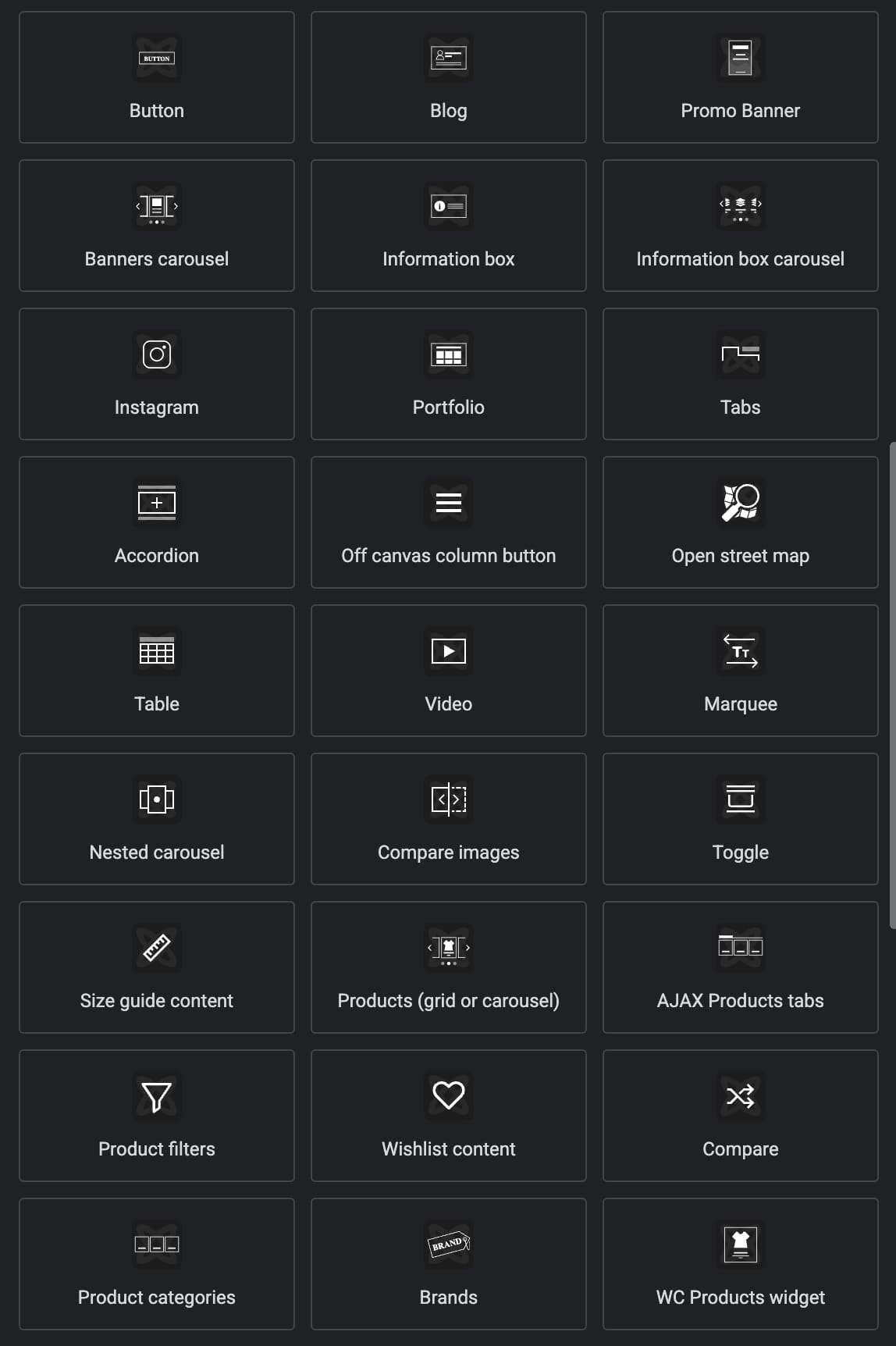
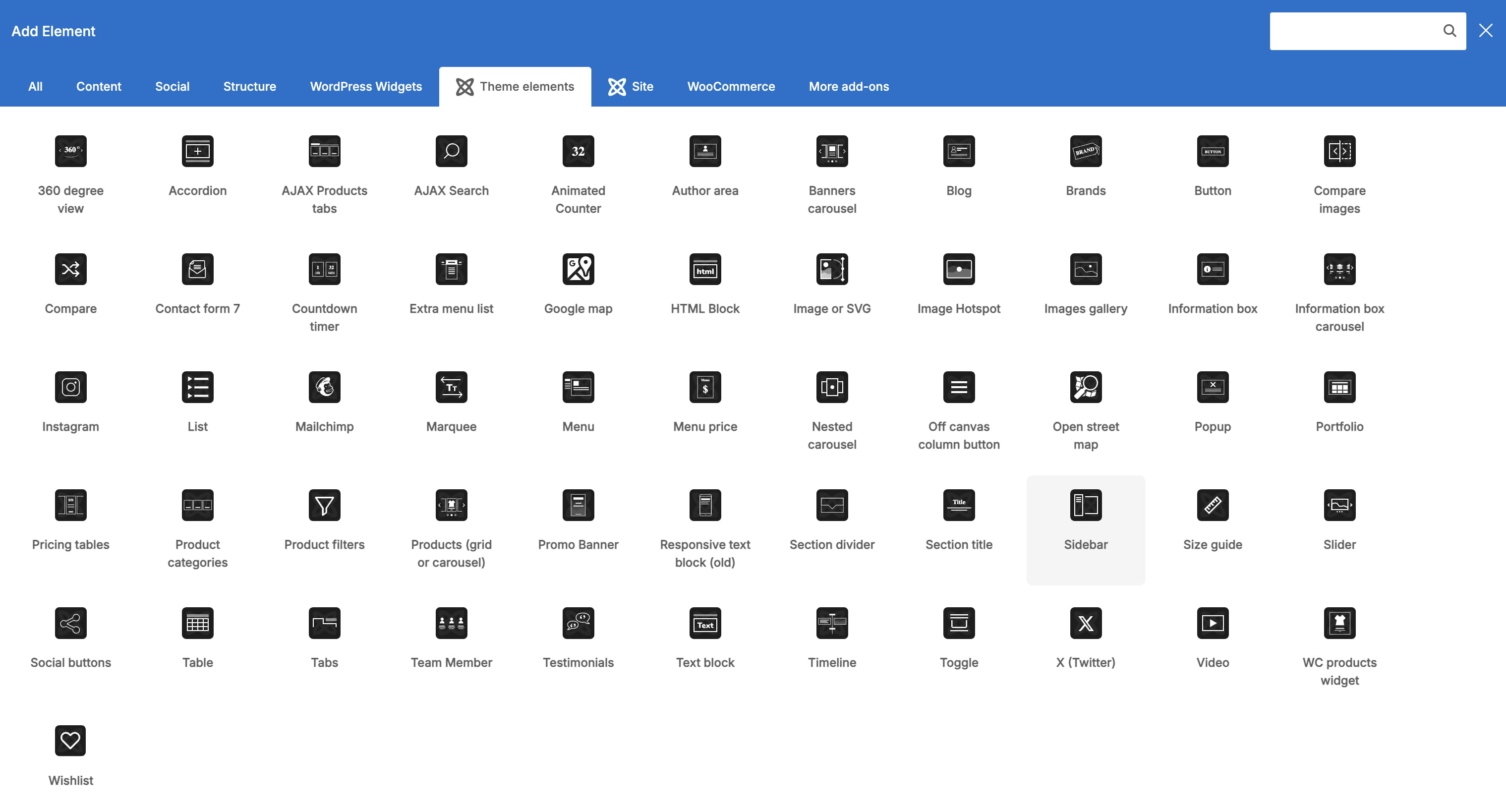
Click Add element in WPBakery Page Builder and open the Theme elements category. Select an element from the category or use the search field in the Add Element window.
Element availability
Not every element is available in every editor. Some elements are designed for a specific template type, depend on WooCommerce, or integrate with an additional plugin such as Contact Form 7 or Mailchimp. If you cannot find an element, check that you are using the expected editor and template context and that its required plugin or feature is active.
Don’t miss WoodMart updates
Receive feature updates, tutorials, and WoodMart news via email.
 Last updated: August 11, 2026