
Widgets and sidebars
WoodMart provides predefined widget areas for pages, blog posts, product archives, single products, portfolio pages, menus, and widget-based footers. You can also create custom sidebars and assign them to individual pages or products.
How widgets and sidebars work
A widget area is a location where WordPress blocks and widgets can be added in Appearance -> Widgets. A sidebar is a widget area displayed next to the main page content.
Adding content to a widget area does not automatically make a sidebar visible. You must also enable a left or right sidebar layout for the relevant page type in Theme Settings or the individual page settings.
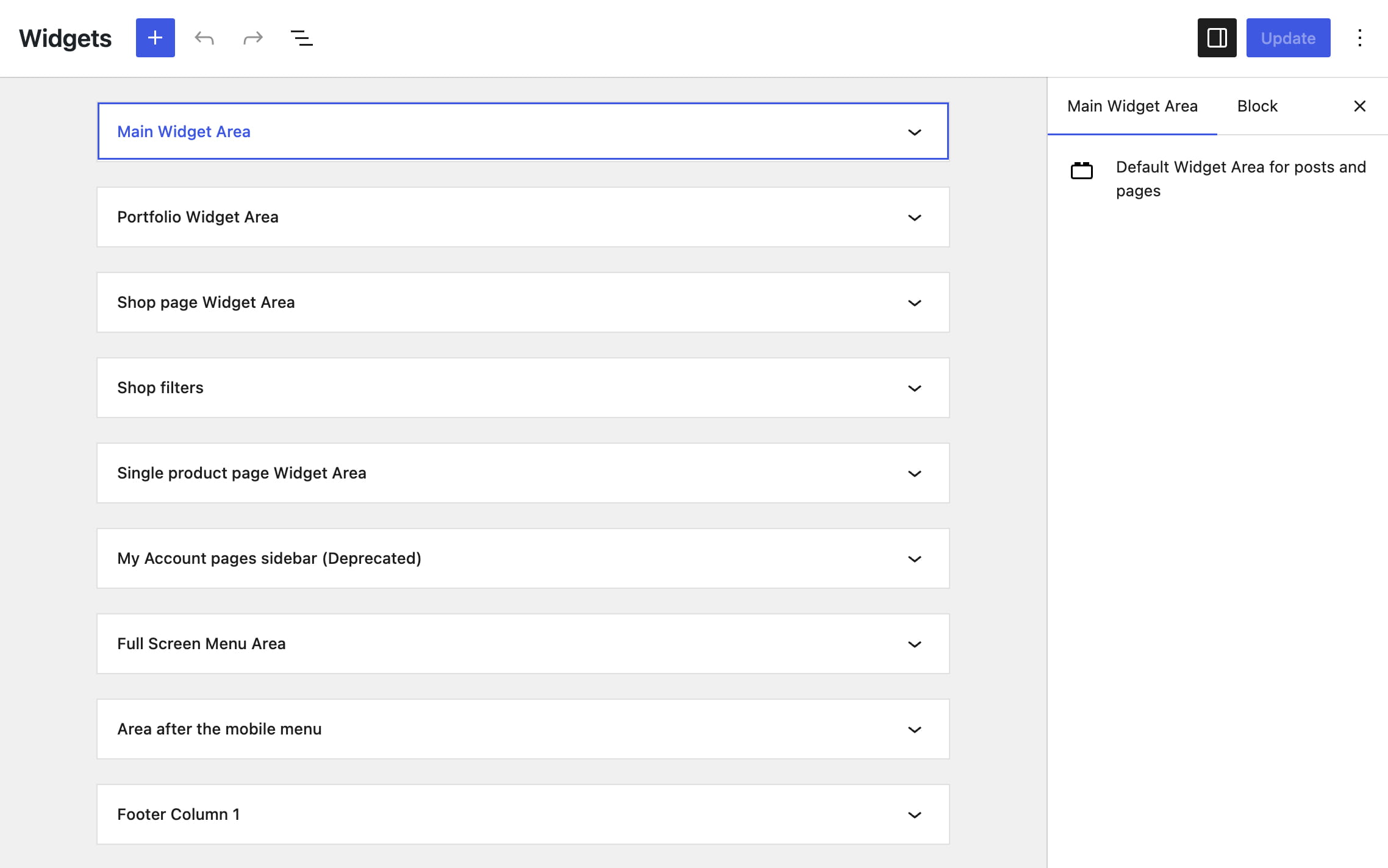
Add widgets to a widget area
- Navigate to Appearance -> Widgets.
- Open the widget area you want to edit.
- Click the + button and search for a WordPress block or WoodMart widget.
- Add and configure the required content.
- Click Update to save the widget area.
The current WordPress Widgets screen uses the block editor. WoodMart widgets appear in the same inserter as standard WordPress blocks and widgets.

Available widget areas
| Widget area | Where it appears | Configuration |
|---|---|---|
| Main Widget Area | Standard pages, blog archives, and posts | Theme Settings → General → Layout or the relevant Blog section |
| Portfolio Widget Area | Portfolio archives and projects | Theme Settings → Portfolio |
| Shop page Widget Area | Shop and product archive sidebar | Theme Settings → Product archive → Sidebar |
| Shop filters | Filter area above the product archive grid | Theme Settings → Product archive → Shop filters |
| Single product page Widget Area | Individual product pages | Theme Settings → Single product |
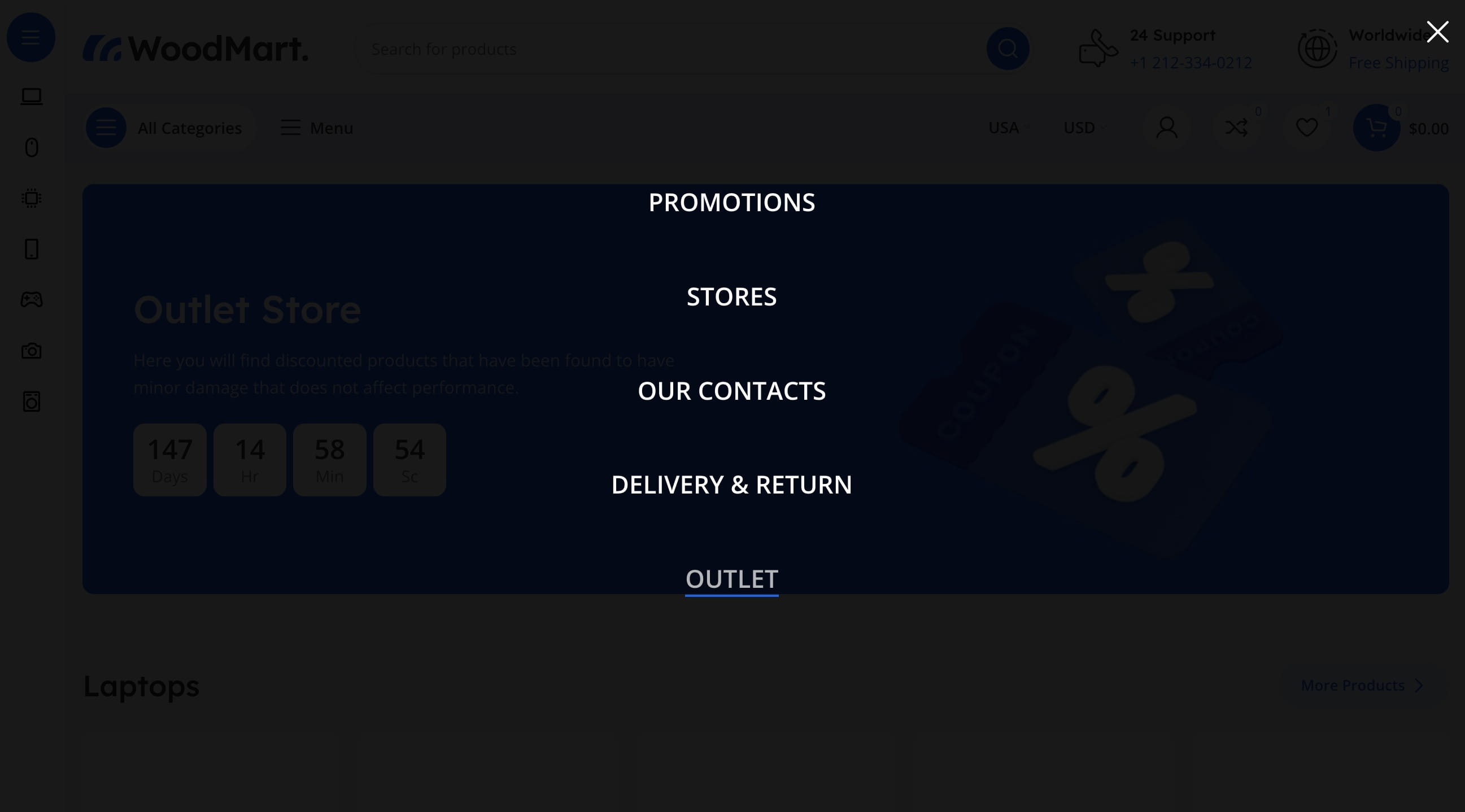
| Full Screen Menu Area | Below the navigation in a full-screen menu | Enable Full screen menu in the Main menu element |
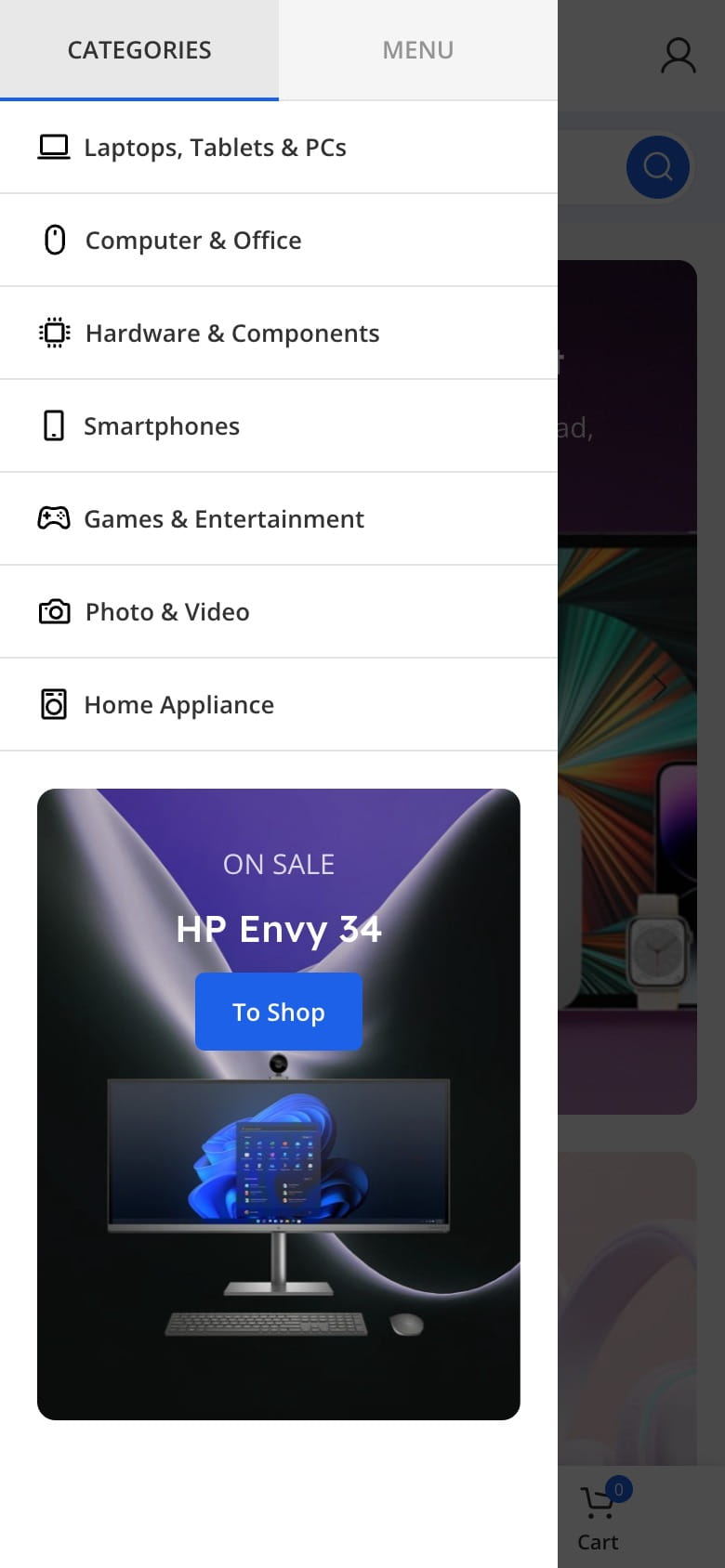
| Area after the mobile menu | Below the links in the mobile menu panel | Add content in Appearance → Widgets |
| Footer Column 1, 2, 3, and others | Widget-based footer columns | Theme Settings → Footer |
The Portfolio Widget Area is available only when the Portfolio feature is enabled. Footer Column areas depend on the selected widget footer layout.
Configure sidebar placement
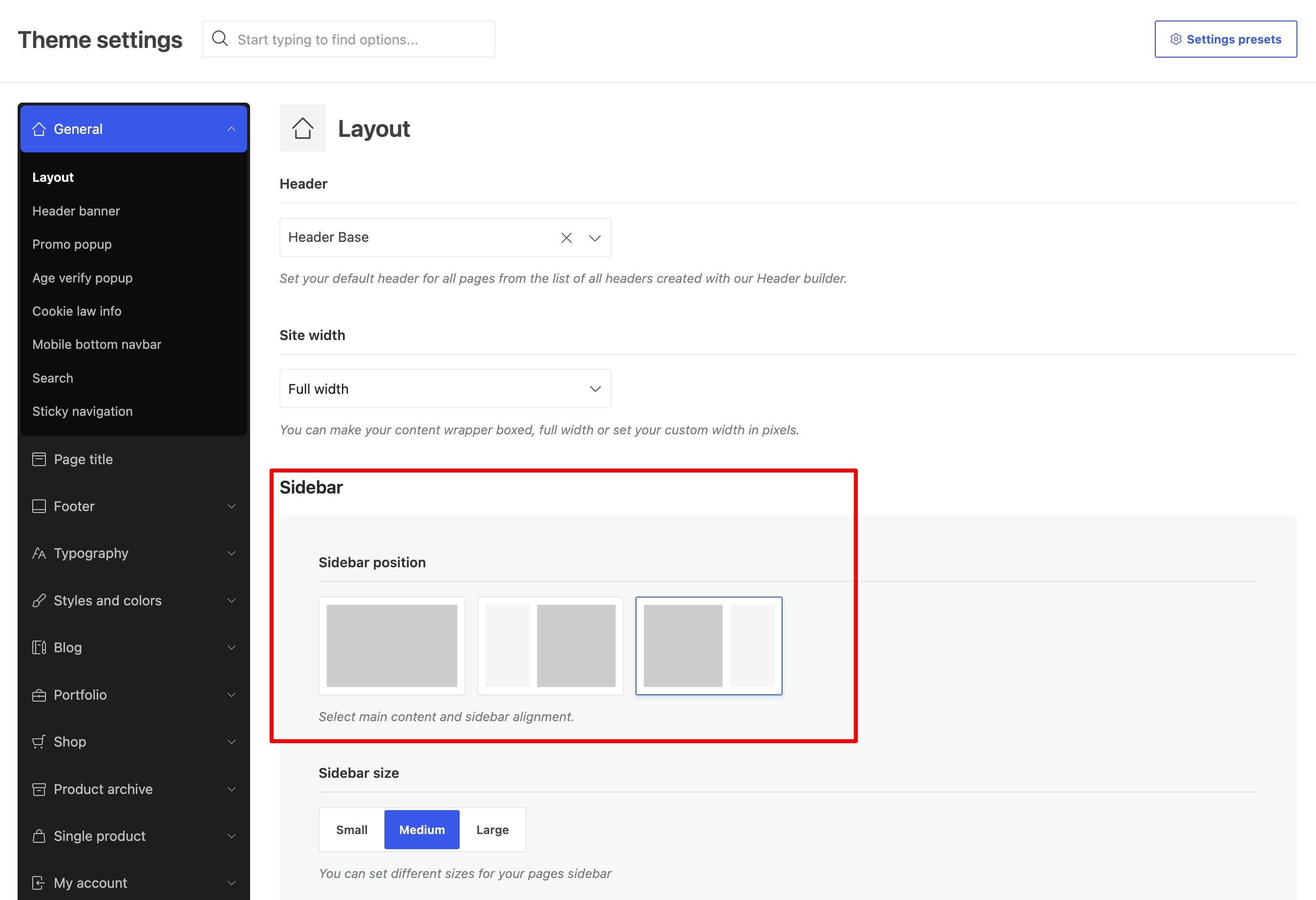
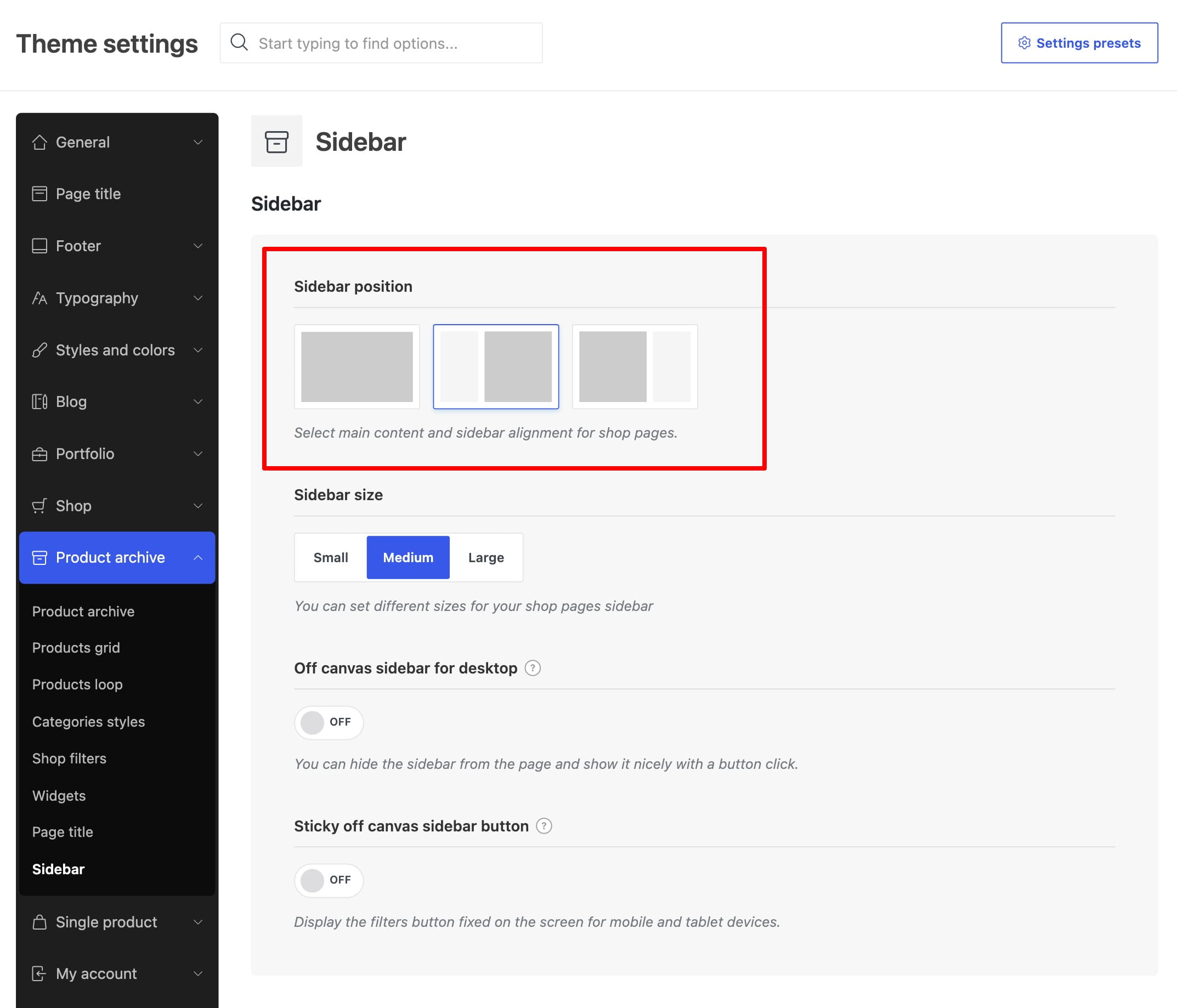
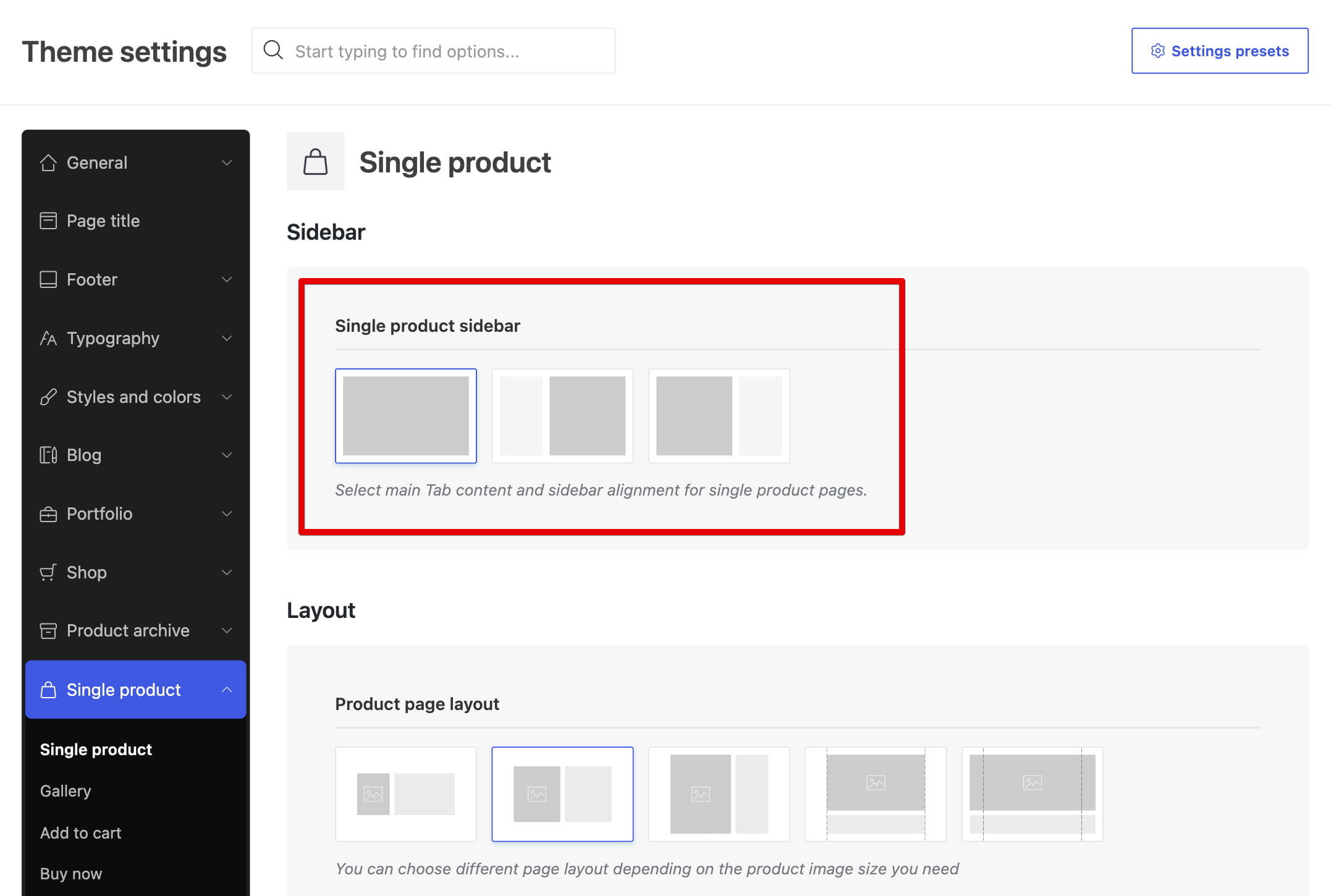
Each supported page type has its own sidebar layout settings. Select a left or right sidebar position to display the corresponding widget area.
- Standard pages: Theme Settings -> General -> Layout.
- Blog archives and posts: the applicable section under Theme Settings -> Blog.
- Product archives: Theme Settings -> Product archive -> Sidebar.
- Single products: Theme Settings -> Single product.
- Portfolio archives and projects: the applicable section under Theme Settings -> Portfolio.
These sections also include Sidebar size and device-specific Off canvas sidebar controls. An off-canvas sidebar is hidden from the normal layout and opened with a button on the selected device.
Create a custom sidebar
Create a custom sidebar when an individual page or product requires different widgets from the default widget area.
- Navigate to Dashboard -> Sidebars -> Add Sidebar.
- Enter a descriptive title and publish the sidebar.
- Navigate to Appearance -> Widgets and add content to the newly created widget area.
- Edit the required page or product and open its WoodMart settings.
- Select the sidebar in Custom sidebar for this page or Custom sidebar for this product.
- Make sure a left or right sidebar layout is selected, then update the page or product.
Shop filters widget area
The Shop filters area is displayed above the product archive grid when it is enabled in Theme Settings -> Product archive -> Shop filters.
- Enable Shop filters.
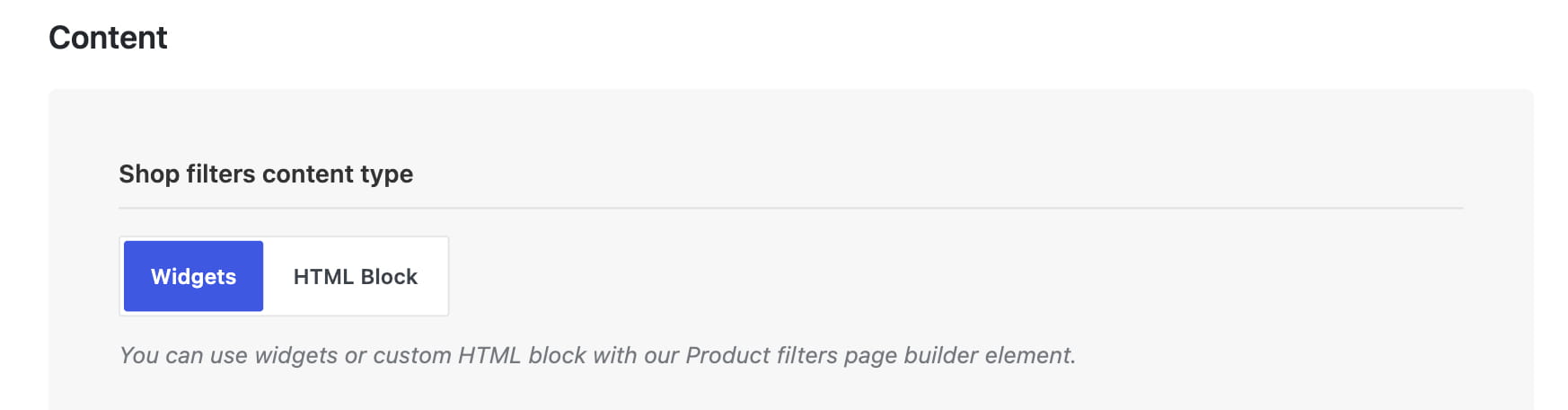
- Set Shop filters content type to Widgets or HTML Block.
- For Widgets, add filters to the Shop filters area in Appearance -> Widgets and configure the responsive columns and spacing in Theme Settings.
- For HTML Block, create a block containing the Product filters element and select it in Shop filters HTML Block.
- Save Theme Settings and test the filters on the shop and product category pages.
Footer column widget areas
Footer Column widget areas are registered when Footer content is set to Widgets. The selected Footer layout determines how many areas appear in Appearance -> Widgets.
For a more flexible footer, use one HTML Block as the complete footer content. See Set up the footer for both methods.
WoodMart widgets
WoodMart adds specialized widgets alongside the standard WordPress and WooCommerce widgets. Availability depends on the active plugins and theme features.
Shop and product filters
- WOODMART WooCommerce Layered Nav
- WOODMART Product Category Filter
- WOODMART Price filter
- WOODMART WooCommerce Sort by
- WOODMART Stock status
Content and navigation
- WOODMART AJAX Search
- WOODMART Banner
- WOODMART HTML Block
- WOODMART Author Information
- WOODMART Recent Posts
- WOODMART Sidebar Mega Menu
Account and integrations
- WOODMART User Panel
- WOODMART Instagram
- WOODMART Mailchimp
- WOODMART X (Twitter)
Product archive widget settings
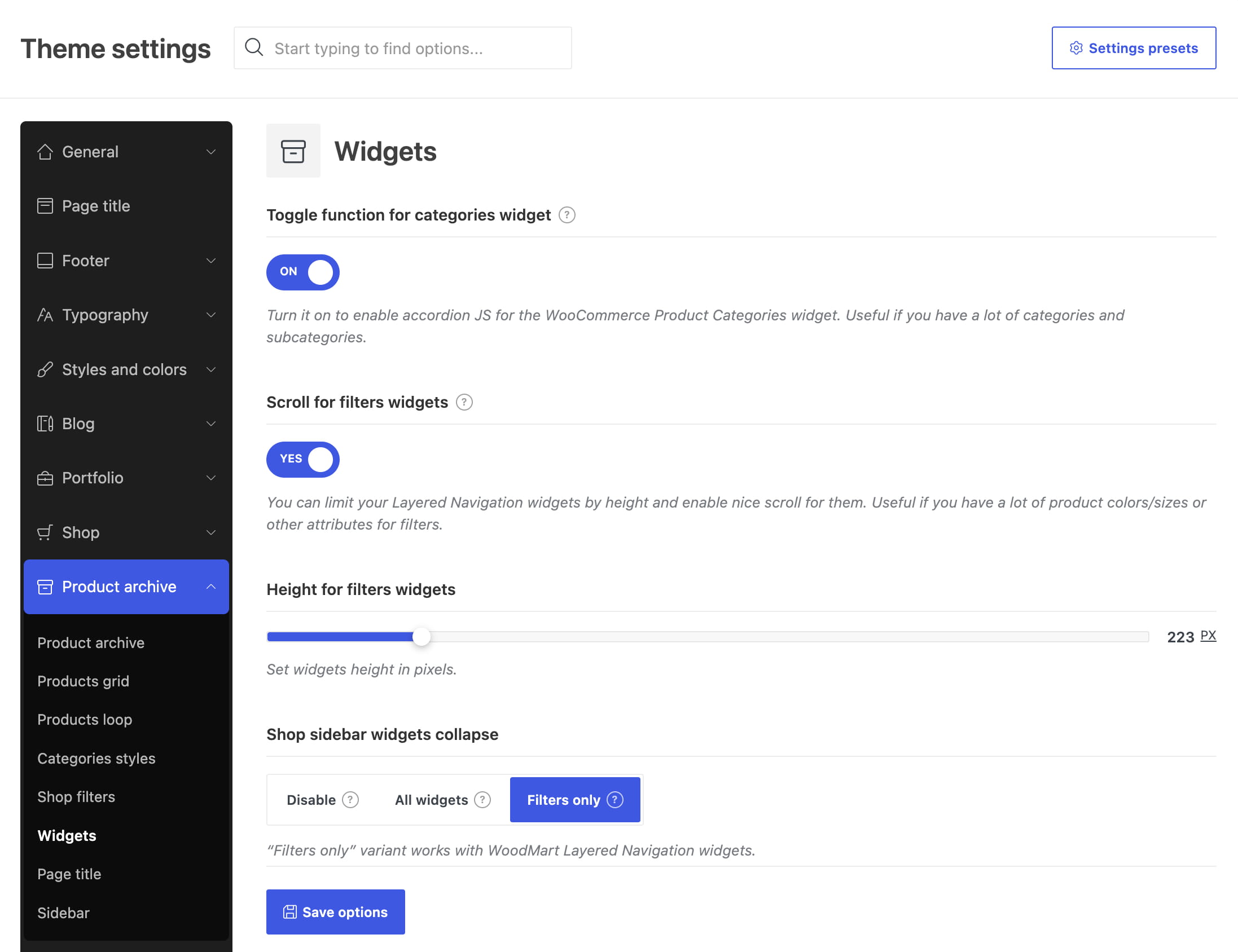
Navigate to Theme Settings -> Product archive -> Widgets to configure the behavior of product category and filter widgets.
- Toggle function for categories widget: adds accordion behavior to the WooCommerce Product Categories widget.
- Scroll for filters widgets: limits supported filter widgets by height and adds scrolling.
- Height for filters widgets: sets the maximum height in pixels when filter scrolling is enabled.
- Shop sidebar widgets collapse: disables collapsing, collapses all widgets, or collapses only supported filter widgets.
Don’t miss WoodMart updates
Receive feature updates, tutorials, and WoodMart news via email.
 Last updated: August 10, 2026