
Predefined theme translations
WoodMart provides predefined language packs that can be installed and updated through the standard WordPress translation system. A theme license is required to receive these translation updates.
Available languages
Predefined translations are currently available for the following 37 languages:
- Arabic
- Bengali
- Bulgarian
- Chinese (Simplified)
- Czech
- Danish
- Dutch
- Estonian
- Finnish
- French
- German
- Greek
- Hebrew
- Hindi
- Hungarian
- Indonesian
- Irish
- Italian
- Japanese
- Korean
- Latvian
- Lithuanian
- Norwegian (Bokmål)
- Polish
- Portuguese (Brazil)
- Portuguese (Portugal)
- Romanian
- Russian
- Slovak
- Slovenian
- Spanish
- Swedish
- Tagalog
- Thai
- Turkish
- Ukrainian
- Vietnamese
Install a predefined translation
1. Activate the theme license through Dashboard -> WoodMart -> Theme license.
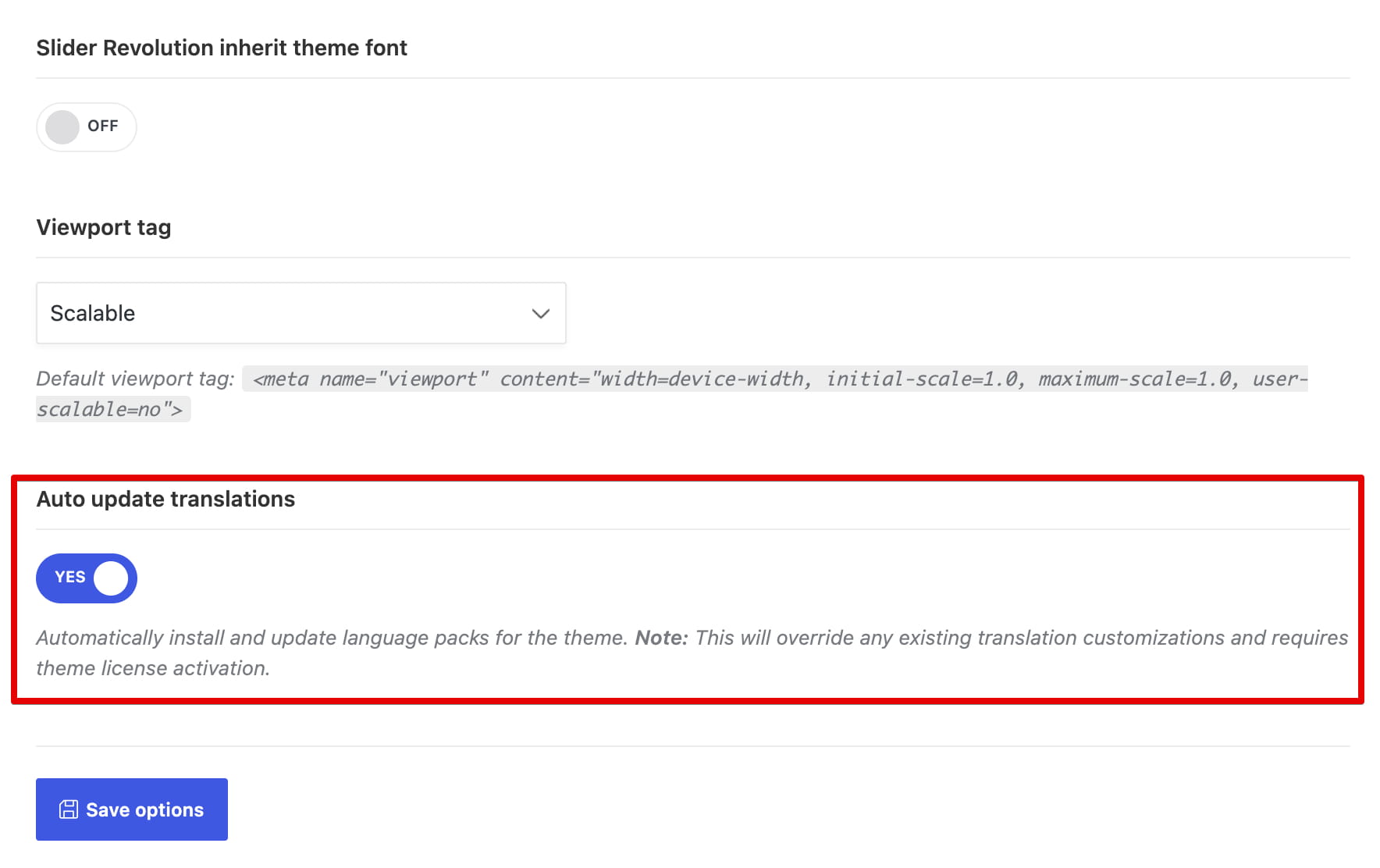
2. Navigate to Dashboard -> Theme Settings -> Other, enable Auto update translations, and save the Theme Settings.
3. Select the required language through Dashboard -> Settings -> General -> Site Language. WoodMart provides language packs only for supported WordPress languages installed on the website.
4. Open Dashboard -> Updates and click Check again.
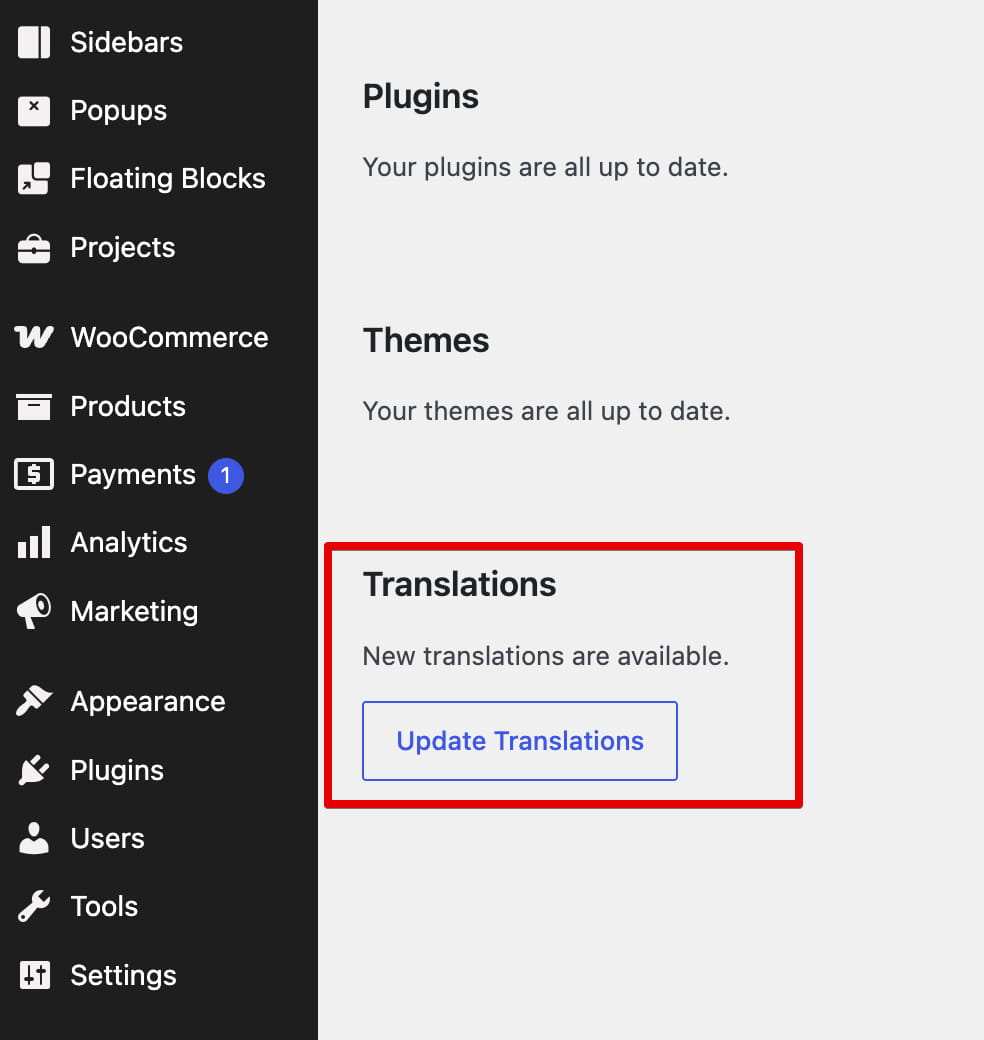
5. Scroll to Translations and click Update Translations.
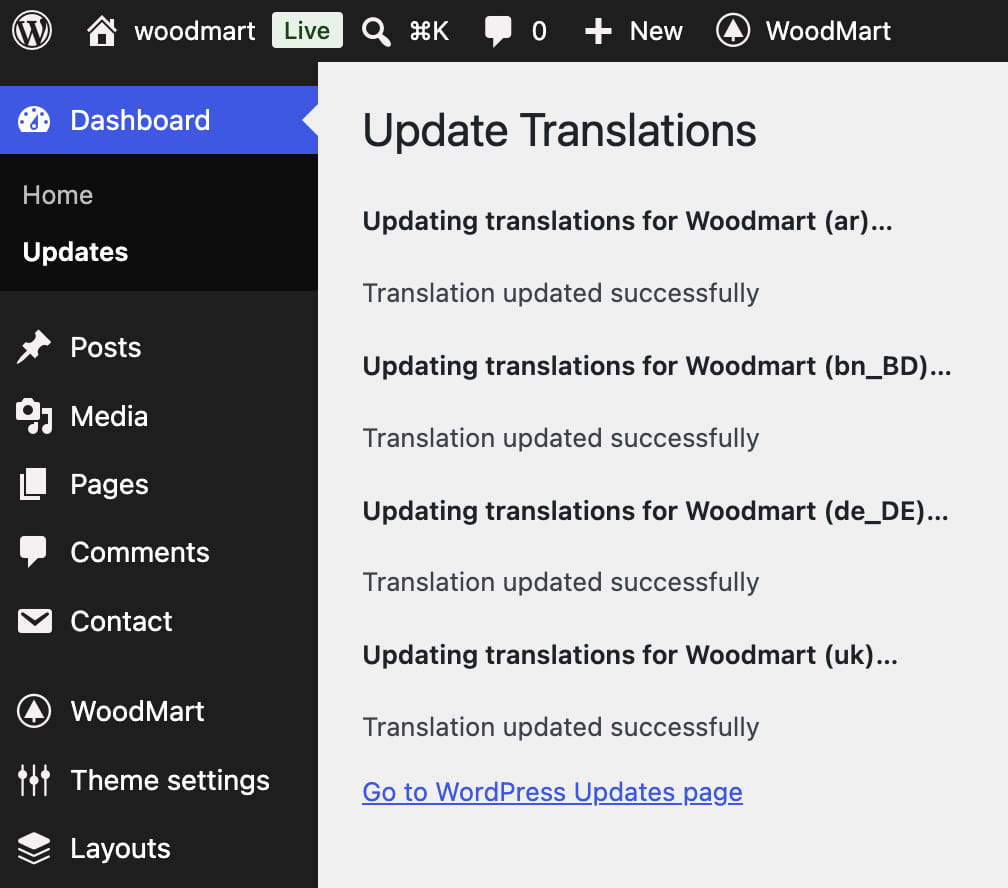
Downloaded files are stored in wp-content/languages/themes using names such as woodmart-LOCALE.po, woodmart-LOCALE.mo, and woodmart-LOCALE.l10n.php.
Update translations
After updating WoodMart, open Dashboard -> Updates, click Check again, and then click Update Translations when a new language pack is available.
wp-content/languages/themes. Back up any manual changes before updating. To customize translated strings safely, use Loco Translate and store the custom translation in wp-content/languages/loco/themes.For instructions on creating or modifying a custom translation, see Translate with Loco Translate plugin. Do not store custom translation files in wp-content/themes/woodmart/languages, because theme updates replace that directory.
Check installed translations
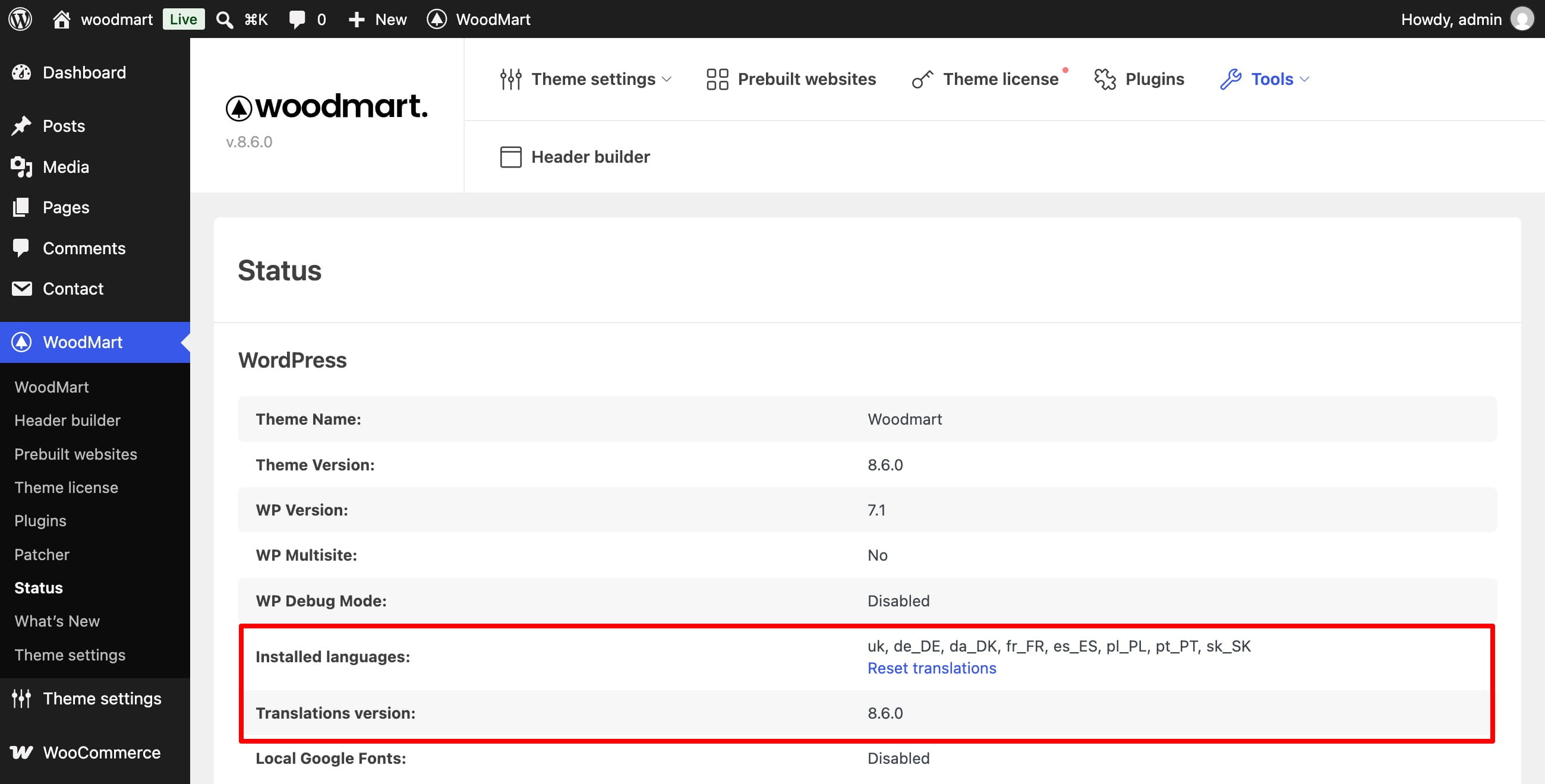
Navigate to Dashboard -> WoodMart -> Tools -> Status to see the installed language locales and the WoodMart translation version.
Reset translations
If a predefined translation is missing or no longer works correctly, open Dashboard -> WoodMart -> Tools -> Status and click Reset translations. The link is available only after a predefined WoodMart translation has been installed.
This action deletes the installed predefined WoodMart .po, .mo, and .l10n.php files from wp-content/languages/themes and clears the stored list of installed languages and translation version.
After resetting, return to Dashboard -> Updates, click Check again, and then click Update Translations to download fresh language packs.
Don’t miss WoodMart updates
Receive feature updates, tutorials, and WoodMart news via email.
 Last updated: September 21, 2026