
Header settings
Header settings control the complete header currently open in the editor. Click Settings in the Header Builder toolbar to open them. These options are saved independently for each header layout.
General settings
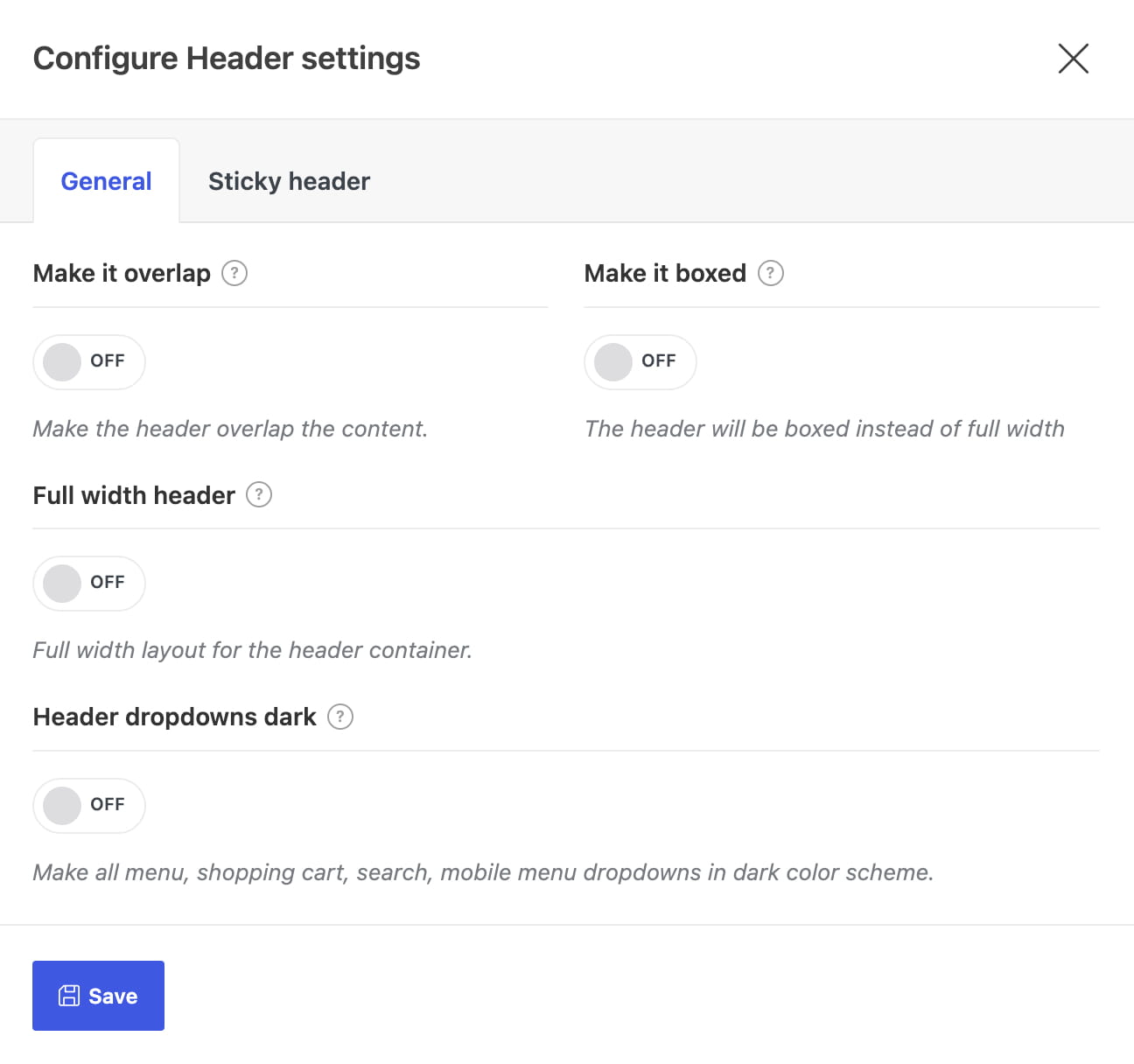
- Make it overlap — positions the header over the page content.
- Make it boxed — keeps an overlapping header inside a boxed container. This option appears after overlap is enabled.
- Full width header — stretches the header container across the available page width.
- Header dropdowns dark — applies a dark color scheme to header menus, search, cart, and mobile navigation dropdowns.
For a complete overlap workflow, see Enable header overlap.
Sticky header settings
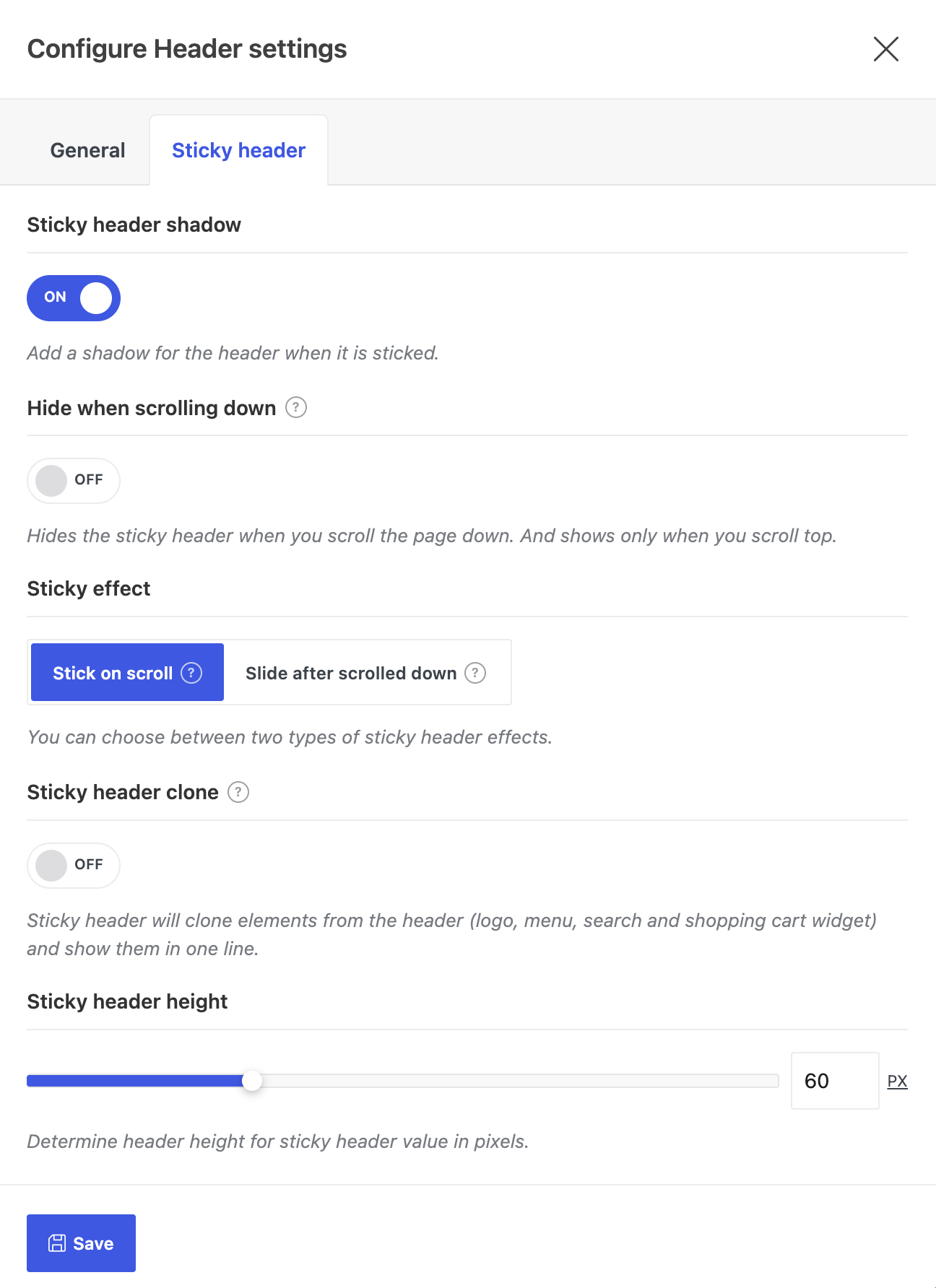
- Sticky header shadow — adds a shadow while the header is sticky.
- Hide when scrolling down — hides the sticky header during downward scrolling and shows it again when scrolling upward.
- Sticky effect — selects Stick on scroll or Slide after scrolled down.
- Sticky header clone — creates a compact automatic sticky header. It is available with the Slide effect.
- Sticky header height — controls the height of the automatic clone.
For the difference between sticky rows and the automatic clone, see Configure a sticky header.
Don’t miss WoodMart updates
Receive feature updates, tutorials, and WoodMart news via email.
 Last updated: August 11, 2026