
Change a header row color scheme
Each header row has its own text color scheme and background settings. This makes it possible to combine light and dark rows within the same header.
Configure row colors
- Open the required header in Dashboard -> WoodMart -> Header builder.
- Click Edit settings on the Top bar, Main header, or Header bottom row.
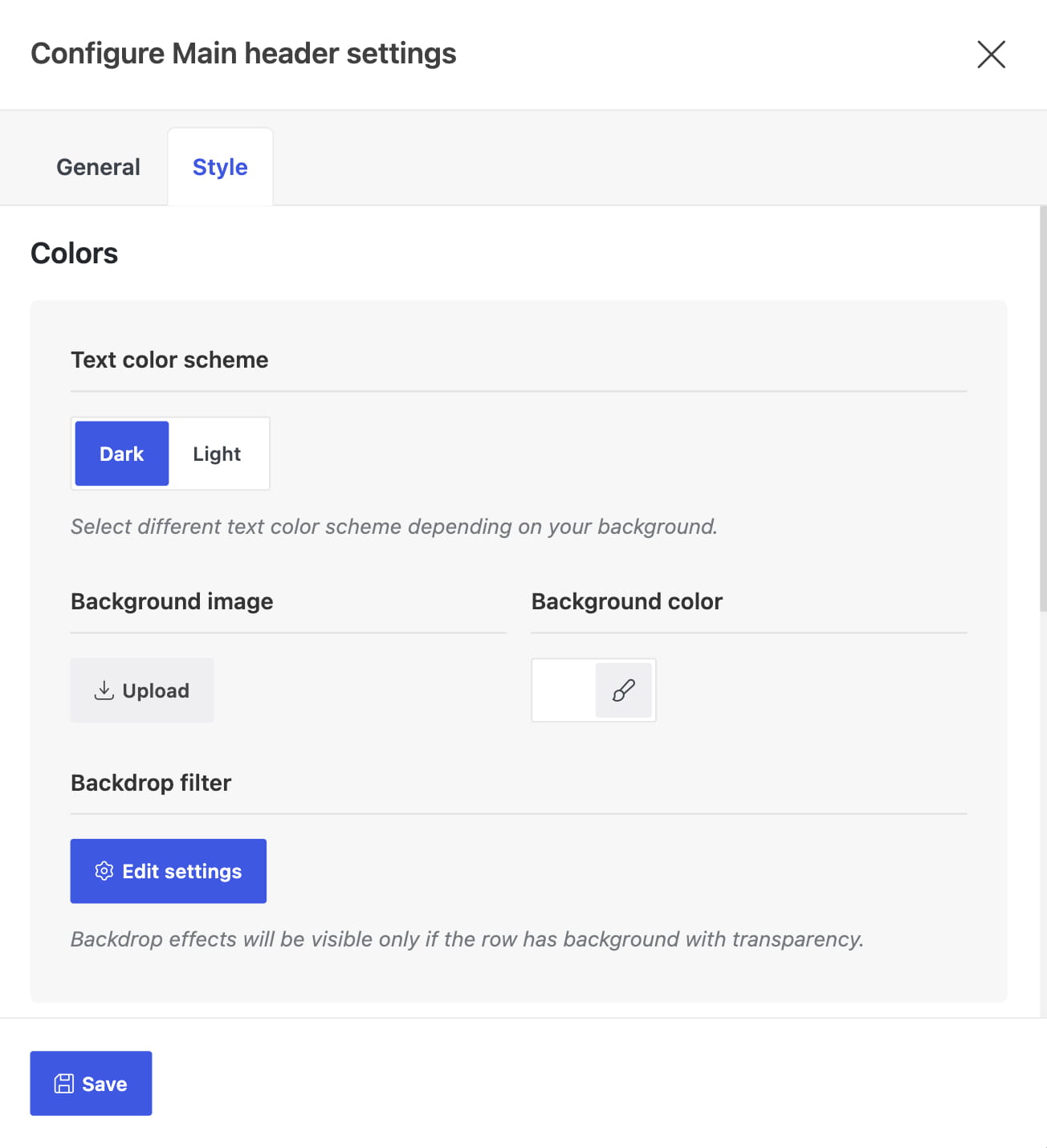
- Open the Style tab and locate the Colors group.
- Choose Dark or Light under Text color scheme.
- Set a background color or image when required, then save the row and click Save header.
Use the Light scheme over dark backgrounds and the Dark scheme over light backgrounds. The setting changes the row’s text and header element colors; it does not create a background automatically.
Header dropdowns dark is a separate header-level option. It controls the color scheme of dropdowns without changing the text color scheme of the row. See Header settings.
Don’t miss WoodMart updates
Receive feature updates, tutorials, and WoodMart news via email.
 Last updated: August 11, 2026