
Add a logo to the header
Use the Logo element to display the website logo in a header layout.
- Open the required header in Dashboard -> WoodMart -> Header builder.
- In the Desktop layout, click the plus button in the required column and add the Logo element.
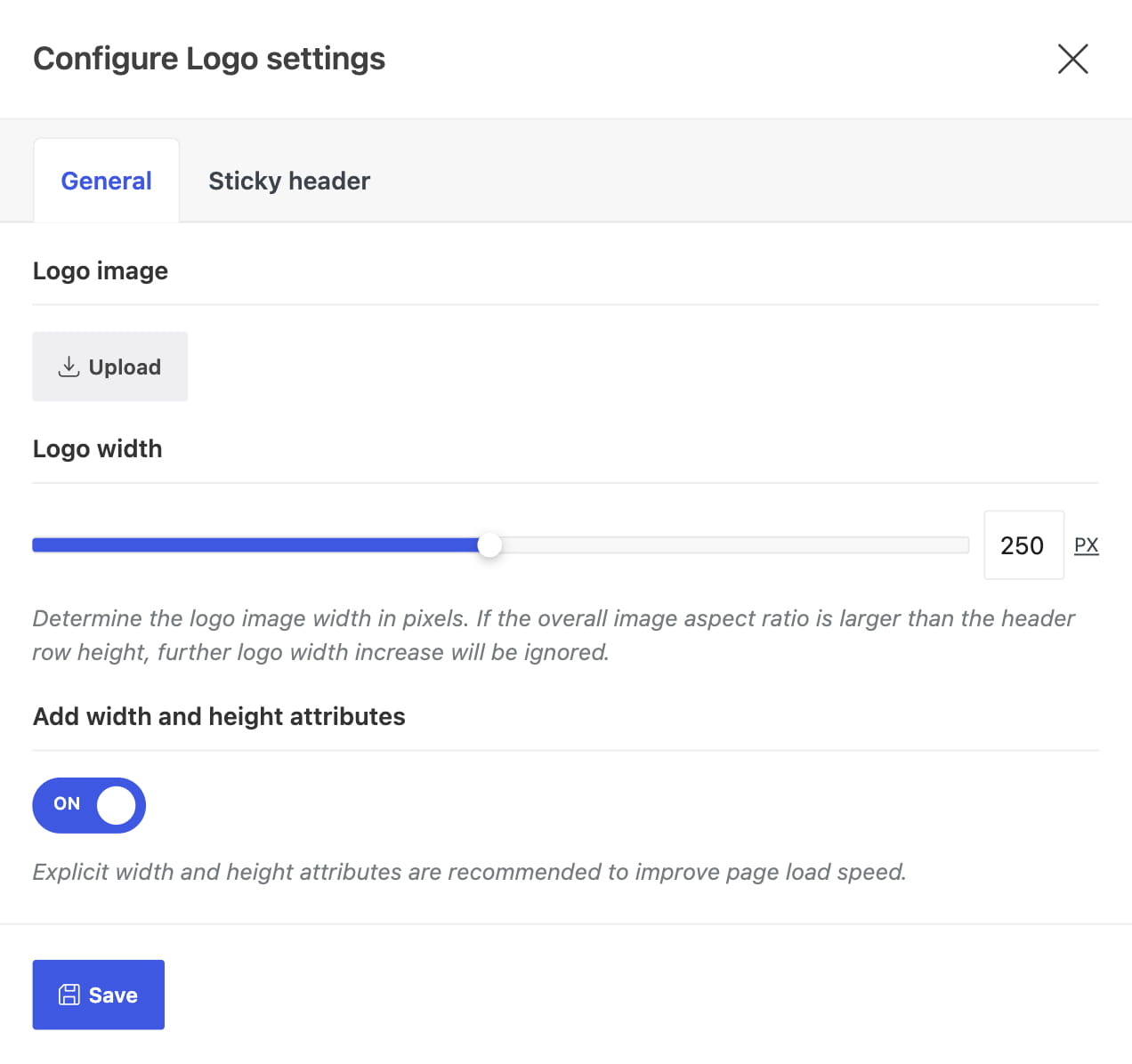
- Upload or select the Logo image.
- Set the maximum Logo width.
- Save the element and click Save header.
Mobile logo
Desktop and mobile layouts contain separate elements. Switch to Mobile and add a Logo element there as well. This allows the mobile header to use its own position, width, or image.
Sticky header logo
The Sticky header tab in the Logo element provides an optional sticky image and width. Leave the sticky image empty to reuse the regular logo. Upload a different image only when the sticky state needs another color or design.
Keep Add width and height attributes enabled to reserve image space and improve layout stability. For the complete sizing logic, see Control the header logo size.
Don’t miss WoodMart updates
Receive feature updates, tutorials, and WoodMart news via email.
 Last updated: August 11, 2026