
How to make WoodMart multilingual with WPML
After setting up WPML, you can translate WoodMart content, Theme Settings, Header Builder text, and other theme-specific strings. If WPML is not configured yet, start with Set up WPML.
Translate WoodMart content
WoodMart registers its main custom content types with WPML, including HTML Blocks, Portfolio projects, Slides, Popups, Floating blocks, and Product tabs. Translate them through the same workflow used for pages, posts, and products.
Page settings such as a custom header or a disabled page title are stored as metadata and are copied from the original page to its translations. See Per-page header overrides and WPML below when a translated page has to use different settings.
1. Navigate to Dashboard -> WPML -> Translation Dashboard and select the required content.

2. Choose the target languages and the translation method, then send the selected items for translation.
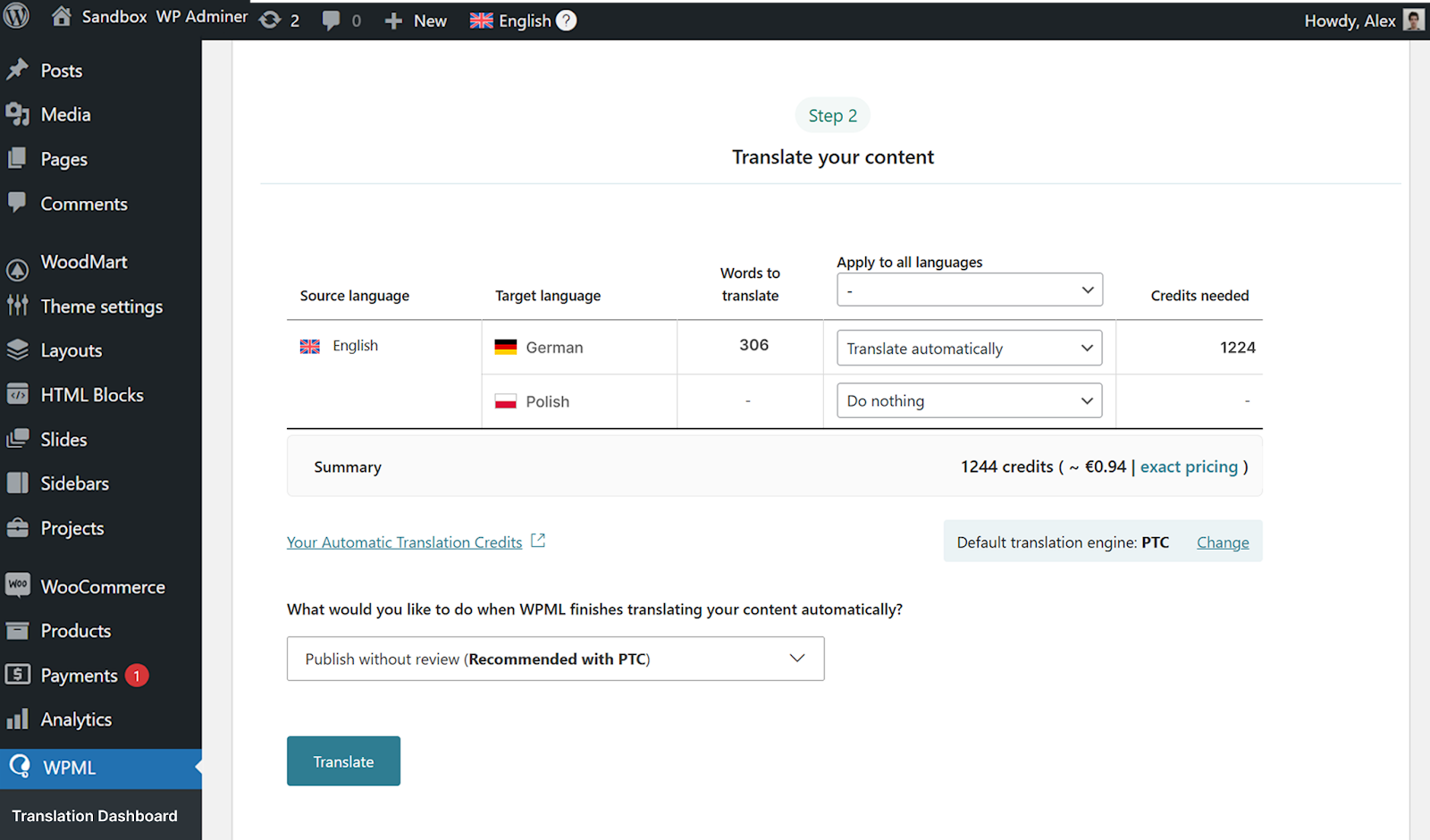
3. Open the assigned translation, complete the translated fields, and review the result.


Translate Theme Settings strings
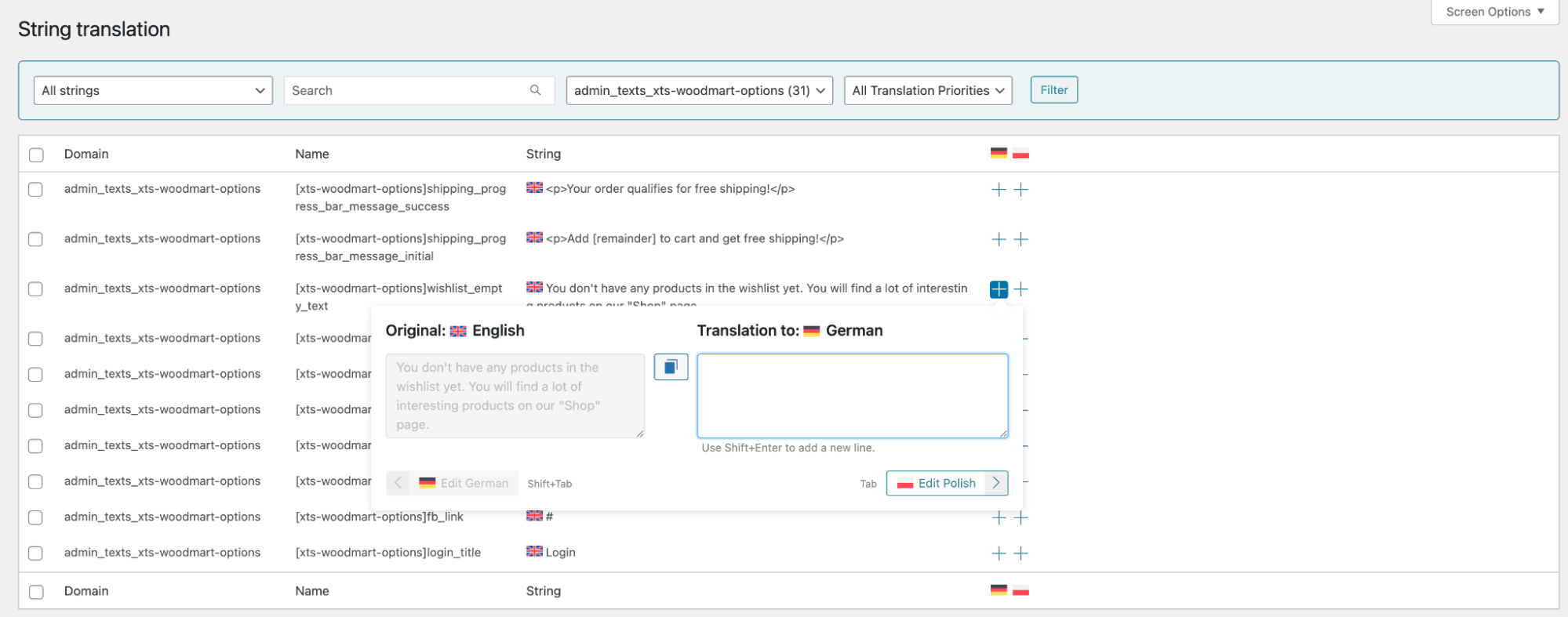
Texts saved in Theme Settings are configuration strings rather than page content. Open Dashboard -> WPML -> Translation Dashboard -> Other texts (Strings) and search for the required text.

You can also navigate to Dashboard -> WPML -> String Translation and filter by the admin_texts_xts-woodmart-options domain. If a Theme Settings field is missing, use the admin-text translation controls in String Translation to register it first.
Translate Header Builder content
Each WoodMart header has its own WPML string domain. First, open the required header in Dashboard -> WoodMart -> Header builder and find its ID in the browser URL.

Navigate to Dashboard -> WPML -> String Translation and select the admin_texts_whb_header_{HEADER_ID} domain, replacing {HEADER_ID} with the actual ID.


Use a different header for a language
Headers are assigned per language by translating the global Theme Settings value. The Header Builder has no language display condition, so this is done through WPML rather than through the builder. Navigate to Dashboard -> WPML -> String Translation, register the default_header Theme Settings field for translation, and assign the required header ID to each language.

A header selected for an individual page overrides this global value, so the translated default_header has no effect on such a page.
Per-page header overrides and WPML
On pages built with Elementor, the selected header is stored together with all other Elementor page settings, which WPML synchronizes as a single value. The override therefore cannot differ per language and is restored from the original page on every save. Remove it so that the translated default_header applies.
1. Open the original page and set Custom header in Page Settings -> Header back to Default. The default value has to be selected explicitly, because any other value keeps the override active.
2. Repeat this for every translation of the page, then clear the site cache and check the frontend in each language.
For pages built with other editors the header is stored as a regular custom field, and its behaviour can be set in Dashboard -> WPML -> Settings -> Custom Fields Translation when a translation has to keep its own header.
If a page was given a custom header in the WoodMart page settings before it was edited with Elementor, that value is carried into the Elementor Custom header control and saved with the page settings. Check this control first when a translated page shows the wrong header.
Add a language switcher to the header
Edit the required header and add the WPML Languages element where the language switcher should appear. For a mobile menu created with the Burger element, open the element settings, enable Show WPML languages, and optionally enable the language flag.
Translate widget text
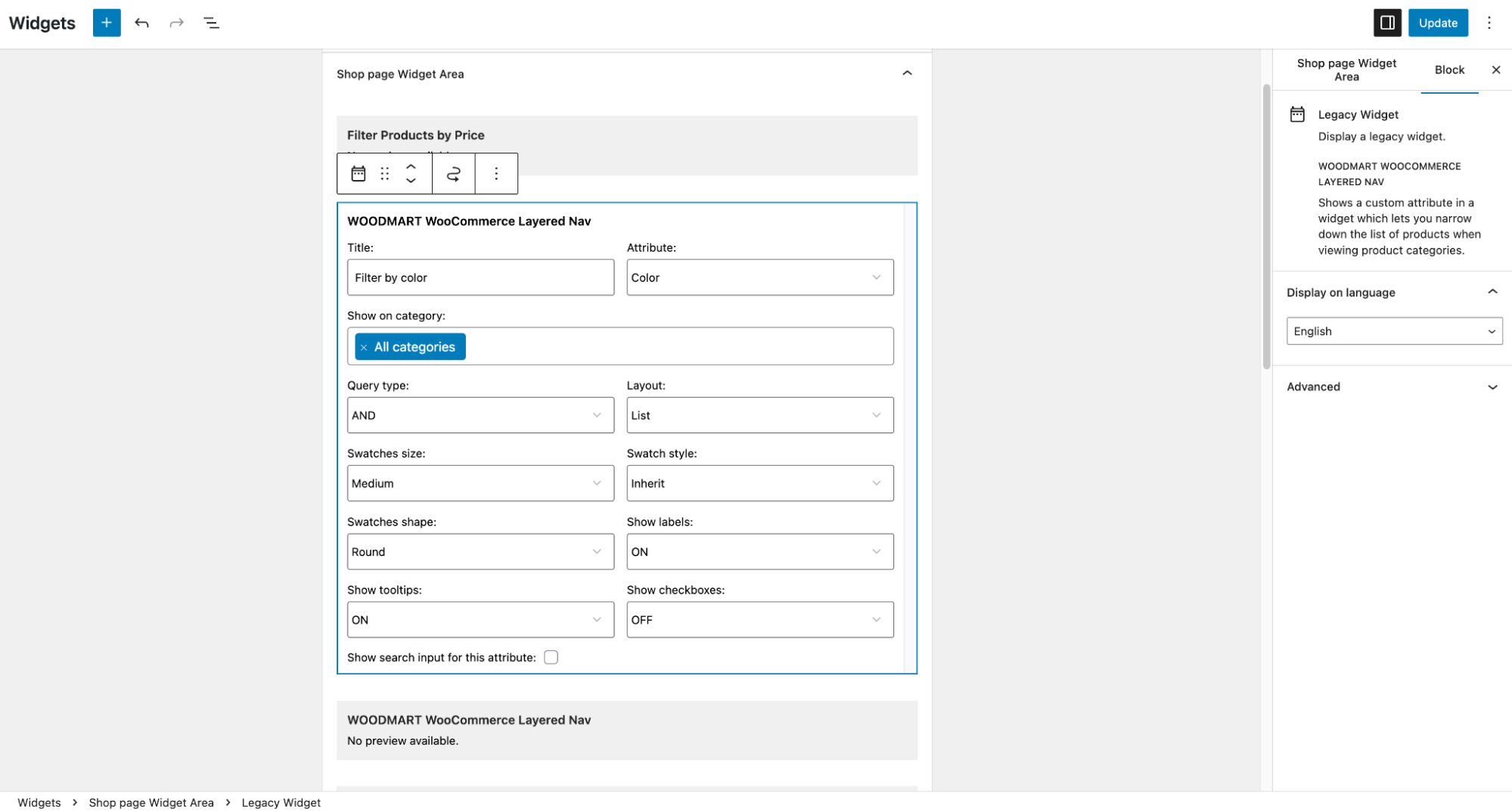
Widget titles and other widget text can appear under Other texts (Strings) or in String Translation. Search for the visible text and translate it for the required languages.
Find missing WoodMart strings
If a string is not available, navigate to Dashboard -> WPML -> Theme and plugins localization and scan WoodMart or the relevant plugin. Then search again under Other texts (Strings) or String Translation. For general string translation instructions, see Set up WPML.
Translate WooCommerce content
Use WPML Multilingual & Multicurrency for WooCommerce for products, attributes, store URLs, currencies, and other WooCommerce content. Open its tools under Dashboard -> WooCommerce -> WCML. See the official WPML guide for the complete store translation workflow.
Don’t miss WoodMart updates
Receive feature updates, tutorials, and WoodMart news via email.
 Last updated: September 22, 2026