
Enable header overlap
Header overlap positions the header over the top of the page content. It is commonly used with a transparent header above a hero image, slider, or banner.
Enable overlap
- Open the required header in Dashboard -> WoodMart -> Header builder.
- Click Settings in the editor toolbar.
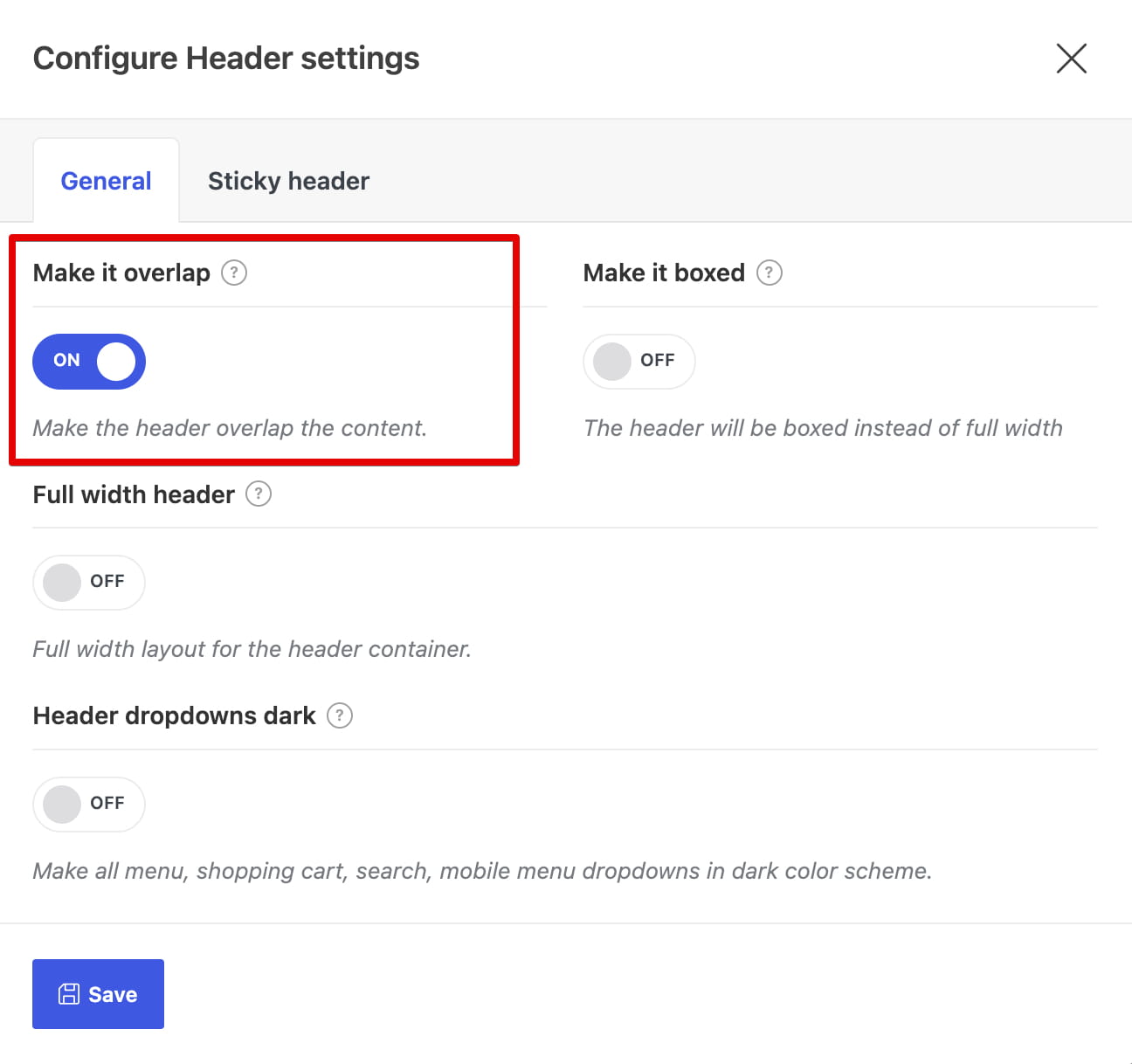
- In the General tab, enable Make it overlap.
- Optionally enable Make it boxed to keep the overlapping header inside a boxed container.
- Save the settings and click Save header.

For a transparent result, leave the required row background unset and choose a suitable Light or Dark text color scheme for the content behind it.
Use overlap on one page
Because overlap is stored in the header layout, duplicate the regular header when only one page needs this effect. Enable overlap in the duplicate, then assign that header to the required page. See Assign headers to pages and content types.
Video tutorial
Don’t miss WoodMart updates
Receive feature updates, tutorials, and WoodMart news via email.
 Last updated: August 11, 2026