
Estimate delivery
Estimate delivery calculates an expected delivery date or delivery range for eligible products. The estimate can be displayed on product, cart, checkout, order details, and order email interfaces according to the rules configured for your store.
Enable Estimate delivery
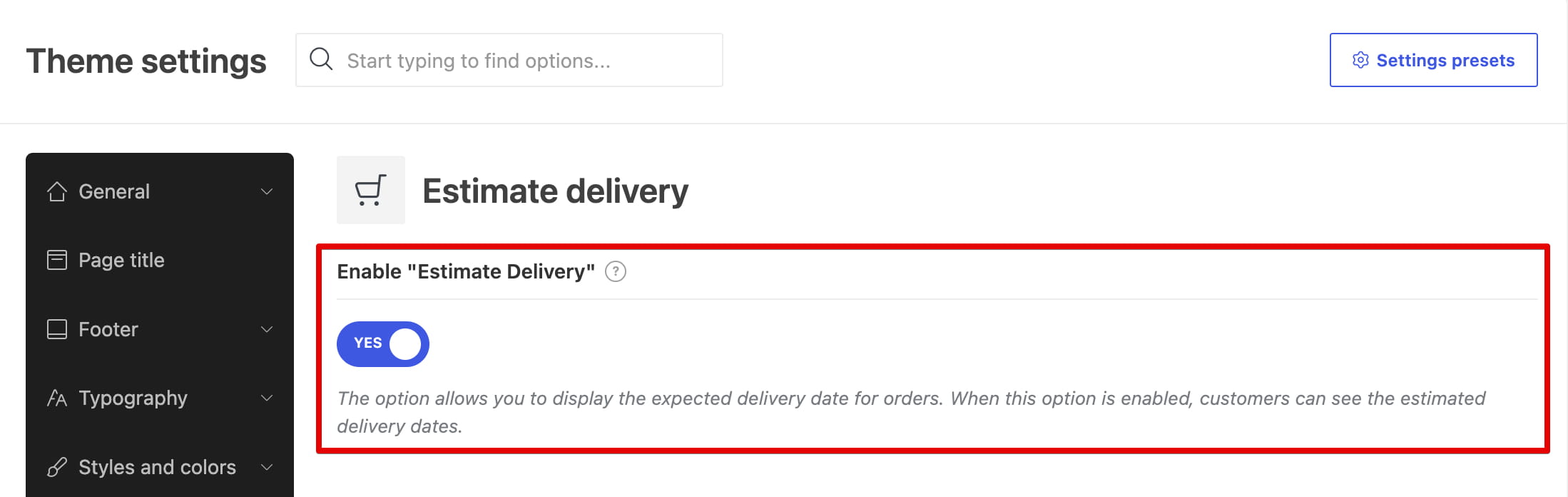
Navigate to Dashboard -> Theme Settings -> Shop -> Estimate delivery, enable Enable “Estimate Delivery”, and save the Theme Settings.
Choose display locations
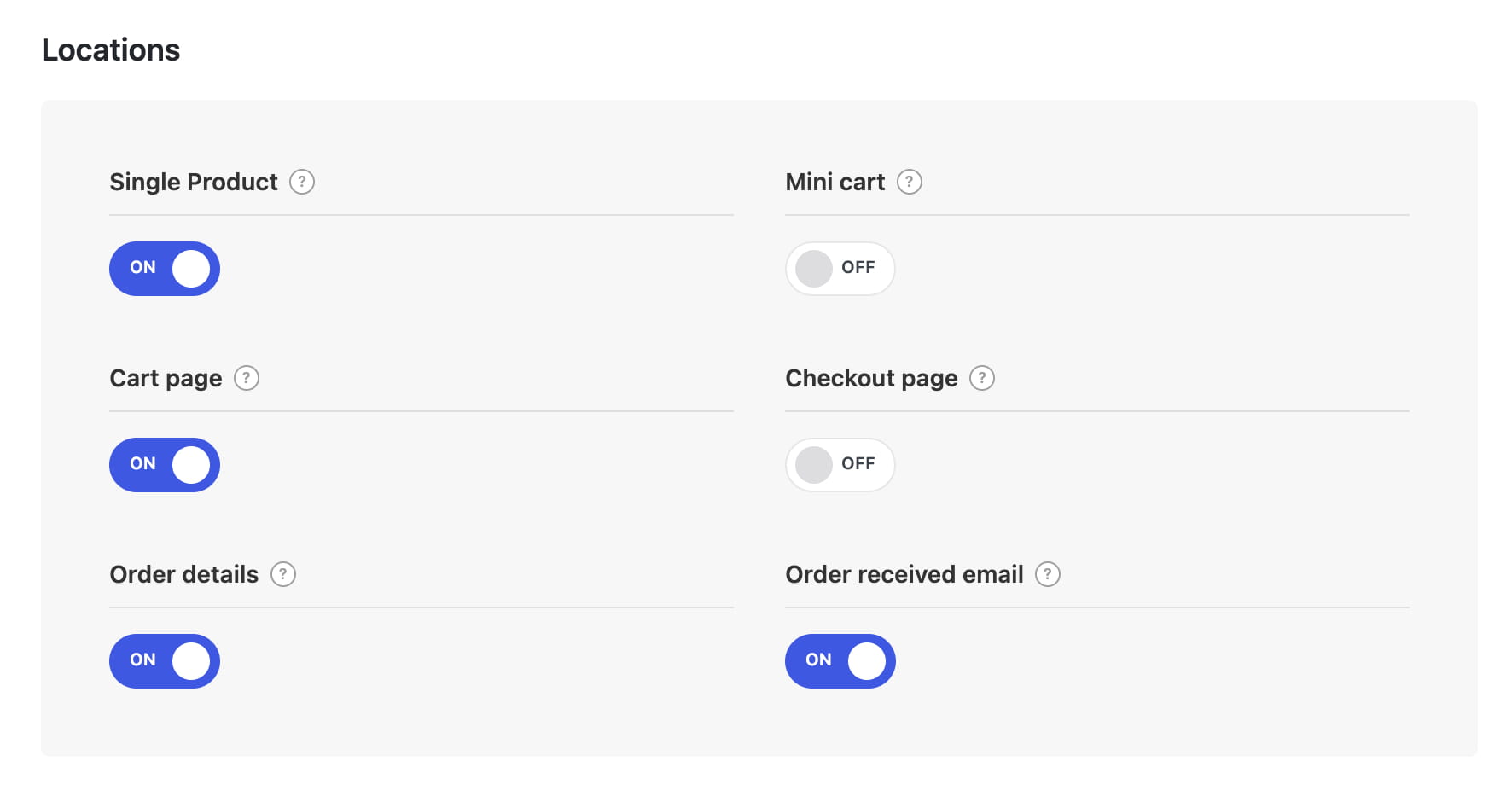
Use the Locations settings to display product-specific estimates in the required interfaces:
- Single Product
- Mini cart
- Cart page
- Checkout page
- Order details
- Order received email
Display an overall delivery estimate
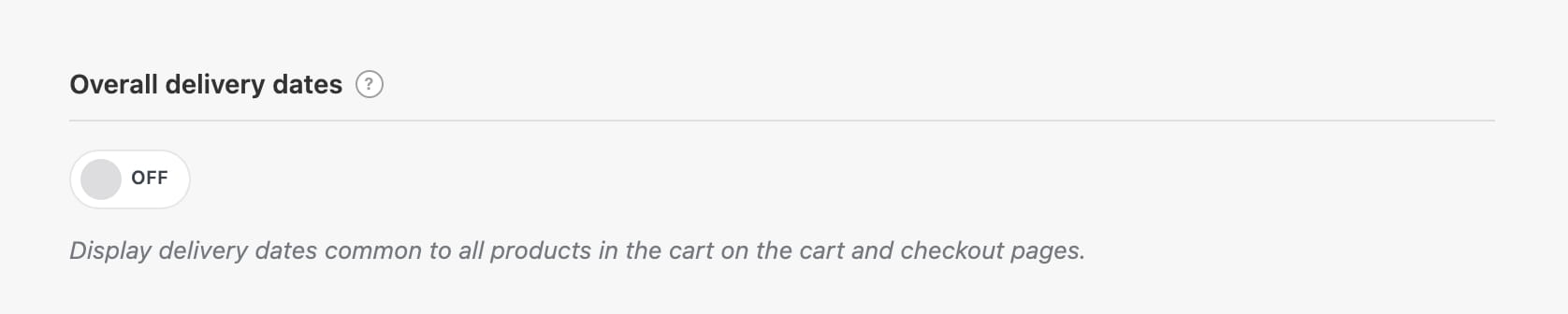
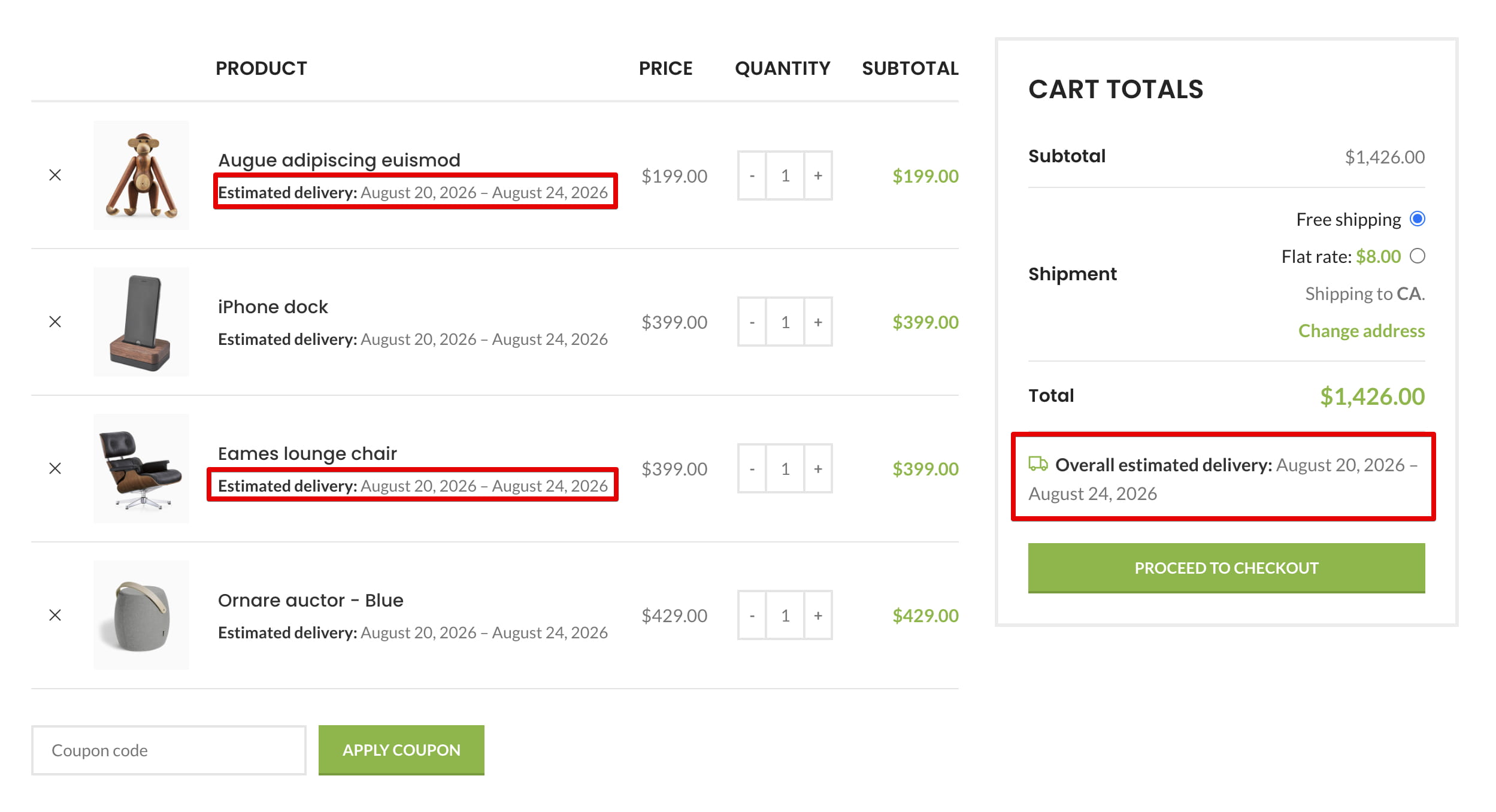
Enable Overall delivery dates to display one combined estimate for the products in the cart. WoodMart calculates the applicable dates for each eligible product and uses the latest boundaries to provide a range that covers the complete order.
The overall estimate appears in the cart and checkout totals and can also be included in related order totals.
On a Cart or Checkout page built with the WooCommerce Cart or Checkout block, add the Overall estimate delivery block where the combined estimate should appear.
Configure the display format
Display format controls how the estimate is presented:
- Specific dates — displays a date or date range, such as “August 10 – August 14”.
- Days count — displays the calculated number of days, such as “3–7 days”.
When Specific dates is selected, use Date format to choose a format or inherit it from the WordPress settings.
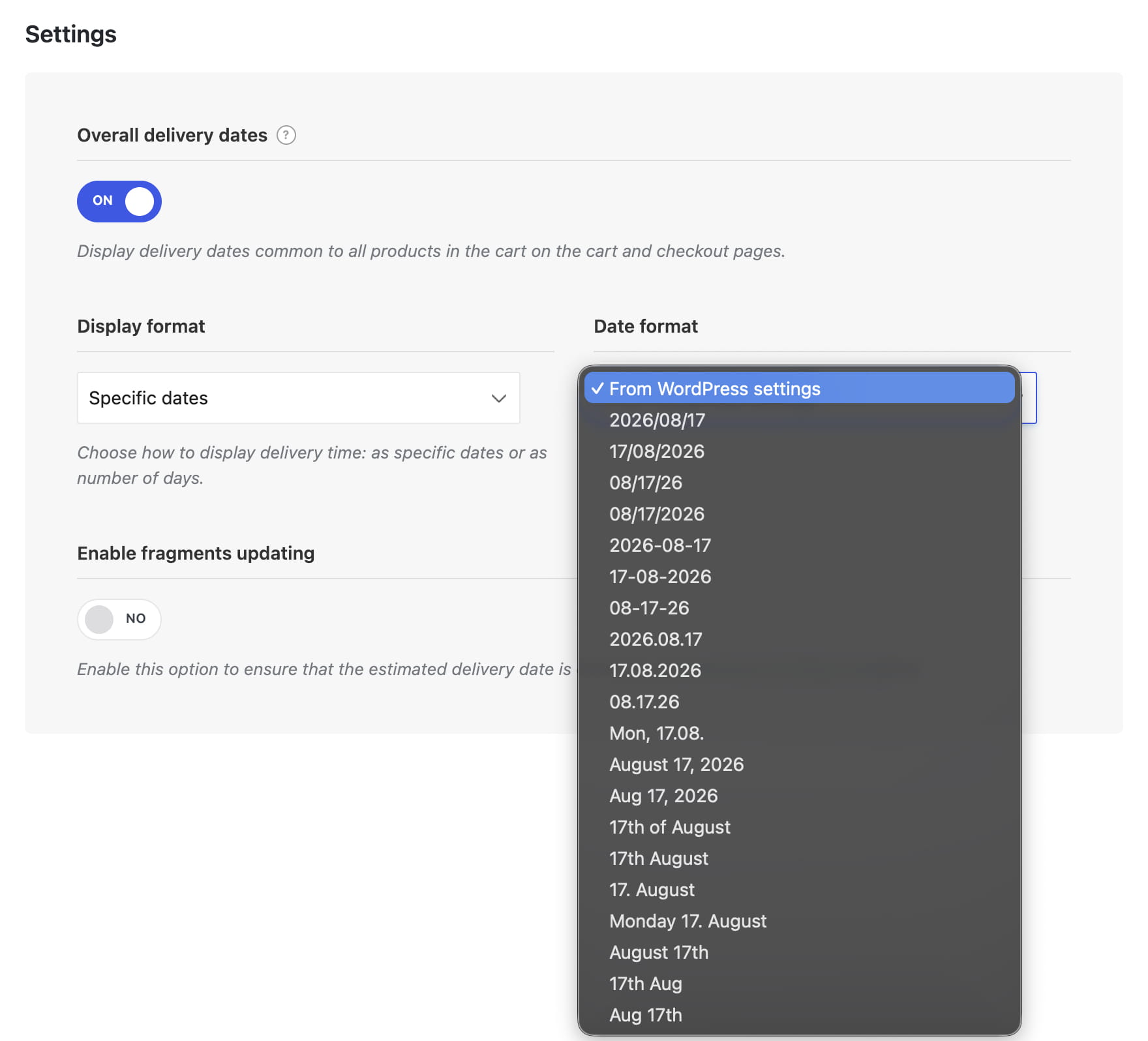
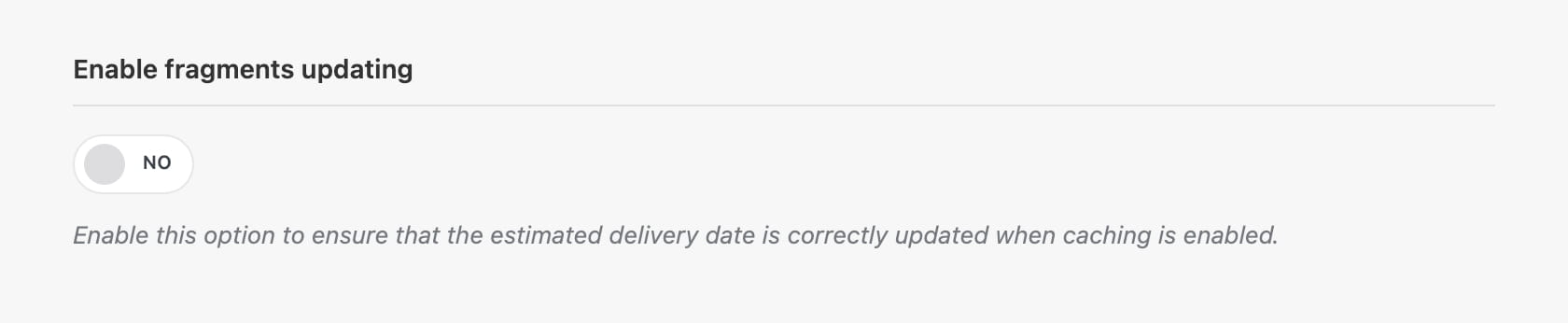
Enable Enable fragments updating to refresh the estimate dynamically on cached single product pages.
Create a delivery rule
Navigate to Dashboard -> Products -> Estimate Delivery and click Add New. Enter a descriptive title, configure the rule settings, and publish the rule.
Select shipping zones and methods
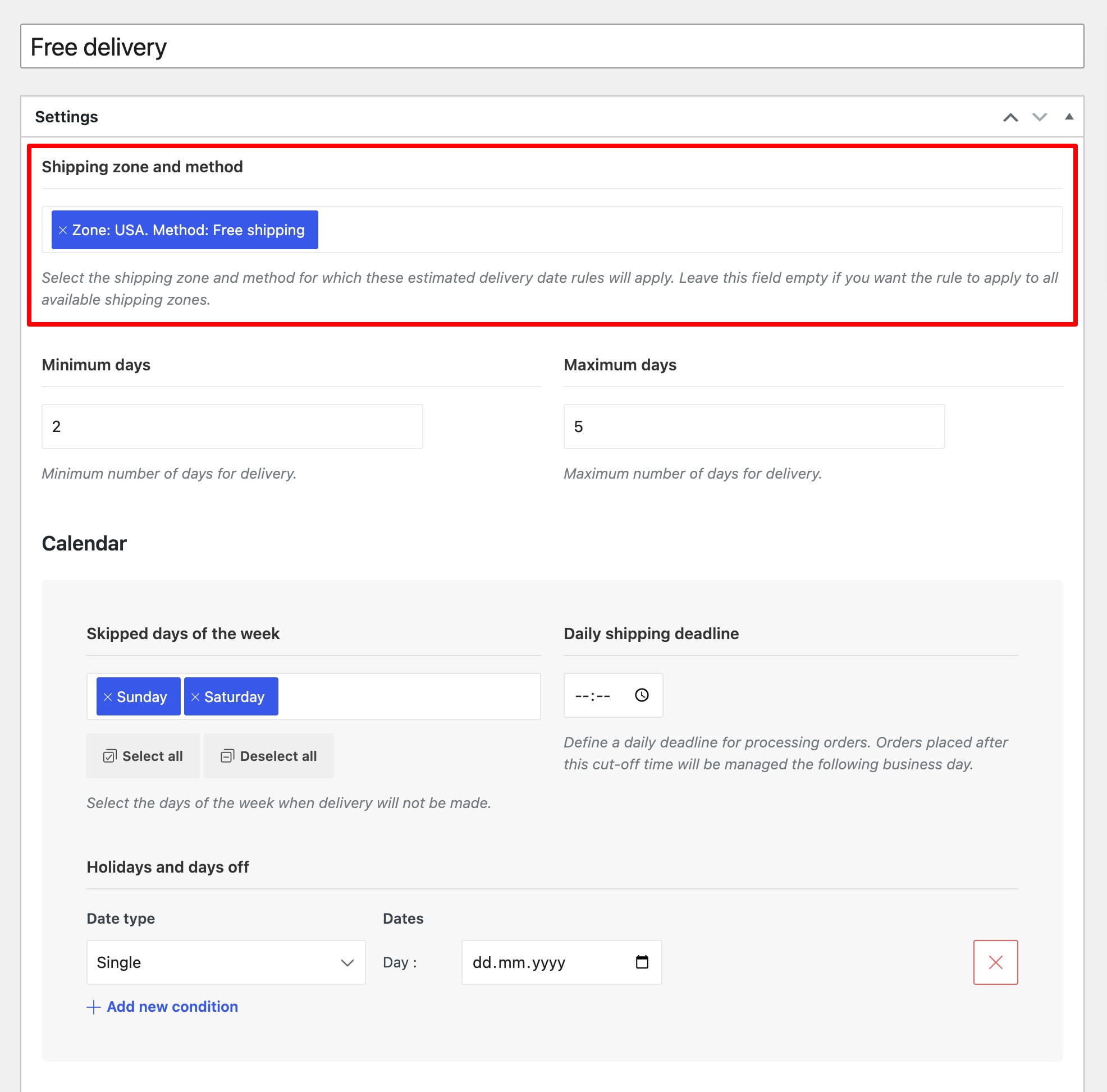
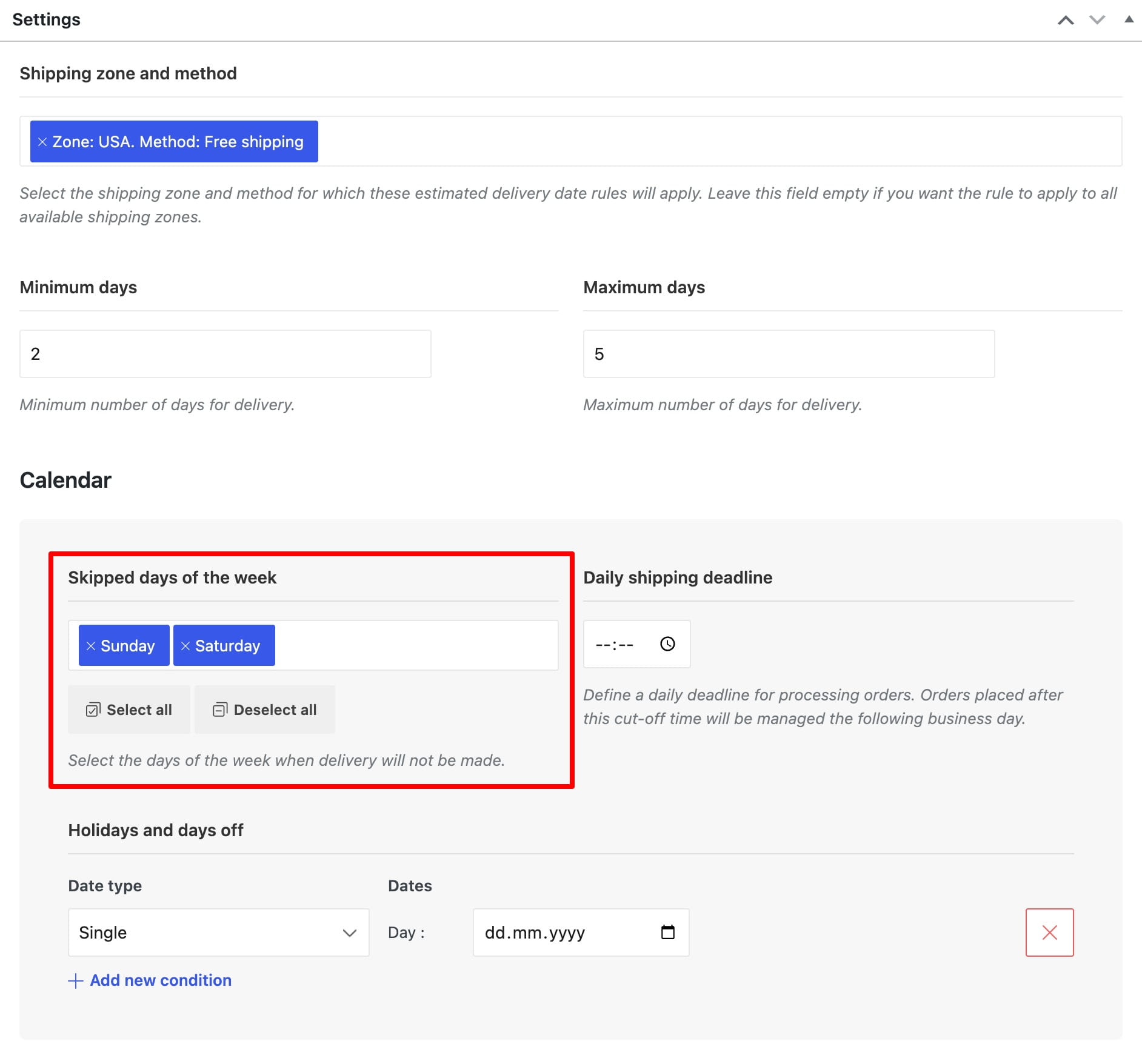
Use Shipping zone and method to restrict the rule to selected WooCommerce shipping methods. Leave the field empty to make the rule available for all shipping zones and methods.
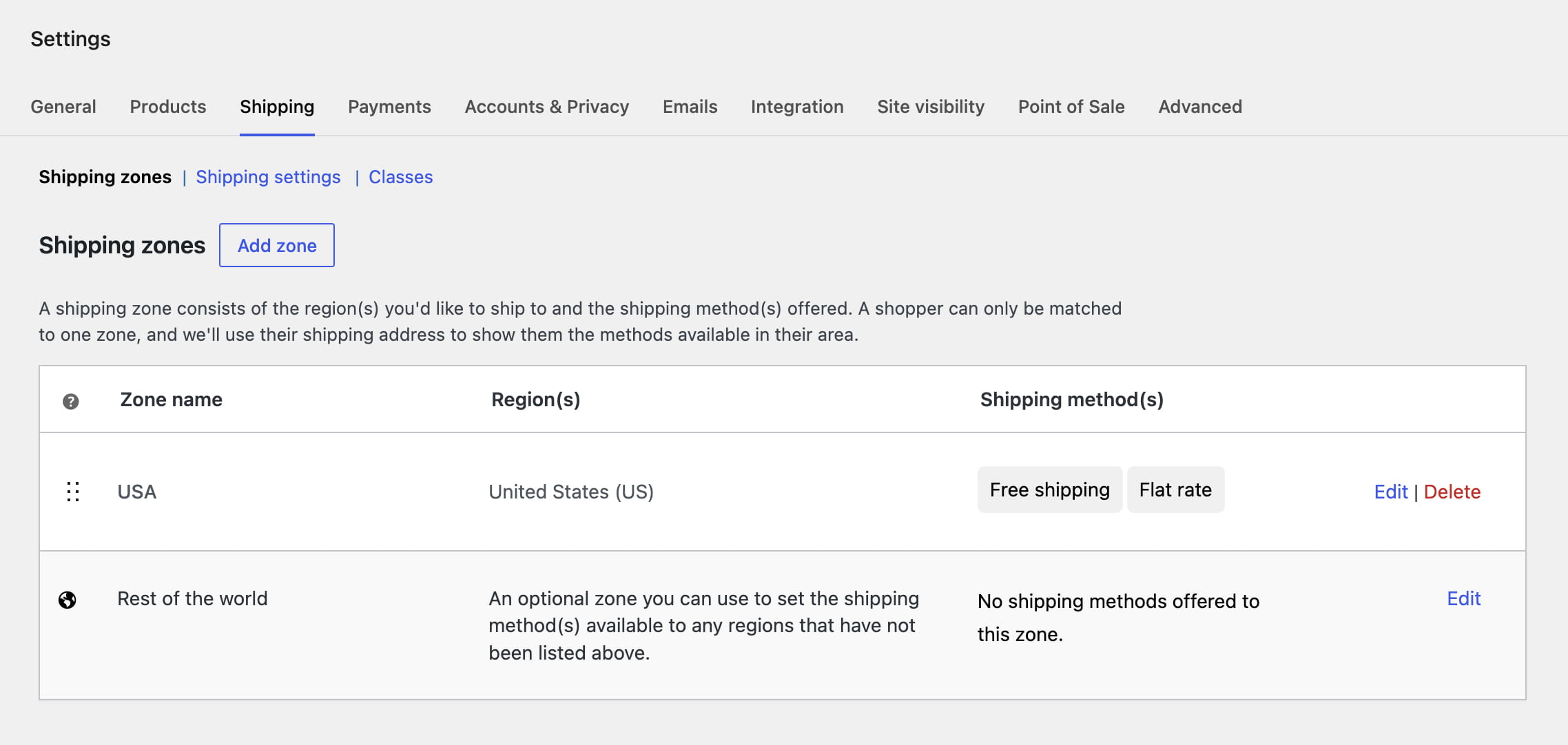
Shipping zones and their methods are managed in Dashboard -> WooCommerce -> Settings -> Shipping -> Shipping zones.
Configure the delivery calendar
The calendar settings determine which days are counted:
- Skipped days of the week — excludes recurring weekdays when orders are not delivered.
- Daily shipping deadline — moves processing to the next available day when an order is placed after the specified cut-off time.
- Holidays and days off — excludes individual dates or complete date ranges.
Set the delivery range
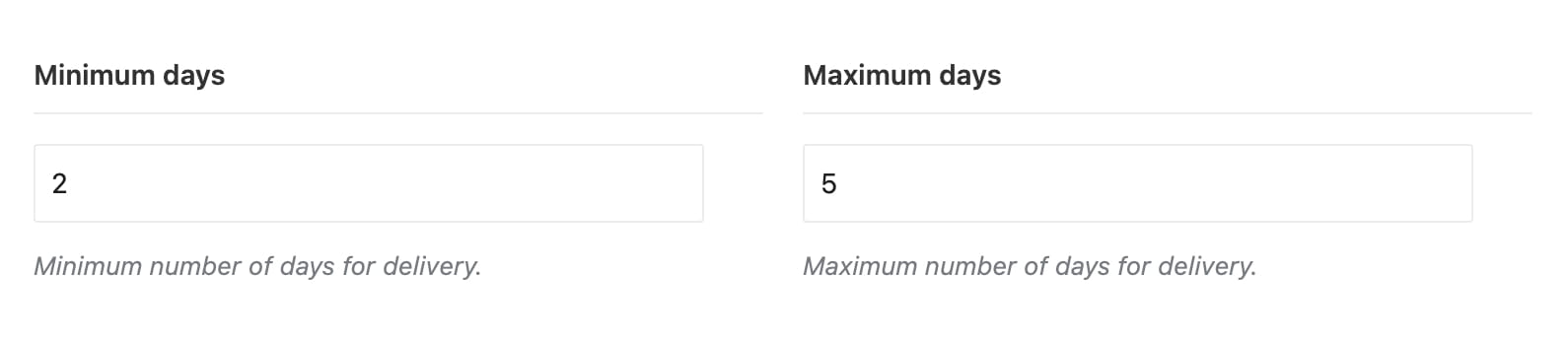
Use Minimum days and Maximum days to calculate the delivery estimate:
- Enter both values to display a delivery range.
- Enter only Minimum days to display the earliest estimated delivery.
- Enter only Maximum days to display the latest estimated delivery.
- Use the same value in both fields to display a single delivery date or day count.
Set conditions and priority
Use Condition to include or exclude products from the rule. Conditions can target all products, individual products, categories and their child categories, tags, attributes, product types, stock statuses, and shipping classes.
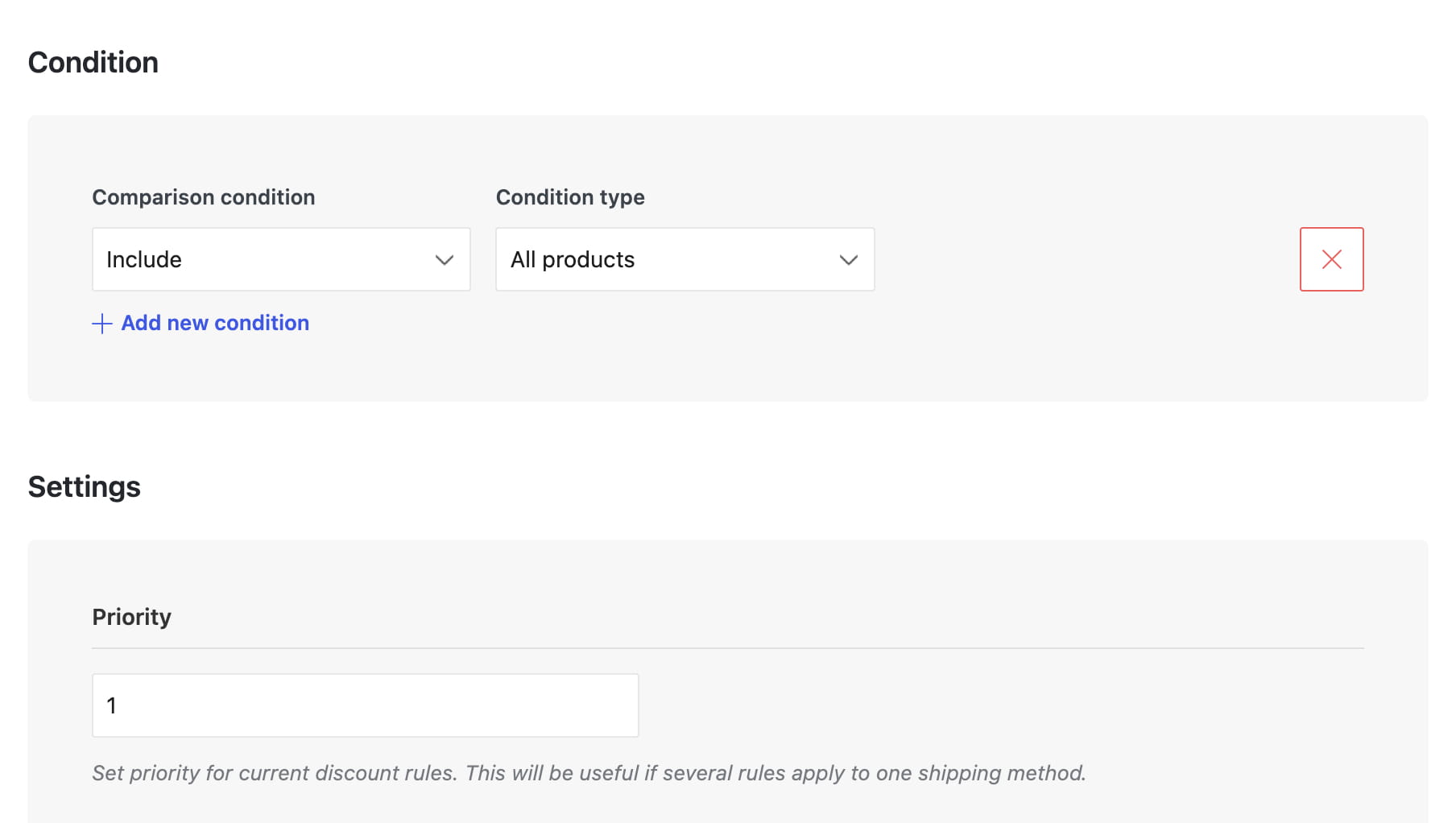
If several rules match a product, rules assigned to the selected shipping method are checked before general rules. Within each group, a higher Priority value is checked first. The first matching rule is used.
Use Tooltip content to add supplementary information next to the estimate generated by this rule.
Video tutorial
Don’t miss WoodMart updates
Receive feature updates, tutorials, and WoodMart news via email.
 Last updated: September 21, 2026