
How to use Gutenberg with WoodMart
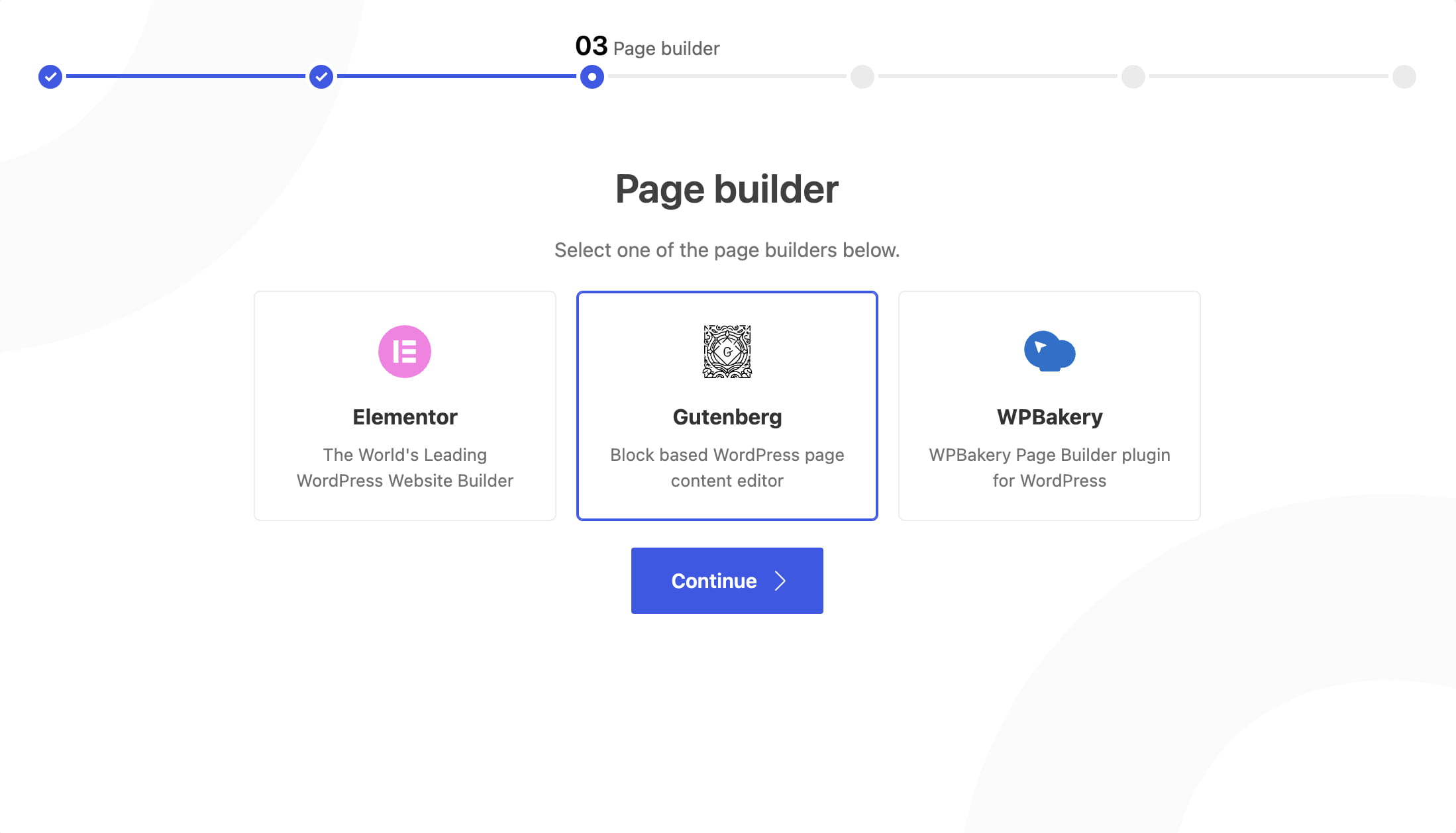
WoodMart includes its own Gutenberg block library and can use Gutenberg as the primary builder for demo content and predefined layouts. You can select it during the Setup Wizard or configure it later in Theme Settings.
Select Gutenberg during initial setup
When installing WoodMart on a new website, select Gutenberg on the Page builder step of the Setup Wizard. WoodMart then sets Gutenberg as the current builder, enables the Gutenberg editor for products, and uses Gutenberg content when importing compatible prebuilt websites and layouts.
Configure Gutenberg on an existing website
Navigate to Dashboard -> Theme Settings -> Other. The Page builder group contains the Gutenberg-related options.
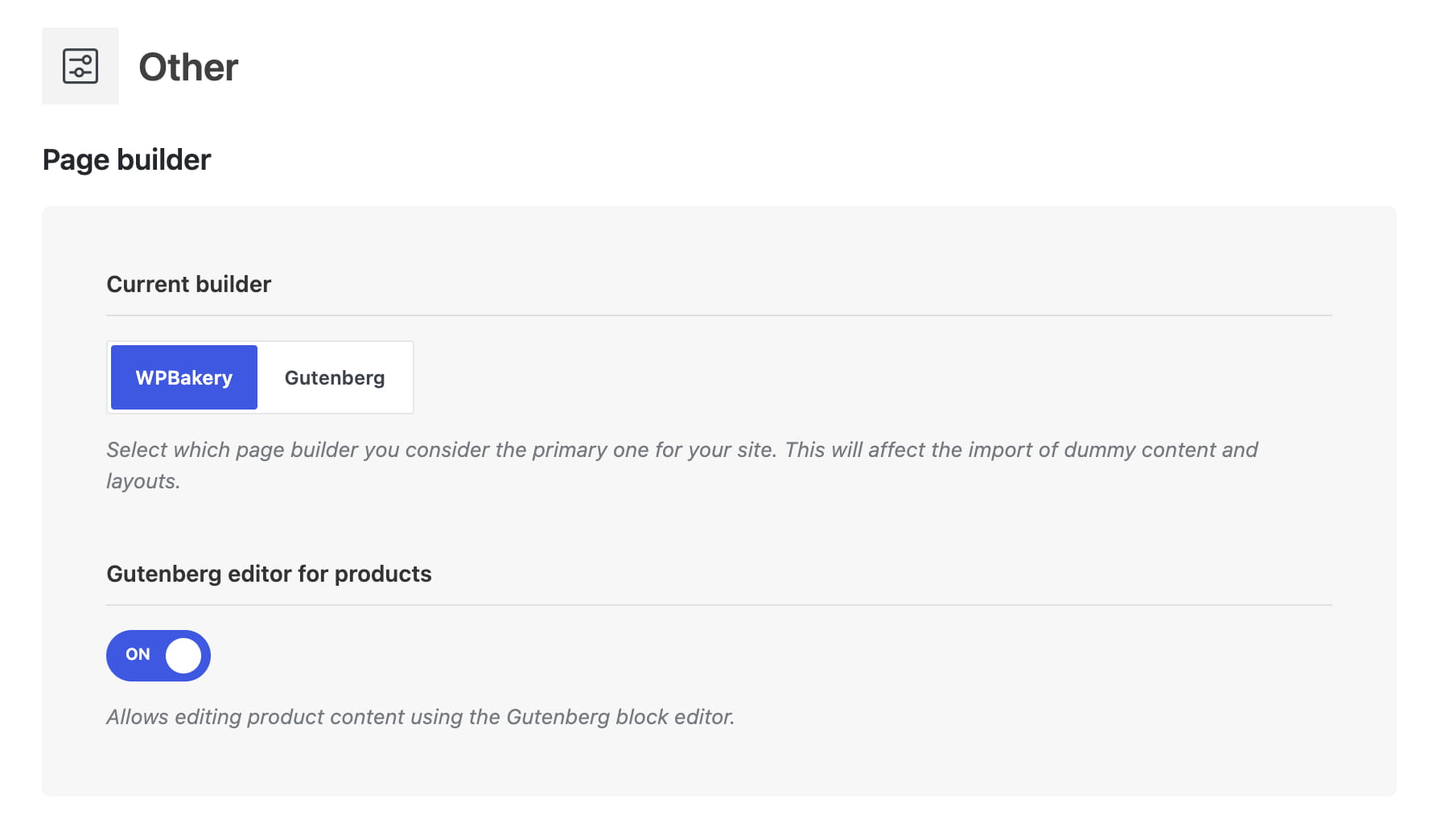
- Current builder: determines which builder format WoodMart uses when importing prebuilt websites and predefined layouts. Select Gutenberg when you want newly imported content to use WoodMart Gutenberg blocks.
- Gutenberg editor for products: allows WooCommerce product descriptions to be edited with the block editor.
These settings do not convert existing pages. You can continue editing existing Elementor or WPBakery pages with their original builder and use Gutenberg for newly created content.
Move existing content to Gutenberg
Elementor, WPBakery, and Gutenberg store page structures in different formats, so WoodMart cannot automatically convert an existing design while preserving every setting and layout. Elementor stores builder data in post metadata, WPBakery uses shortcodes, and Gutenberg stores block markup in the post content.
To move a page to Gutenberg, create a backup or duplicate the page, rebuild its sections with the corresponding WoodMart blocks, and compare the result on desktop, tablet, and mobile before replacing the original page.
Don’t miss WoodMart updates
Receive feature updates, tutorials, and WoodMart news via email.
 Last updated: September 21, 2026