
Edit a header in Frontend mode
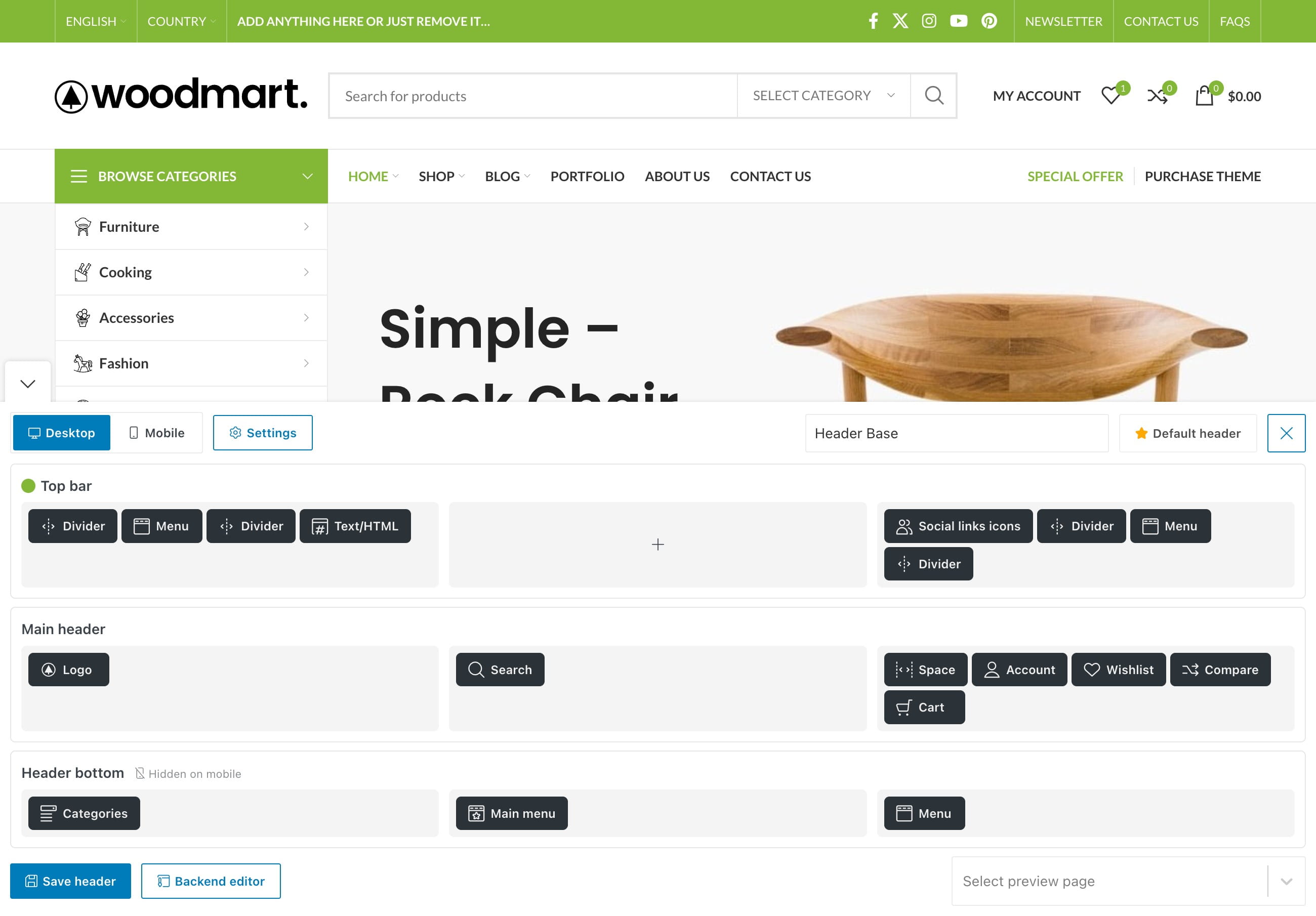
Frontend mode displays Header Builder over a live page preview. It is useful for checking the header against actual page content while you edit rows, elements, responsive layouts, and header settings.
Open Frontend mode
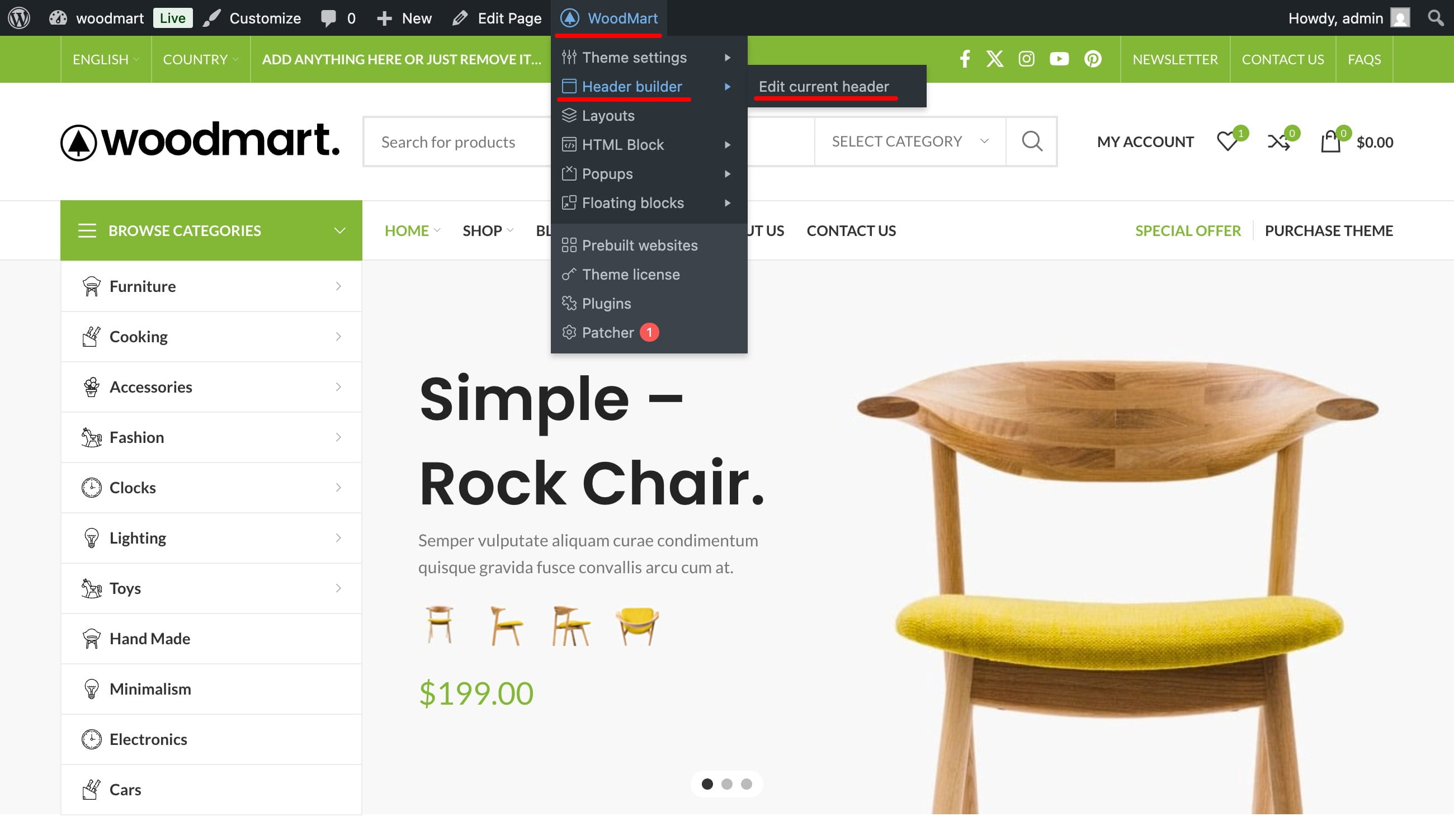
- Open a header in Dashboard -> WoodMart -> Header builder and click Frontend editor.
- While viewing the website as an administrator, use the WordPress admin bar and select WoodMart -> Header builder -> Edit current header.
Edit and preview the header
Edit the header with the same controls available in the backend editor. Changes appear in the preview as you work, but you must click Save header to store them.
After saving, click Backend editor to continue in the backend Header Builder, or use Close editor to leave Frontend mode.

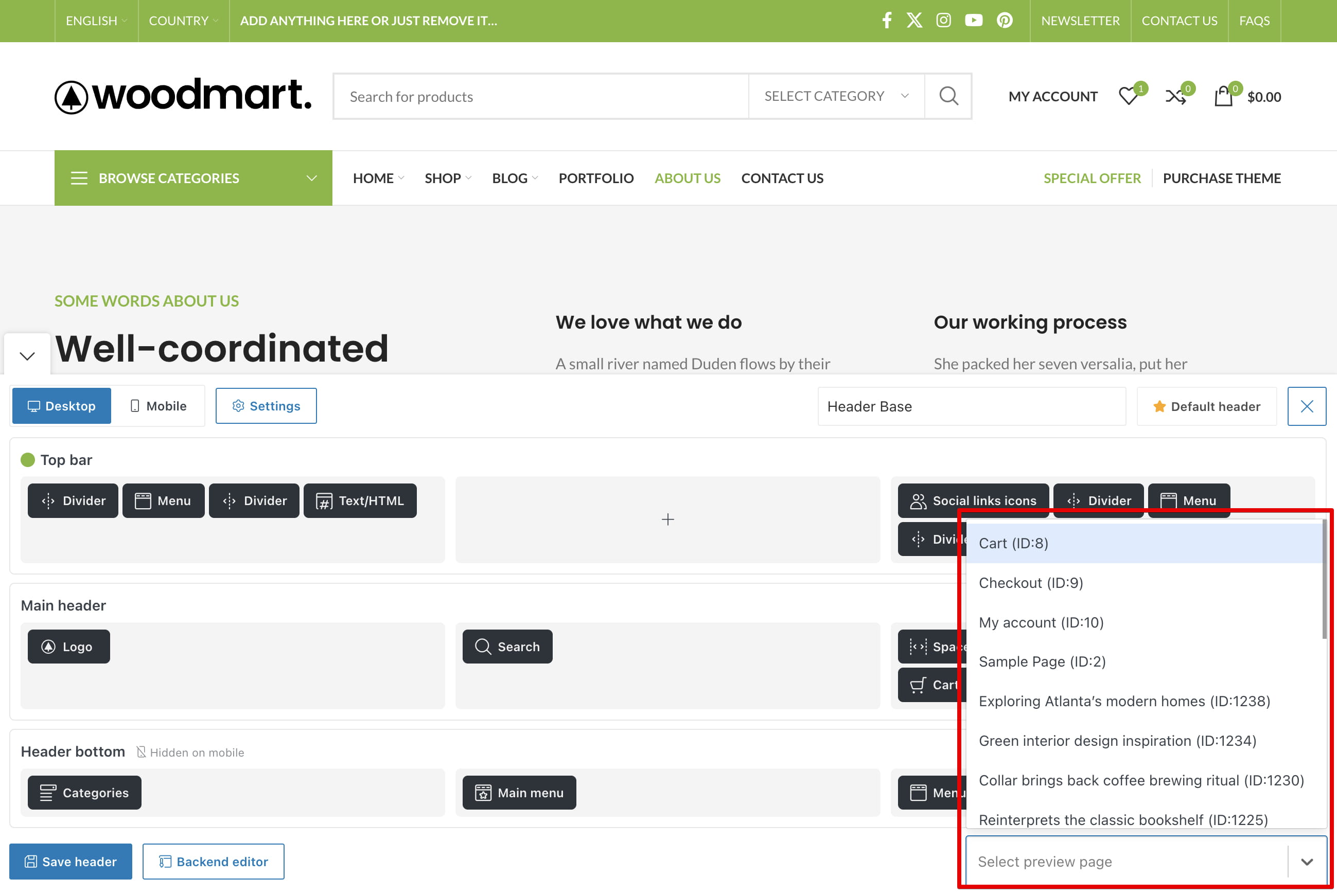
Use Select preview page at the bottom of the editor to check the same header on another page, post, product, or project. This changes only the preview context; it does not assign the header to the selected content.
Don’t miss WoodMart updates
Receive feature updates, tutorials, and WoodMart news via email.
 Last updated: August 11, 2026