
Predefined theme translations
Predefined translations
Our theme includes a set of predefined translations for multiple languages, originally generated by the WPML team. Most translations are created with AI and lightly refined manually. With each update, all new strings are automatically translated, ensuring you always have an up-to-date and complete translation.
This article explains how to properly use our built-in translations.
Currently, the theme includes translations for the following languages:
- Dutch
- German
- Russian
- Greek
- Bengali
- French
- Italian
- Turkish
- Spanish
- Persian
- Ukrainian
- Bulgarian
- Irish
- Latvian
- Norwegian (Bokmål)
- Portuguese (Brazil)
- Portuguese (Portugal)
- Tagalog
- Vietnamese
- Hungarian
- Arabic
- Slovak
- Polish
- Romanian
- Czech
- Danish
- Hebrew
- Estonian
- Indonesian
- Chinese (Simplified)
- Finnish
- Japanese
- Korean
- Lithuanian
- Slovenian
- Swedish
- Thai
How to use theme translation
To use our automatic translation updates, your theme must be activated with a purchase code in WoodMart → Theme license. After activation, enable the “Auto update translations” option in Theme Settings → Other.
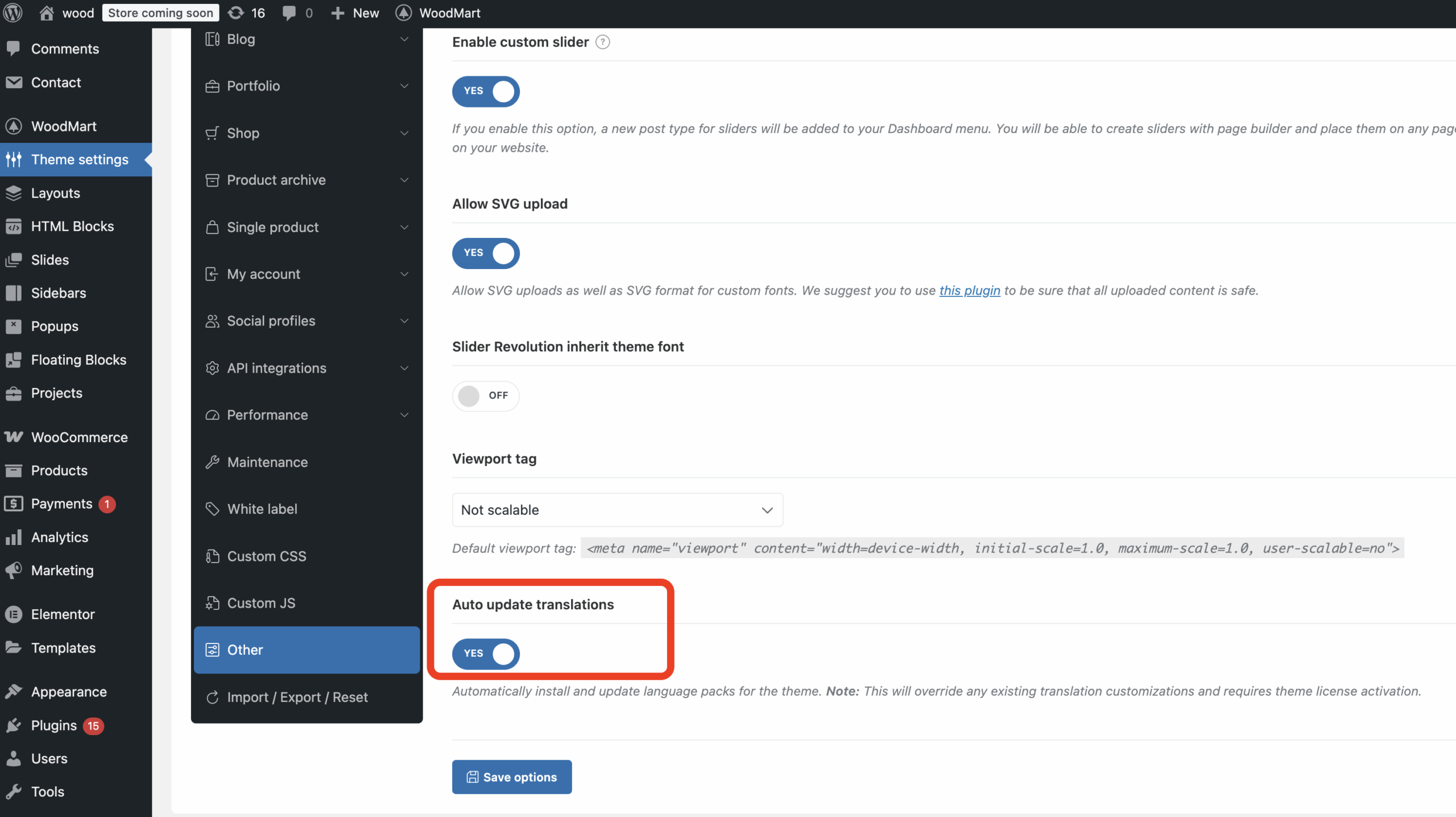
To download the latest translations, follow these steps:
- Change your WordPress language to the desired one in Dashboard → Settings → General → Site language.
- Go to Dashboard → Updates and click the “Check again” button.
- On the same page, scroll down to the Translations section and click the “Update Translations” button.
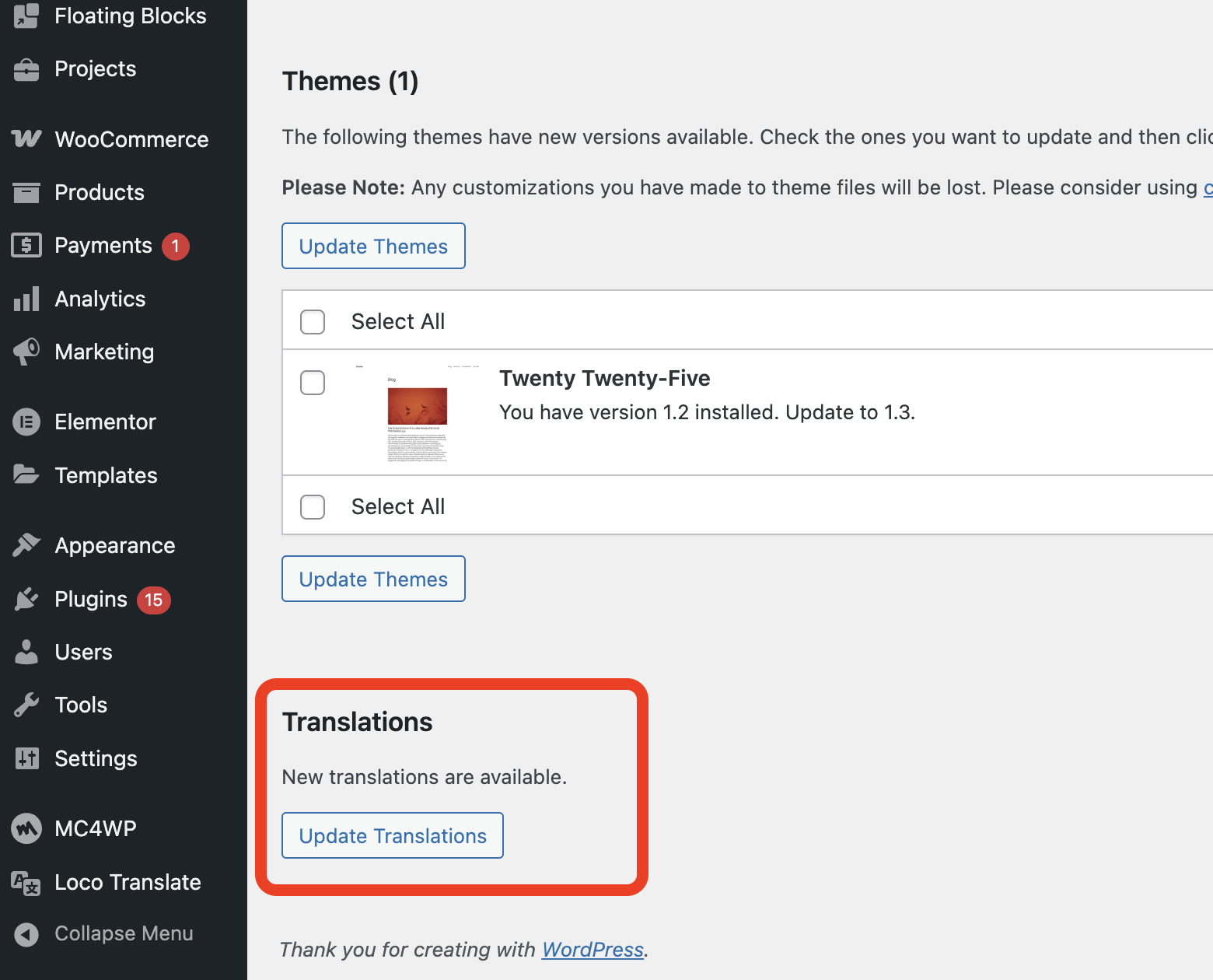

This will download translation files for all languages installed on your website.
The files will be stored in the system directory: wp-content/languages/themes/woodmart-*.po/mo
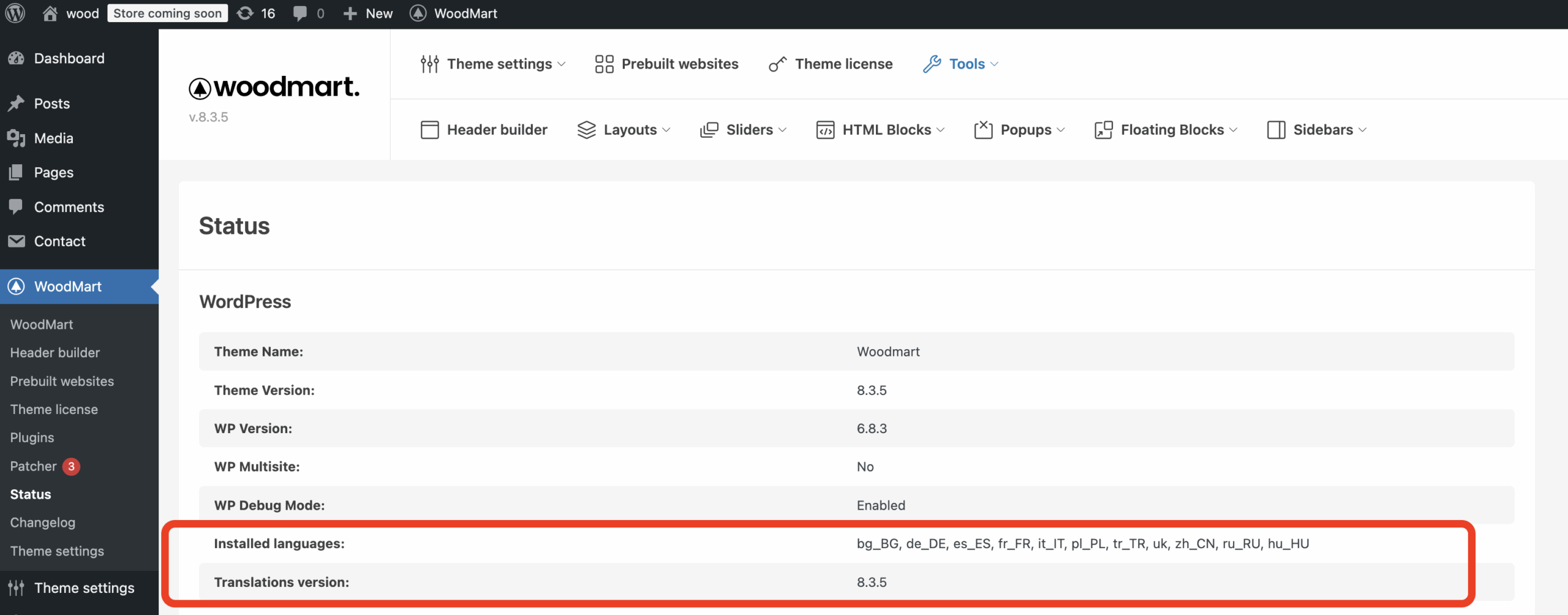
You can find the information about all the installed translations in WoodMart →Tools → Status
How to update the translation
After each theme update, you only need to actualize your translations. To do this, repeat steps 2 and 3 from the previous instructions in Dashboard → Updates.
Keep in mind that the translation files will be overwritten during this process.
Important notes
1. Automatic translations will overwrite any existing WoodMart translations located in the wp-content/languages/themes directory. It is highly recommended to back up your translations before updating.
2. If you need to override these translations, use the Loco Translate plugin and store your custom files in wp-content/languages/loco. Read the following instruction carefully https://xtemos.com/docs-topic/translate-woodmart-theme-with-loco-translate/
3. Do not store translation files in wp-content/themes/woodmart/languages, as they will be replaced during theme updates.
4. If you got any errors during the translation update, you can still download and setup them manually. Here is the instruction https://xtemos.com/docs-topic/how-to-download-and-setup-translation-manually-from-glotpress/
 Last updated: November 27, 2025