
Slider settings
Slider settings control the layout, height, navigation, animation, and automatic playback of all slides assigned to a reusable slider. Navigate to Dashboard -> Slides -> Sliders and open the slider you want to configure.
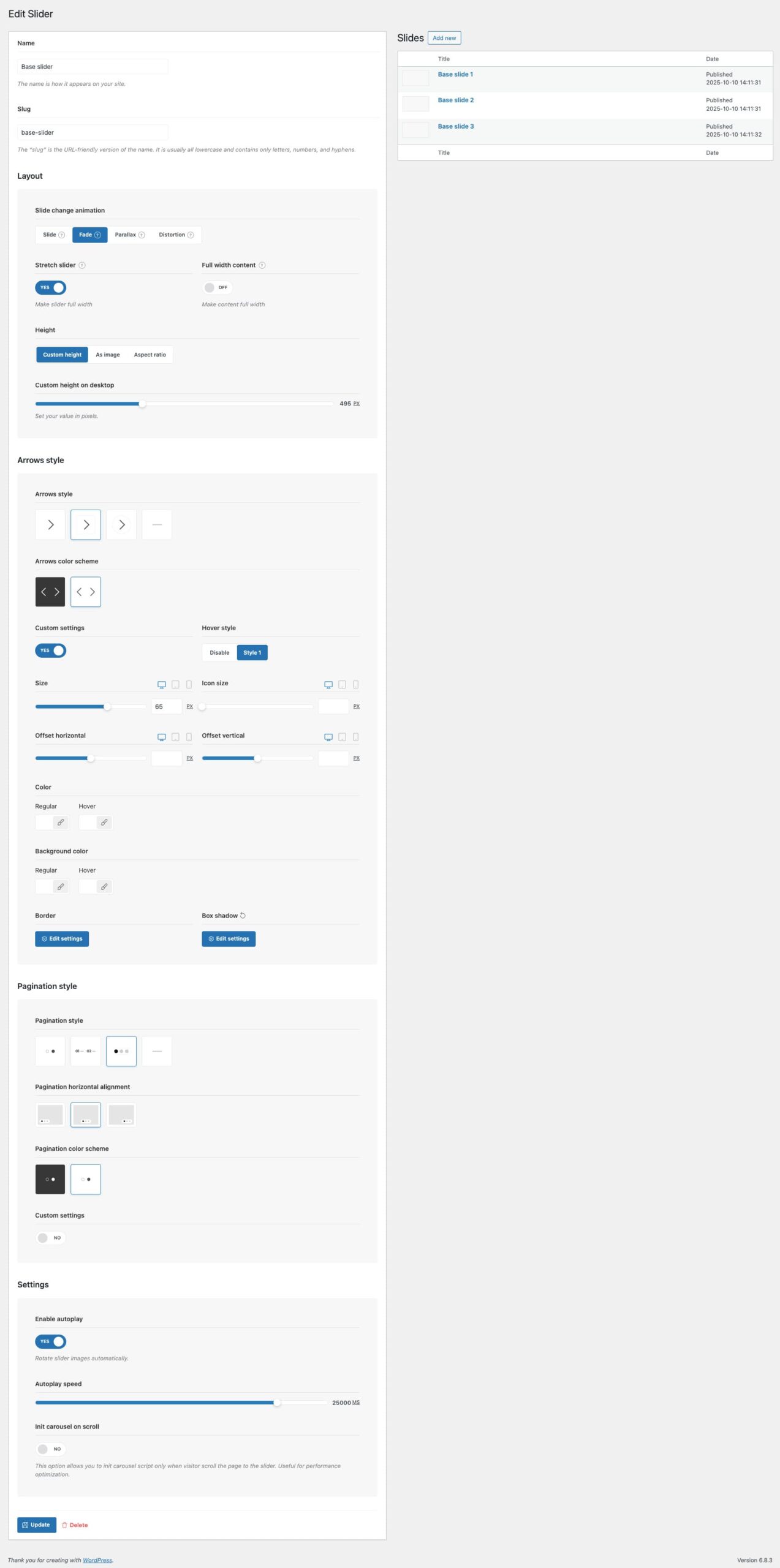
Layout and height
- Slide change animation — selects the Slide, Fade, Parallax, or Distortion transition.
- Stretch slider — extends the slider beyond its page container to display it at full width.
- Full width container — removes the shared content-width constraint inside a stretched slider. An individual slide can still define its own content width.
- Height — uses a custom responsive height, the source image proportions, or a custom aspect ratio. The available responsive fields let you adjust the result for desktop, tablet, and mobile.
Navigation
Use the arrow settings to select an arrow style and color scheme. Enable custom settings when you need to adjust properties such as the size, offsets, colors, border, or shadow.
Pagination settings control the pagination style, display, horizontal alignment, and color scheme. Custom settings provide additional controls for its size, typography, colors, background, and border.
Autoplay and performance
- Enable autoplay — rotates the slides automatically.
- Autoplay speed — sets the delay between slides in milliseconds.
- Init carousel on scroll — initializes the slider script when the visitor scrolls to it, which can reduce unnecessary work before the slider enters the viewport.
Click Update after configuring the slider.
Don’t miss WoodMart updates
Receive feature updates, tutorials, and WoodMart news via email.
 Last updated: August 6, 2026