
Page settings
Page settings let you override selected global Theme Settings for an individual page, blog post, or portfolio project. Use them when one item needs a different header, page title, sidebar, or footer configuration.
Options set to Inherit continue using the corresponding global value from Theme Settings. Only explicitly selected values override the global configuration.
Find the page settings
WordPress editor
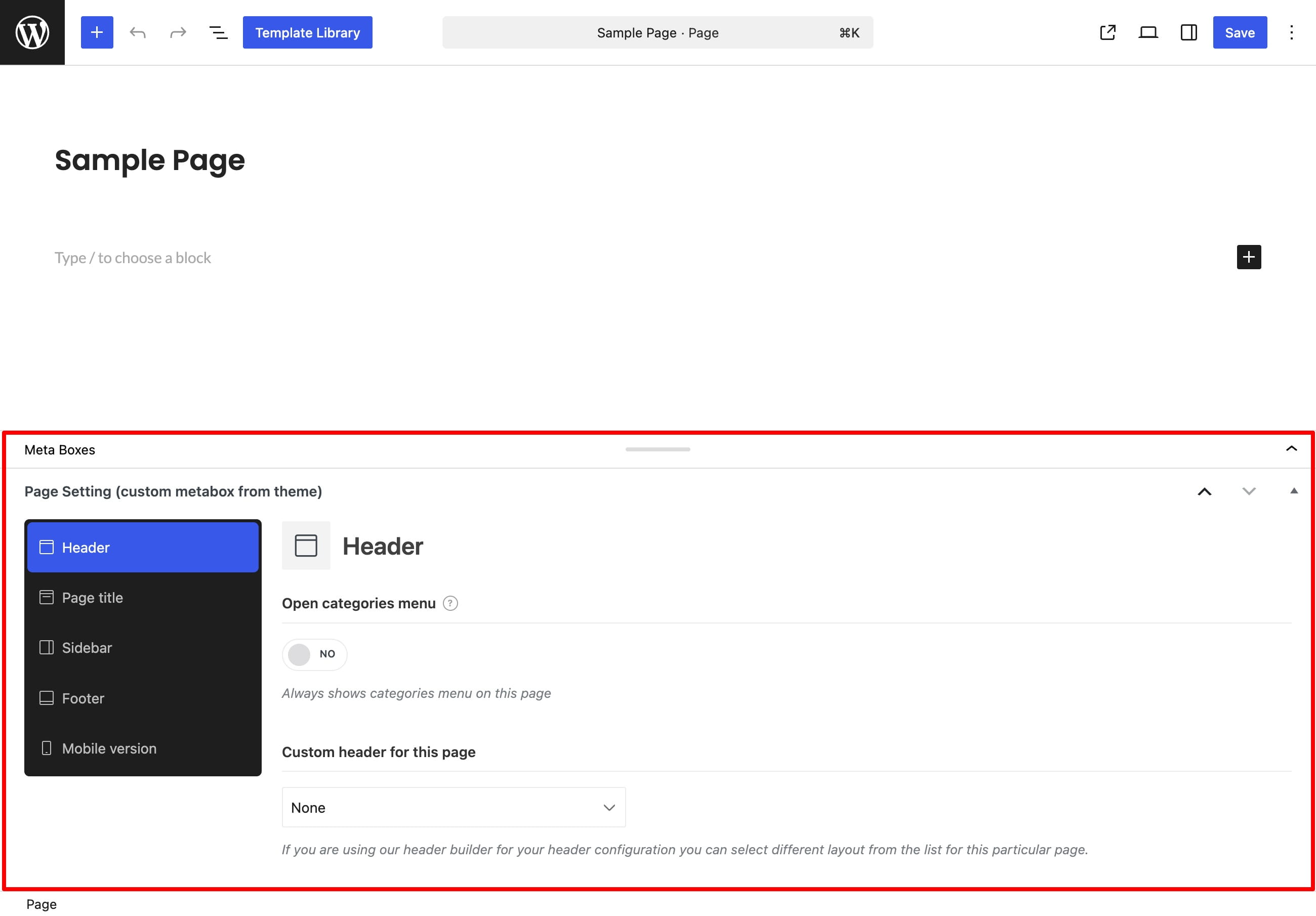
Edit the required page, post, or portfolio project and scroll below the content editor to Page Setting (custom metabox from theme). Its controls are organized into Header, Page title, Sidebar, Footer, and other conditional sections.
Elementor
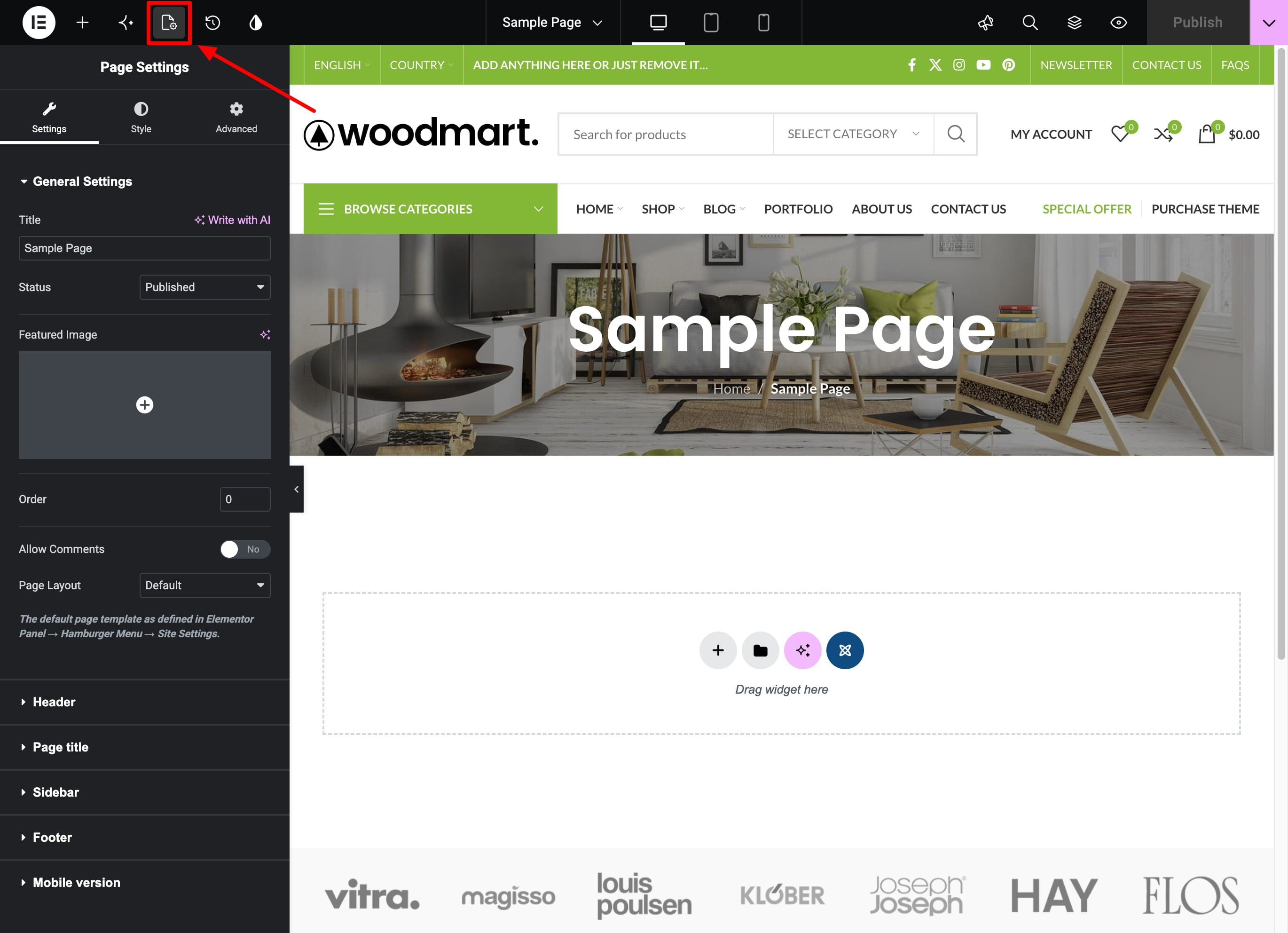
When the content is built with Elementor, open Elementor Page Settings. WoodMart places the same page-specific controls in the Settings tab instead of displaying them in the standard theme metabox.
Header
- Open categories menu — keeps the categories menu open on this page.
- Disable header — hides the complete header on the current page, post, or project.
- Custom header for this page — assigns one of the headers created with Header Builder to the current page, post, or project.
In Elementor, Custom header for this page is displayed as Custom header.
Page title
- Disable page title — hides the page title area for the current item.
- Page title size — inherits the global size or selects Default, Small, or Large.
- Image for page title — replaces the global page title background image.
- Image size — selects a registered image size. When Custom is selected, use Custom width and Custom height to set the required dimensions.
- Page title background color — sets a background color for the current page title.
- Text color for title — inherits the global color scheme or selects Light or Dark.
Elementor uses shorter labels for some of these controls, including Size, Image, Background color, and Color scheme.
Sidebar
- Sidebar position — inherits the global layout or selects Without, Left, or Right.
- Sidebar size — inherits the global width or selects Small, Medium, or Large.
- Custom sidebar for this page — assigns a saved custom sidebar to the current item.
In Elementor, these controls are labeled Position, Size, and Custom sidebar.
Footer
- Disable footer — hides the complete footer on the current page.
- Disable prefooter — hides the prefooter area.
- Disable copyrights — hides the copyright area at the bottom of the footer.
Preload image
This section is available only for pages when Preload LCP Image is enabled under Dashboard → Theme Settings → Performance → LCP. It lets you select separate desktop and mobile images, their image sizes, and whether each image is rendered as an image tag or used as a background image or video poster.
Use this feature only for the image identified as the Largest Contentful Paint element. See the Preload LCP Image guide for the complete setup procedure.
Mobile version
The experimental mobile version option is available only for pages. Select an HTML Block to display its content instead of the regular page content on mobile devices.
In the standard WordPress editor, the option is called Mobile version HTML block (experimental). In Elementor, it is called Choose HTML block (experimental).
Don’t miss WoodMart updates
Receive feature updates, tutorials, and WoodMart news via email.
 Last updated: September 21, 2026