
Display out-of-stock products last
WoodMart can keep purchasable products at the top of your WooCommerce catalog by placing products with the Out of stock status after all other products. The option works without custom code and preserves the selected catalog sorting within each stock-status group.

Enable out-of-stock sorting
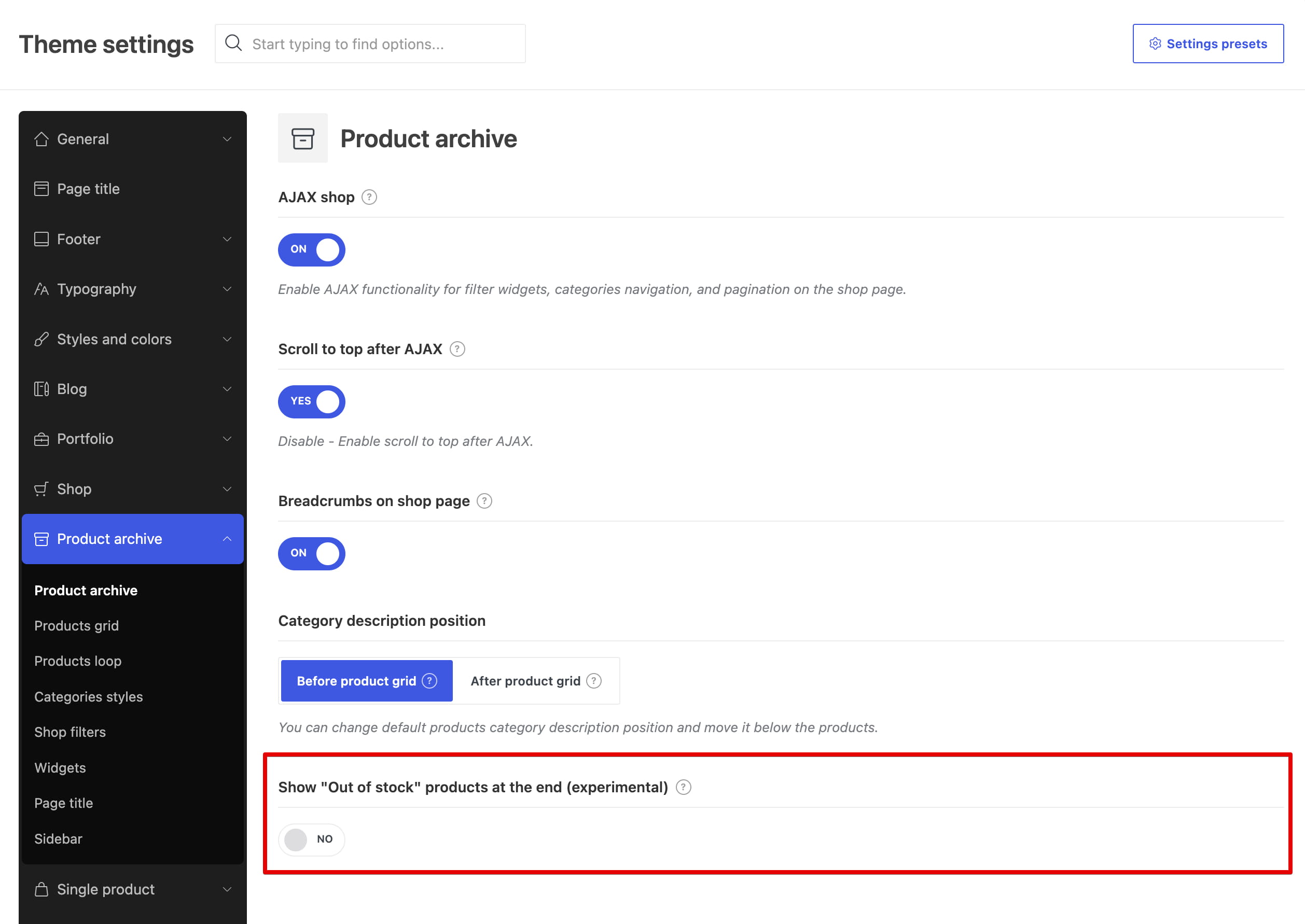
1. Navigate to Dashboard -> Theme Settings -> Product archive.
2. Enable Show “Out of stock” products at the end (experimental).
3. Save the Theme Settings and check the product order on your shop or a product archive page.
How the sorting works
Only products marked Out of stock are moved to the end. Products available on backorder remain with the purchasable products.
The selected WooCommerce catalog sorting remains active within both groups. For example, when customers sort by price from low to high, available products are ordered by price first, followed by out-of-stock products ordered in the same way.
If Hide out of stock items from the catalog is enabled in WooCommerce -> Settings -> Products -> Inventory, out-of-stock products are hidden and this option has no visible effect. See the WooCommerce product settings documentation for details.
Where the option applies
The option affects the main WooCommerce product query on the shop page and product archive pages, including product categories and tags. It also works in custom WooCommerce archive layouts when the Archive Products element displays the main product query.
It does not change the order of products displayed by standalone Products elements, product carousels, shortcodes, or other custom secondary queries.
Don’t miss WoodMart updates
Receive feature updates, tutorials, and WoodMart news via email.
 Last updated: September 8, 2026