
Product category navigation
Product categories can be used for navigation in the shop page title, the header search form, and a custom Categories menu in the header. Each method is configured separately and serves a different purpose.
- Shop page title: an automatically generated category navigation.
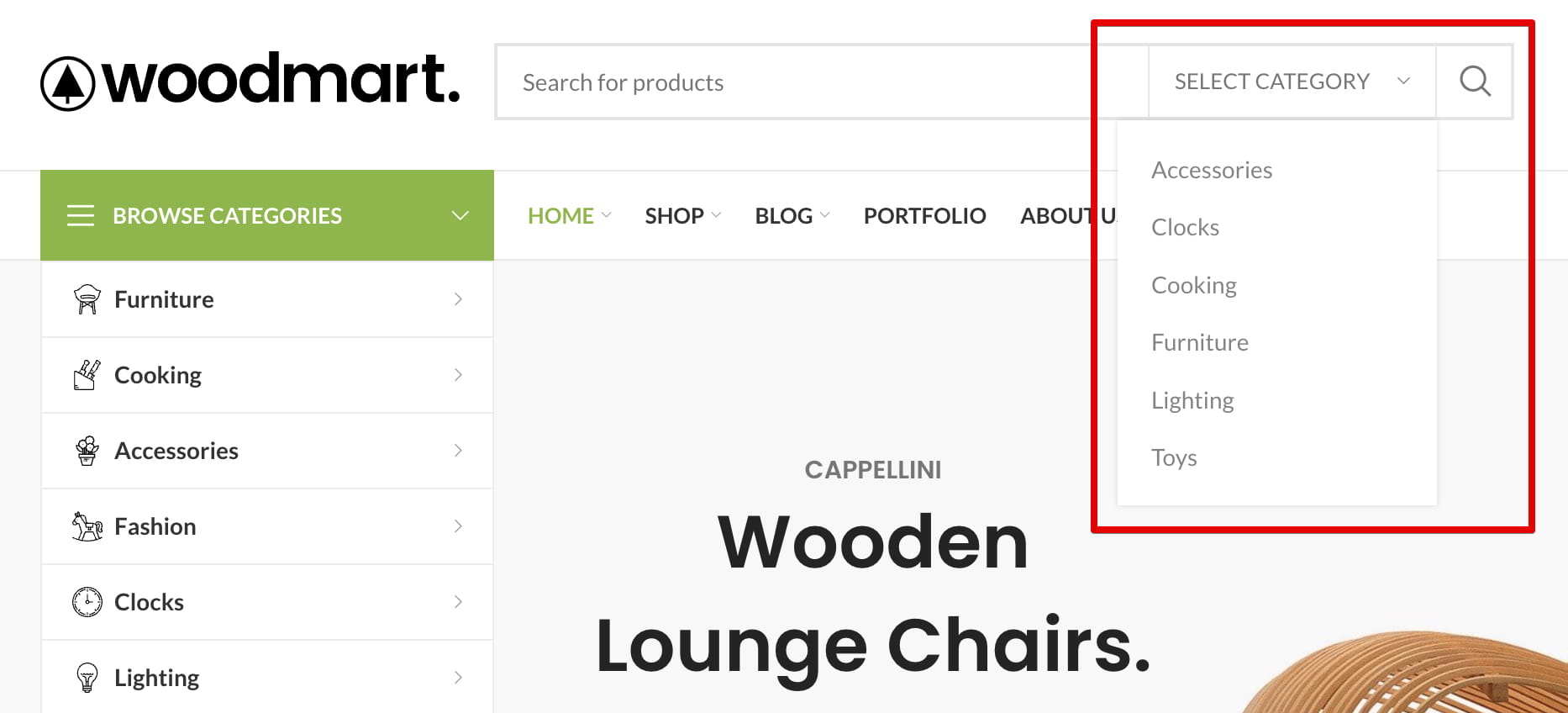
- Search form: a category selector that limits product searches to a selected category.
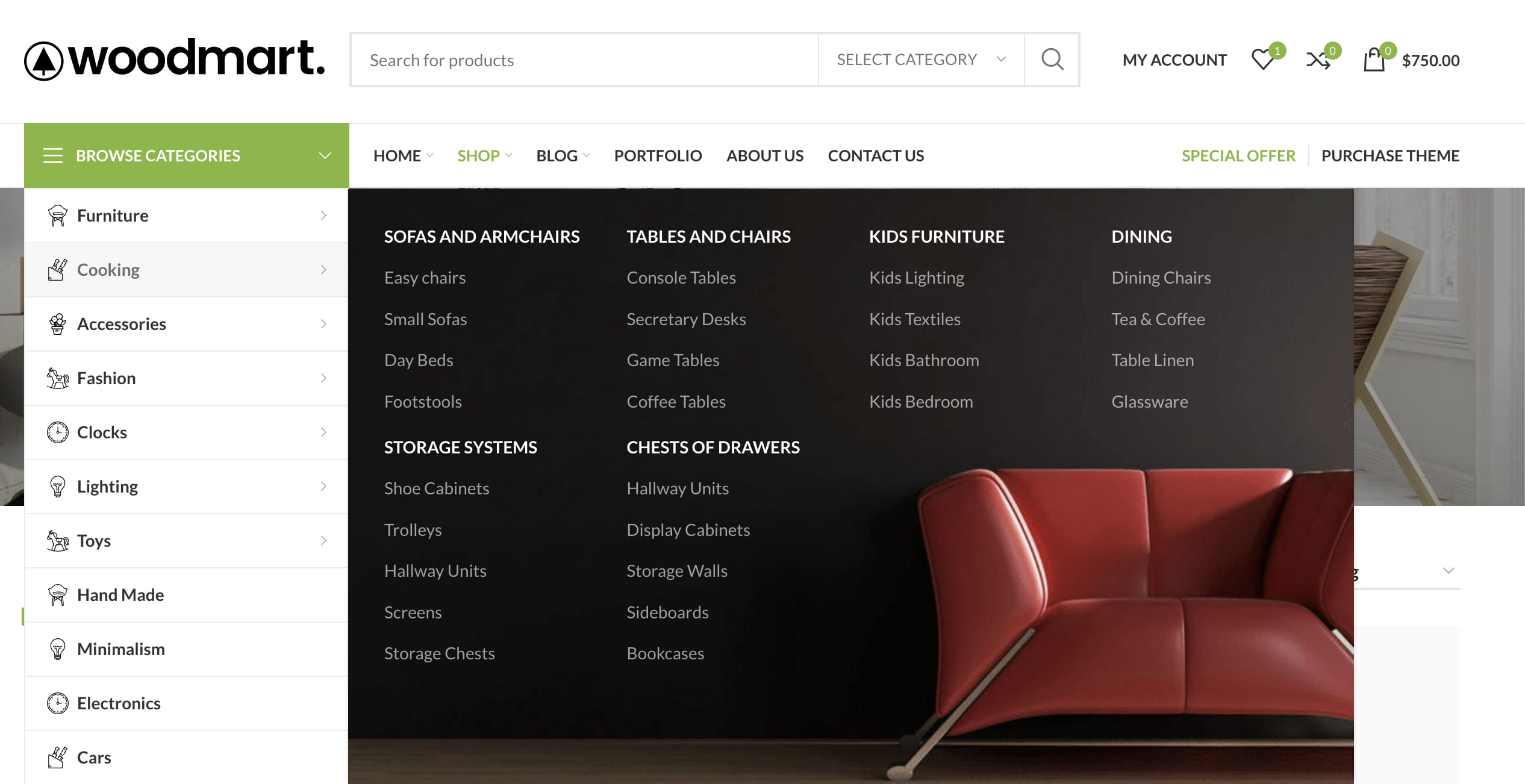
- Categories header element: a custom WordPress menu with full control over its items and order.
Categories in the shop page title
Navigate to Dashboard -> Theme Settings -> Product Archive -> Page title and enable Categories in page title. This menu is generated automatically from your WooCommerce product categories and cannot be managed as a regular WordPress menu.
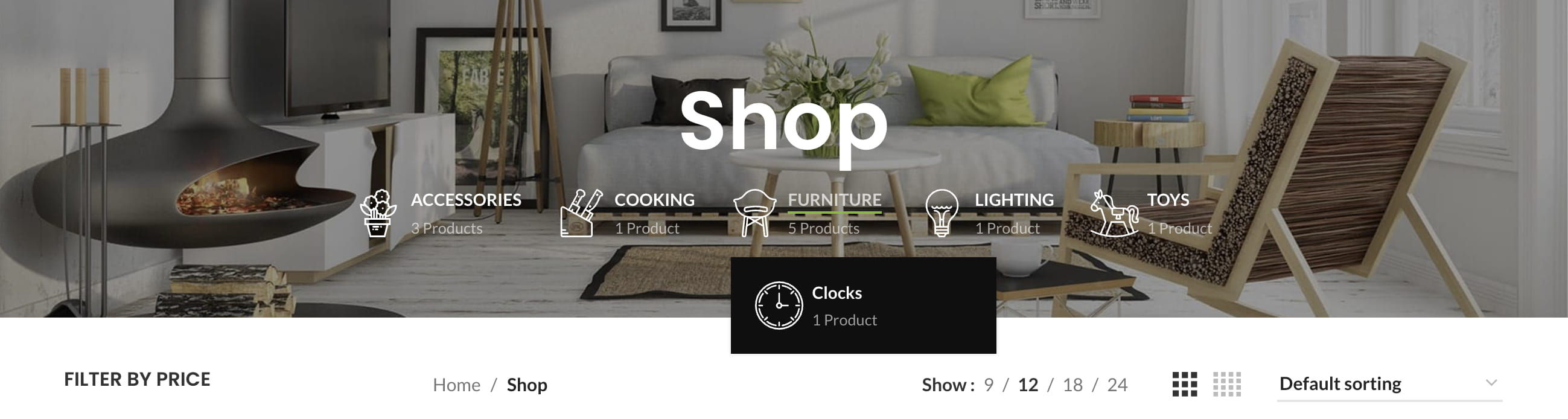
Show categories for the current archive
Enable Show current category ancestors to replace the complete category navigation with the direct subcategories of the category currently being viewed.

If the current category has no children, the category navigation is hidden. Enable Show category neighbors if there is no children to display its sibling categories instead.
Additional display options
The same section also allows you to:
- Show the product count for each category.
- Hide empty categories.
- Exclude selected categories when Show current category ancestors is disabled.
- Choose an Accordion or Hidden sidebar layout on mobile devices.
The Hidden sidebar layout provides additional controls for a Dropdown or Drilldown menu, its animation, opening action, position, color scheme, and close button.
Product category dropdown in search
You can add a category selector to the header search form so visitors can search within a specific product category.
- Open the Header Builder and edit the Search element.
- Make sure its Post type is set to Product.
- Use a compatible Display layout. The category dropdown option is hidden for layouts that do not support it.
- Enable Show product categories dropdown.
- Choose the Product categories selector style: Default, Bordered, or Separated.
The categories in this selector are generated automatically and cannot be selected or reordered manually.
Categories menu in the header
The Categories element in Header Builder displays a regular WordPress menu as a category dropdown. Unlike the shop page title navigation, this method lets you choose the categories, arrange their order, add other menu items, and configure mega menu dropdowns.
- Navigate to Dashboard -> Appearance -> Menus and create a menu.
- Add the required product categories and arrange the menu structure.
- Open the Header Builder and add the Categories element.
- Edit the element and select the menu under Choose menu.
- Configure the menu title, opening event, dropdown design, category limit, and icon dimensions as needed.
For wide or content-rich dropdowns, see the Create mega menu guide.
Category icons and page title background
Navigate to Dashboard -> Products -> Categories and edit a product category. The category settings provide three images for different locations.
Category icon
Used in the header menu, mobile menu, sticky menu, and product category search results.
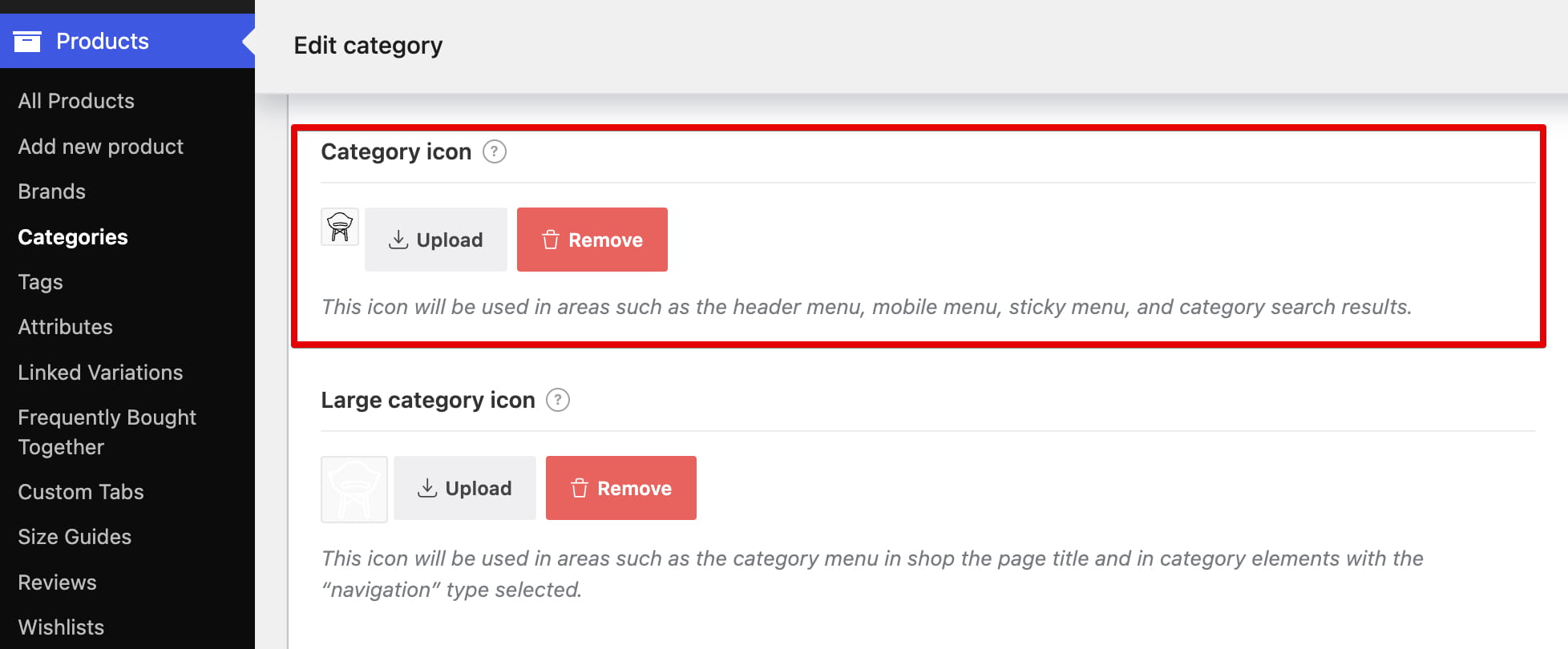
Large category icon
Used in the product category navigation in the shop page title and in Product Categories elements with the type set to Navigation.
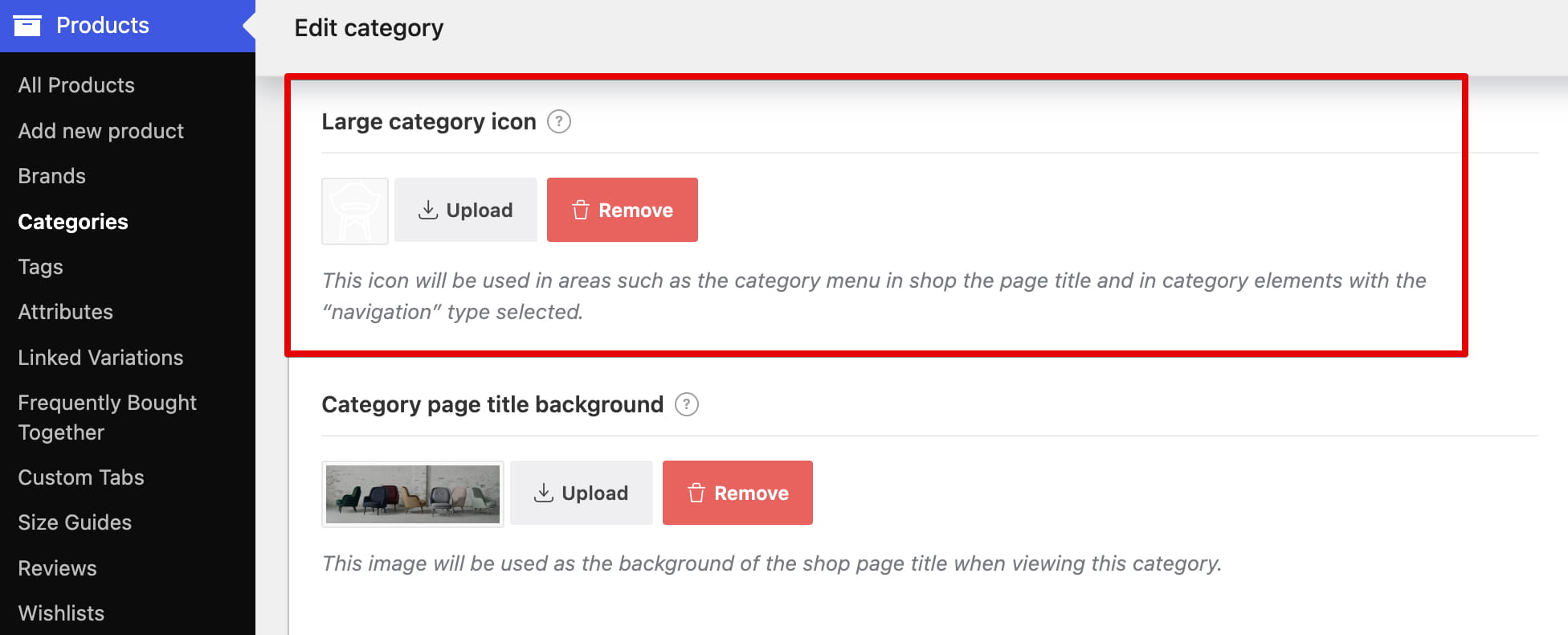
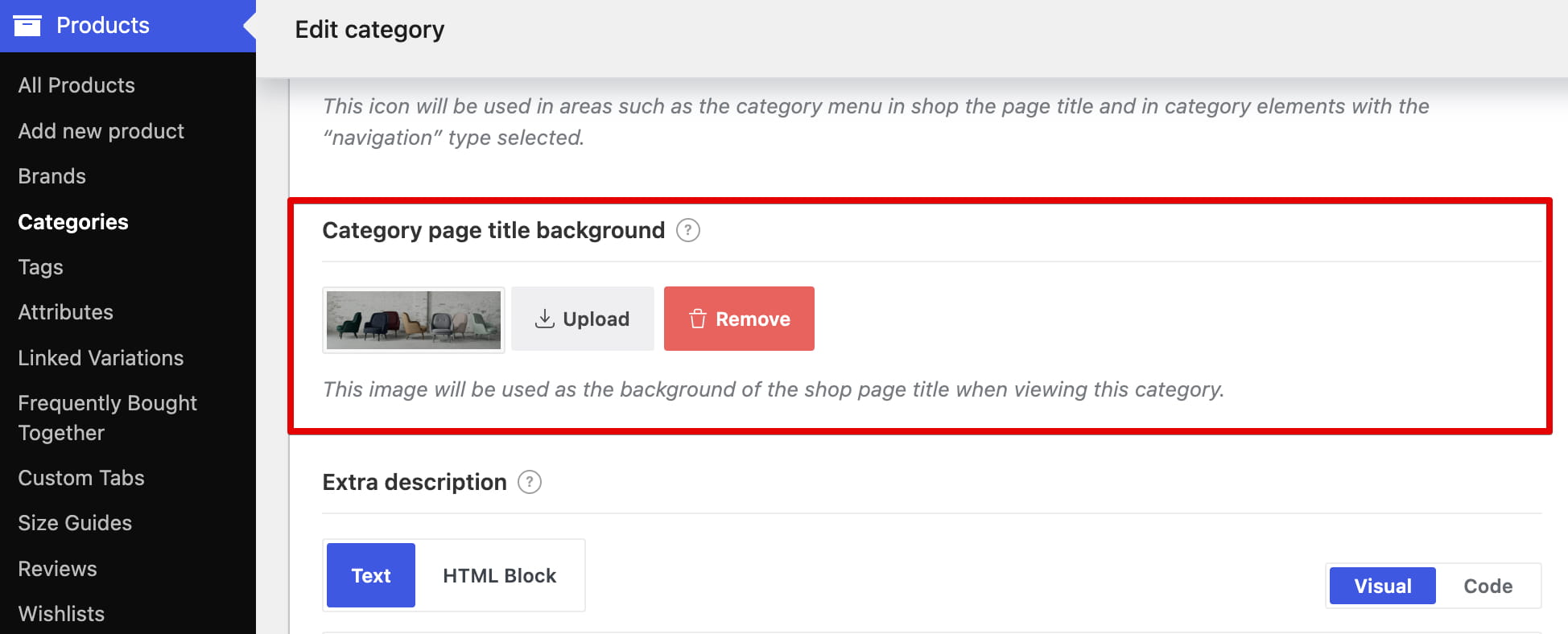
Category page title background
Sets a category-specific background for the shop page title when visitors view that product category.
Don’t miss WoodMart updates
Receive feature updates, tutorials, and WoodMart news via email.
 Last updated: August 11, 2026