
Elementor page width and templates
WoodMart and Elementor both provide controls for page width. The selected page template determines whether Elementor content follows the global WoodMart site container or uses the full available screen width.
Configure the WoodMart site width
Navigate to Dashboard -> Theme Settings -> General -> Layout. The Site width option controls the global content container used by the header, page content, and footer.
The standard WoodMart content width is 1222 px. You can select another predefined layout or choose Custom and enter the required width. This value defines the maximum content width when a page uses the Default template.
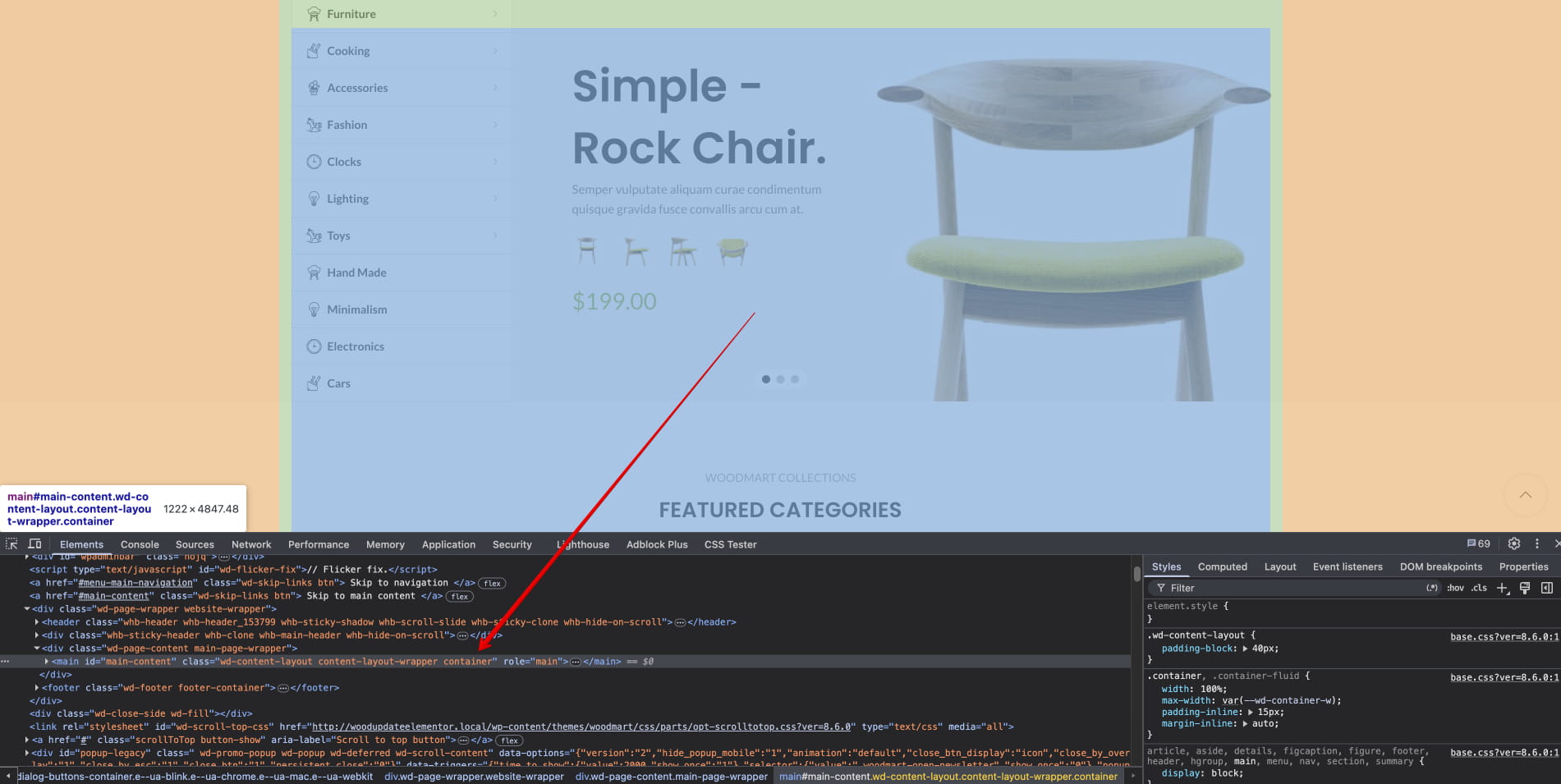
Use the Default page template
With the Default page template, Elementor content remains inside the WoodMart site container. Elementor’s Content Width and Width controls can make a container narrower, but they cannot extend it beyond the theme container by themselves.
To create an individual full-width section while keeping the rest of the page aligned with WoodMart, edit the Elementor container and open Layout -> [XTemos] Layout -> Container stretch:
- Stretch container — stretches the outer container beyond the WoodMart wrapper.
- Stretch container and content — stretches both the container and its inner content.
Use the Elementor Full Width template
Use Elementor Full Width when Elementor should control the overall width of the page while the WoodMart header and footer remain visible.
1. Open the page in Elementor and navigate to Page Settings -> Page Layout.
2. Select Elementor Full Width.
3. Navigate to Dashboard -> Theme Settings -> Other and disable Align Elementor content with the site container.
4. Configure each Elementor container through its Content Width and Width controls. The WoodMart Container stretch option is not required because the theme content wrapper is no longer limiting the page.
Use the Elementor Canvas template
Elementor Canvas removes the theme header, footer, sidebar, and content wrapper. Use it for isolated landing pages, maintenance pages, or other designs that should contain only Elementor content.
Choose the appropriate template
- Default: recommended for regular WoodMart pages that should follow the global site grid. Use Container stretch only for individual full-width sections.
- Elementor Full Width: use when the complete page width should be controlled by Elementor while retaining the header and footer.
- Elementor Canvas: use when the page should not display the theme header, footer, or sidebar.
For additional information about Elementor’s page layouts and container width controls, see the official Page Settings and Container layout documentation.
Don’t miss WoodMart updates
Receive feature updates, tutorials, and WoodMart news via email.
 Last updated: September 8, 2026