
Translate WoodMart with Loco Translate
Use Loco Translate when your language is not included in the predefined WoodMart translations or when you need to change specific translated strings. This article covers translations for the WoodMart theme text domain.
Install Loco Translate
1. Navigate to Dashboard -> Plugins -> Add New Plugin.
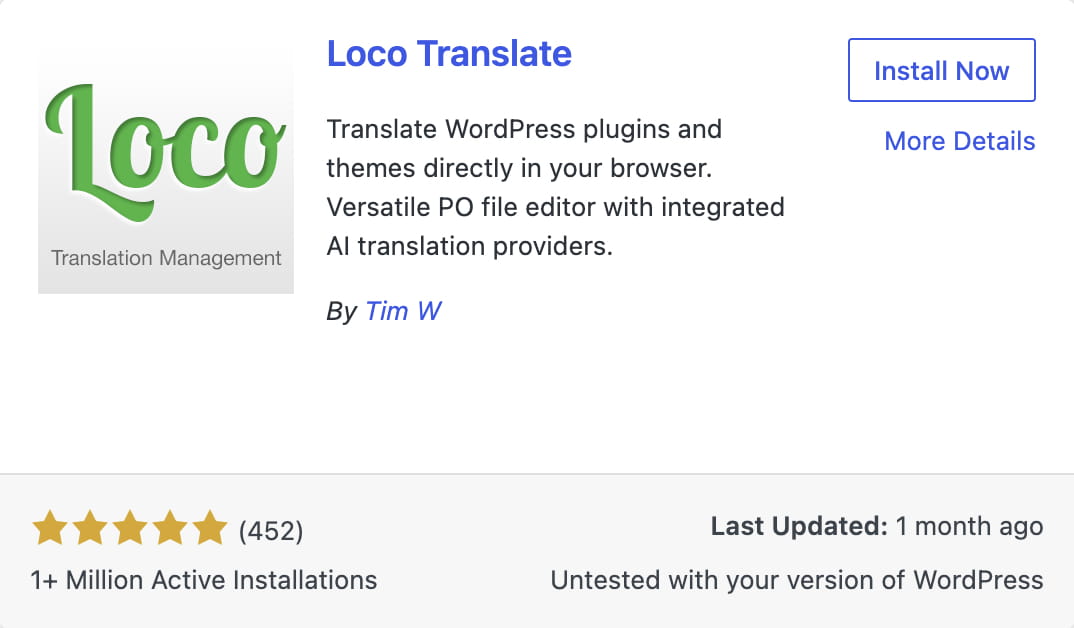
2. Search for Loco Translate, click Install Now, and then activate the plugin.
Create a translation for a new language
Before creating the translation, select the same language through Dashboard -> Settings -> General -> Site Language.
1. Navigate to Dashboard -> Loco Translate -> Themes and select WoodMart.
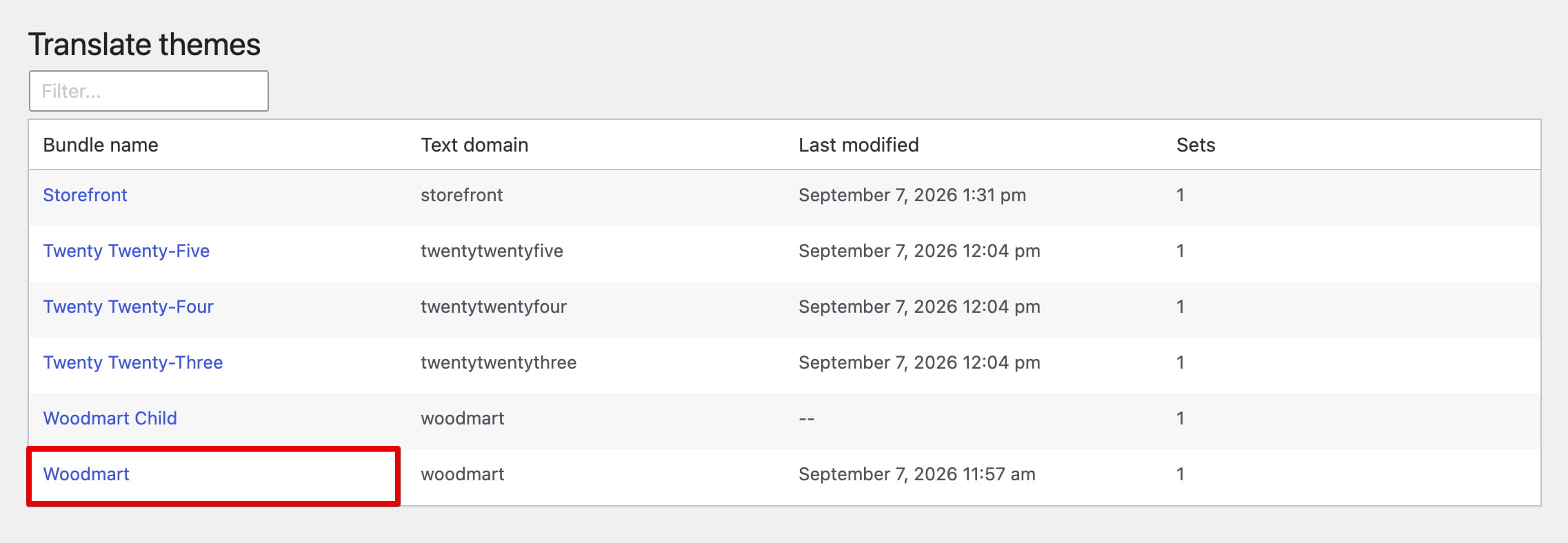
2. Click New language.
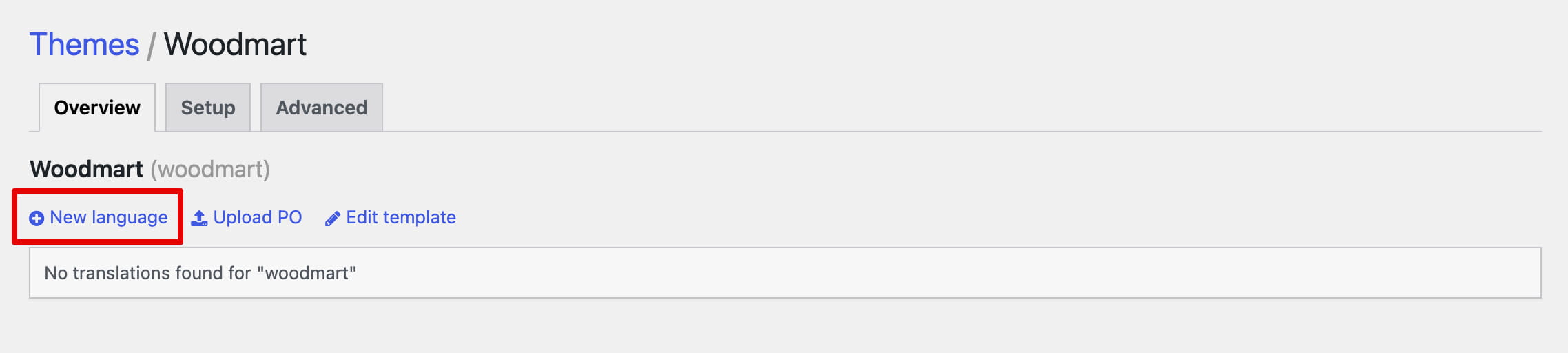
3. Choose the required WordPress language. Under Choose a location, select Custom. The translation will be stored in wp-content/languages/loco/themes, where WordPress and theme updates will not replace it.
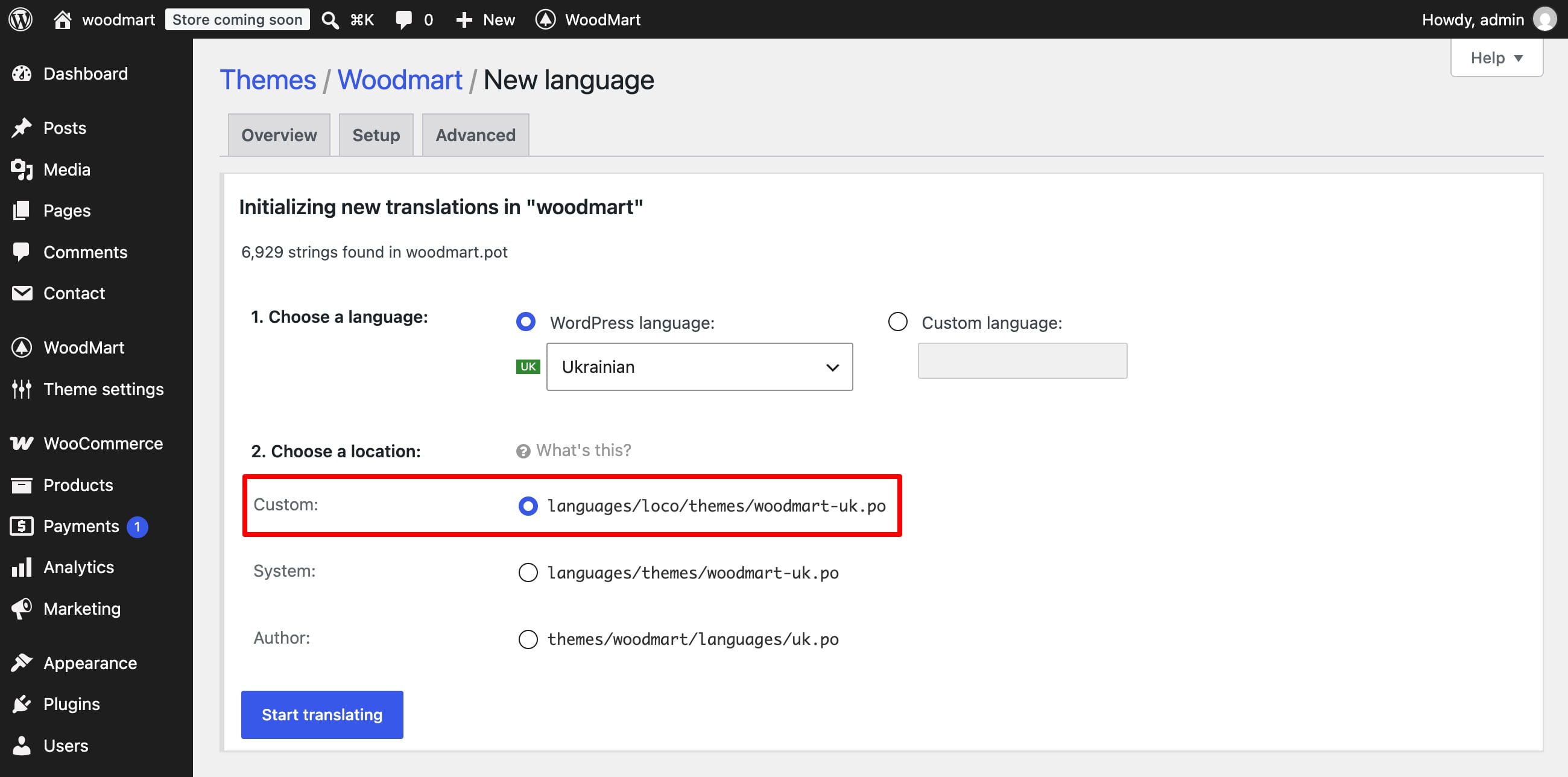
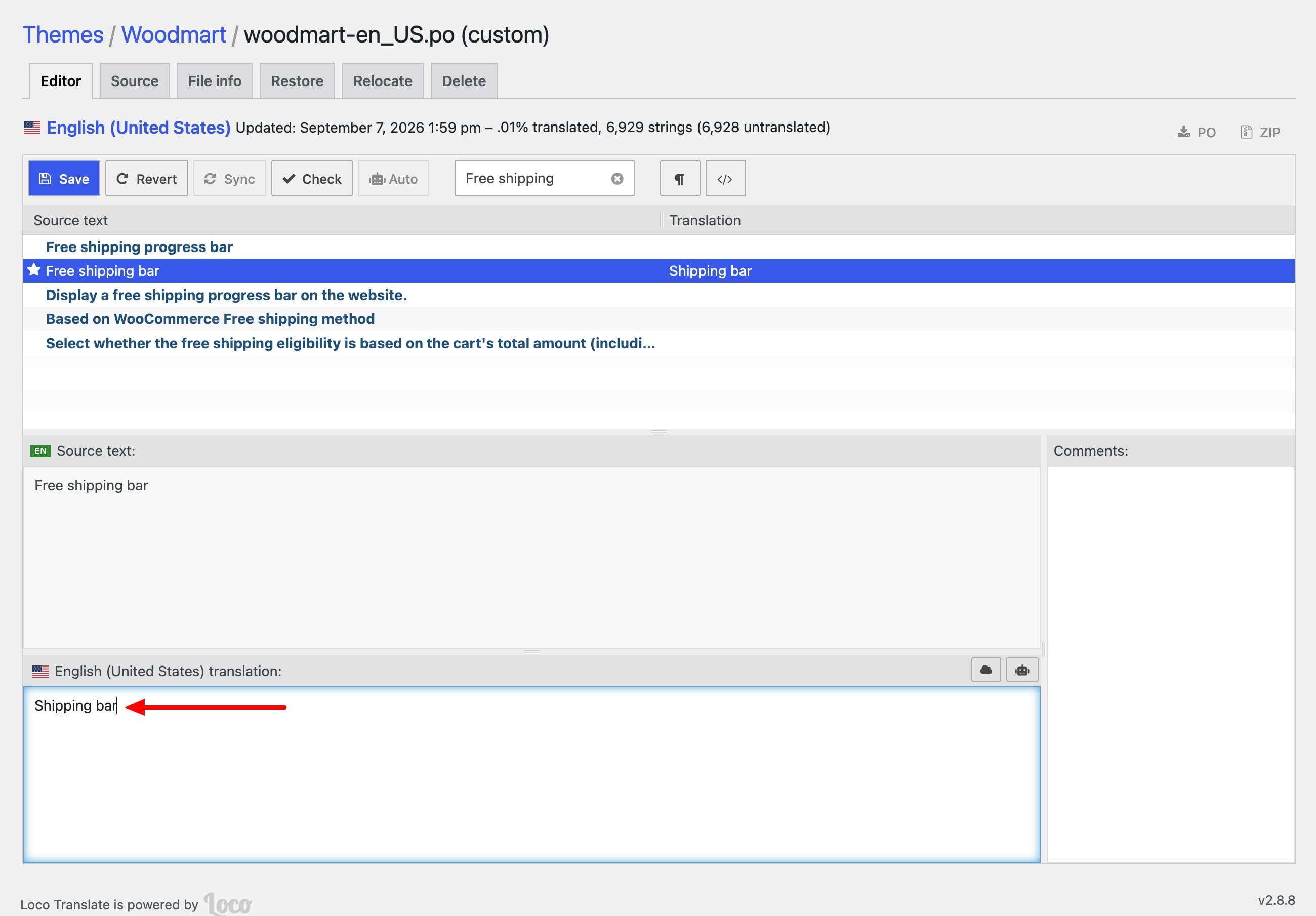
4. Click Start translating. Select or search for an English source string, enter its translation in the lower editor pane, and click Save.
Customize a predefined translation
If a predefined WoodMart translation is already installed, create a custom copy for the strings you want to override. Do not edit the original system translation because a translation update can replace it.
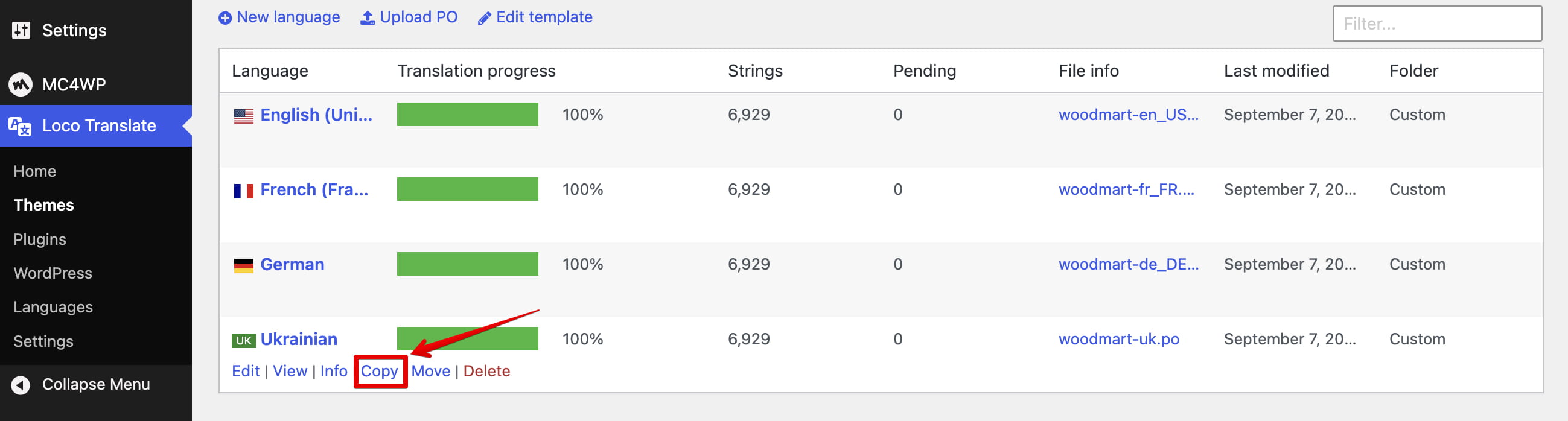
1. Navigate to Dashboard -> Loco Translate -> Themes -> WoodMart. Find the predefined language and click Copy.
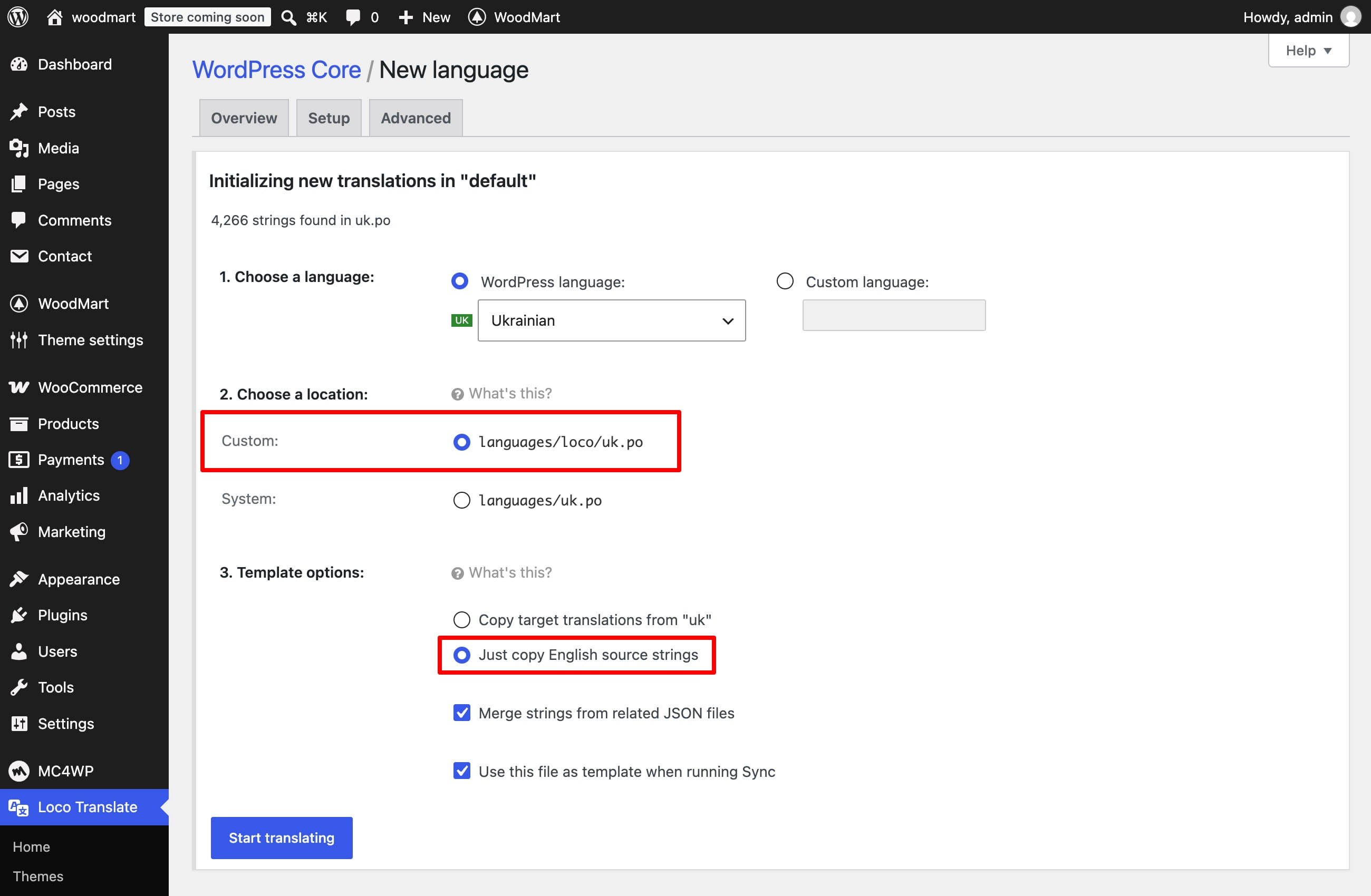
2. Keep the same language and select the Custom location in wp-content/languages/loco/themes. Under Template options, select Just copy English source strings and keep Use this file as template when running Sync enabled. This creates a small override file while the predefined translation supplies all unchanged strings.
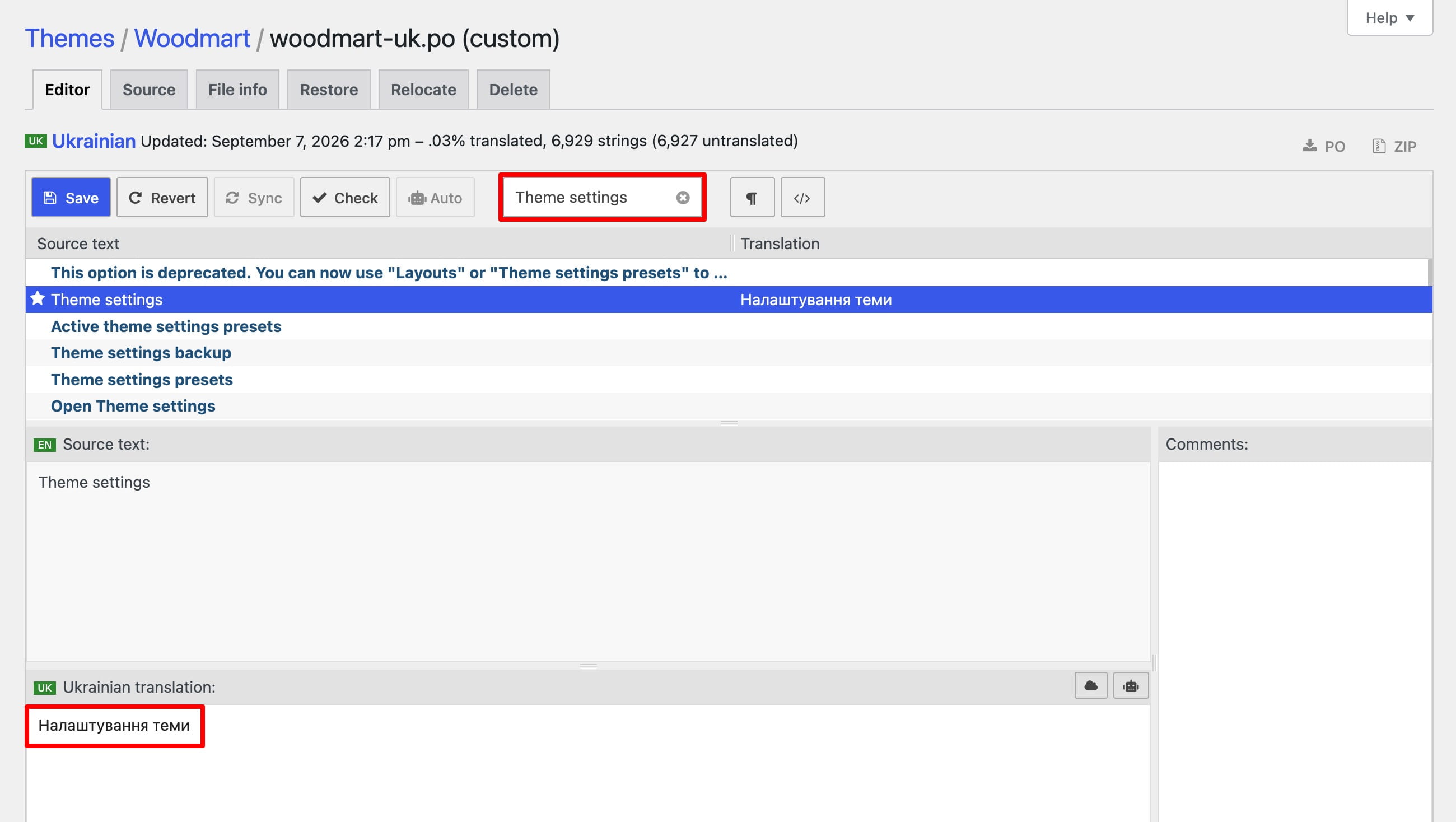
3. Click Start translating, search for each string you want to change, enter the replacement translation, and click Save.
Synchronize after a theme update
After updating WoodMart and its predefined translations, synchronize your custom file so it includes the latest source strings.
1. Navigate to Dashboard -> Loco Translate -> Themes -> WoodMart and open the custom translation.
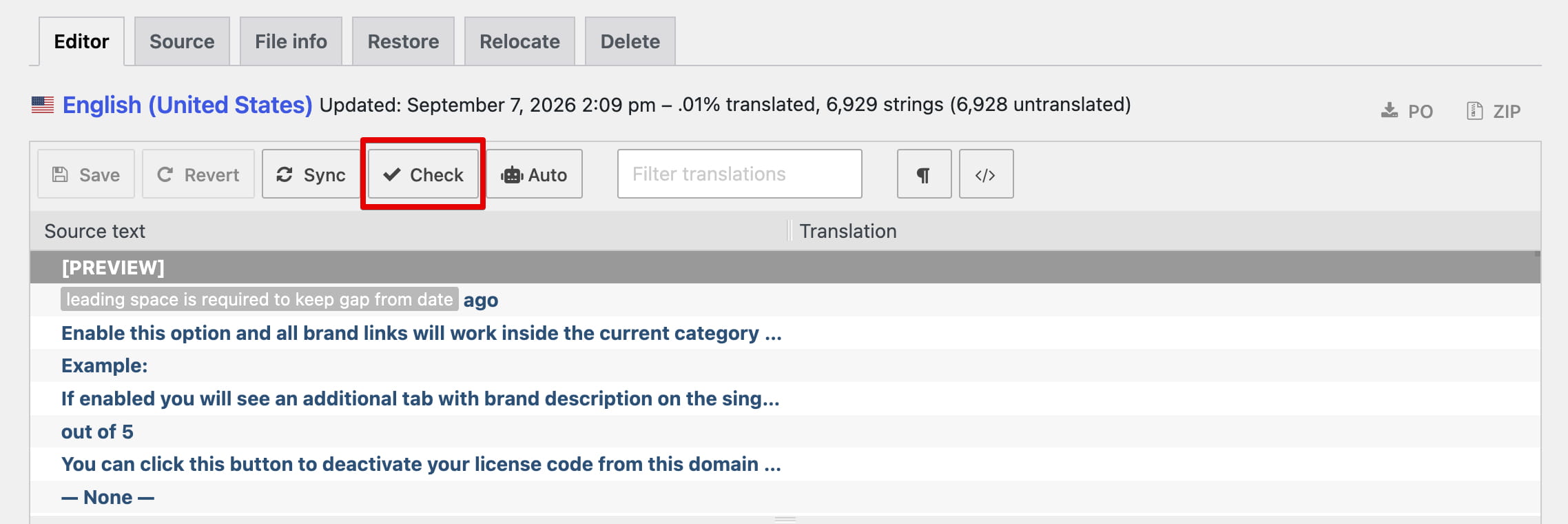
2. Click Sync. Review any added, removed, or fuzzy strings, translate the required new strings, and then click Save. Synchronization does not write the changes to the file until you save them.
Strings belonging to WooCommerce or another plugin are not part of the WoodMart theme translation. To change them, select the relevant plugin through Dashboard -> Loco Translate -> Plugins.
Don’t miss WoodMart updates
Receive feature updates, tutorials, and WoodMart news via email.
 Last updated: September 8, 2026