
XTemos account and support forum FAQ
Use this FAQ to manage your XTemos account, purchase codes, domain activations, support period, and support forum access.
Purchase codes and domain activations
Where can I find my purchase codes and activated domains?
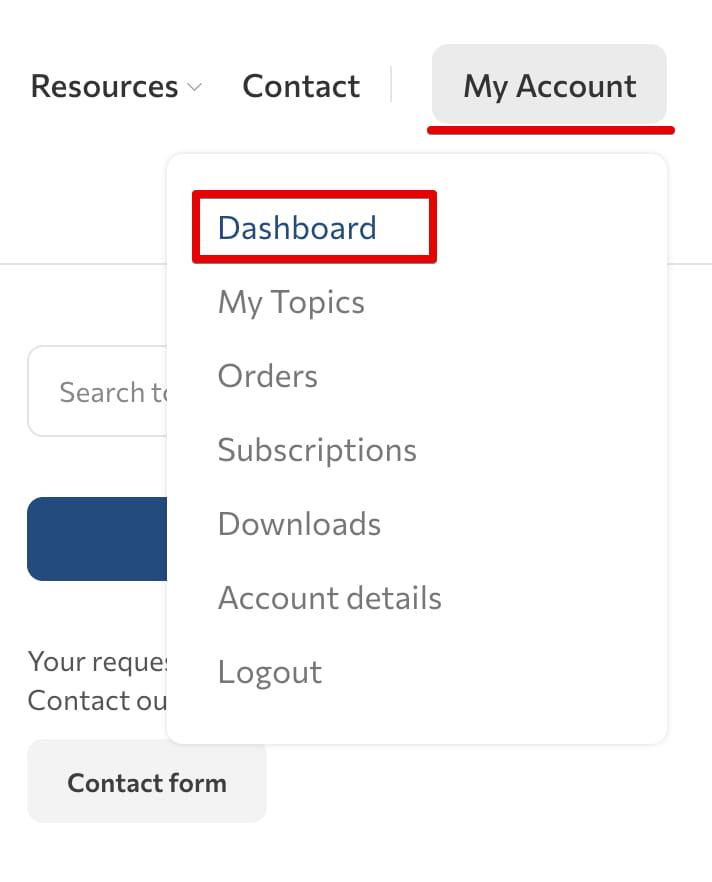
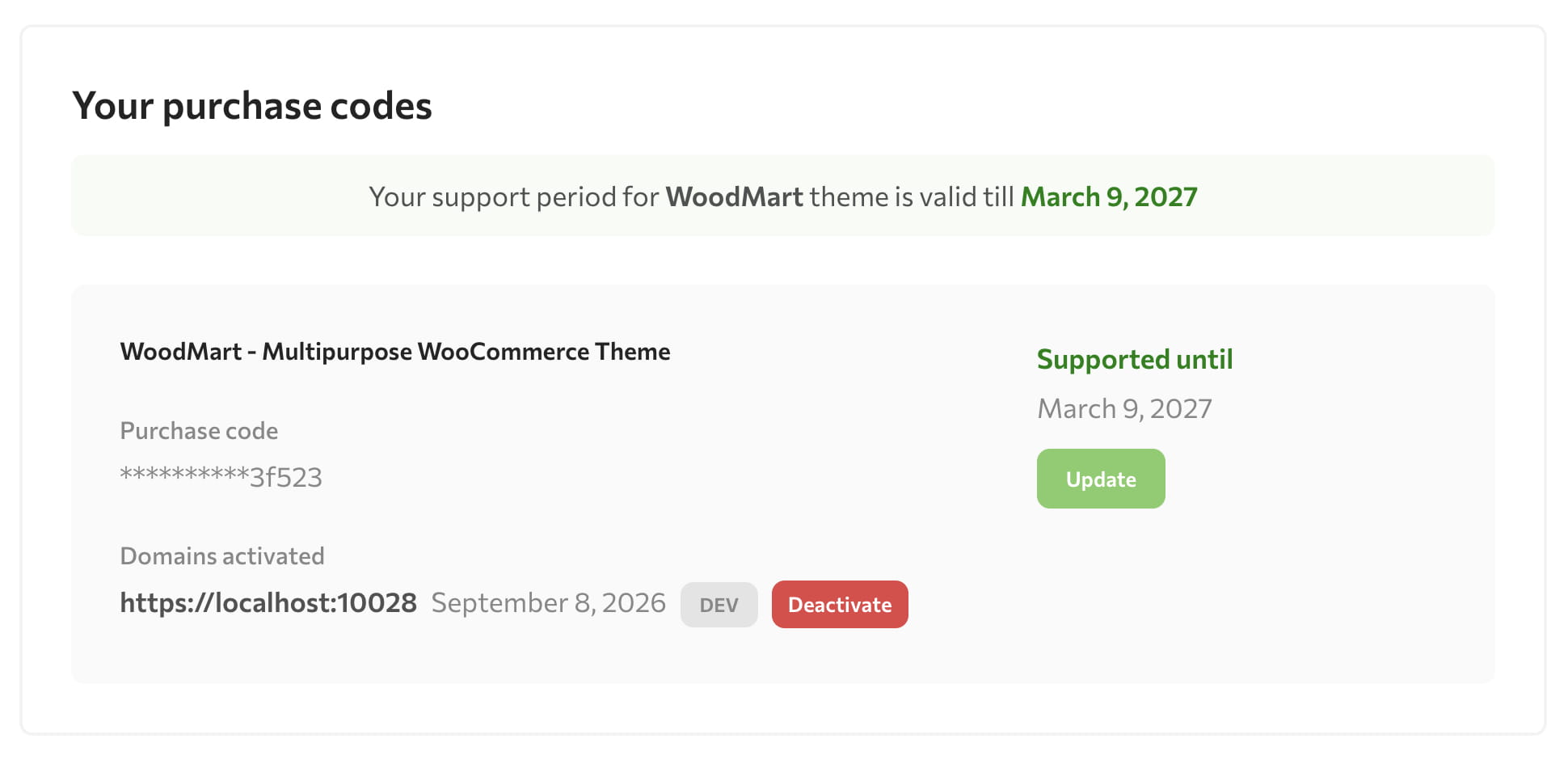
Log in to My Account and open Dashboard. The Your purchase codes section shows each saved purchase code, its current support period, and activated domains.
How do I deactivate an old domain without access to its website?
In Your purchase codes, locate the old domain and click Deactivate. You can then activate the same purchase code on the replacement domain.

How do I add another purchase code?
Use the Add new purchase code field on the account Dashboard. Paste the complete purchase code and click Submit.

How many domains can use one purchase code?
One purchase code can be activated on one production domain and one staging or development domain for the same project. Each separate website or client project requires its own license. See Theme license Q&A for additional licensing information.
Support period
How do I extend or renew support?
Support is purchased and managed through ThemeForest:
1. Log in to the ThemeForest account used to purchase WoodMart.
2. Open Downloads and locate WoodMart.
3. Select Extend now while the current support period is active, or Renew support now after it has expired.
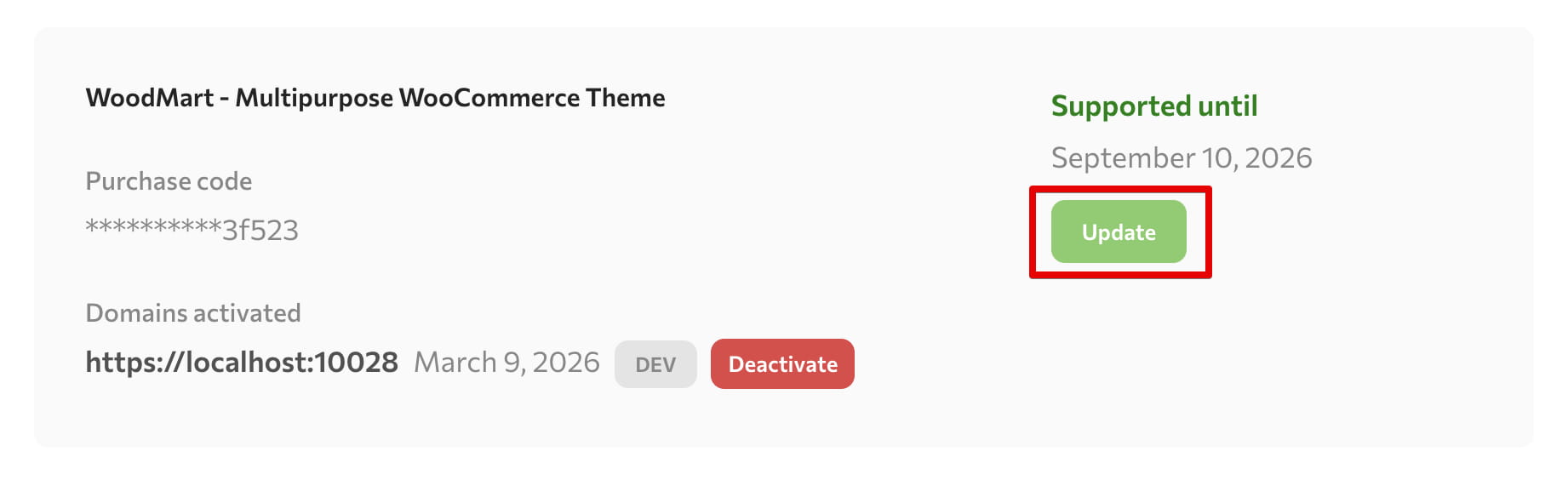
4. After completing the purchase, return to XTemos My Account -> Dashboard and click Update beside the purchase code to synchronize the new support date.


For current eligibility and pricing details, see the official Envato support extension and renewal guide.
Create a support topic
Before opening a topic, search the WoodMart documentation and support forum for the error message or feature name. If you still need help, log in, open the WoodMart support forum, and create a topic.
Include a clear title, the affected page URL, the expected and actual behavior, steps to reproduce the issue, relevant screenshots, and any error messages. Keep passwords and other access details out of the public message.
The following video shows how to register on the support forum and create a topic:
How do I share access details privately?
Enter the website URL in Your Web-Site Link and place WordPress admin, SFTP, or other sensitive information only in the Private content area below the topic editor. This content is visible only to you and the forum moderators.
Create temporary credentials with only the permissions required for troubleshooting. Remove or disable them after the issue is resolved. Never publish passwords, API keys, purchase codes, or access tokens in the regular topic message.

Manage account access
How do I change my password?
Navigate to My Account -> Account details. Enter the current password, the new password, and its confirmation, then click Save changes.

How do I reset a forgotten password?
Click Lost your password? below the login form, enter the account username or email address, and click Reset password. Use the link sent by email to create a new password.


What if I have forgotten the account email address?
Sign in to the ThemeForest account used to purchase WoodMart and contact XTemos through the XTemos ThemeForest profile. This lets the team verify the purchase account.
What should I do if the login CAPTCHA fails?
Clear the browser cache and cookies for XTemos, confirm that JavaScript and cookies are enabled, and retry in a private window. If the error continues, temporarily disable browser extensions, ad blockers, or a VPN, or try another browser or network.
Don’t miss WoodMart updates
Receive feature updates, tutorials, and WoodMart news via email.
 Last updated: September 8, 2026