
Popup builder
The Popup builder lets you create reusable popups, design their content with the active page builder, control where they are available, and decide which visitor actions open them.
Create a popup
1. Navigate to Dashboard -> Popups and click Add New.
2. Select Empty to start from scratch or choose a predefined popup category.
3. If you selected a predefined category, choose one of its popup templates.
4. Enter a recognizable popup name and click Create popup.
5. Build or edit the popup content with Gutenberg, Elementor, or WPBakery, depending on the page builder configured on your website.
6. Configure the popup appearance, triggers, and display conditions, then publish it.
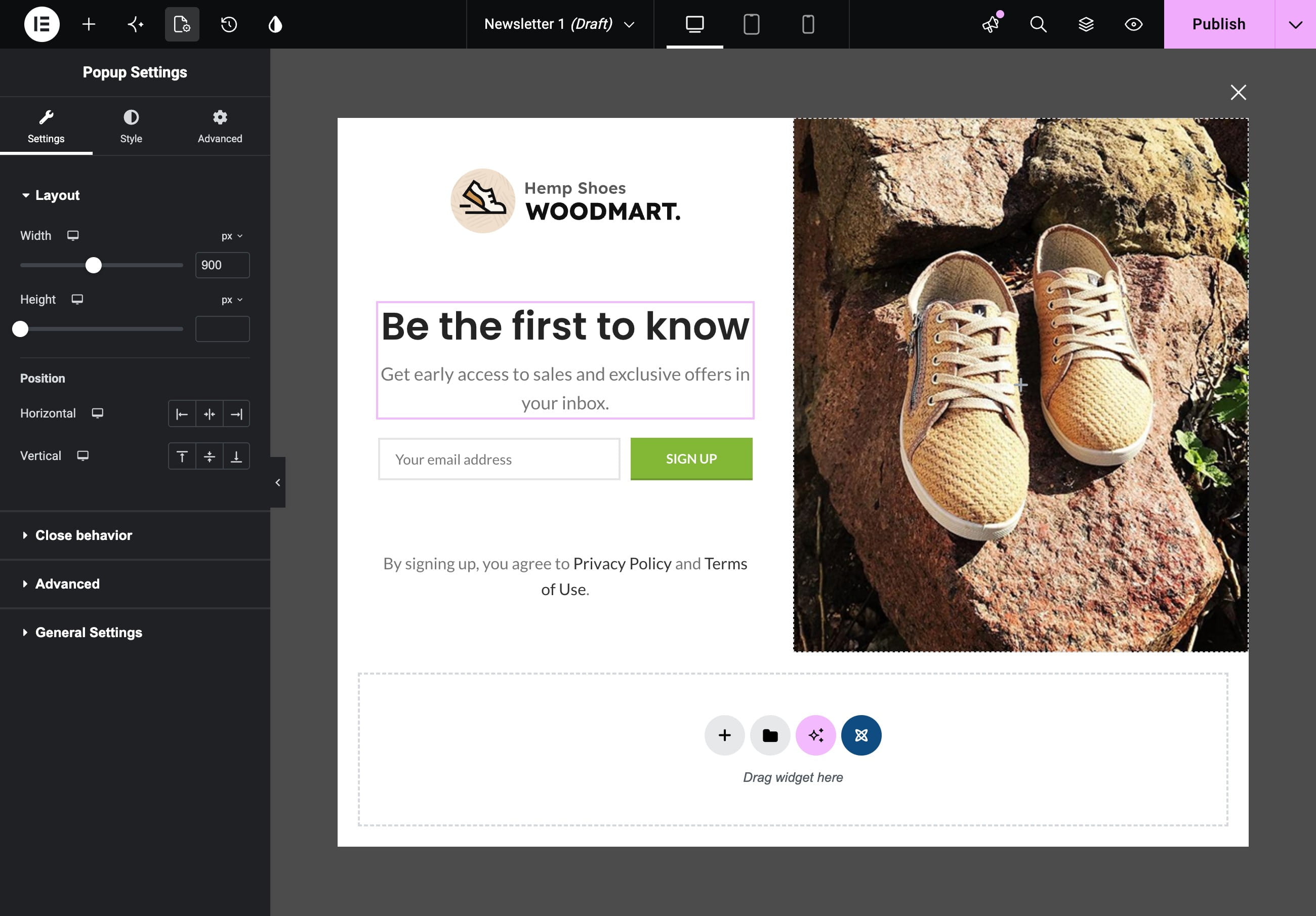
Open popup settings in the editor
The popup settings contain the same functionality in every supported builder, but their location depends on the active editor.
Gutenberg
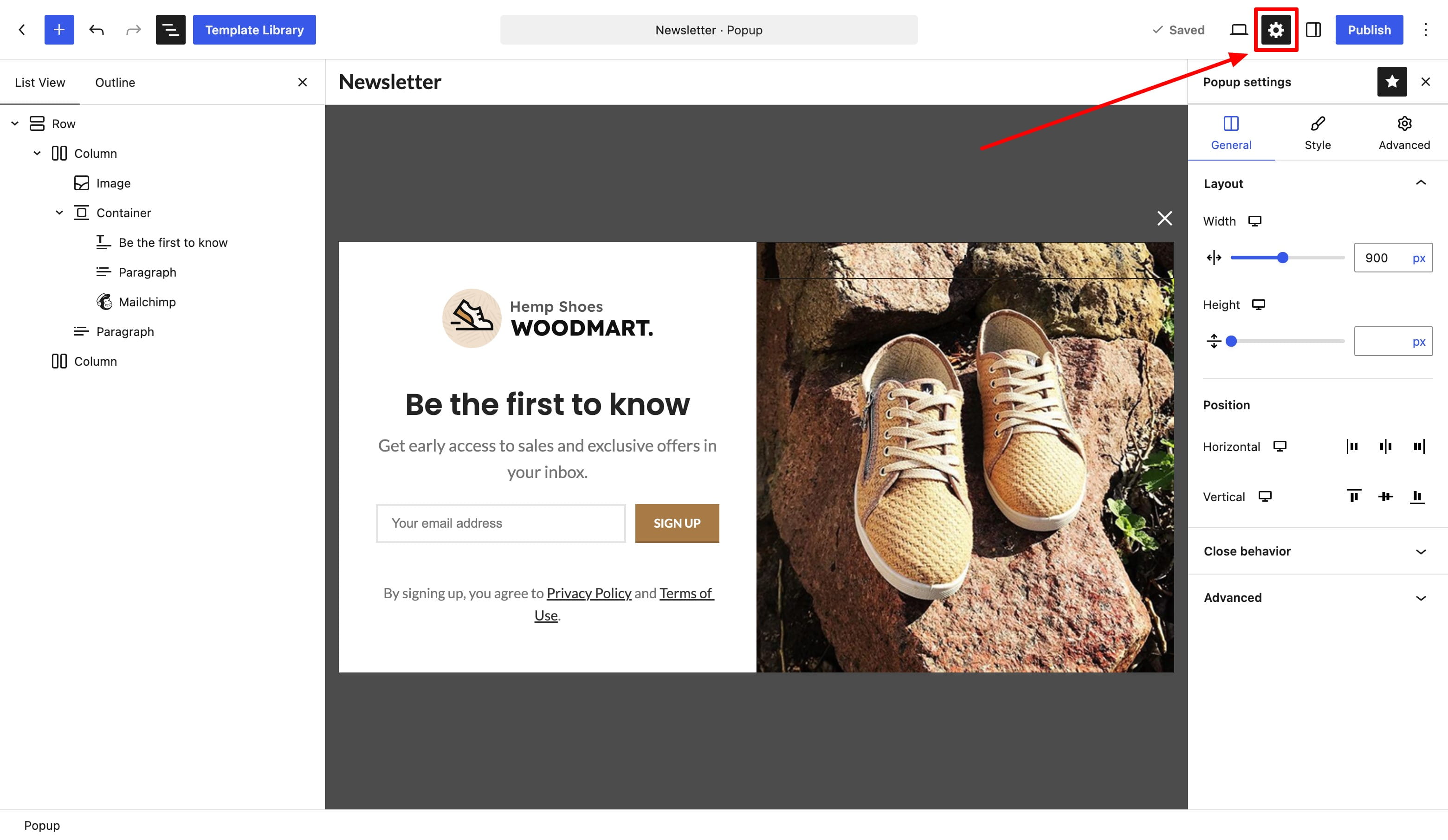
Click the Popup settings gear icon in the top editor toolbar to open the settings sidebar.
If the gear icon is hidden, open the three-dot menu in the upper-right corner and select Popup settings. In the panel that opens, activate the star icon to keep Popup settings available in the top toolbar.
Elementor
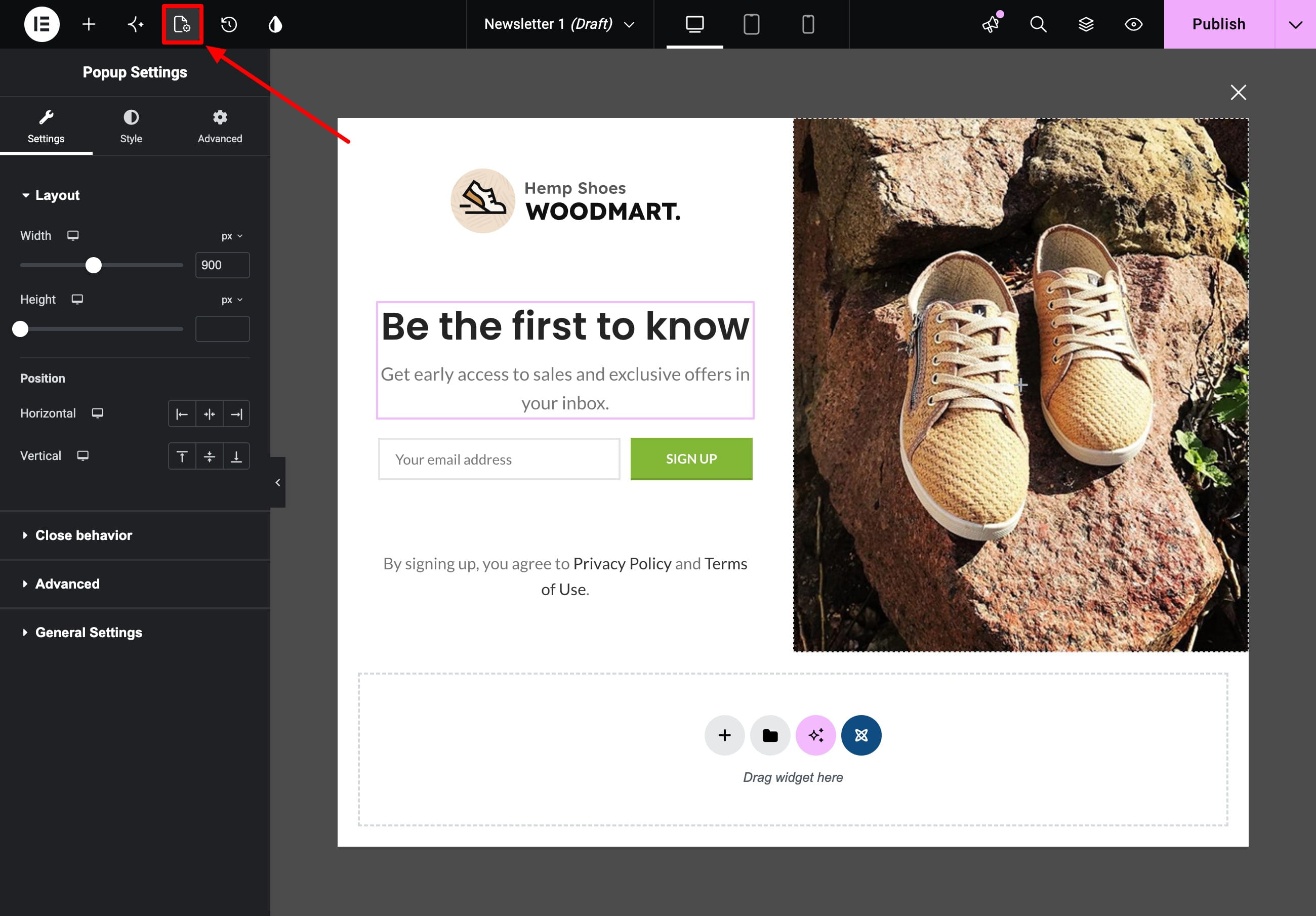
Open the popup document settings from the gear icon in the Elementor editor. The popup settings are displayed in the editor panel.
WPBakery
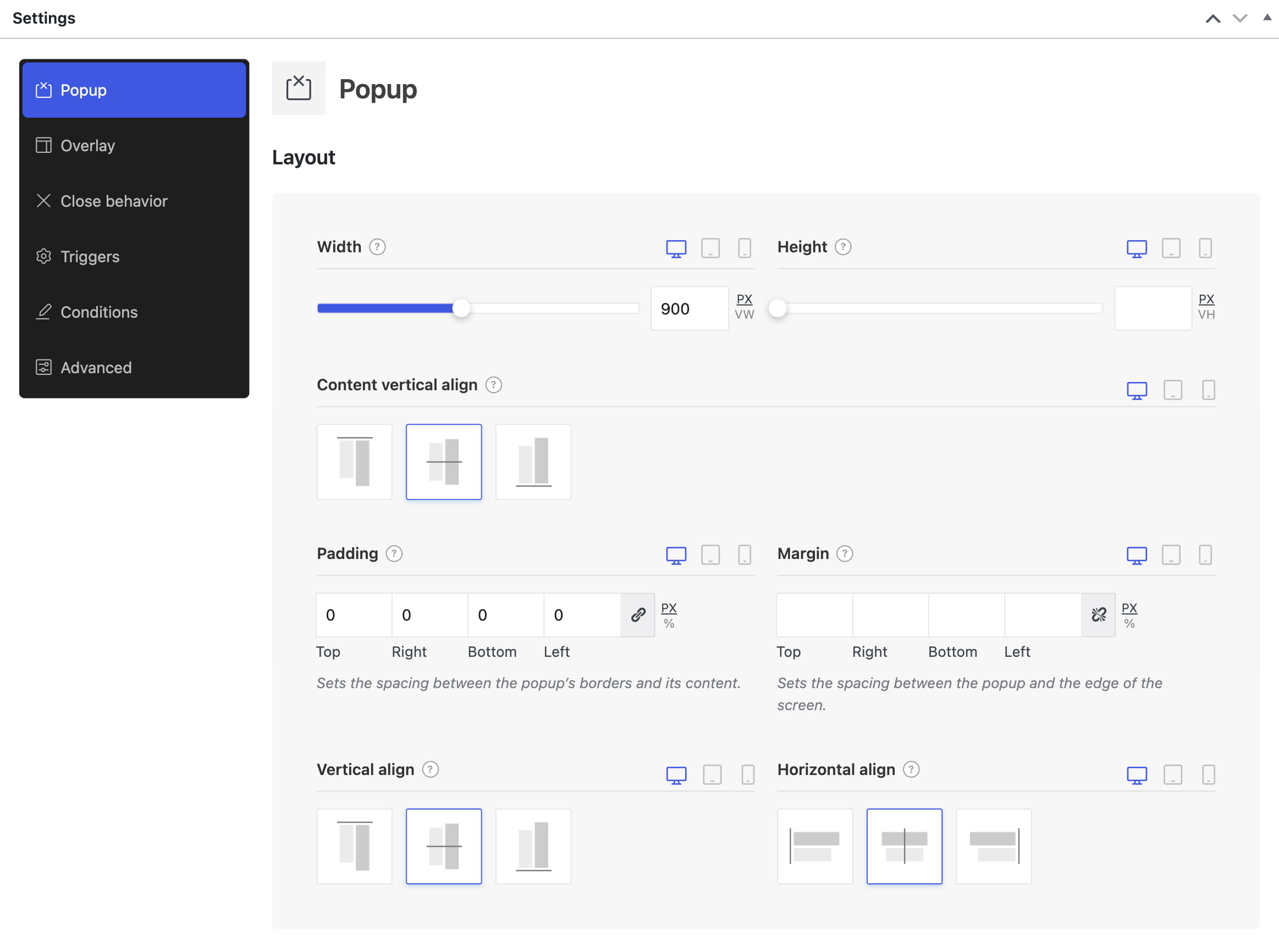
The popup settings are displayed below the WPBakery content editor in the Settings panel.
Configure the popup
- Popup — controls the responsive width and height, content alignment, position, spacing, background, border, shadow, and opening animation. Padding creates space between the popup boundary and its content, while margin creates space between the popup and the edge of the screen.
- Overlay — controls the color and backdrop effect behind the popup. Use transparency when the page should remain partially visible.
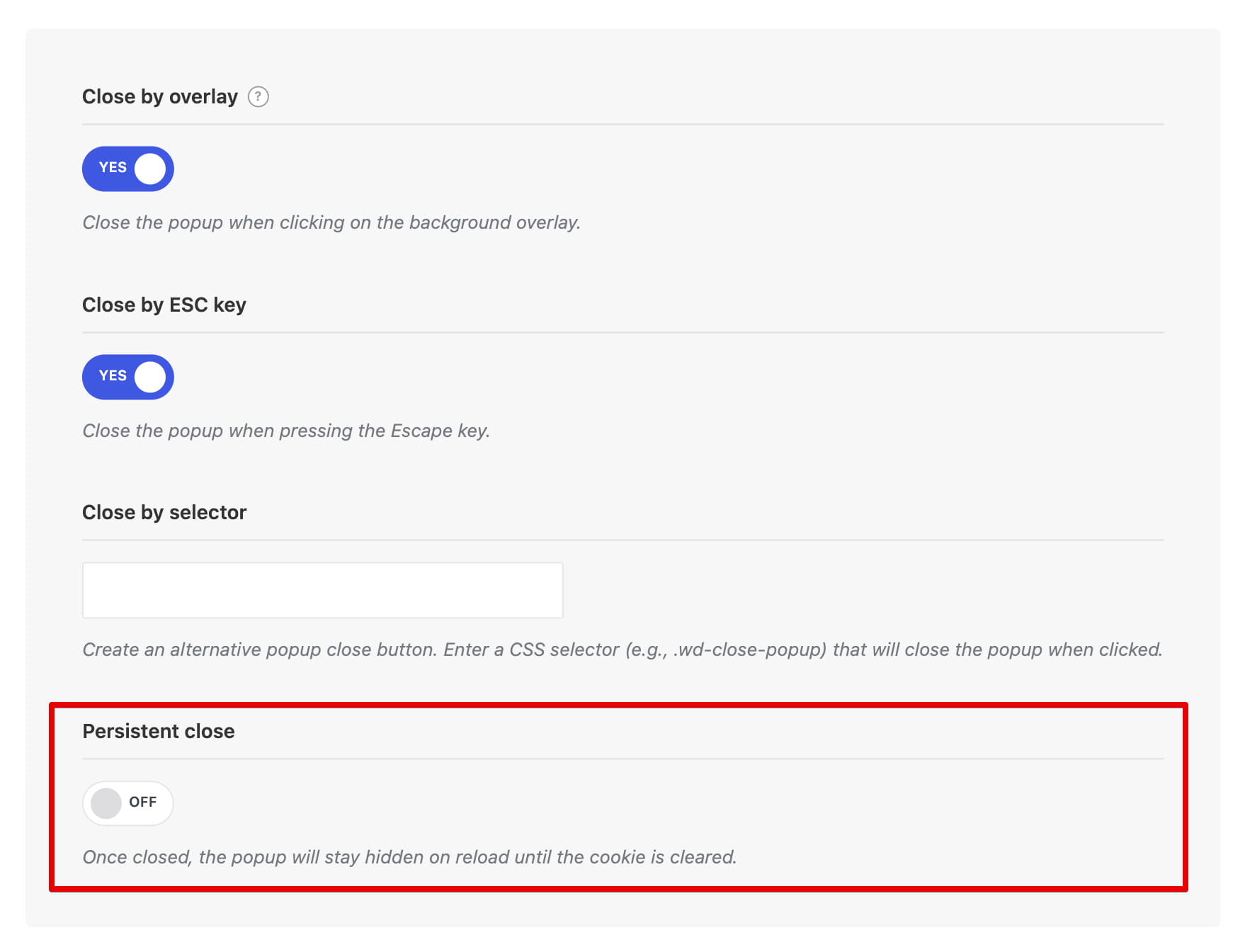
- Close behavior — configures the close button, closing through the overlay or Escape key, an additional close selector, and Persistent close.
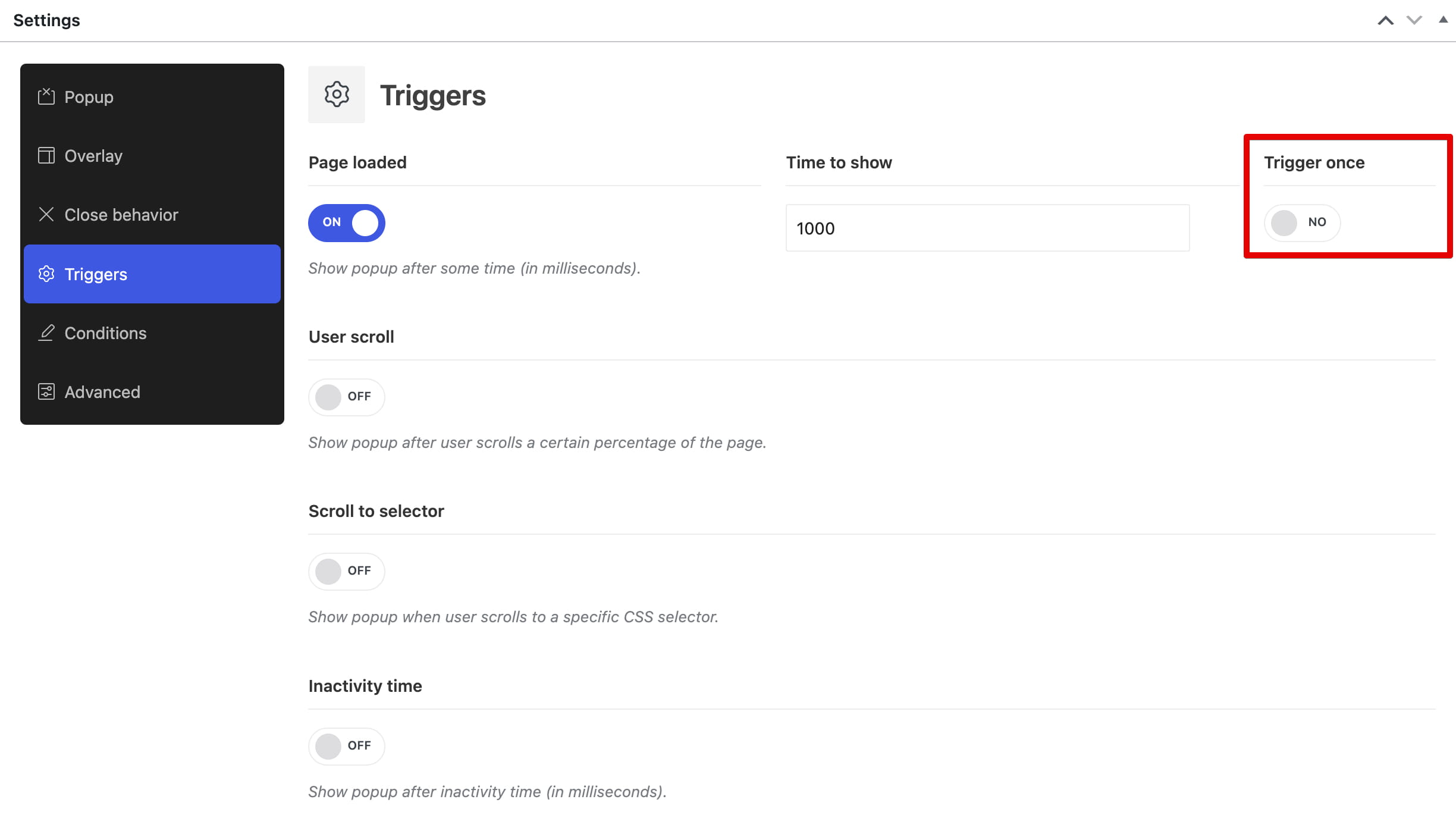
- Triggers — determines which event opens the popup, such as page load, scrolling, inactivity, exit intent, clicks, URL values, page views, or sessions. See the Triggers article for each available trigger and its options.
- Conditions — determines where the popup is available. Combine Include and Exclude rules to target the entire website, selected post types, individual pages, taxonomies, terms, user roles, or other supported contexts.
- Advanced — controls visibility on desktop, tablet, and mobile, and includes Enable page scrolling. When page scrolling is disabled, the page behind an open popup remains fixed.
Default settings
- The popup is centered, uses a white background, has a maximum width of 800px, and adjusts its height to its content.
- The default opening animation is From left to right.
- The default condition includes the entire website.
- The Page loaded trigger is enabled with a delay of 0 milliseconds.
- The close button, closing through the overlay, closing with the Escape key, and Persistent close are enabled.
With Persistent close enabled, a popup that the visitor closes remains hidden until its cookie expires or is removed. The default cookie lifetime is 7 days.
Test a popup after closing it
If the popup no longer appears while you are editing it, temporarily disable Persistent close and disable Trigger once for each active trigger. After testing, restore the required values.
You can also test the popup in a private browser window or clear the website cookies in your current browser.
Video tutorial
Don’t miss WoodMart updates
Receive feature updates, tutorials, and WoodMart news via email.
 Last updated: September 7, 2026