
Host Google Fonts locally
The Load Google Fonts locally option downloads supported Google Fonts selected in the main Theme Settings and serves them from your website. This removes browser requests to Google for the locally stored font variants and gives you more control over font delivery. The option is enabled by default.
WoodMart performance tests confirm that serving Google Fonts locally provides better LCP results than loading the same fonts from the Google CDN. It removes the additional external connection and allows the browser to retrieve the required font files sooner, which is especially important when text is the Largest Contentful Paint element.
Local hosting also supports privacy requirements by avoiding Google requests for locally stored variants, although this option alone does not guarantee complete GDPR compliance. Fonts added outside the main Theme Settings may still require the Google CDN.
Check local font hosting
1. Navigate to Dashboard -> Theme Settings -> Performance -> Fonts & Icons.
2. Make sure Load Google Fonts locally is enabled. If you turn it on, save Theme Settings. WoodMart downloads the required font files and builds the corresponding local CSS, which can take several seconds.
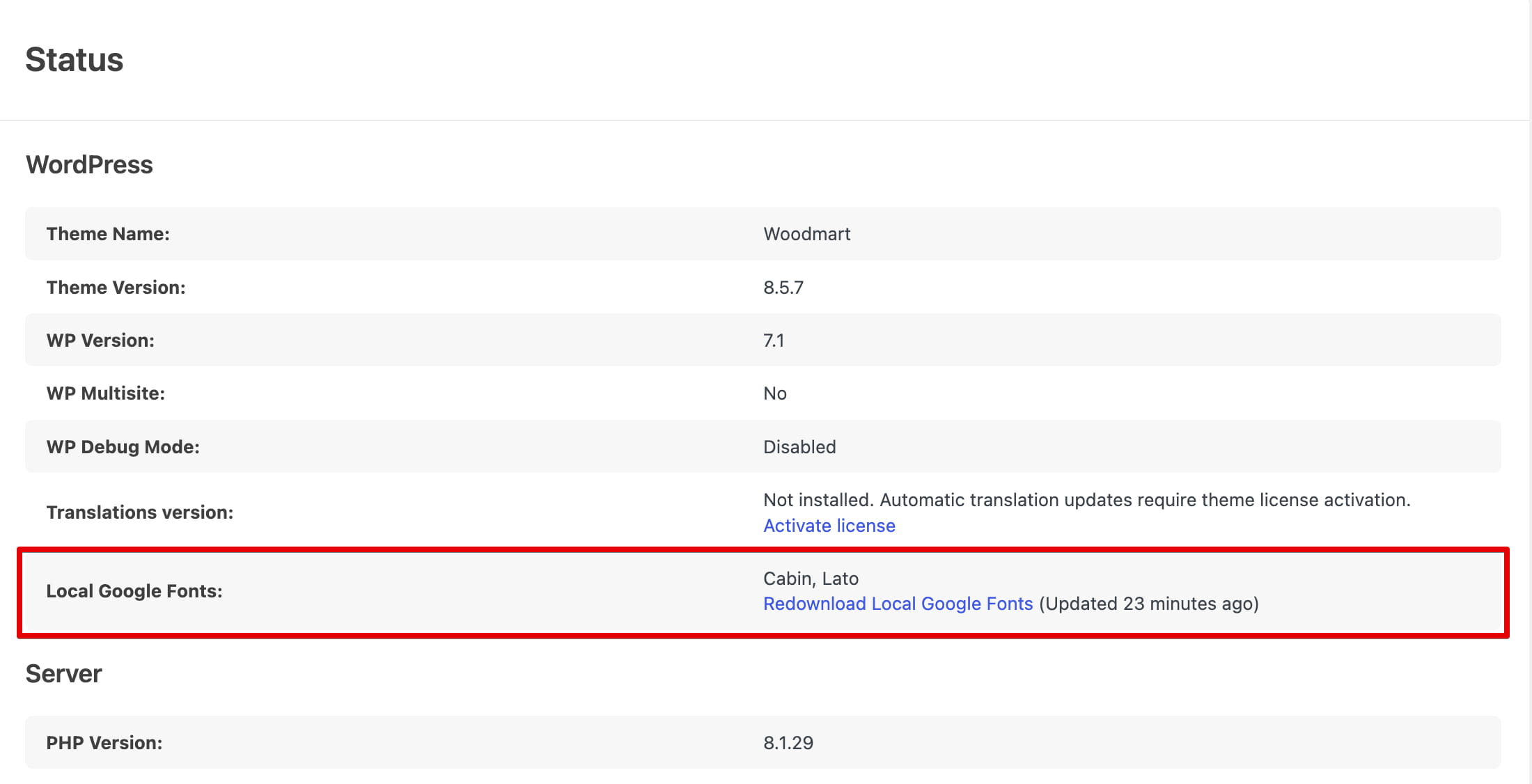
3. Navigate to Dashboard -> WoodMart -> Status and find Local Google Fonts. This section lists the locally hosted families, failed downloads, and the last update time.
What is stored locally
WoodMart downloads the Google Font families and variants selected in the primary typography controls under Theme Settings. The physical font files are stored in:
wp-content/uploads/woodmart/google-fonts/fonts
The generated @font-face CSS is managed through WoodMart’s internal CSS storage. Its physical location can vary, so you should not edit or move the generated files manually.
Fonts that may still use the Google CDN
The local cache is built from the primary Theme Settings. Fonts or variants used only in the following locations are not automatically added to that cache:
- Theme Settings presets.
- Elementor element controls.
- WPBakery element controls.
- Gutenberg block controls.
If the same font family and weight already exist in the local cache, WoodMart can reuse the local variant. Any additional family, weight, or style that is not available locally is loaded from the Google CDN.
For example, if the main Theme Settings use weight 400 and a preset uses weight 700, weight 400 can remain local while weight 700 is requested from Google.
Manage local fonts
- Failed downloads: Theme Settings displays a notice, and the affected font families appear under Dashboard -> WoodMart -> Status.
- Fallback: when a local family or variant is unavailable, WoodMart loads the missing font from the Google CDN. A failed refresh does not remove a previously valid local cache.
- Redownload: click Redownload Local Google Fonts on the Status page to rebuild the cache from the current typography settings.
- Theme updates: WoodMart automatically rebuilds the local font cache after the theme is updated.
- Disabling: disabling Load Google Fonts locally and saving Theme Settings removes the locally stored font files and cache data.
Configure font-display
The “font-display” for text fonts option controls the CSS font-display value used for Google Fonts. When local font hosting is enabled, saving a new global value rebuilds the local CSS with that value.
A font-display value applied only through a Theme Settings preset is not added to the global local-font cache. Pages using that preset may therefore load the required font variants from the Google CDN.
Verify external font requests
After clearing the site and browser caches, open the page in a private browser window and inspect the Network panel in the browser developer tools. Search for requests to fonts.googleapis.com and fonts.gstatic.com.
If these requests remain, check whether the page uses a font family, weight, or style that is configured only in a preset, page builder element, Gutenberg block, plugin, or custom code.
Don’t miss WoodMart updates
Receive feature updates, tutorials, and WoodMart news via email.
 Last updated: September 21, 2026