
Remove page content spacing
WoodMart adds 40px of top and bottom padding to the main page content container. This creates consistent spacing on standard pages. However, when the first or last section has its own background, the padding may appear as an unwanted gap between the content and the header, prefooter, or footer.
To remove a gap, apply a -40px margin only to the edge of the first or last section that should touch the surrounding area.
Remove the space above page content
1. Navigate to Dashboard -> Pages and edit the required page.
2. Select the first Row, Container, or Section on the page.
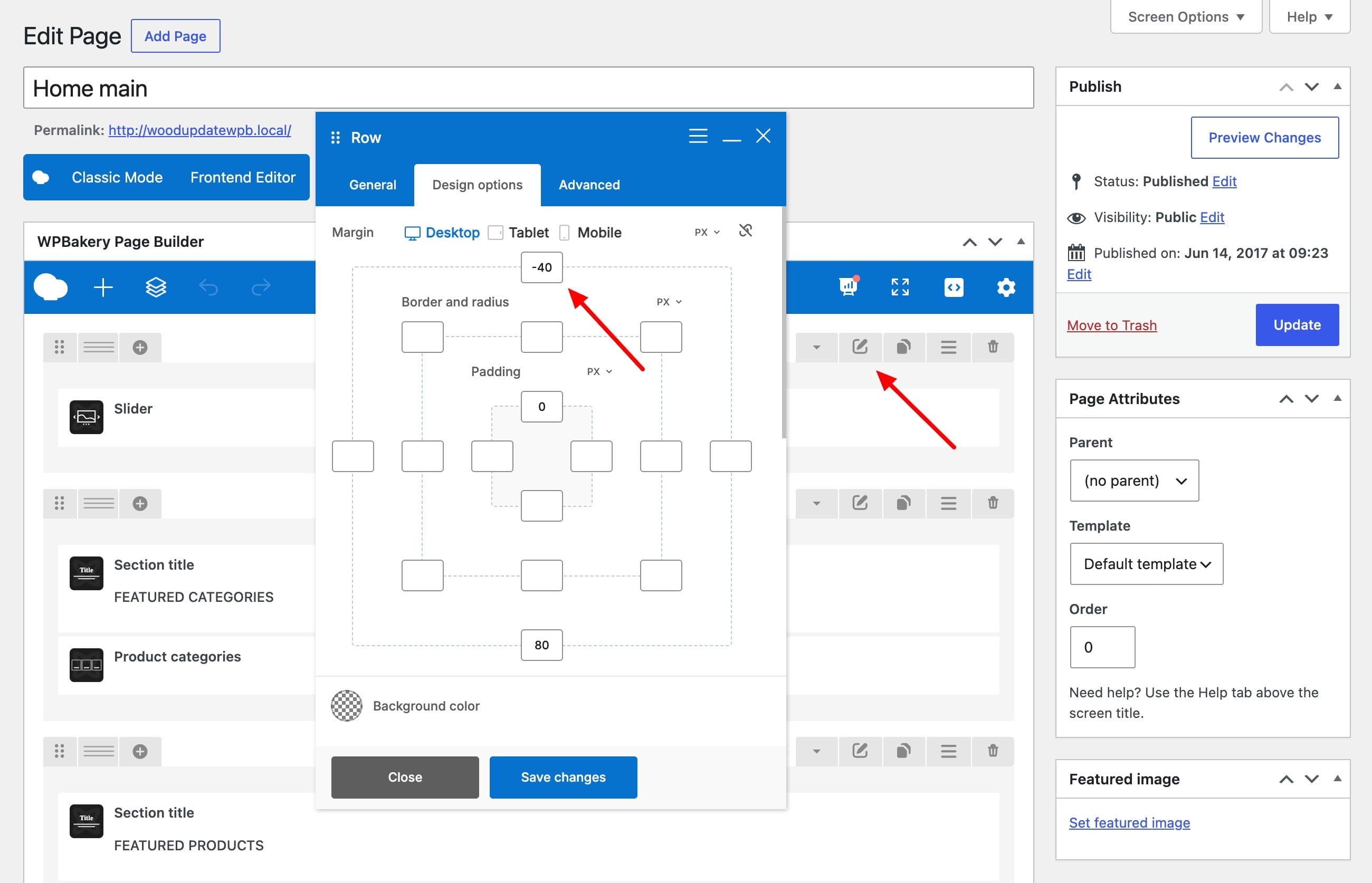
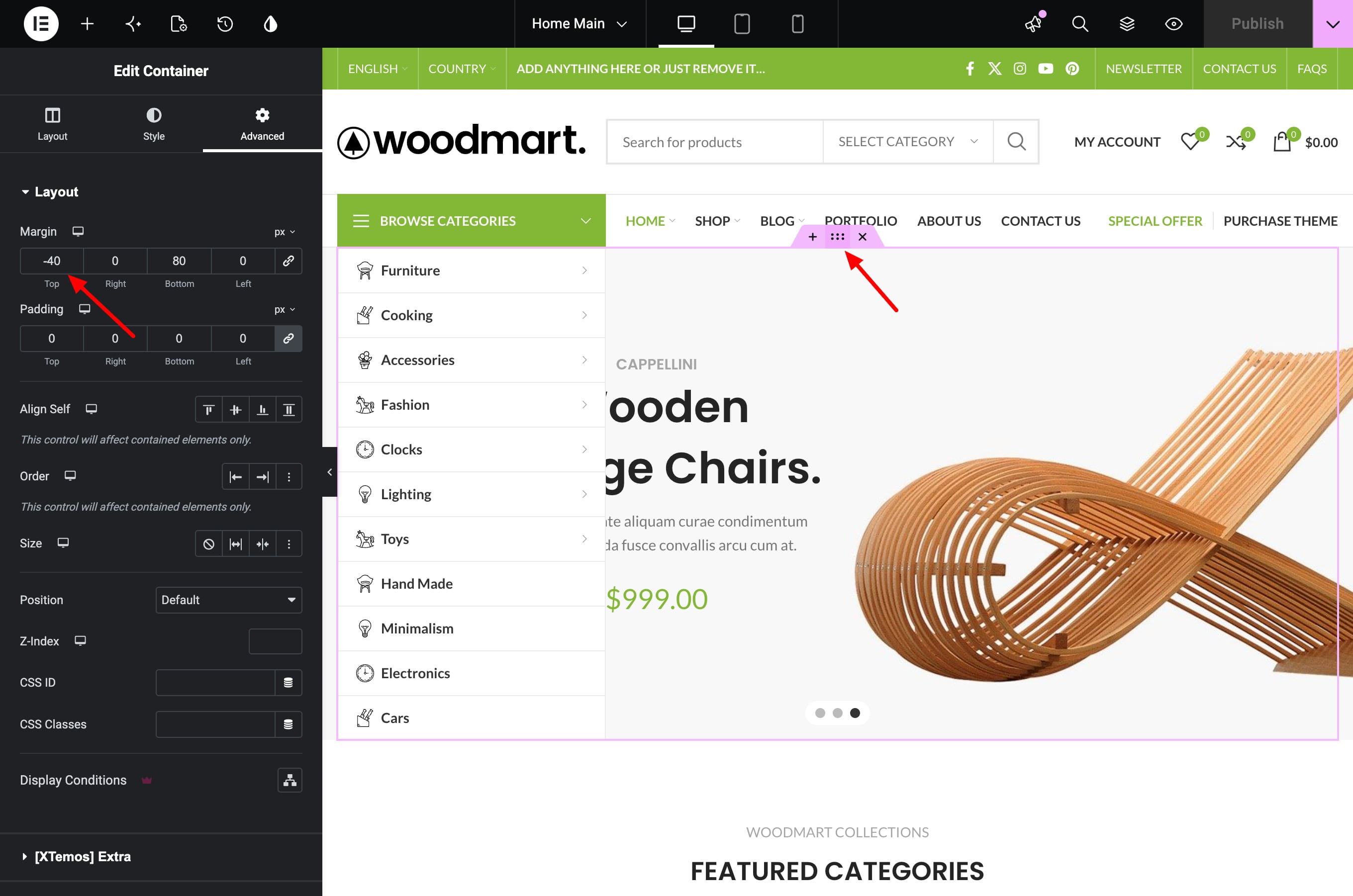
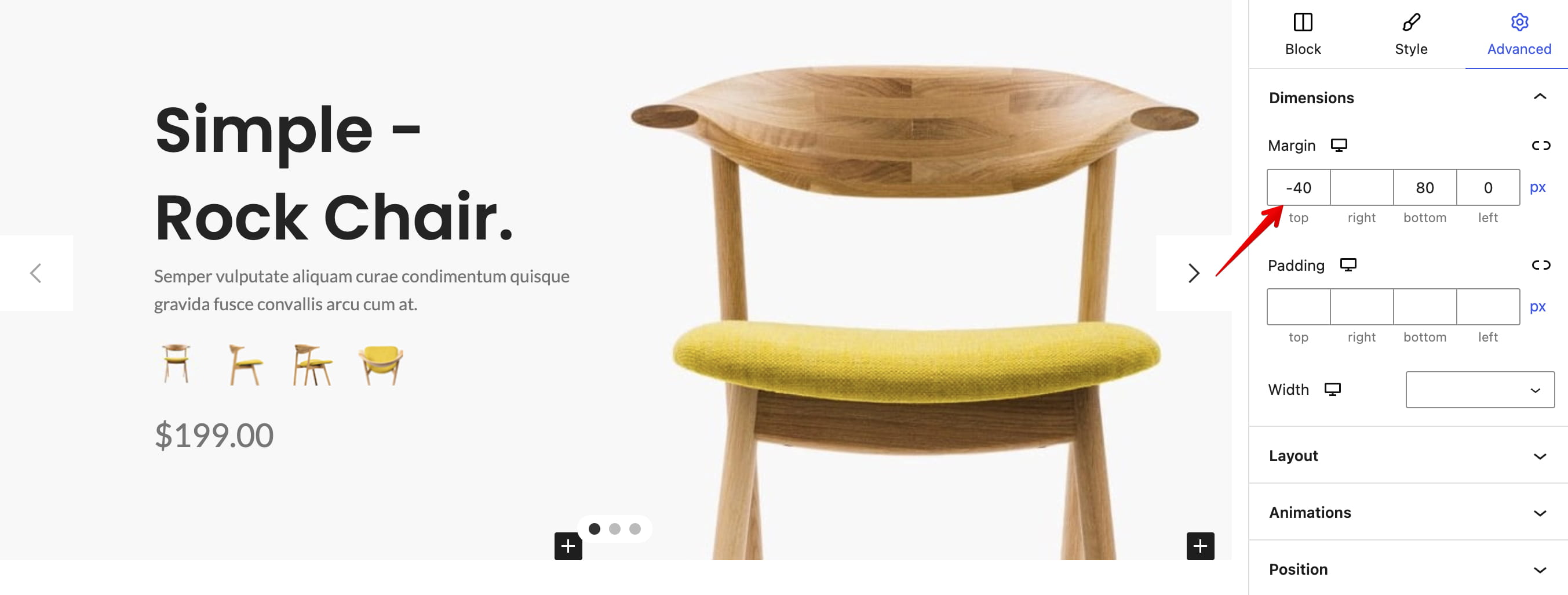
3. Set its top margin to -40px and update the page. If the editor provides responsive controls, apply the value to every device on which the gap is visible.
Remove the space above the footer
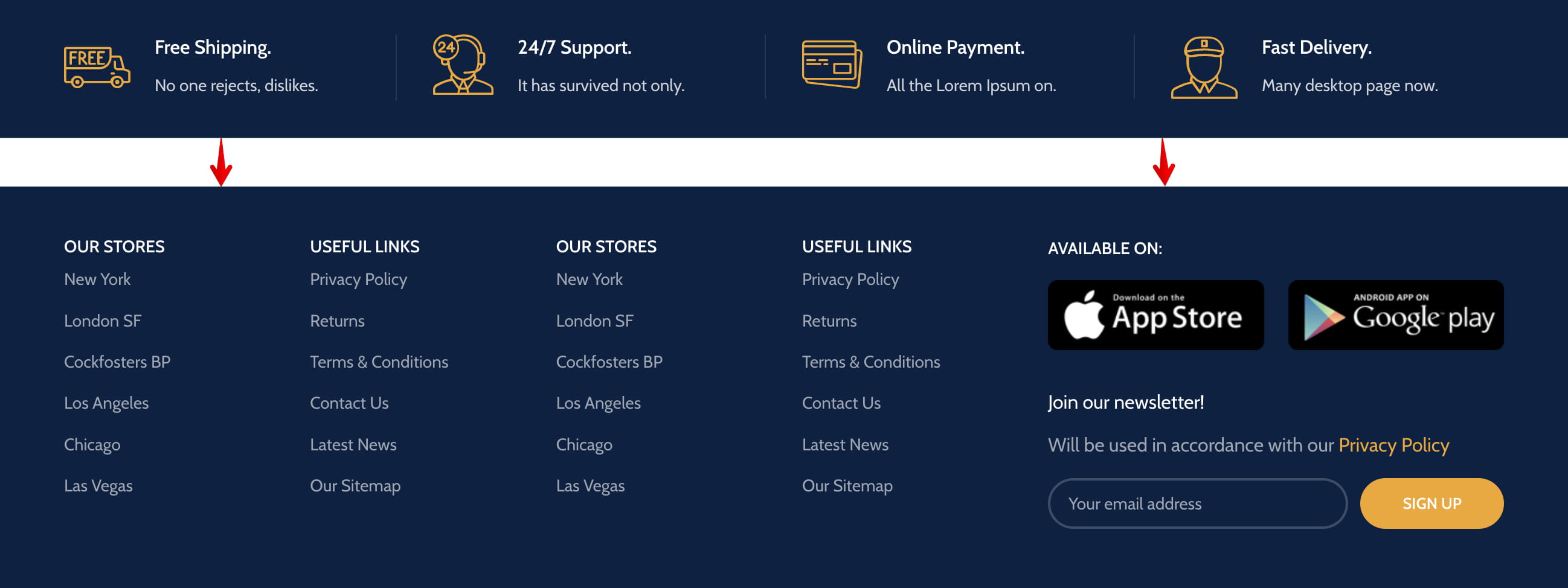
The bottom padding becomes especially noticeable when the last page section or prefooter has a dark or image background while the page background is light.
When the prefooter uses an HTML Block
1. Navigate to Dashboard -> Theme Settings -> Footer -> Prefooter and identify the selected HTML Block.
2. Edit that HTML Block and select its last Row, Container, or Section.
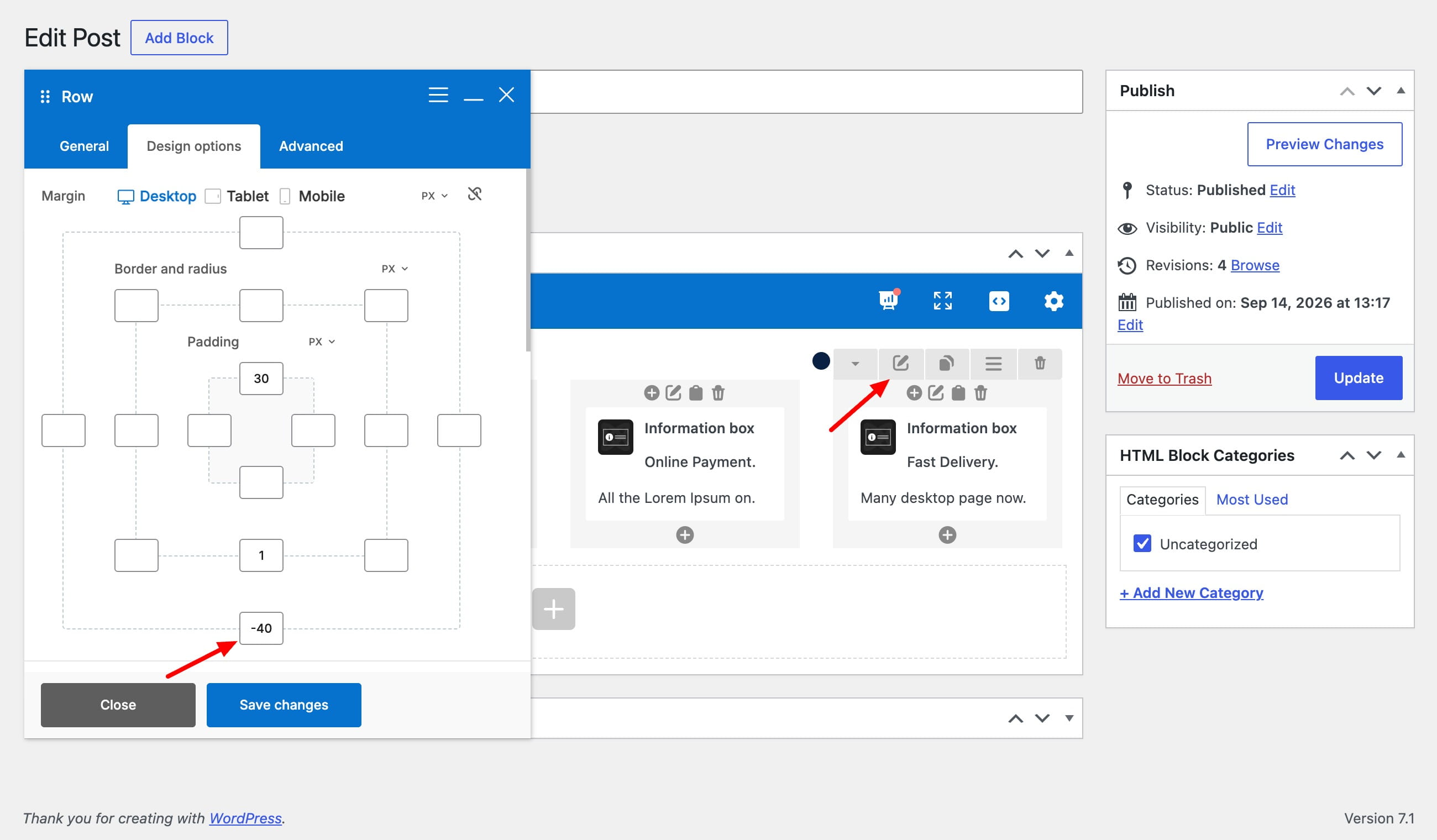
3. Set the bottom margin to -40px and update the HTML Block. If the template contains multiple sections, apply the margin only to the last one.
When there is no prefooter
Edit the page itself and apply a -40px bottom margin to its last Row, Container, or Section. This is useful when the last section has a background that should continue directly to the footer.
Set the margin in your page builder
- Gutenberg: select the first or last WoodMart Row, Container, or Section, then open Advanced -> Dimensions -> Margin.
- Elementor: select the Container, open the Advanced tab, unlink the margin values, and enter -40 for the top or bottom margin.
- WPBakery: open Row Settings -> Design Options and enter -40px in the required top or bottom margin field.
Don’t miss WoodMart updates
Receive feature updates, tutorials, and WoodMart news via email.
 Last updated: September 14, 2026