
Dynamic content
Dynamic content connects WoodMart Gutenberg blocks to information stored in WordPress. Instead of entering a fixed title, image, or URL, you can display values such as the current post title, a product image, a taxonomy term, or an Advanced Custom Fields (ACF) value.
This is especially useful in templates because one layout can display different content for every post, product, or archive. When the source data changes, the content displayed by the block changes automatically.
Add dynamic content
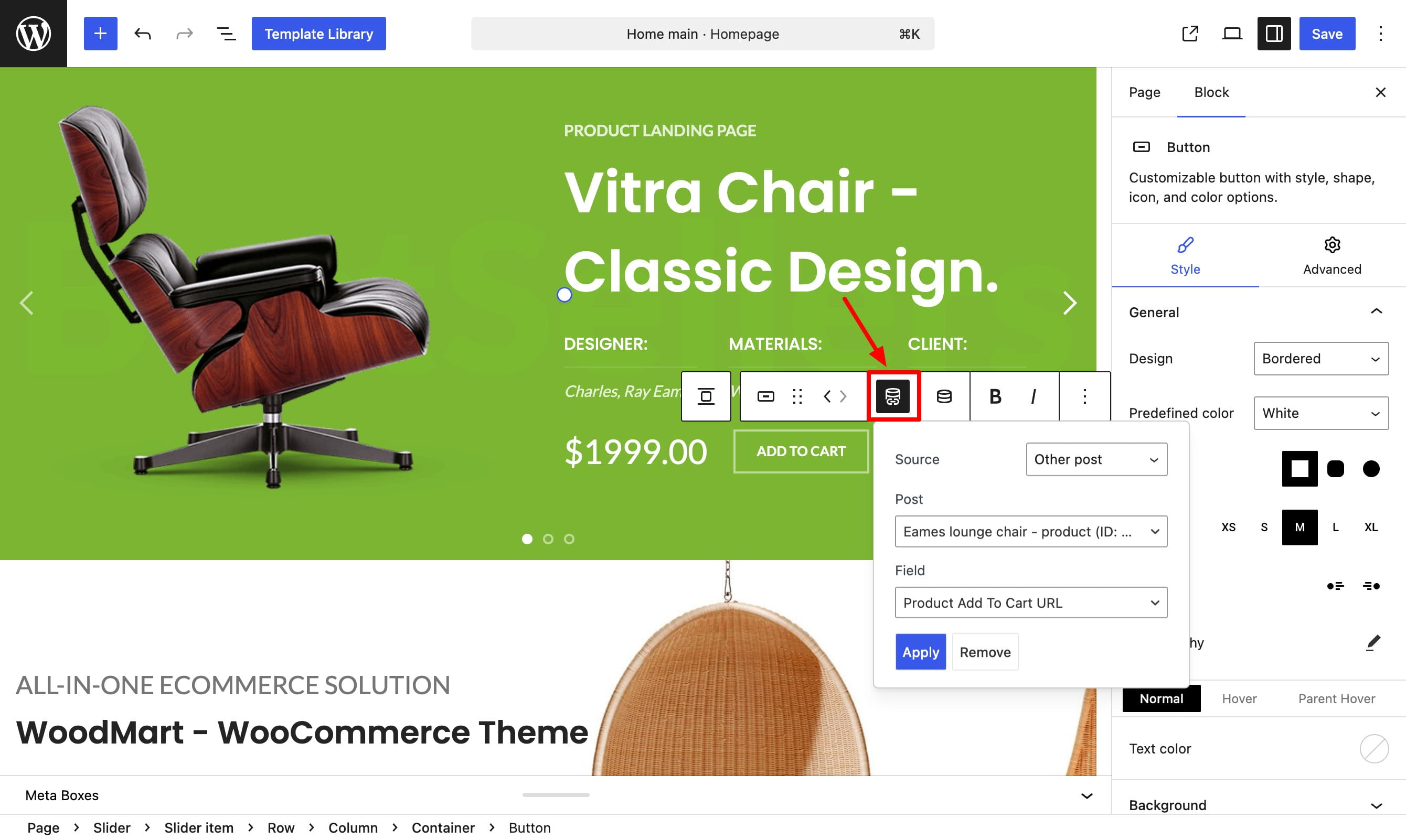
Supported WoodMart controls display a Dynamic content icon. For text, the icon appears in the block toolbar after you select an editable text field. For images and links, it appears next to the corresponding control.
- Select a supported block and open the text, image, or link control you want to populate.
- Click the Dynamic content icon.
- Choose a Source. Depending on the source, select a post, term, or taxonomy.
- Choose the required Field and configure any additional settings.
- Click Apply. To disconnect an existing dynamic value, open it again and click Remove.
Dynamic content types
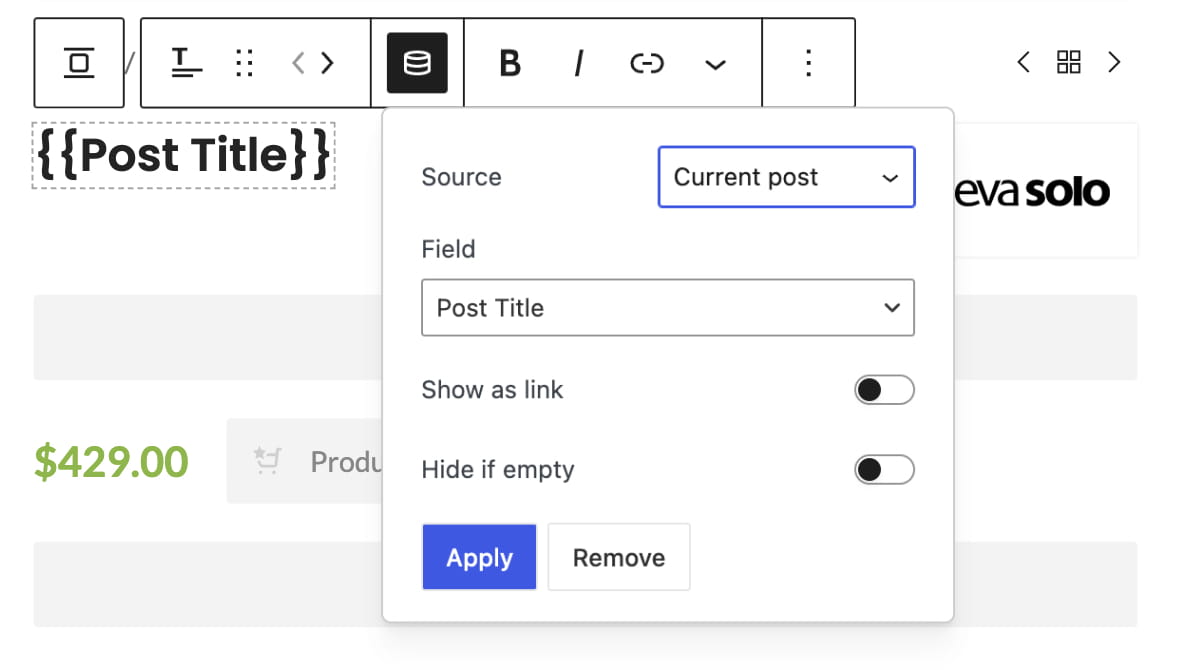
Text
Insert dynamic values into supported editable text fields. For example, a heading can display the current post title, product price, publication date, taxonomy name, or custom field value.
Media
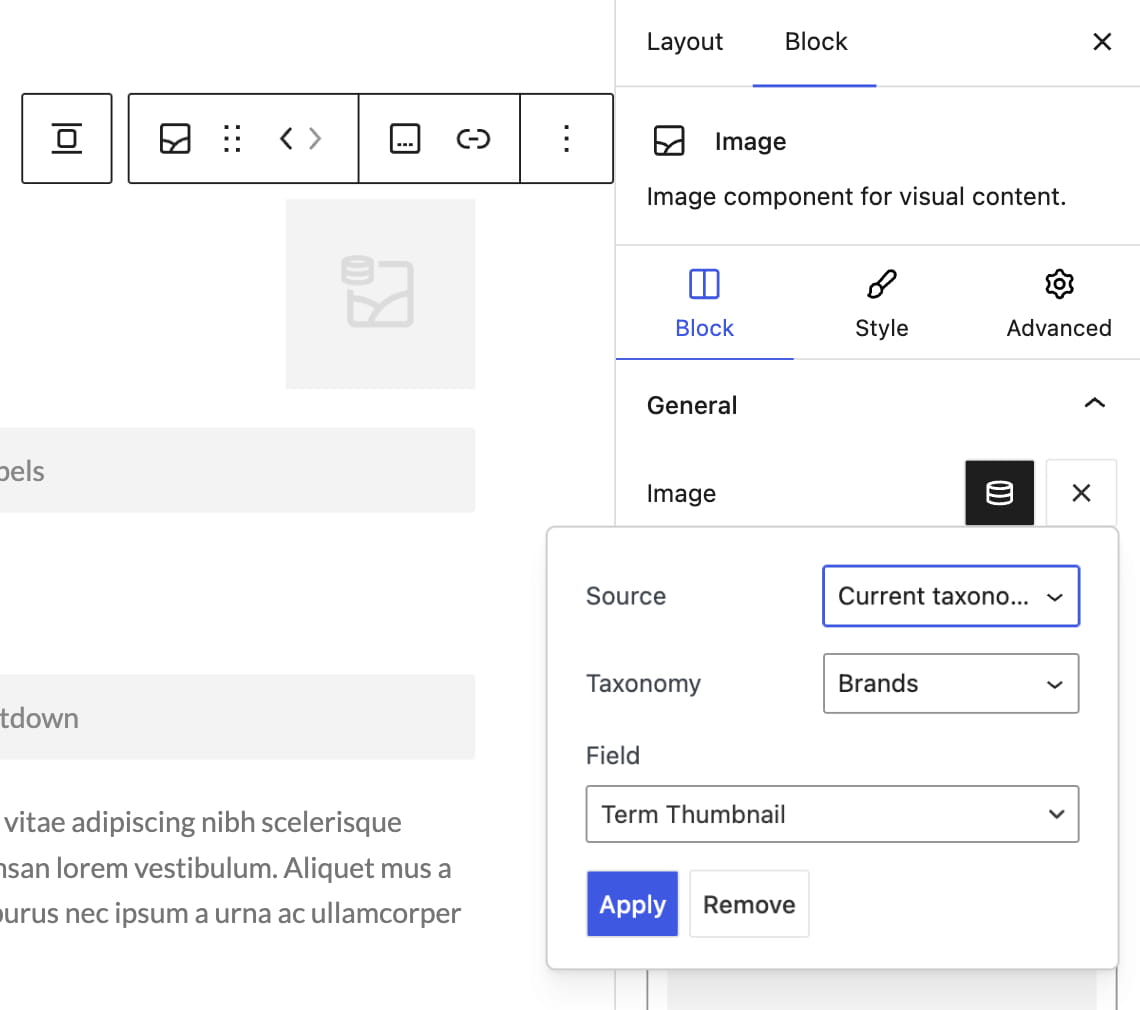
Replace a static image with dynamic media, such as the featured image of the current post or an ACF image. Dynamic media is available in the Image, Icon, Banner, and Slider Item blocks.
Links
Generate a URL from the selected source instead of entering it manually. Dynamic links are available in blocks with a supported link control, including Button, Banner, Infobox, Image, Menu list, Menu list item, and Gallery item.
Choose a data source
The Source determines where WoodMart retrieves the value. The available fields change according to the selected source, content type, and current editing context.
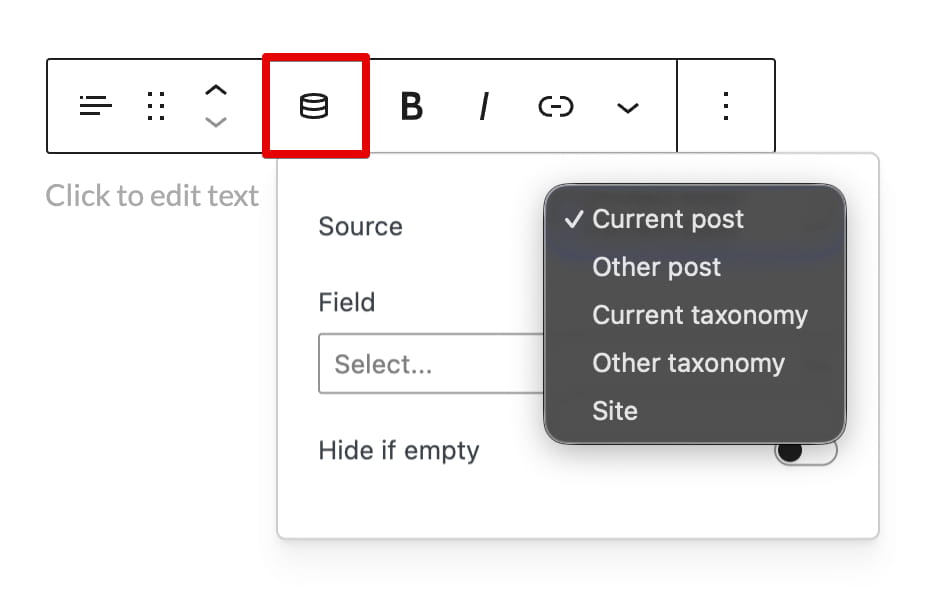
- Current post — retrieves data from the post, page, product, or template context currently being displayed.
- Other post — retrieves data from another post, page, or product selected through the Post search field.
- Current taxonomy — retrieves data from a taxonomy related to the current context. Choose Queried term on an archive to use the term being viewed, or select a taxonomy to use the first matching term assigned to the current post or product.
- Other taxonomy — retrieves data from a specific category, tag, attribute, or other term selected through the Term search field.
- Site — provides global values such as the site title, description, URL, administrator email, current year, and values stored in WordPress options.
ACF fields
When Advanced Custom Fields is active, compatible ACF fields appear automatically in the Field selector. They can be retrieved from posts, products, taxonomy terms, and an ACF Options Page through the Site source.
- Text — compatible text and scalar field values can be inserted into supported editable text.
- Media — ACF Image fields can provide images for supported media controls.
- Links — ACF URL, Link, Page Link, and File fields can provide dynamic URLs.
The available ACF fields are filtered according to whether you are configuring text, media, or a link, so fields that do not match the selected content type are not shown.
Additional settings
- Show as link — makes a dynamic Post title or Term name clickable and links it to the corresponding post or term page.
- Hide if empty — hides the entire block when the selected dynamic text field has no value.
- Custom meta key — retrieves a custom value stored in post metadata.
- Custom term key — retrieves a custom value stored in term metadata.
- Custom option key — retrieves a custom value stored in WordPress options through the Site source.
Video tutorial
Don’t miss WoodMart updates
Receive feature updates, tutorials, and WoodMart news via email.
 Last updated: August 18, 2026