
Triggers
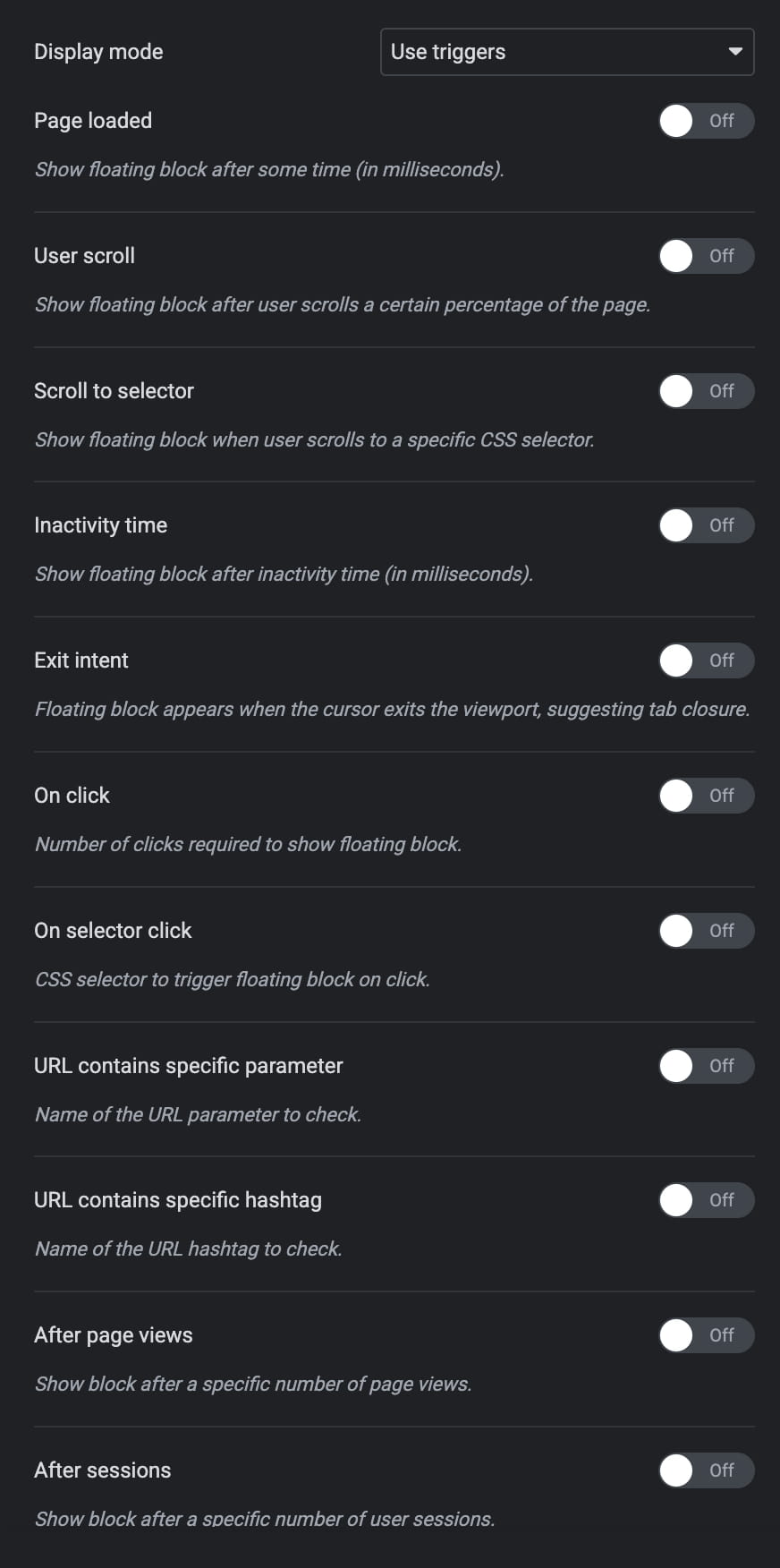
Triggers determine when a popup or floating block appears. You can display the content after a delay, in response to a visitor action, or when a URL, page-view, or session condition is met.
For a floating block, select Use triggers in Display mode before configuring these options.
Available triggers
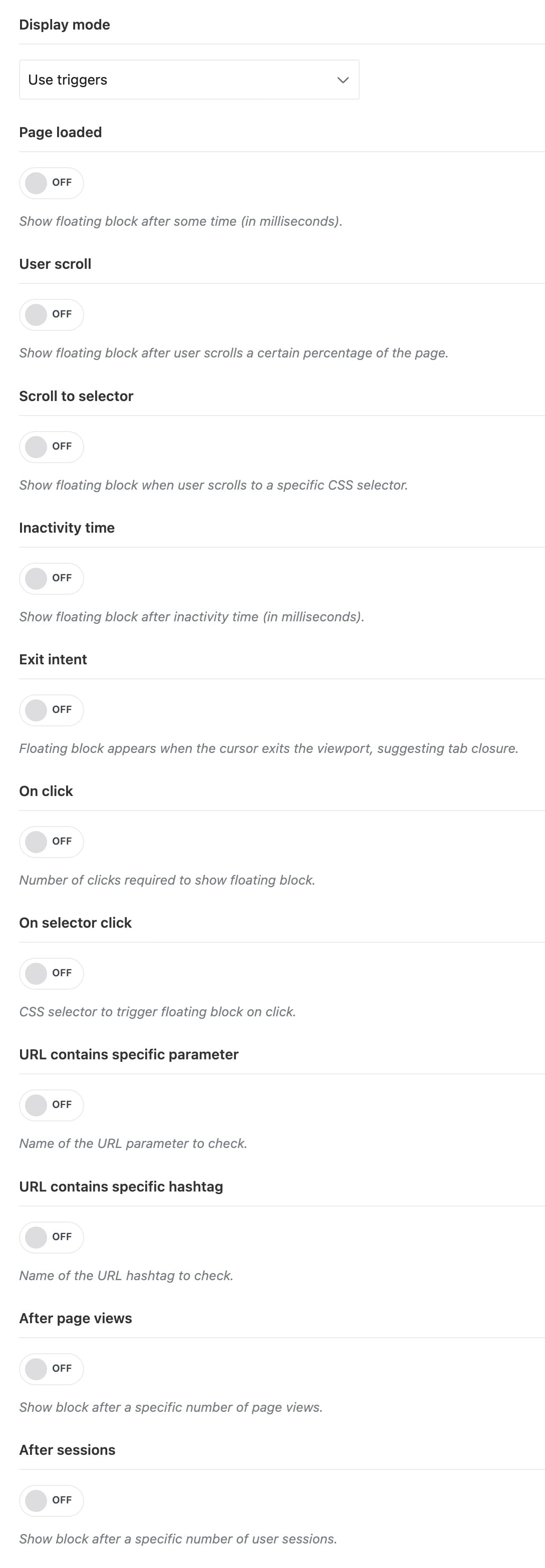
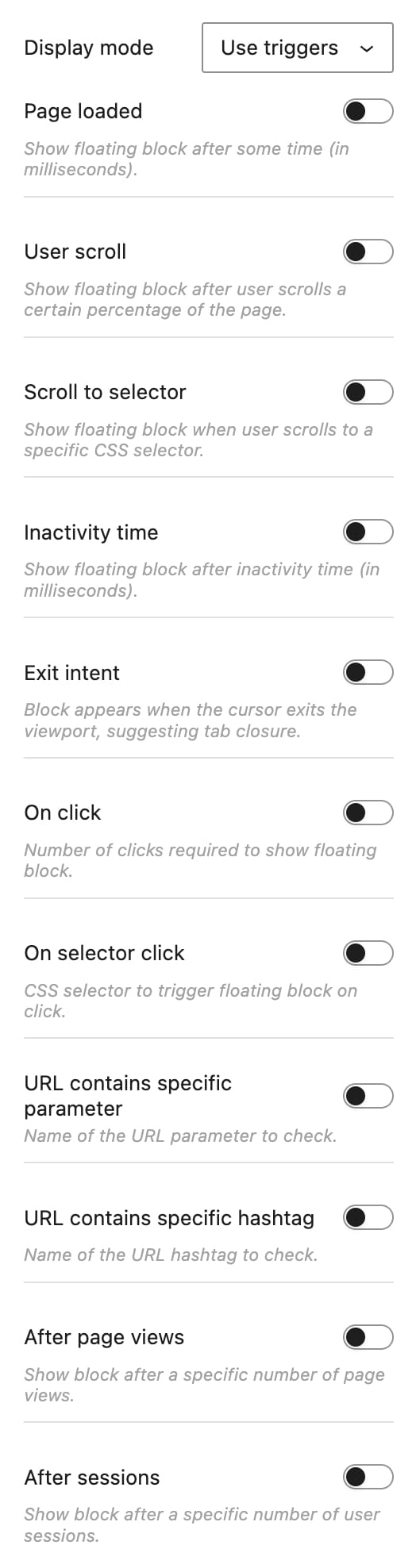
- Page loaded: displays the popup or floating block after the specified delay in milliseconds.
- User scroll: displays the content after the visitor scrolls the specified distance. Enter a percentage such as
50%or a value in pixels such as500. - Scroll to selector: displays the content when an element matching the specified CSS selector comes into view. You can enter multiple selectors separated by commas, for example,
.special-button, .newsletter-icon. - Inactivity time: displays the content after the specified period of inactivity in milliseconds. Moving the mouse, pressing a key, or scrolling restarts the timer.
- Exit intent: displays the content when the pointer leaves the top of the browser viewport. This trigger is intended primarily for devices with a mouse or trackpad.
- On click: displays the content after the visitor makes the specified number of clicks anywhere on the page.
- On selector click: displays the content when the visitor clicks an element matching the specified CSS selector. You can enter multiple selectors separated by commas.
- URL contains specific parameter: displays the content when the page URL contains one of the specified query parameters. Enter a parameter and value, such as
utm_source=facebook, or only a parameter name, such assingle_key. Separate multiple entries with commas. - URL contains specific hashtag: displays the content when the URL contains one of the specified hashtags, for example,
#newsletter. Separate multiple hashtags with commas. - After page views: displays the content after the specified number of page views. The counter is stored locally in the visitor’s browser and resets after reaching the configured value.
- After sessions: displays the content after the specified number of browser sessions. The session count is stored locally in the visitor’s browser and resets after reaching the configured value.
Use multiple triggers
You can enable several triggers for the same popup or floating block. Each trigger works independently, so the content appears when any enabled trigger meets its condition.
Limit repeated displays
Enable Trigger once for a trigger to prevent it from displaying the same content again during the cookie lifetime. When several triggers are enabled, this setting is recorded separately for each trigger. Therefore, a different trigger can still display the content.
Enable Persistent close in the Close behaviour settings to stop displaying the entire popup or floating block after the visitor closes it manually, regardless of which trigger opened it.
For example, to display the content on every visit until the visitor closes it, disable Trigger once for the enabled triggers and enable Persistent close.
Trigger and closing states are stored in cookies. These cookies expire after 7 days by default, after which the content can appear again.
Don’t miss WoodMart updates
Receive feature updates, tutorials, and WoodMart news via email.
 Last updated: September 7, 2026