
Abandoned cart
WoodMart can record carts that customers leave without completing an order and send a recovery email with a link that restores the saved products. You can also include a one-time coupon in the email.
Enable cart recovery
Navigate to Dashboard -> Theme Settings -> Shop -> Abandoned cart, enable Enable cart recovery, and save the Theme Settings.
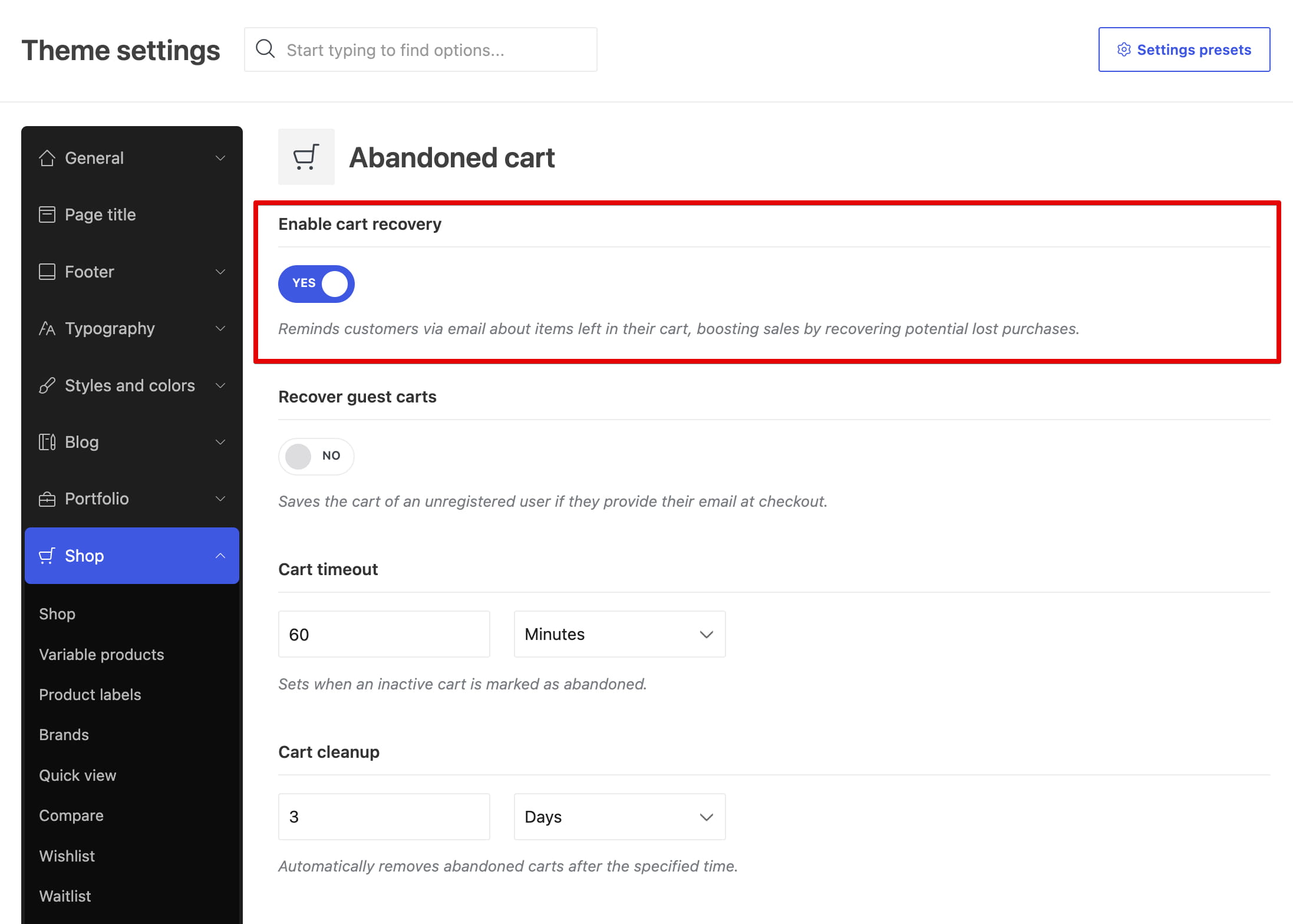
WoodMart tracks carts differently depending on the customer:
- Registered customers: their cart is saved automatically while they add, remove, or update products.
- Guest customers: their cart can be saved after they enter a valid email address on the checkout page when Recover guest carts is enabled.
Set the cart timeout and cleanup period
A newly recorded cart has the Open status while the customer is active. Use Cart timeout to define how long WoodMart should wait after the last cart activity before treating it as abandoned. The default value is two days, but you can adjust it to match your store’s typical purchase cycle.

The recovery process runs approximately every 15 minutes. When the configured timeout has passed, the cart receives the Abandoned status during the next scheduled run. It then appears under Dashboard -> Products -> Abandoned carts, and WoodMart sends the recovery email.
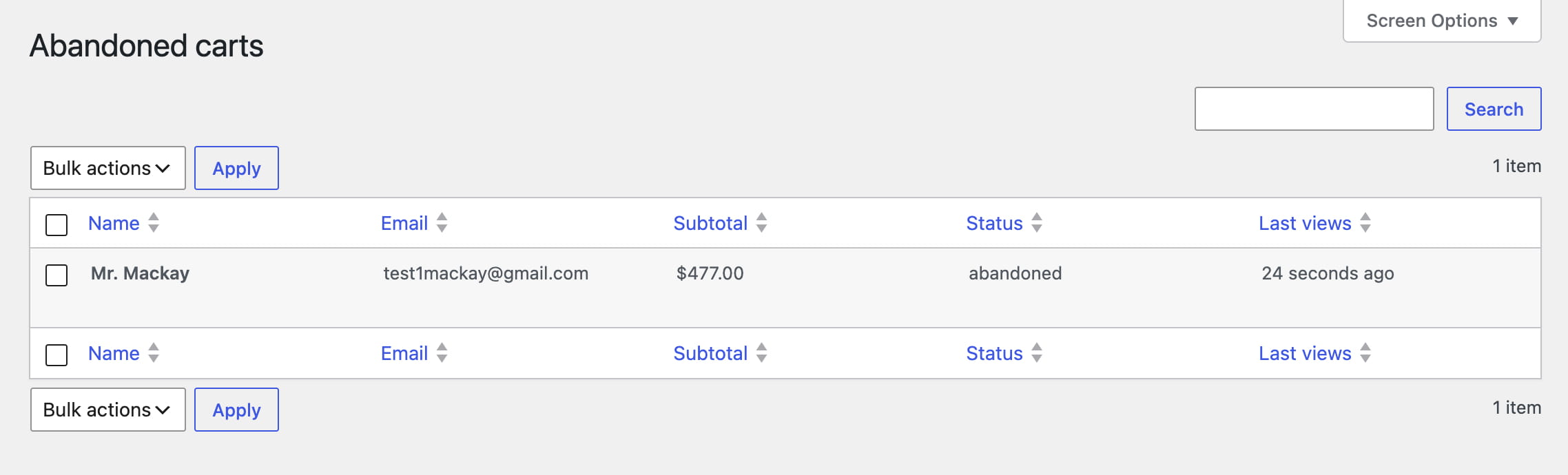
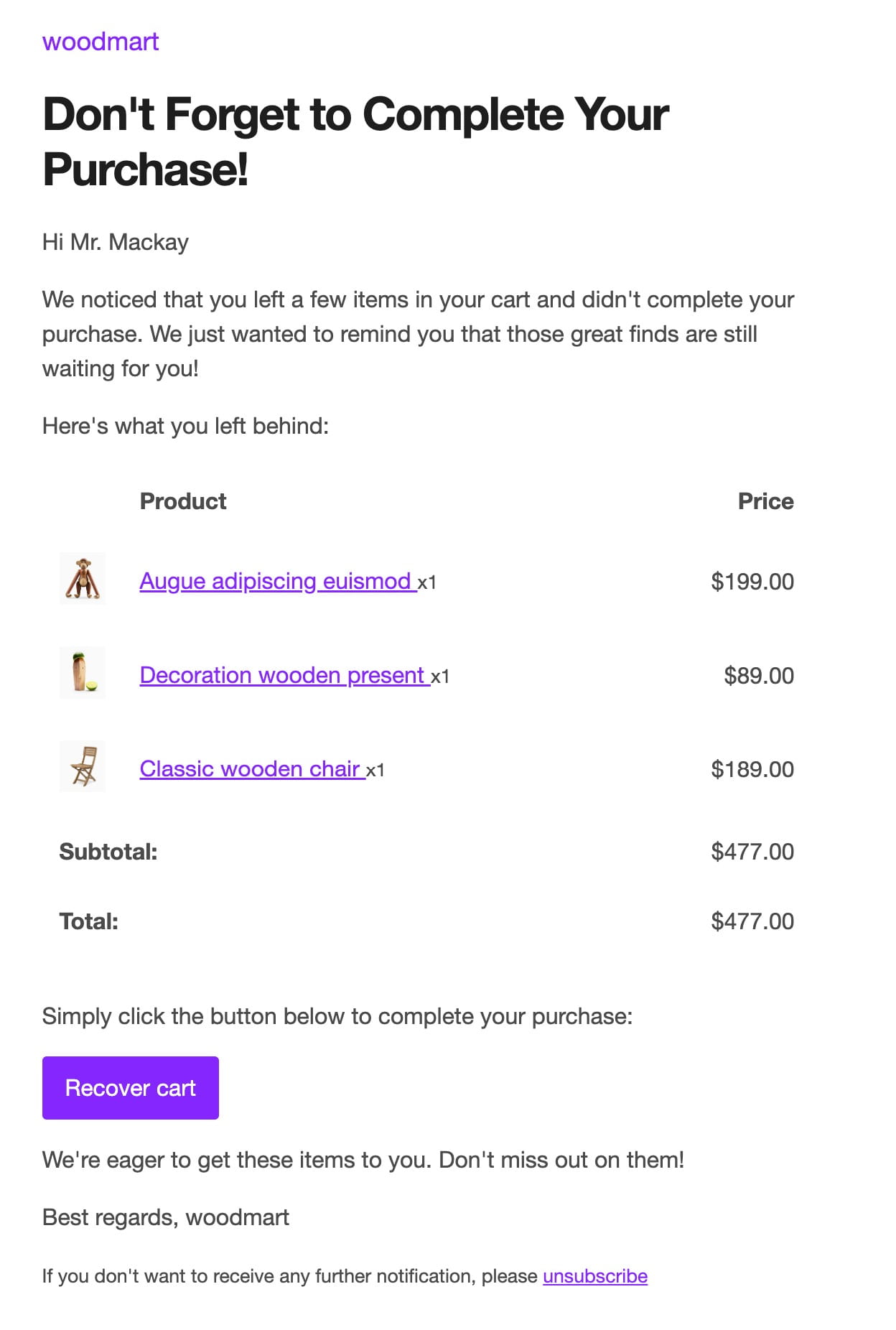
Use Cart cleanup to specify how long abandoned cart records should remain in the database. WoodMart permanently deletes records that have exceeded this period.

Recover guest carts
Enable Recover guest carts to record carts belonging to customers who are not logged in. A guest cart is saved only after the customer enters a valid email address on the checkout page.

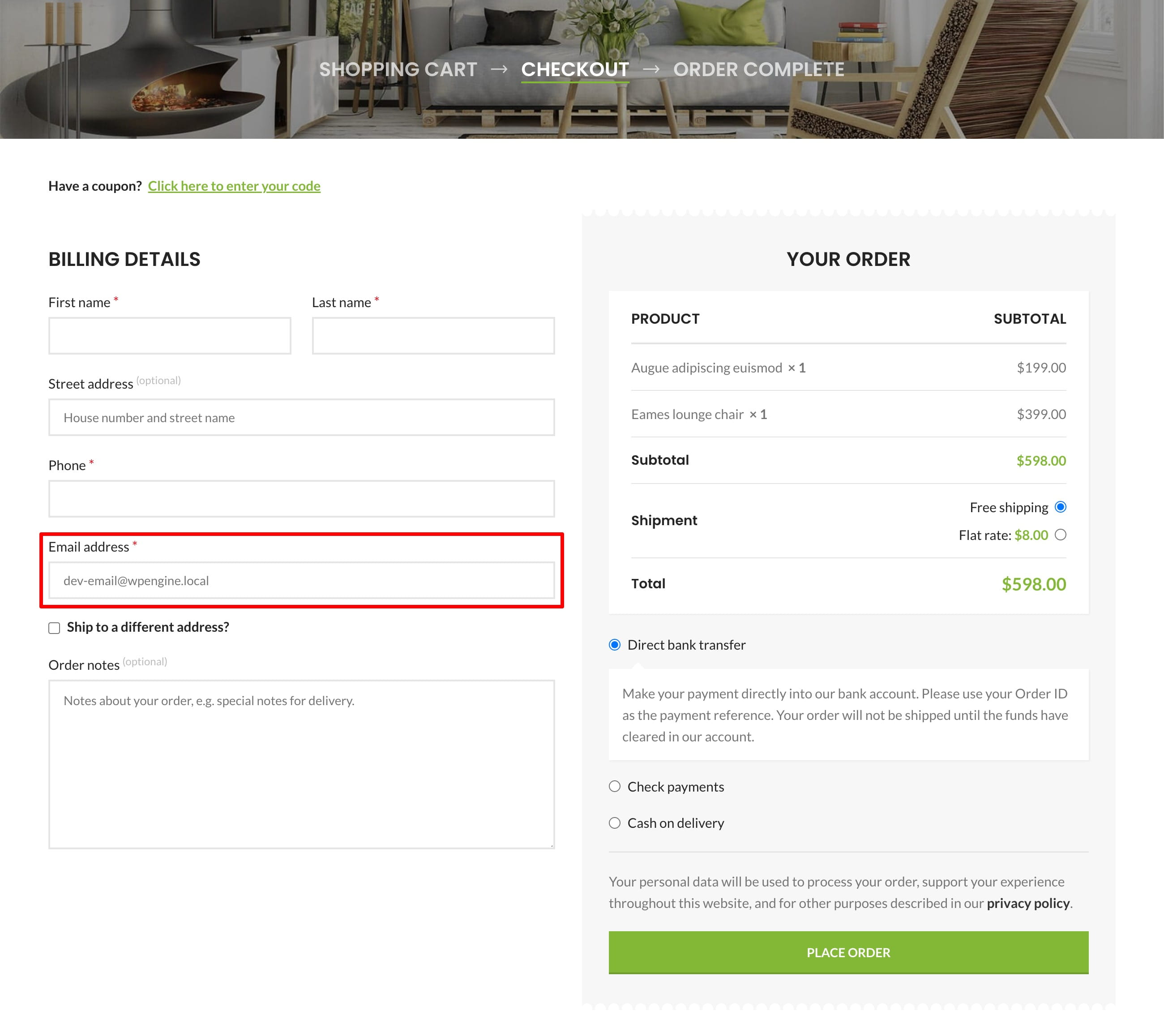
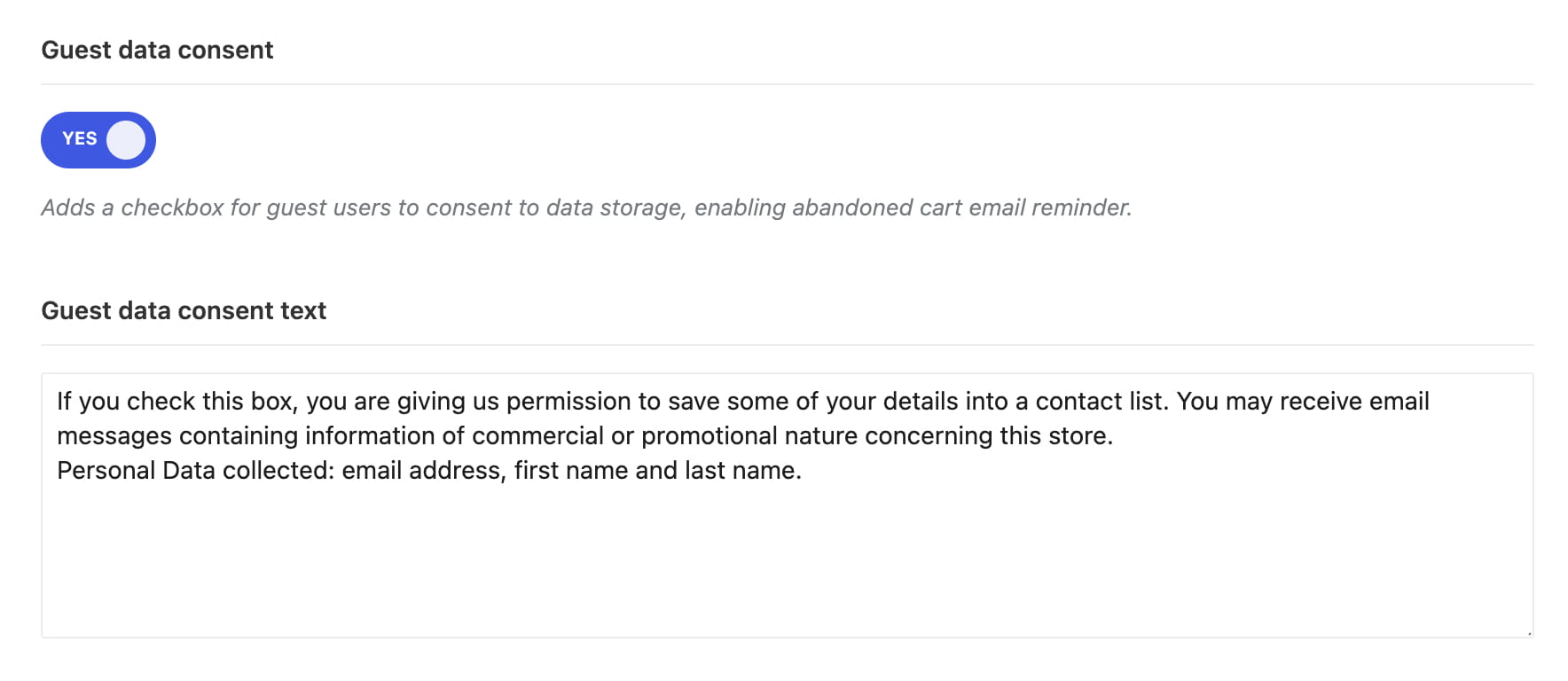
If customers must consent before their guest cart data is stored, enable Guest data consent. Use Guest data consent text to customize the checkbox label displayed at checkout.
Configure a recovery coupon
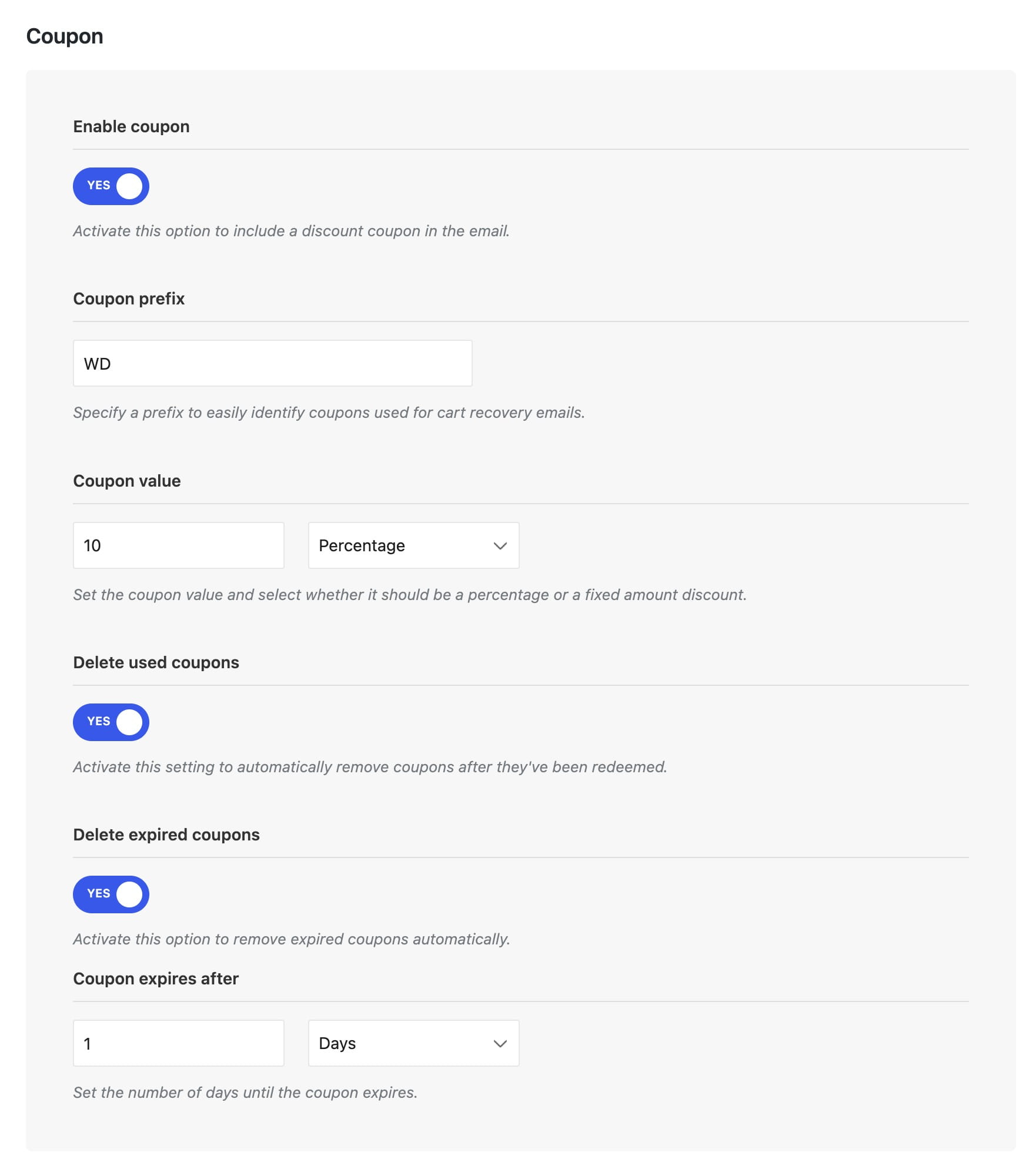
Enable Enable coupon to include a unique, one-time coupon in the recovery email. Configure the coupon using the following options:
- Coupon prefix: sets the prefix used for generated coupon codes.
- Coupon value: sets the discount amount and whether it is a percentage or a fixed cart discount.
- Delete used coupons: removes generated coupons after they have been used.
- Delete expired coupons: removes generated coupons after their expiration date.
- Coupon expires after: defines how long a generated coupon remains valid.
Configure the recovery email
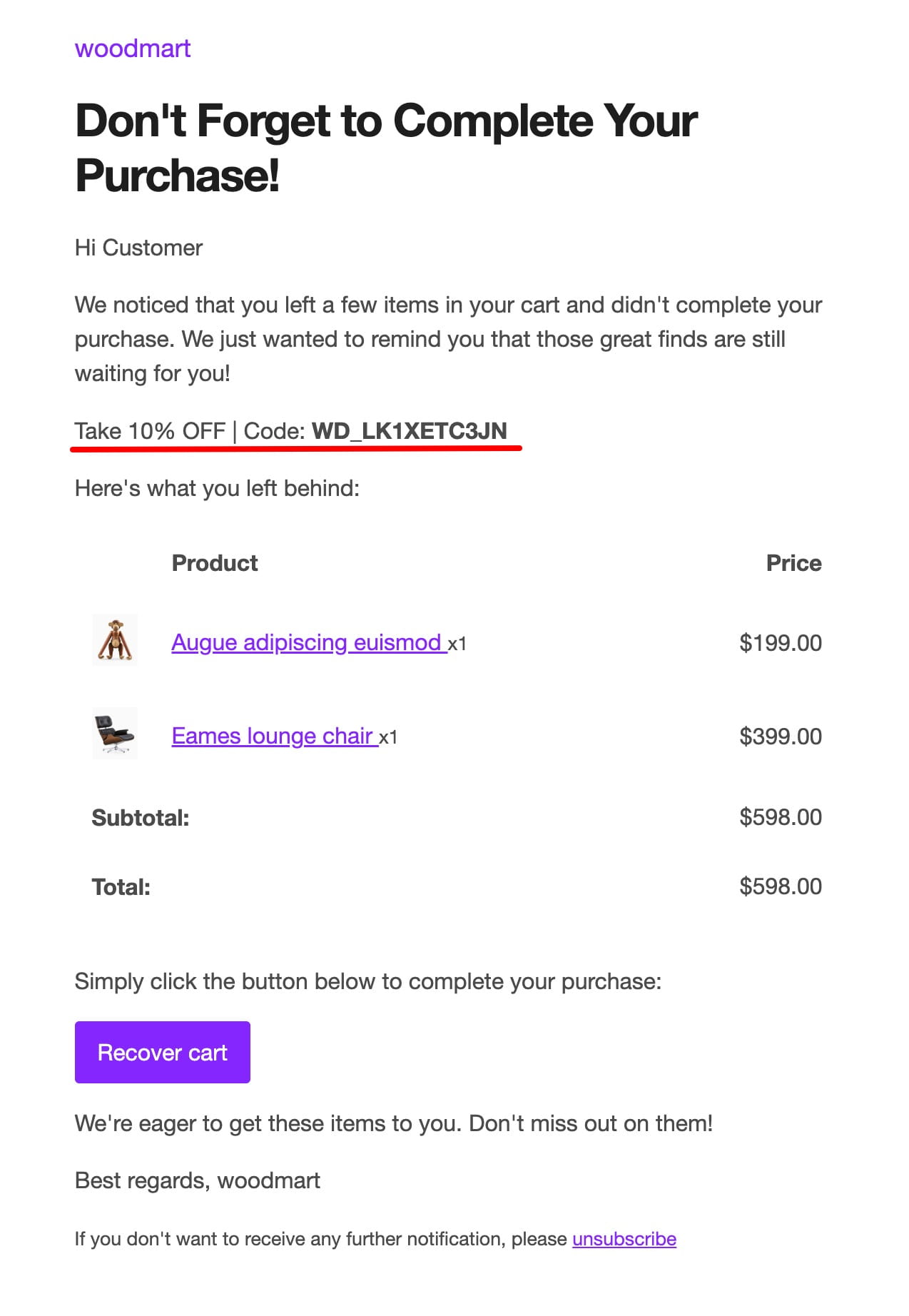
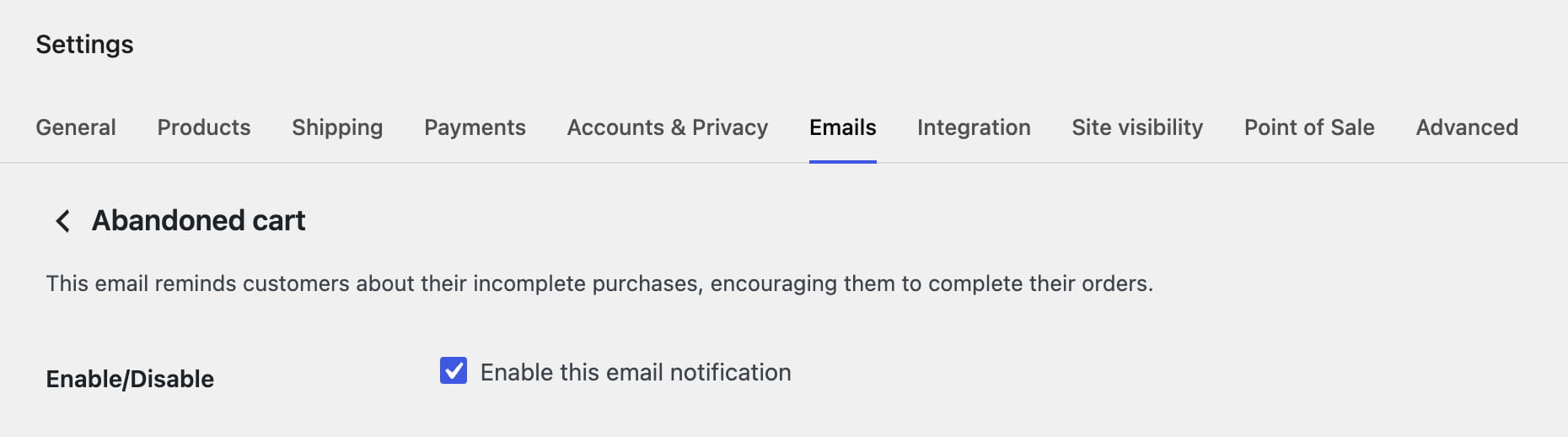
Navigate to Dashboard -> WooCommerce -> Settings -> Emails -> Abandoned cart. Here you can enable the email and configure its subject, heading, and email type. The email includes the cart recovery link, an unsubscribe link, and the generated coupon when coupons are enabled.
Customize the email templates
Standard email settings do not require template changes. To customize the email markup, copy the required template to the same relative path in your child theme and edit it there:
woocommerce/emails/abandoned-cart.phpwoocommerce/emails/plain/abandoned-cart.php
Manage abandoned carts
Navigate to Dashboard -> Products -> Abandoned carts to review recorded abandoned carts. The table displays the customer, email address, subtotal, status, and last activity. You can open a record to inspect its cart contents or delete records that are no longer needed.
How cart recovery works
- WoodMart records an active cart with the Open status.
- After the configured cart timeout, the next scheduled recovery process changes its status to Abandoned.
- WoodMart sends the recovery email and generates a coupon when that option is enabled.
- When the customer follows the recovery link, WoodMart replaces the current cart with the saved products and deletes the stored abandoned cart record.
- The record is also removed when an order with the matching customer email is completed or when the configured cleanup period expires.
If the customer continues shopping after restoring the cart but does not complete the purchase, later cart activity may create or update another Open cart that can enter the recovery process again.
Don’t miss WoodMart updates
Receive feature updates, tutorials, and WoodMart news via email.
 Last updated: August 17, 2026