
Custom label builder
Custom label builder lets you create reusable, block-based product labels and display them on product cards and single product pages. Labels can contain static or dynamic content and can be assigned through product, taxonomy, stock, customer, and other conditions.
Enable and create a custom label
- Navigate to Dashboard -> Theme Settings -> Shop -> Product labels, enable Custom labels, and save the Theme Settings.
- Navigate to Dashboard -> Products -> Custom Labels and click Add New Label.
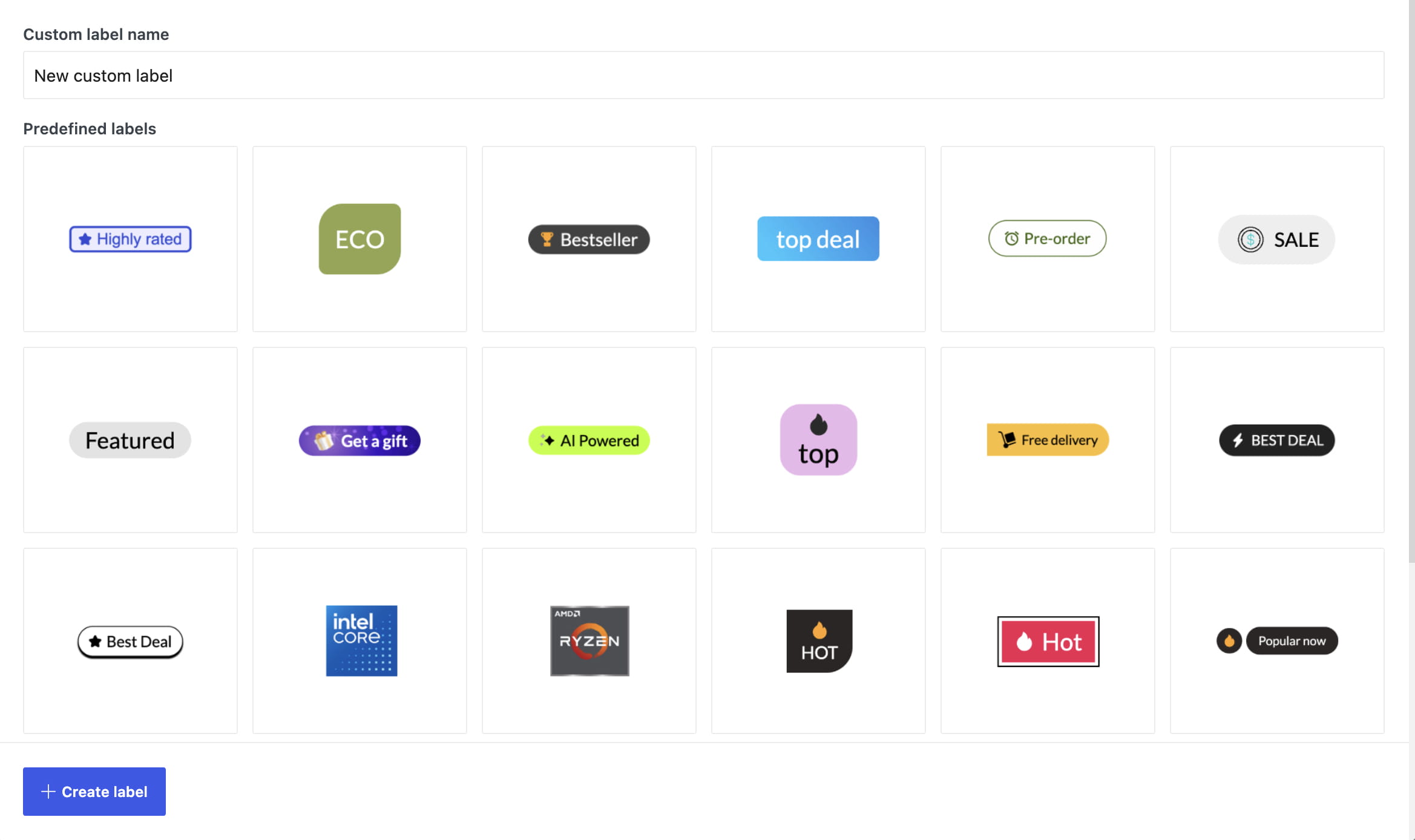
- Enter a label name and choose a predefined layout, or start with a blank label.
- Click Create label.
- Add the required blocks, configure the label settings, and click Publish.
Build and style the label
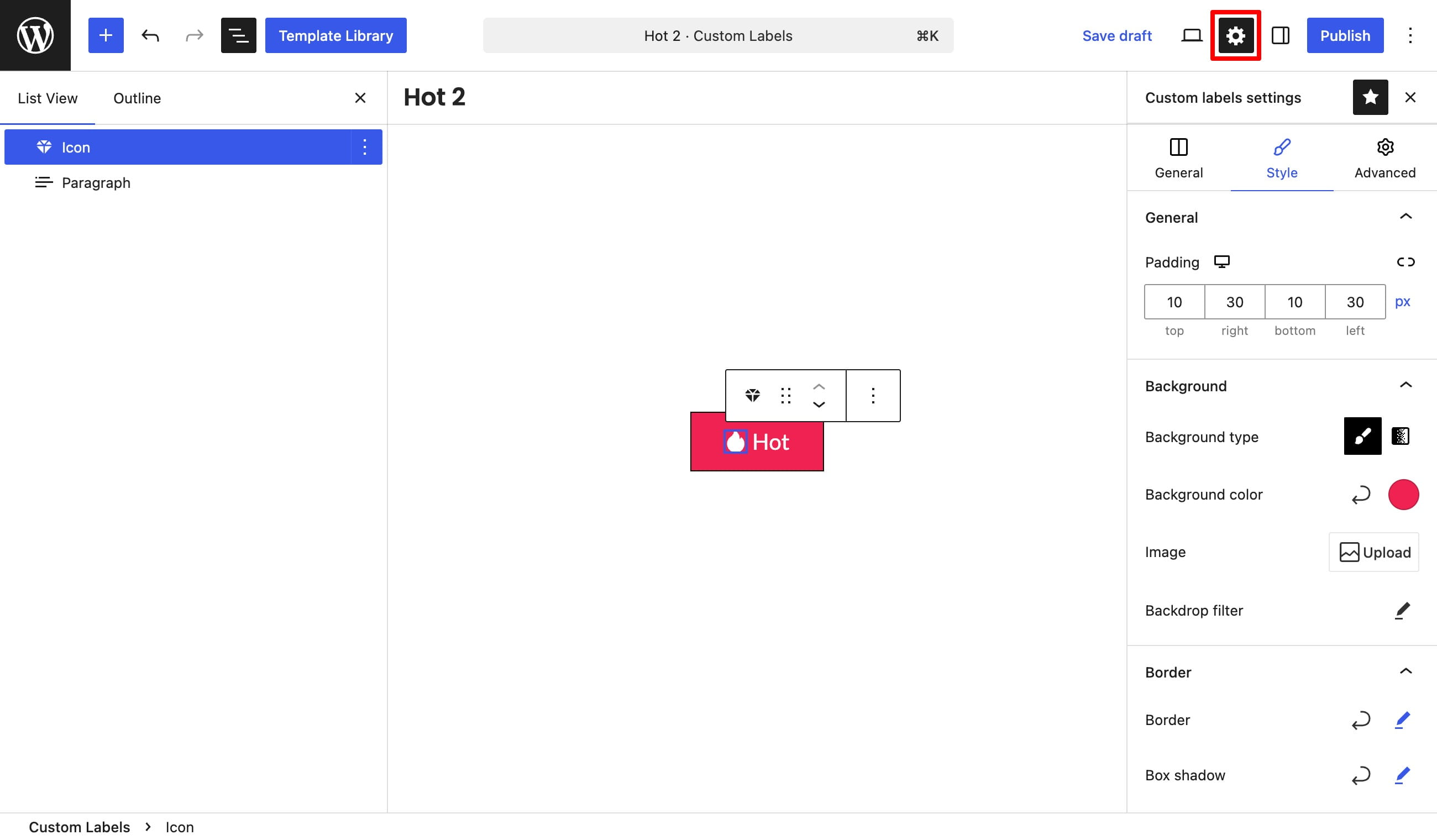
Custom labels are created in the WordPress block editor regardless of which page builder is used on the website. Add blocks to build the label content, then open Custom labels settings from the editor toolbar or the editor options menu.
- General — controls width, height, orientation, alignment, block gap, and responsive visibility.
- Style — controls padding, background, border, box shadow, and related visual settings.
- Advanced — contains the label display conditions.
If the Custom labels settings sidebar is hidden, open the three-dot menu in the top-right corner of the editor and select Custom labels settings. To keep it available in the editor toolbar, activate the star icon at the top of the sidebar.
Configure display conditions
Open Custom labels settings -> Advanced -> Condition. Each condition can include or exclude matching products. Add more conditions when the label needs several targeting rules.
Conditions can target all or specific products, product categories and child categories, tags, attributes and attribute terms, product types, shipping classes, products with reviews, stock statuses, user roles, sale or featured products, new products, bestsellers, and low-stock products.
Use dynamic content
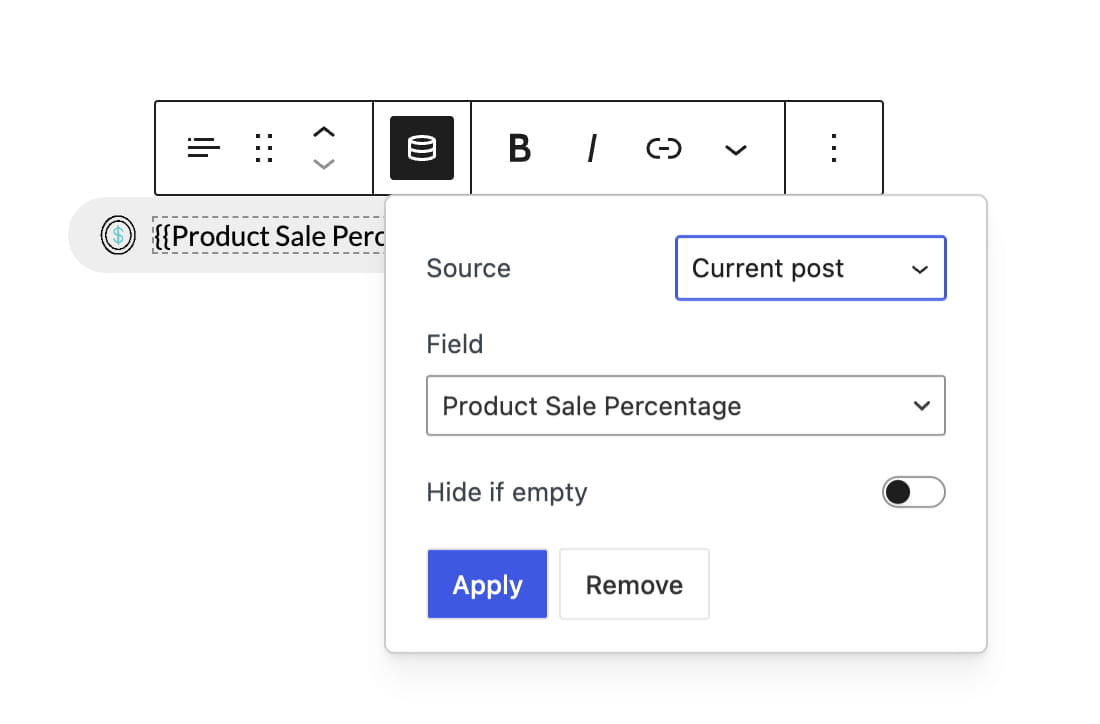
Compatible text and image controls display a database icon that opens the available dynamic tags. These tags automatically render current product data such as the product name, brand, category, price, sale percentage, image, or custom field value.
Dynamic tags can be combined with regular blocks and static content. For the complete workflow and available data sources, see Dynamic content.
Display labels in product layouts
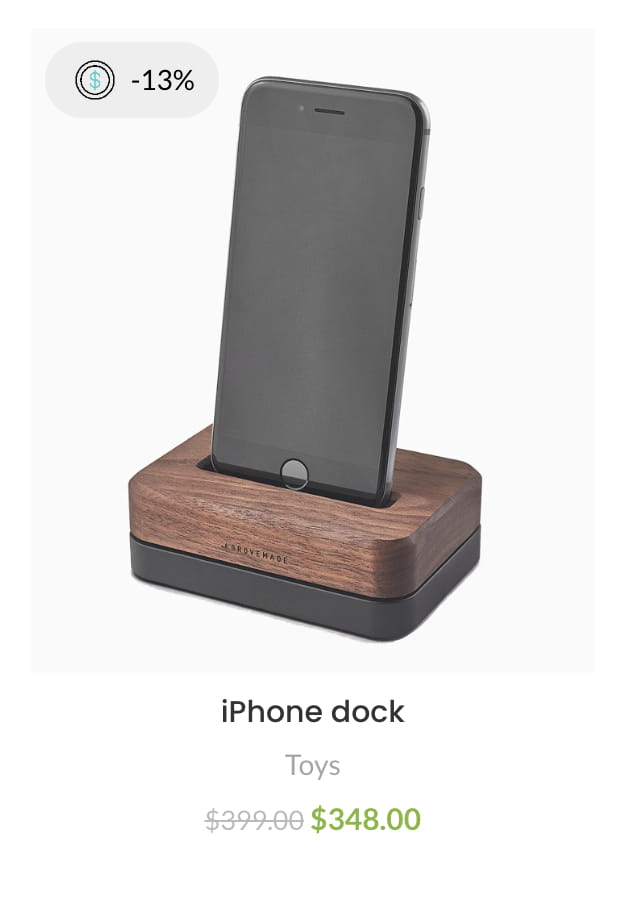
With the standard WoodMart product cards and single product layout, published custom labels appear in the default label locations when their conditions match.
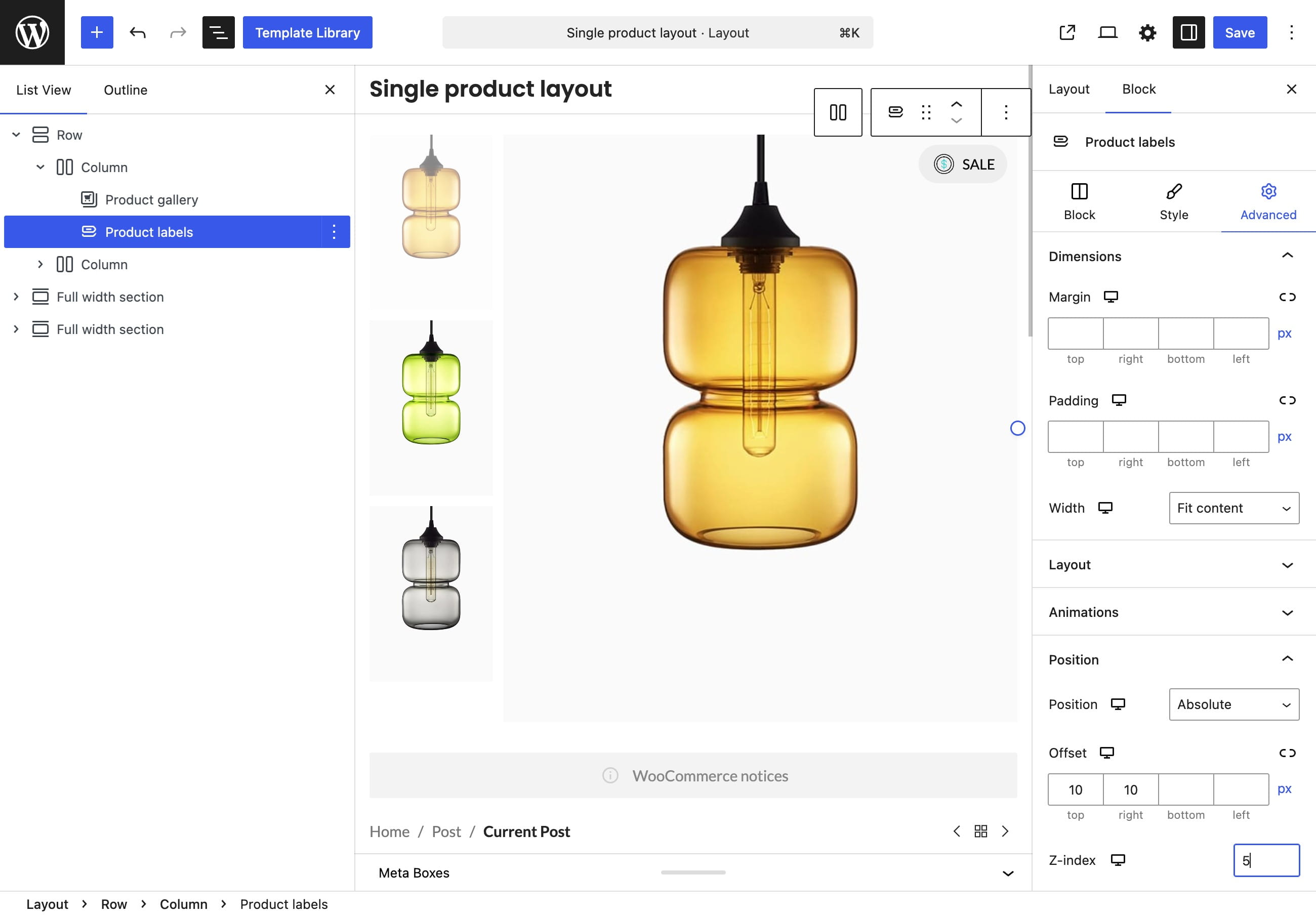
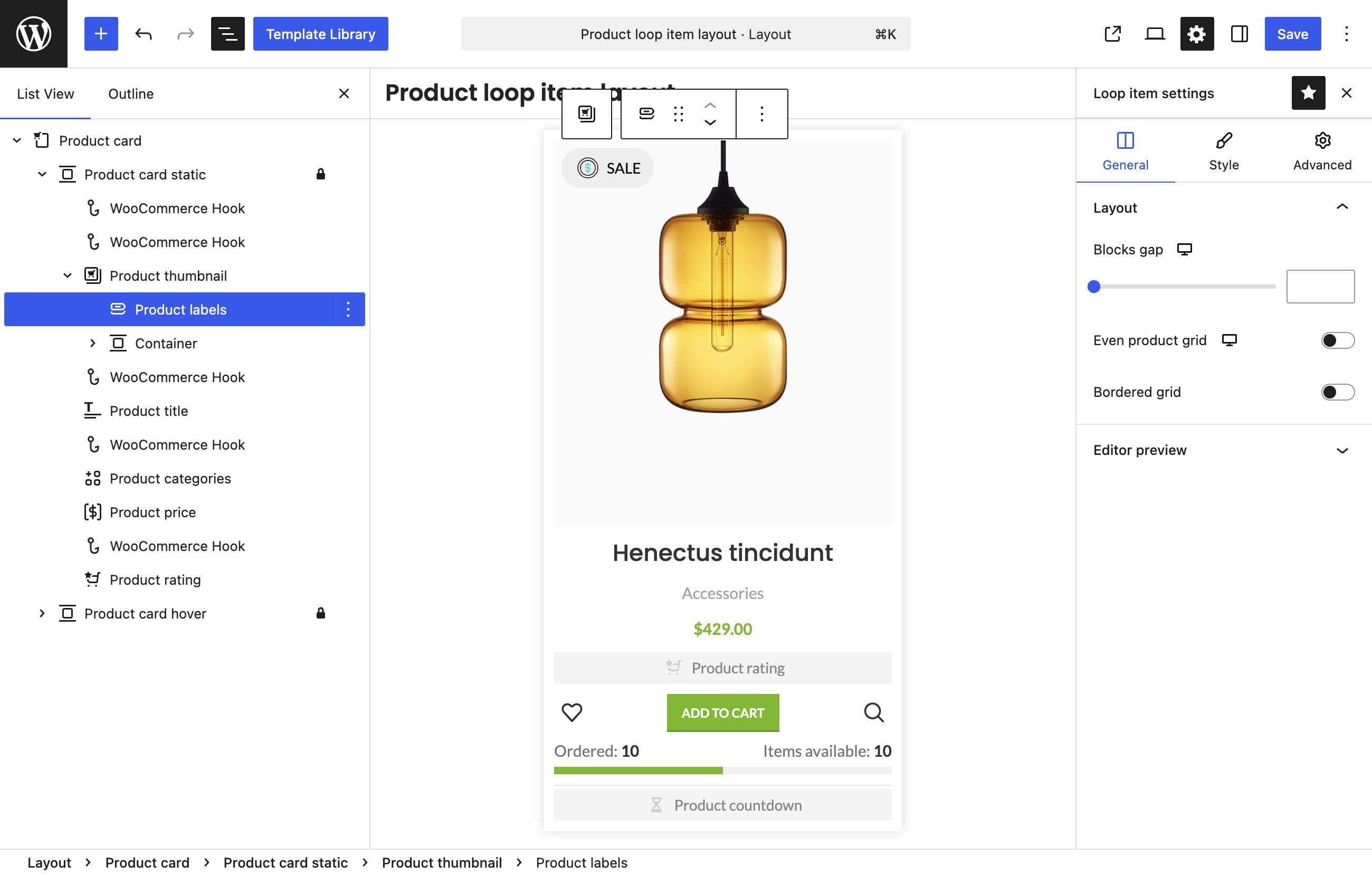
When a Product Loop Item or Single Product Layout is used, add one of the following elements to the required position:
- Product label — displays one selected default or custom label.
- Product labels — displays a group of matching labels and provides controls for their selection, alignment, and layout.
When several custom labels are displayed together, their Order value determines the sequence. Labels with lower values are rendered first.
Video tutorial
Watch the following tutorial for a complete Custom label builder workflow.
Don’t miss WoodMart updates
Receive feature updates, tutorials, and WoodMart news via email.
 Last updated: August 11, 2026