
Layouts builder
Layouts builder lets you replace standard WoodMart, WooCommerce, blog, and portfolio templates with custom layouts. Layouts can be created with Gutenberg, Elementor, or WPBakery and can include both regular page-builder content and context-specific elements.
Open the Layouts builder
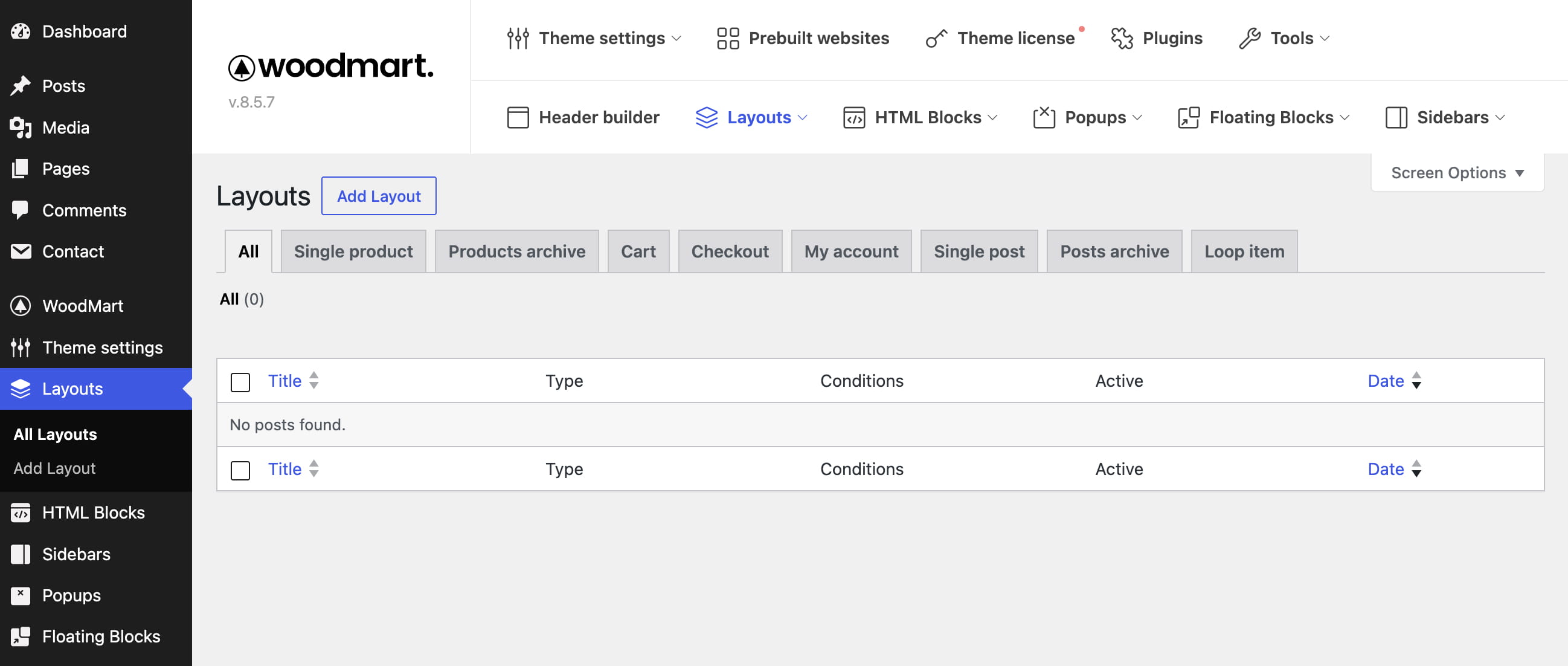
Navigate to Dashboard -> Layouts. The tabs organize layouts by their purpose, while the All tab displays every saved layout.
Create a layout
1. Open the tab for the area you want to customize and click the add button.
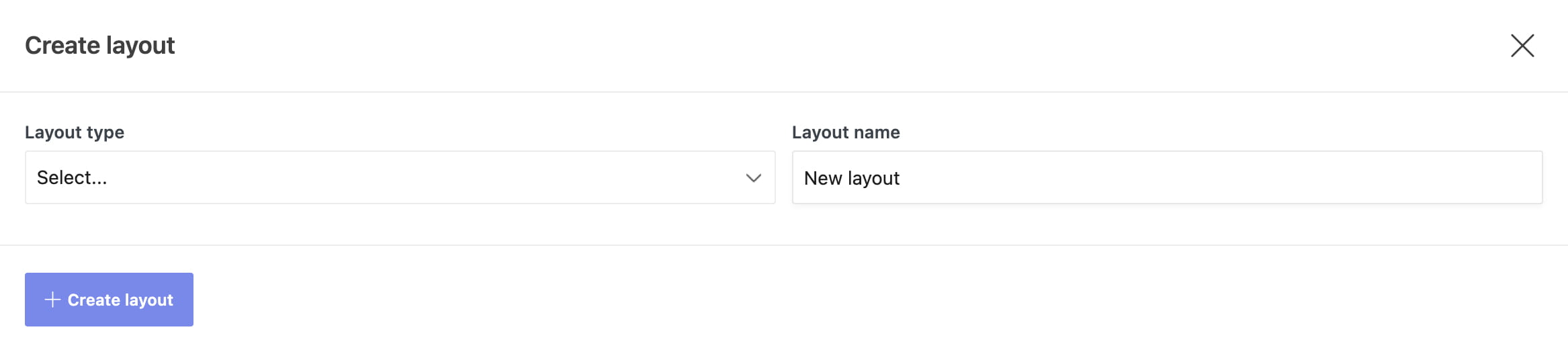
2. Select the Layout type and enter a recognizable Layout name.
3. Configure Include or Exclude conditions when they are available for the selected layout type.
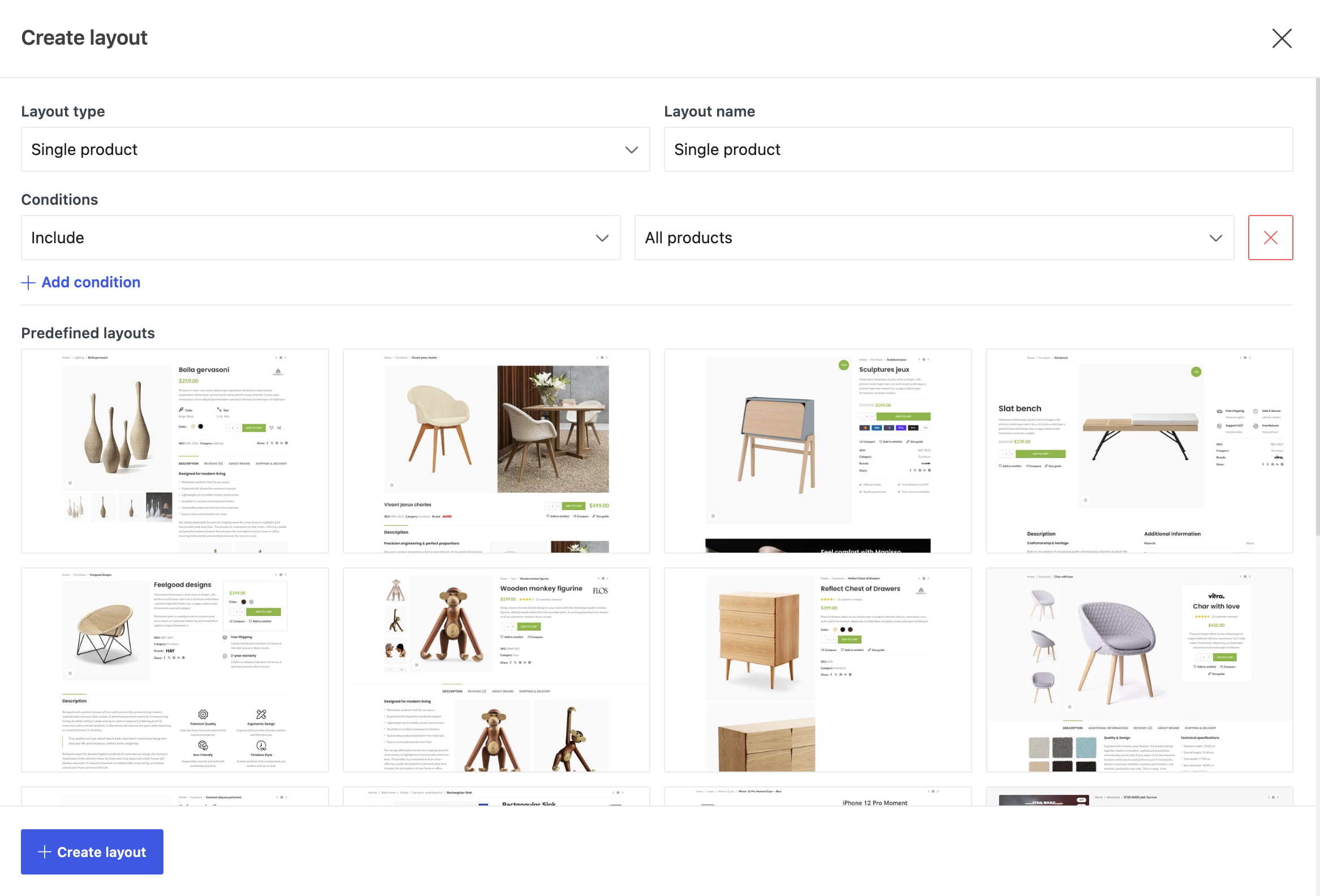
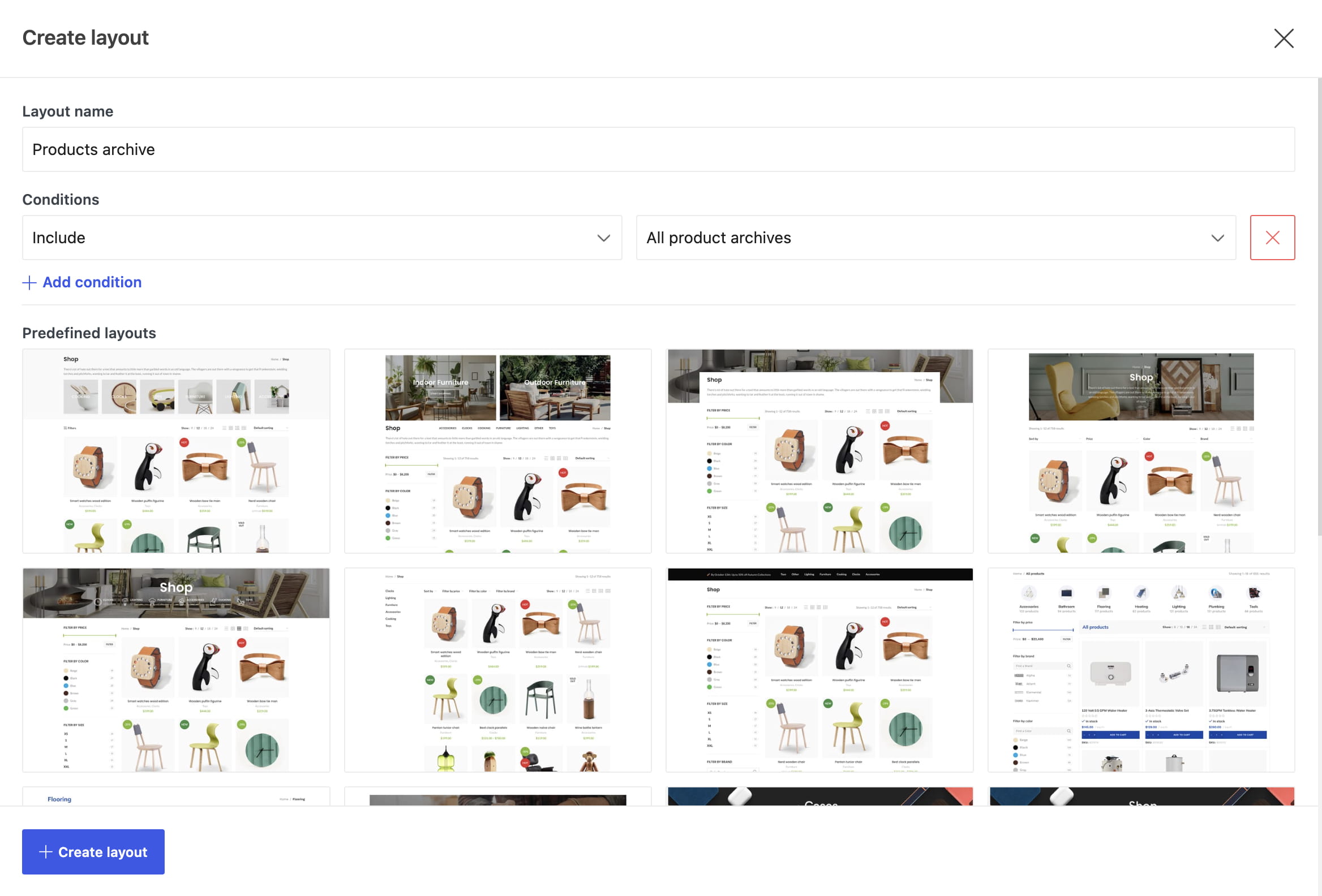
4. Choose a predefined design or start with a blank layout.
5. Click Create layout, add the required elements in the editor, and publish the layout.
Available layout types
Store layouts
- Single product — replaces the content of product pages.
- Products archive — controls the shop, product categories, tags, search results, and filtered archive pages.
- Cart and Empty cart — customize the cart depending on whether it contains products.
- Checkout — controls the checkout form and its supporting content.
- Thank you page — customizes the page displayed after an order is submitted.
- Product loop item — creates a reusable product-card design for grids and lists.
Customer account layouts
- My account — controls the account navigation and endpoint content.
- Login/Register — customizes the customer authentication page.
- Lost password — customizes the password recovery form.
Posts and portfolio layouts
- Single post and Single project — replace individual post or portfolio project templates.
- Blog and Portfolio — replace archive and listing templates.
Layout conditions
Conditions determine where a layout is used. Select Include to apply a layout to matching content and Exclude to prevent it from being used there. When several layouts match, more specific conditions take precedence over broad conditions such as All products or All blog archives.
Single product conditions can target all products, individual products, categories, child categories, tags, brands, attributes, or product types.
Products archive conditions can target the shop page, search results, product taxonomies, child categories, or archives filtered by attributes, terms, and stock status.
Conditions are also available for Thank you page, My account, Single post, Single project, Blog, and Portfolio layouts. Cart, Empty cart, Checkout, Login/Register, Lost password, and Product loop item layouts are global types and do not provide the same configurable condition interface.
Cart and checkout layouts
Cart and Empty cart are separate layout types. Create one layout for the regular cart and another when you want to customize the empty-cart state.
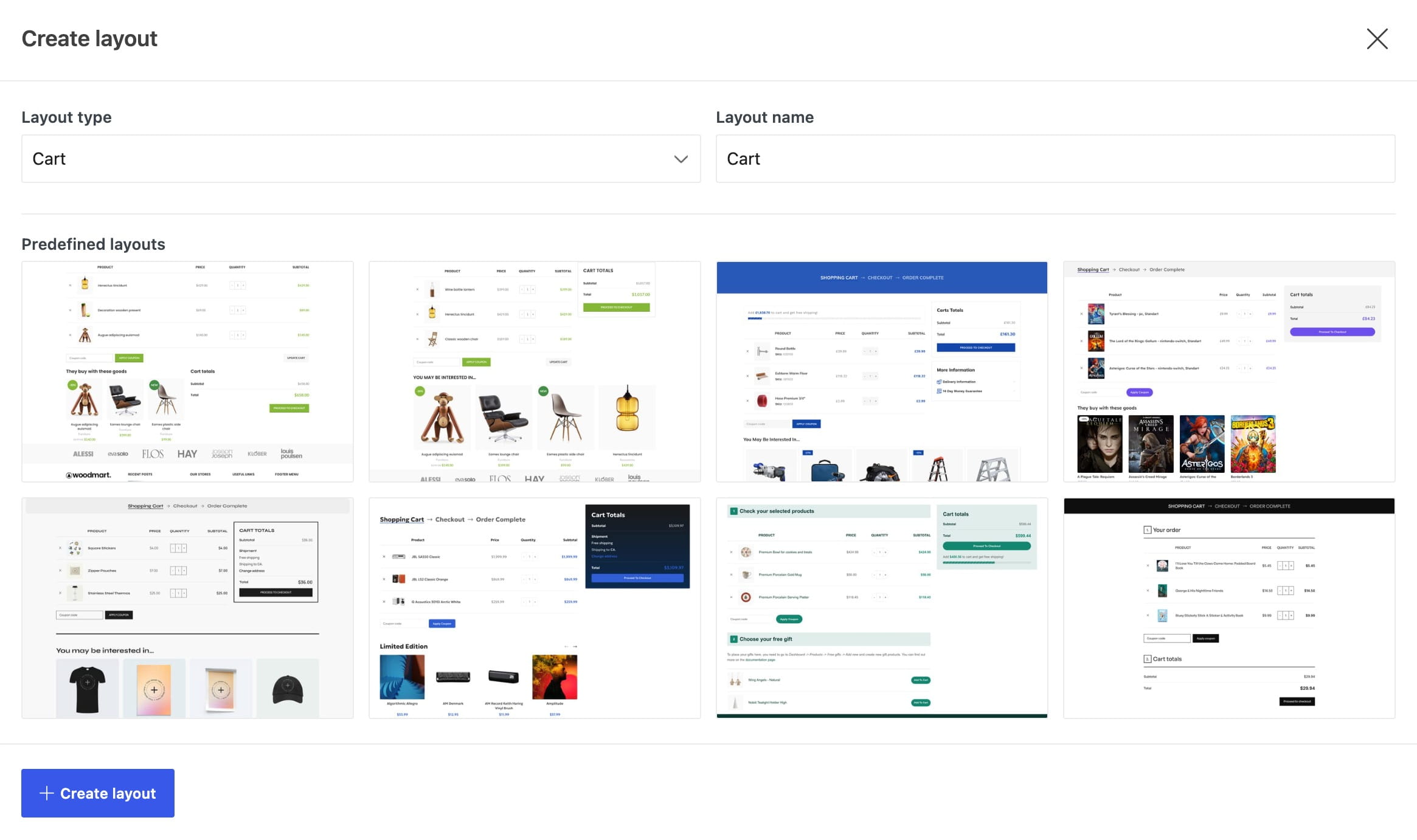
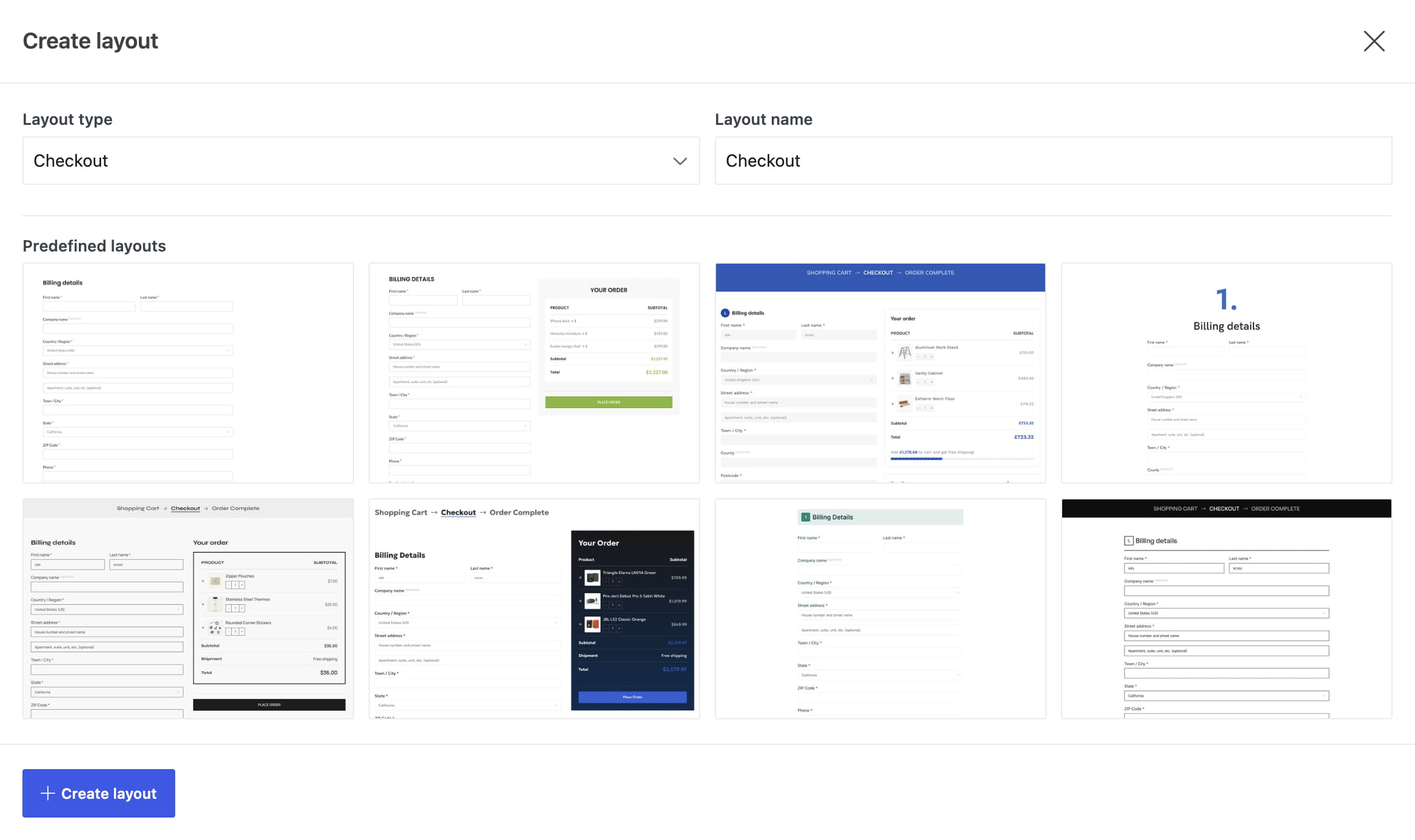
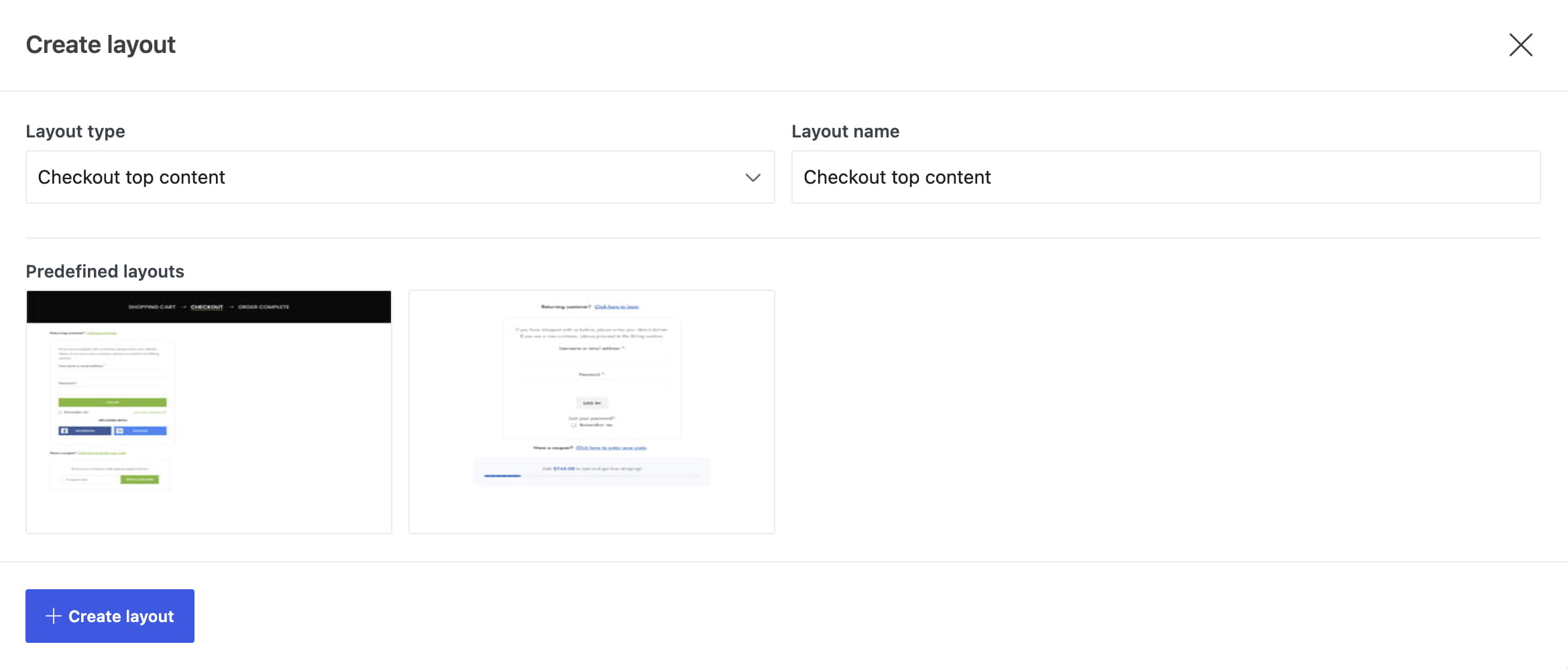
Checkout behaves differently depending on the selected editor. With Gutenberg, create one Checkout layout. With Elementor or WPBakery, use Checkout form for the checkout fields and order submission area, and optionally create Checkout top content for the login and coupon forms. The Thank you page remains a separate layout type.
Choose the editor
The editor used for imported and newly created layouts is selected under Dashboard -> Theme Settings -> Other -> Current builder. Gutenberg, Elementor, and WPBakery are supported. Elementor Free is sufficient; Elementor Pro Theme Builder is a separate feature.
Product loop item layouts are always edited with Gutenberg, even when Elementor or WPBakery is selected as the current builder.
If the editor is not available
Gutenberg does not require additional post-type activation. For Elementor, make sure Layouts is enabled in Elementor -> Settings -> General -> Post Types. For WPBakery, enable the woodmart_layout post type in WPBakery Role Manager.
Detailed layout guides
- Single product page builder
- Product archive builder
- Product loop item builder
- Cart page builder
- Checkout page builder
- Thank you page builder
- My account page builder
- Single post builder
- Blog archive builder
Video tutorial
Don’t miss WoodMart updates
Receive feature updates, tutorials, and WoodMart news via email.
 Last updated: August 18, 2026