
Import a prebuilt website
A prebuilt website is a complete demo design shipped with the theme: a home page and inner pages, sample products and posts, images, menus, headers, layouts, and the theme settings that make it look the way it does on our demo site. Importing one gives you a working site to edit instead of an empty WordPress installation.
Before you import
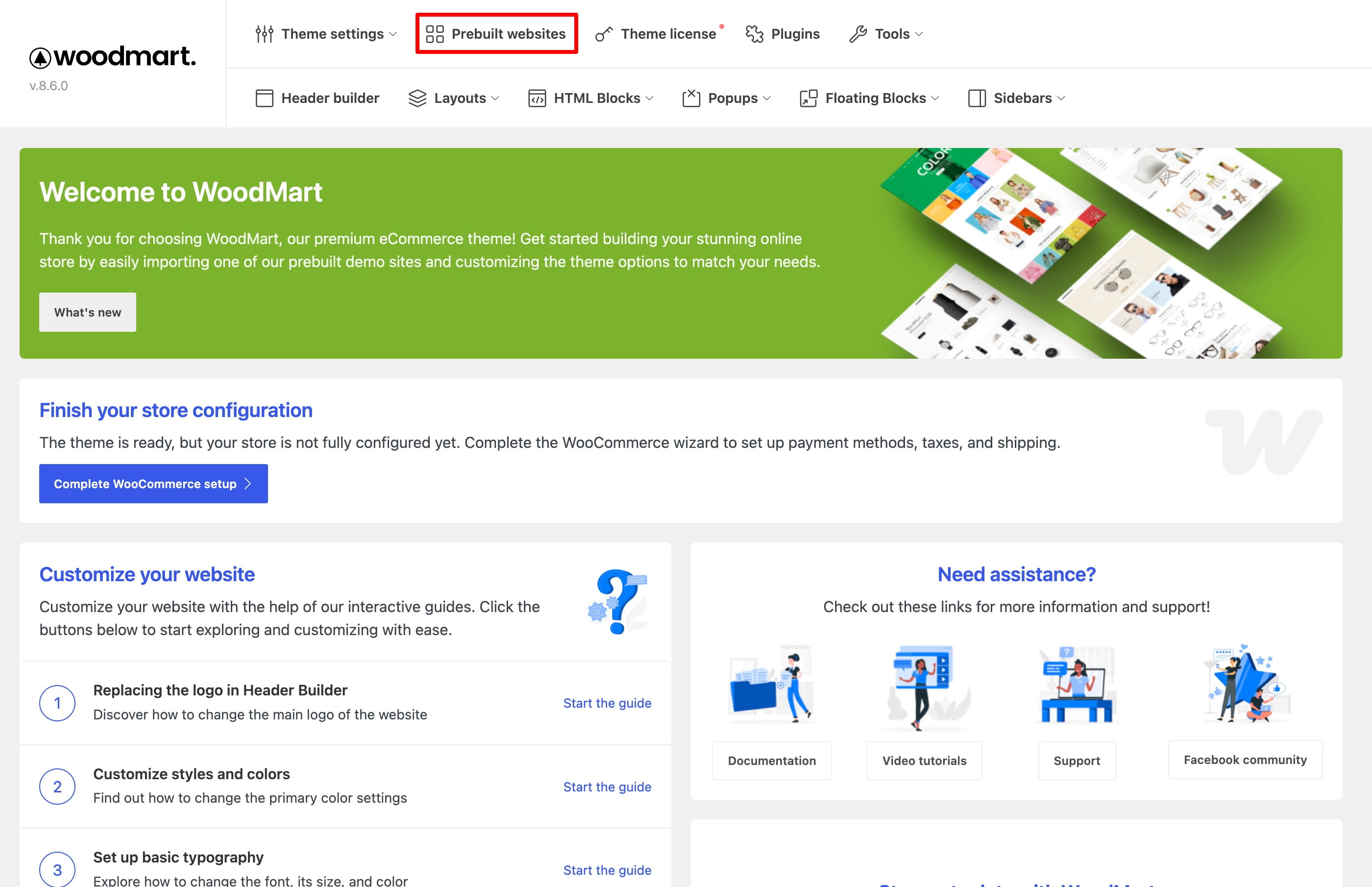
All prebuilt websites are available in the WoodMart dashboard, under WoodMart → Prebuilt websites. The same screen is shown during the theme setup wizard.
Find a demo
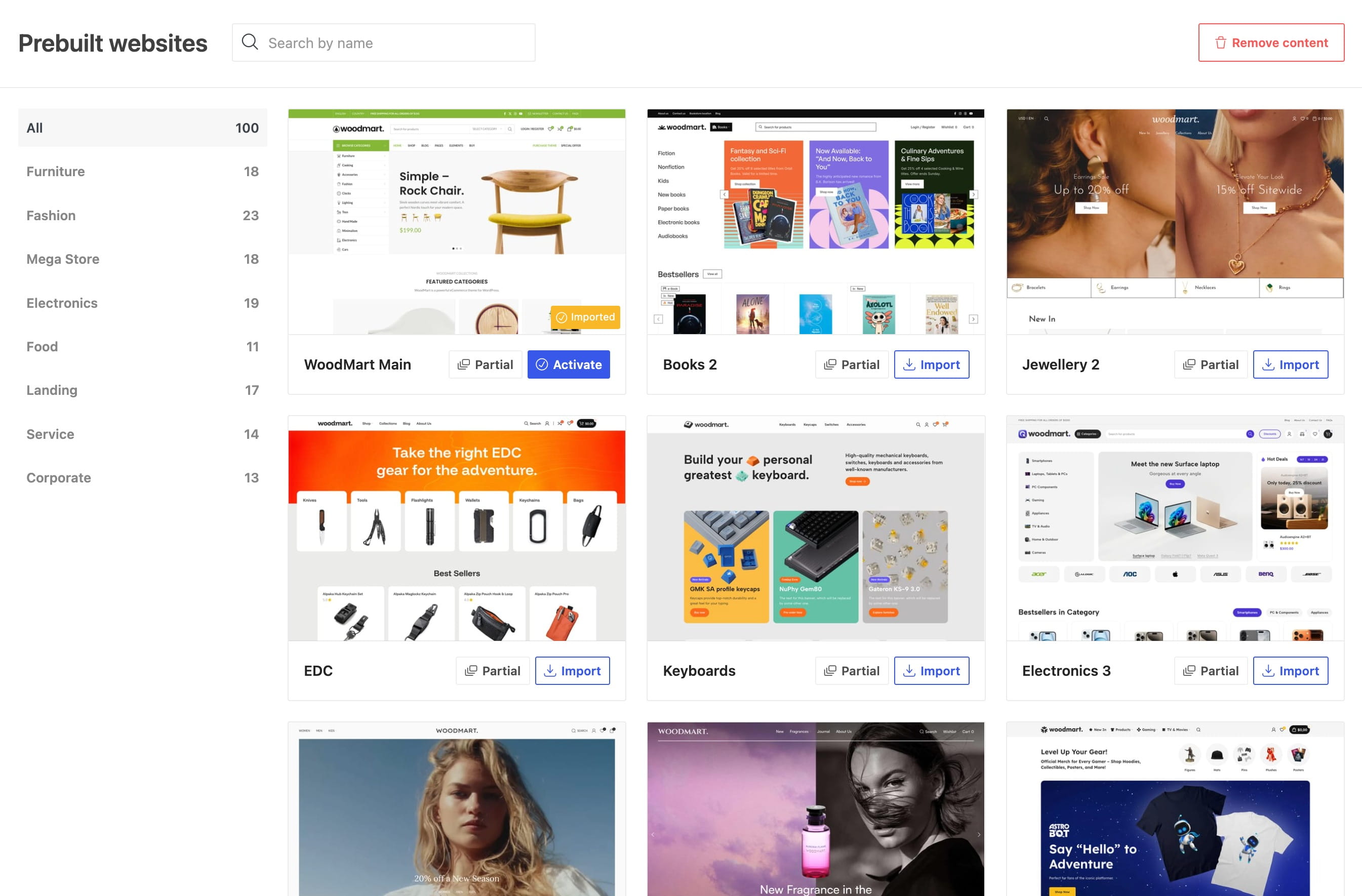
Each card provides a Live preview link, shown on hover, that opens the demo on the WoodMart demo site. Reviewing a demo there before importing it is recommended: replacing an installed demo with one built on a different base requires the previously imported content to be deleted.
The category filters on the left restrict the list to a single category. All and each category display the number of demos they contain. The Search by name field above the grid matches demo names and the tags assigned to them. Demos that are already installed are marked with an Imported label.
Run the import
- Open WoodMart → Prebuilt websites and find the demo you want.
- Click Import on its card.
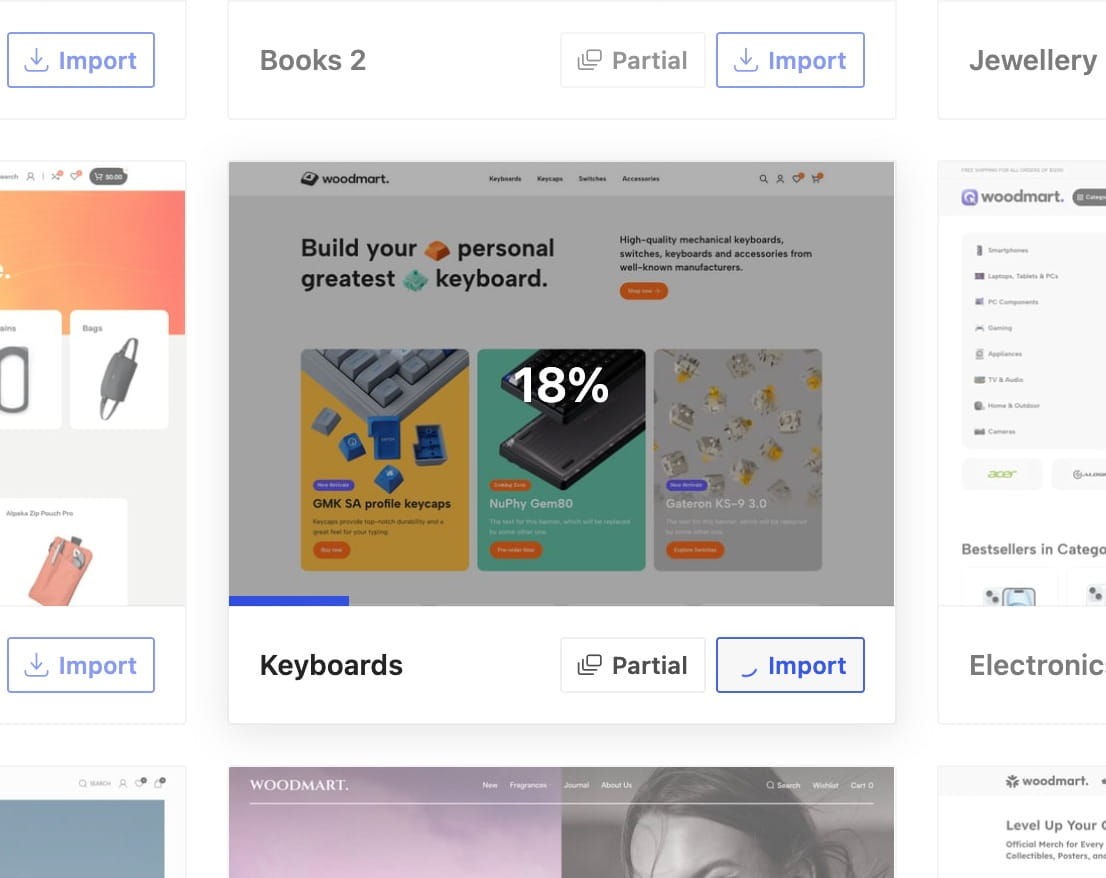
- When the import finishes, the card gets an Imported label and a View page button that opens the new home page.
max_execution_time to 300 seconds and run it again.What the import installs
Depending on the demo, the import adds:
- the home page and the demo’s inner pages;
- sample products with their categories, attributes and images;
- blog posts and projects;
- the media library used by the design;
- menus and the demo’s headers;
- sliders, HTML blocks, popups and floating blocks;
- layouts built with the layouts builder;
- contact forms;
- the demo’s theme settings, including its settings presets.
Your WooCommerce orders, customers and existing products are not deleted by the import itself.
Switch to another demo
A demo that is already installed shows an Activate button instead of Import. Activating re-applies that demo’s theme settings, menus and headers and makes it the current design, without importing its content a second time.
Demos that share the same base package can be imported one after another. If the demo you pick is built on a different base, WoodMart asks for confirmation and then removes all previously imported content, including pages, products and images, before installing the new one.
Import only parts of a demo
If you do not want the whole demo, use partial import instead. It installs a single page, a layout, or just the demo’s theme settings into your existing site, and lets you combine pages and designs from several demos on one site. Every demo card has a Partial button that opens this screen.
See Partial import of prebuilt websites for the full description.
Remove imported content
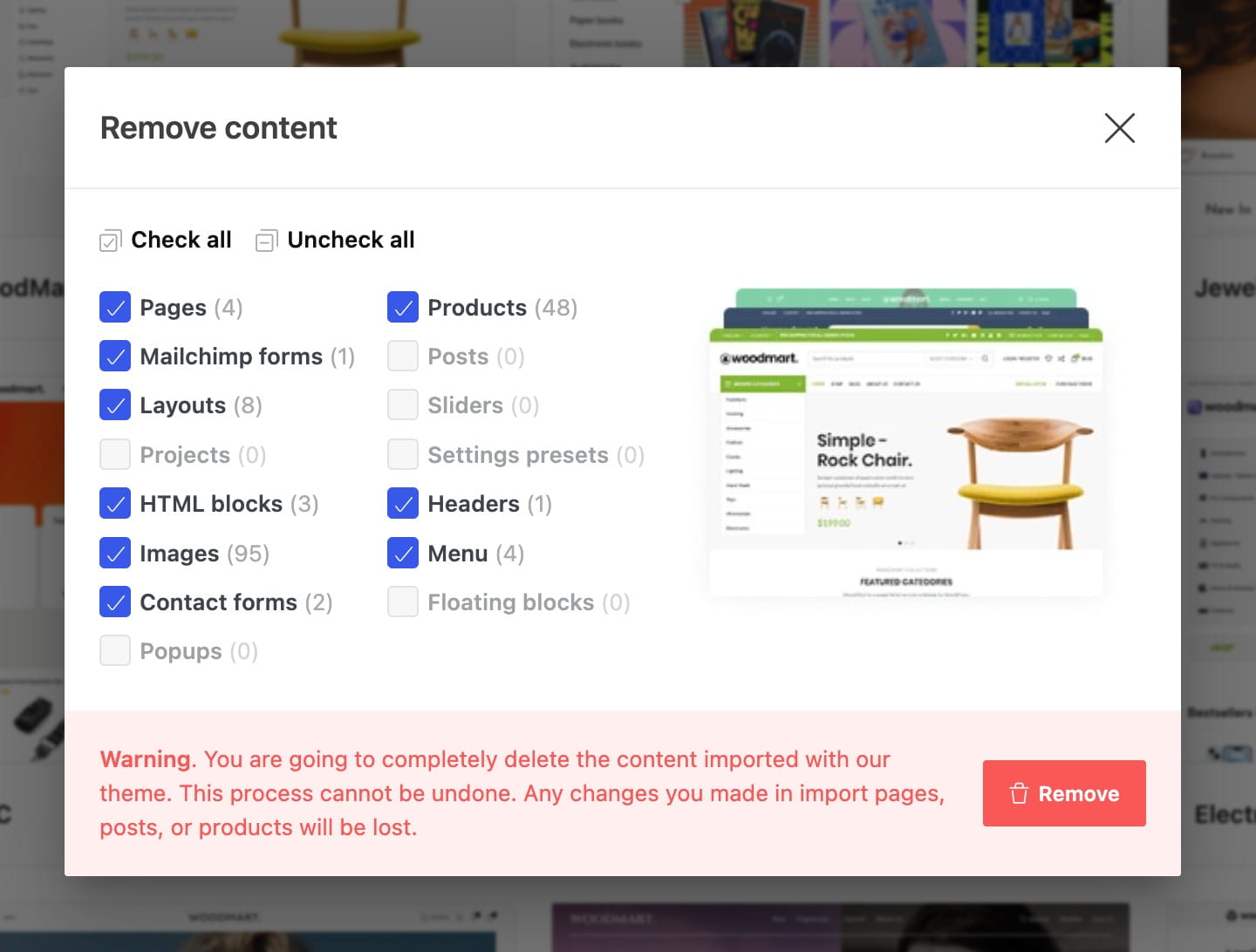
The Remove content button at the top of the Prebuilt websites screen appears once something has been imported. It opens a popup listing everything the theme has installed, grouped by type with the number of items in each: pages, products, posts, images, menus, headers, layouts, sliders, projects, HTML blocks, popups, floating blocks, contact forms and settings presets.
Select the groups you want to delete and press Remove.
Don’t miss WoodMart updates
Receive feature updates, tutorials, and WoodMart news via email.
 Last updated: September 15, 2026