
WoodMart MCP
Connect an AI agent with MCP
WoodMart includes a dedicated MCP plugin that lets an AI agent, such as Claude, Codex or Cursor, read and change your site directly, instead of you clicking through wp-admin. Once connected, an agent can do things like build a landing page from your template library, restyle a section, flip a Theme Settings option, create a layout template with its display conditions, or manage your WooCommerce products and orders, described in plain language and applied on the site.
Installing the WoodMart MCP plugin
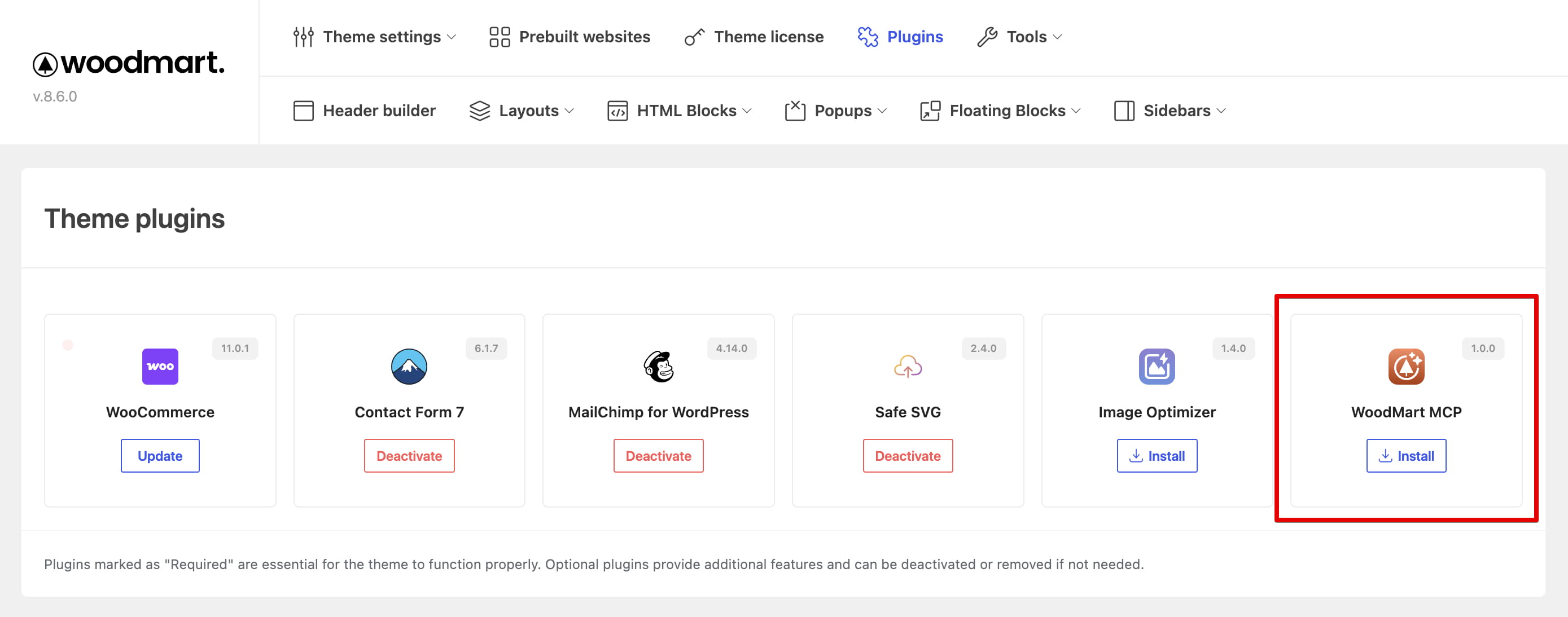
To get started, go to WoodMart → Plugins and install and activate the WoodMart MCP plugin. Only once it’s active does the setup page appear, at WoodMart → Tools → MCP, where you generate the configuration.
Setting up the connection
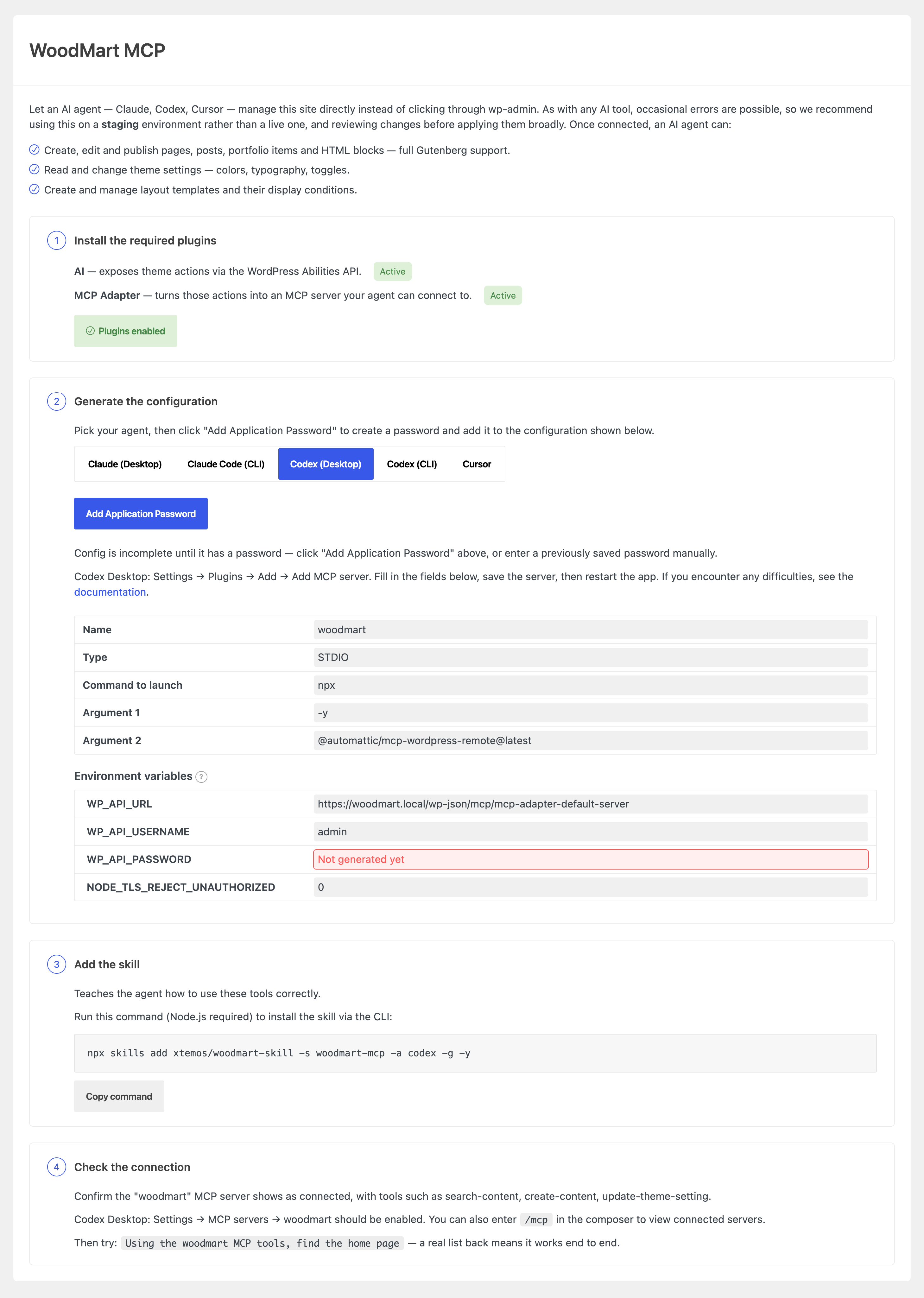
Open WoodMart → Tools → MCP. The page walks you through four steps:
- Enable the MCP plugins. Click Enable MCP plugins — the two companion plugins the connection needs are installed and activated automatically.
- Generate the configuration. Pick your AI agent from the switcher, then click Add Application Password to fill in the configuration for you. Copy it into your agent’s settings as shown on the page, then restart the agent.
- Add the skill. Click Download skill (or copy the CLI command shown) so the agent knows how to use the tools correctly.
- Check the connection. Confirm the
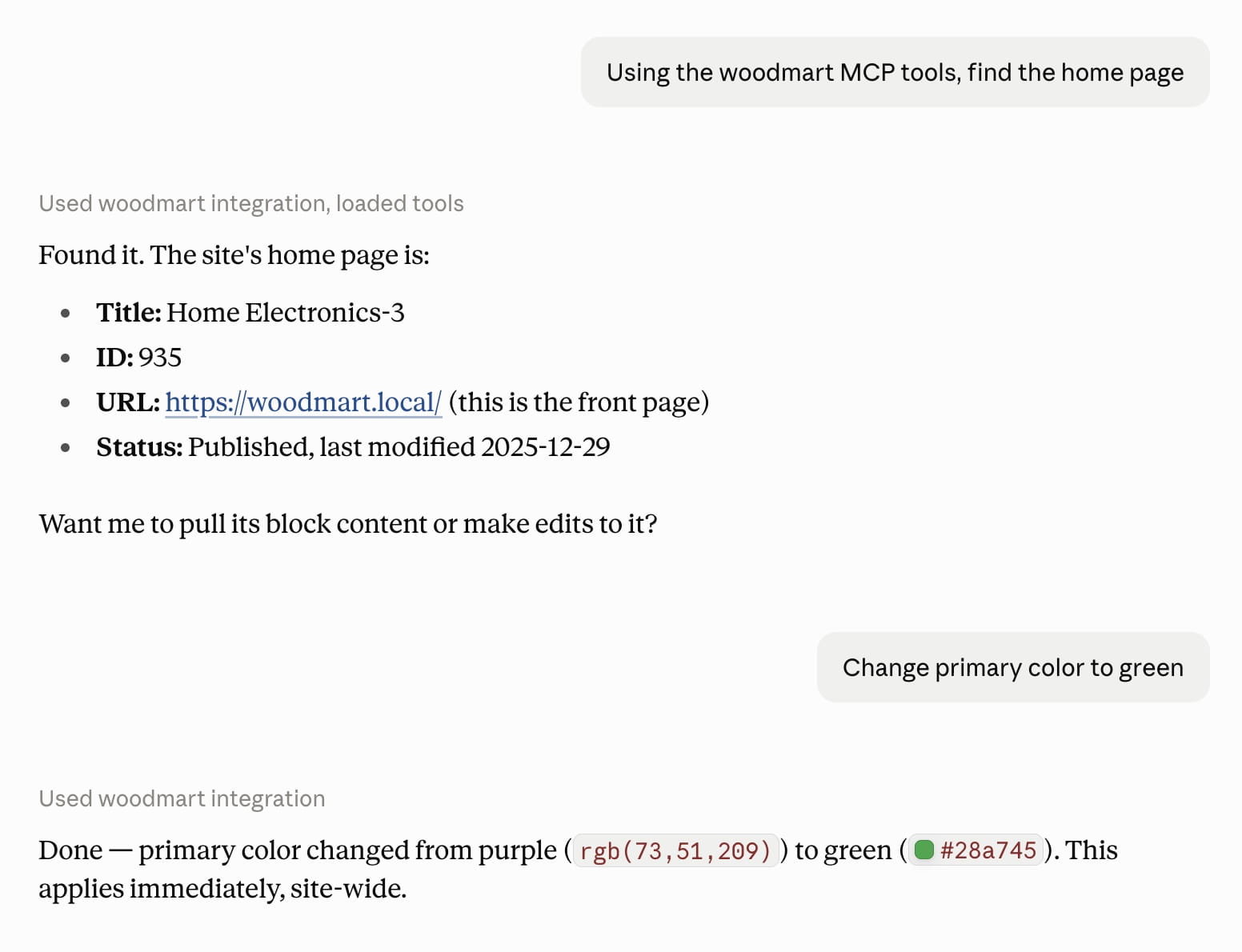
woodmartserver shows as connected and try a test request, like asking the agent to find your home page.
Application Passwords and security
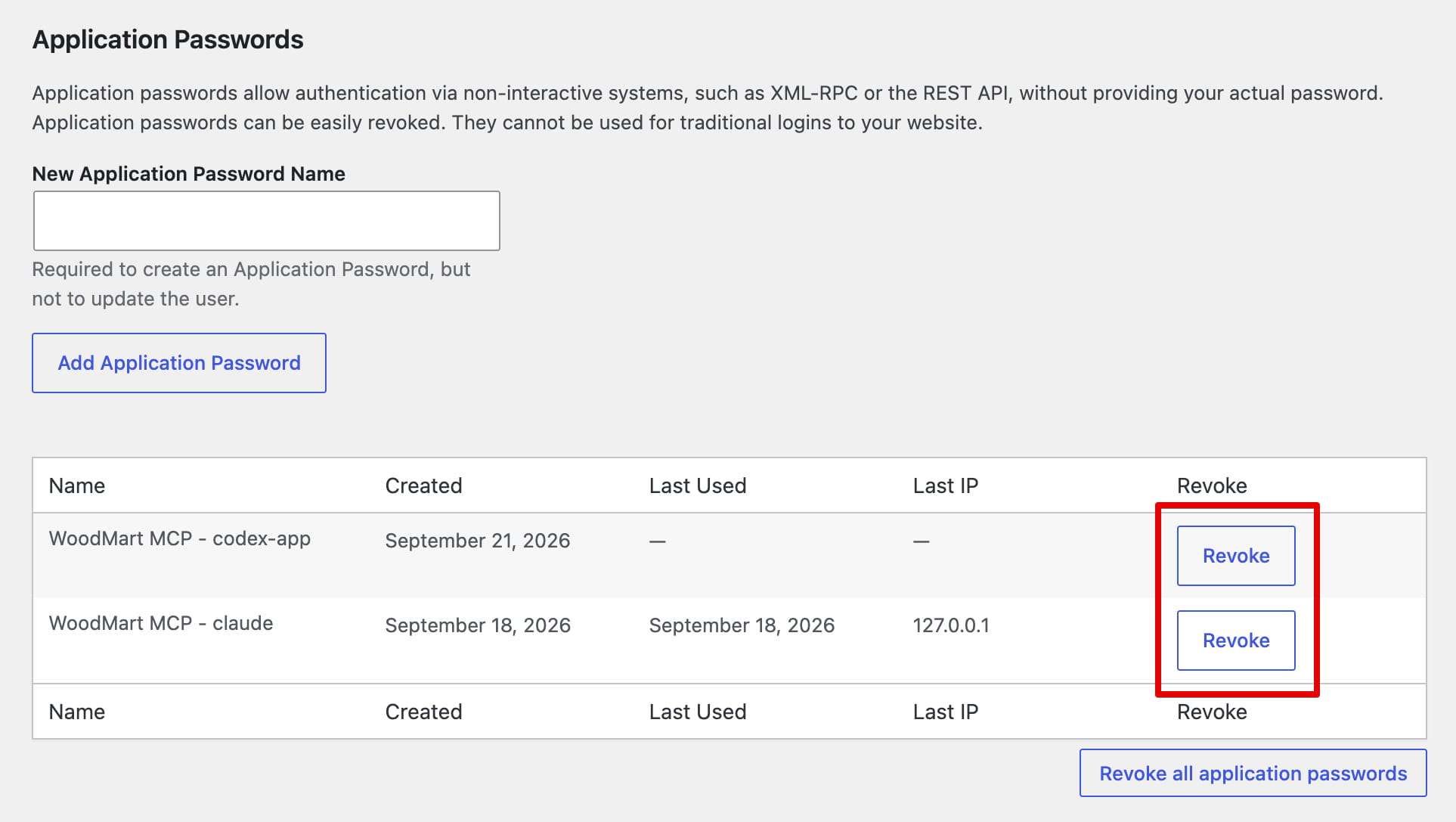
When you click Add Application Password in step 2, WoodMart creates a standard WordPress Application Password for your user account and puts it straight into the agent configuration. This is a separate password just for the agent, so you never have to give it your main login.
A few things to know about it:
- It’s shown only once. WordPress stores the password hashed and never displays it again. If you lose the configuration, generate a new password instead of trying to recover the old one.
- It works for API access only. It can’t be used to sign in to wp-admin through the login form. It only lets the agent talk to your site through the REST API.
- It has your permissions. The agent can do anything your account can do. For tighter control, generate the password under a dedicated user instead of your main admin account.
- It sits in plain text on your computer. Your agent keeps it in its configuration file, so don’t share that file, paste it into chats or support tickets, or commit it to a public repository.
- It requires HTTPS. WordPress only allows Application Passwords over a secure connection (local development sites are the exception).
Where to find and revoke it
All generated passwords are listed under Users → Profile → Application Passwords, along with when each one was created and last used. The password is named after the agent you picked, for example WoodMart MCP – claude.
To remove a password, click Revoke next to it. The agent loses access immediately. Revoke all application passwords removes every one at once. We recommend a separate password for each agent or device, so you can revoke one without disconnecting the others.
For more details, see the official WordPress guide: Application Passwords.
AI Block Queue
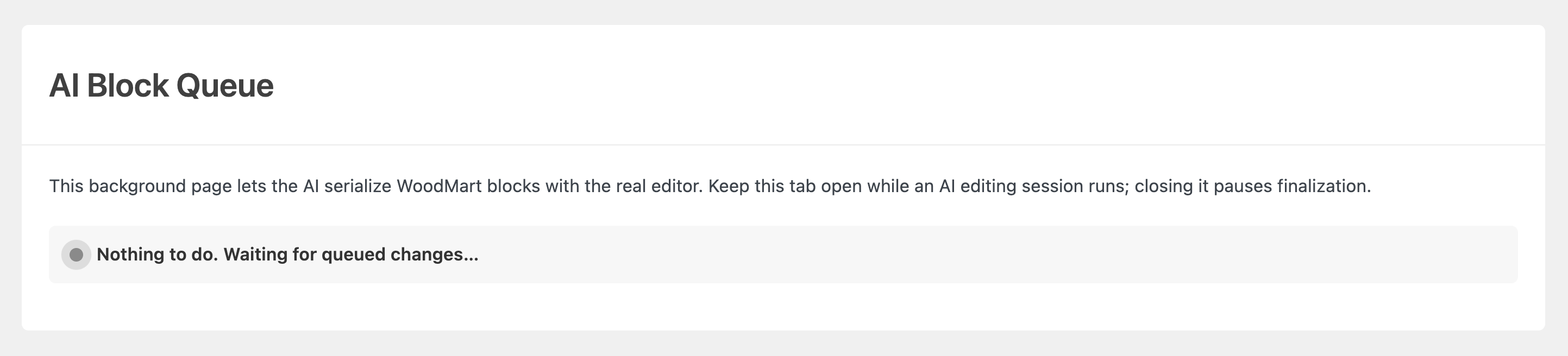
Gutenberg blocks need your browser’s real editor to generate their final markup, so the agent can’t write changes straight into the database. Instead, it queues the change, and a dedicated page, WoodMart → AI Block Queue, picks it up, runs it through that editor, and commits the result.
In practice the flow is:
- The agent queues a change and the batch gets status
ready. - You open WoodMart → AI Block Queue and leave the tab open.
- The page picks the batch up, serializes it, and the status becomes
finalized.
What the agent can change
- Content — find, create, rename and re-slug pages, posts, portfolio projects, products and HTML blocks.
Example: “Rename the ‘About Us’ page to ‘Our Story’ and change its slug to /our-story/”. - Gutenberg blocks — read a page’s block tree, edit individual blocks by id, and look up any WoodMart block’s attributes and composition rules.
Example: “On the homepage, change the first slide text to ‘Fall Sale – Up to 40% Off’”. - Template library — search WoodMart’s demo templates and insert a pre-built section or page, images included.
Example: “Insert a testimonials section from the template library right after the hero on the homepage”. - Theme Settings — browse, read and update single WoodMart options: colors, typography, toggles.
Example: “Change the primary accent color to #E63946 and switch the body font to Inter”. - Layouts — list layout types, create a layout from scratch or from a predefined template.
“Create a custom cart page layout with a shipping progress bar and a cross-sell products block”. - Header Builder — replace the logo in every logo element of every saved header in one call.
Example: “Replace the logo in every header with the image at media ID 24523”. - WooCommerce — query products and orders, create and update products, change an order status or add a note.
Example: “Mark order #4521 as completed and add a note that it was sent via DHL”. - Site info — read site, user and environment details so the agent can adapt to your setup.
Example: “What PHP and WordPress version is this site running, and what permissions does my user account have?”.
Don’t miss WoodMart updates
Receive feature updates, tutorials, and WoodMart news via email.
 Last updated: September 21, 2026