
Partial import of prebuilt websites
Partial import installs individual parts of a prebuilt website into an existing site: a single page, a layout, or the demo’s theme settings. It is intended for sites that are already built and in use, where a full demo import is not an option. It also allows pages and designs from several prebuilt websites to be combined on one site.
Where to find partial import
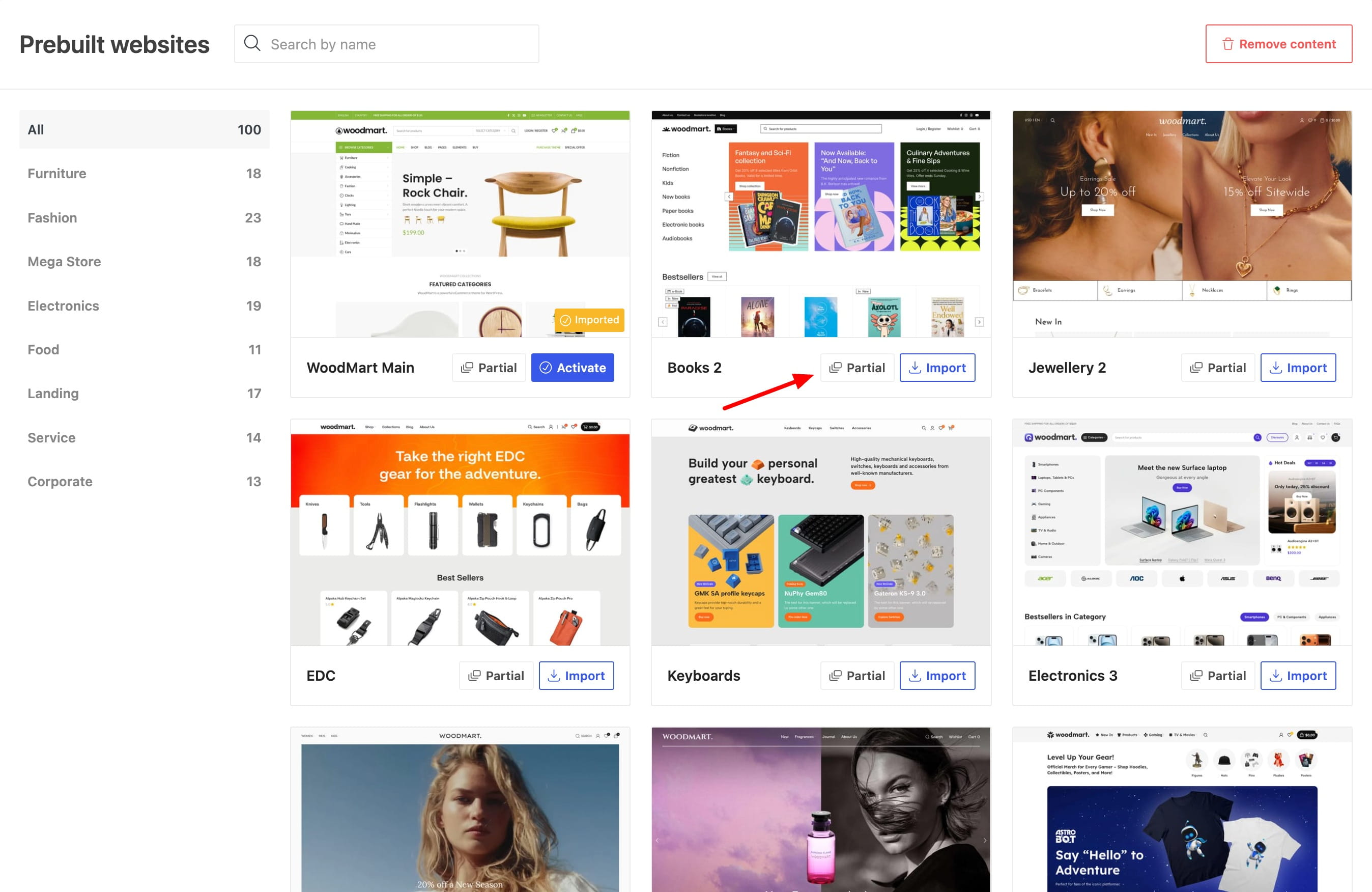
Open WoodMart → Prebuilt websites in the WoodMart dashboard. Every demo card has a Partial button next to Import. Click it to open that demo’s partial screen, where its content is split into sections. The Back button in the header returns you to the list of demos.
What you can import
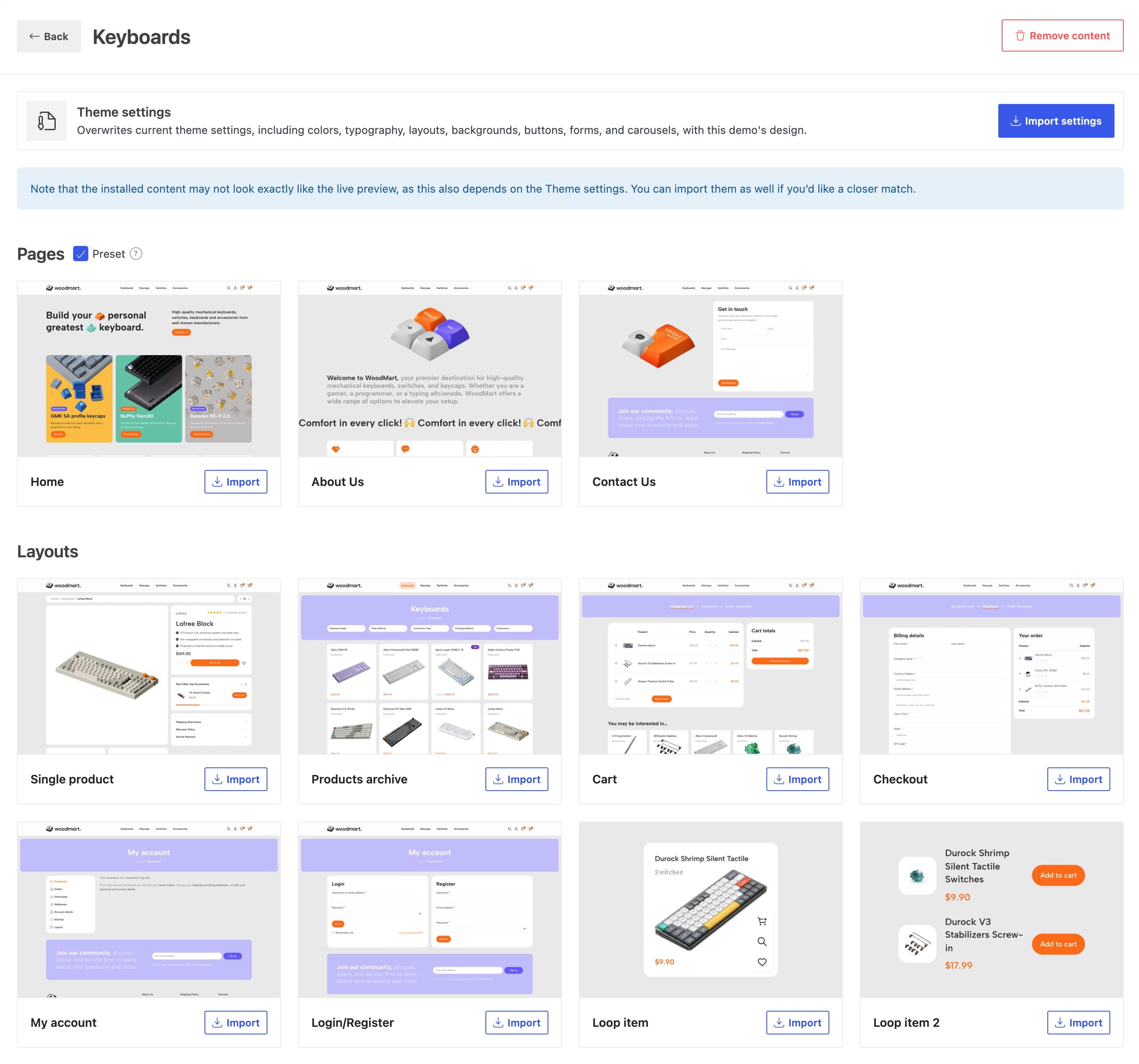
The partial screen splits the demo into sections. Which sections you see depends on what that demo includes. Each item has a Live preview link that opens it on our demo site, so you can check it before installing anything.
Theme settings
The first block on the screen. Import settings replaces your current global design with this demo’s: colors, typography, layouts, backgrounds, buttons, forms and carousels. Your content is untouched; only the design options change.
Use it when you want the whole site to look like the demo. If you only want one page to look like it, leave your global settings alone and use the Preset option described in the next section.
Pages
Ready-made pages of the demo: Home, About Us, Contact Us, FAQs, Cart, Checkout, Track order, 404 and so on. Every demo offers its Home page as the first item, so you can pull just the homepage from a demo you like and keep everything else as it is. Each imported page becomes an ordinary WordPress page you can edit in your page builder right away.
Importing the same page twice creates a second copy rather than overwriting the first one. The page you imported earlier stays where it is, with all the changes you made to it. Delete the old copy manually if you don’t need it. Cart and Checkout are the exception: they are always applied to your existing WooCommerce pages, so a repeated import overwrites what is there.
Layouts
Templates built with the WoodMart layout builder: single product, products archive, blog archive, single post, my account, login/register, thank you page and product card.
An imported layout arrives with its display conditions and takes effect immediately. If you already have your own layout of the same type, open WoodMart → Layouts afterwards and disable or adjust the one you don’t want applied.
Theme settings and presets
A demo page looks the way it does partly because of its content and partly because of the demo’s theme settings. Partial import gives you two ways to bring that design over: site-wide, or scoped to the imported page alone.
Import settings (site-wide)
The Import settings button in the Theme settings block overwrites your current global theme settings with the demo’s design. Your content is not touched; only the design options change. Use it when you want the whole site to look like the demo.
The Preset checkbox (page-scoped)
Above the list of pages there is a Preset checkbox, enabled by default. It decides which theme settings the page you are importing will use.
| Preset | Which theme settings the page uses | When to choose it |
|---|---|---|
| Enabled | Its own Theme Settings preset: colors, fonts, typography, backgrounds and button/form styles that apply only when this page is viewed. The preset is named after the demo, so every page you import from that demo joins the same one; find them under Theme Settings → Presets. | You want the page to look like the demo while the rest of your site keeps its design. |
| Disabled | Your current global theme settings, exactly as any other page on the site. | Your site already has a design you’re happy with and you only want the page’s structure and content. |
If you have already imported this demo’s theme settings globally, the checkbox is unchecked automatically, because a preset would be redundant.
For how presets are created, how their conditions are evaluated and how several presets are combined, see Theme settings presets.
How to import an item
- Open WoodMart → Prebuilt websites and click Partial on the demo you like.
- Hover an item and click Live preview to see it on our demo site first.
- For pages, decide whether the Preset checkbox should be on or off.
- Click Import on the item. A progress bar runs on its thumbnail.
- When it finishes, the item is marked Imported and a View button opens it on your site.
You can import as many items as you like, one after another, and mix items from different demos.
Removing imported content
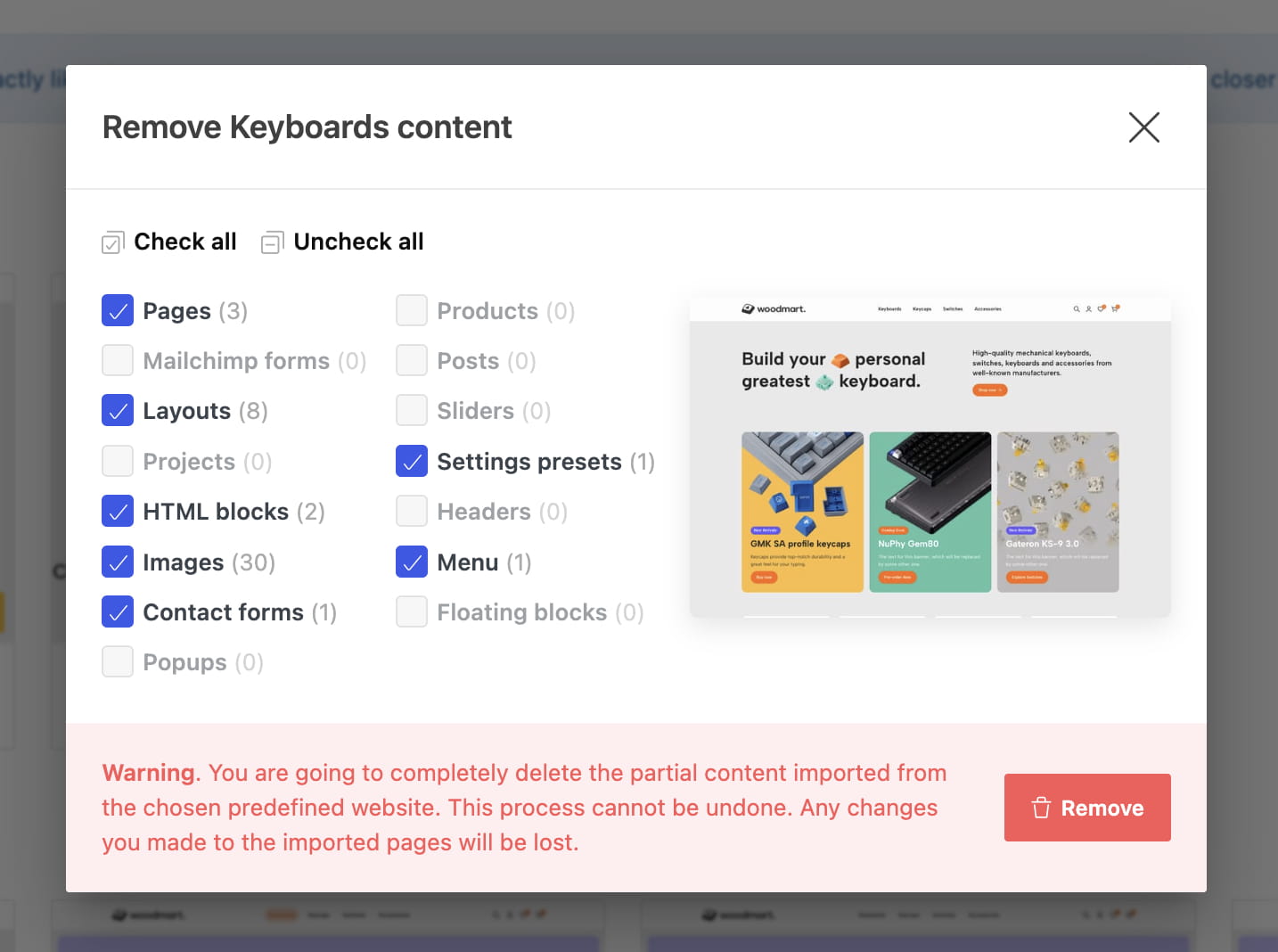
Every partial screen has a Remove content button in its header. It opens a popup listing only what this demo’s partial items brought to your site: pages, layouts, attachments, headers, sliders, posts and presets, each with a count. Tick what you want to delete (or use Check all / Uncheck all) and press Remove.
Don’t miss WoodMart updates
Receive feature updates, tutorials, and WoodMart news via email.
 Last updated: September 15, 2026