
Frequently bought together
Frequently bought together displays a primary product with a group of recommended products. Customers can select the items they want and add them to the cart in one action. A bundle can also apply separate percentage discounts to the primary product and each additional product.
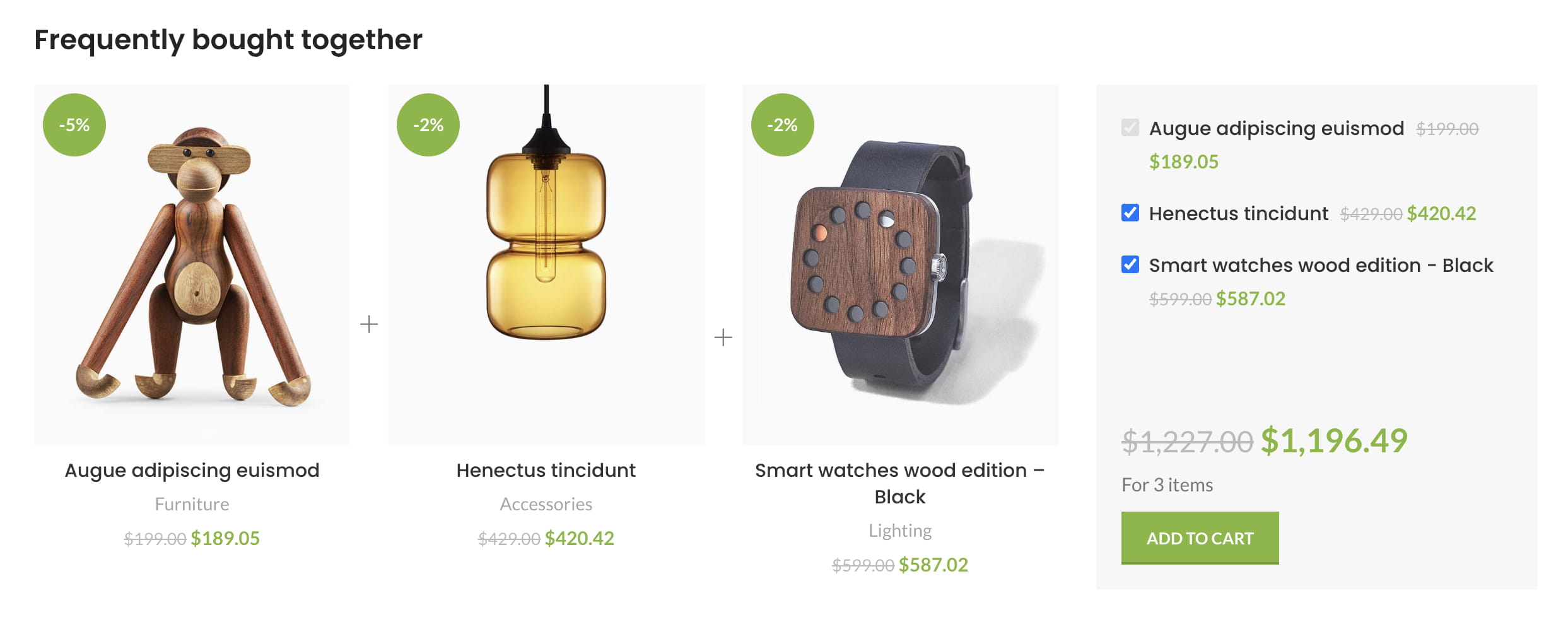
See the Frequently Bought Together demo for a frontend example.
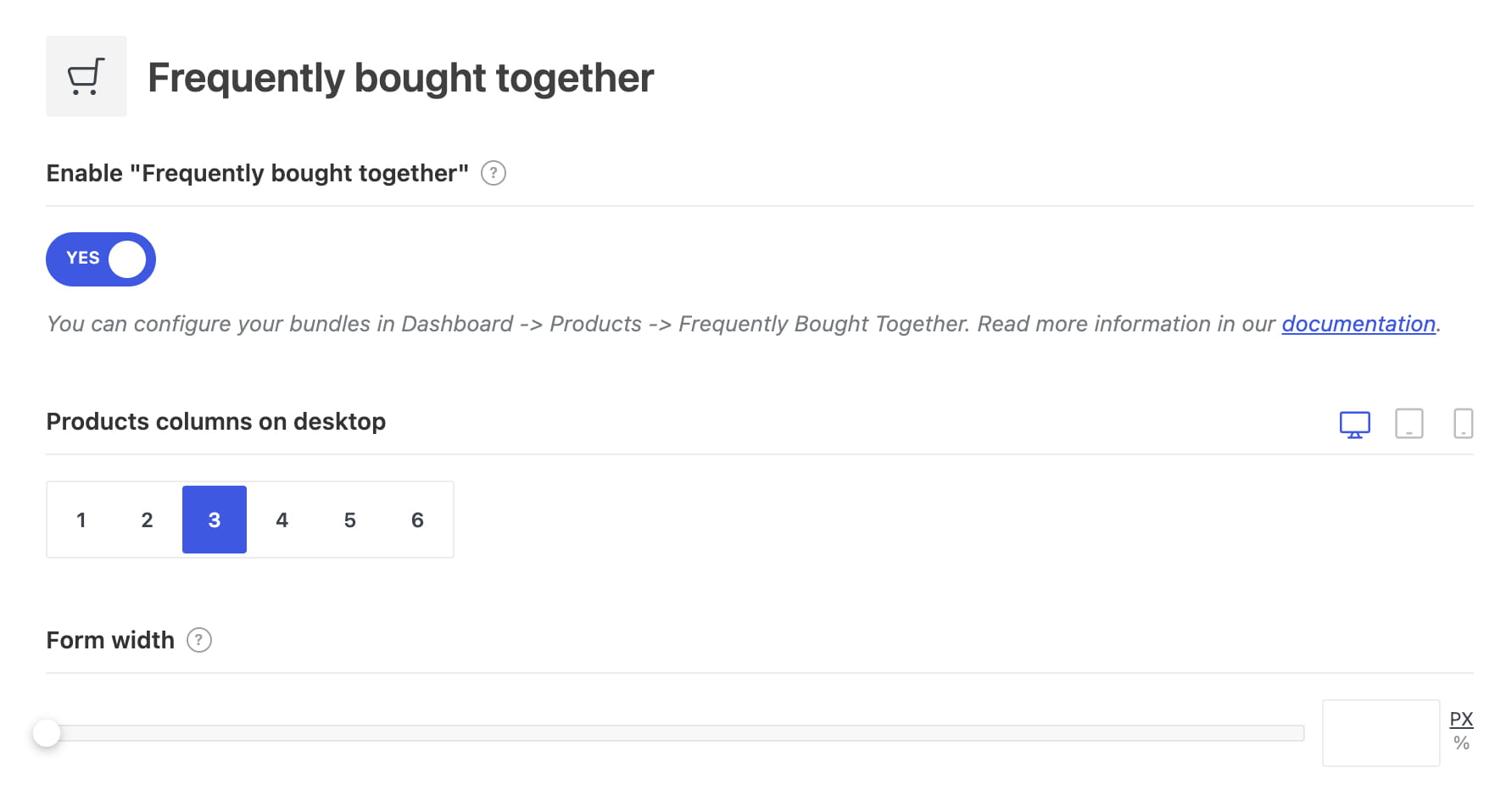
Enable Frequently bought together
- Navigate to Dashboard -> Theme Settings -> Shop -> Frequently bought together.
- Enable Enable “Frequently bought together”.
- Configure the standard section layout if needed:
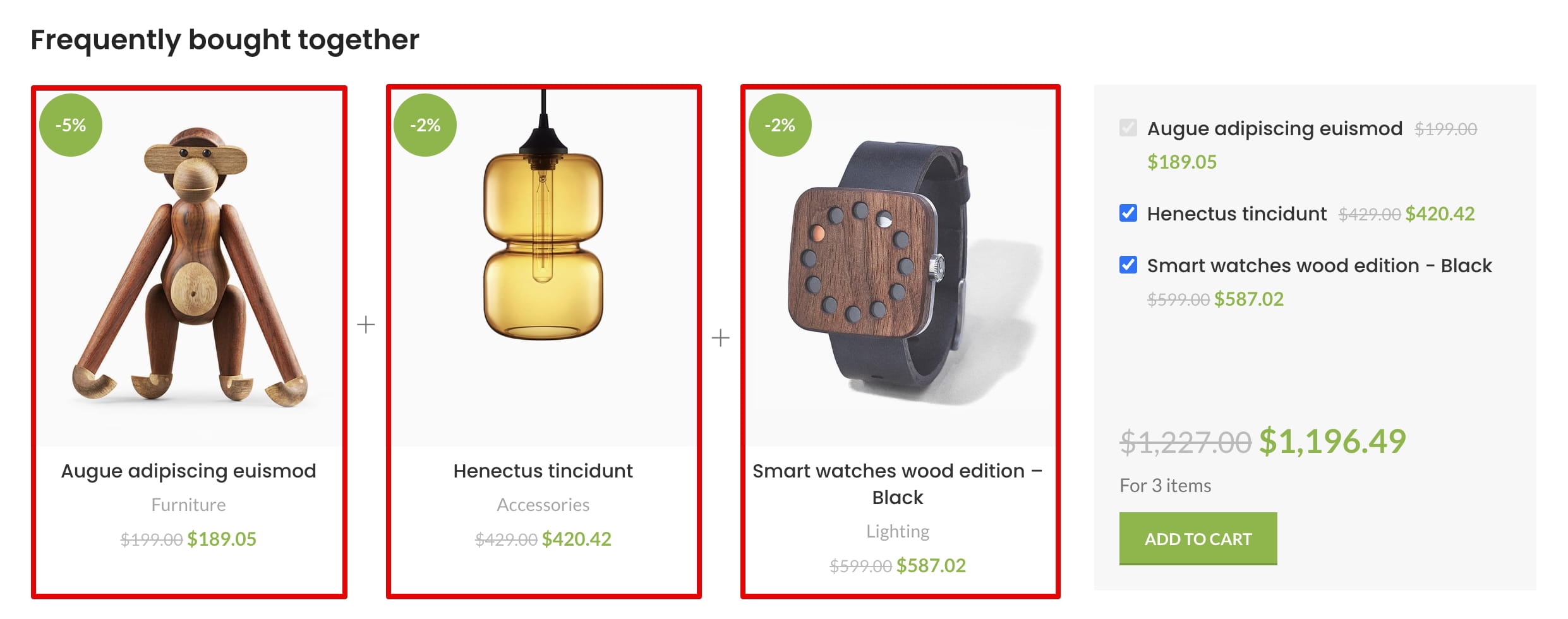
- Products columns on desktop, tablet, and mobile — controls the responsive product grid.
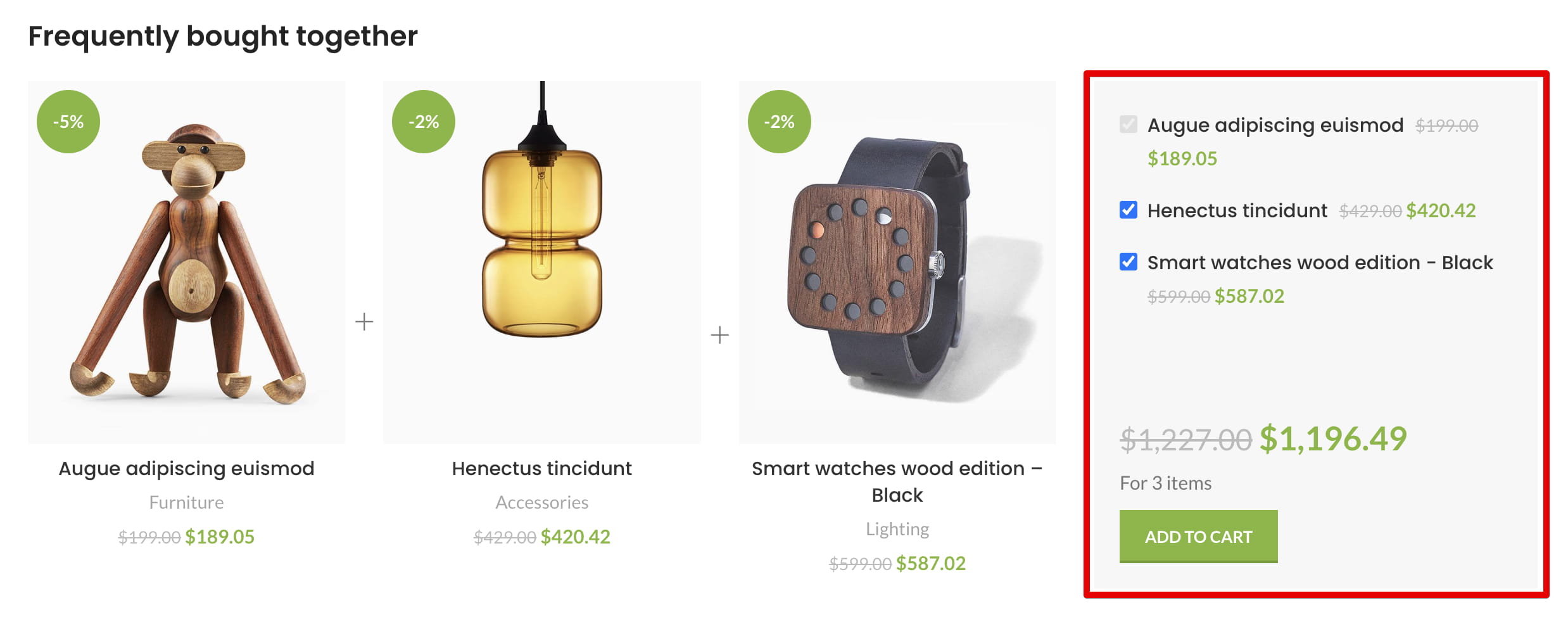
- Form width — controls the width of the bundle selection and purchase form.
- Save the Theme Settings.
Create a bundle
- Navigate to Dashboard -> Products -> Frequently Bought Together and click Add New.
- Enter a title to identify the bundle in the dashboard.
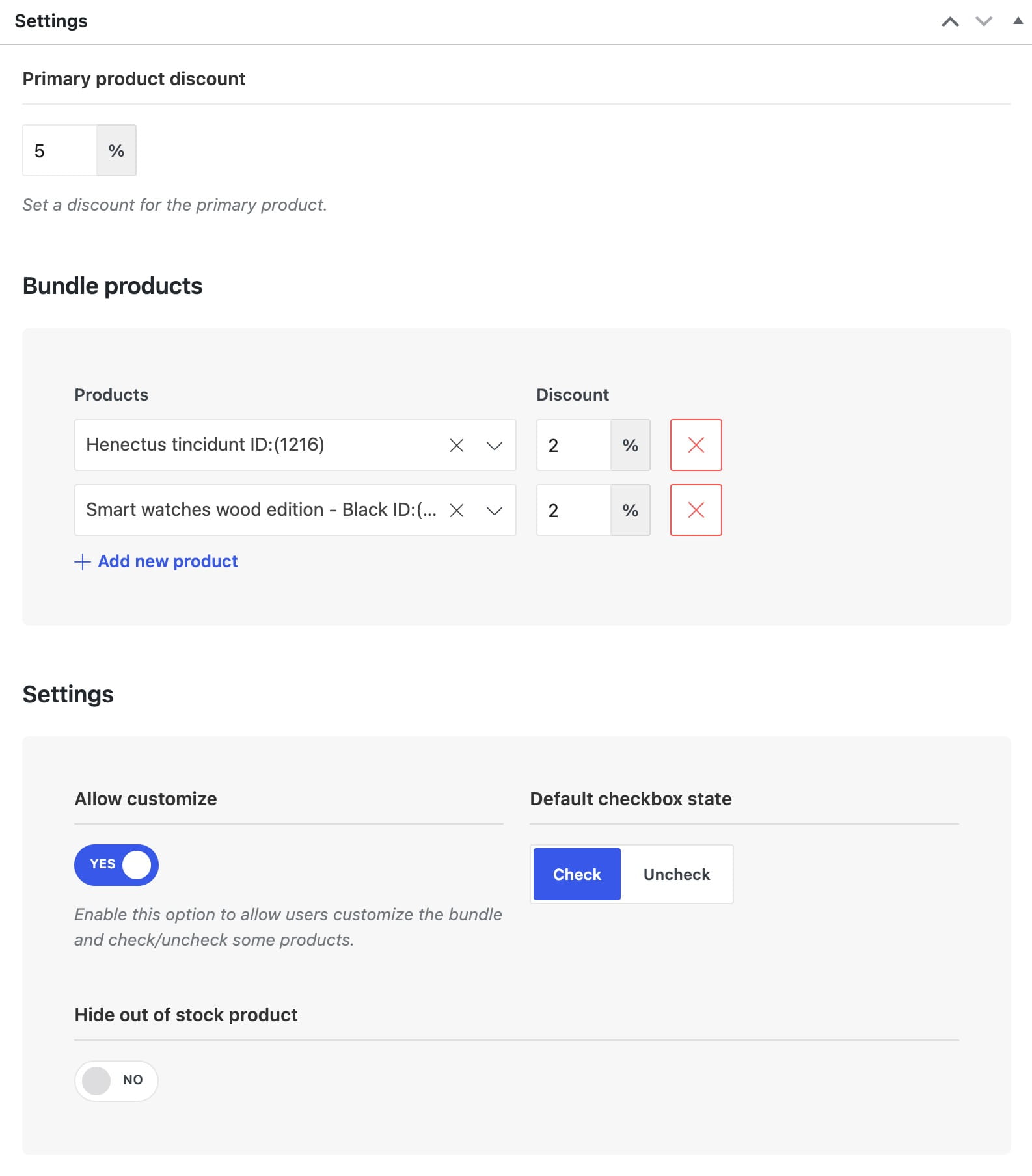
- Optionally set a percentage in Primary product discount. This discount applies to the primary product when it is purchased as part of this bundle.
- Add the required products or specific product variations under Bundle products. You can set a separate percentage discount for each item.
- Configure the bundle behavior:
- Allow customize — lets customers include or exclude additional products.
- Default checkbox state — determines whether additional products are selected when the page loads.
- Hide out of stock product — removes unavailable products from a customizable bundle.
- Publish the bundle.
Assign bundles to a product
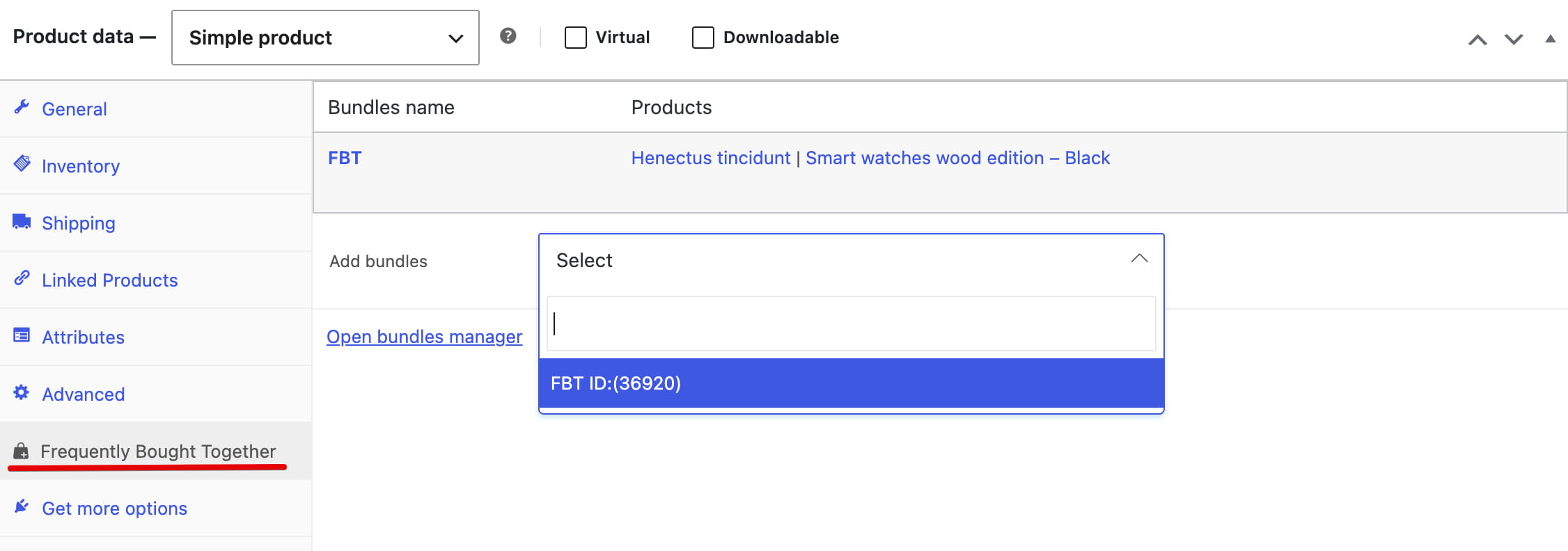
- Navigate to Dashboard -> Products and edit the product that will act as the primary product.
- Open Product data -> Frequently Bought Together.
- Use Add bundles to select one or more published bundles.
- Update the product.
How customers purchase a bundle
The primary product is always included and cannot be deselected. When Allow customize is enabled, customers can include or exclude the additional products. The number of selected items and total bundle price update automatically.
Bundles support Simple products, Variable products, and specific product variations. For a Variable product, the form includes a selector for its available variations. Clicking Add to cart adds the selected items with their configured bundle discounts.
Use the section in a custom product layout
In the standard single product layout, WoodMart displays the Frequently Bought Together section automatically after the product tabs. If you use a custom Single product layout, add the Frequently bought together element or block where the bundle should appear.
The element is available for Gutenberg, Elementor, and WPBakery layouts. Configure its product columns, form width, title, carousel controls, and other design settings directly in the builder.
Video tutorial
Don’t miss WoodMart updates
Receive feature updates, tutorials, and WoodMart news via email.
 Last updated: August 13, 2026