
Dynamic discounts
Dynamic discounts change a product’s price according to the quantity added to the cart. You can create quantity ranges, apply a fixed or percentage discount to each range, and control which products use the rule.
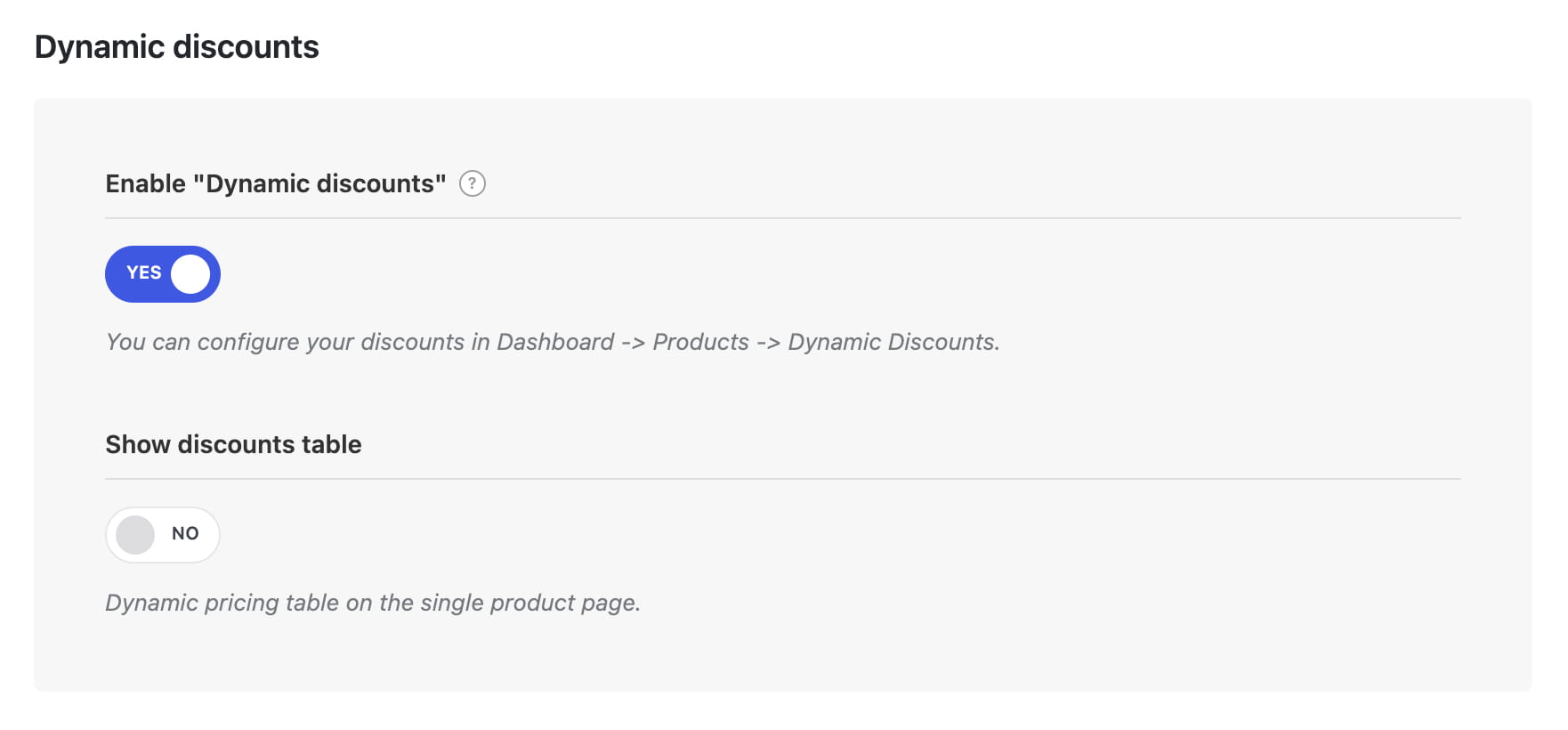
Enable dynamic discounts
- Navigate to Dashboard -> Theme Settings -> Shop.
- Enable Enable “Dynamic discounts”.
- Optionally enable Show discounts table to display quantity ranges and prices on standard single product pages.
- Save the Theme Settings.
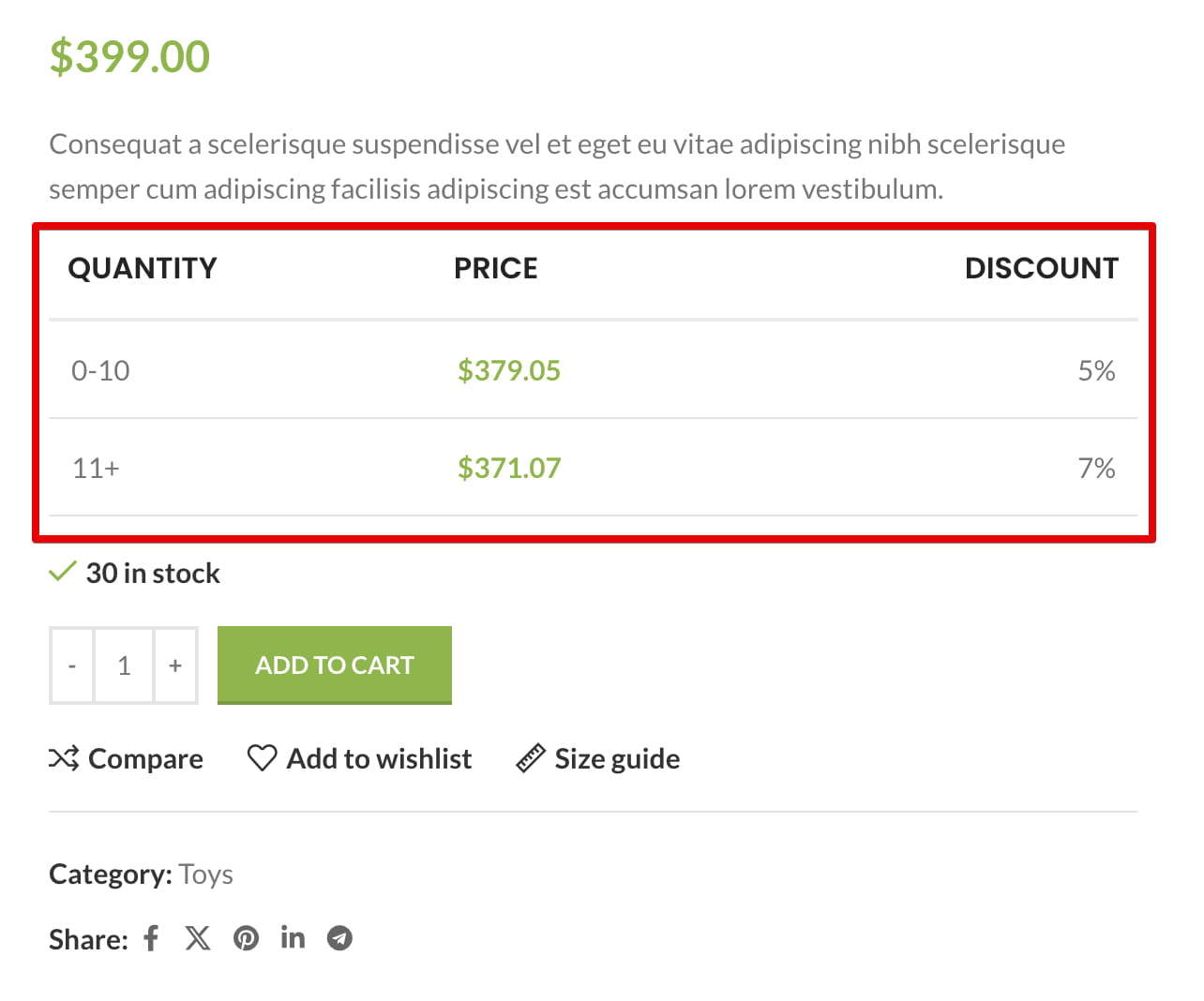
The discount calculation works even when Show discounts table is disabled. This option controls only the visual table.
Create a discount rule
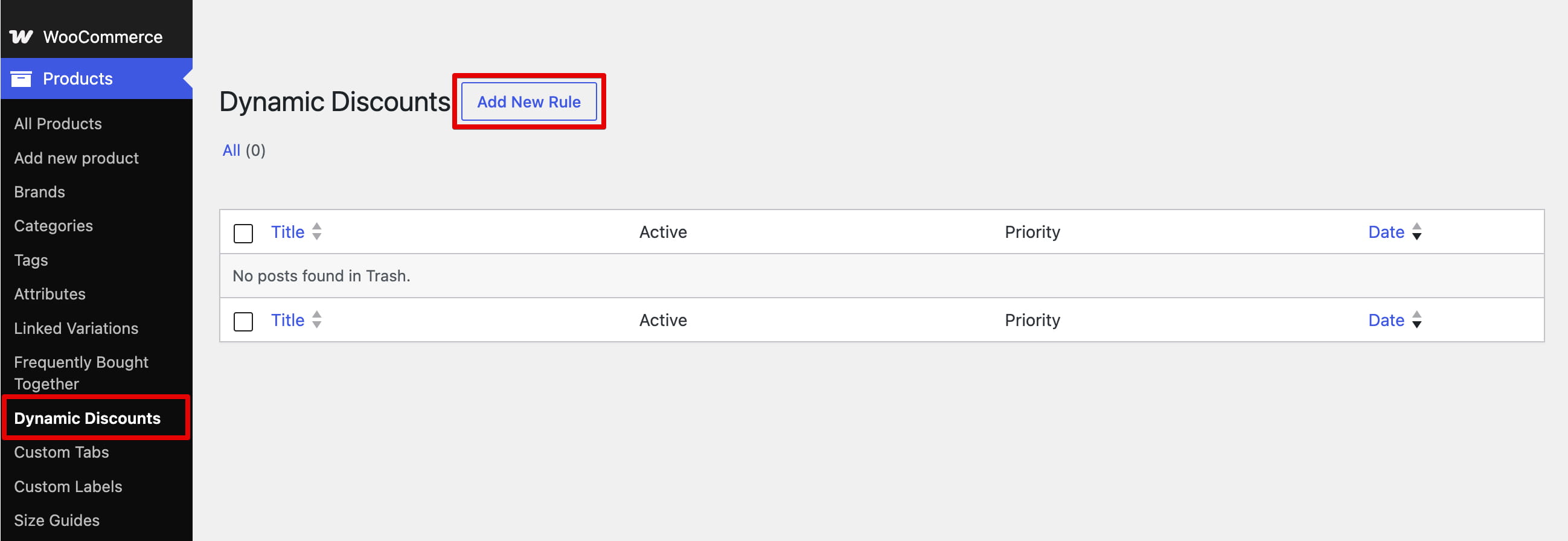
- Navigate to Dashboard -> Products -> Dynamic Discounts.
- Click Add New and enter a descriptive title for the rule.
- Configure the quantity ranges, conditions, priority, and quantity calculation described below.
- Publish the rule.
Configure quantity ranges
In Rules, add one row for each quantity range:
- From — the minimum quantity included in the range.
- To — the maximum quantity included in the range.
- Type — selects a fixed Amount or Percentage discount.
- Value — sets the amount or percentage deducted from the product price.
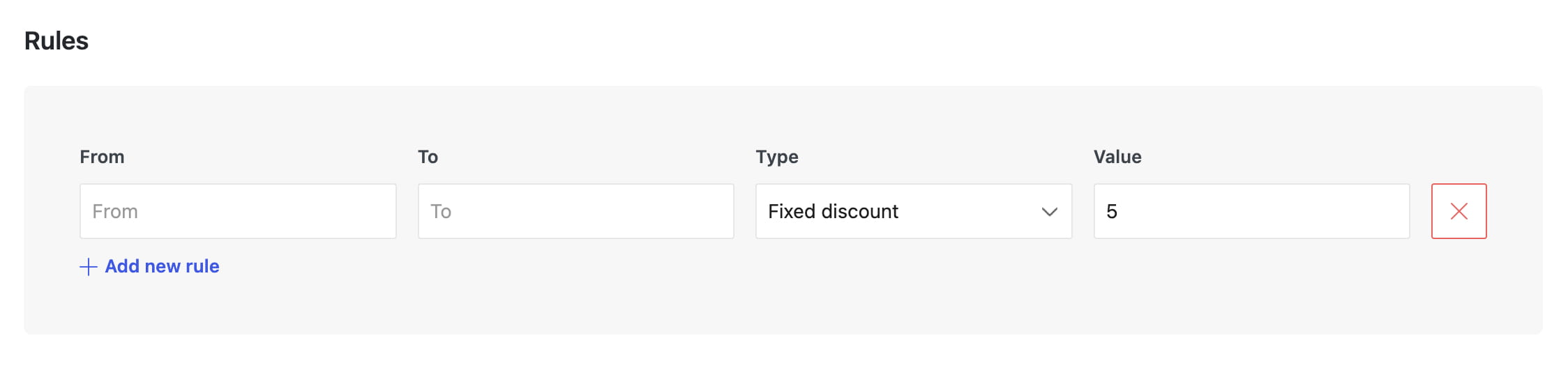
The From and To values are inclusive. Arrange ranges in ascending order and do not overlap them. You can leave To empty in the final row to create an open-ended range.
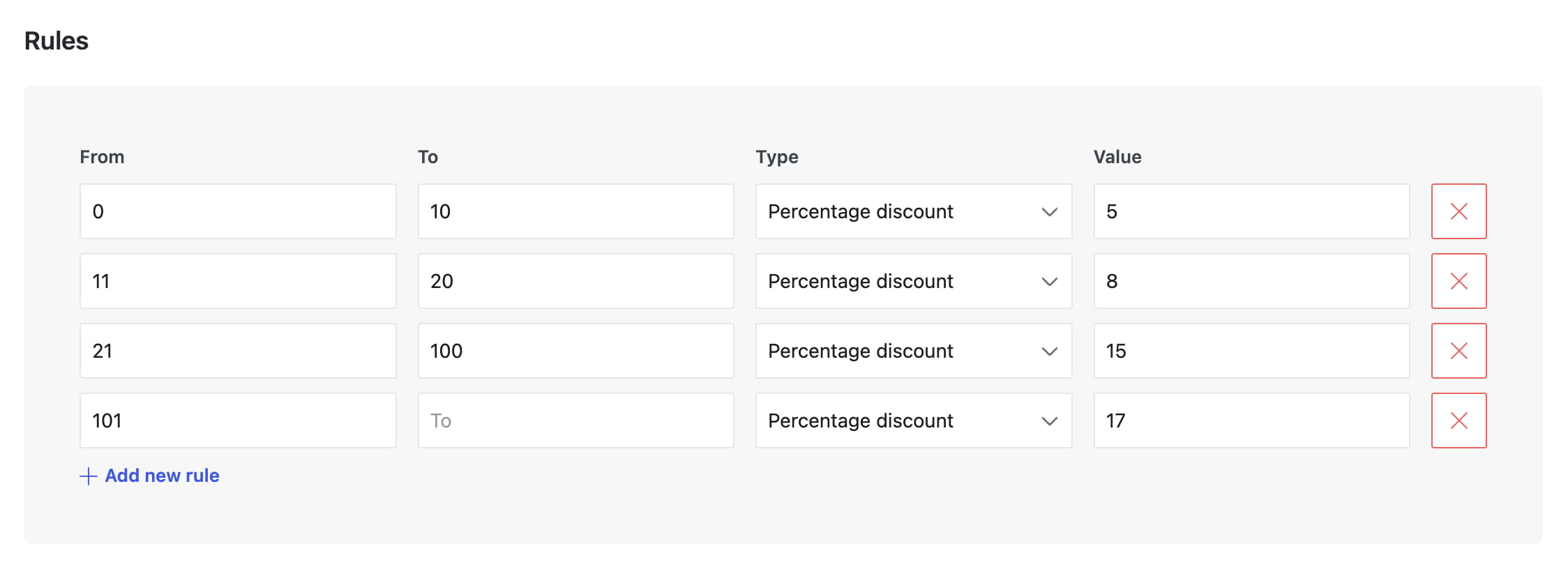
For example, you can configure:
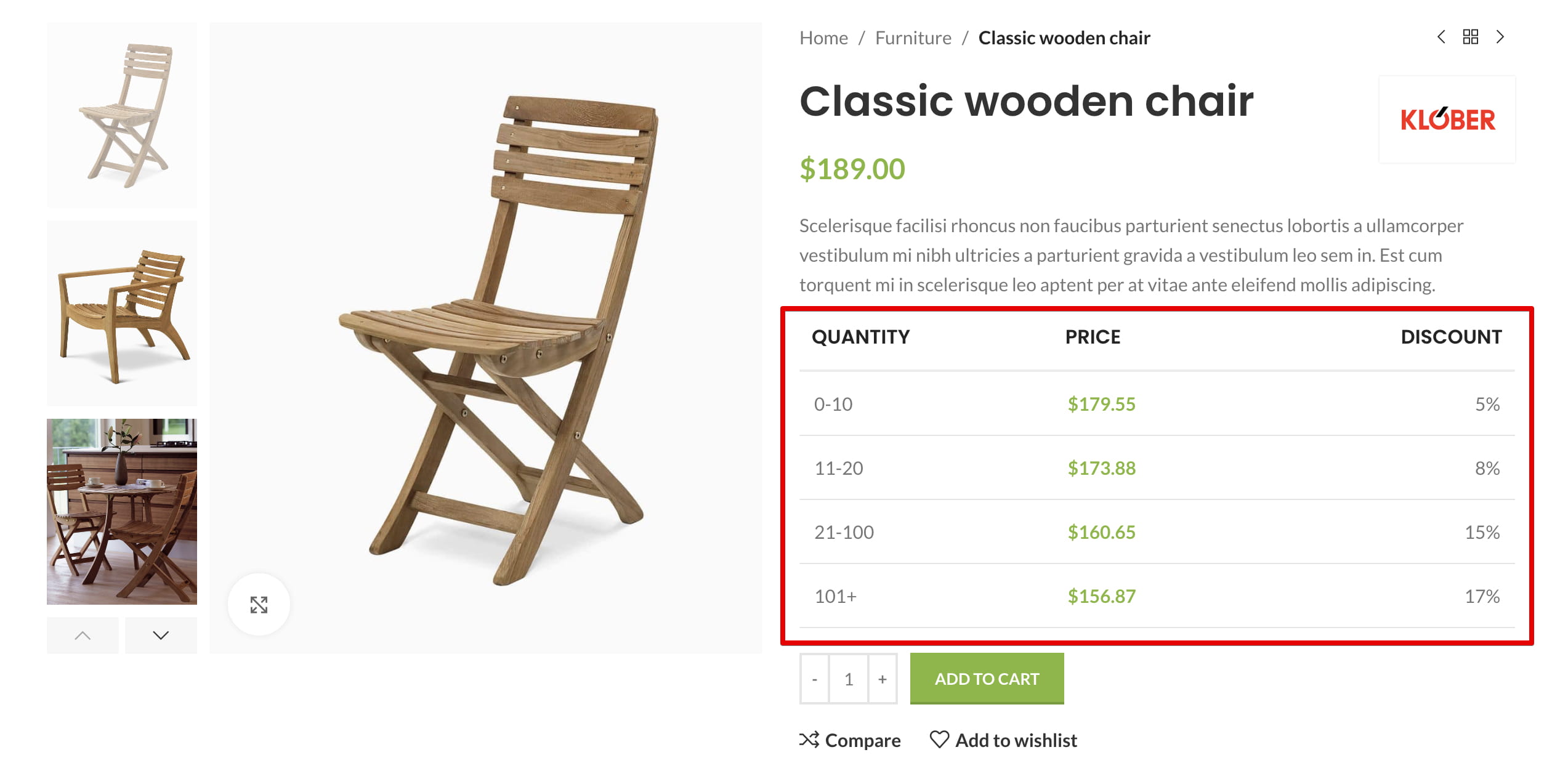
- 0–10 items — 5% discount
- 11–20 items — 8% discount
- 21–100 items — 15% discount
- 101+ items — 17% discount
Choose how quantities are counted
Use Quantities to determine which cart quantities are compared with the configured ranges:
- Individual variation — counts each product variation separately.
- Individual product — combines the quantities of all variations belonging to the same variable product. For a simple product, its own quantity is used.
- Cart items — combines the quantities of all cart items that match this discount rule.
Set product conditions
Use Condition to determine which products receive the discount. A condition can include or exclude:
- all products;
- a specific product;
- a product category or its child categories;
- a product tag, brand, attribute, or shipping class;
- a simple or variable product type.
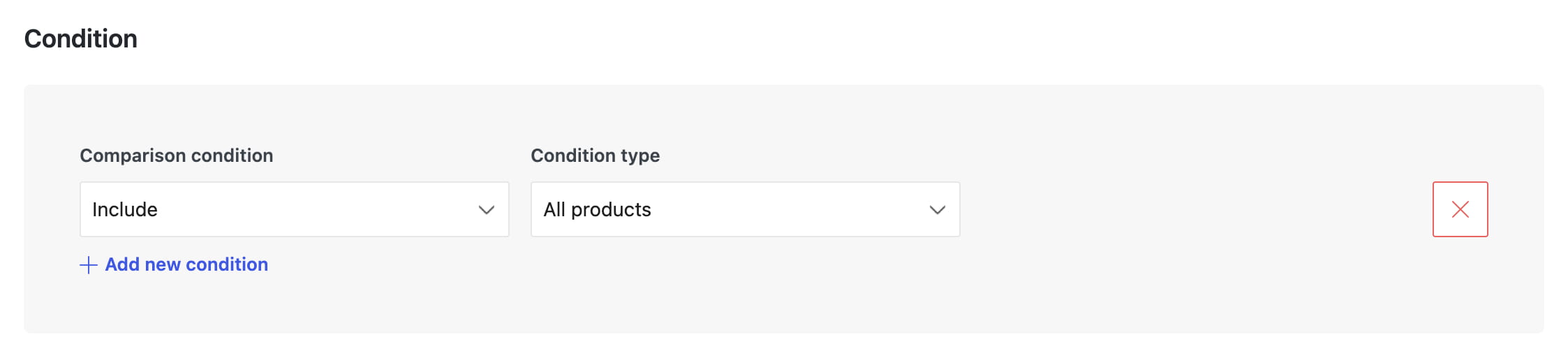
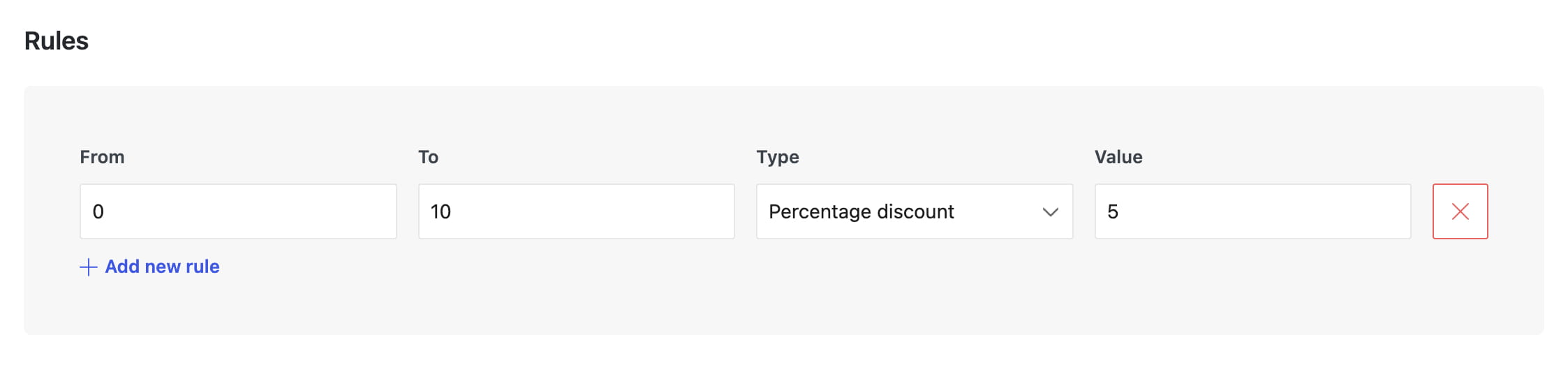
For a store-wide discount, use an Include condition with All products. The following example applies a 5% discount to the selected quantity range for all products.
Set rule priority
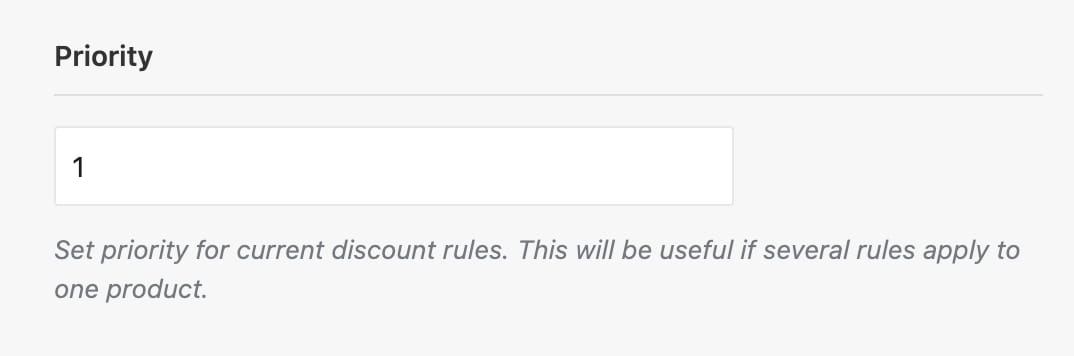
Priority determines which rule is used when more than one published rule matches the same product. Rules with a higher priority number are checked first, and only the first matching rule is applied.
For example, if a rule for all products has priority 1 and a rule for one specific product has priority 2, that product uses the rule with priority 2.
Display the discounts table
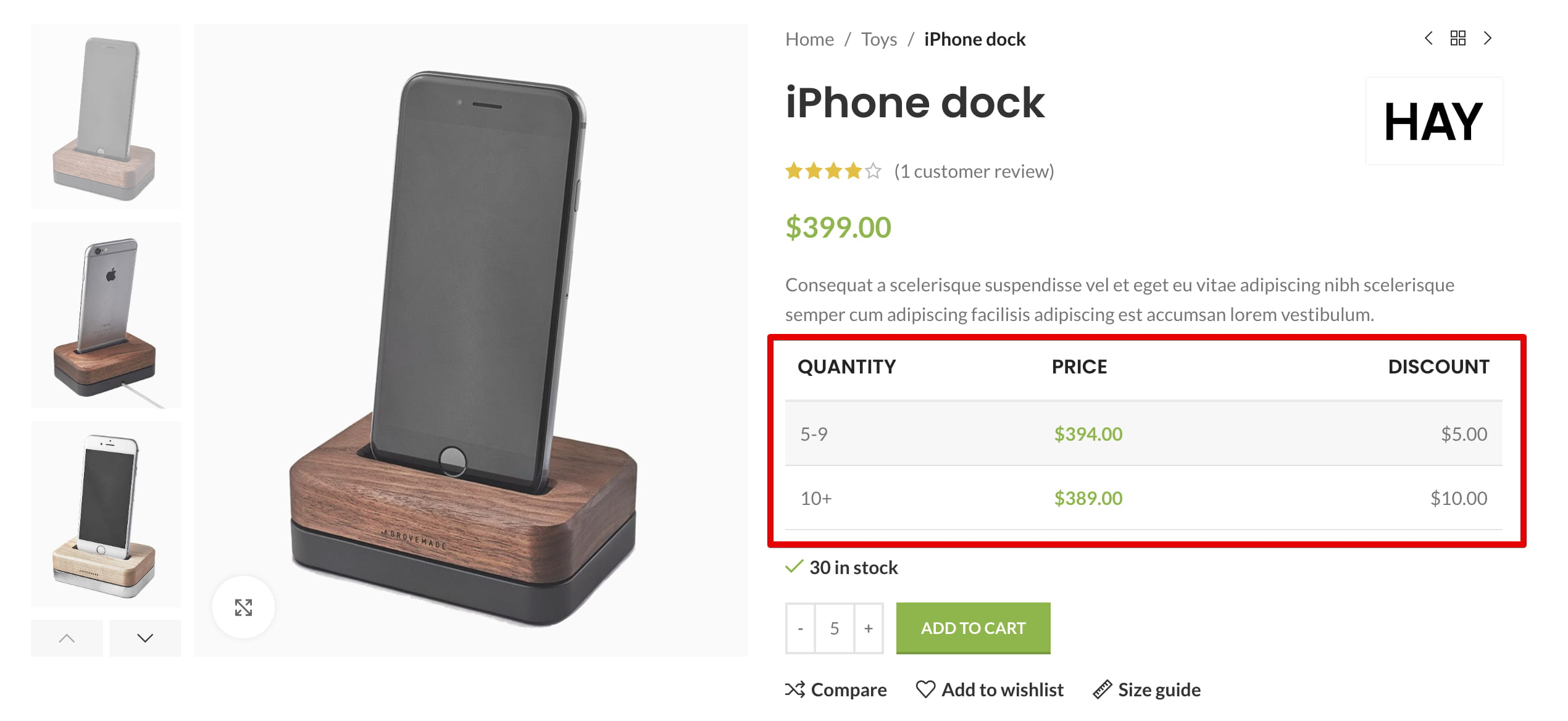
When Show discounts table is enabled, WoodMart automatically displays the applicable quantity ranges, discount values, and prices on standard product pages.
If you use a custom single product layout, add the Product dynamic discounts table element or block to the required position in the layout.
When the customer adds a qualifying quantity to the cart, WoodMart applies the corresponding discount to the product price.
Don’t miss WoodMart updates
Receive feature updates, tutorials, and WoodMart news via email.
 Last updated: September 18, 2026