
Free gifts
Free gifts let you reward customers with selected products when their cart meets the conditions of a gift rule. Gifts can be added automatically or presented as options that customers choose from on the cart or checkout page.
Enable free gifts
Navigate to Dashboard -> Theme Settings -> Shop -> Free gifts, enable Enable “Free gifts”, configure the required settings, and save the Theme Settings.
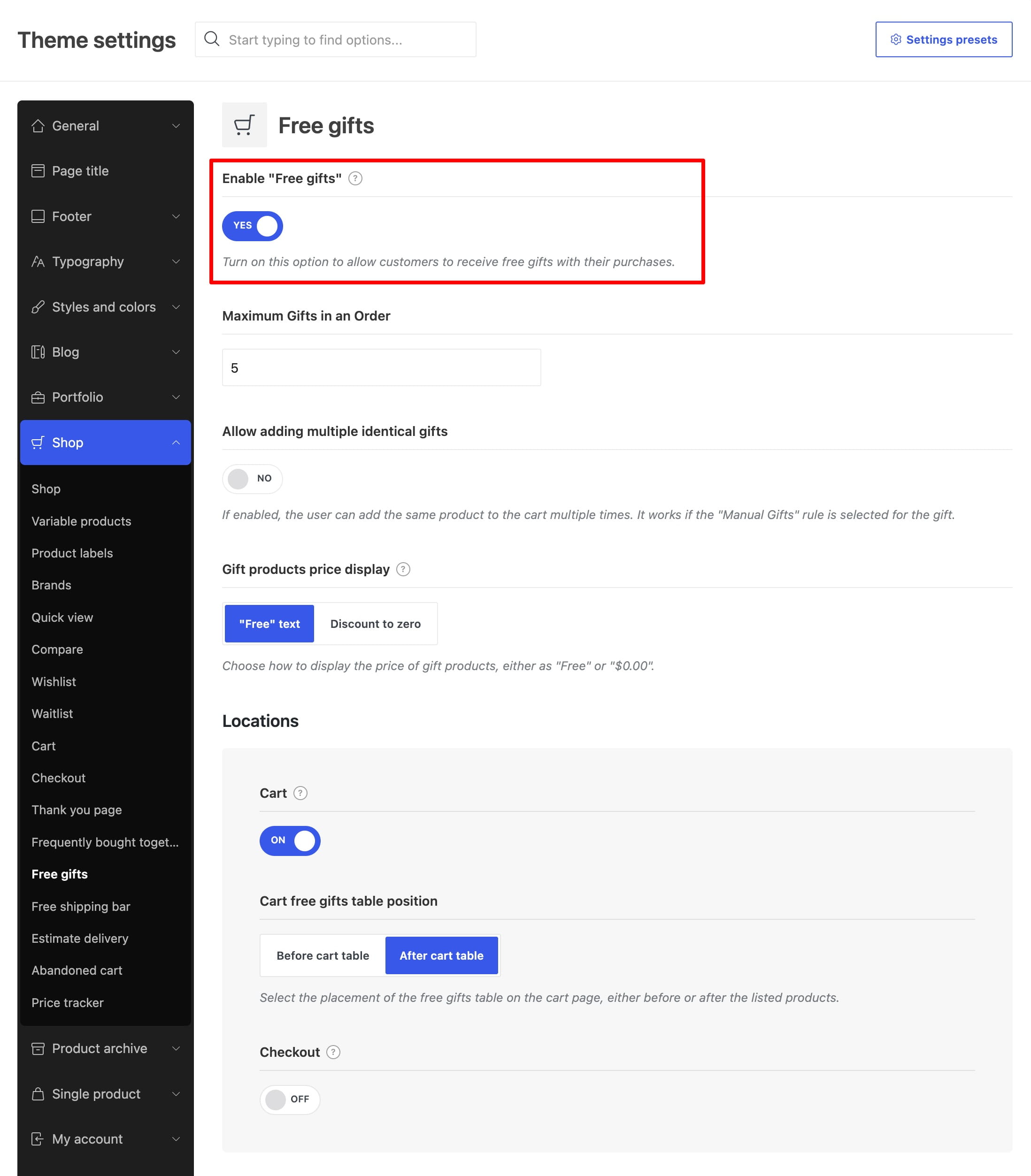
The general settings include:
- Maximum Gifts in an Order — limits the total number of gift items that can be added to one order.
- Allow adding multiple identical gifts — lets customers add the same product more than once when it is offered through a Manual Gifts rule.
- Gift products price display — displays a gift either as Free or as its regular price discounted to zero.
- Cart and Checkout — determine where customers can choose manual gifts.
- Cart free gifts table position — places the manual gifts table before or after the cart table.
Create a gift rule
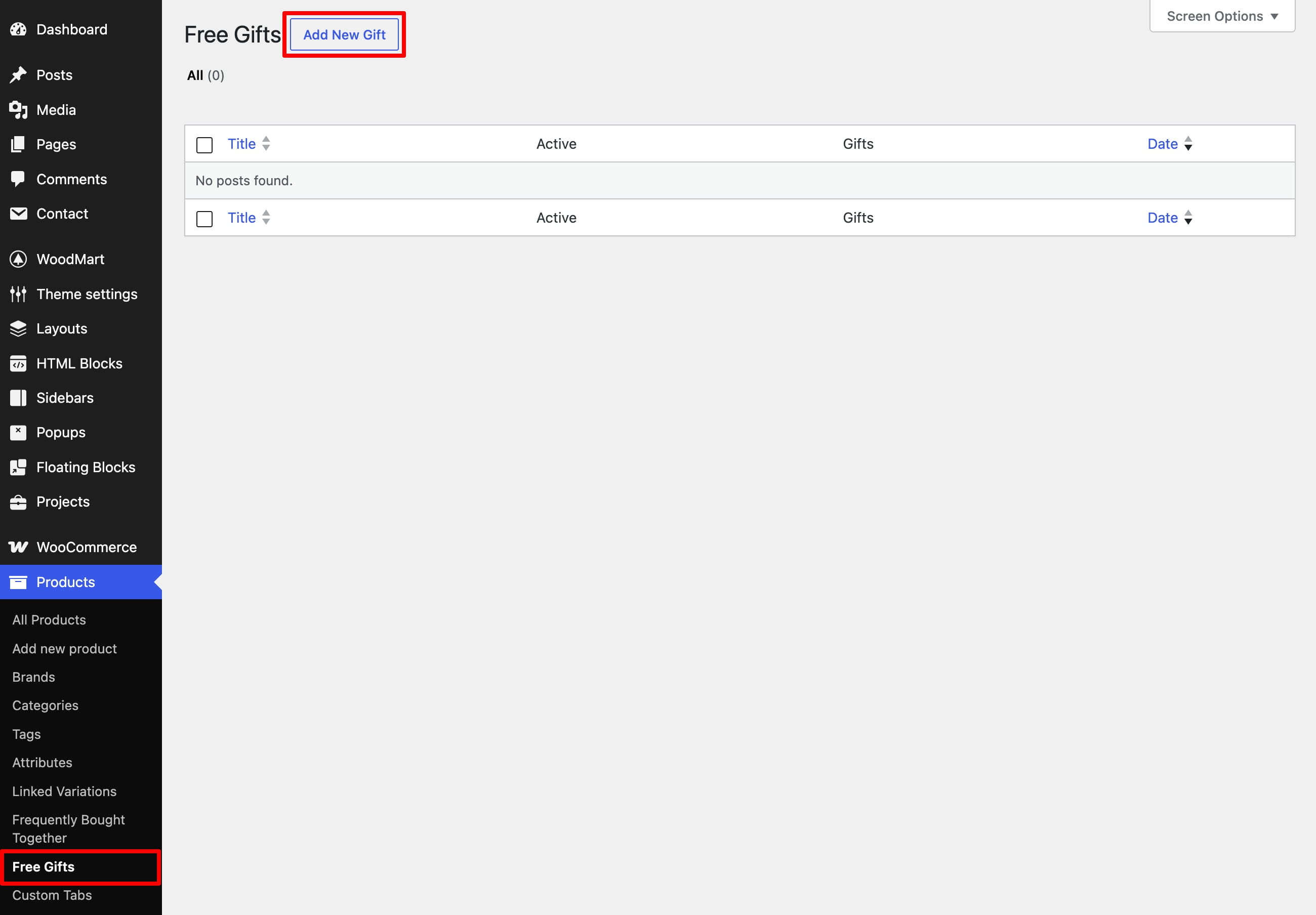
Navigate to Dashboard -> Products -> Free Gifts and click Add New. Enter a descriptive rule title so that it can be identified easily in the dashboard.
Choose the rule type
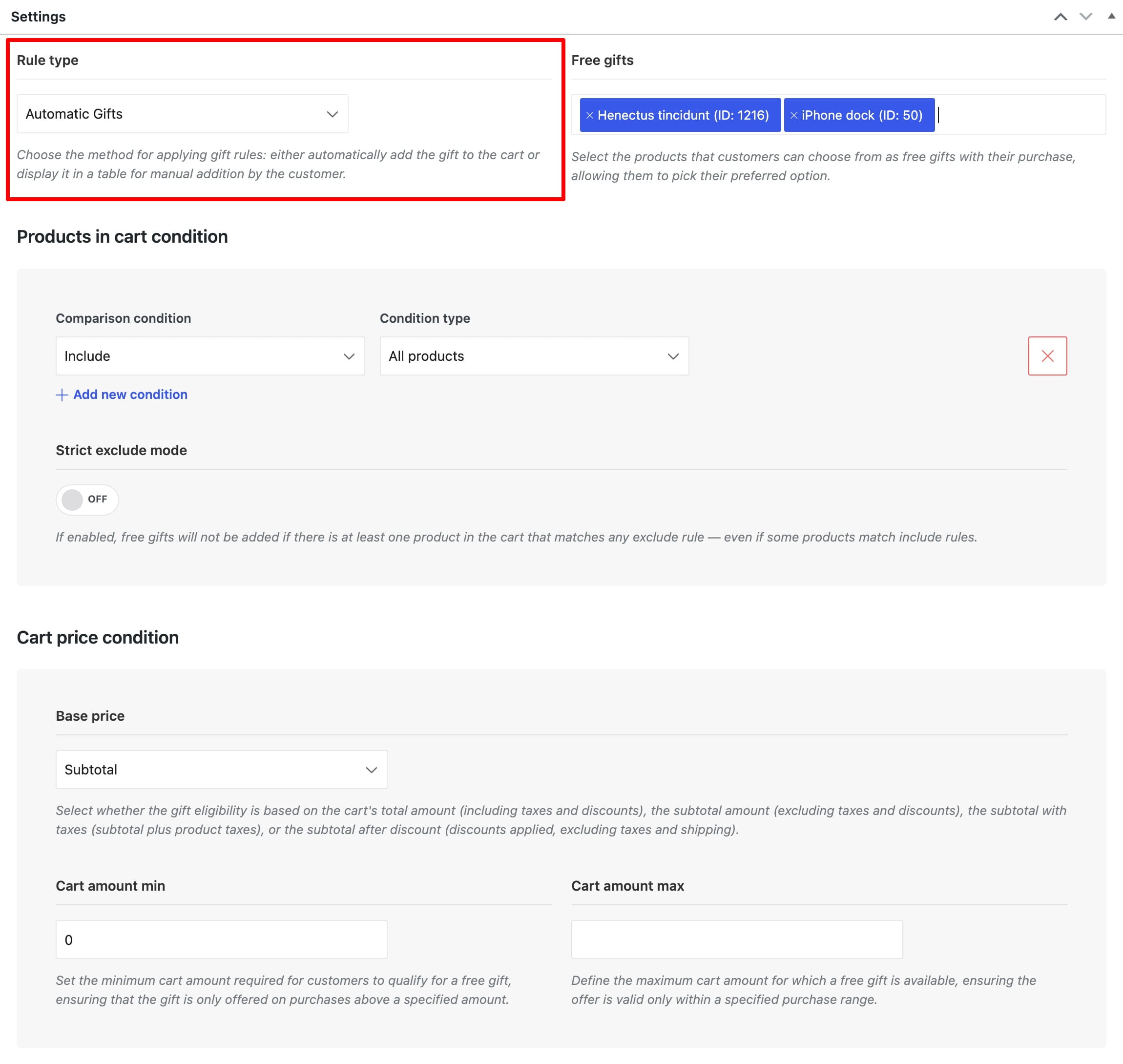
Use Rule type to choose how eligible gifts are added:
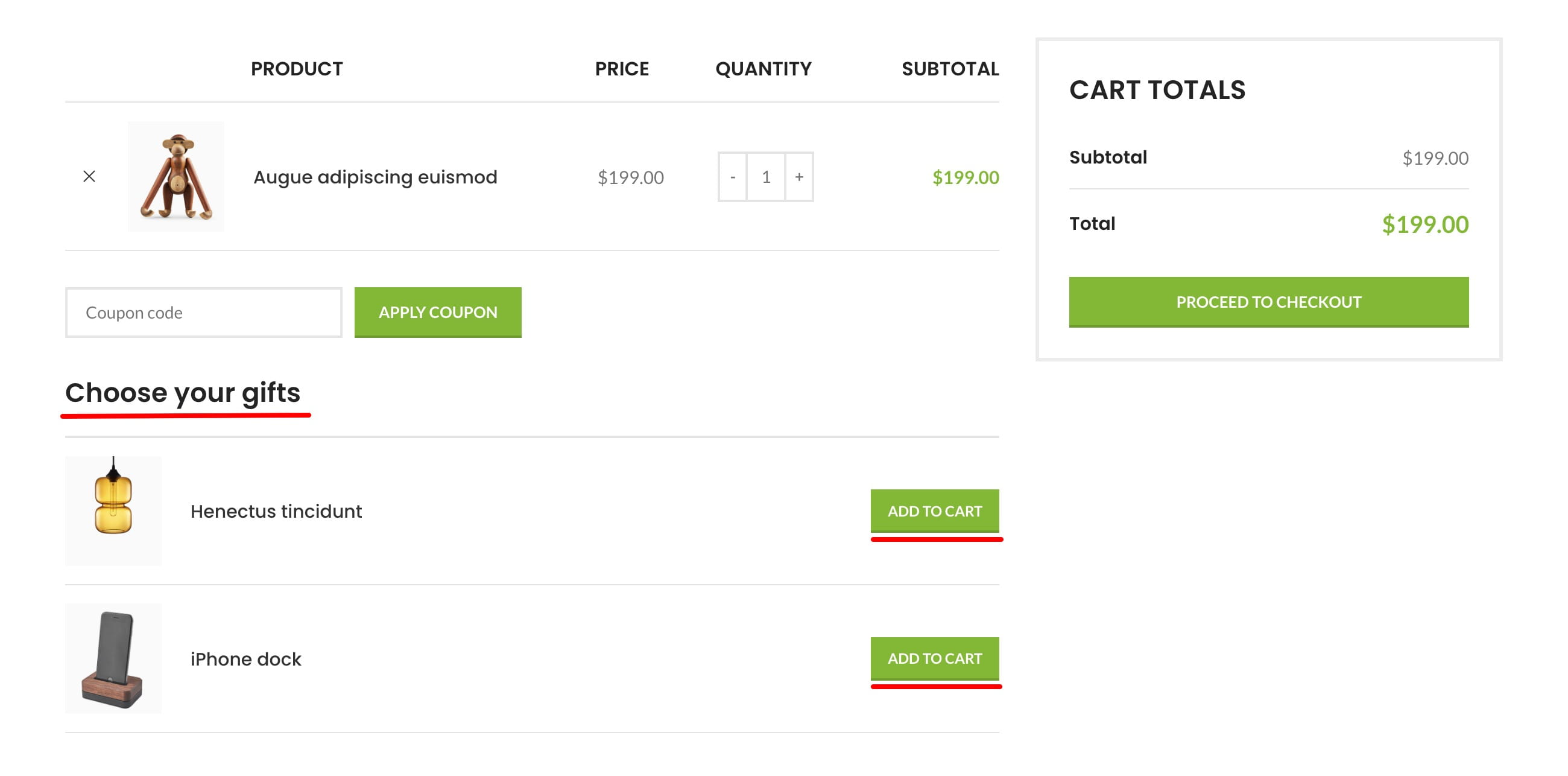
- Manual Gifts — displays the eligible products in a table so the customer can choose which gifts to add.
- Automatic Gifts — automatically adds the selected products when the cart meets the rule conditions. If several products are selected, they are added up to the value set in Maximum Gifts in an Order.
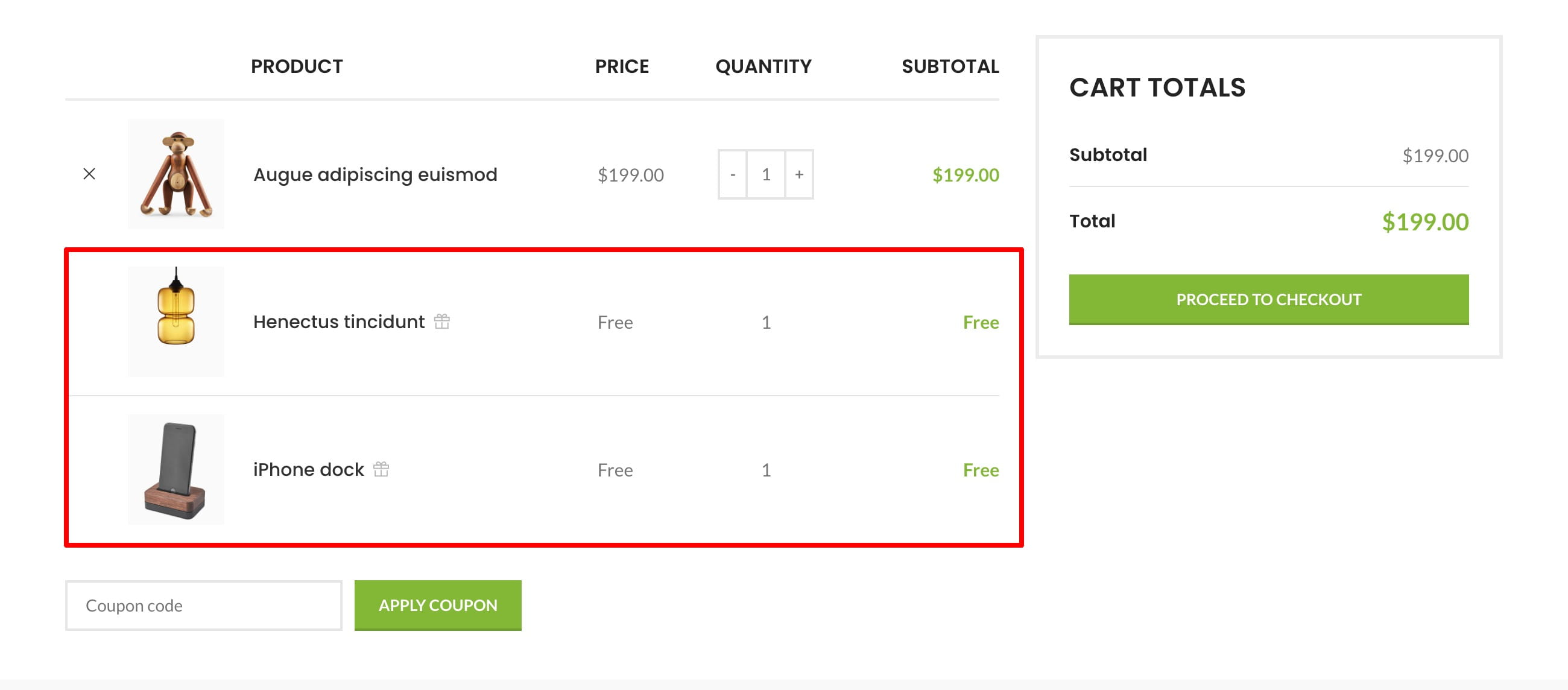
Select the gift products
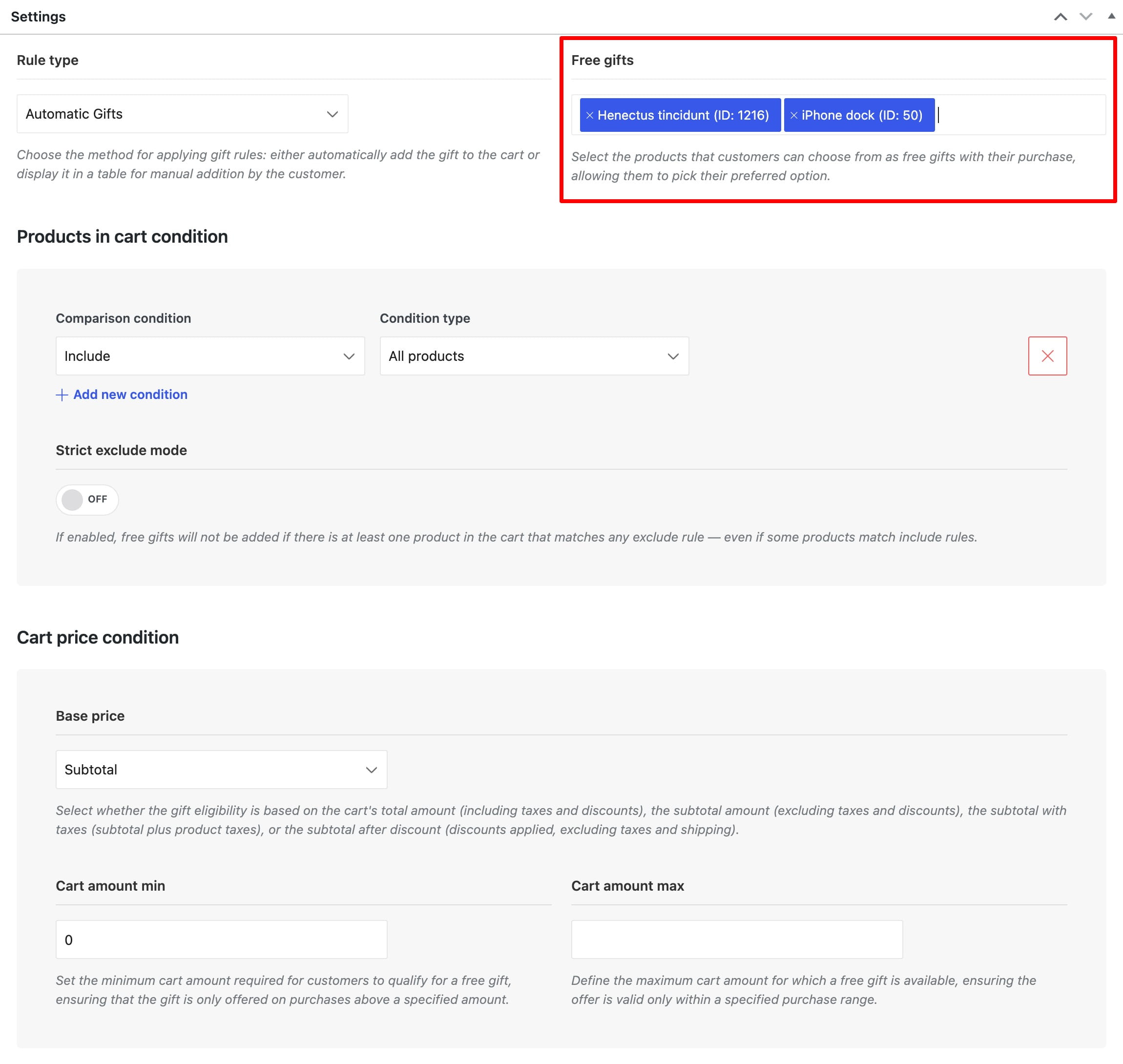
Use Free gifts to select the products or specific product variations offered by the rule. Only published, in-stock items can be offered as gifts.
Configure the cart price condition
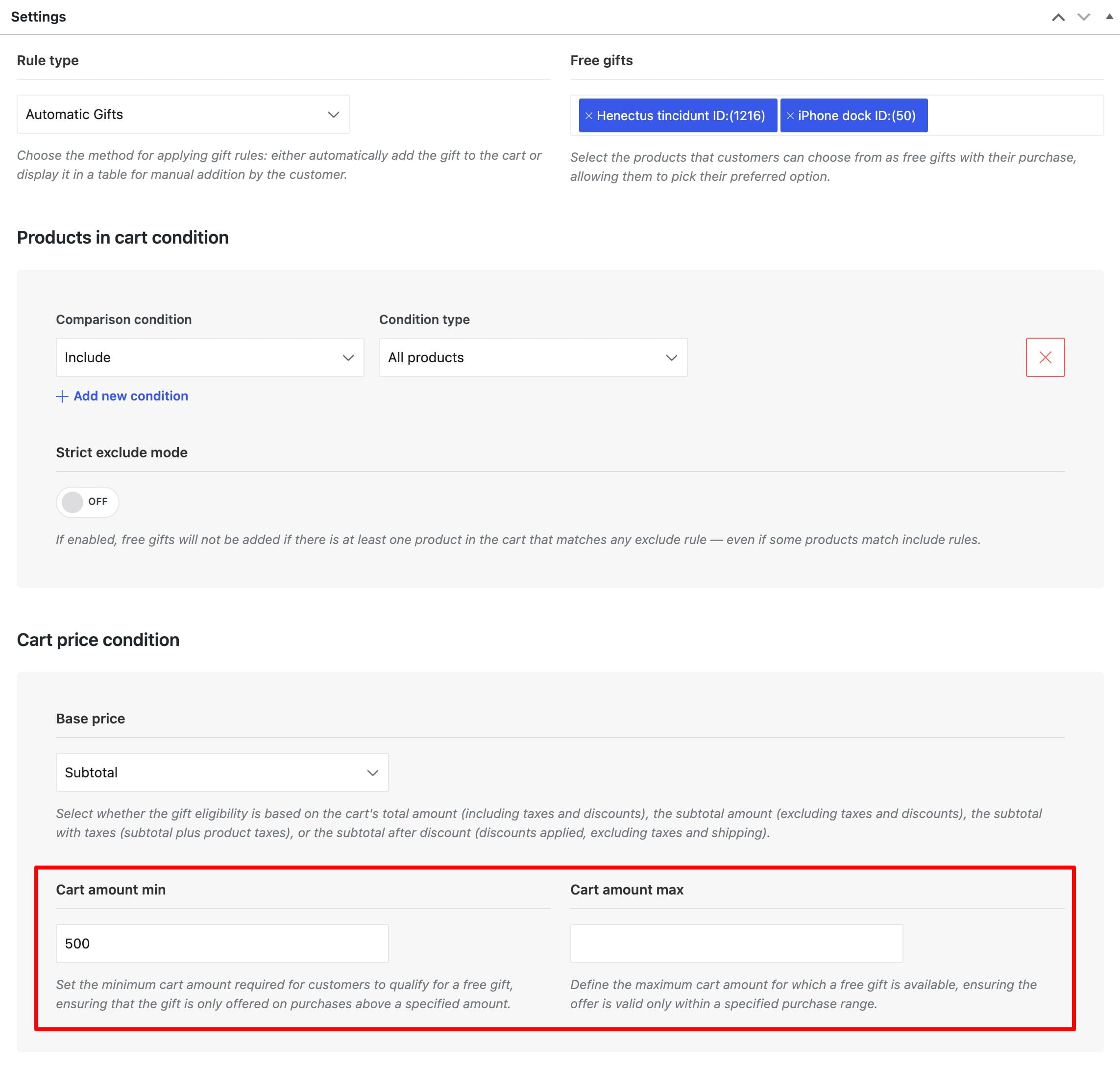
The Cart price condition determines the qualifying cart amount:
- Base price — calculates eligibility from the Subtotal, Subtotal with taxes, Subtotal after discount, or Total.
- Cart amount min — sets the minimum qualifying amount. For example, enter
500to offer a gift when the selected cart value reaches 500. - Cart amount max — optionally sets the highest cart amount for which the rule remains available. Leave it empty when no maximum is required.
Configure products in cart conditions
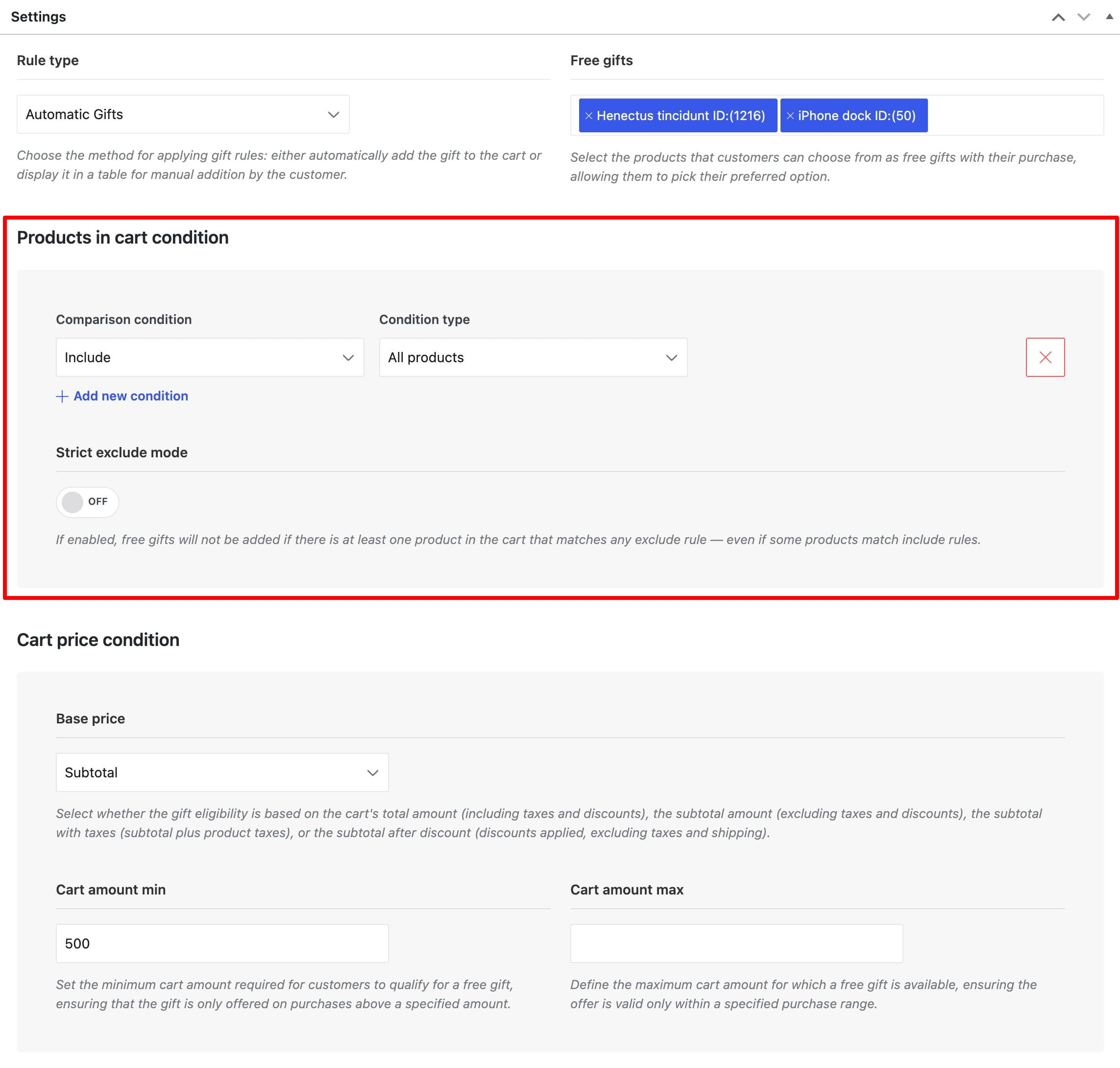
Use Products in cart condition to determine which cart products activate the rule. Conditions can include or exclude all products, individual products, categories and their child categories, tags, attributes, product types, shipping classes, and brands.
Enable Strict exclude mode when the rule must not apply if at least one product in the cart matches an exclude condition. Publish the rule after completing its settings.
Video tutorial
Don’t miss WoodMart updates
Receive feature updates, tutorials, and WoodMart news via email.
 Last updated: September 21, 2026