
Free shipping progress bar
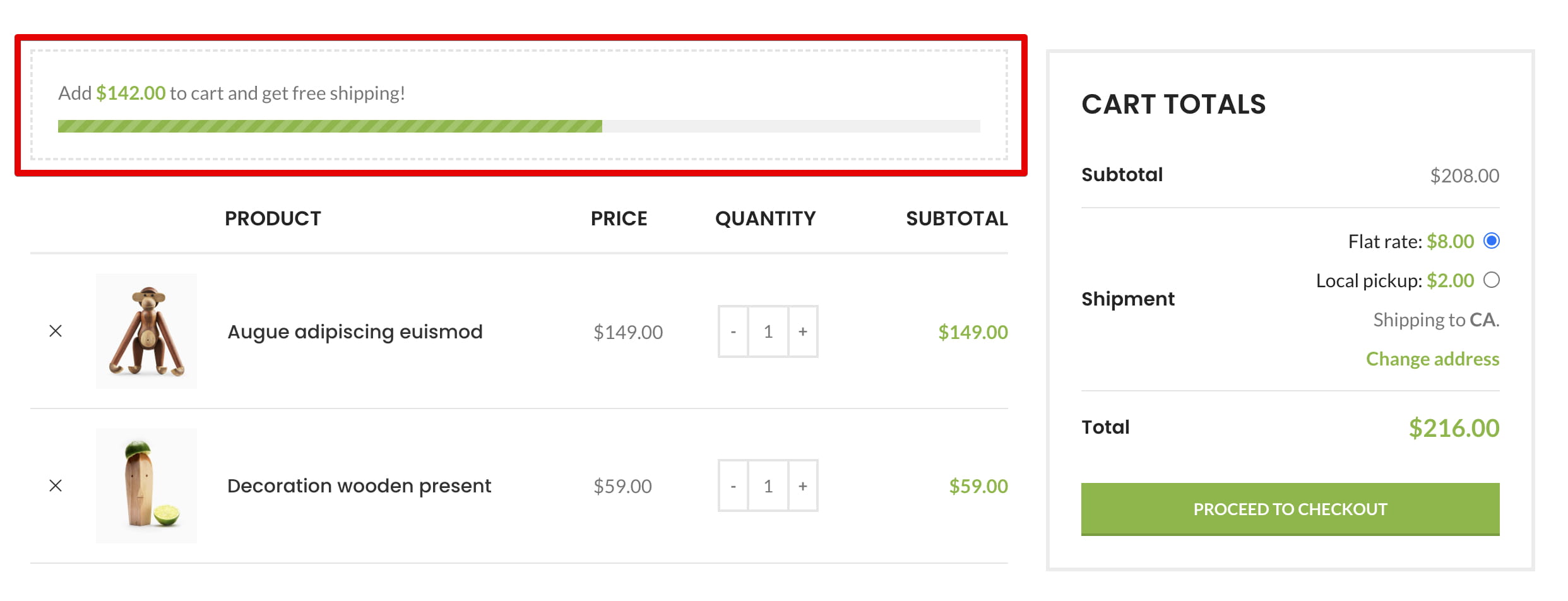
The free shipping progress bar shows customers how much more they need to add to the cart to qualify for free shipping. It can be displayed on the single product page, in the mini cart, on the cart page, and at checkout.
The progress bar is a visual indicator. It does not activate free shipping by itself, so a corresponding Free shipping method must also be configured in WooCommerce.
Enable the progress bar
- Navigate to Dashboard -> Theme Settings -> Shop -> Free shipping bar.
- Enable Free shipping bar.
- Configure the settings described below and save the Theme Settings.
Choose how the goal is calculated
The Calculation option determines where the progress bar gets its free shipping threshold.
Custom
Enter a fixed threshold in Goal amount. Use a numeric value in the store currency, without a currency symbol. Make sure this value matches the minimum amount configured for the corresponding WooCommerce Free shipping method.
Based on WooCommerce Free shipping method
The progress bar uses the minimum order amount from the active WooCommerce Free shipping method for the customer’s shipping zone. Because WooCommerce selects a zone from the customer’s address, the correct threshold may become available only after the address is entered.
Configure the calculation
- Goal amount — defines the threshold when Calculation is set to Custom.
- Base price — selects the cart value used for progress. Displayed subtotal follows the WooCommerce tax display settings; Subtotal excludes taxes and discounts; Total includes taxes and discounts.
- Coupon discount — Include makes applied coupon discounts reduce the amount counted by the bar; Exclude ignores coupon discounts in the progress calculation.
Choose locations and messages
- Locations — enable the bar for the Cart page, Mini cart, Checkout page, or Single product.
- Initial message — appears before the goal is reached. Use
[remainder]to display the amount still required. - Success message — appears after the cart reaches the configured threshold.
Configure free shipping in WooCommerce
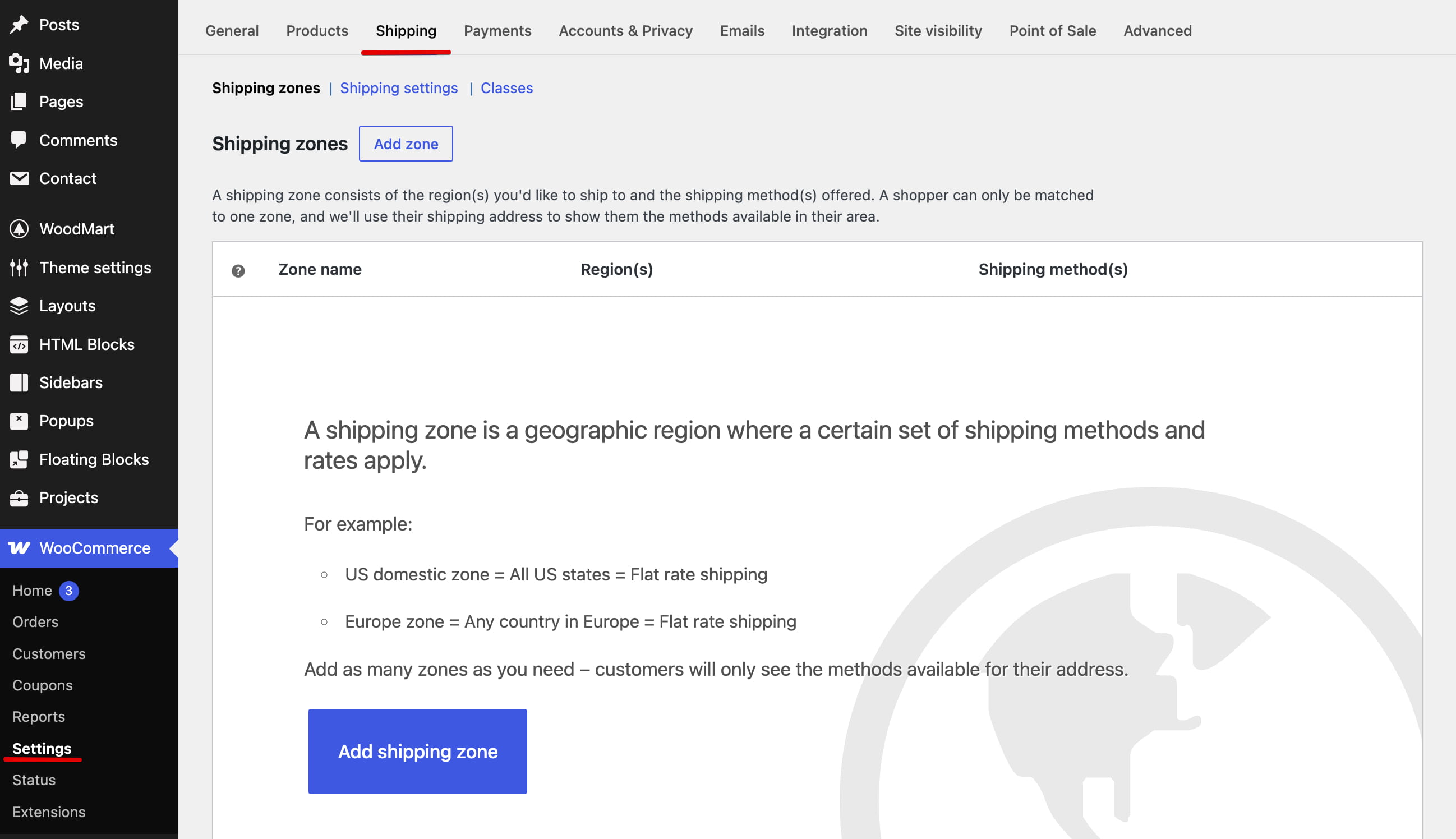
1. Open the shipping zones. Navigate to Dashboard -> WooCommerce -> Settings -> Shipping -> Shipping zones, then open an existing zone or create one for the required region.
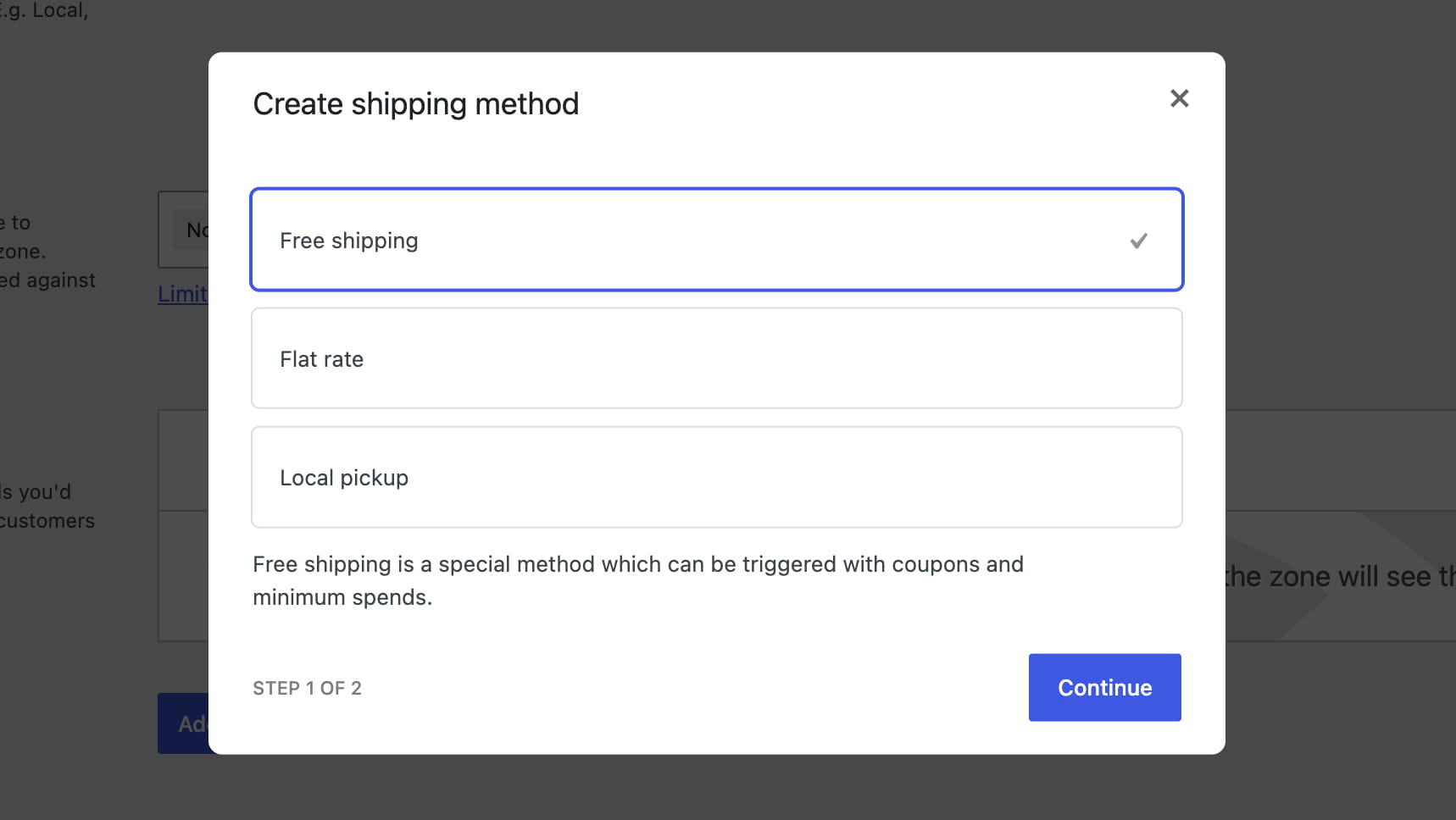
2. Add the shipping method. Inside the shipping zone, click Add shipping method, select Free shipping, and continue.
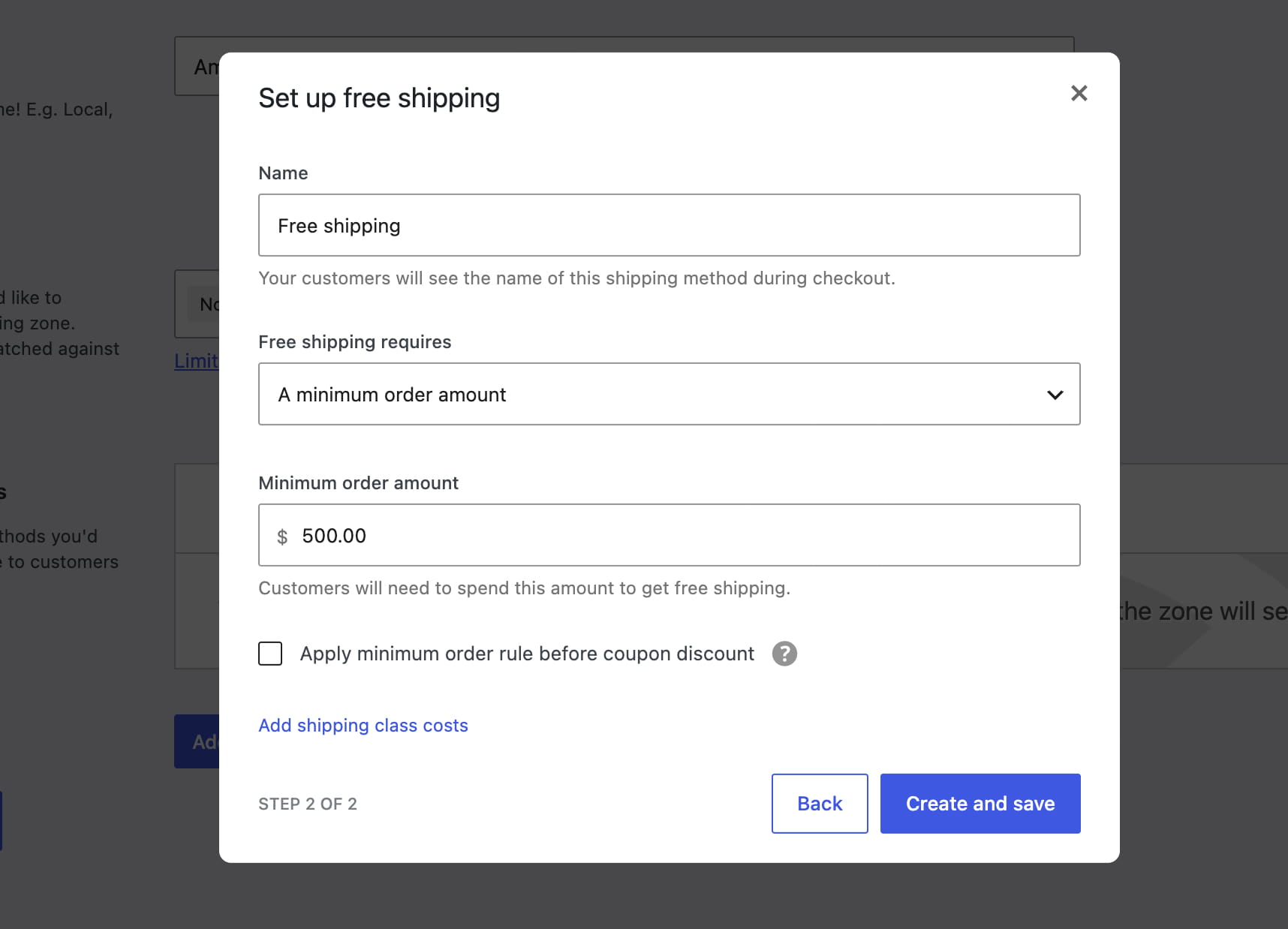
3. Configure the threshold. Edit the method, choose a minimum-order requirement in Free shipping requires, and enter the Minimum order amount. When the WoodMart calculation is set to Custom, use the same threshold in the theme’s Goal amount.
For all available WooCommerce requirements, including minimum amounts and free shipping coupons, see the official WooCommerce Free Shipping guide.
Add the bar to a layout or block
- When a Cart, Single Product, or Checkout layout is built with the WoodMart Layouts builder, add the Shipping progress bar element where you want the bar to appear.
- When the Cart or Checkout page uses the WooCommerce Cart or Checkout block, add the Shipping progress bar block inside it.
In both cases the bar uses the global settings configured in Theme Settings -> Shop -> Free shipping bar.
Don’t miss WoodMart updates
Receive feature updates, tutorials, and WoodMart news via email.
 Last updated: September 21, 2026