
Linked variations
Linked variations groups separate WooCommerce products by shared global attributes. Each linked product remains visible as an individual product in the catalog and keeps its own product page, price, stock, content, and images. On the product page, customers can use swatches to open another product from the same bundle.

See the Linked variations demo for a frontend example.
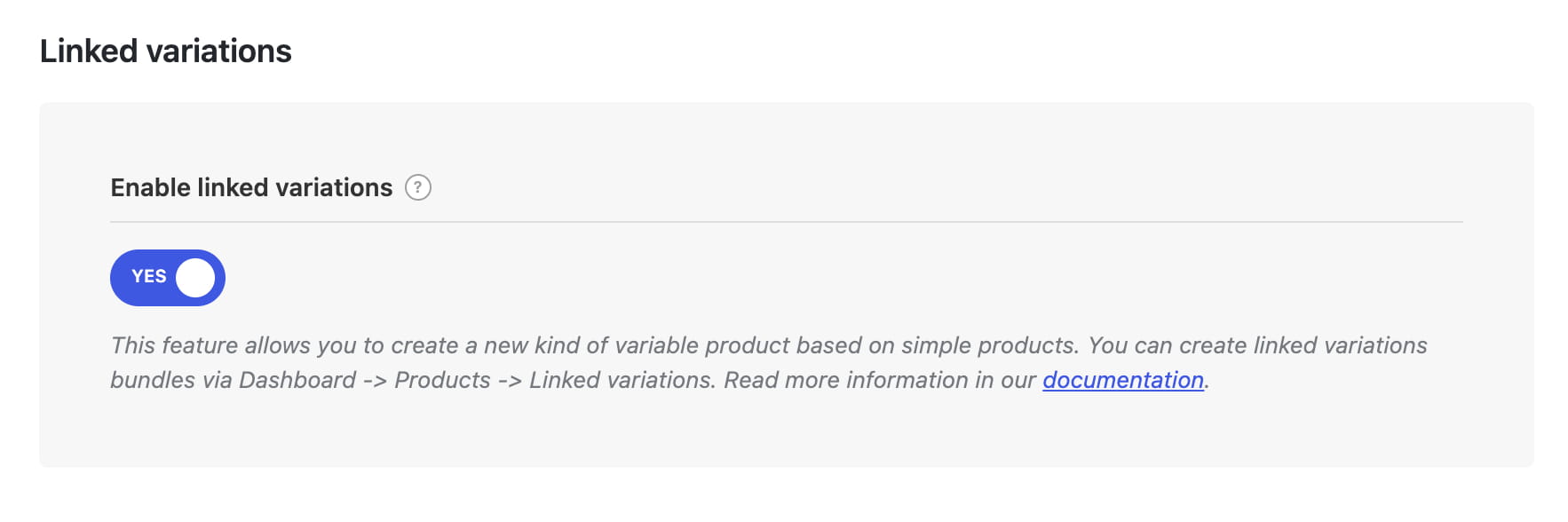
Enable Linked variations
- Navigate to Dashboard -> Theme Settings -> Shop -> Variable products.
- Enable Enable linked variations.
- Save the Theme Settings.
Prepare the products
Linked variations can include both Simple and Variable products. When Variable products are linked, their standard variation selectors are displayed together with the Linked variations swatches.
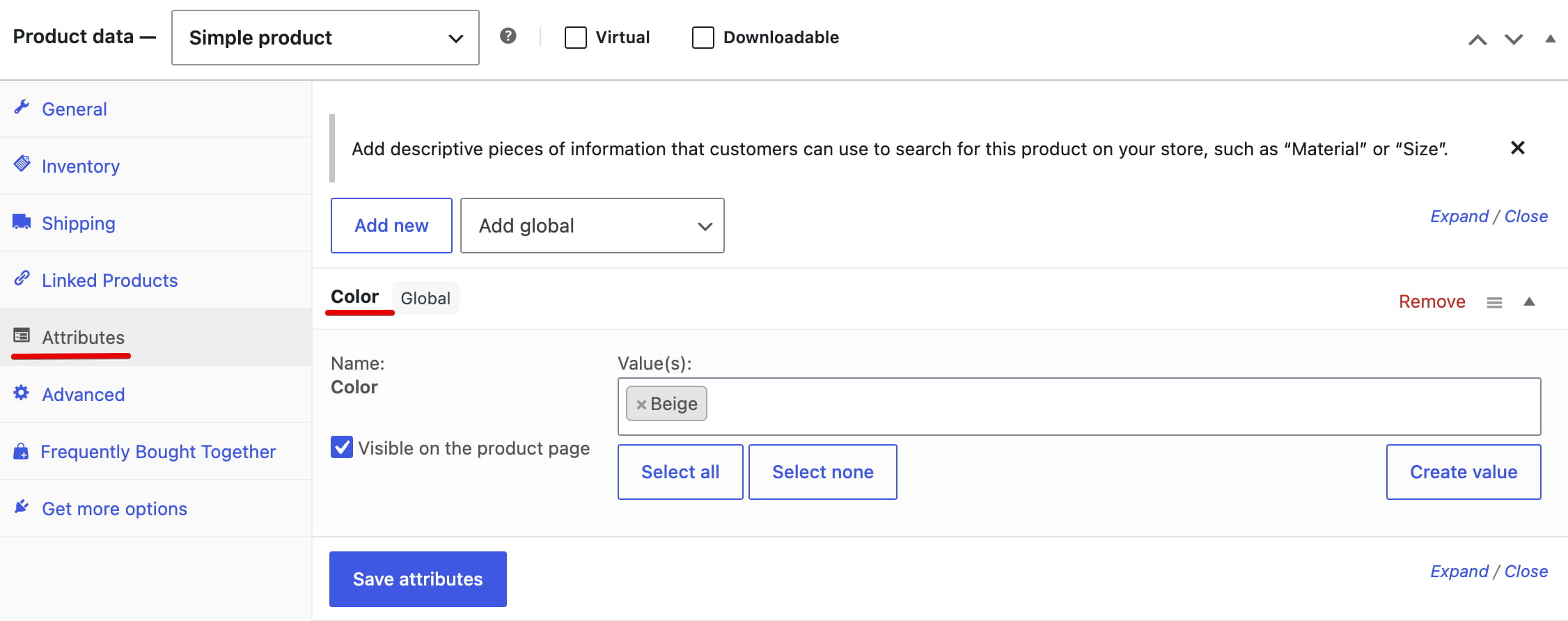
- Create the required global attributes and terms in Dashboard -> Products -> Attributes.
- Edit each product and open Product data -> Attributes.
- Assign one term for each attribute that will connect the products. For example, assign a different Color term to each product.
- Update each product. If you plan to use product images as swatches, also assign a featured image to every linked product.
Create a linked variations bundle
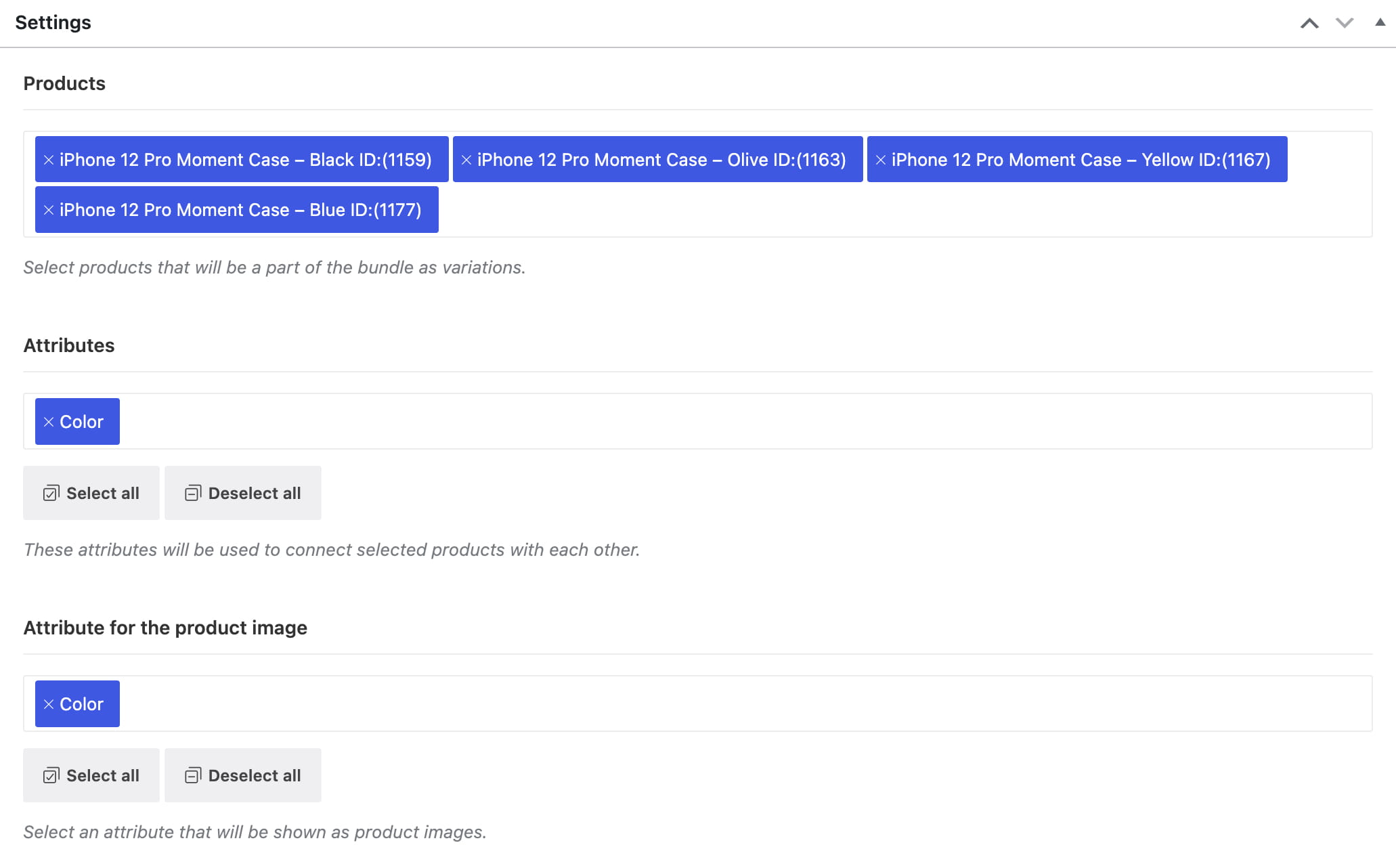
- Navigate to Dashboard -> Products -> Linked Variations and click Add New.
- Enter a title to identify the bundle in the dashboard.
- In Products, select the products that belong to the bundle.
- In Attributes, select the shared global attributes that connect those products. Each selected product must have one term assigned for every selected attribute.
- Optionally use Attribute for the product image to display each product’s featured image instead of the attribute term’s color, image, or text swatch.
- Publish the bundle.
How linked variation swatches work
By default, WoodMart uses the color, image, or text configured for each attribute term. For attributes selected in Attribute for the product image, the swatches use the linked products’ featured images instead.
The current product is marked as active. A product that is out of stock or cannot be purchased is displayed as unavailable. Clicking an available swatch opens the corresponding product page.

Use Linked variations in a custom product layout
WoodMart displays Linked variations automatically in the standard single product layout. If you use a custom Single product layout, add the Linked variations element or block where the swatches should appear. The element is available for Gutenberg, Elementor, and WPBakery layouts.
Linked variations vs Show single variation
Linked variations connects separate Simple or Variable products, each with its own product page. Show single variation works with the variations of one WooCommerce variable product and displays those variations as individual cards in product grids.
Don’t miss WoodMart updates
Receive feature updates, tutorials, and WoodMart news via email.
 Last updated: August 13, 2026