
Product labels
WoodMart can display several types of labels on product cards and single product pages. The standard labels are Sale, New, Hot, Out of stock, and Attribute. Each label appears automatically when its corresponding product condition is met.
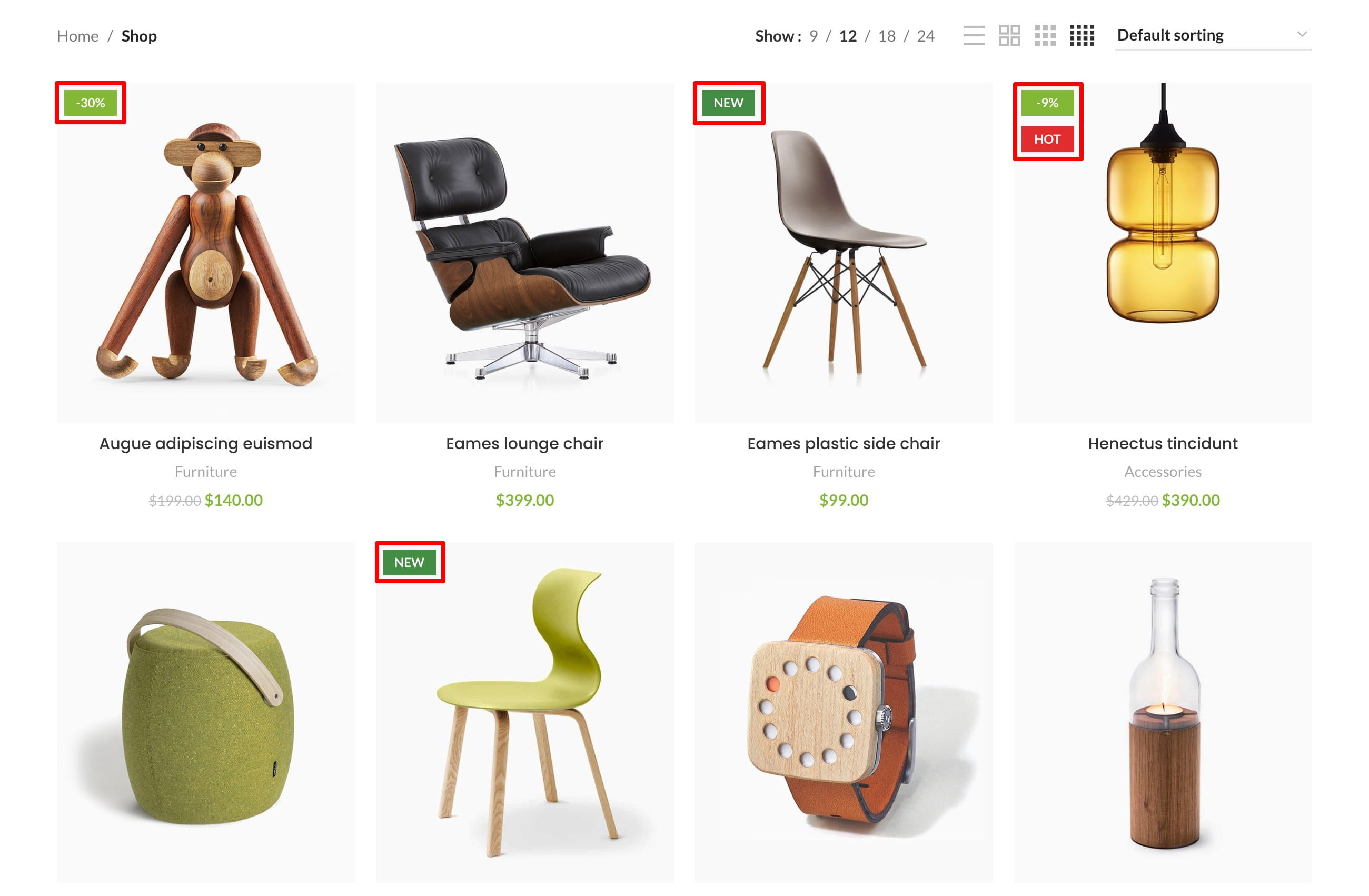
Configure product labels
Navigate to Dashboard -> Theme Settings -> Shop -> Product labels. From this section, you can:
- choose a round, rectangular, or rounded-small Label shape;
- enable or disable each standard label;
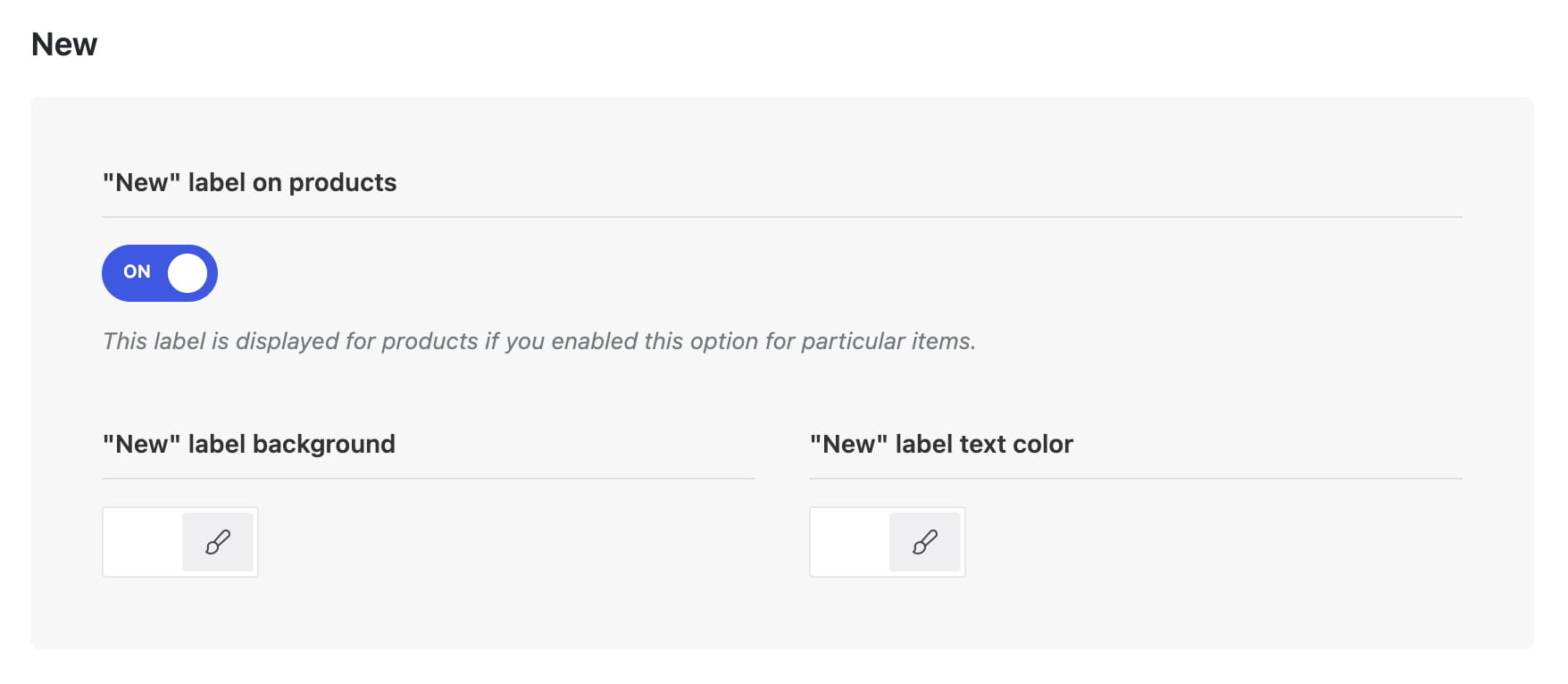
- configure the background and text colors for Sale, New, Hot, Out of stock, and Attribute labels.
New label
The New label can be assigned automatically according to the product creation date or configured for an individual product.
Mark all recently added products as New
Navigate to Dashboard -> Theme Settings -> Shop and set the number of days in Mark product as “New” for period. WoodMart displays the New label until that number of days has passed since each product was created.
Mark an individual product as New
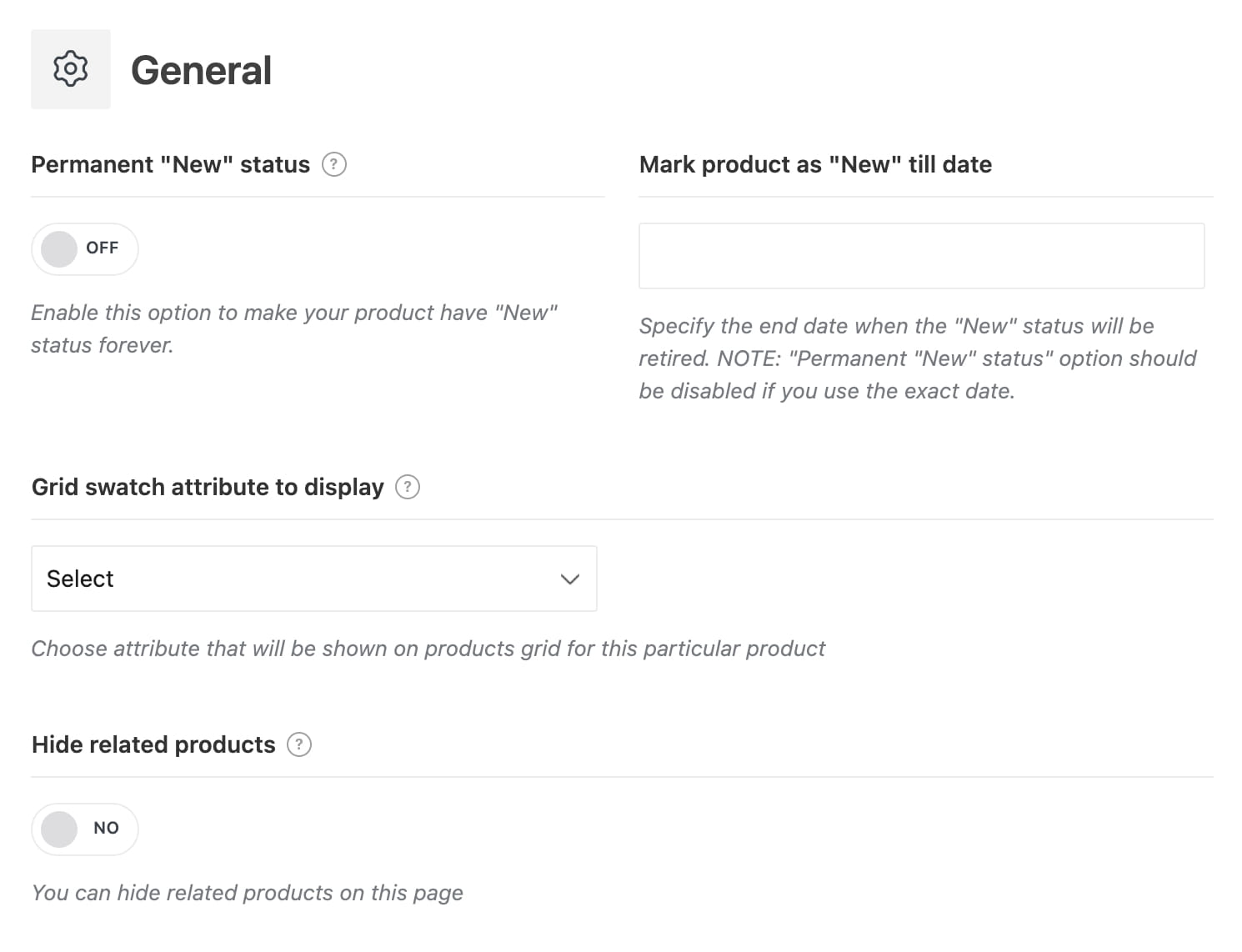
Edit the product and open Extra options from theme -> General. Use one of the following options:
- Permanent “New” status — keeps the New label on the product without an end date.
- Mark product as “New” till date — removes the New status after the selected date. Disable the permanent status when using this option.
Hot label
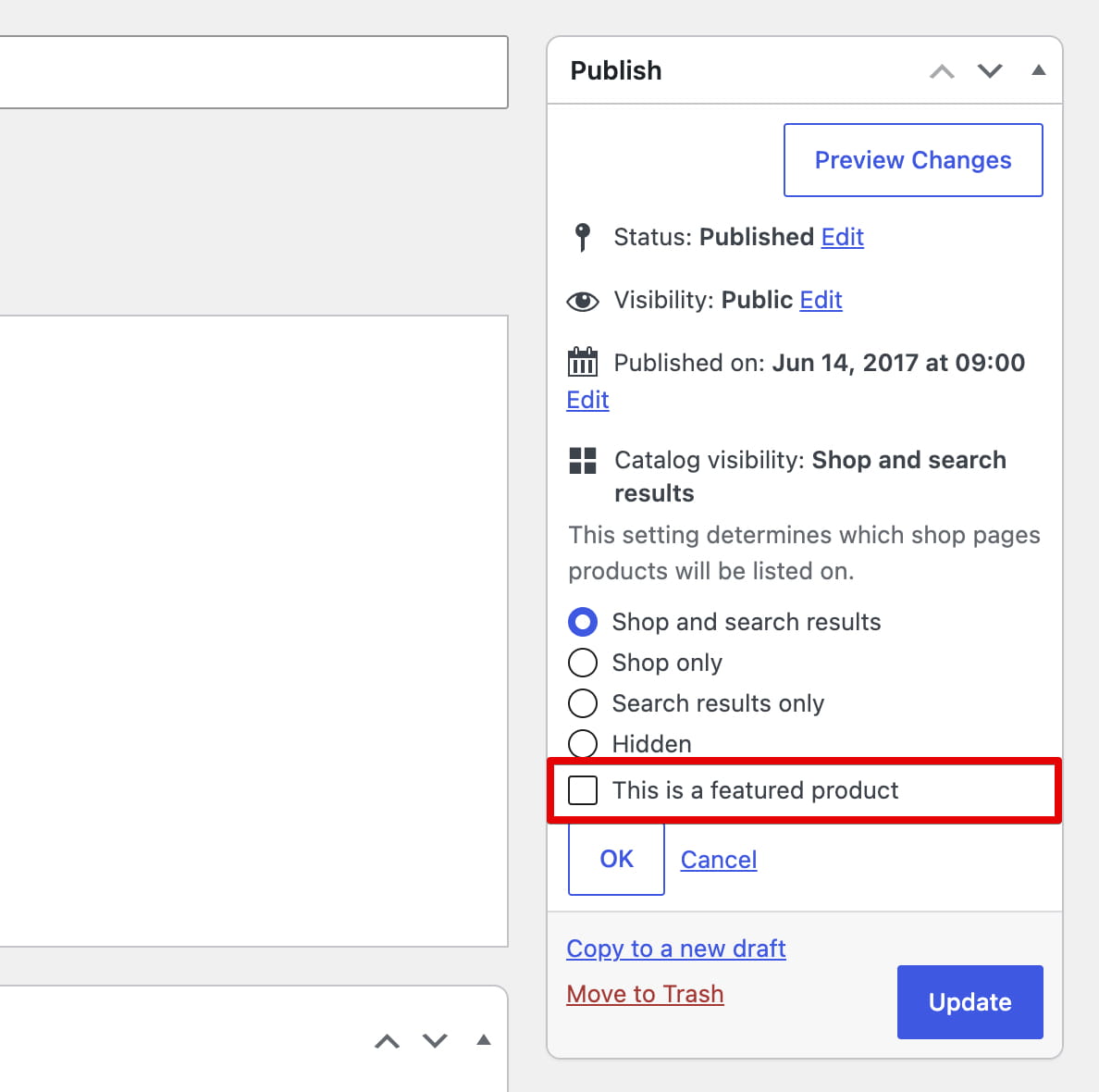
The Hot label appears on products marked as Featured in WooCommerce. First, make sure that “Hot” label on products is enabled in the Product labels settings. You can then mark a product as Featured in either of these ways:
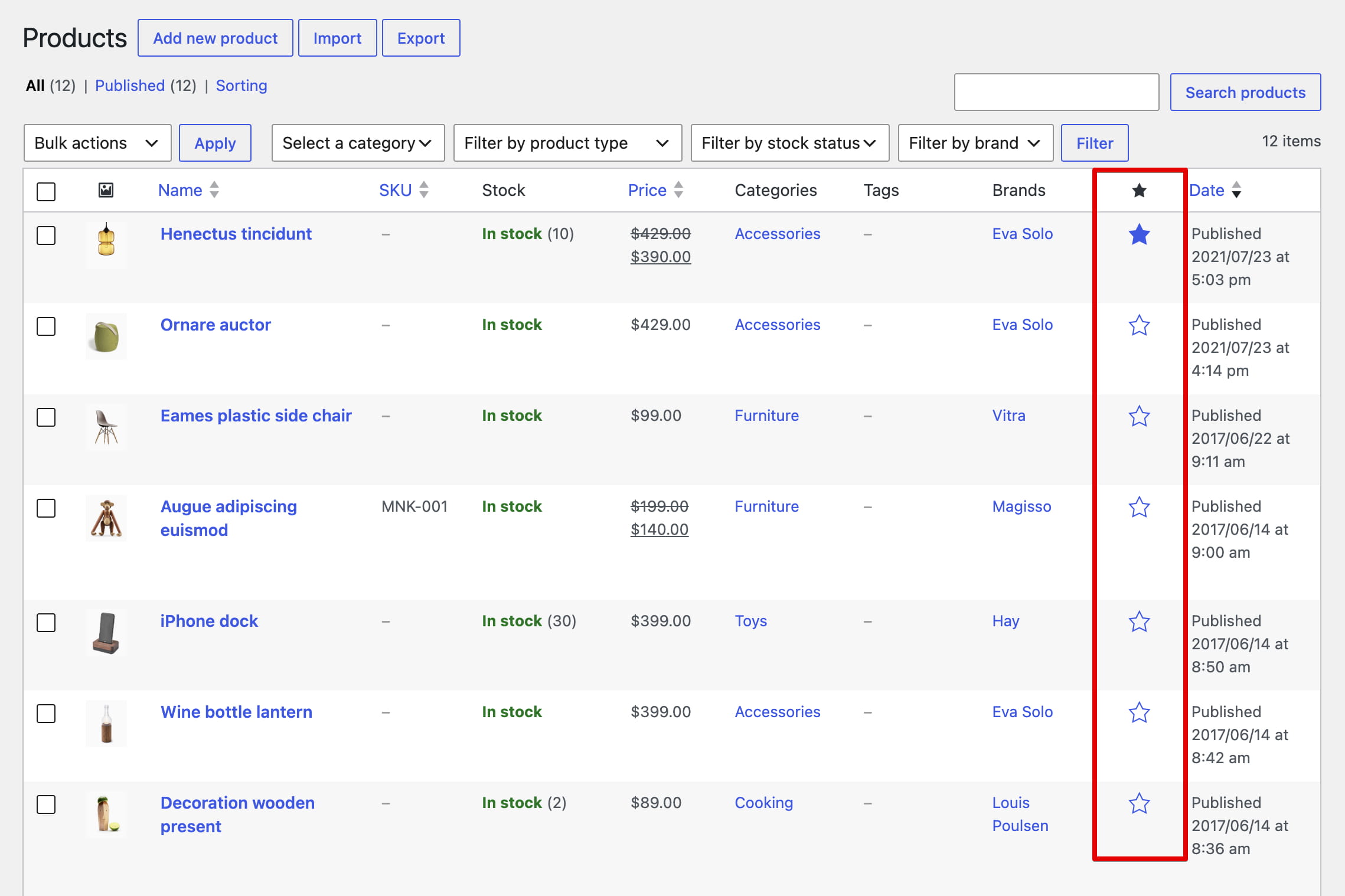
- Navigate to Dashboard -> Products and click the star in the Featured column.
- Edit the product, open Catalog visibility, enable This is a featured product, and save the product.
Sale label
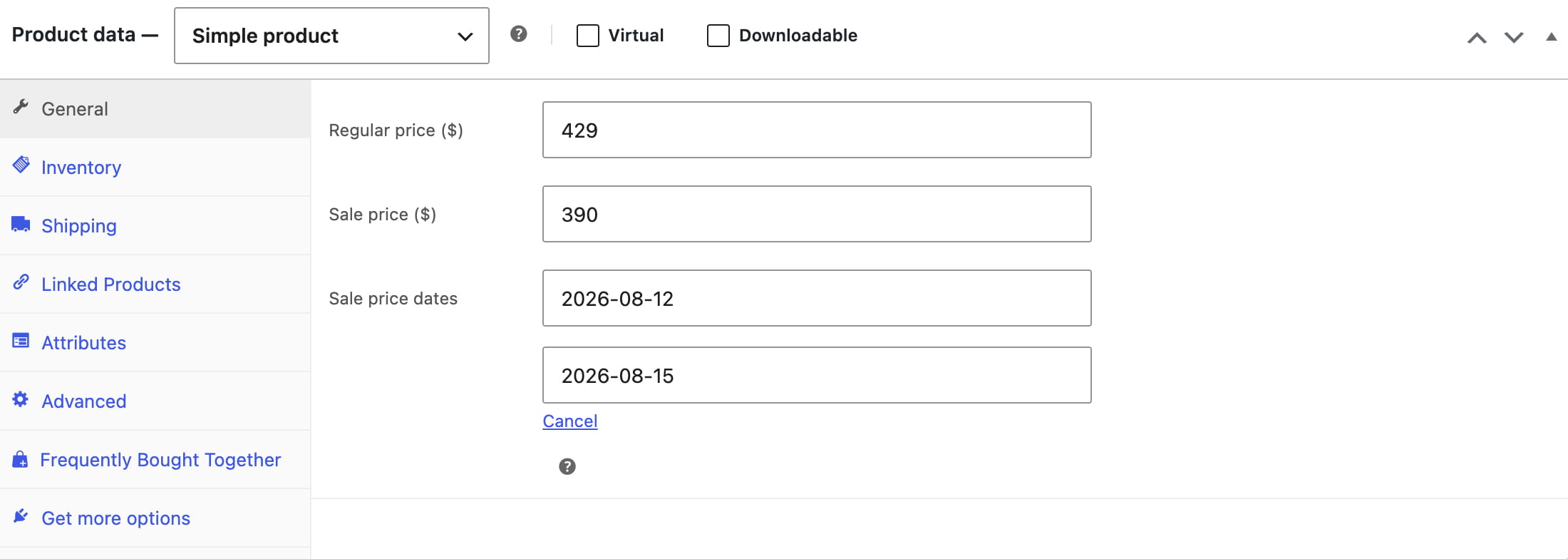
The Sale label appears while a product has an active sale price. Edit the product and enter its Sale price in Product data -> General. You can also schedule the sale by setting its start and end dates; the label is displayed only while the sale is active.
In Dashboard -> Theme Settings -> Shop -> Product labels, enable “Sale” label in percentage to display the discount percentage, such as -20%, instead of the Sale text.
Out of stock label
Enable “Out of stock” label on products in Dashboard -> Theme Settings -> Shop -> Product labels. When a product is out of stock, WoodMart displays a Sold out label on its image.
For the label to appear on the product image, navigate to Dashboard -> Theme Settings -> Product archive -> Products styles and set Stock status position to In thumbnail. If it is set to After title, the stock status is displayed as product-card content instead of an image label.
Attribute labels
Attribute labels display selected product attribute terms on the product image. They can contain either the term name or an uploaded image.
- Navigate to Dashboard -> Products -> Attributes and create an attribute, or use an existing one.
- Click Configure terms, add the required terms, and optionally upload an image for each term.
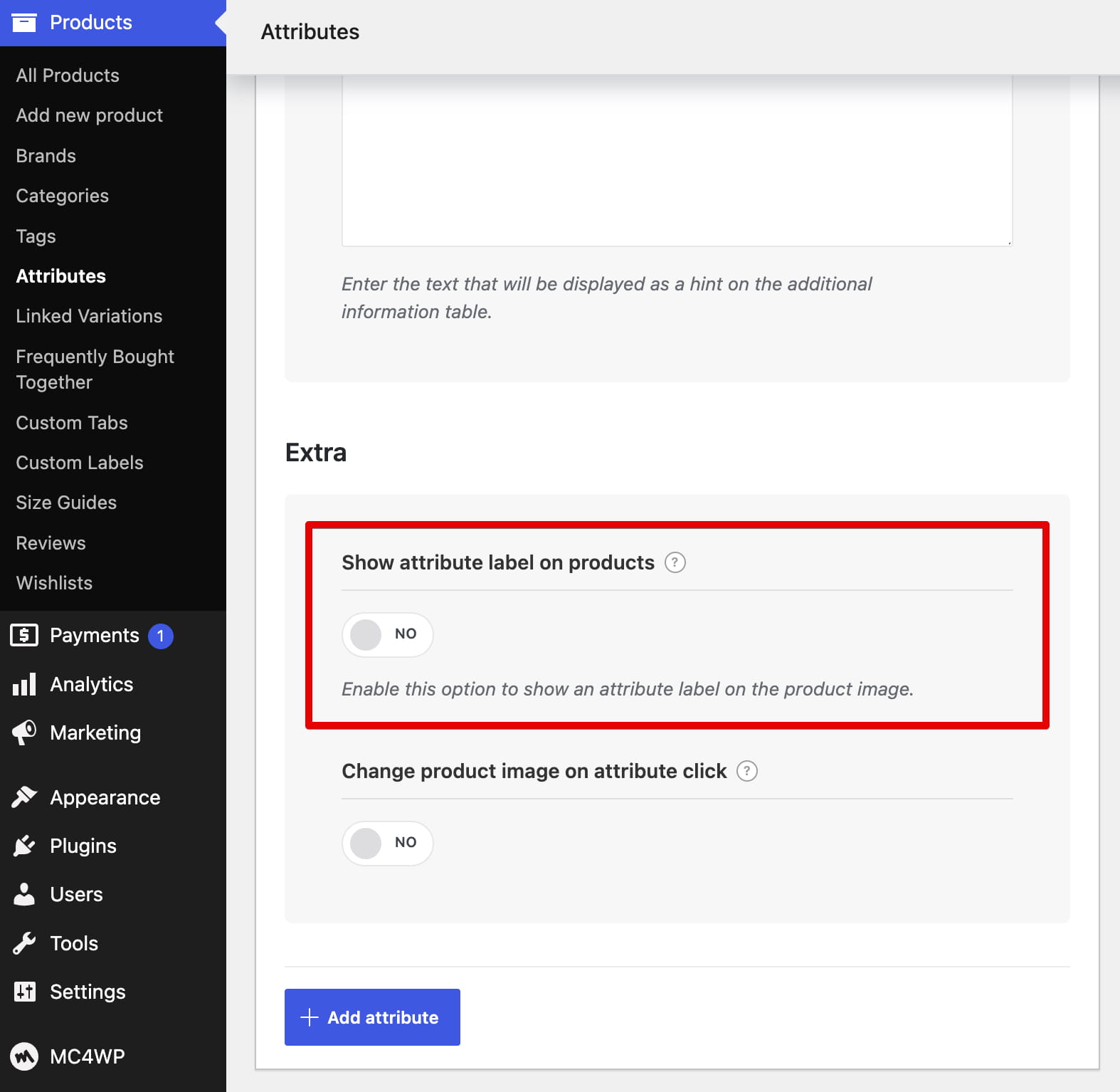
- Edit the attribute and enable Show attribute label on products.
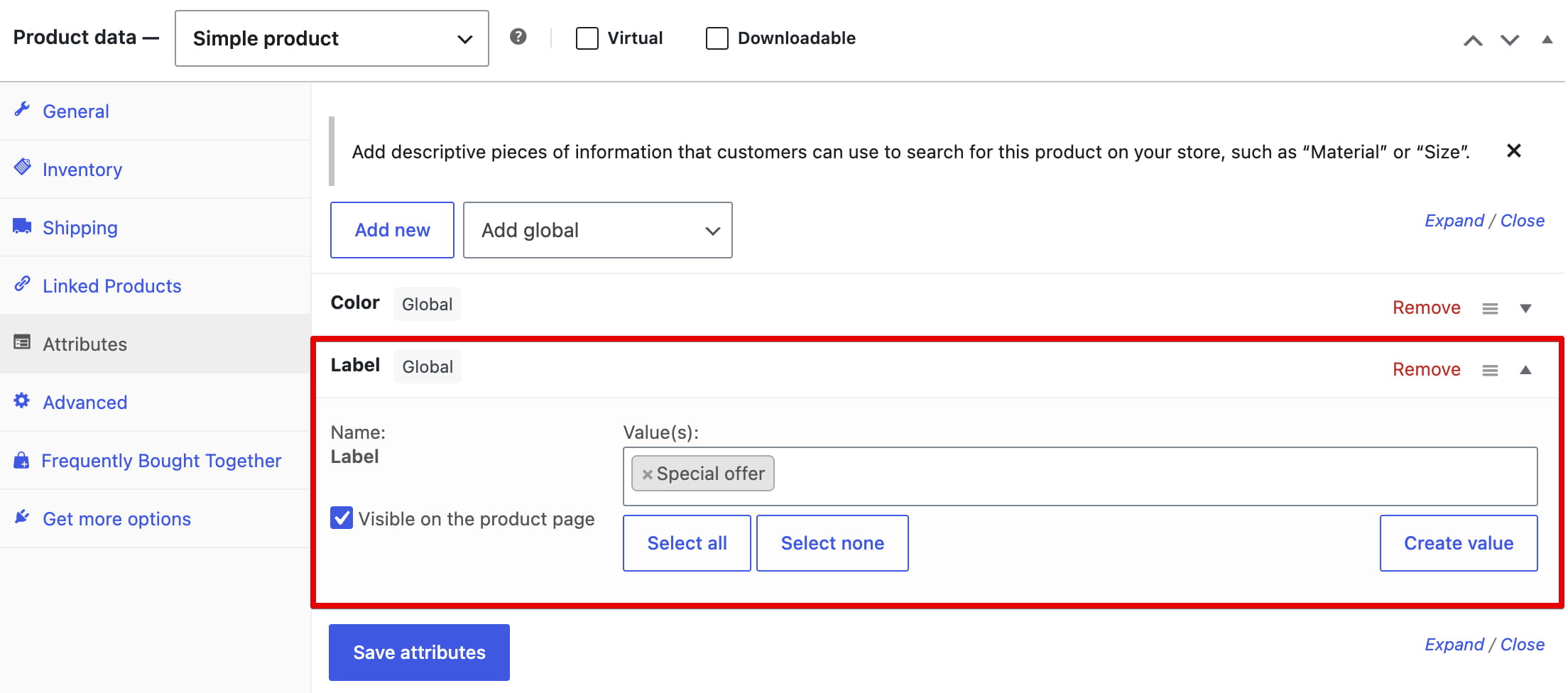
- Edit a product and assign the required terms in Product data -> Attributes.
- Make sure that “Attribute” label on products is enabled in Theme Settings -> Shop -> Product labels.
If a term does not have an image, its name is displayed as the label text. If an image is assigned to the term, WoodMart displays that image instead.
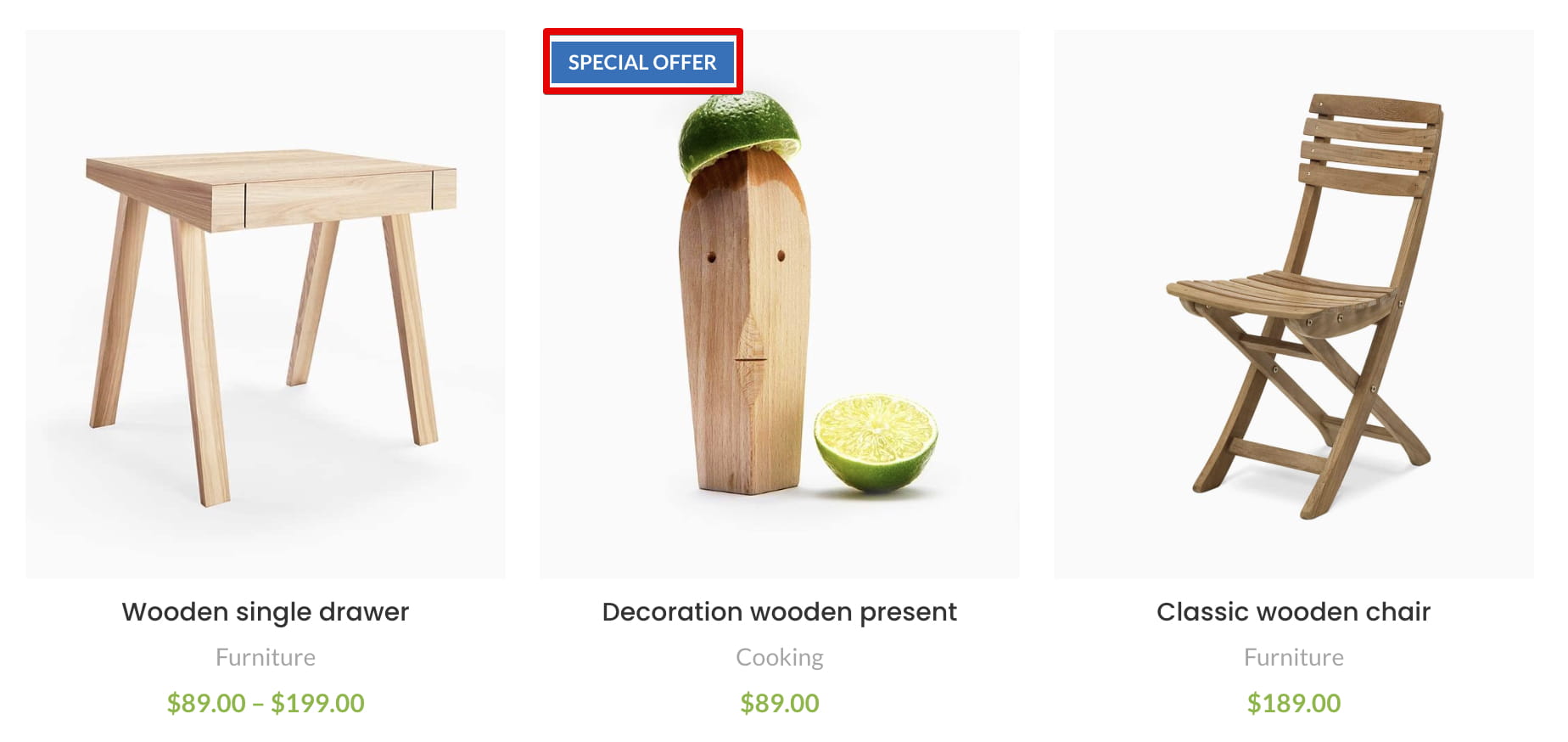
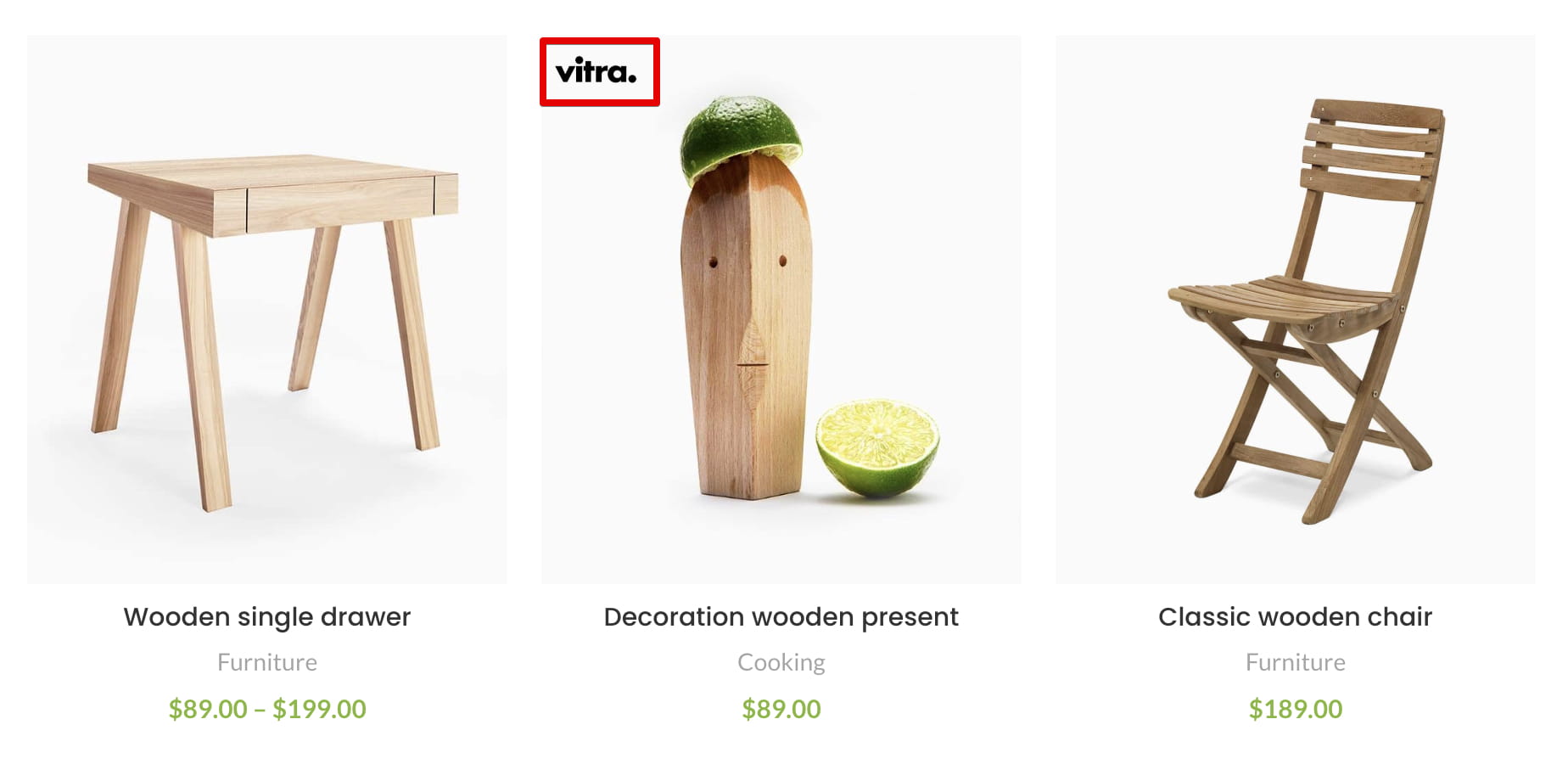
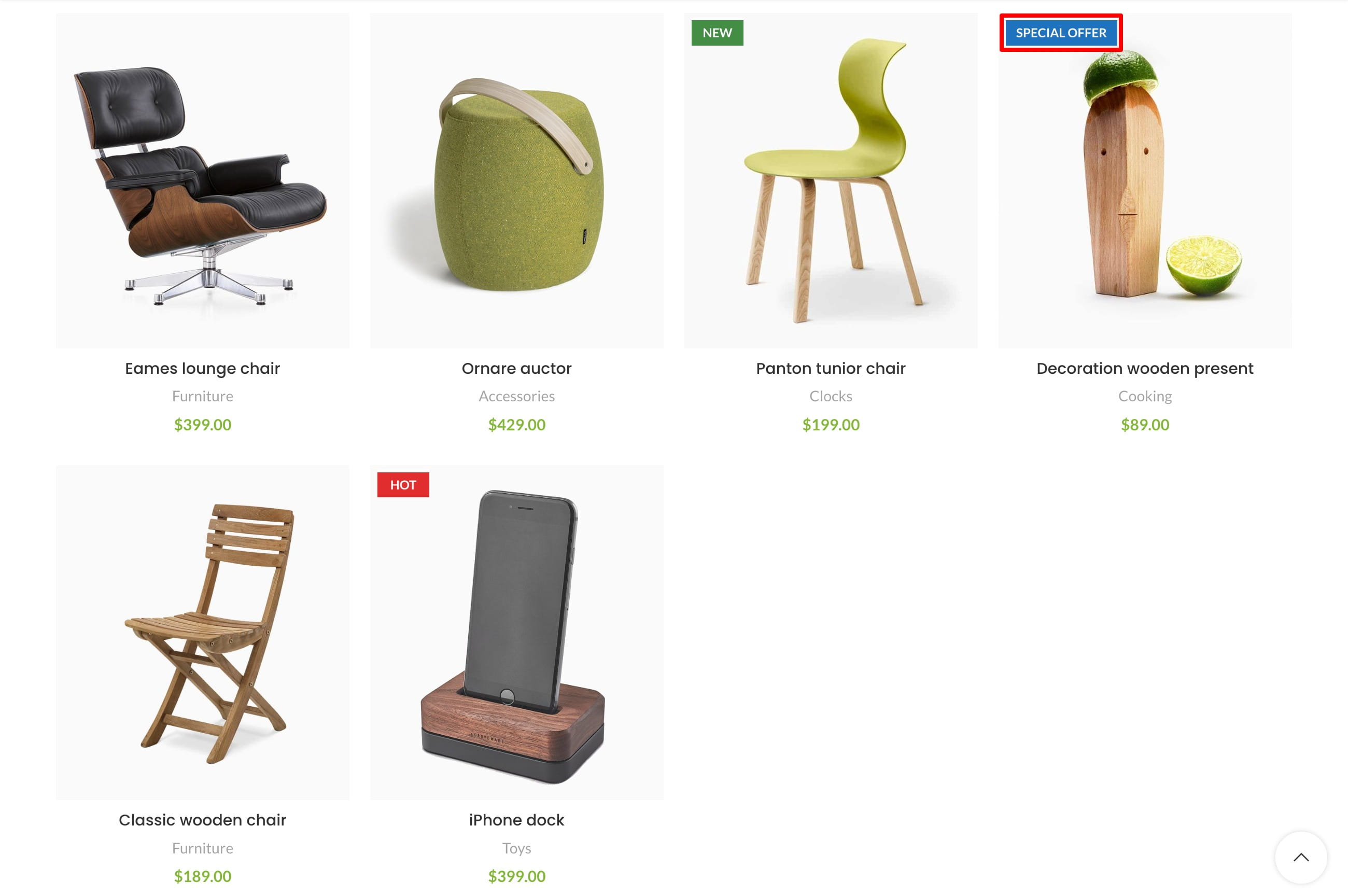
Custom Labels builder
For reusable labels with custom content, design, and display conditions, enable Custom labels in Dashboard -> Theme Settings -> Shop -> Product labels. This adds Dashboard -> Products -> Custom Labels, where you can create labels with the block-based builder. See the Custom label builder guide for complete instructions.
Don’t miss WoodMart updates
Receive feature updates, tutorials, and WoodMart news via email.
 Last updated: September 21, 2026