
Add units of measurement to product prices
Use the Unit of measurement field when a product price needs a unit such as kilograms, liters, meters, pieces, or packs. WoodMart displays the value after the price and adds the separator automatically, for example $20 / kg.
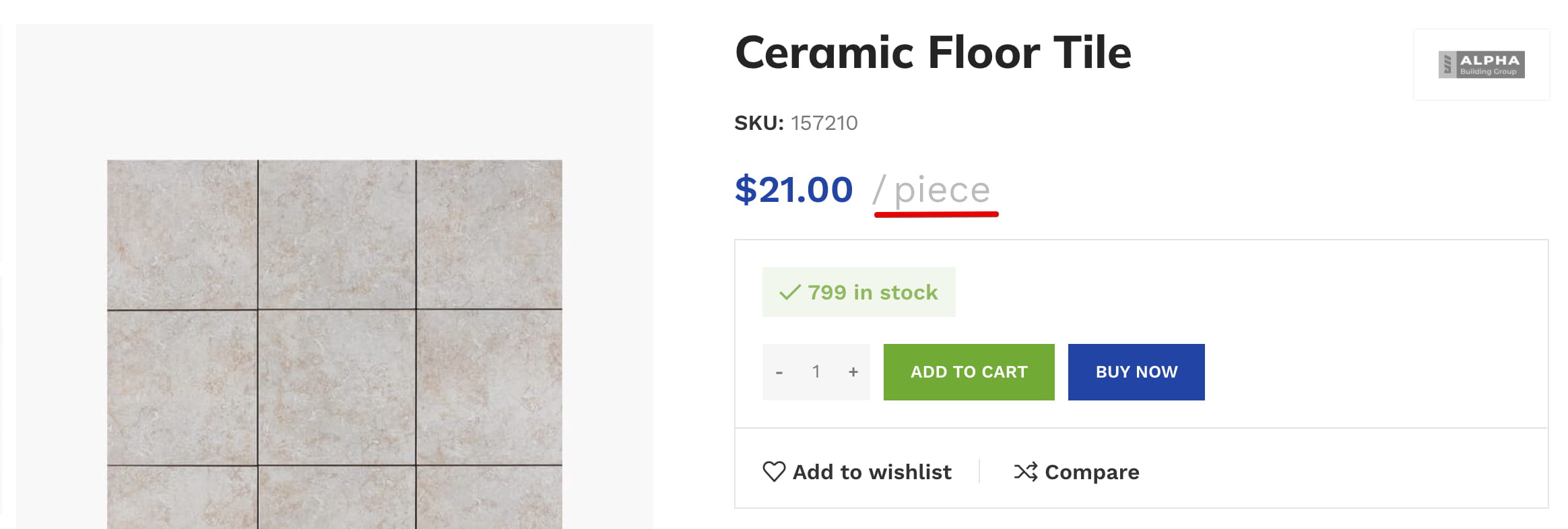
This field changes only how the price is displayed. It does not change the product price calculation, quantity step, minimum quantity, stock, or shipping weight.
Set a unit for a product
- Navigate to Dashboard -> Products and edit the required product.
- Open Product data -> Inventory.
- Enter the required value in Unit of measurement, for example
kg,m²,L,piece, orpack. Enter only the unit; do not include the slash. - Update the product.
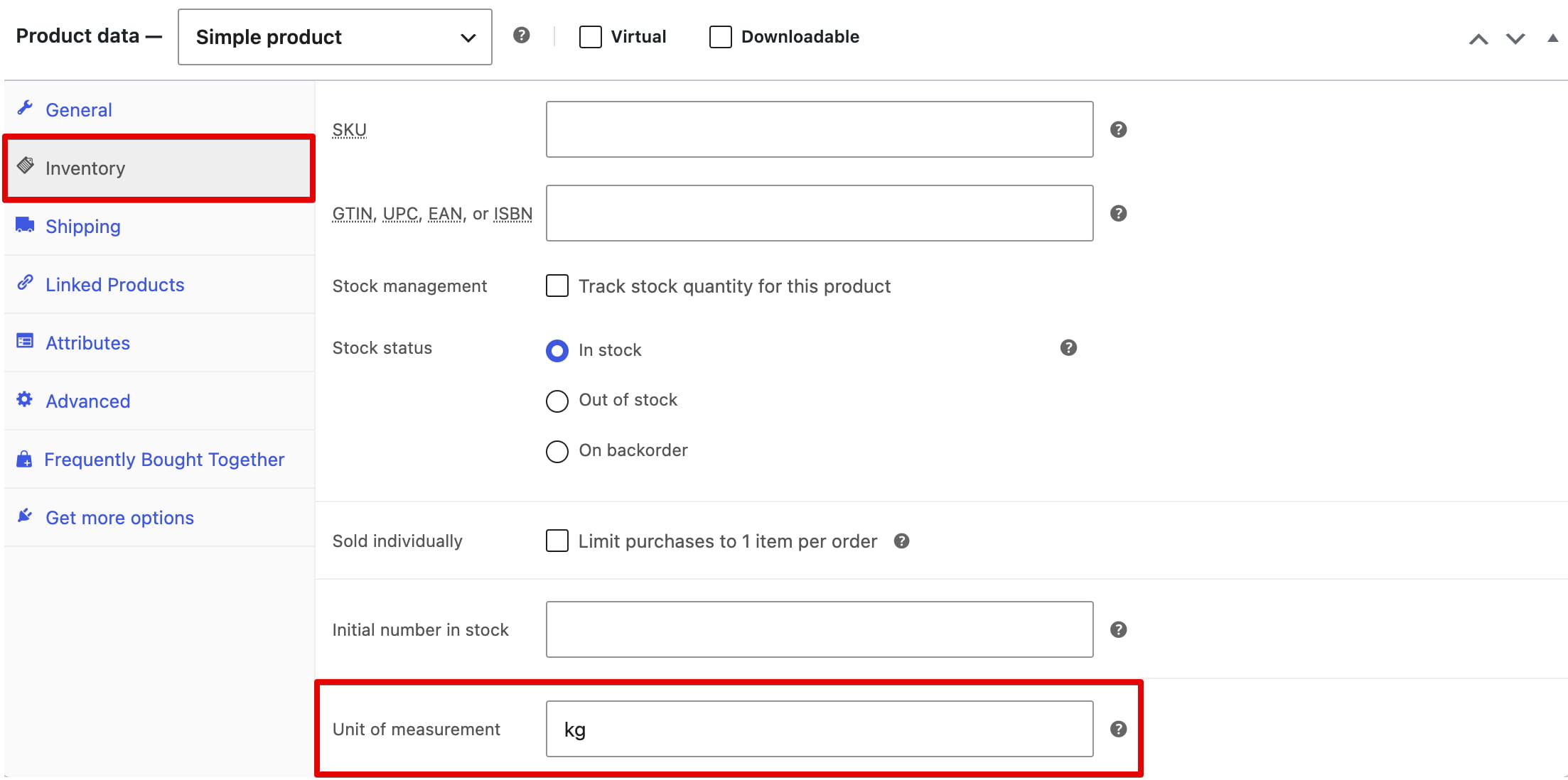
The unit is added to the WooCommerce price output in product grids, on the single product page, and beside the cart item price. Custom product layouts do not require a separate element: the unit is included automatically wherever the product price is displayed. Clear the field and update the product to remove the unit.
Units for variable products
For a variable product, the unit is stored on the parent product and applies to all its variations. Different units cannot be assigned to individual variations.
Bulk edit product units
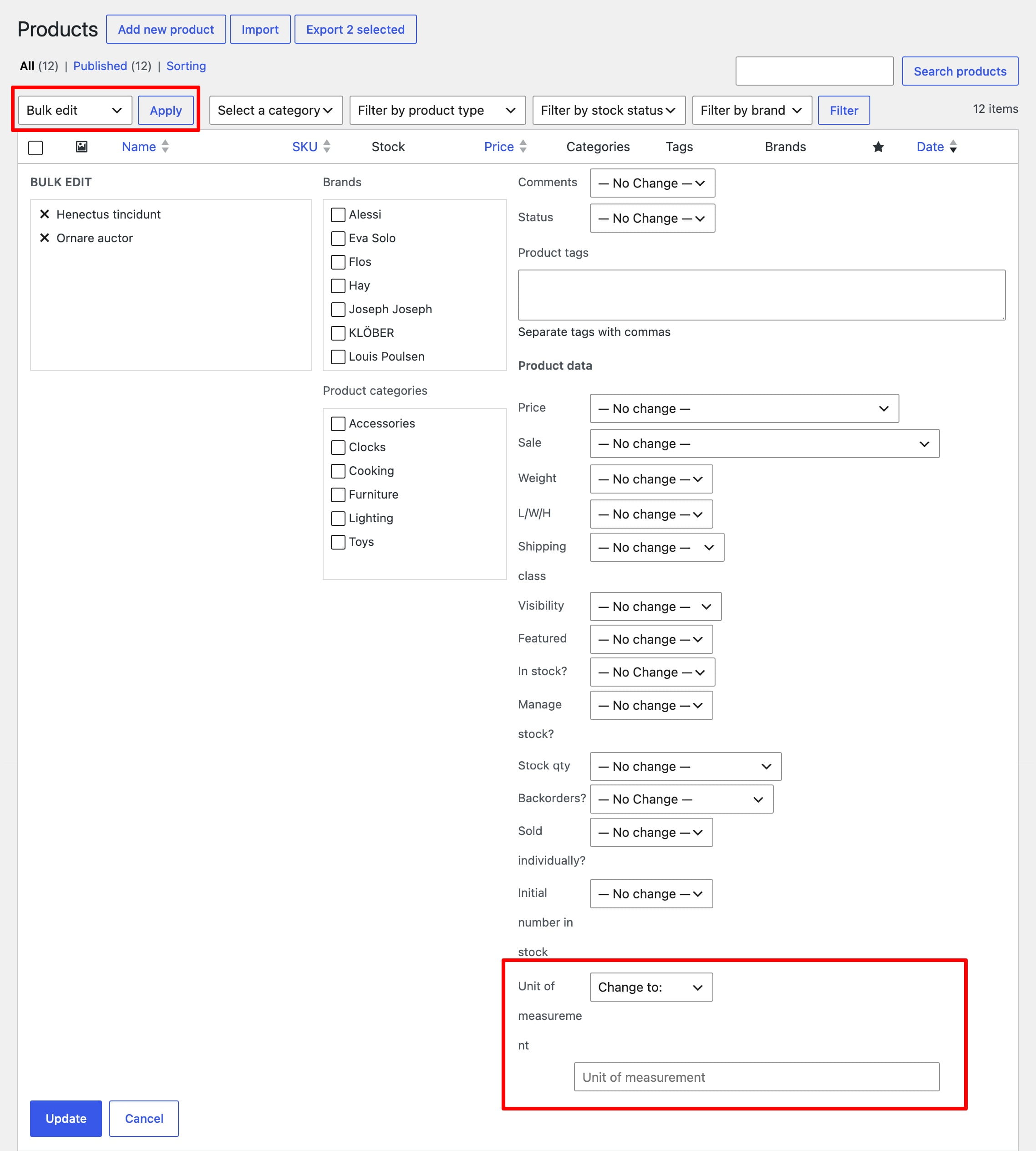
- Navigate to Dashboard -> Products and select the products you want to update.
- Select Edit from Bulk actions and click Apply.
- Find Unit of measurement and select Change to.
- Enter the unit that should be assigned to all selected products.
- Click Update.
Don’t miss WoodMart updates
Receive feature updates, tutorials, and WoodMart news via email.
 Last updated: August 12, 2026