
Product reviews
WoodMart extends the default WooCommerce product reviews with additional layout controls, review images, voting, rating summaries, and custom rating criteria. Configure these options in Dashboard -> Theme Settings -> Single product -> Reviews.
Configure the reviews layout
Reviews section location determines where product reviews appear. Select Tabs to keep reviews inside the standard product tabs, or Separate section to display them in a dedicated section. Tabs is selected by default.
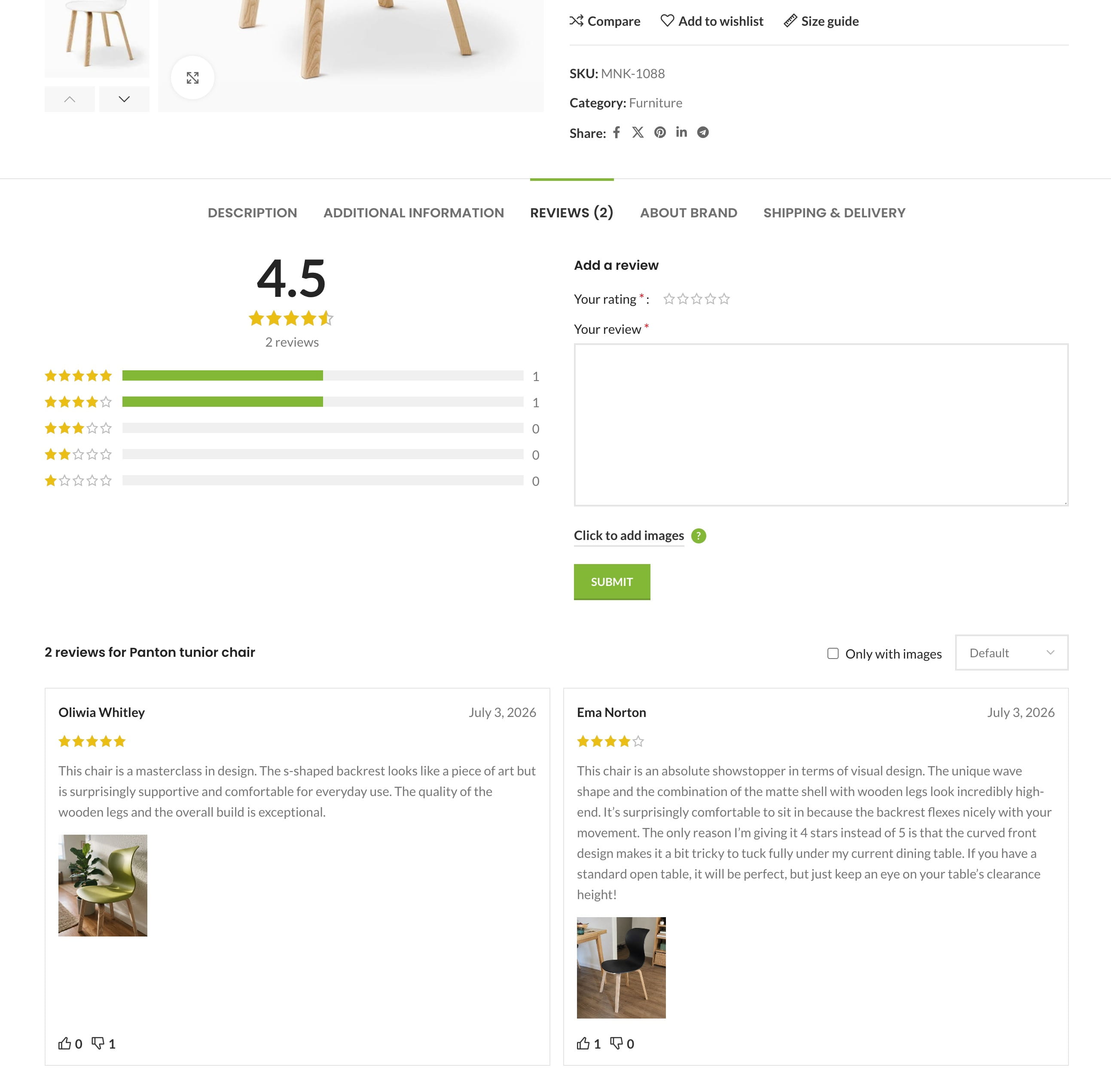
Layout arranges the reviews list and review form in one or two columns.
Form location places the review form before or after the reviews list.
Use Reviews columns on desktop, Reviews columns on tablet, and Reviews columns on mobile to display one, two, or three reviews per row on each device type.
Configure review features
Style changes the appearance of individual reviews. Two predefined designs are available.
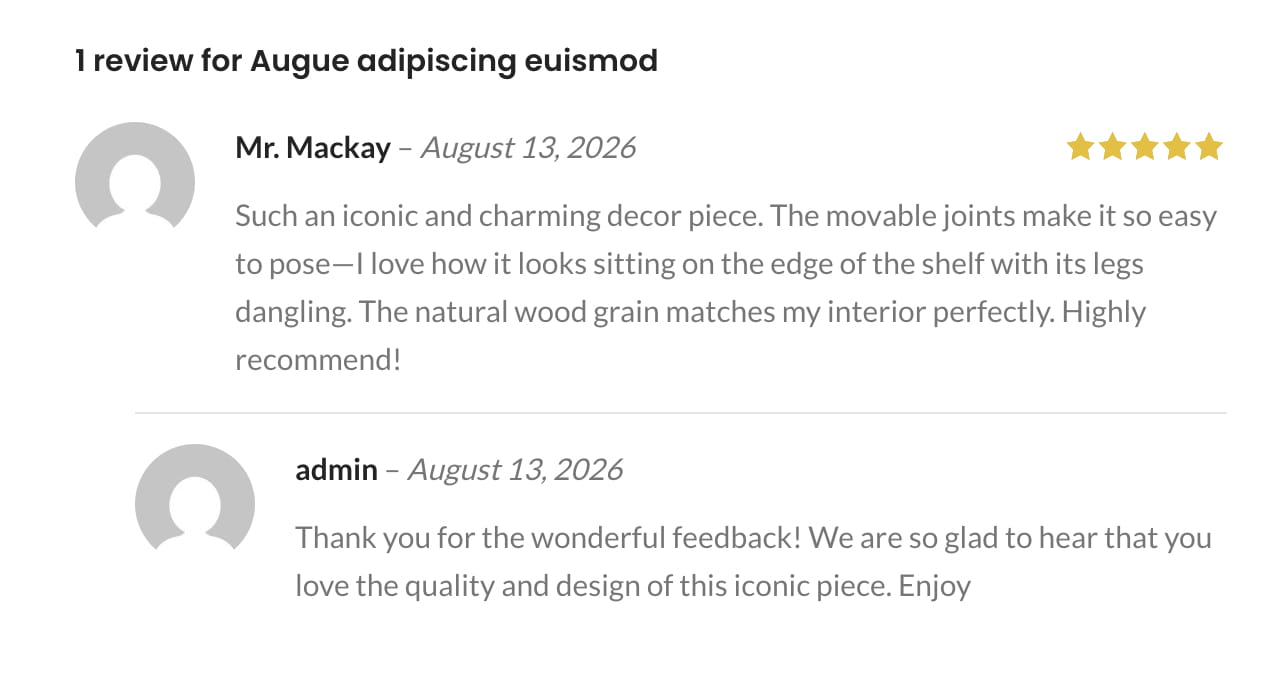
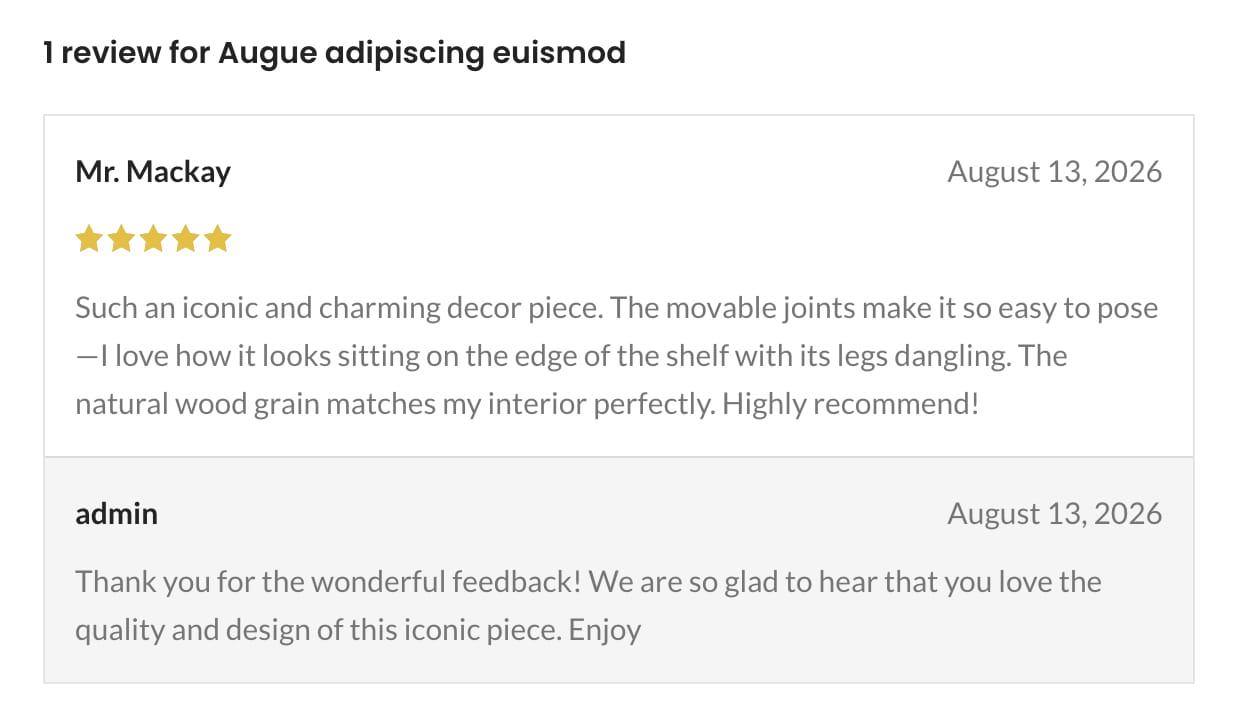
Pros and cons adds separate fields where customers can describe a product’s advantages and disadvantages.
Likes lets logged-in customers vote on whether a review was helpful.
“Verified owner” badge marks reviews submitted by customers who purchased the product.
Sorting adds a dropdown above the reviews list. It includes Default, Newest, and Oldest. When Likes is enabled, customers can also sort by Most helpful. If WooCommerce ratings are enabled, Highest rated and Lowest rated are also available.
Allow customers to upload images
Enable Review images to let customers attach images to product reviews.
- Images count in one review sets the maximum number of images that can be attached to a single review.
- Maximum upload file size sets the maximum size of each image in megabytes. The value cannot exceed the upload limit configured on your server.
- Are images required? prevents customers from submitting a review without an image.
- Filter reviews by images adds a filter that displays only reviews containing images.
Show a rating summary
Enable Rating summary to display review statistics above the reviews list and form.
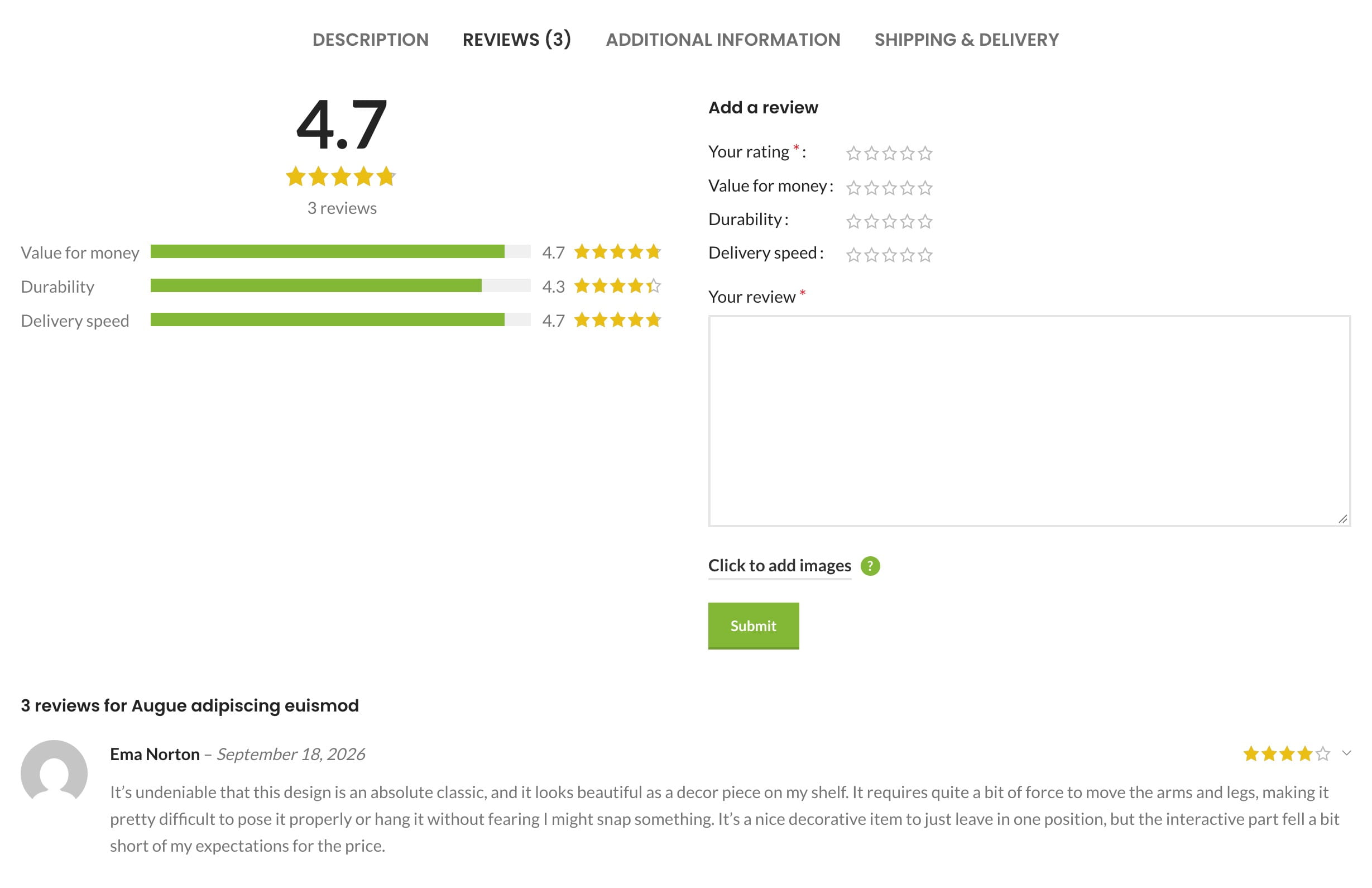
Rating summary content selects the data displayed in the chart:
- Rating shows the number of reviews for each star rating.
- Criteria shows results for the custom rating criteria configured below.
When Rating is selected, enable Rating summary filter to let customers click a rating bar and display reviews with that rating.
Add custom rating criteria
Enable Rating by criteria to let customers evaluate a product using additional criteria such as value for money, durability, or delivery speed. You can configure up to six criteria.
For each criterion, enter a descriptive Criteria title and a unique Criteria slug. Use lowercase letters, numbers, and hyphens in the slug, without spaces or special characters—for example, delivery-speed or product-quality.
Enable Is criteria required? if customers must rate the configured criteria before submitting a review.
Video tutorial
Don’t miss WoodMart updates
Receive feature updates, tutorials, and WoodMart news via email.
 Last updated: September 18, 2026