
Product sold counter
Product sold counter displays how many units of a product were sold during a selected period. You can show sales calculated from WooCommerce orders or use a random value within a configured range.
Enable the sold counter
- Navigate to Dashboard -> Theme Settings -> Single product -> Sold counter.
- Enable Sold counter.
- Configure the counter options described below.
- Save the Theme Settings.
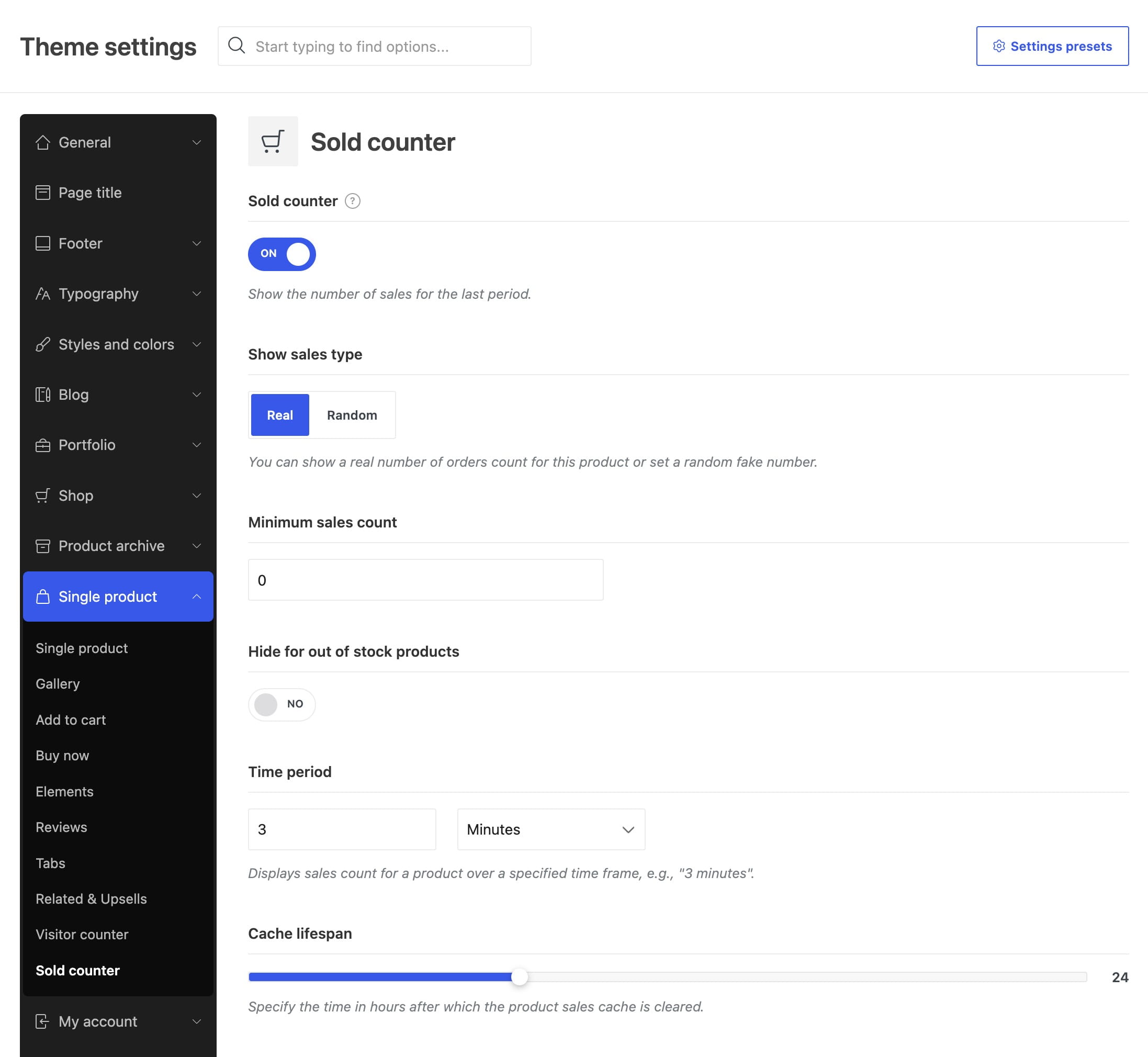
Choose real or random sales data
Show sales type determines how the displayed number is generated:
- Real — counts product units from WooCommerce orders with Processing or Completed status during the selected time period. Use Minimum sales count to hide the counter until the calculated number reaches the specified value.
- Random — generates a number between the configured Minimum and Maximum values. The generated value remains unchanged until the cache expires.
The Real counter is not displayed when no qualifying product units were sold during the selected period or when the result is lower than Minimum sales count.
Control when the counter is displayed
Enable Hide for out of stock products if the sold counter should appear only while the product is in stock.

Set the time period
Time period combines a numeric value with a unit of time. Enter a value from 1 to 59 and select Minutes, Hours, Days, Weeks, or Months.

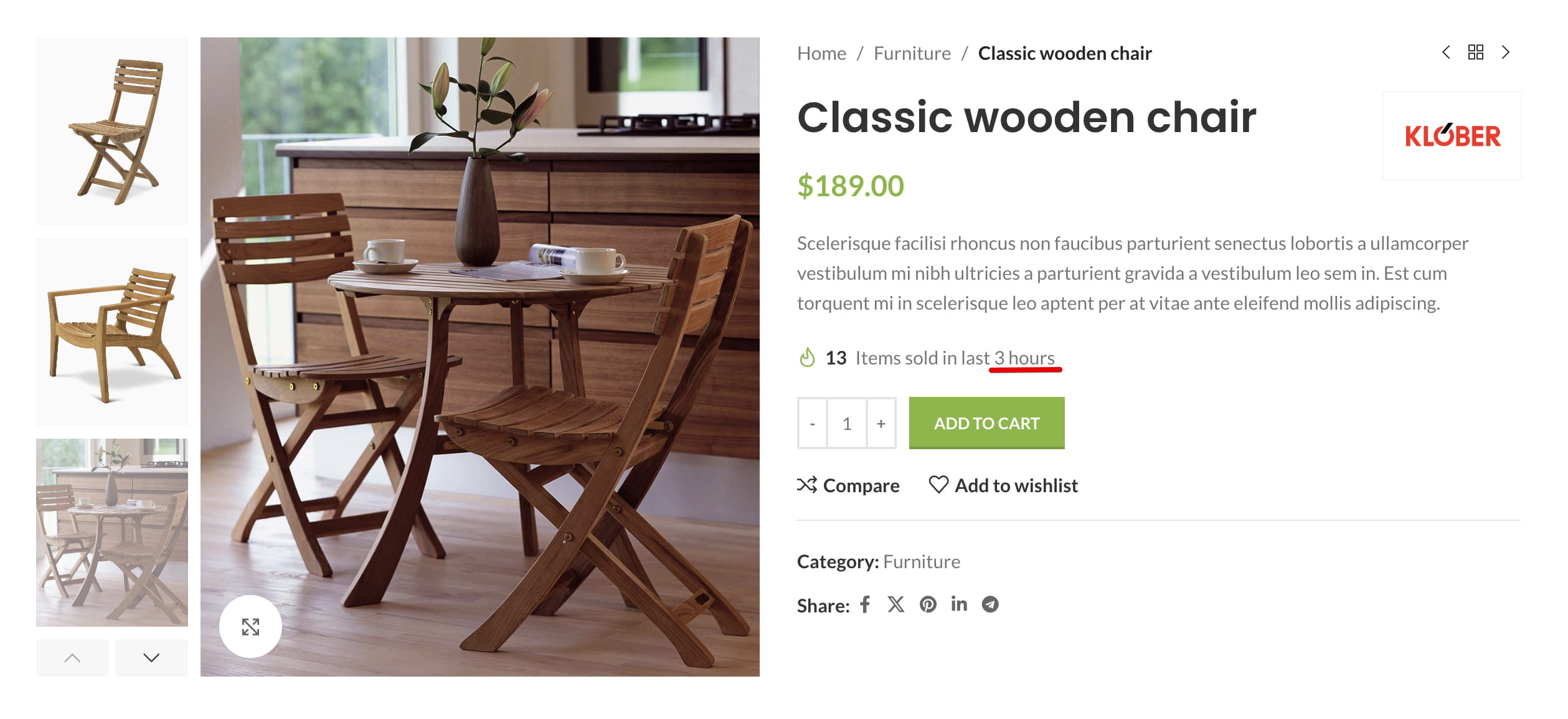
For example, a value of 5 with Hours makes the Real counter calculate product units sold during the last five hours. With Random selected, the same period is displayed in the counter message alongside the generated number.
Configure cache lifespan
Cache lifespan determines how long the calculated or generated value is stored before WoodMart refreshes it. Select a value from 1 to 72 hours.
A shorter lifespan updates real sales data and random values more frequently. A longer lifespan reduces repeated sales calculations.

Add the counter to a custom product layout
If you use a custom single product layout, add the Product sold counter element or block to the required position. Its design controls let you choose the default or background style, adjust the text, and use the default icon, a custom icon, or a custom image.
Don’t miss WoodMart updates
Receive feature updates, tutorials, and WoodMart news via email.
 Last updated: August 14, 2026