
Product video
WoodMart provides two ways to add a video to a product page:
- Video popup adds a Watch video button that opens a YouTube or Vimeo video in a popup.
- Gallery video attaches an MP4, YouTube, or Vimeo video to the featured product image or an image in the product gallery.
Open a product video in a popup
Use this method when you want to display one video in a popup without adding it as a gallery item.
- Navigate to Dashboard -> Products and edit the required product.
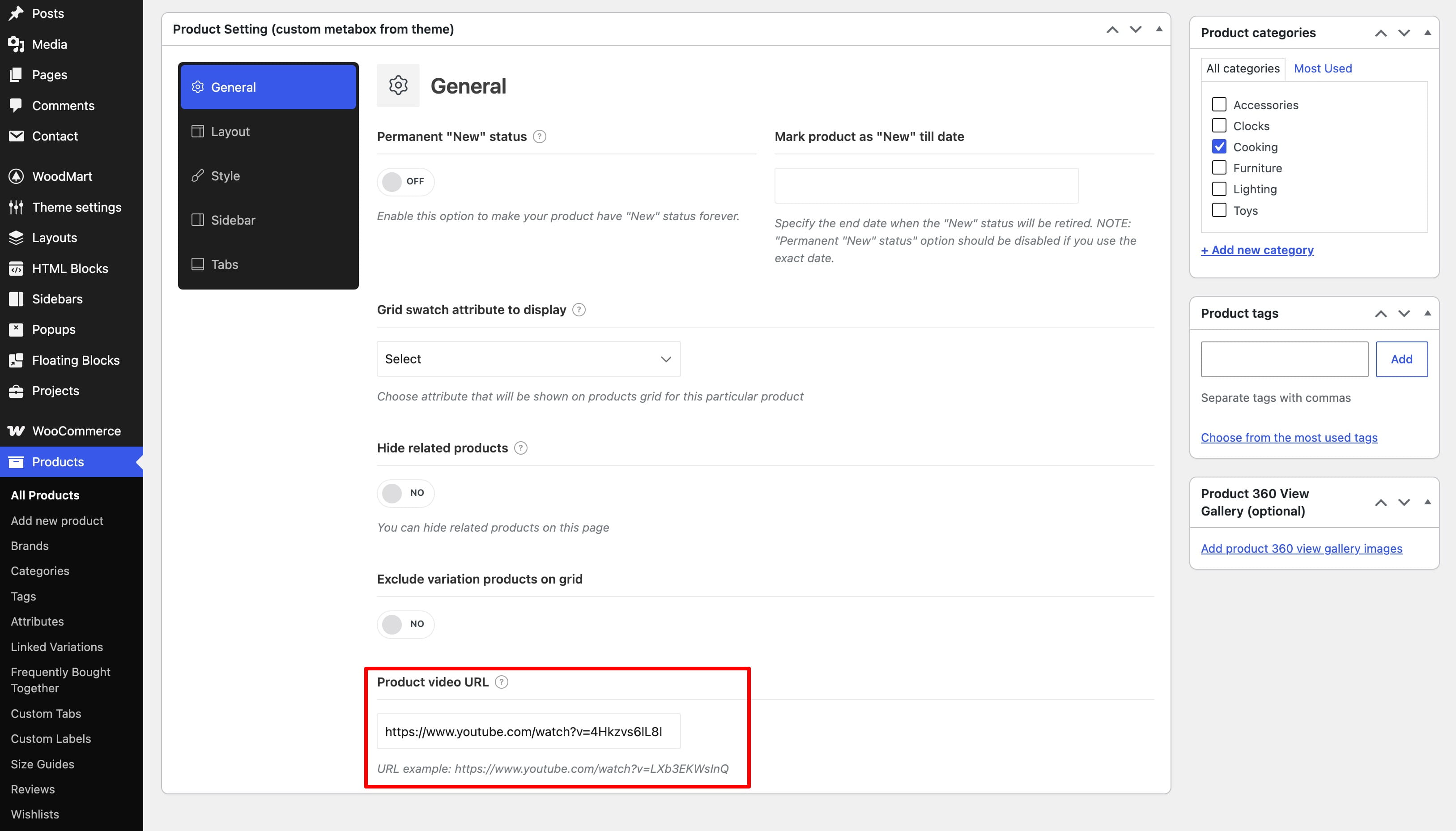
- In Product Setting (custom metabox from theme), open the General section.
- Paste a YouTube or Vimeo URL into Product video URL.
- Update the product.
Add videos to the product gallery
Gallery videos can be attached to the featured product image and to individual images in the product gallery. This allows you to add multiple videos to the same product.
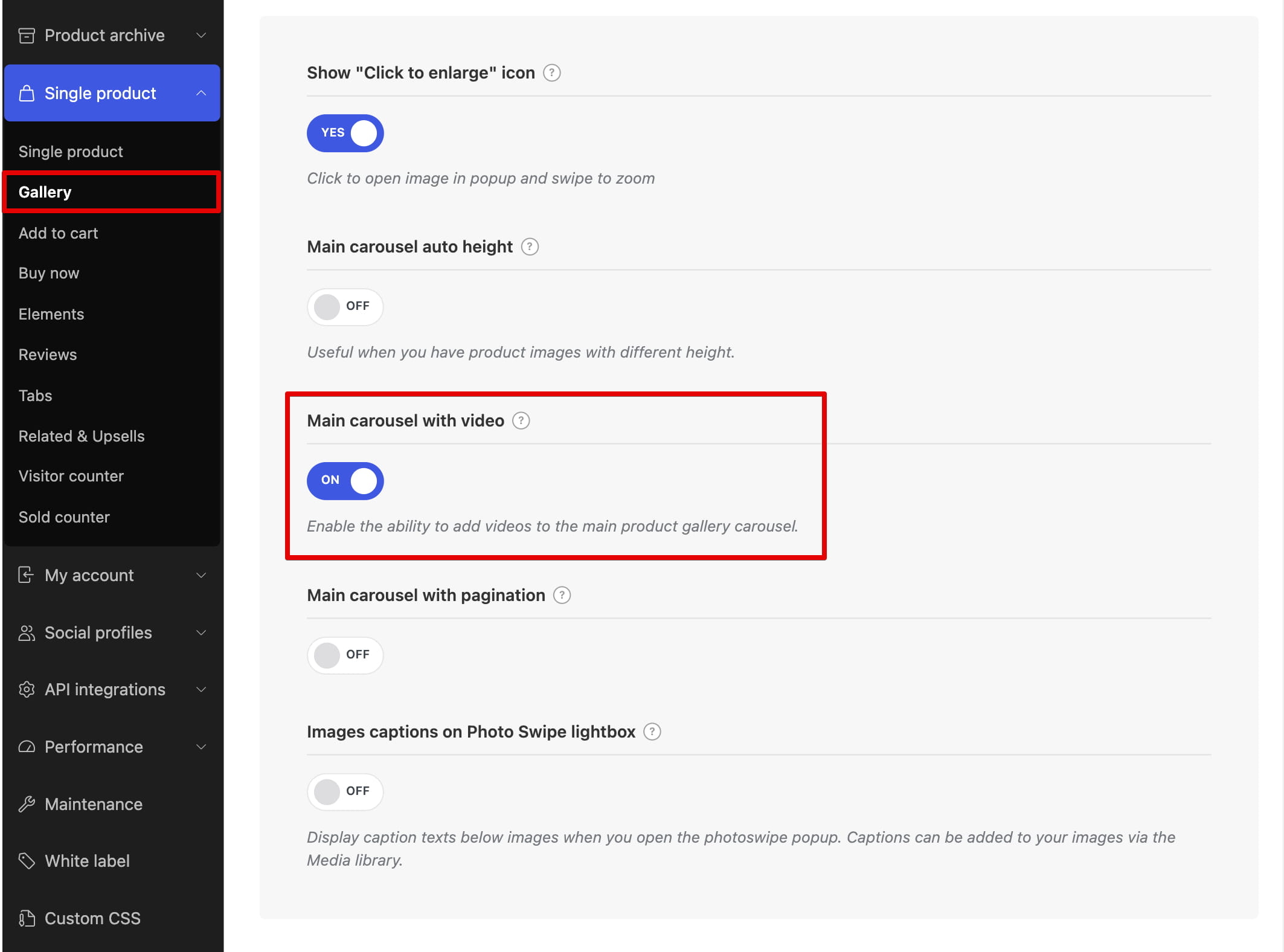
The feature is enabled by default. If the Video button is not available while editing a product, navigate to Dashboard -> Theme Settings -> Single product -> Gallery and enable Main carousel with video.
- Navigate to Dashboard -> Products and edit the required product.
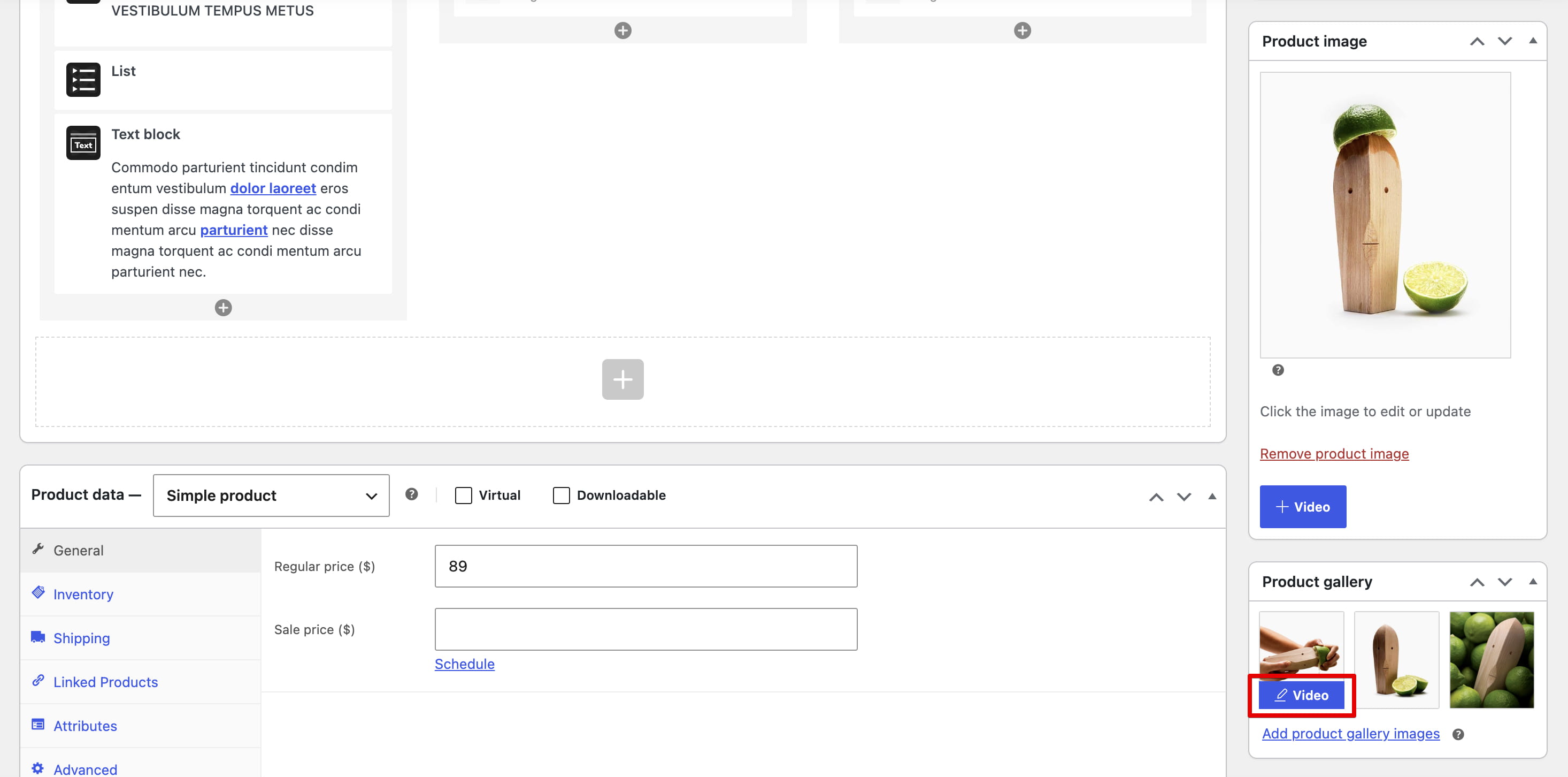
- Locate the Product image or Product gallery panel.
- Click Video on the image to which you want to attach the video.
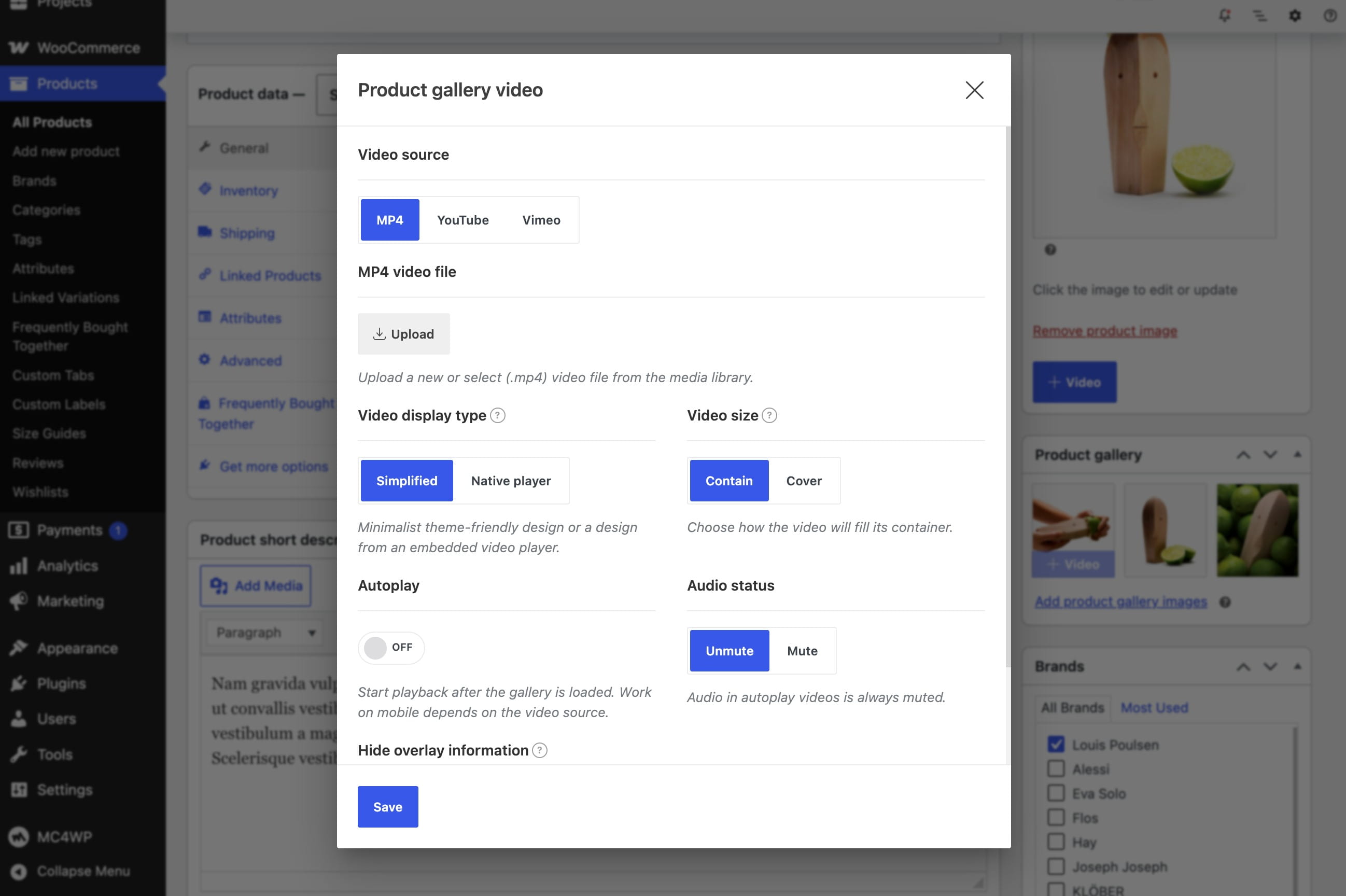
- Configure the video in the popup and click Save.
- Update the product.
Configure gallery video playback
- Video source selects the type of video:
- MP4 — upload a new
.mp4file or select one from the Media Library. - YouTube — enter a YouTube video URL.
- Vimeo — enter a Vimeo video URL.
- MP4 — upload a new
- Video display type controls the player design:
- Simplified uses WoodMart’s minimal controls.
- Native player displays the controls provided by the selected video source.
- Hide gallery image displays the native player before playback instead of keeping the gallery image visible. This option is available for Native player.
- Video size determines how the video fills its container when Simplified is selected:
- Contain displays the complete video inside the available area.
- Cover fills the available area and may crop part of the video.
- Autoplay starts playback after the gallery loads. Mobile autoplay behavior depends on the browser and video source.
- Audio status sets whether a manually started video is initially muted or unmuted. Autoplay videos are always muted.
- Hide overlay information hides product labels, gallery buttons, and pagination while the video is playing.
Don’t miss WoodMart updates
Receive feature updates, tutorials, and WoodMart news via email.
 Last updated: August 13, 2026