
Product stock progress bar
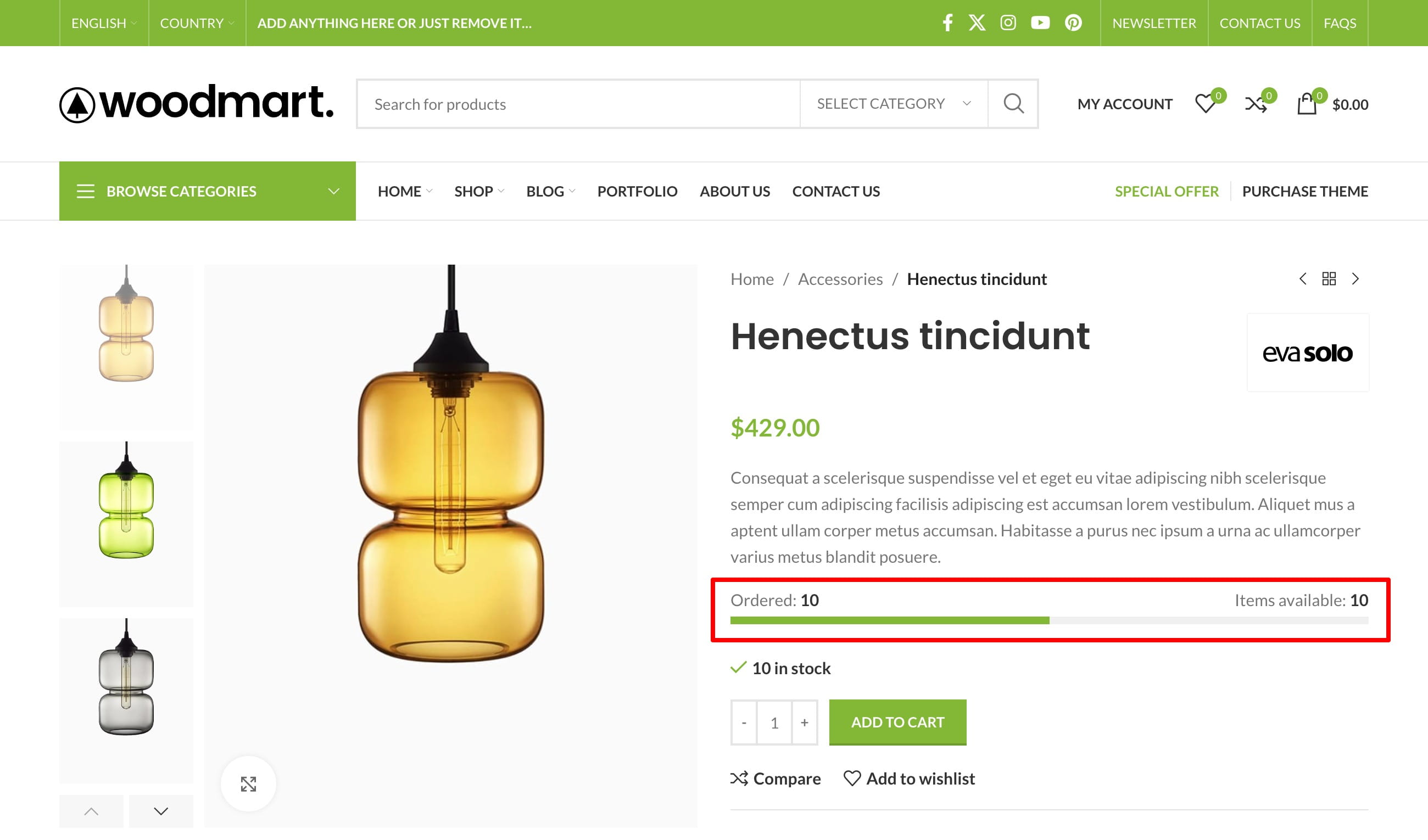
The product stock progress bar displays the current inventory level and a visual indication of how much of the initial stock has been ordered. It shows the calculated Ordered quantity and the current Items available quantity.
See the feature on the WoodMart stock progress bar demo.
Configure product inventory
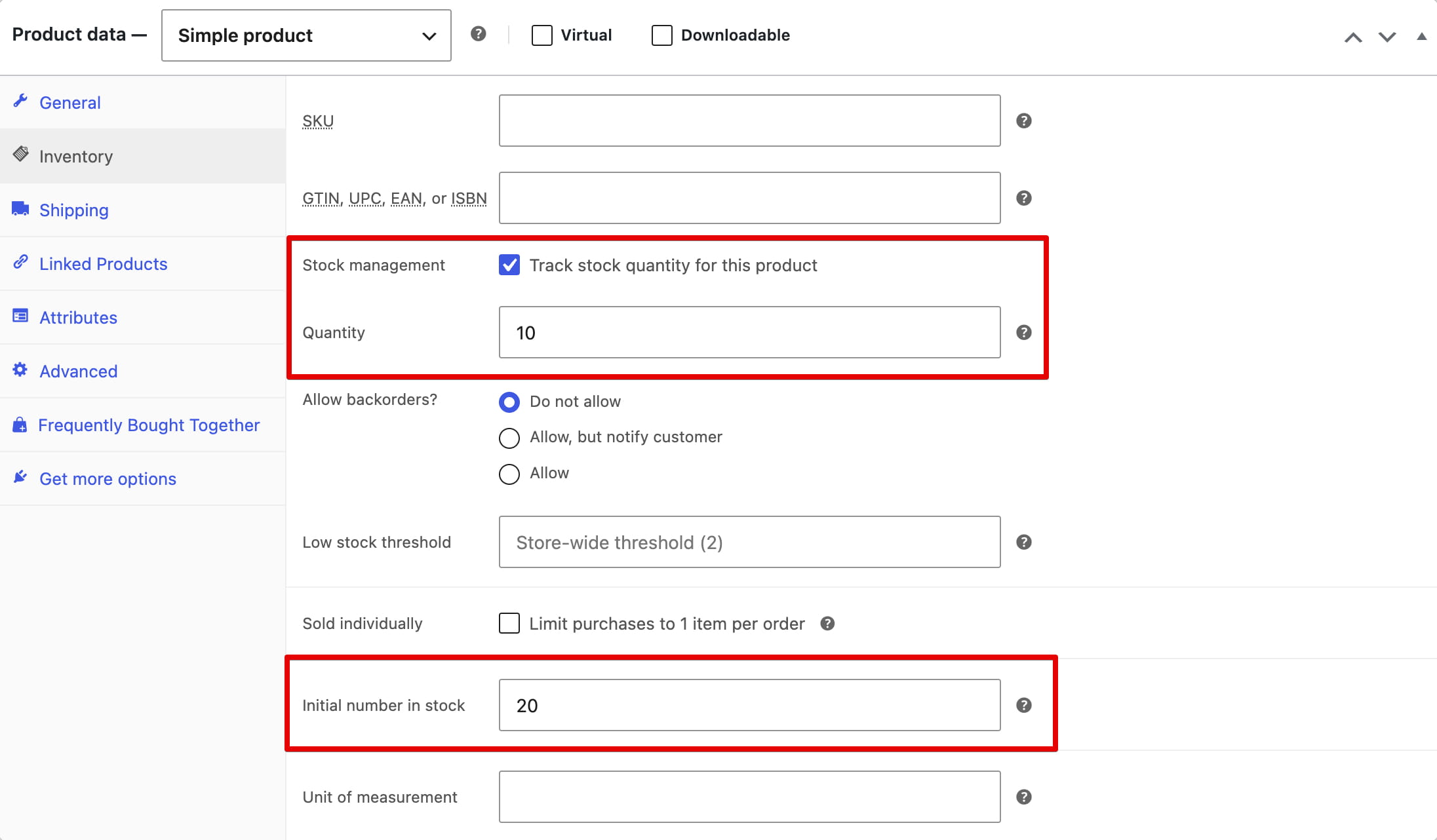
- Navigate to WooCommerce -> Settings -> Products -> Inventory and make sure Manage stock is enabled.
- Navigate to Dashboard -> Products and edit the required product.
- Open Product data -> Inventory.
- Enable Stock management and enter the current inventory in Quantity.
- Enter the reference total in Initial number in stock. WoodMart uses this value to calculate the ordered quantity and progress percentage.
- Update the product.
How the progress is calculated
Ordered is the difference between Initial number in stock and the current Quantity. The filled percentage is the ordered quantity divided by the initial quantity.
For example, if the initial quantity is 20 and the current quantity is 17, the bar displays Ordered: 3, Items available: 17, and 15% progress.
Display the bar on single product pages
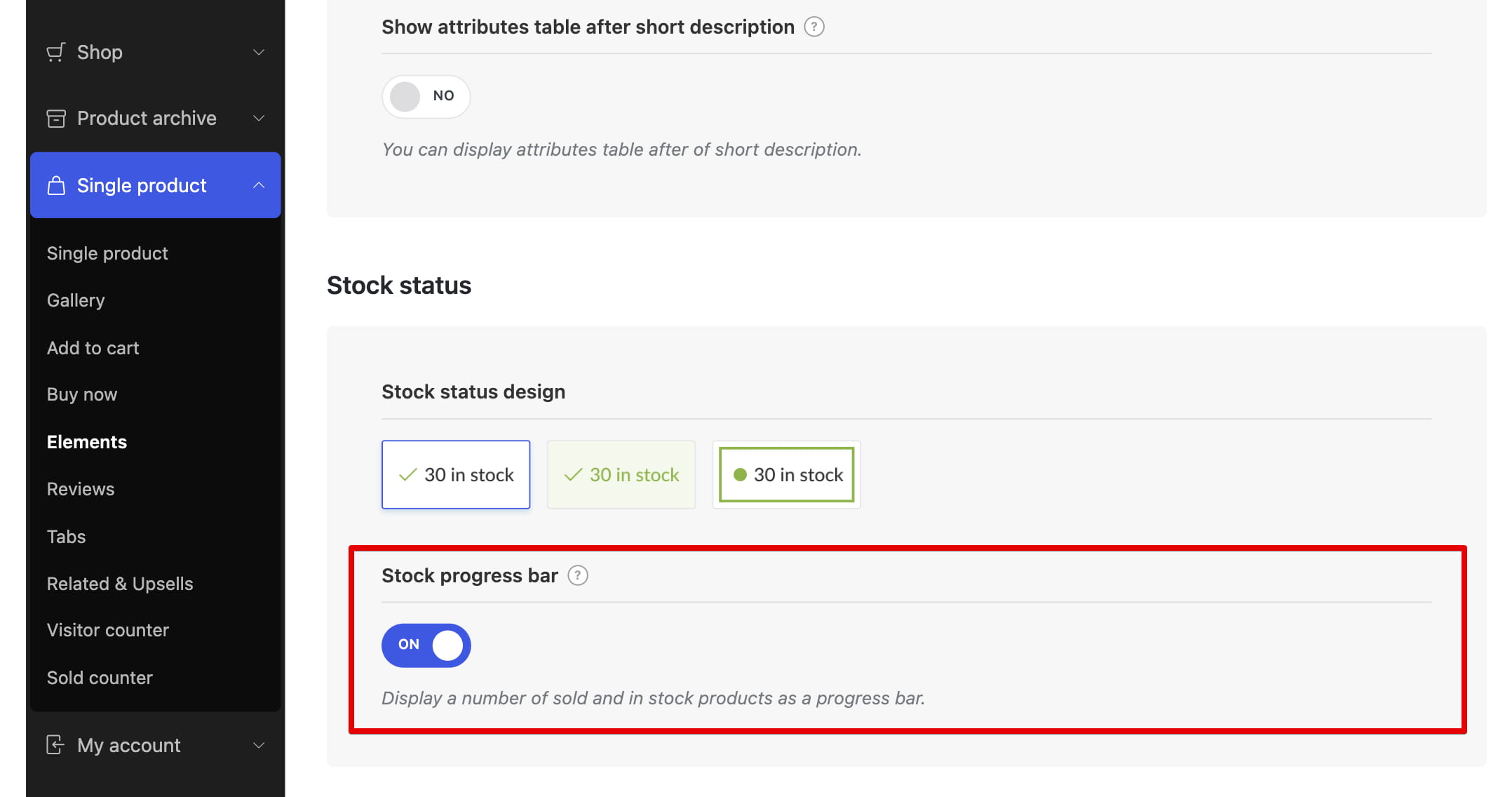
For the standard single product layout, navigate to Theme Settings -> Single product -> Elements and enable Stock progress bar.
If you use a custom single product layout, add the Product stock progress bar element or block to the required position in the layout.
Display the bar in product grids
To display the bar in standard product archives, navigate to Theme Settings -> Product archive -> Products loop and enable Stock progress bar.
For a Products (grid or carousel) element or block, enable Stock progress bar in its Elements settings. In a custom product loop layout, add the Product stock progress bar block to the layout.
Variable products and restocking
For variable products, configure stock management at the parent product level. Stock quantities managed only for individual variations are not combined by the WoodMart progress bar.
After restocking a product, review Initial number in stock and update it when necessary so the calculation uses the intended reference total. The bar is not displayed when the initial value is empty or the current quantity is zero.
Don’t miss WoodMart updates
Receive feature updates, tutorials, and WoodMart news via email.
 Last updated: August 11, 2026