
Size guides
Size guides let you display measurement tables and additional fitting information in a popup on product pages. You can assign a guide to one or more product categories or select it directly for an individual product.
Enable size guides
Navigate to Dashboard -> Theme Settings -> Shop, enable Enable size guides, and save the Theme Settings. The Size Guides menu will then be available under Products.
Create a size guide
- Navigate to Dashboard -> Products -> Size Guides and click Add New.
- Enter a title for the guide.
- Add an optional description, instructions, images, or other content in the editor. This content appears above the table in the size guide popup.
- Edit the column headings and table values in the Create/modify size guide table panel.
- Use Choose product categories if the guide should apply automatically to products in selected categories.
- Publish the size guide.
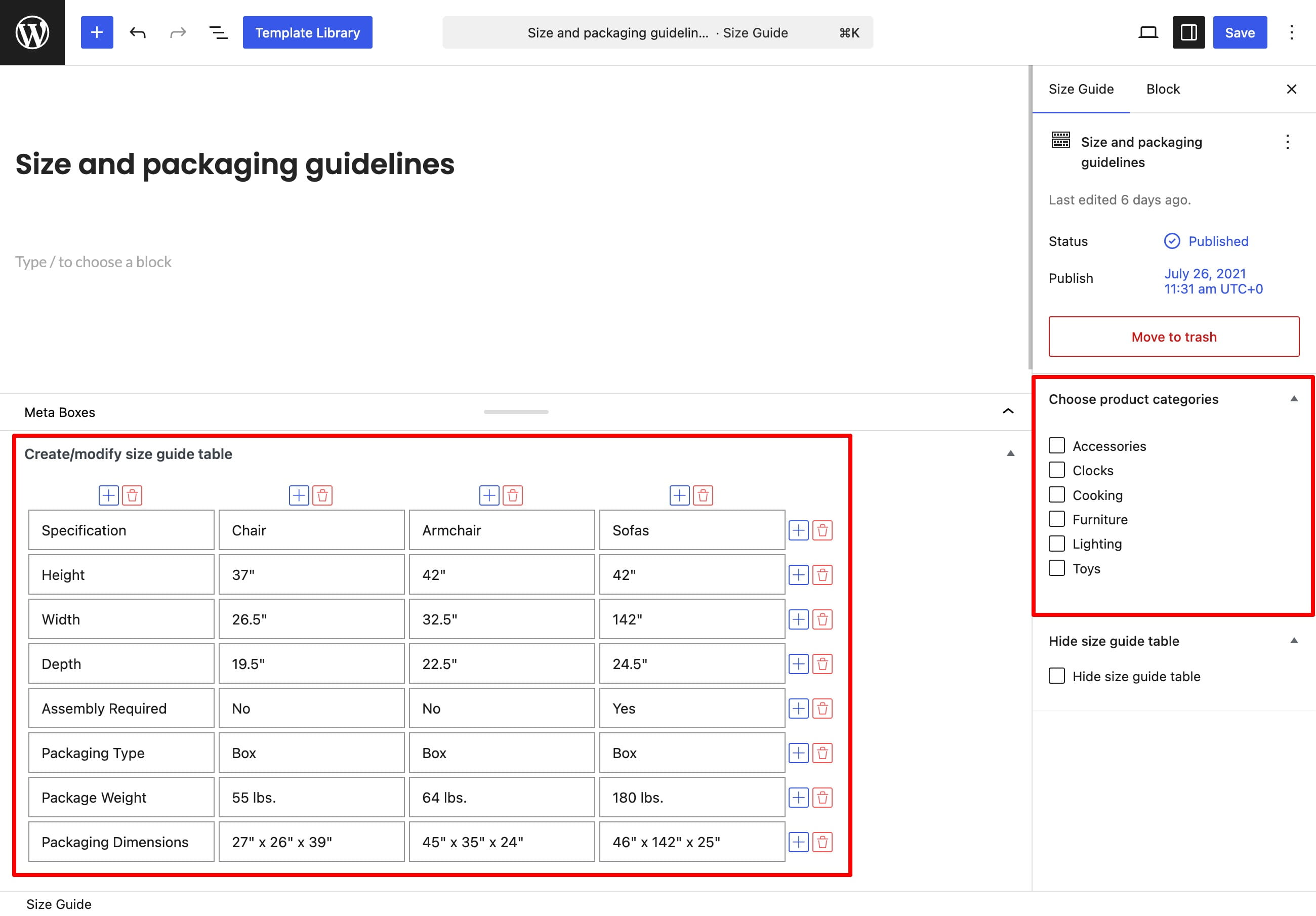
Enable Hide size guide table when the popup should display only the content added in the editor. This setting hides the table but keeps the size guide title and content.
Assign a size guide to products
A size guide assigned to a product category is inherited automatically by products in that category. To use a different guide for a specific product, edit the product and select it in the Choose size guide panel. A guide selected directly on the product takes priority over a category assignment.
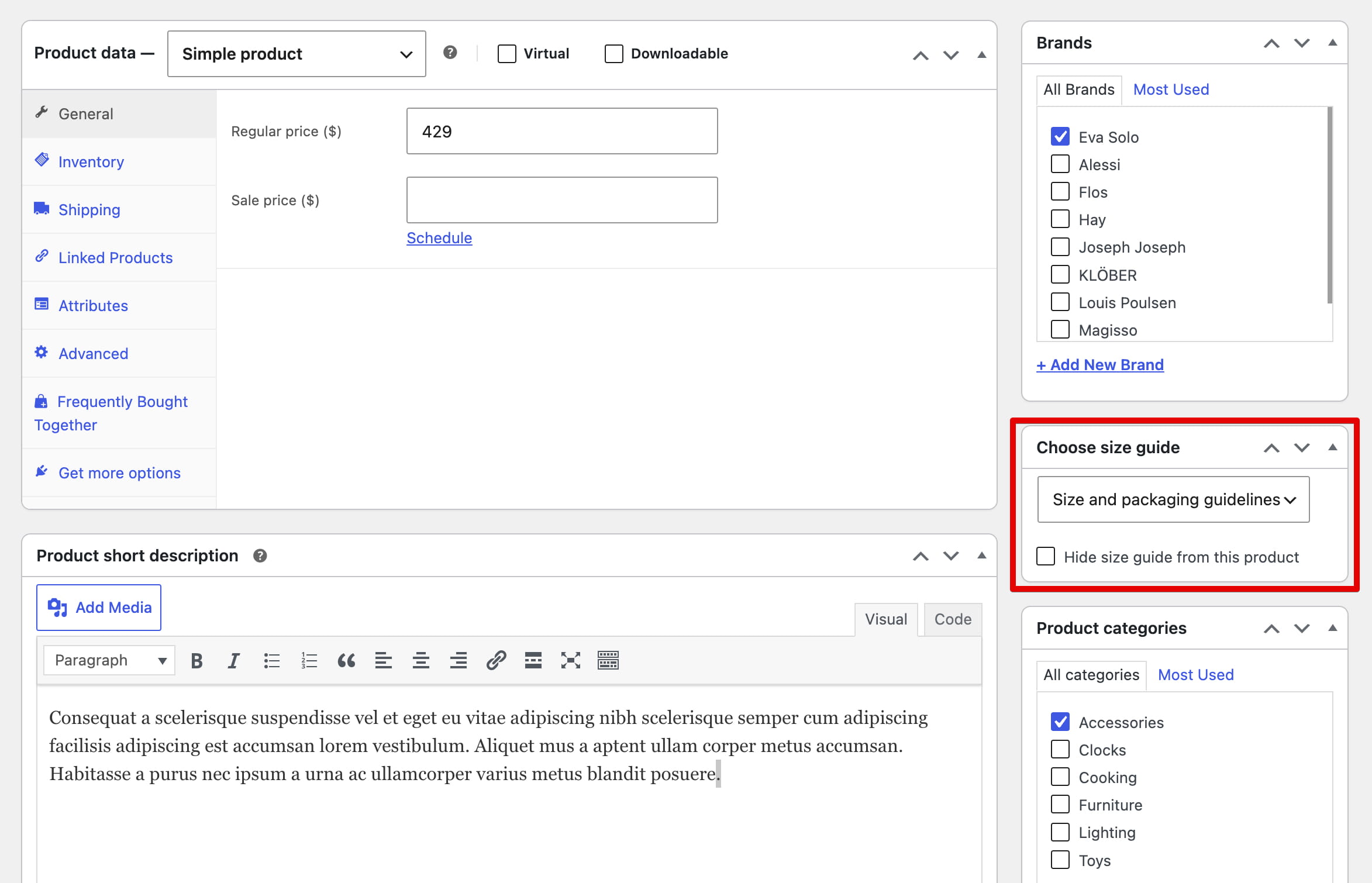
Leaving the dropdown set to — None — means that no guide is selected directly for the product. WoodMart can still display a guide inherited from one of its categories.
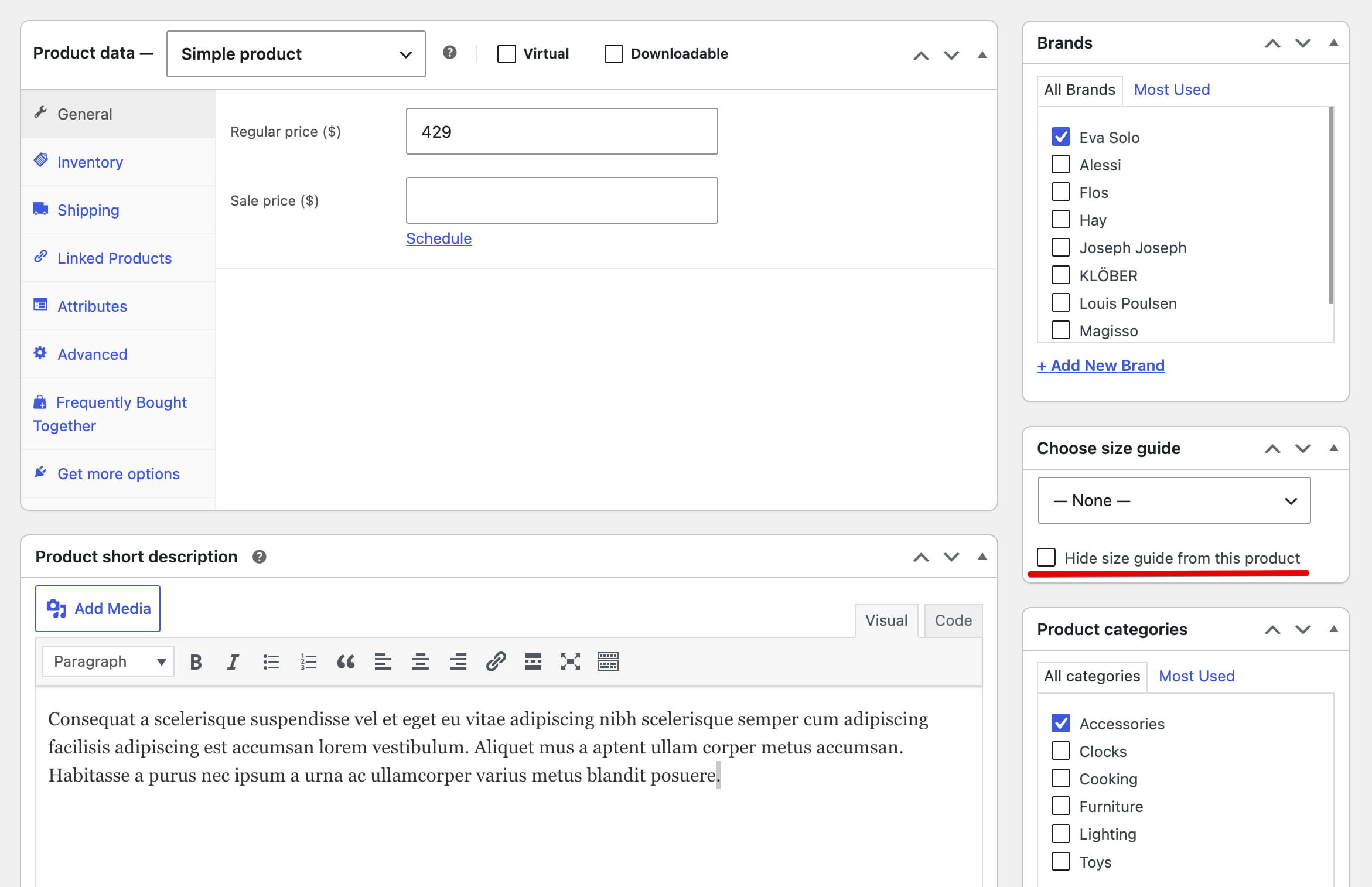
To suppress the size guide completely for a particular product, enable Hide size guide from this product. This also hides a guide inherited from a product category.
Display a size guide
On the standard WooCommerce product page, WoodMart displays the size guide popup button automatically when a guide is assigned to the product.
If you use a custom single product layout, add the Size guide button block, widget, or element to the layout. It is available for Gutenberg, Elementor, and WPBakery layouts.
You can also display a complete size guide table directly in page content instead of opening it from a popup. Add the corresponding element and select the required guide:
- Gutenberg: Size guide content block.
- Elementor: Size guide content widget.
- WPBakery: Size guide element.
The Gutenberg block also provides an Inherit current product option for displaying the guide assigned to the current product or its category.
Don’t miss WoodMart updates
Receive feature updates, tutorials, and WoodMart news via email.
 Last updated: August 17, 2026