
Product loop item builder
Product loop item layouts define the structure and appearance of product cards used in grids, carousels, and product archives. You can arrange product information freely and create coordinated hover effects without editing templates.
Product loop item layouts are always created with Gutenberg, even when Elementor or WPBakery is selected as the website’s current builder.
Create a product loop item layout
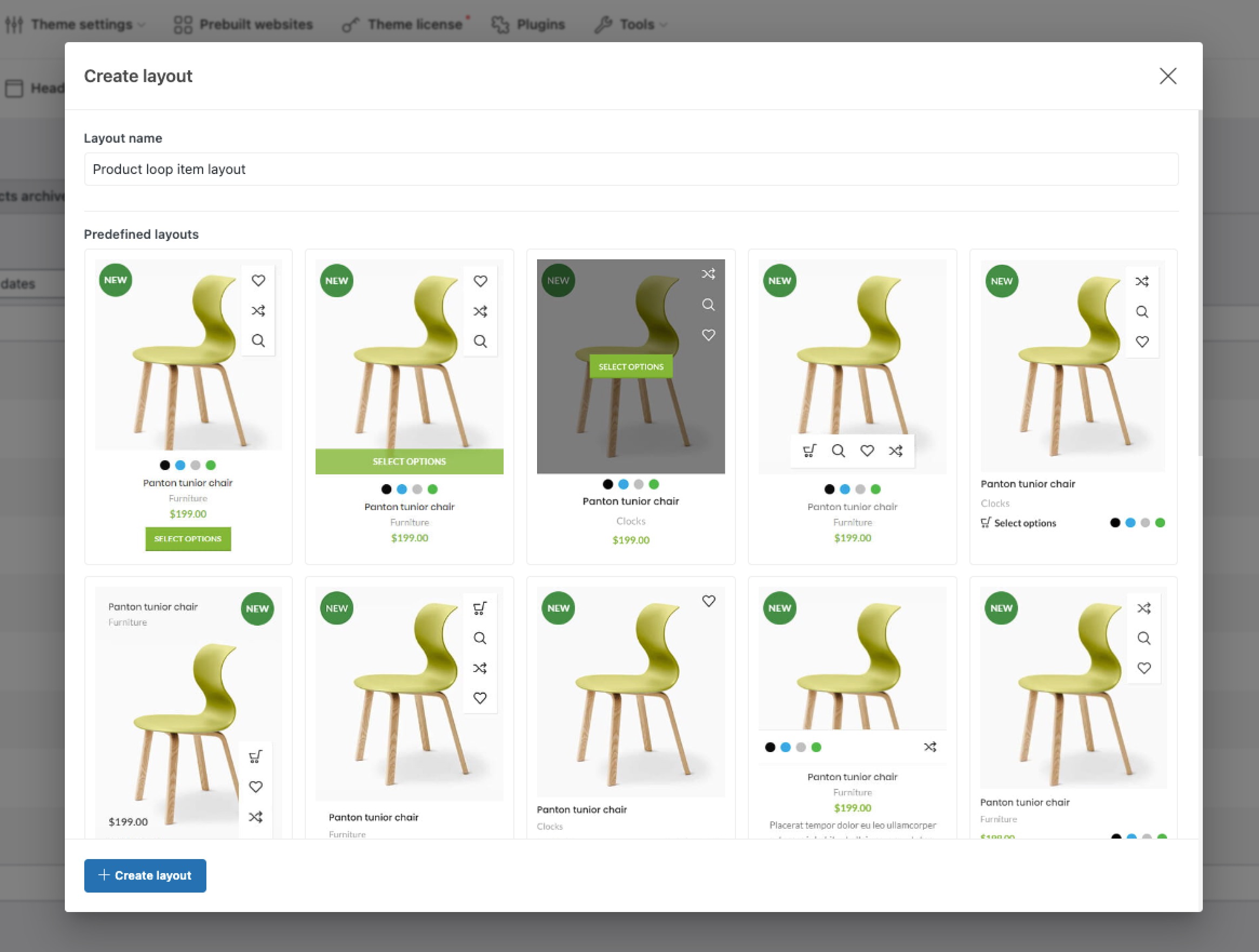
1. Navigate to Dashboard -> Layouts -> Loop item and click the add button.
2. Enter the layout name.
3. Optionally select one of the predefined product-card designs.
4. Click Create layout and build the card with Product loop item blocks.
5. Publish the layout.
Apply the layout
Publishing a Product loop item layout does not apply it automatically. Choose where the layout should be used in one of the following ways:
- Global product grid: navigate to Dashboard -> Theme Settings -> Product archive -> Products loop, set Product layout type for grid to Custom, and select the layout under Custom product layout for grid.
- Product list: select it under Custom product layout for list in the same Theme Settings section.
- Individual element: select a custom product layout in the settings of a Products or Archive products element when that element should use a different card design.
Product loop item blocks
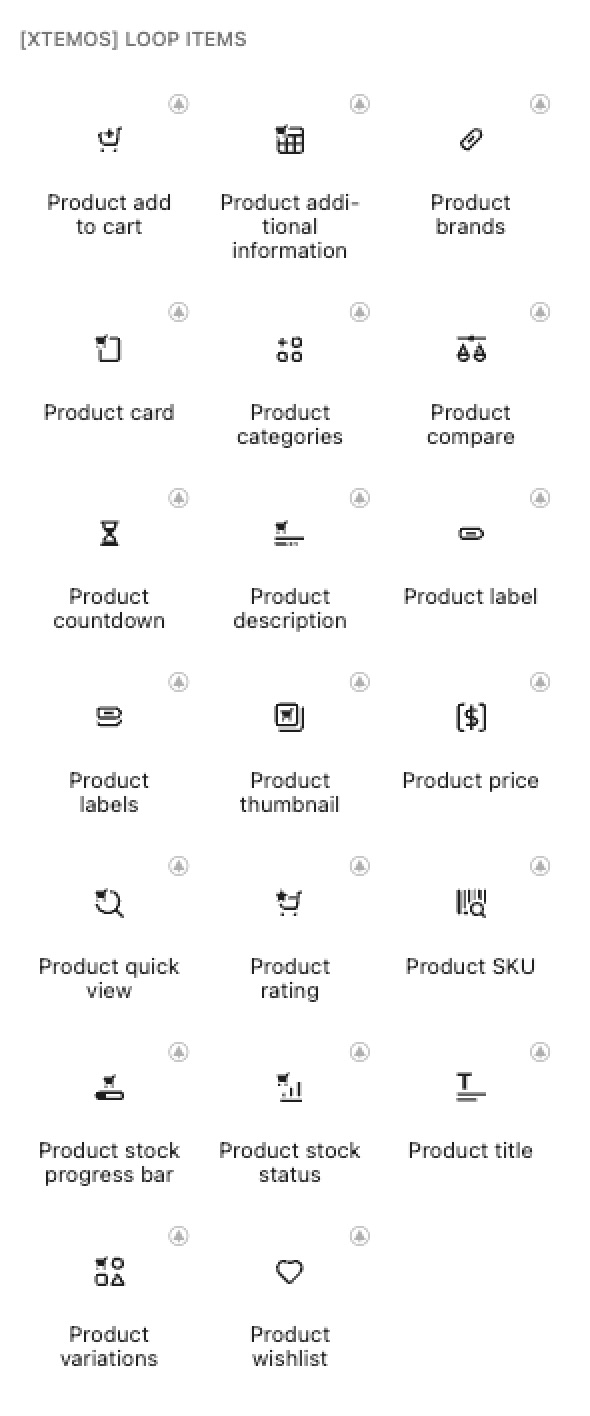
Each block displays data from the product represented by the card. Combine them with containers and regular Gutenberg blocks to create the required structure.
- Product add to cart — displays the appropriate Add to cart action for the product.
- Product additional information — displays selected product attributes, weight, and dimensions.
- Product brands — displays the brands assigned to the product.
- Product card — adds a structured wrapper with separate static and hover containers for advanced product-card designs.
- Product categories — displays the categories assigned to the product.
- Product compare — adds the product to the comparison table.
- Product countdown — counts down to the scheduled end of the product sale.
- Product description — displays the product short description.
- Product label — displays one selected label, such as Sale, New, Featured, or a custom label.
- Product labels — displays all labels applicable to the product.
- Product thumbnail — displays the product image and the configured thumbnail gallery behavior.
- Product price — displays the regular, sale, or variable price.
- Product quick view — opens the product preview without leaving the current page.
- Product rating — displays the average star rating and review count.
- Product SKU — displays the product stock keeping unit.
- Product stock progress bar — visualizes the remaining stock according to the feature settings.
- Product stock status — displays whether the product is in stock, out of stock, or on backorder.
- Product title — displays the product name and links it to the product page.
- Product variations — displays selectable product options such as colors or sizes directly in the card.
- Product wishlist — adds the product to the customer’s wishlist.
Open the loop item settings
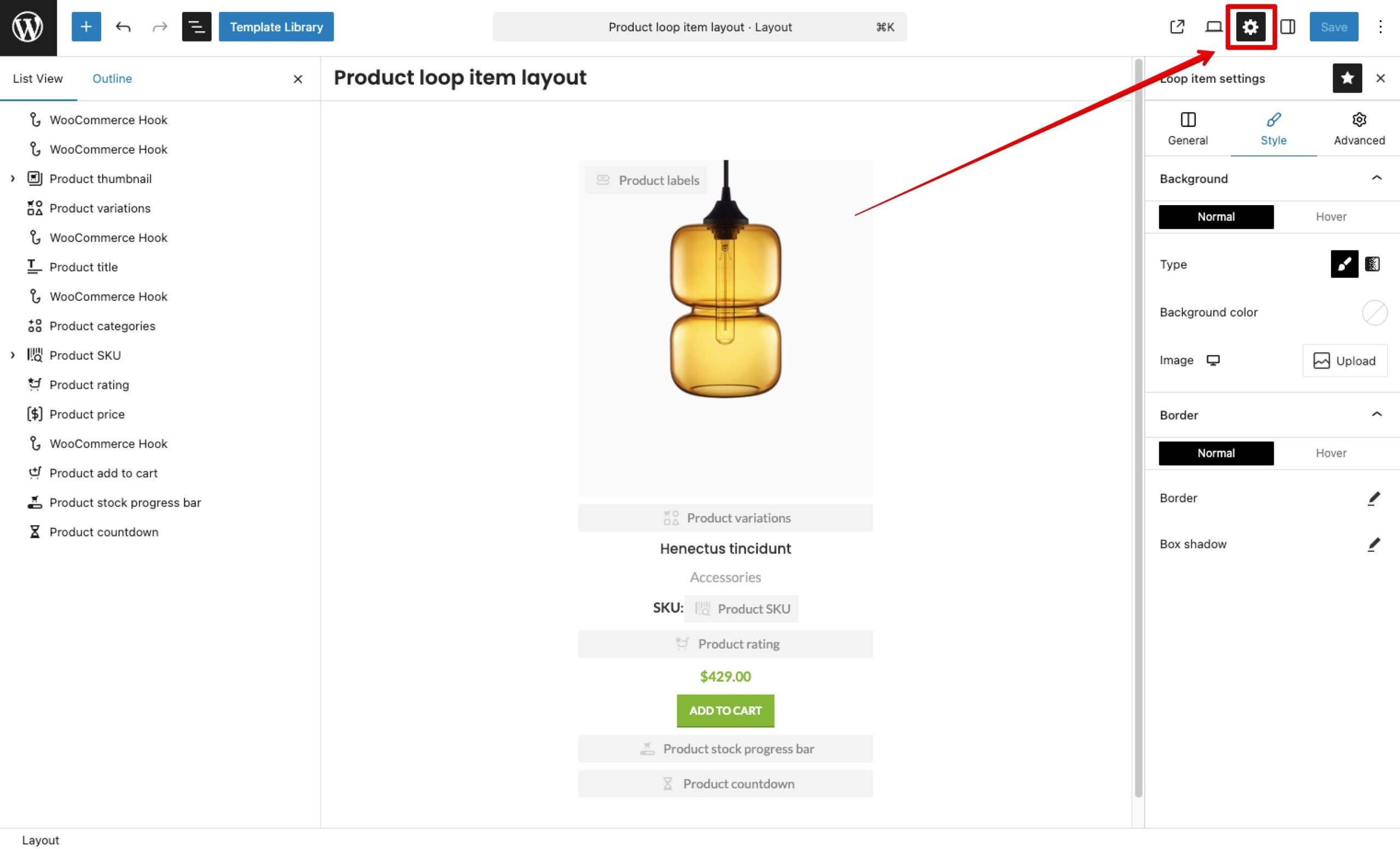
Click the settings icon near the upper-right side of the editor to open the Product loop item settings sidebar. If the icon is hidden, open the three-dot editor menu, select Loop item settings, and enable its star icon so that it appears in the top toolbar.
Product loop item settings
These settings control the root wrapper shared by the blocks inside the product card.
- Blocks gap — sets the spacing between blocks placed directly inside the root product wrapper.
- Even product grid — stretches product wrappers in the same grid row to equal height. It does not automatically redistribute or vertically align the blocks inside them.
- Bordered grid — removes the gaps between products and separates the items with continuous grid borders.
- Editor preview product — selects the product whose data is shown while the layout is edited.
- Editor preview width — changes the editor preview width so that the card can be checked at different sizes without changing its storefront width.
- Background — sets a color, gradient, or image for the main product wrapper.
- Border — controls the width, style, color, and radius of the wrapper border.
- Box shadow — adds depth or separation around the product wrapper.
- Padding — controls the space between the wrapper edges and its inner blocks.
- Transform — moves, scales, or rotates the wrapper, including for hover effects.
- Overflow — controls whether content extending beyond the wrapper is visible, clipped, or scrollable.
Theme Settings and custom product cards
Options for predefined product styles do not automatically control the individual blocks in a custom Product loop item layout. Every part of the card has its own settings in Gutenberg.
For example, enabling the product image gallery in Theme Settings affects predefined product styles. In a custom loop layout, select the Product thumbnail block and enable its gallery option there. Apply the same approach to the title, price, Add to cart action, labels, and other product-card components.
Create coordinated hover effects
Use the Parent hover state when a child block should react when the visitor hovers anywhere over the product wrapper instead of only over that individual block.
- Dynamic styling: change text color, background, border, or shadow for one or more child blocks.
- Animations: combine opacity and transform controls to create fade, slide, scale, or reveal effects.
- Coordinated movement: configure several blocks with Parent hover so that they respond to the same product-card hover state.
See Configure parent hover effects for the complete workflow.
Align content with Even product grid
Even product grid makes the root product wrappers in each row the same height. This prevents cards with short titles or descriptions from being shorter than neighboring cards. However, the option changes only the wrapper height: the inner blocks remain at the top until their margins or flex behavior are configured.
Use an automatic margin
This is the simplest way to keep an action such as Add to cart aligned near the bottom of every card.
1. Select the block that should mark the start of the bottom-aligned content.
2. Open its Margin settings and switch the required margin value to a custom value.
3. Set margin-top: auto to consume the free space above that block. The selected block and everything after it are pushed to the bottom.
Alternatively, set margin-bottom: auto on a block that should remain near the top. The free space is added below it, pushing the following blocks toward the bottom.
Use flex controls
The main product wrapper behaves as a vertical flex container. Set Flex grow to 1 on a suitable inner block when that block should occupy the available vertical space. For example, allowing the title area to grow keeps the content above it at the top and pushes the following price and action blocks downward.
Use Flex shrink when you need to control whether the selected block may become smaller when the card has limited space. This method is more flexible for complex cards with several groups of content, while automatic margins are usually clearer for a simple top-and-bottom arrangement.
Video tutorial
 Last updated: August 11, 2026